
Write and Format Text
Click an empty line and start typing. Press Enter for a new paragraph, or Shift+Enter for a new line in the same one. Select words to open the formatting toolbar. It offers bold, italic, links, highlighting, inline code, and Inline Math for an equation within a sentence.Select words to show the formatting toolbar.
Add a Block
1
Choose the Position
Click the line where the new content belongs, so its + and buttons appear.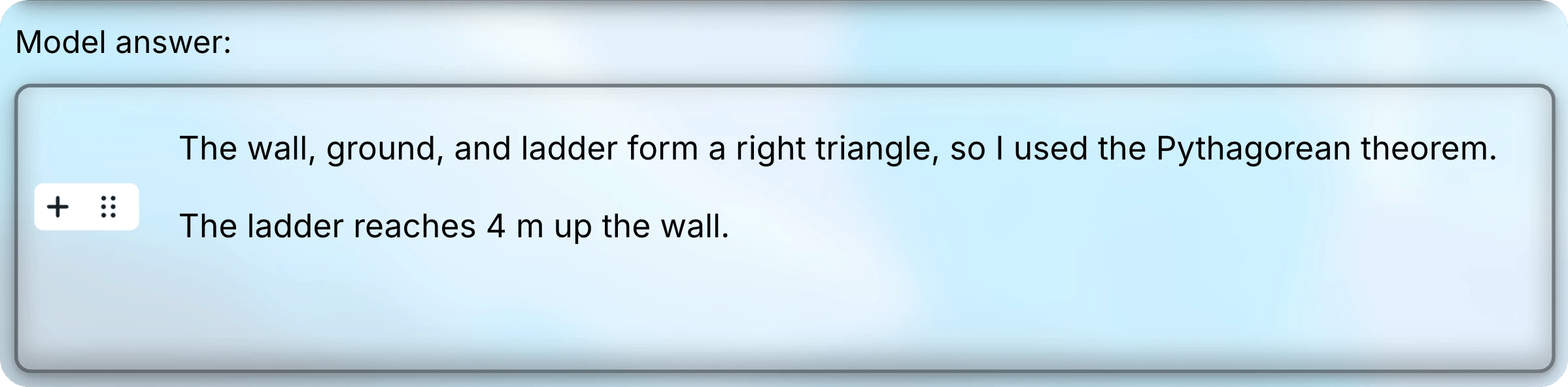
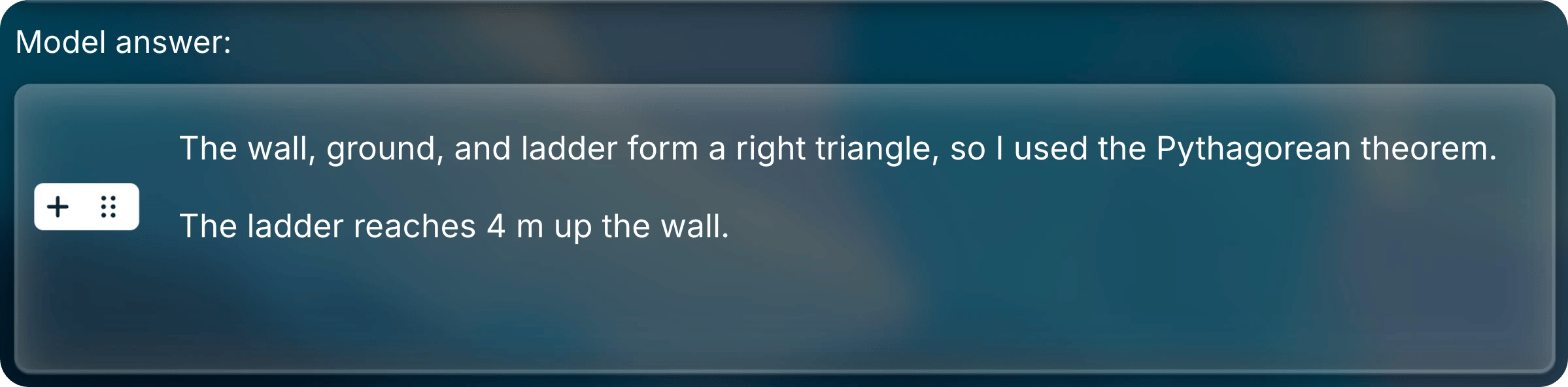
The + and six-dot buttons sit beside the current line.
2
Choose a Tool
Select +, then pick a tool from the menu. Type its name in Filter to find it faster. Add the block’s content, then click the empty line below it to keep writing.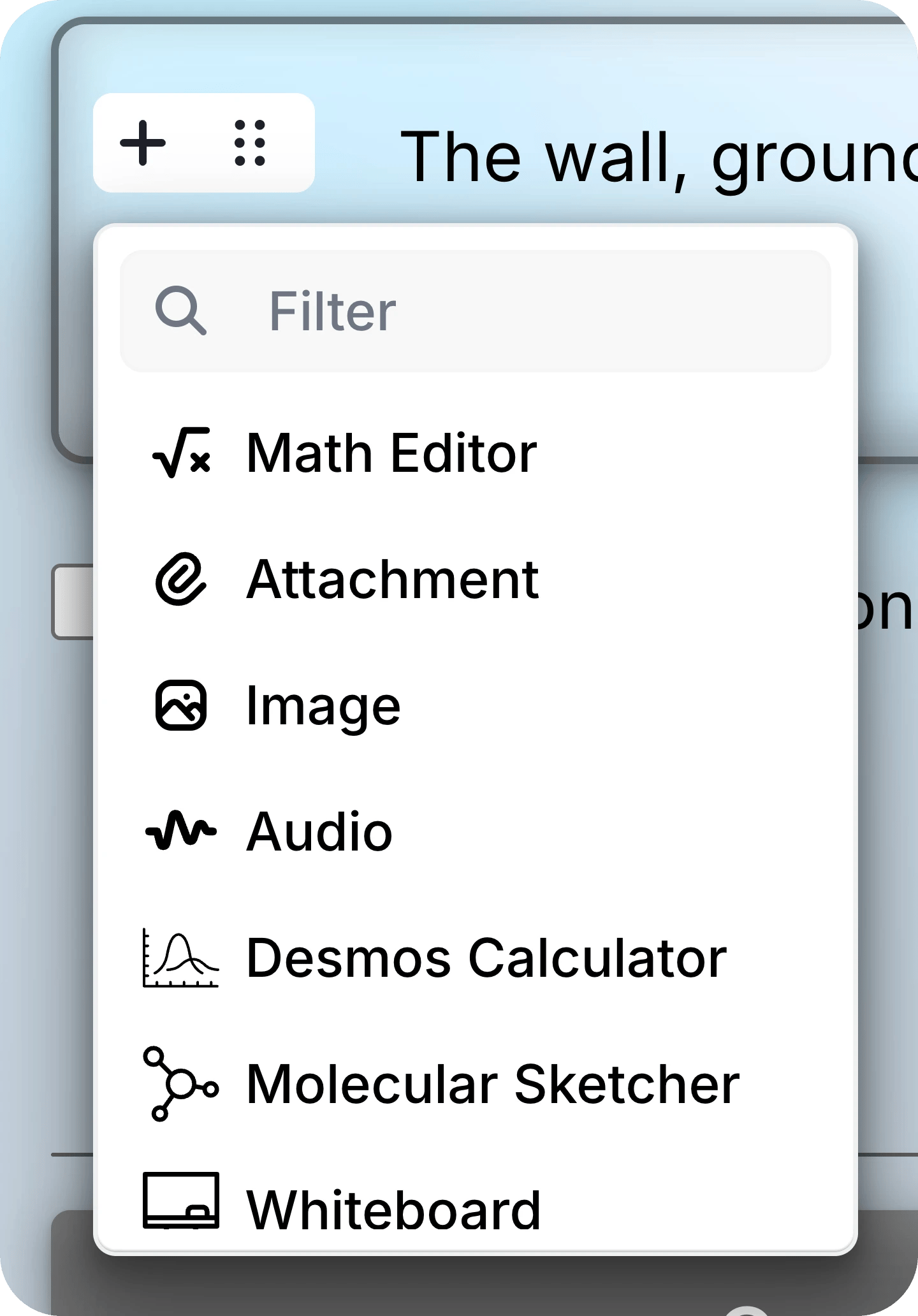
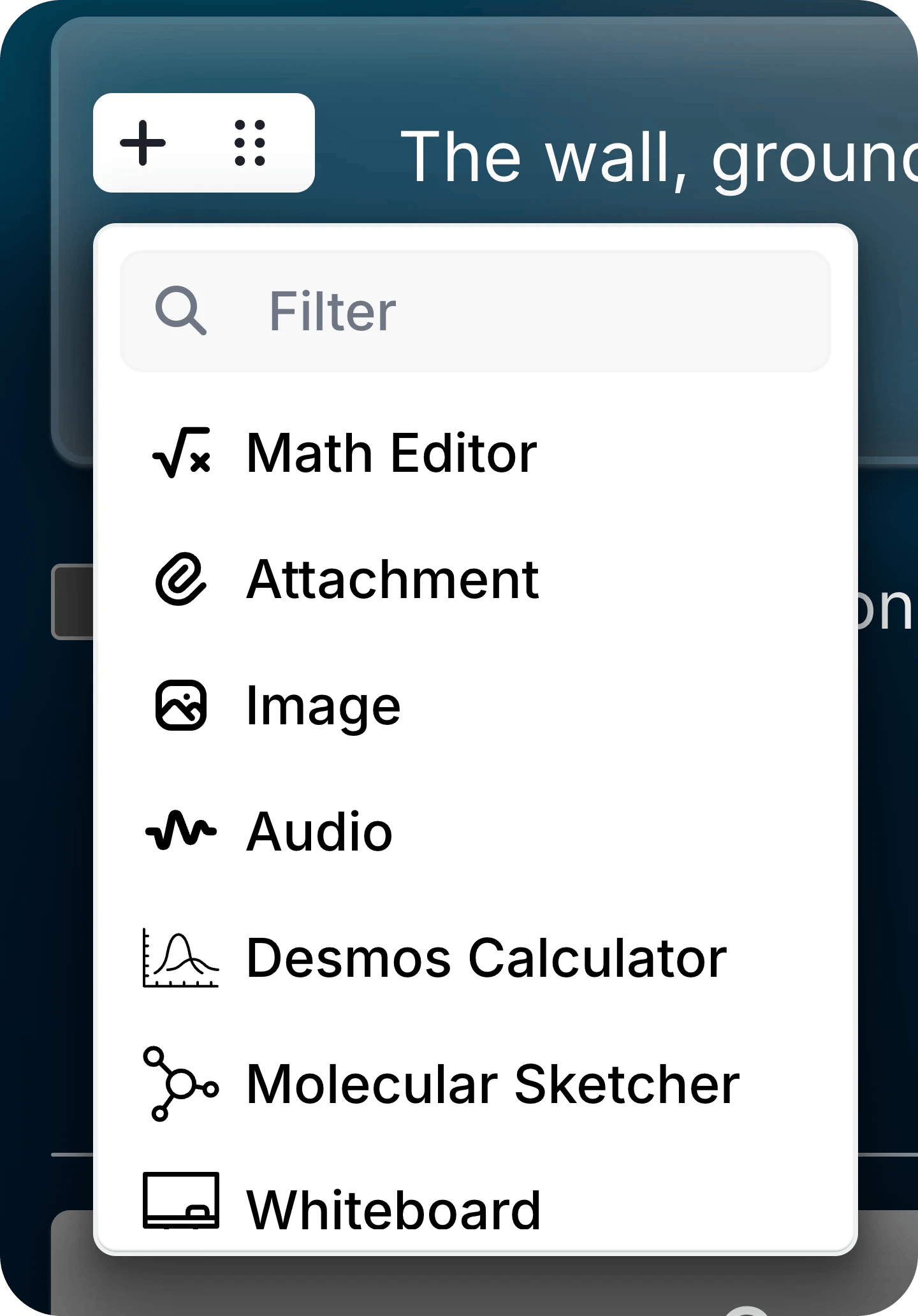
The + menu lists every tool the field allows.
3
Arrange the Block
Select beside a block to move it up or down, convert it, copy it, or delete it. Delete asks for a second click to confirm.
Move a block up, then delete one, from its six-dot menu.
Tools in the + Menu
Some fields offer fewer tools. A Math Input answer takes only math, and a drawing template takes only a whiteboard.
In image blocks, students can also upload photos from their phone with a QR code.
What the Grader Reads
The AI grader reads text, math, and tables, and sees images and whiteboard drawings as pictures. Graphs come with their equations, and molecules with their structure.Next: How AI Grading Works
See how the grader scores each criterion and rates its confidence.