
Your course may use other names for chapters and lessons.
Add a Lesson
1
Choose the Lesson Type
Open your course, select a chapter, then select a button at the top of Lessons: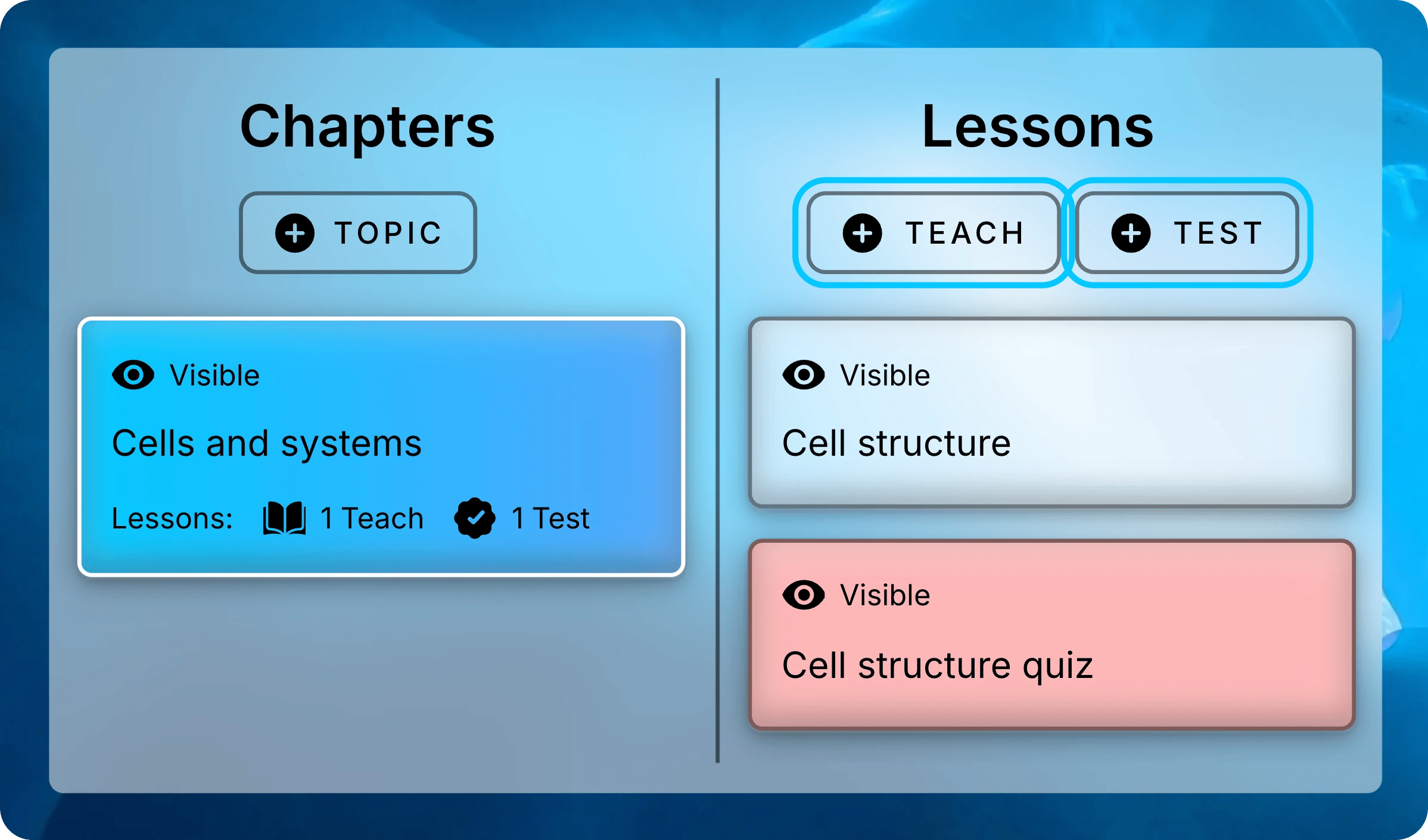
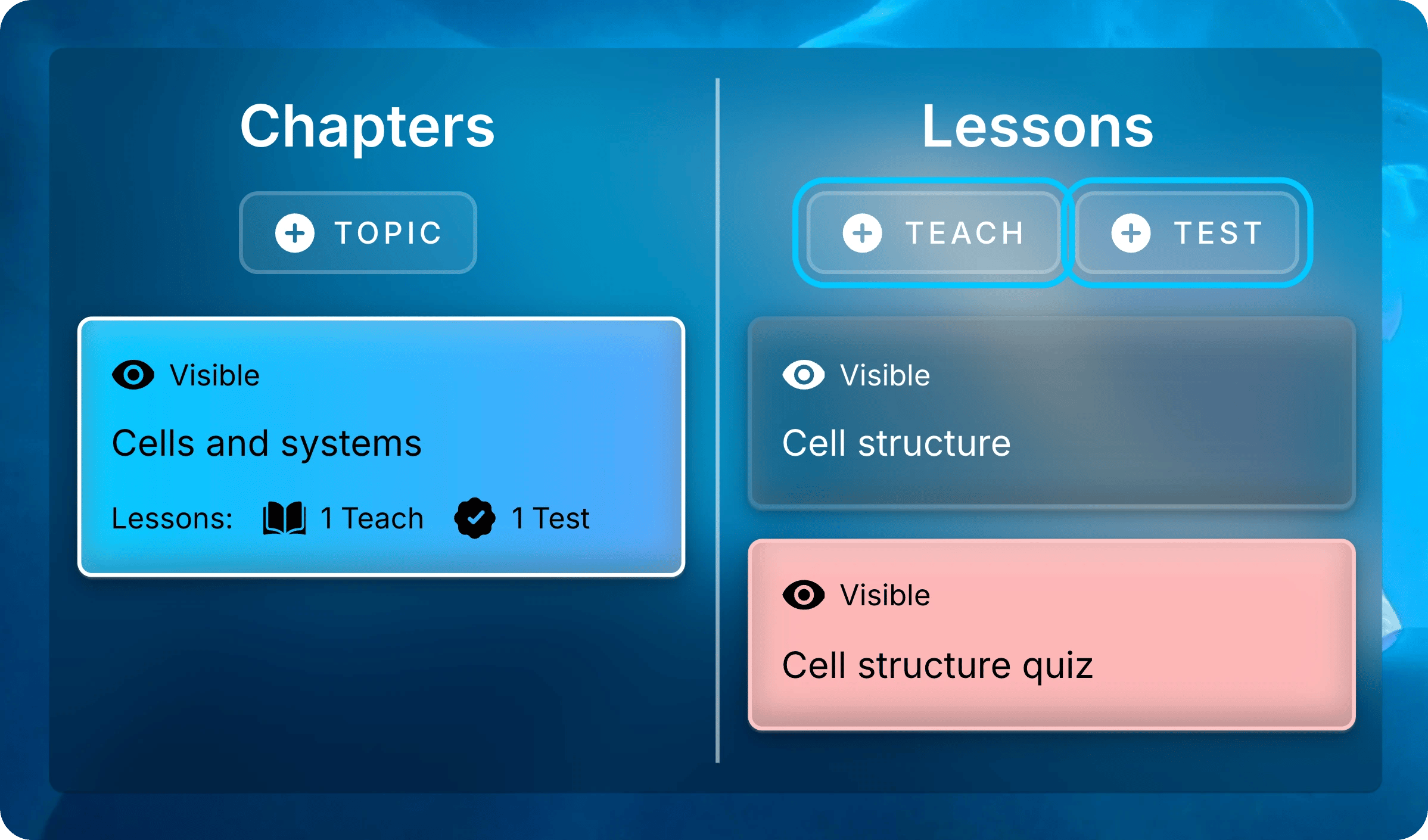
- Teach for course materials, such as lecture slides and recordings.
- Test for a practice assignment or a graded assessment.
Select a chapter, then choose Teach or Test to add a lesson to it.
2
Fill In the Form
- Teach
- Test
Enter the lesson’s title. A description is optional.
To hide it from students for now, uncheck Students can see this lesson in the course. Then select Submit.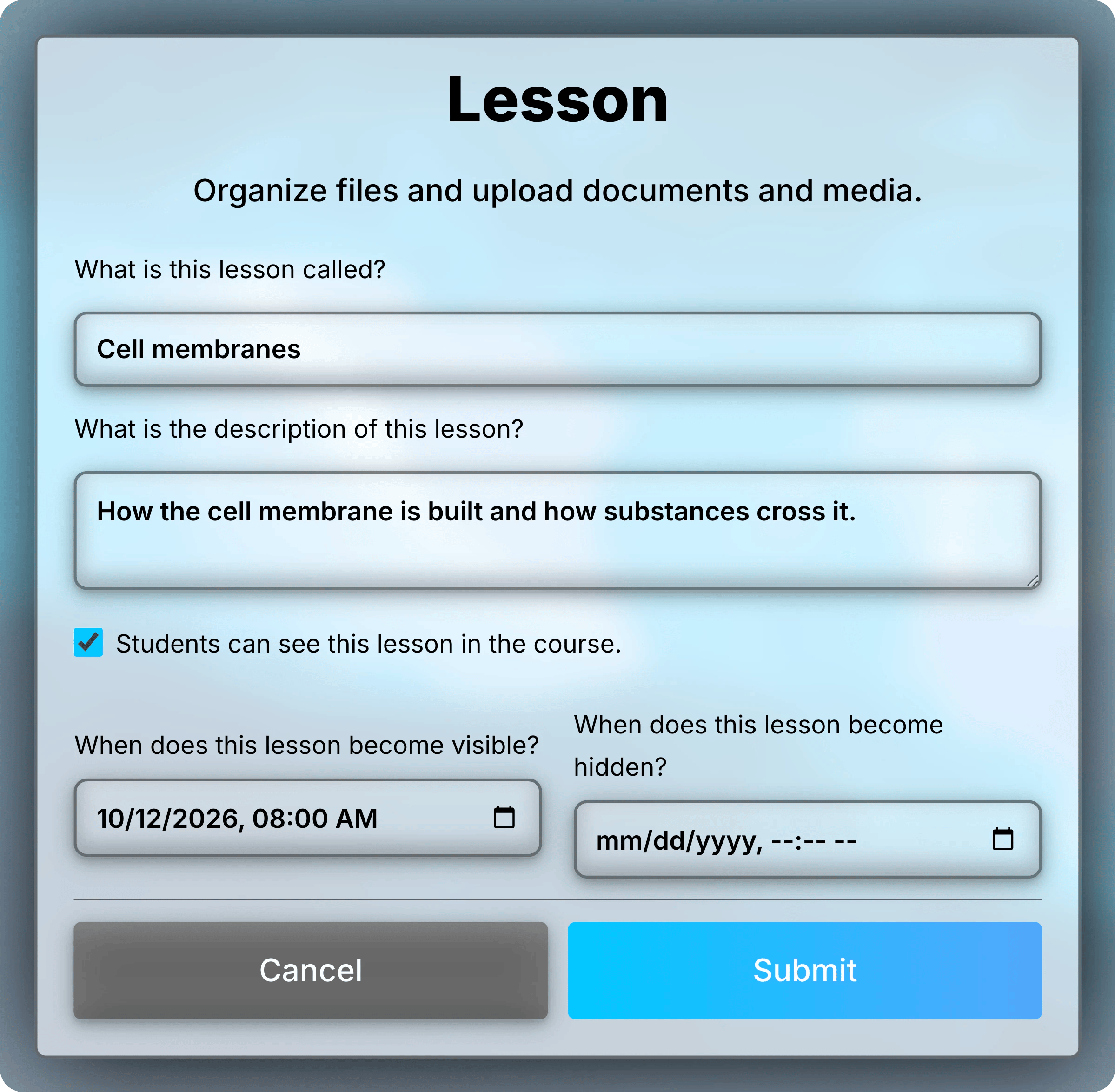
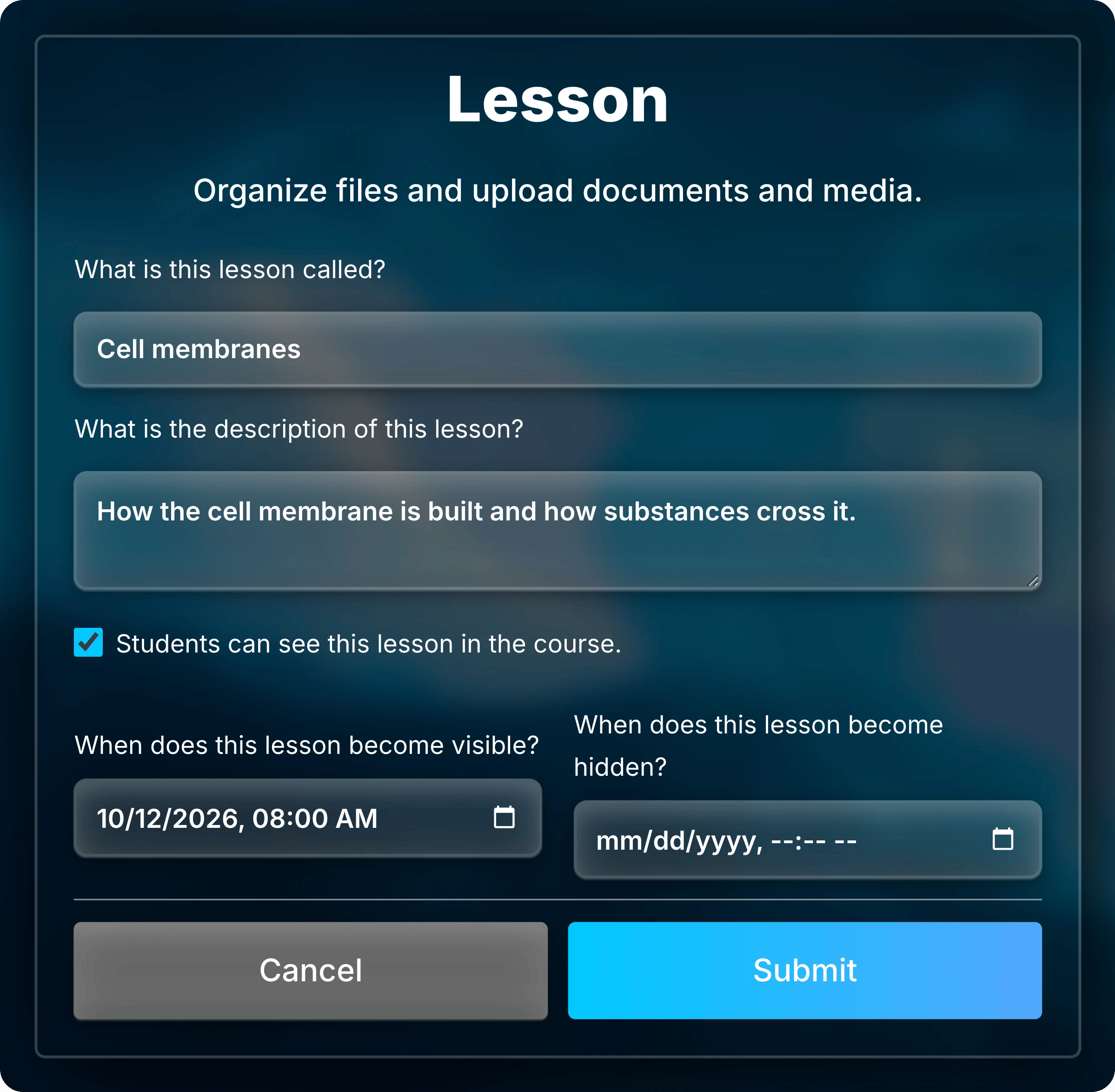
A lesson’s dates limit when students can open it.
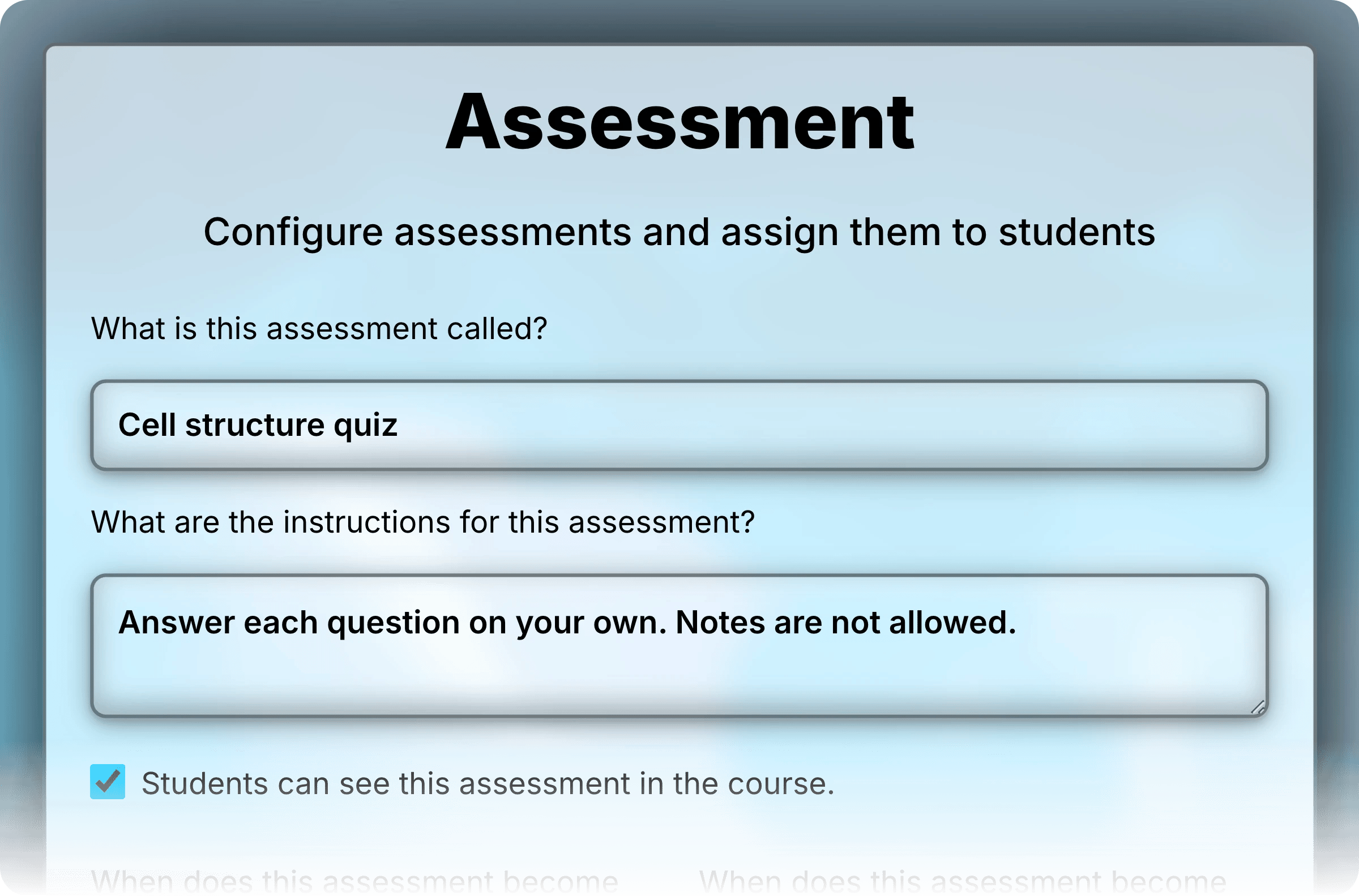
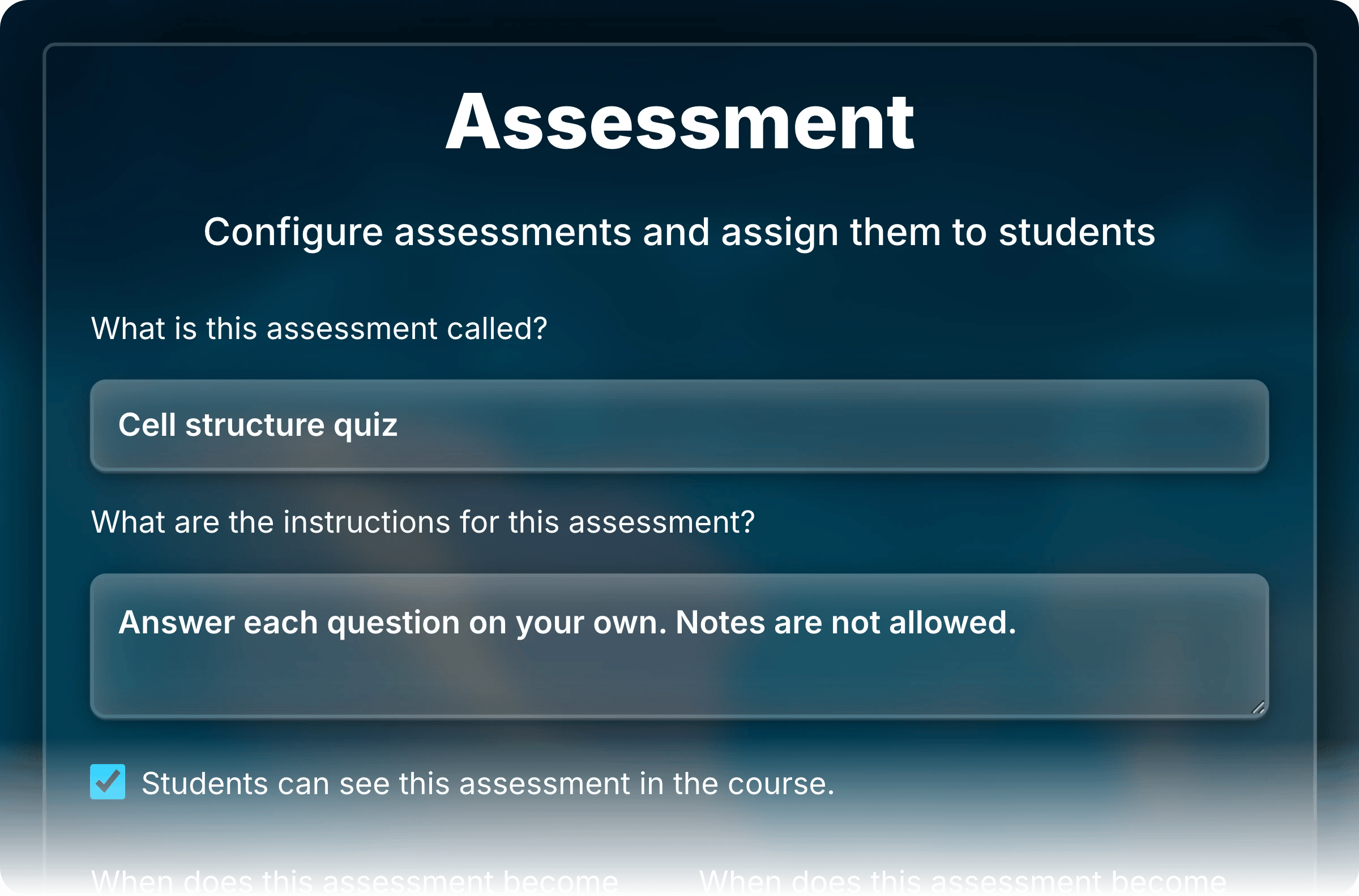
Control What Students See
Teachers always see every lesson. Two settings decide what students see:- Visibility hides a lesson from students completely.
- Availability controls when students can open it.
- Hide
- Schedule
Right-click the lesson and select Update. Uncheck the visibility box, then Submit.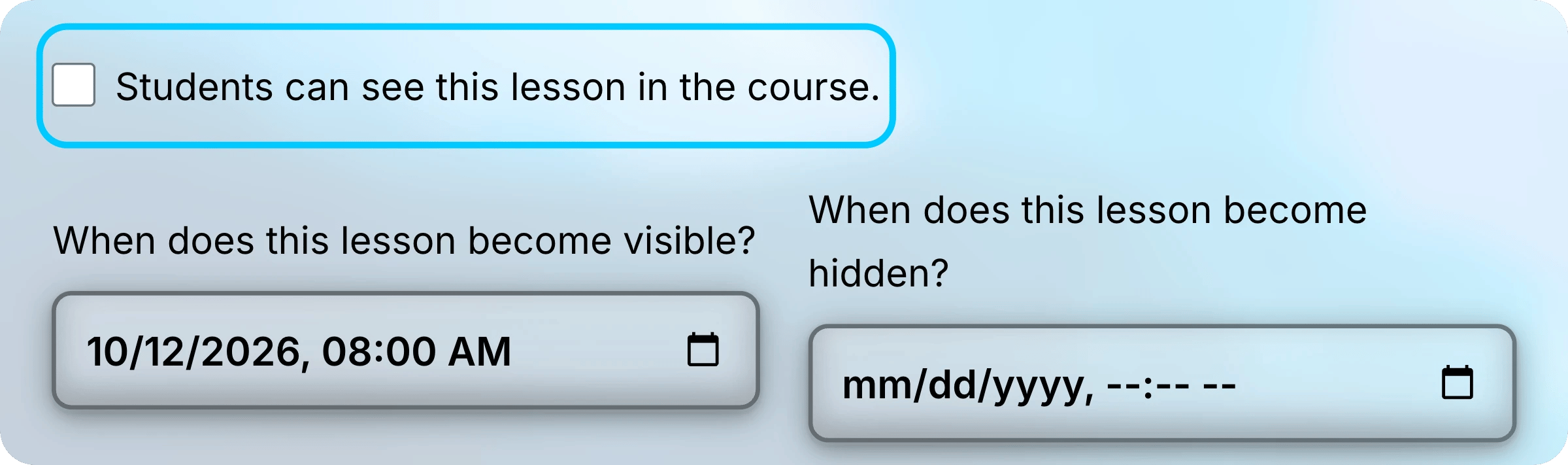
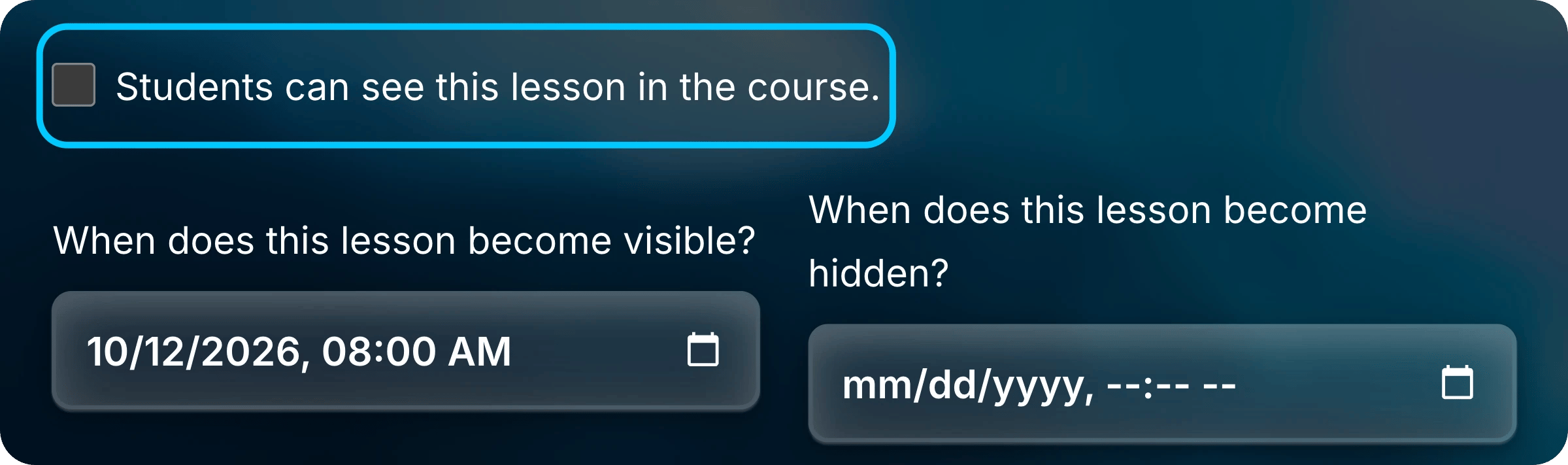
Uncheck the box to hide the lesson.
Check the box again to show it. A lesson in a hidden chapter stays hidden.A crossed-out eye means students can’t open the lesson right now.
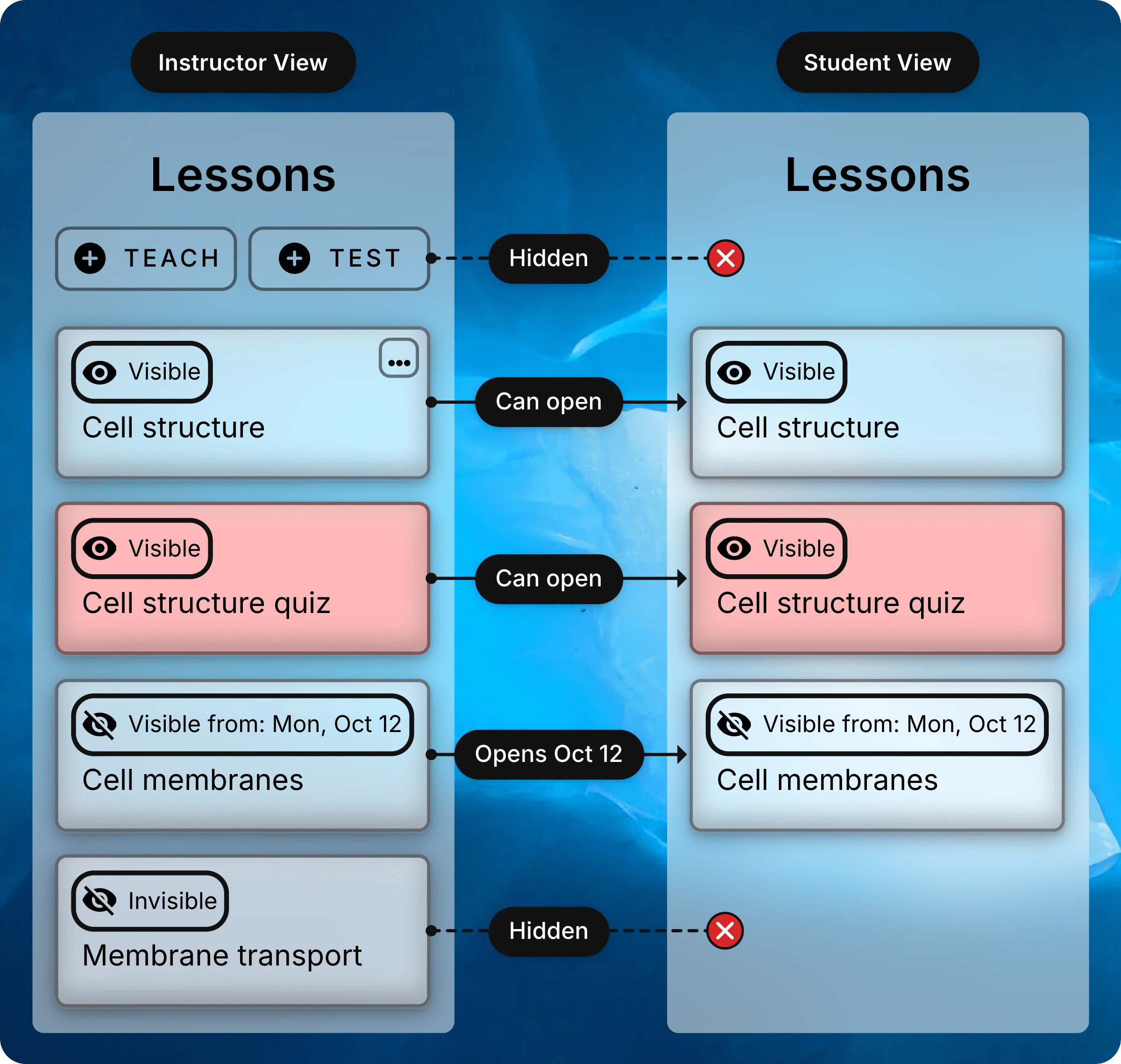
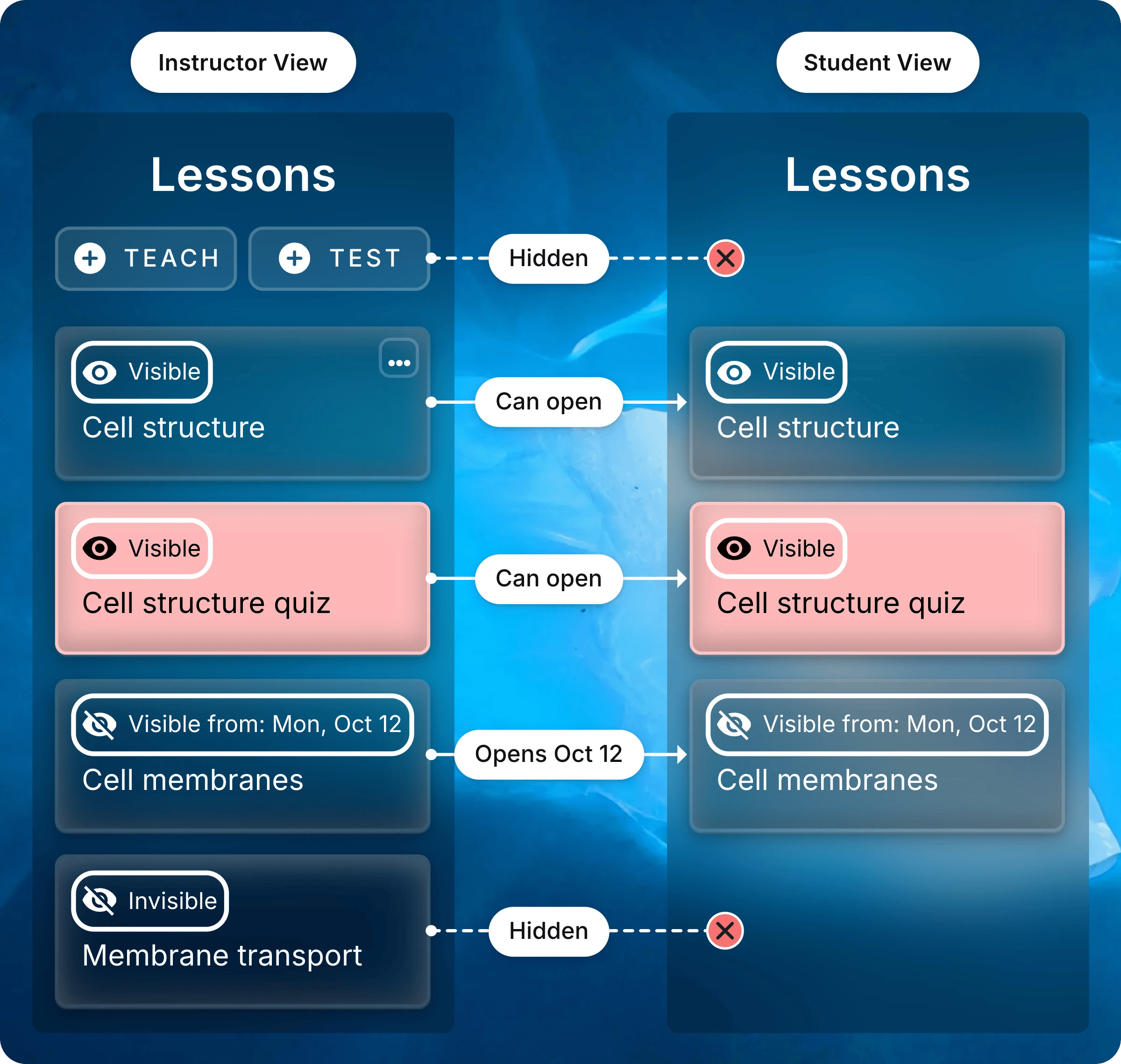
Each label, and what students get.
Reorder, Move, Duplicate, and Delete
Right-click a lesson to open its menu, or press and hold it on a touch screen.- Order
- Move
- Duplicate
- Delete
1
Select Order
Right-click any lesson in the chapter and select Order.
2
Drag Lessons Into Place
Drag each lesson to its new position.
3
Save the Order
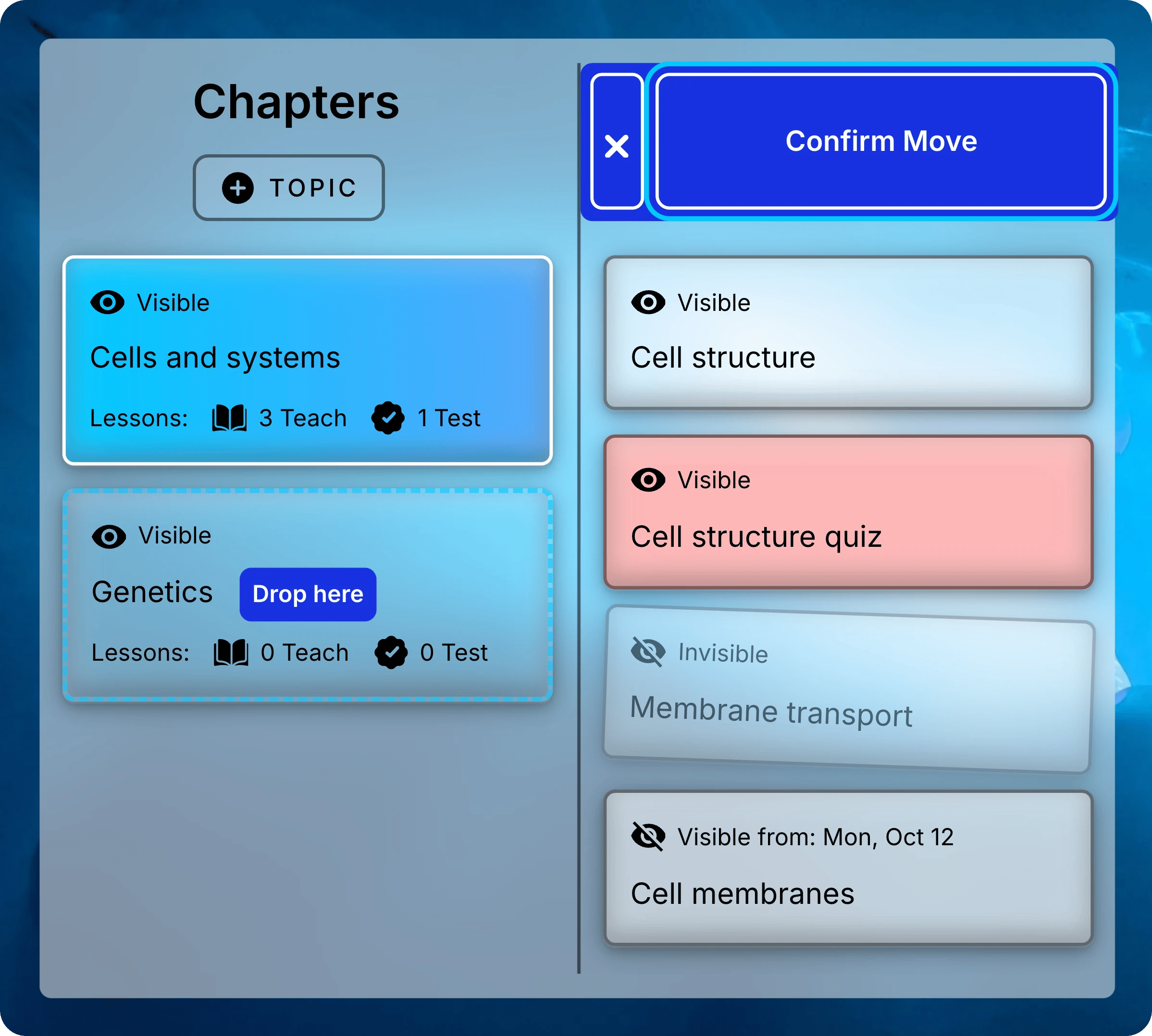
Select Confirm Order at the top of the list. Students see the new order.
To stop without saving, select the X beside Confirm Order.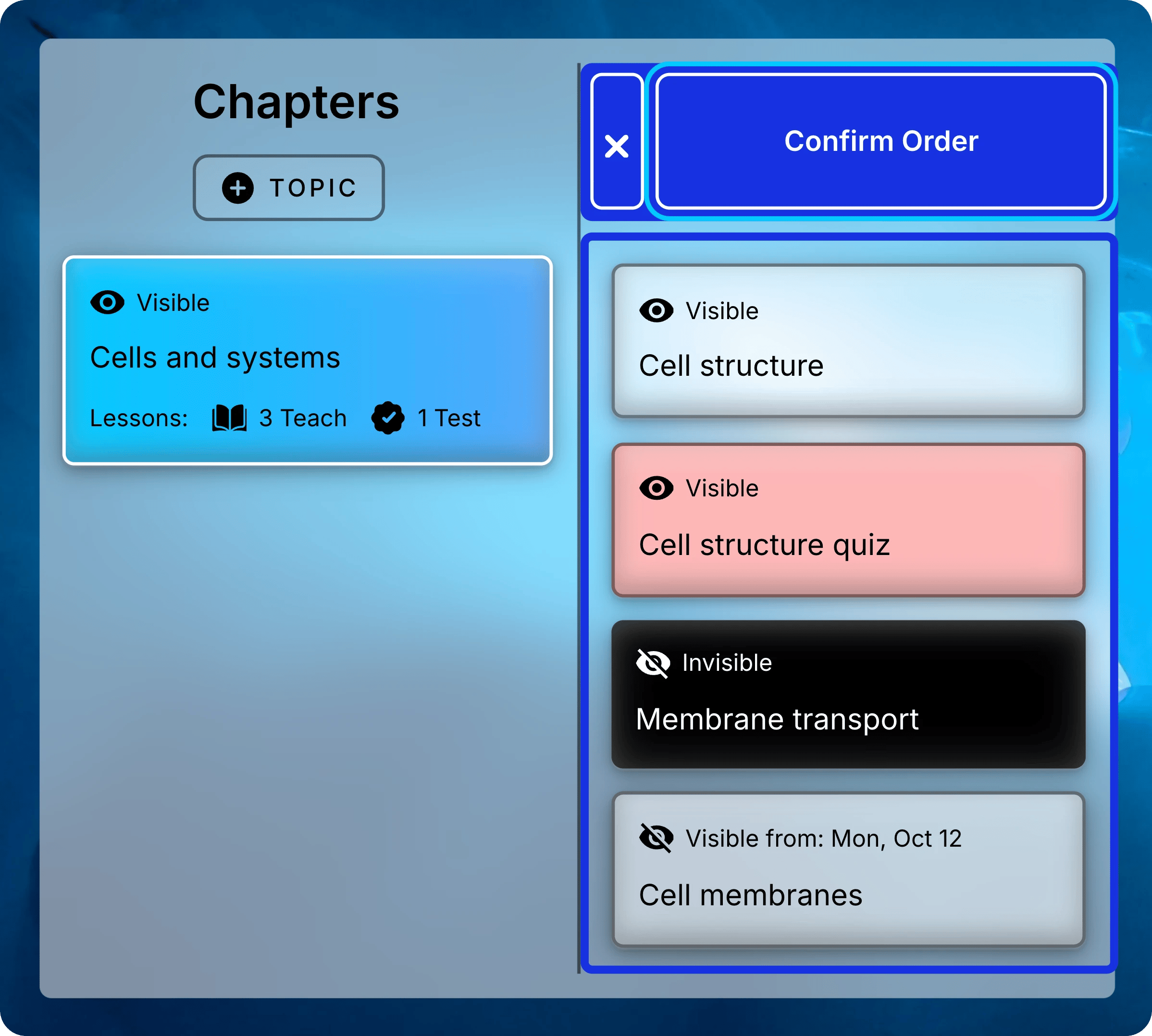
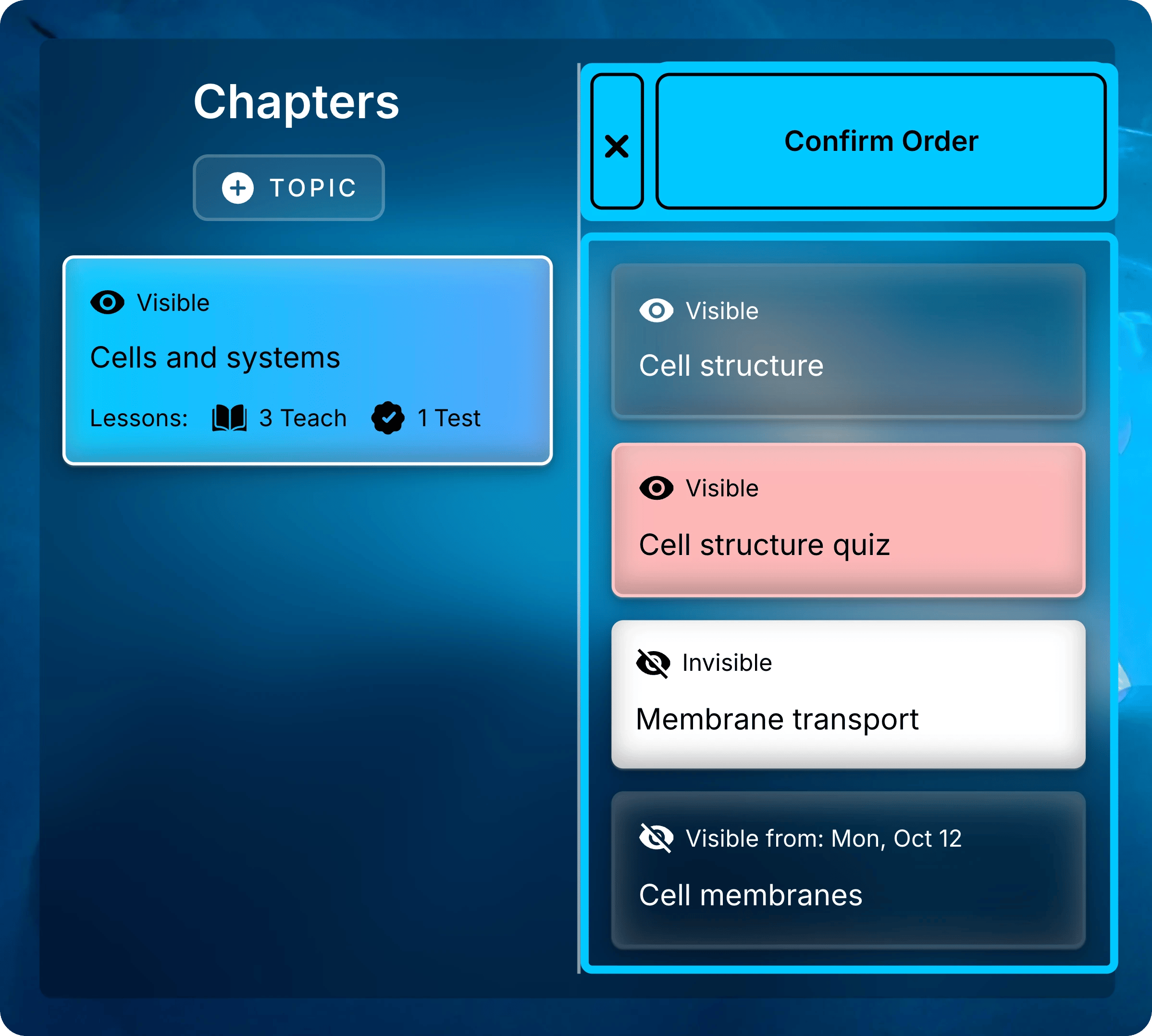
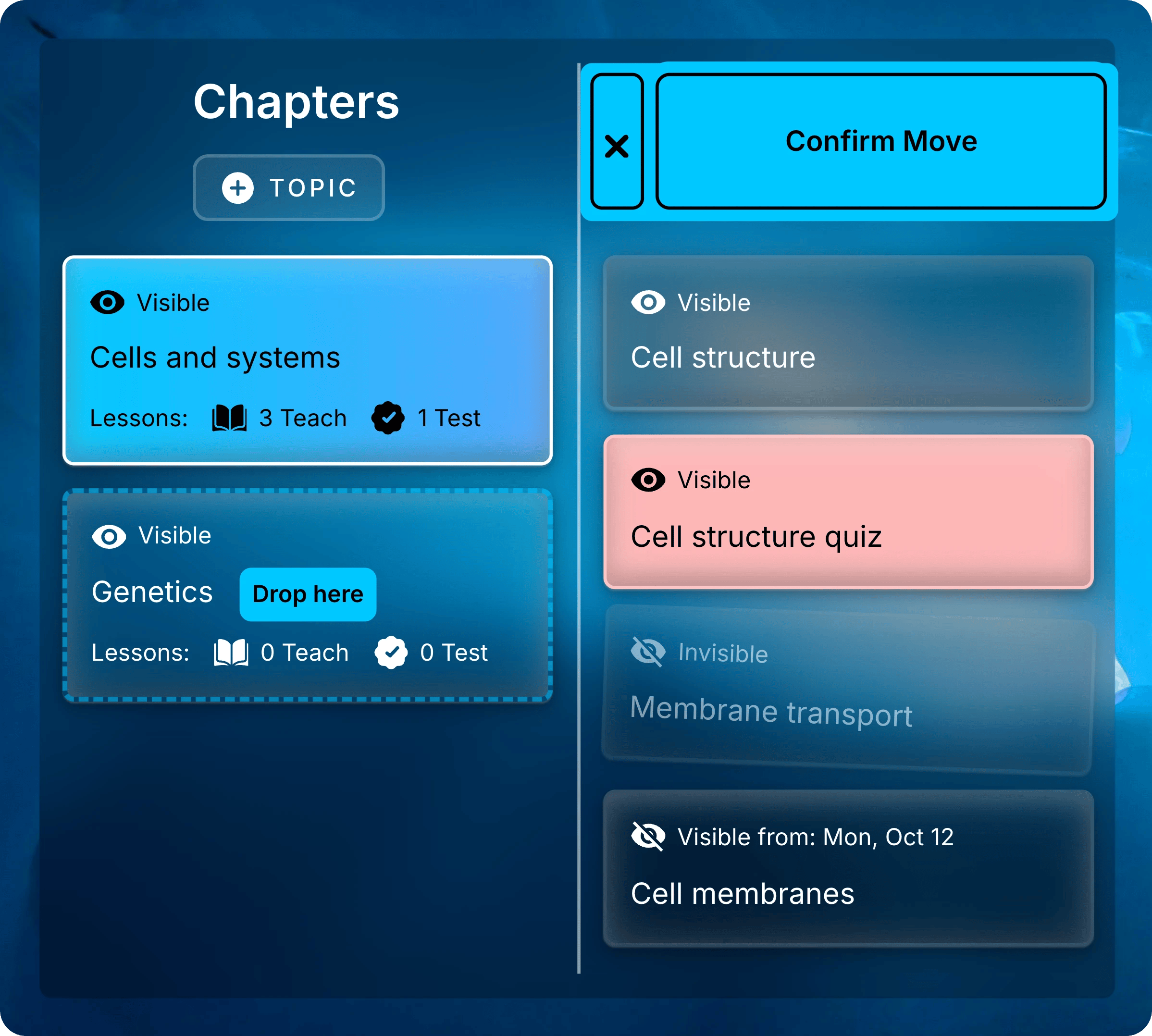
Drag lessons into place, then select Confirm Order.
Common Questions
Can I copy lessons into another course?
Can I copy lessons into another course?
Not yourself. Duplicate and Move work only within one course.
Select Support in the sidebar and tell the team which content to copy and into which course.
Why can't a student open a lesson?
Why can't a student open a lesson?
Check three things in the lesson’s form and its chapter’s form:
- The chapter is visible.
- The lesson is visible.
- The current time falls between the lesson’s dates. Either may be blank.
Fill Your Lessons
Manage Files
Upload slides, readings, and recordings to a Teach lesson.
Manage Objectives
Describe what students should learn in each lesson.
Assessment Settings
Choose how students take an assessment and how attempts become a grade.