
Choose How to Regrade
Open the question, then open Actions and select Regrade.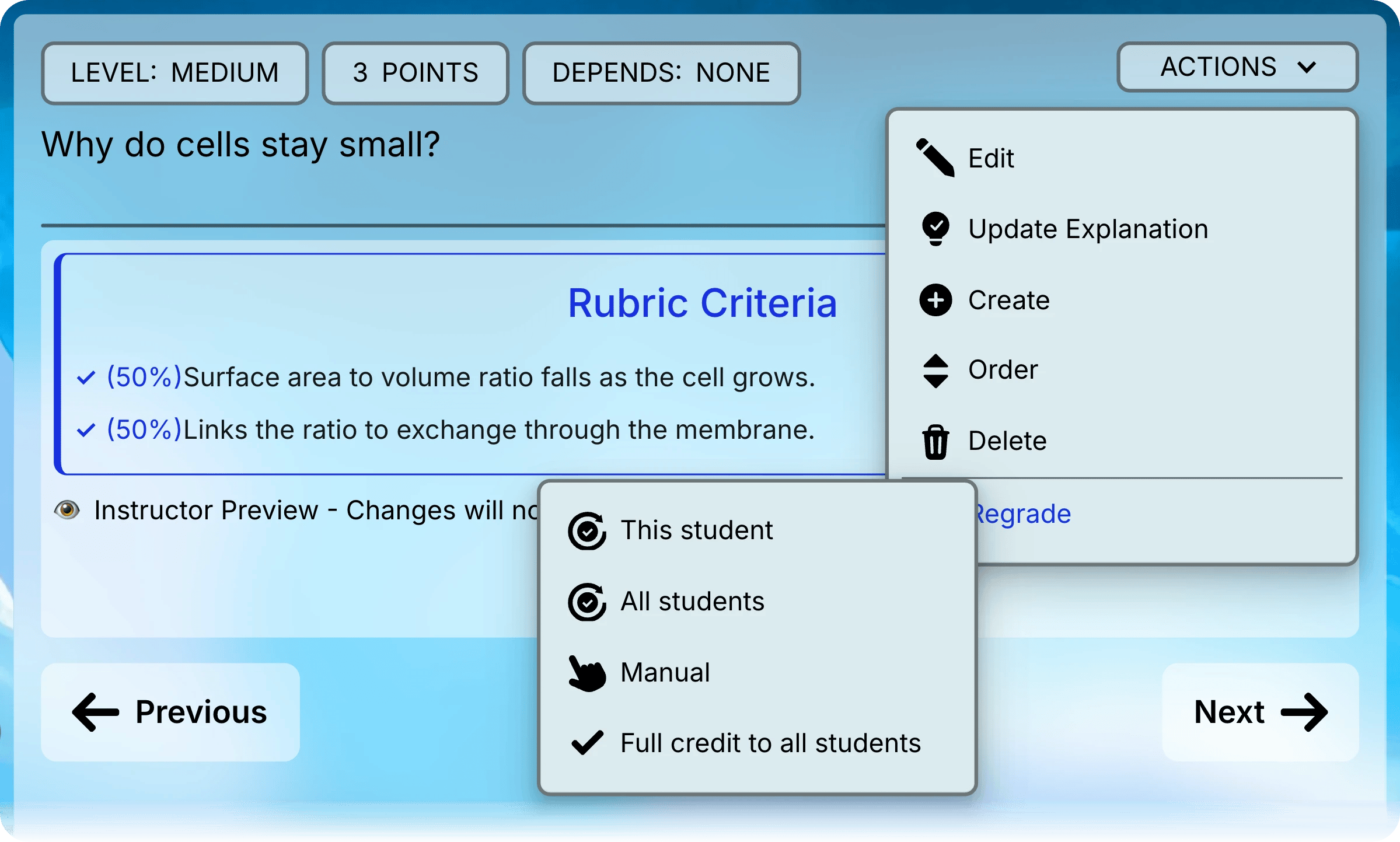
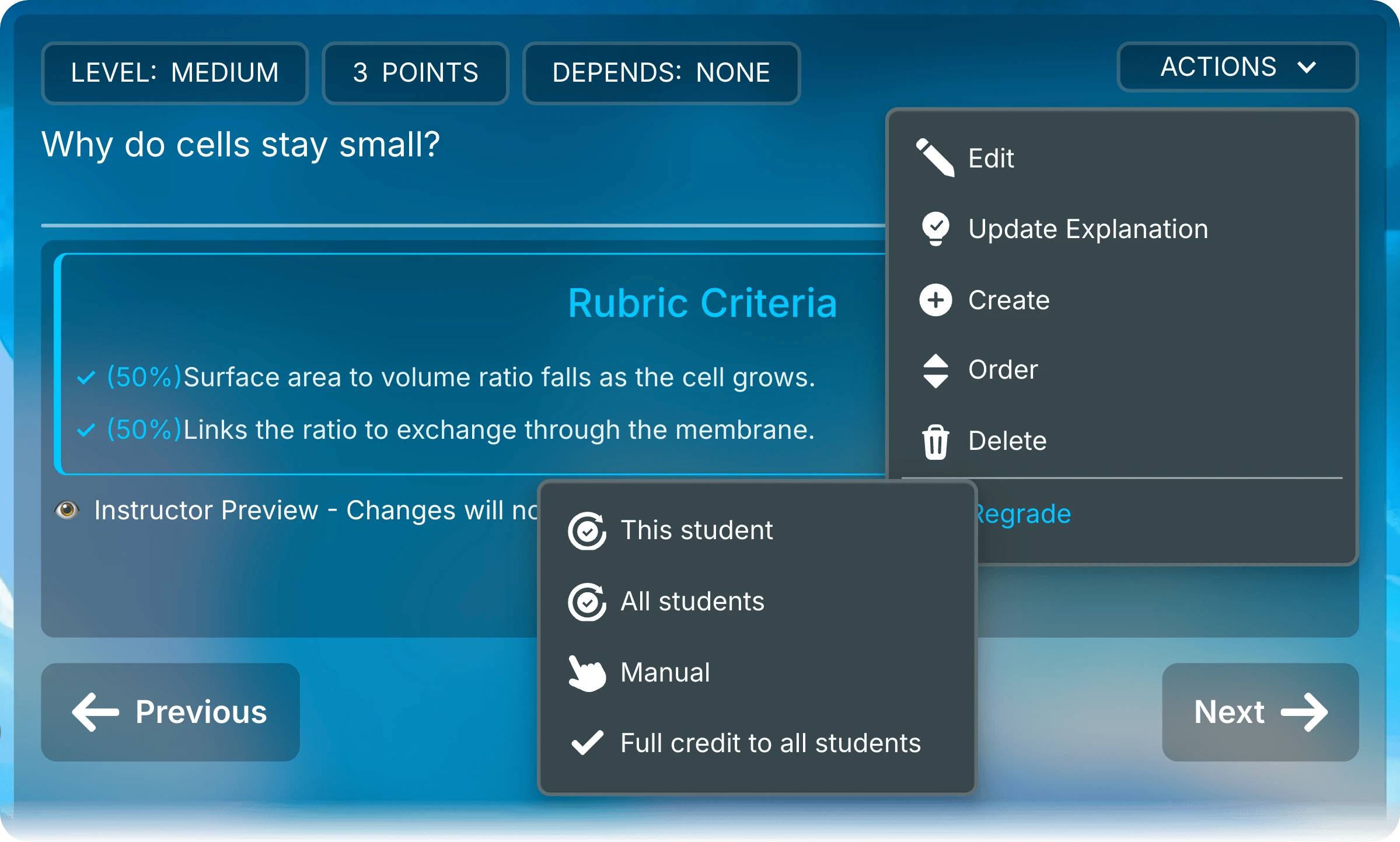
Regrade lists four ways to regrade the question.
Regrade One Submission
To grade every question in one attempt again, open the assessment’s Submissions panel. Right-click the attempt, select Regrade this submission, and confirm.Right-click the attempt, then confirm the regrade.
After a Points Change
Changing a question’s points doesn’t change any score on its own. Regrade all students to score every response out of the new points. Then update the assessment’s total points, which recalculates each graded attempt’s percentage.Change a Score by Hand
1
Open Grade Manually
Choose the student, then open Actions, select Regrade, and then Manual. You can also press the
M key on your keyboard.If the student already sent a request for this response, the panel opens it, and your change answers the request.2
Change the Points
Grade Manually opens in the side panel. Change the points, add an optional note for the student, and select Submit.
- With a Rubric
- Without a Rubric
Each criterion has its own points and reasoning, so update both.
Open Manual from Regrade, raise the criterion’s points, and submit.
What Students See
After a manual change, the student sees the new score/note under Regrade Requests. If this change is in response to their regrade request, they’ll see Regrade accepted/rejected. Otherwise, they see Regraded by your instructor.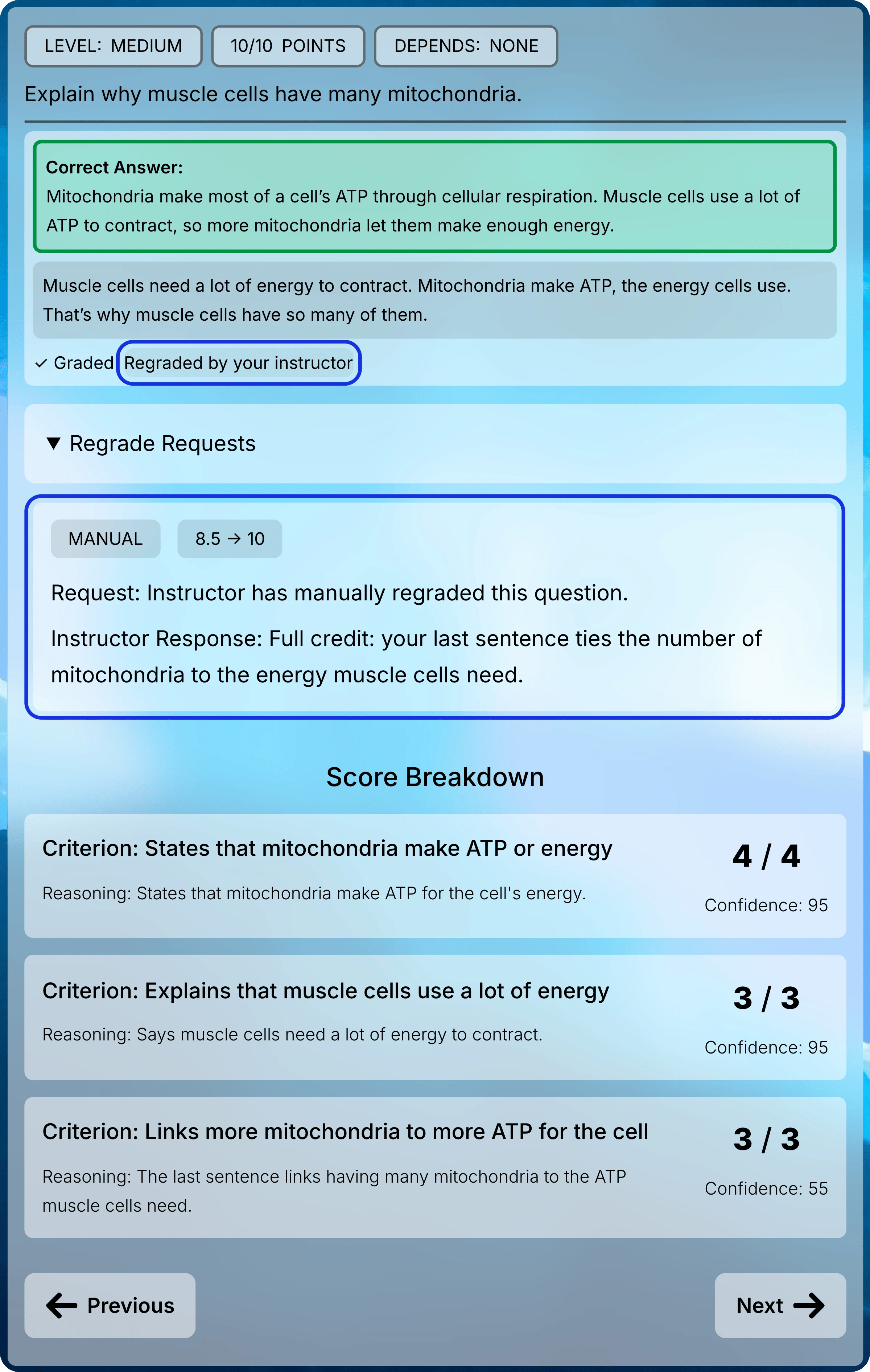
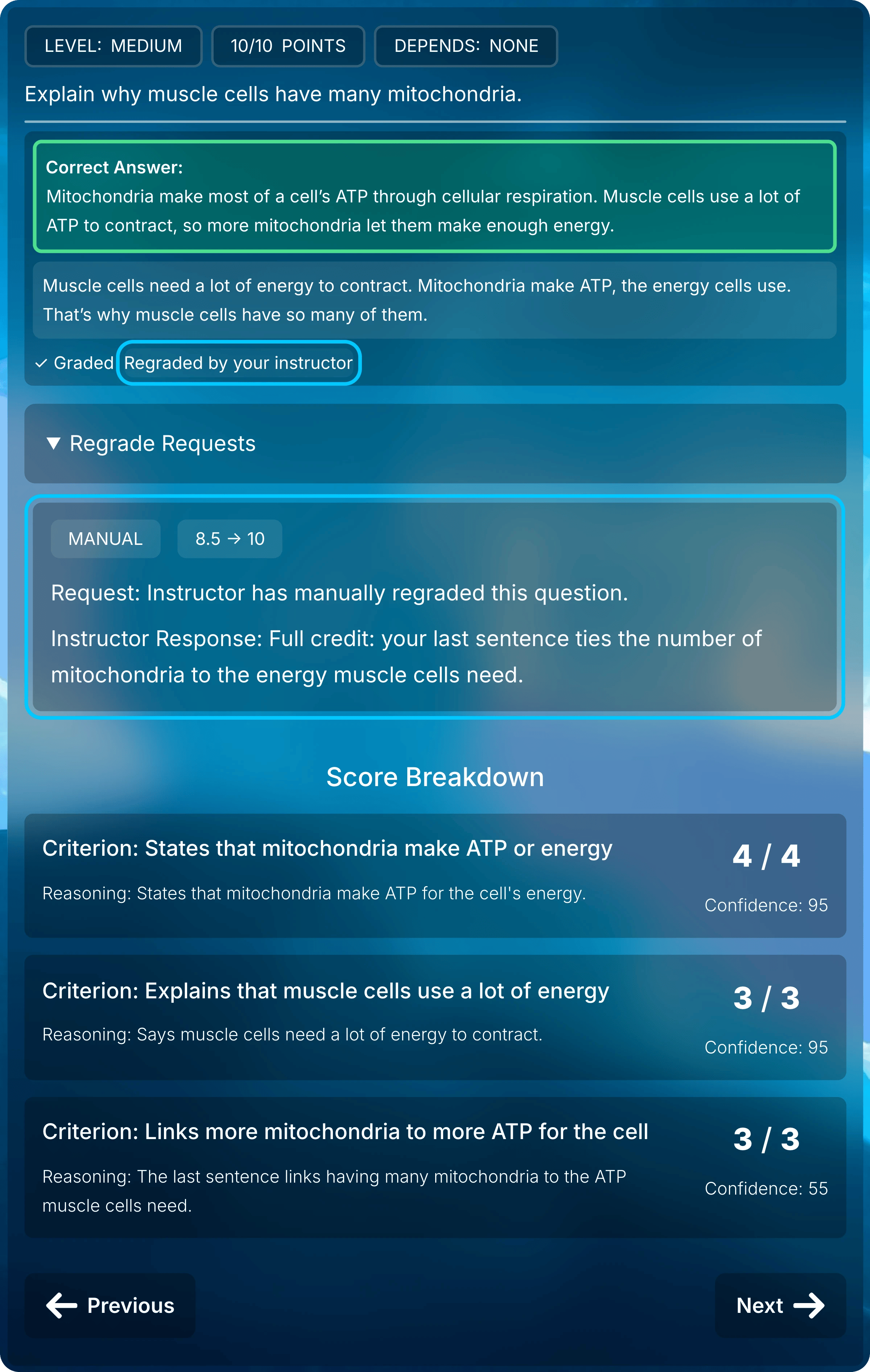
The student sees the new score, the label, and your note.
Check what a student sees in Graded View, or see the student guide.Next: Release Grades
Choose when students see their scores, answers, and feedback.