
How Review Works
- Choose a sample of the responses most likely to hold a mistake.
- Read each response next to the grader’s points and reasoning.
- Decide what to fix by looking for patterns in the scores you disagree with.
- Refine the rubric when a mistake repeats, or change a single score by hand.
Choose a Sample
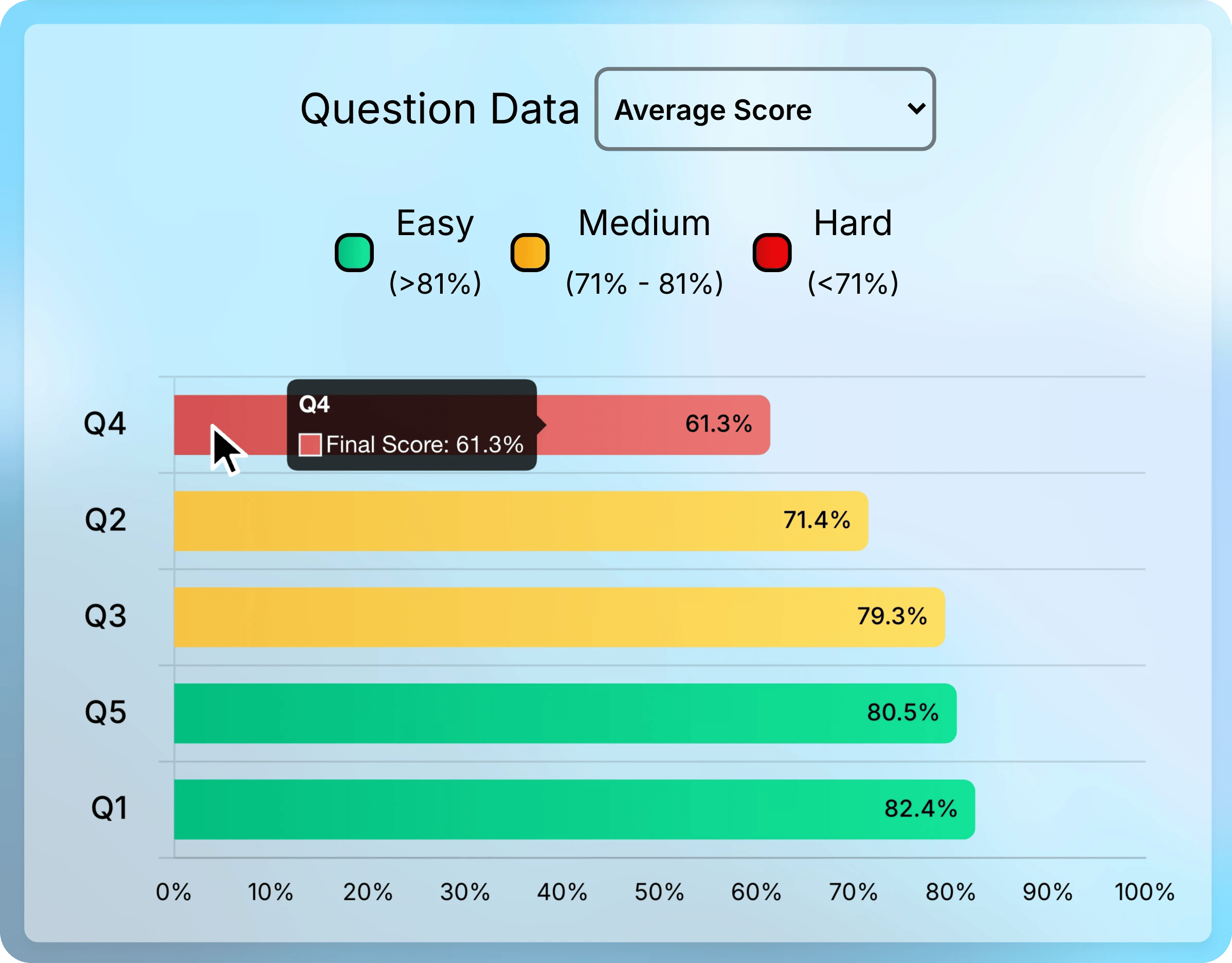
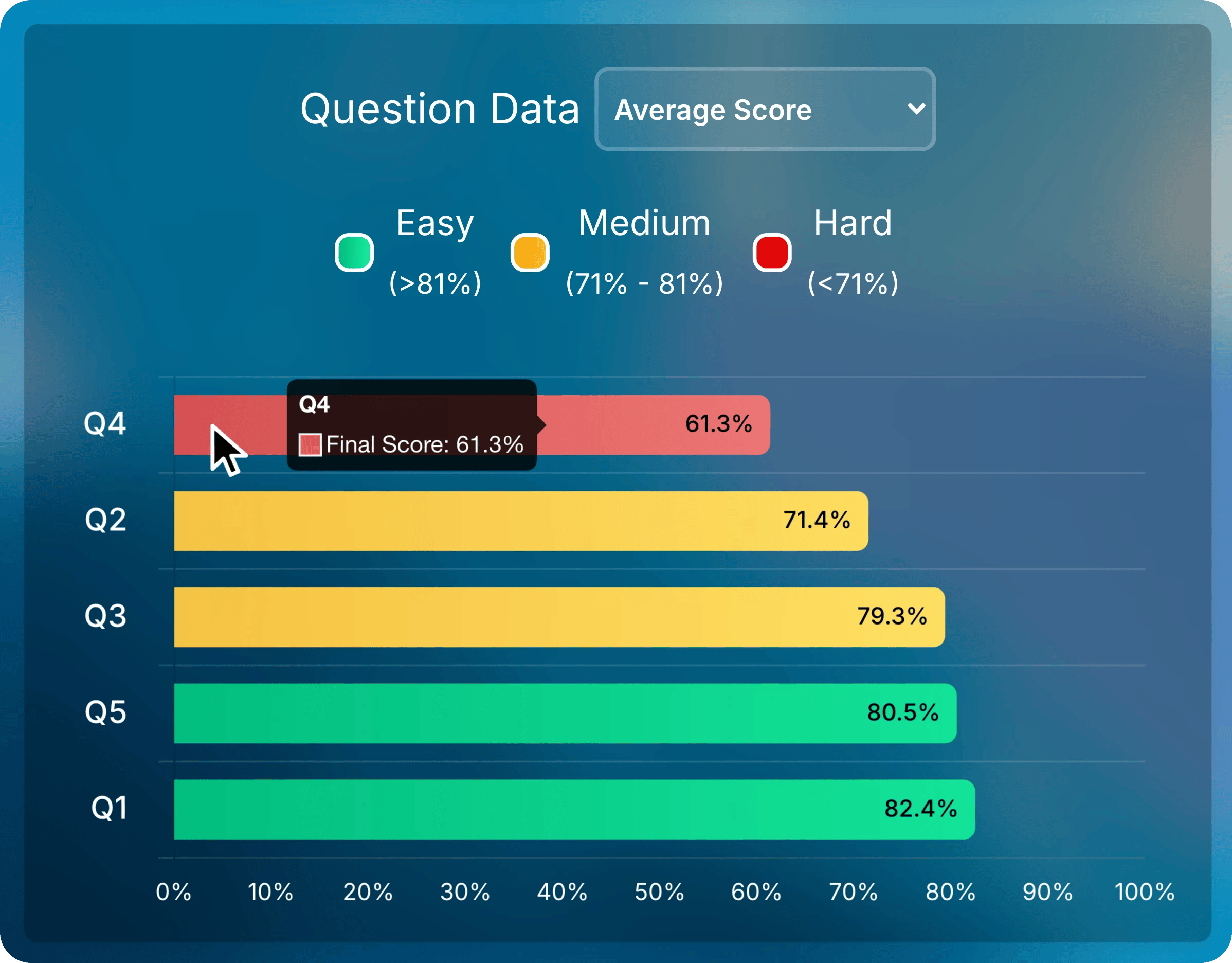
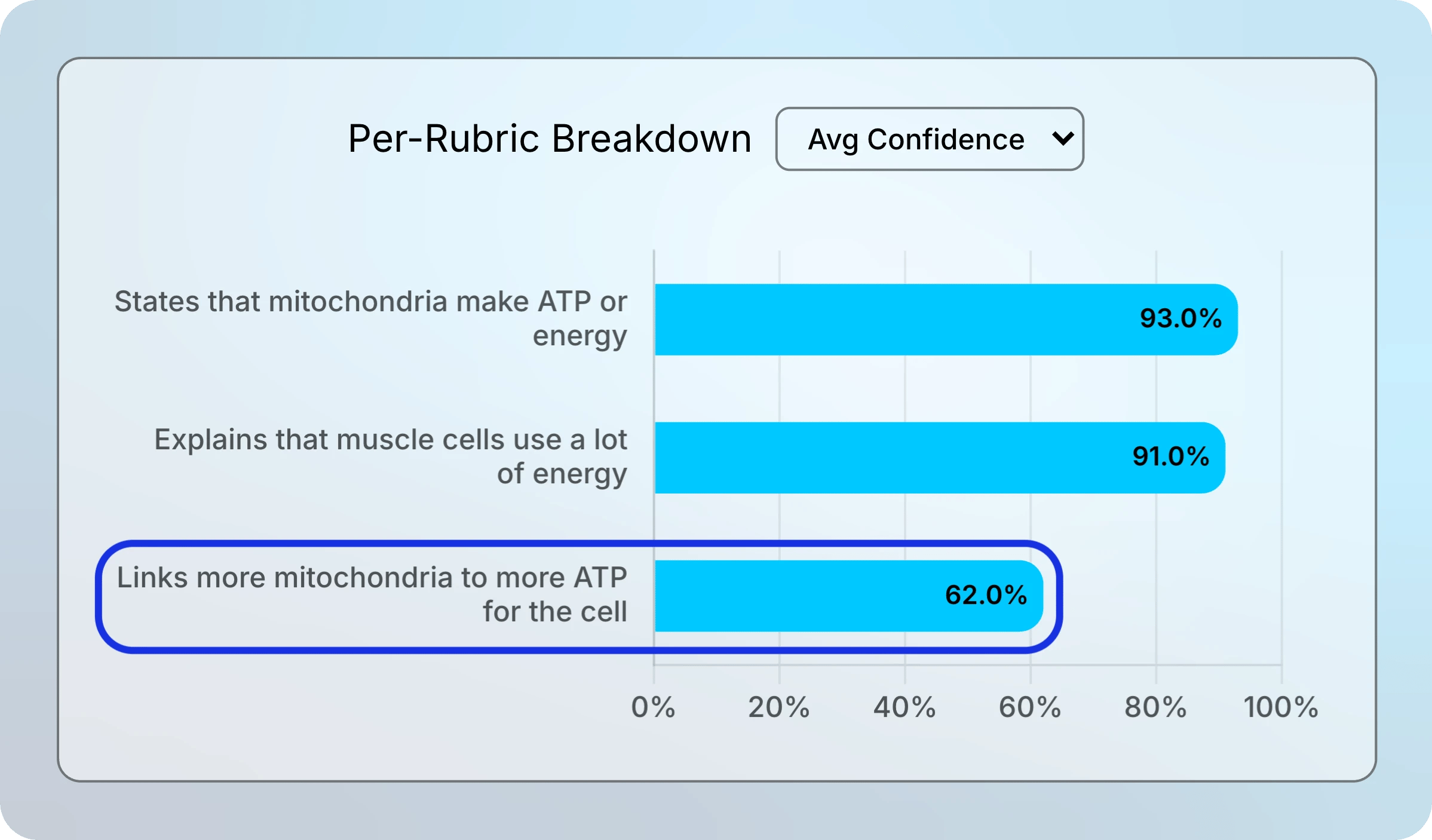
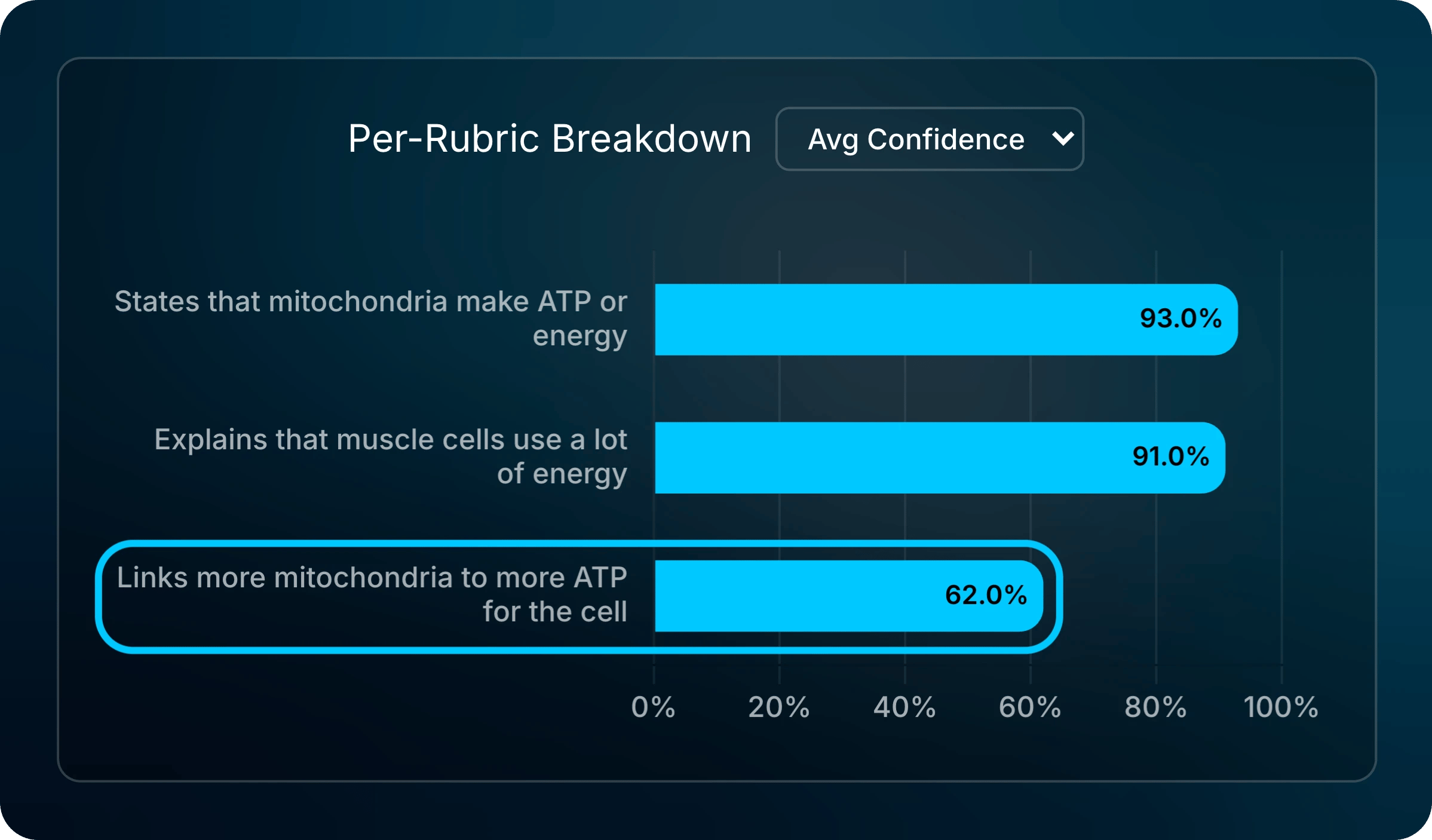
Review 5–10% of the submissions, from both the highest and the lowest scores, and the questions with the lowest averages. Most mistakes are a symptom of a lenient criterion lifting some scores too high, or a strict one pulling others too low. The analytics show where to look:- Highest and Lowest Scores
- Weakest Questions
- Least Confident Grades
In Score Distribution, select a bar to list its students. Then select a student to show their submissions. Select an attempt to see their responses.
Select the lowest score range to find the students who scored lowest.
Read the Responses
You review on the question page. With a student chosen, it shows their response to each question, and how the grader scored it.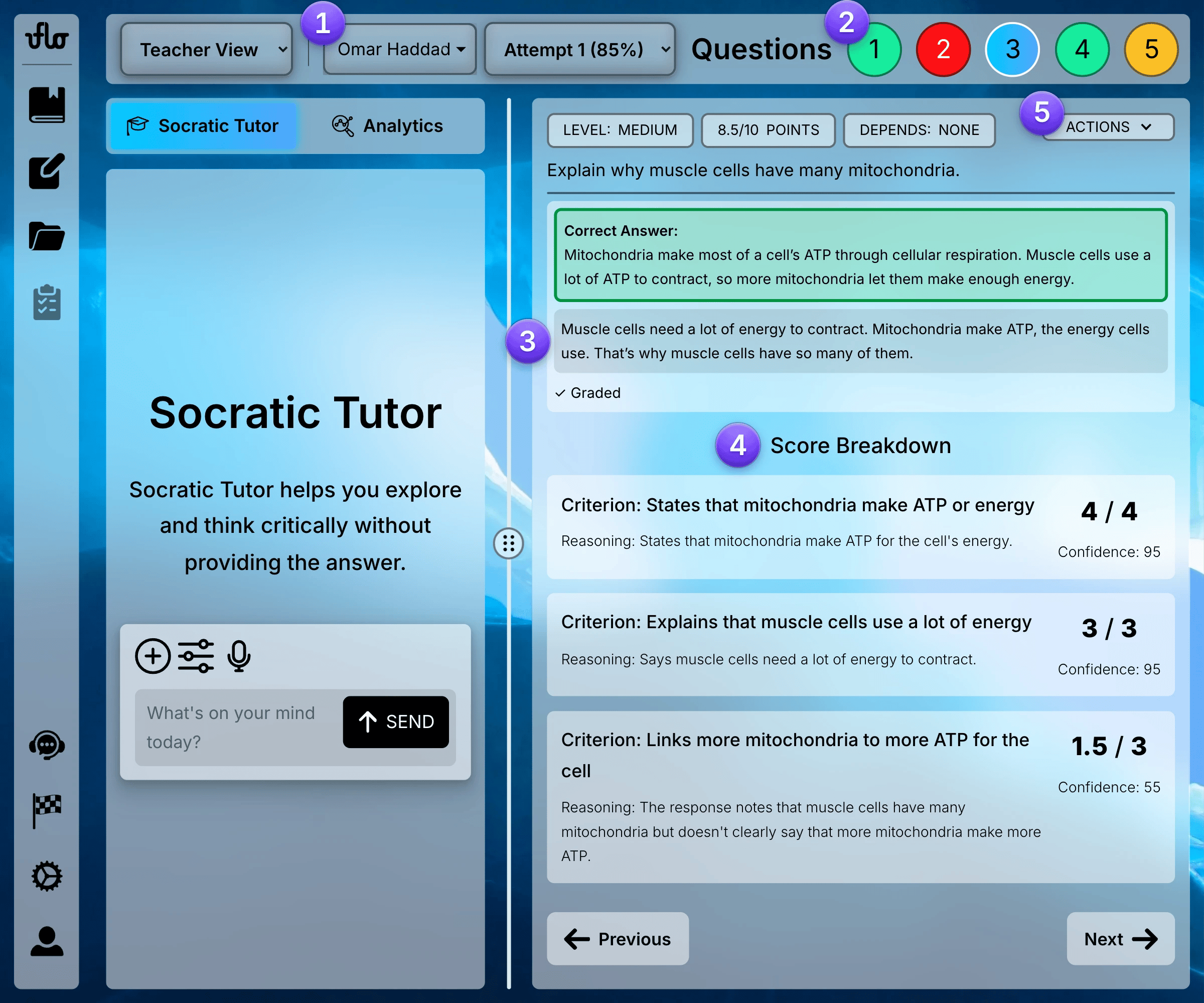
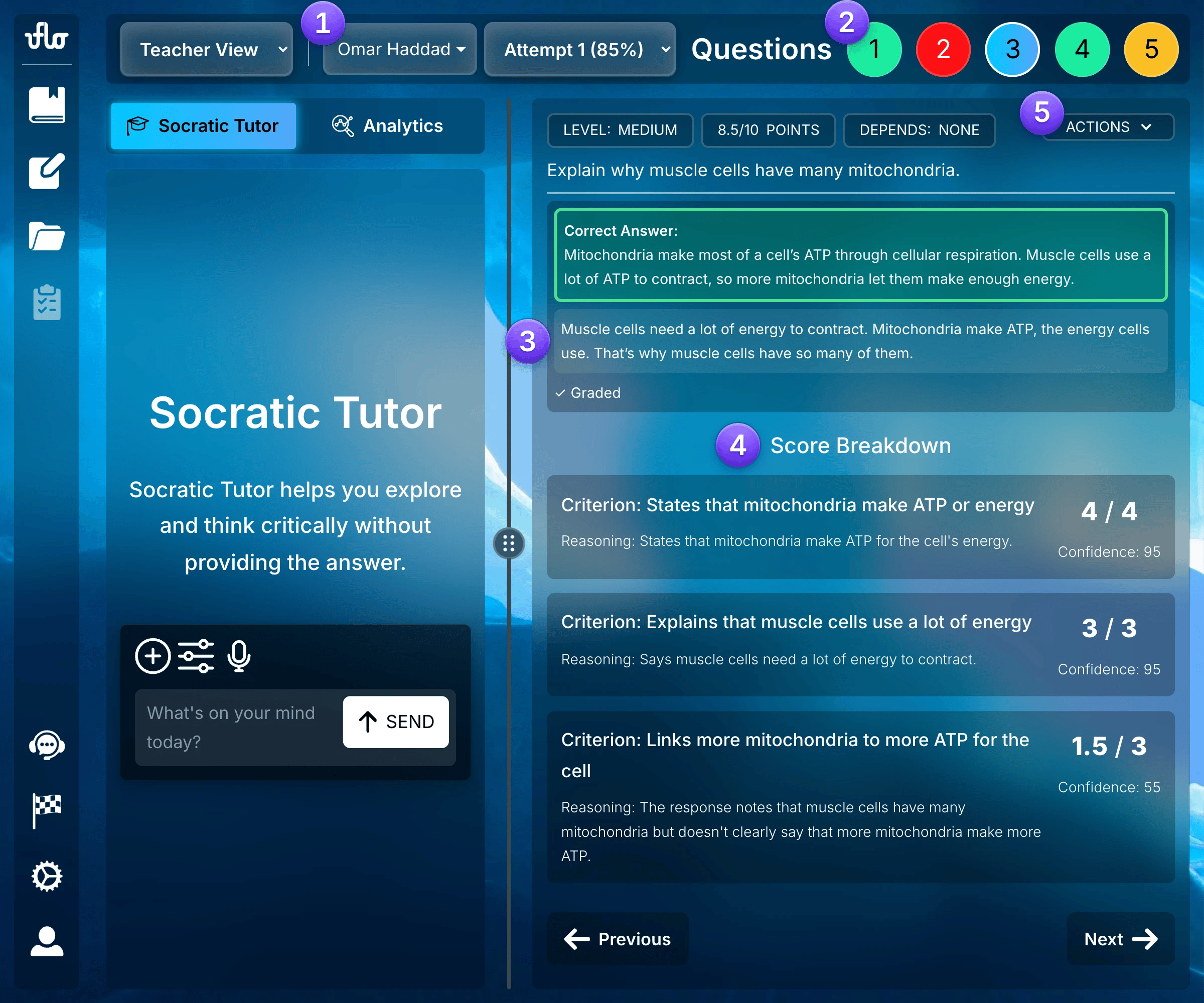
The question page with Omar Haddad’s attempt open.
- Student and attempt: whose work you’re reading.
- Question numbers: the student’s score on each question. Green is full points, yellow partial, and red none. The open question is highlighted.
- Response: the student’s answer, below your correct answer.
- Score Breakdown: each criterion’s points, reasoning, and confidence.
- Actions: where you regrade the question.
1
Choose a Student
On the assessment’s question page, choose a student from the student dropdown, and an attempt from the one beside it.
Choose a student to open their attempt.
2
Check Each Criterion
Read the response yourself, then compare it with each criterion’s points and reasoning. Start with low confidence, which marks the closest calls.To move between questions, select a question number, or press the 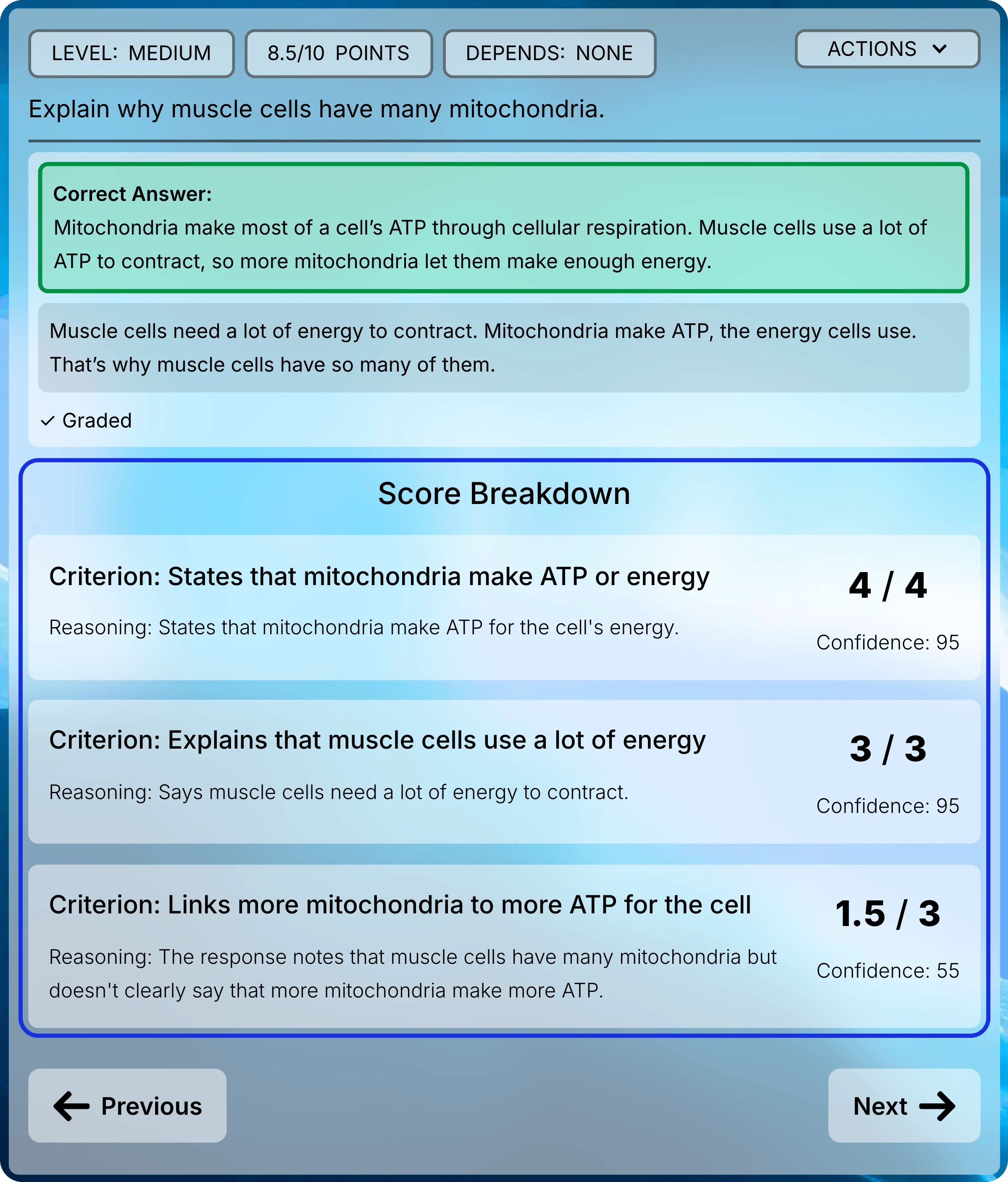
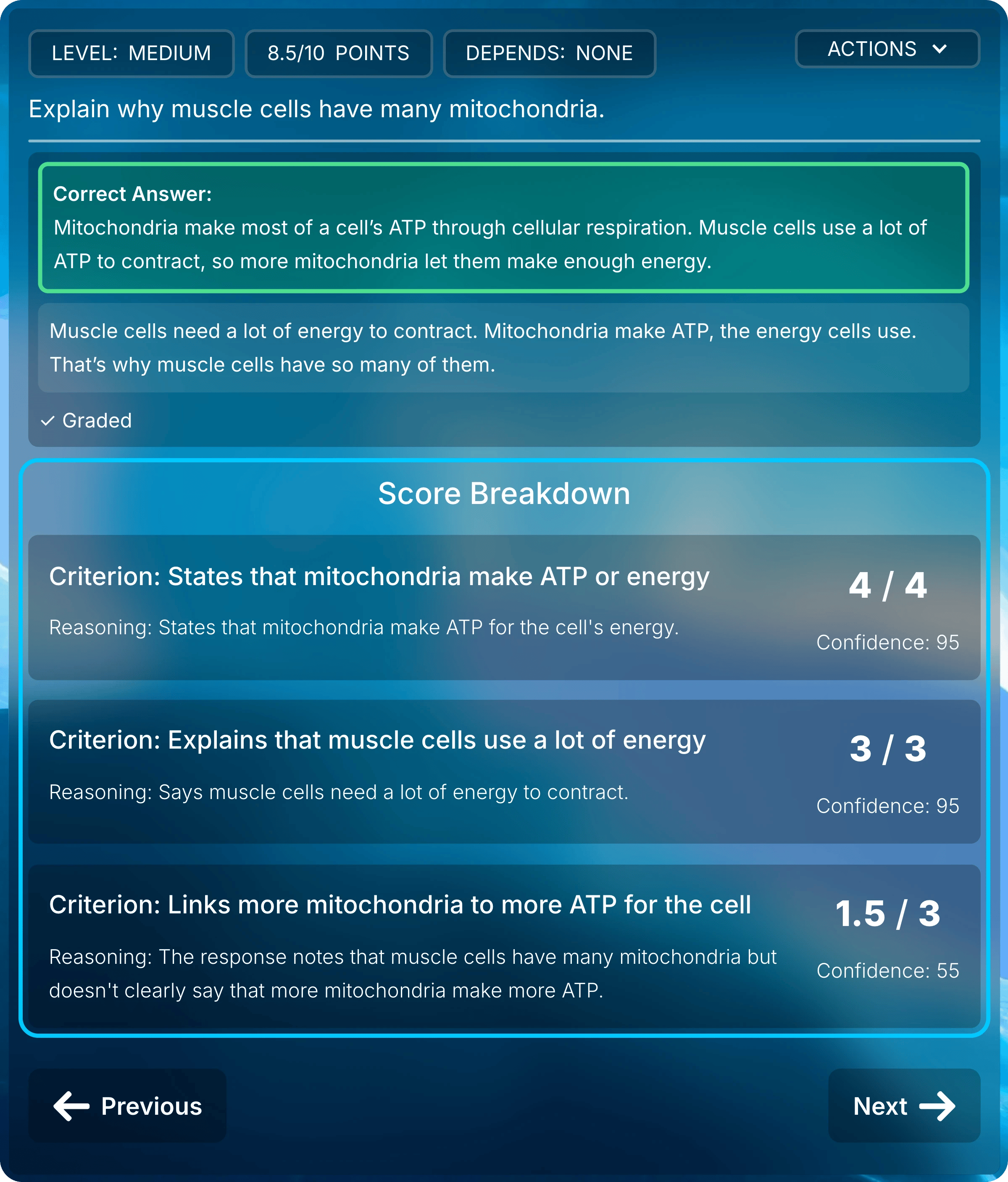
← and → arrow keys on your keyboard.The last criterion has a confidence of 55, so it’s worth a closer look.
3
Move to the Next Student
Press the
↑ and ↓ arrow keys on your keyboard for the previous and next student. The page stays on the same question.Decide What to Fix
As you read, note each score you disagree with, and why. Then look for a pattern: does the same mistake repeat across responses?
A repeating mistake usually traces back to one criterion. Fixing that criterion corrects every response it affected at once.
Once you release grades, regrade requests let students flag any scores you missed.
Common Questions
Can I regrade a question if the grading isn't what I wanted?
Can I regrade a question if the grading isn't what I wanted?
Yes. If the same mistake repeats, refine the rubric and regrade every response. To fix one student’s score, change it by hand.
Can students see their scores while I review?
Can students see their scores while I review?
Only if the assessment’s settings show them. To review first, hide the results until you’ve checked the scores.
How do I see what a student sees?
How do I see what a student sees?
Choose Graded View in the view menu on the question page. It shows the attempt as the student sees it, with the assessment’s current settings.
Why doesn't a response have a Score Breakdown?
Why doesn't a response have a Score Breakdown?
Only questions graded against a rubric have one, and only once grading finishes. Until then, the response shows ✓ Submitted — Waiting to be Graded.
Next: Refine Rubrics
Fix a criterion that grades differently than you intend.