
Turn On Regrade Requests
Regrade settings are in the Grade Calculation and Regrades section of the Assessment form.1
Open the Assessment Form
In your course, right-click the assessment and select Update. On a touch screen, press and hold it instead.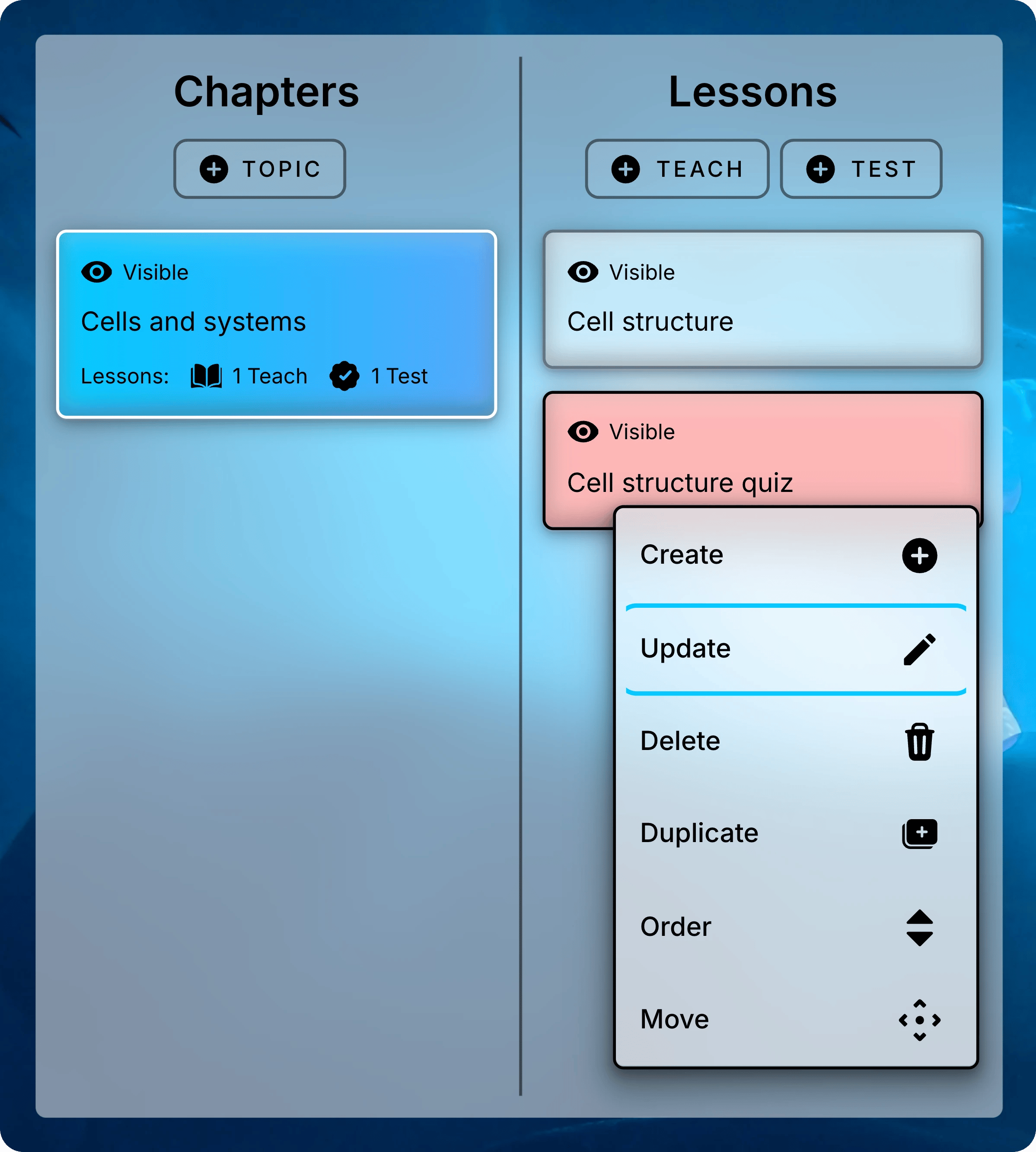
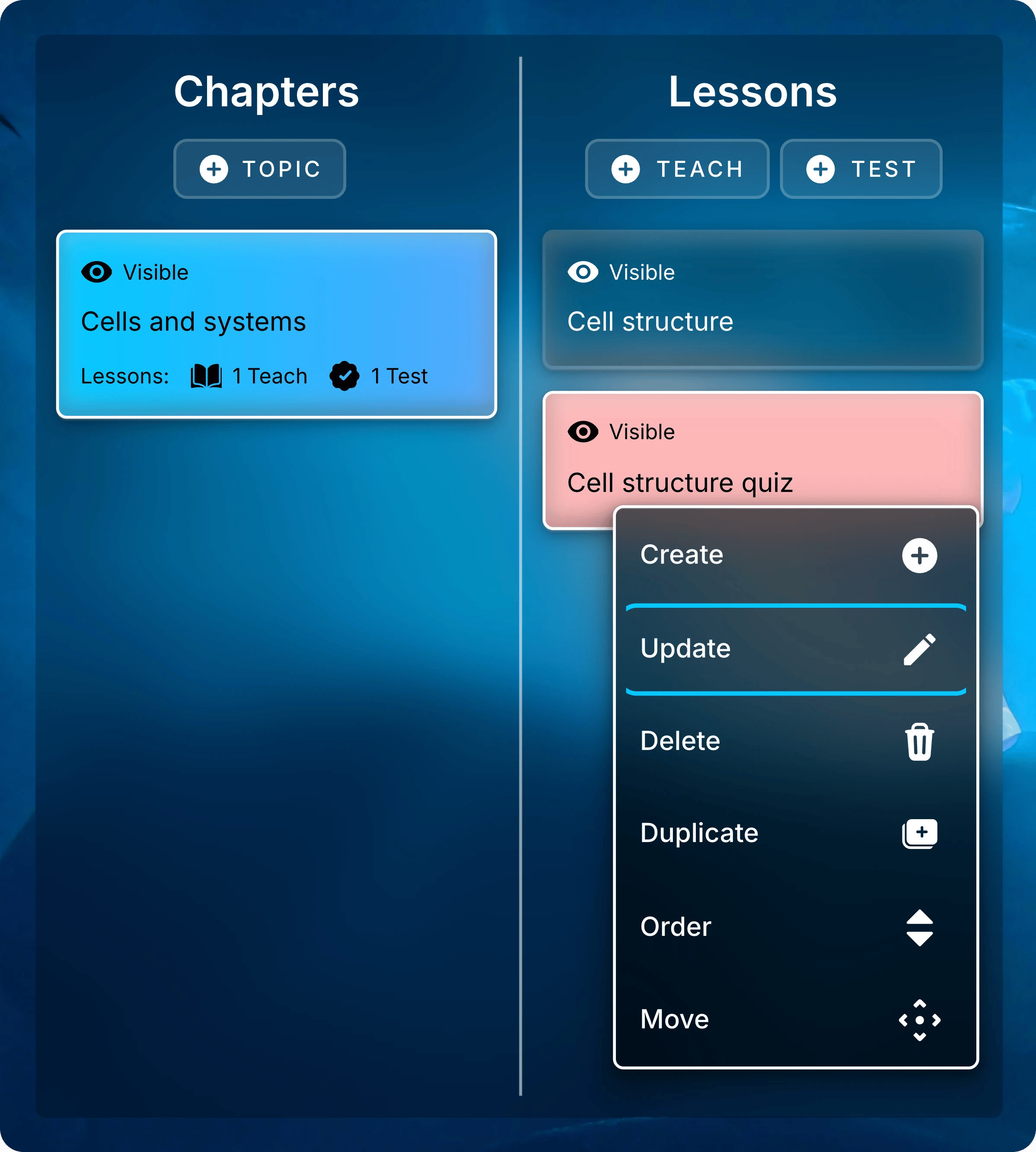
Right-click the assessment and select Update.
2
Choose a Grading Policy That Allows Regrades
Under How should final grades be calculated?, choose Maximum Attempt Score or Most Recent Score.
3
Turn On Regrades and Set the Window
Select Students can request regrades for free response questions. Then set Regrade window opens and Regrade window closes, and select Submit.

Students can send requests from October 13 to October 20.
The window applies only when you set both dates. Without it, students can send a request as soon as a response is graded, even before you review it.Set a Regrade Policy
Decide how you handle requests before students take the assessment, and share it with them. A clear policy sets expectations and cuts down on requests that can’t change a score. Cover these points:- Deadline: when requests open and close. Match your regrade window.
- What to include: the criterion to review and the part of the response that supports the request.
- Who reviews: which teachers in the course answer requests.
- Lower scores: whether a review can lower a score when the reviewer finds another mistake. Uflo allows it.
Review a Request
1
Find the Open Requests
Open the assessment and select a question. Expand Regrade Requests below the response, then select Open.The list shows every student’s requests for that question and the status of each one. The section appears only when the question has requests.

Filter by Open to see the requests waiting for you.
2
Open the Request
Select the request. Uflo opens that student’s response and the Grade Manually panel beside it. The panel shows the student’s request and the points and reasoning for each criterion.
3
Adjust the Score and Respond
Change the points and reasoning for the criteria you’re regrading. Write a response that explains your decision, then select Submit.

Restore the points, explain your decision, and submit.
Common Questions
Why can't a student send a request?
Why can't a student send a request?
Check the rules under Turn on regrade requests: regrades are on, the grading policy allows them, and the window is open. Also check that the response qualifies and hasn’t already had a request or a manual grade.
Can I answer requests after the window closes?
Can I answer requests after the window closes?
Yes. The window limits when students can send requests. You can review open requests at any time.
Can I change a decision I already submitted?
Can I change a decision I already submitted?
Yes. Select the request again, change the points or response, and select Submit. Uflo compares the new points with the current score. If you change only the wording of an accepted request, it becomes Rejected, though the raised score stays.
What happens to request decisions if I regrade the question?
What happens to request decisions if I regrade the question?
Regrading a question for all students rescores every response, including scores you changed through requests. Answered requests keep their status and response. Check the affected students’ scores afterward.
How do I see which questions have requests?
How do I see which questions have requests?
Open question analytics. It shows the number of regrade requests for each question.
Requesting Regrades
What students see when they send a request.
Refining Rubrics
Fix a criterion and regrade the question for everyone.