
The Course Hierarchy
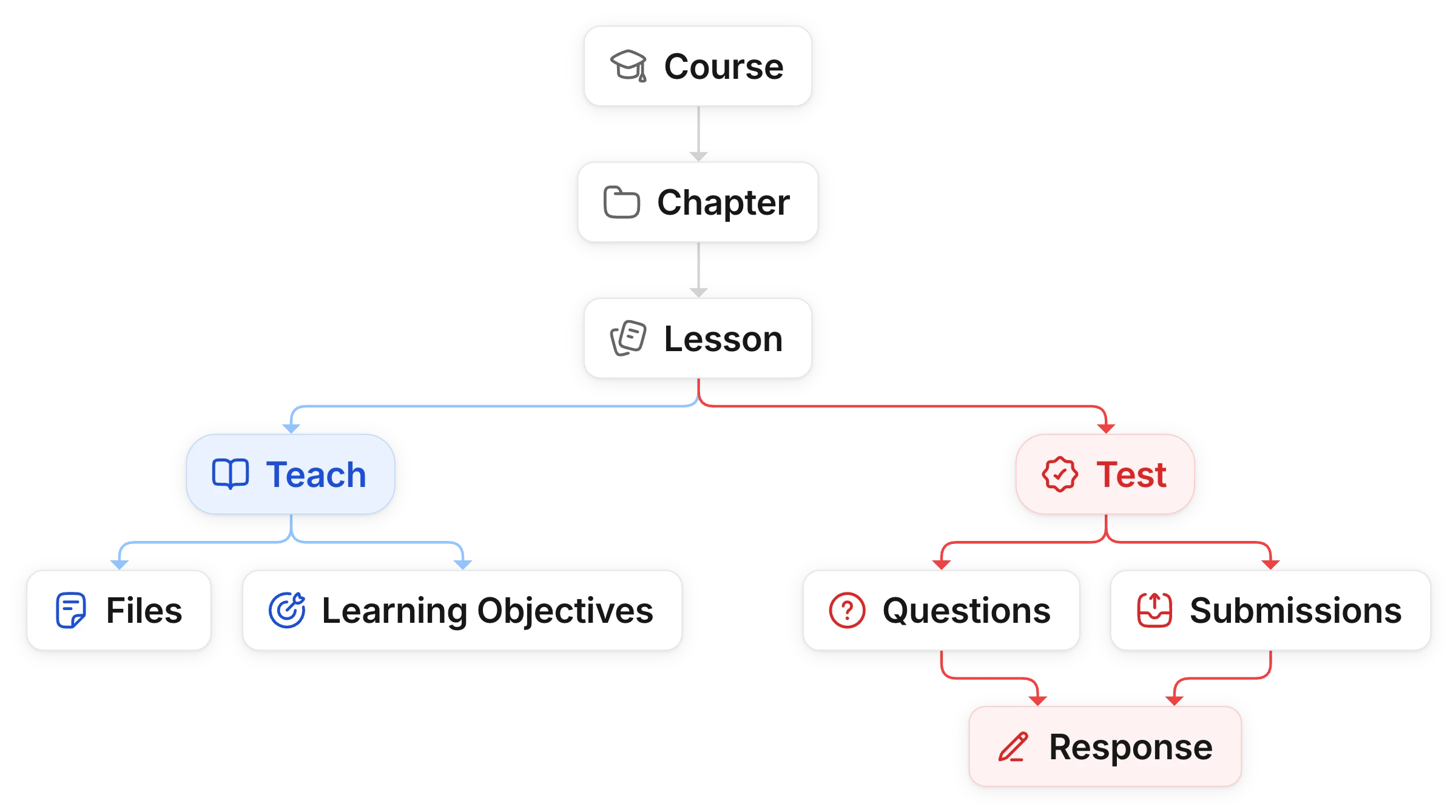
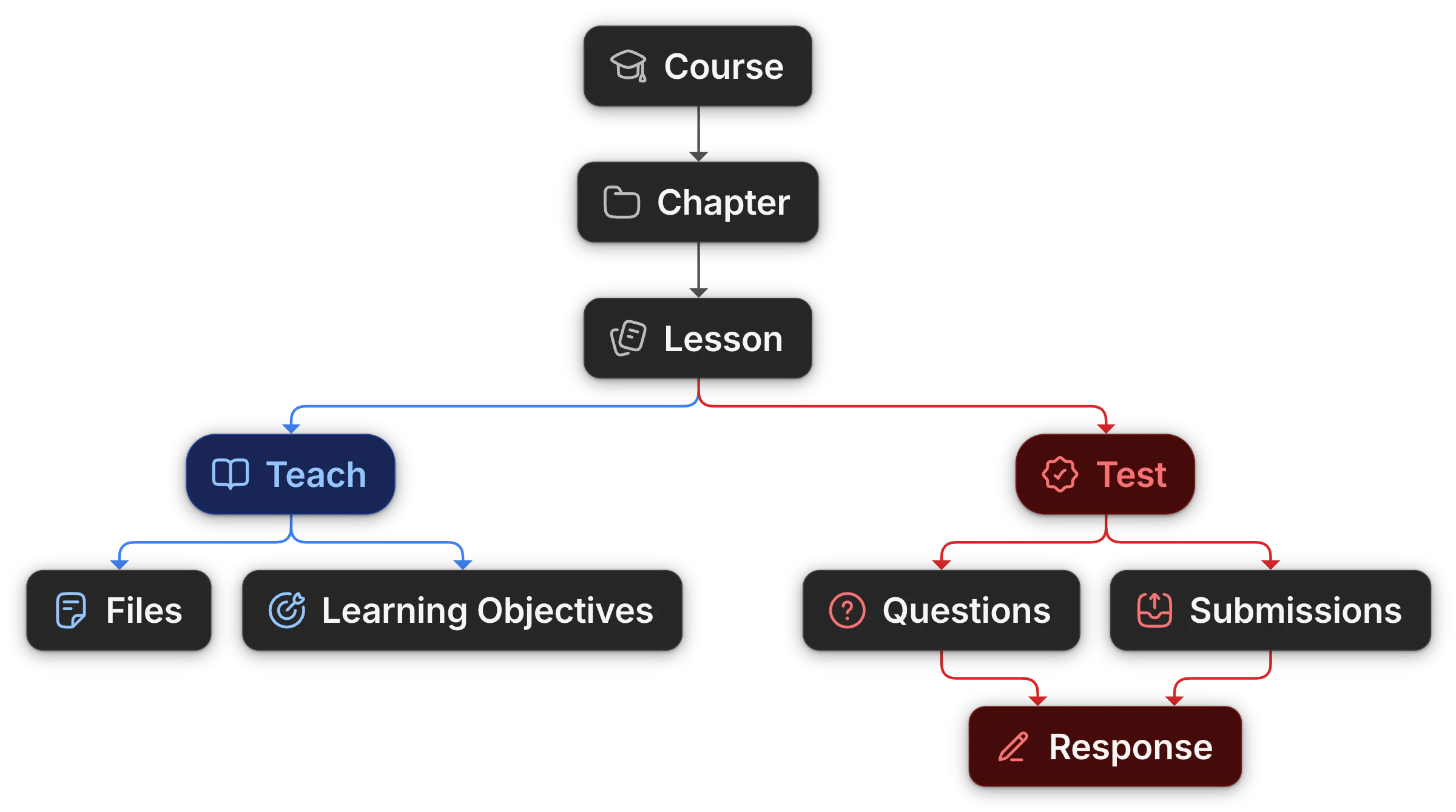
Every Uflo course is built the same way, from the top down:- A course is one class you teach, such as Introduction to Biology.
- A course holds chapters, which divide it into parts such as weeks or units.
- A chapter holds lessons, which are what your students open.
- A lesson is either a Teach lesson or a Test lesson.
Rename Chapters and Lessons
Chapter and Lesson are default names. Rename them to match your syllabus, such as Module and Topic, when you create the course or later with Update.Teach and Test Lessons
You can specify the type of lesson to create with the TEACH or TEST button at the top of the Lessons panel. From here on, these docs call a Test lesson an assessment.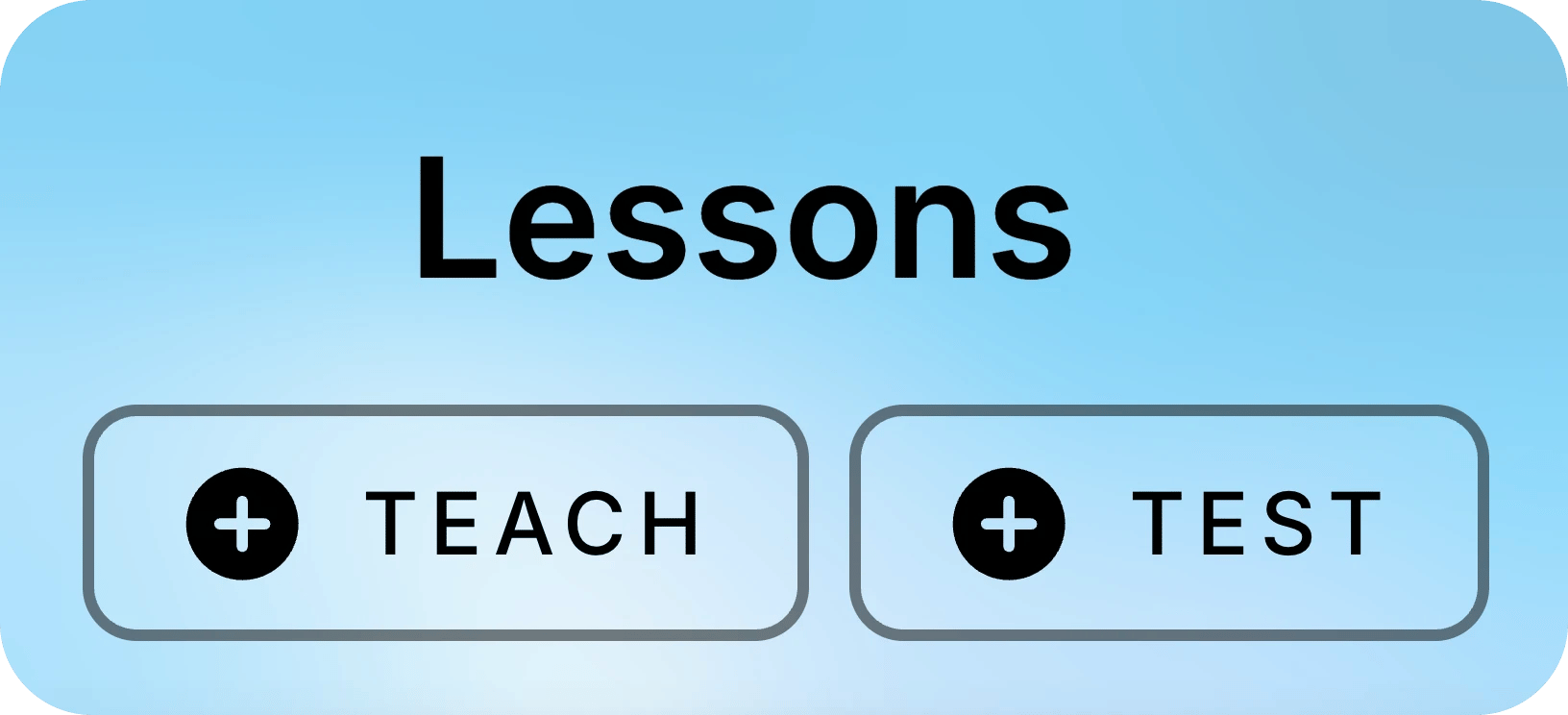
Submissions and Responses
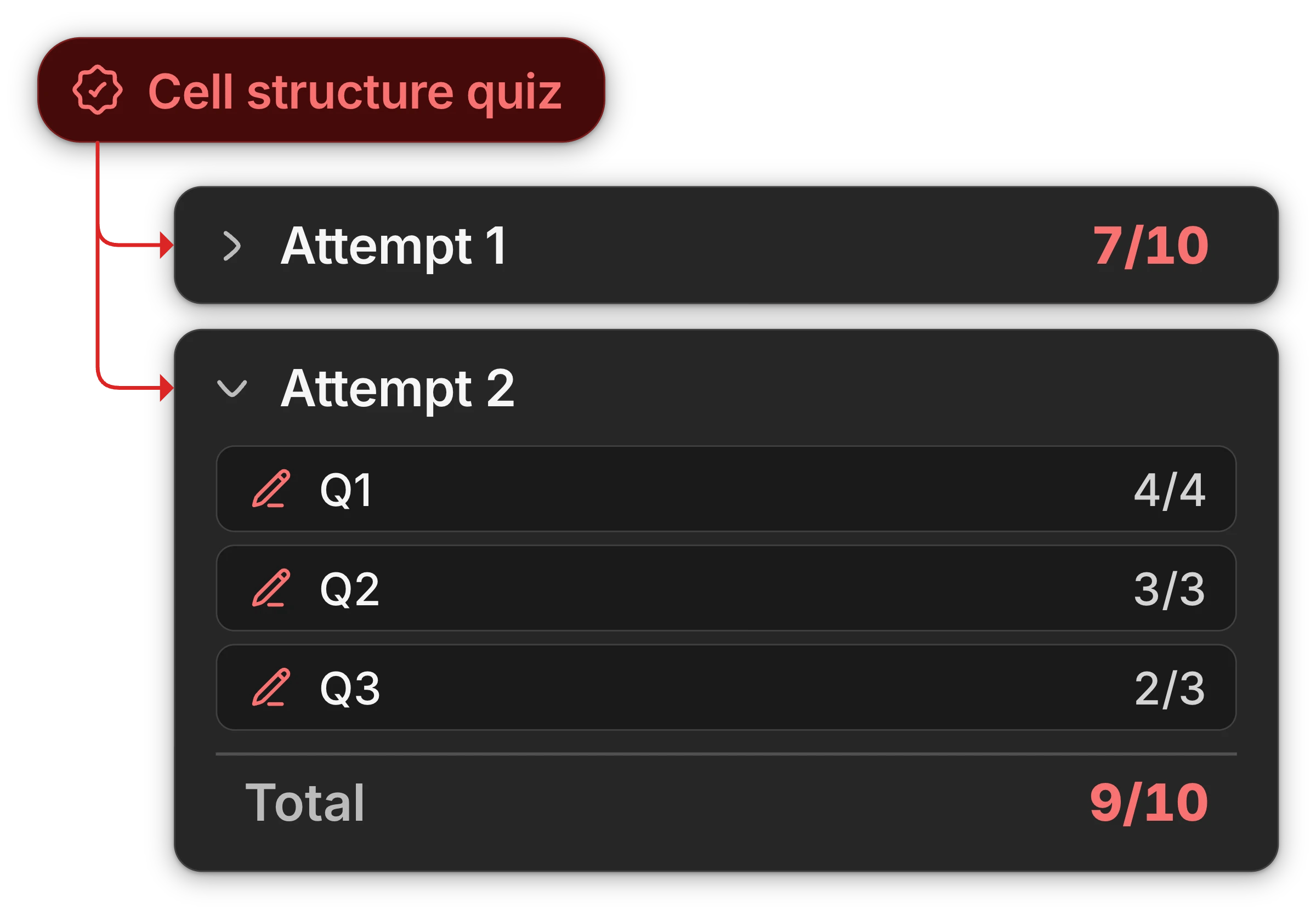
Each time a student starts an assessment, Uflo creates a submission where students can provide their responses to each question. Upon submission, Uflo scores each response out of that question’s points and sums the scores to get the submission’s total.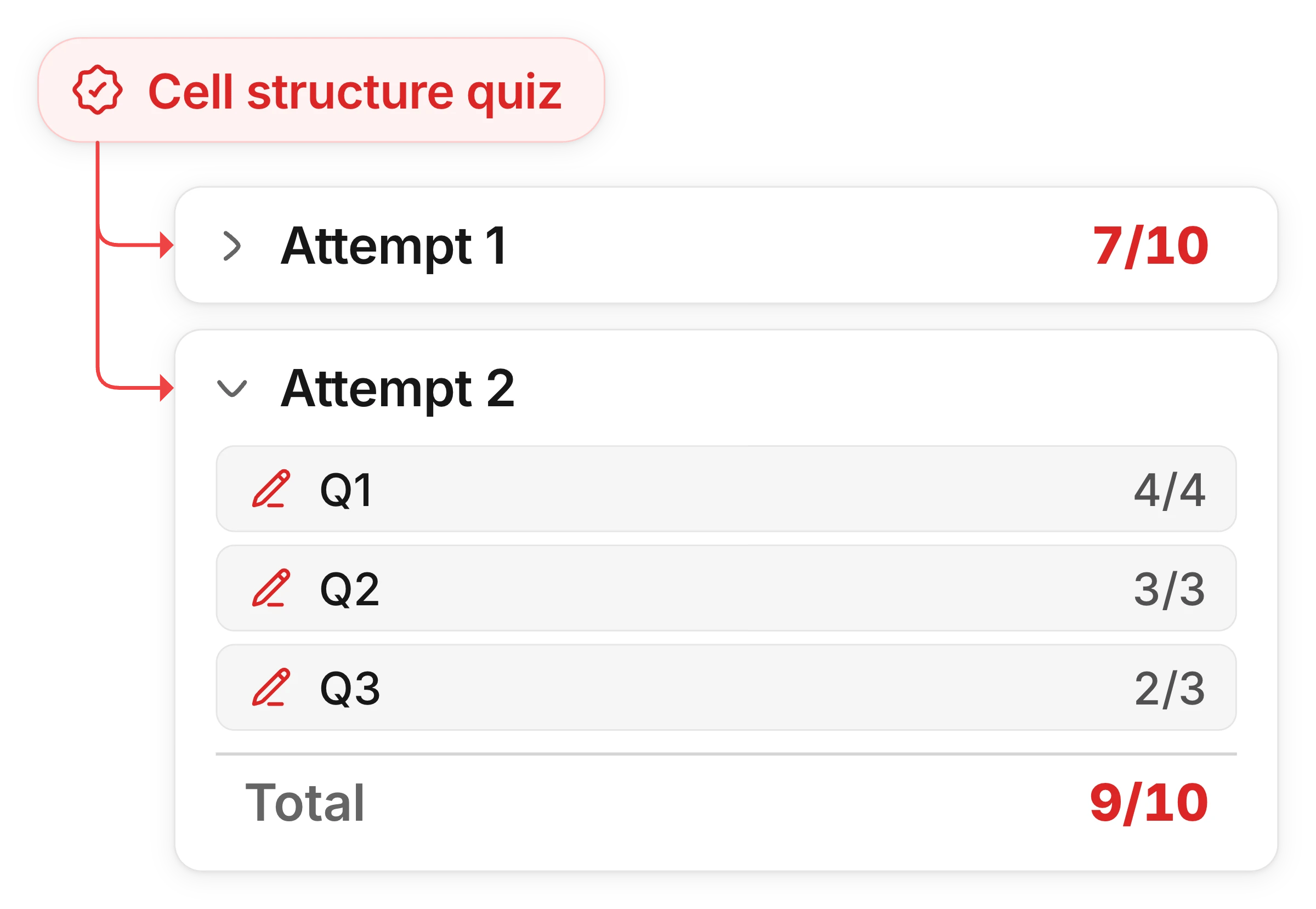
Open and Manage Items
Courses, chapters, lessons, and files all work the same way. Select an item to open it, and right-click it to manage it. Selecting an item opens the next level down:- A course opens its chapters.
- A chapter shows its lessons in the Lessons panel.
- A lesson shows its details:
- A Teach lesson shows its files and learning objectives.
- An assessment shows its settings and submissions.
- A file opens its page, with its study tools, in a new browser tab.
- Right-click the item.
- Hover over the item and select its menu button (⋯) in the top-right corner.
- On a touch screen, press and hold the item. The menu button stays visible there.
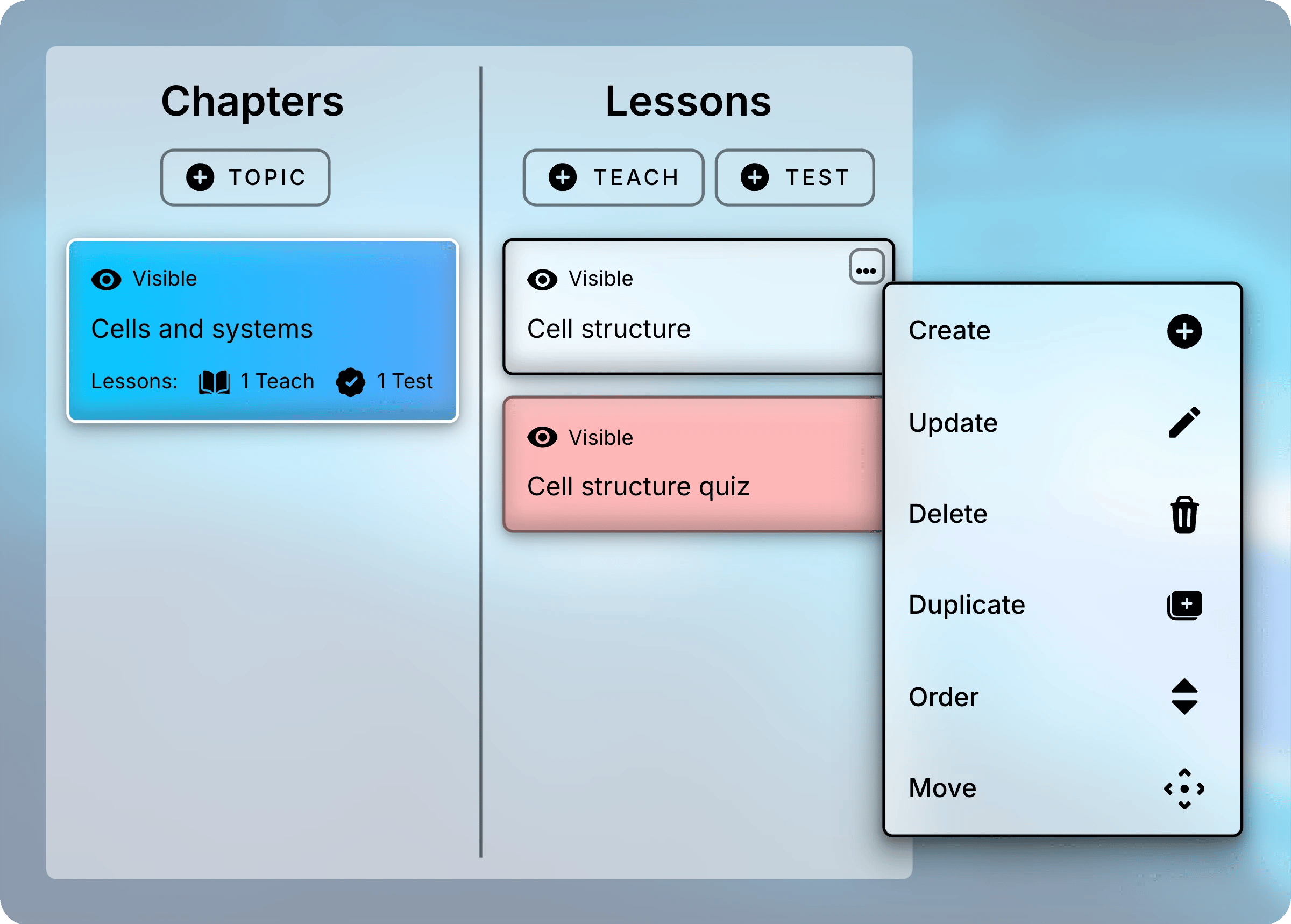
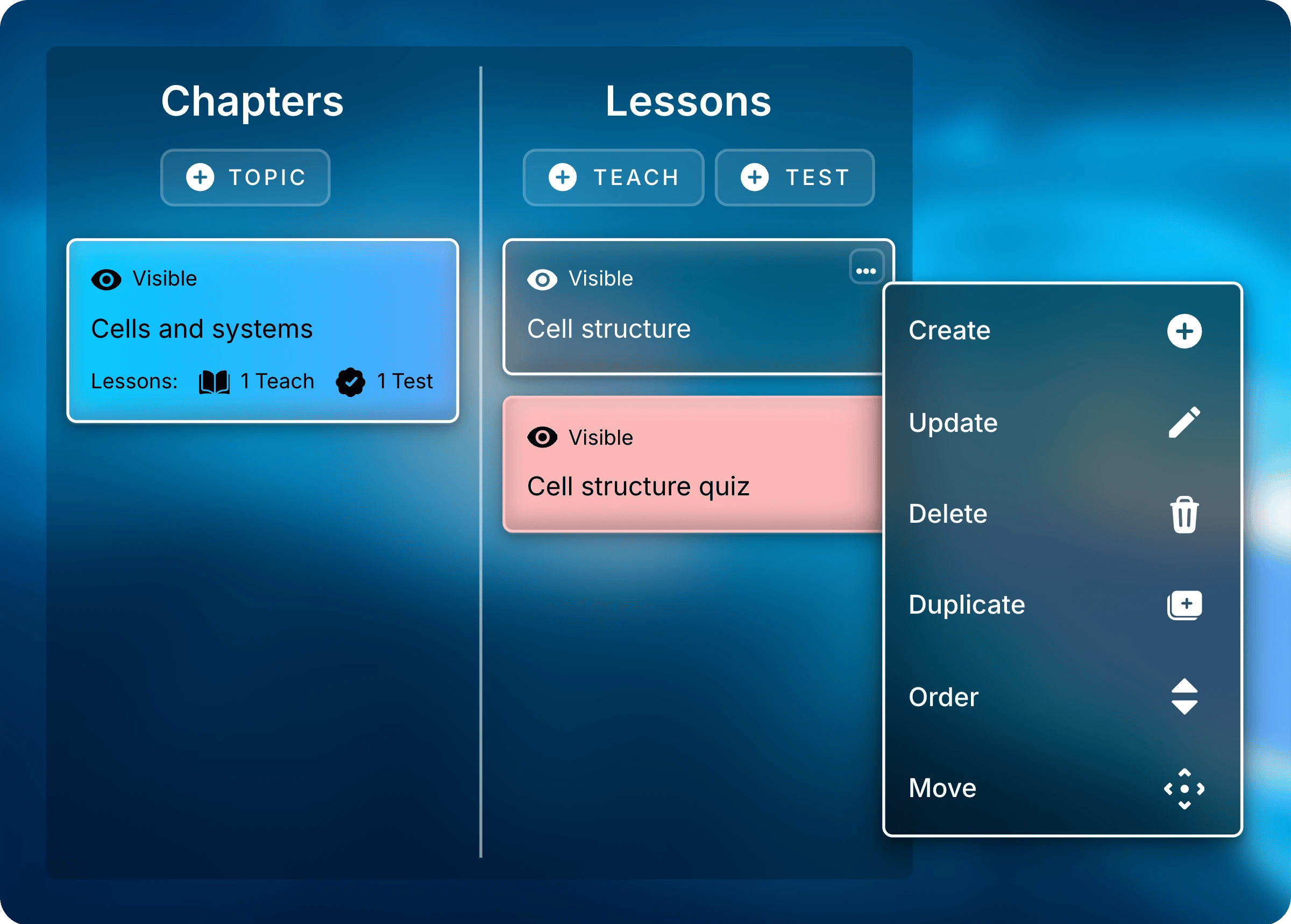
Right-click a lesson, or select its menu button, to manage it.
Menu Actions
Each item’s menu lists only the actions that apply to it.Delete can’t be undone. Deleting a chapter also deletes its lessons and their files.
You can’t delete an assessment that has submissions, or the chapter that holds it.
What Students See
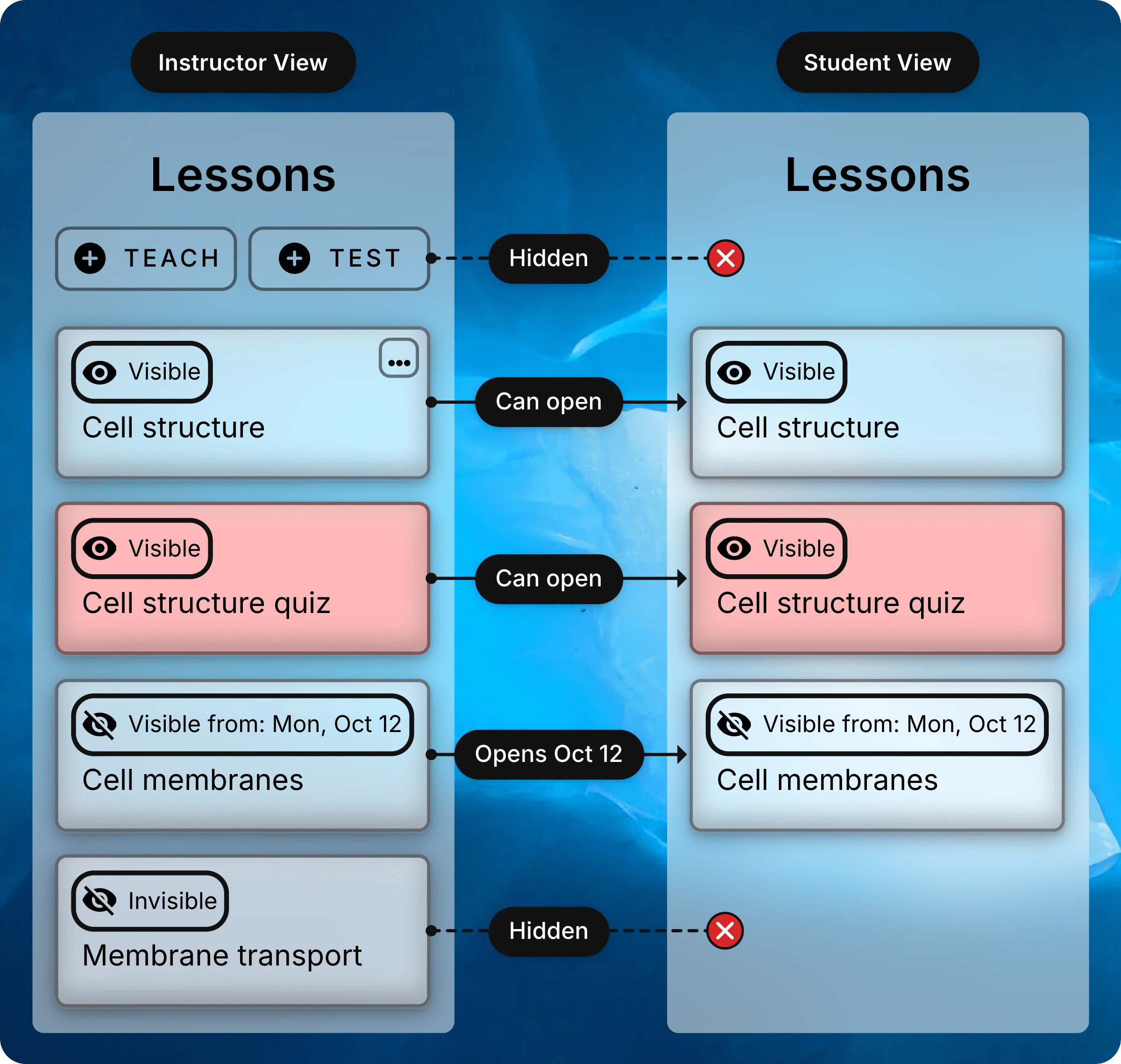
Students see the same Chapters and Lessons panels, without menus or create buttons. Each item’s label tells you what students get:- Visible: students can open it.
- Visible from or Visible until: students see it but can’t open it outside the dates.
- Invisible: students don’t see it at all.
Next: Plan Your Course
Decide how to divide your course into chapters and lessons.