
Prepare the File
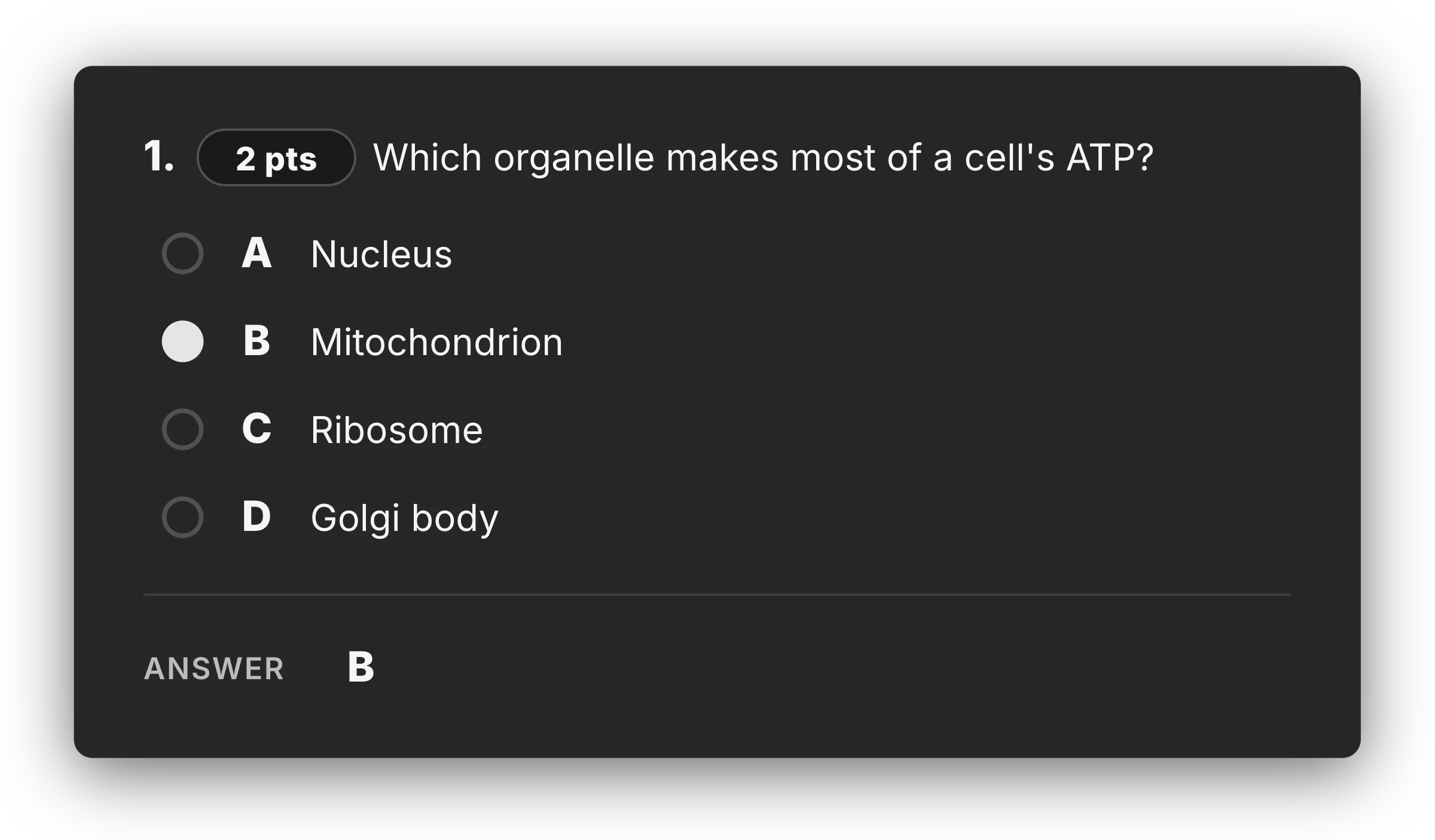
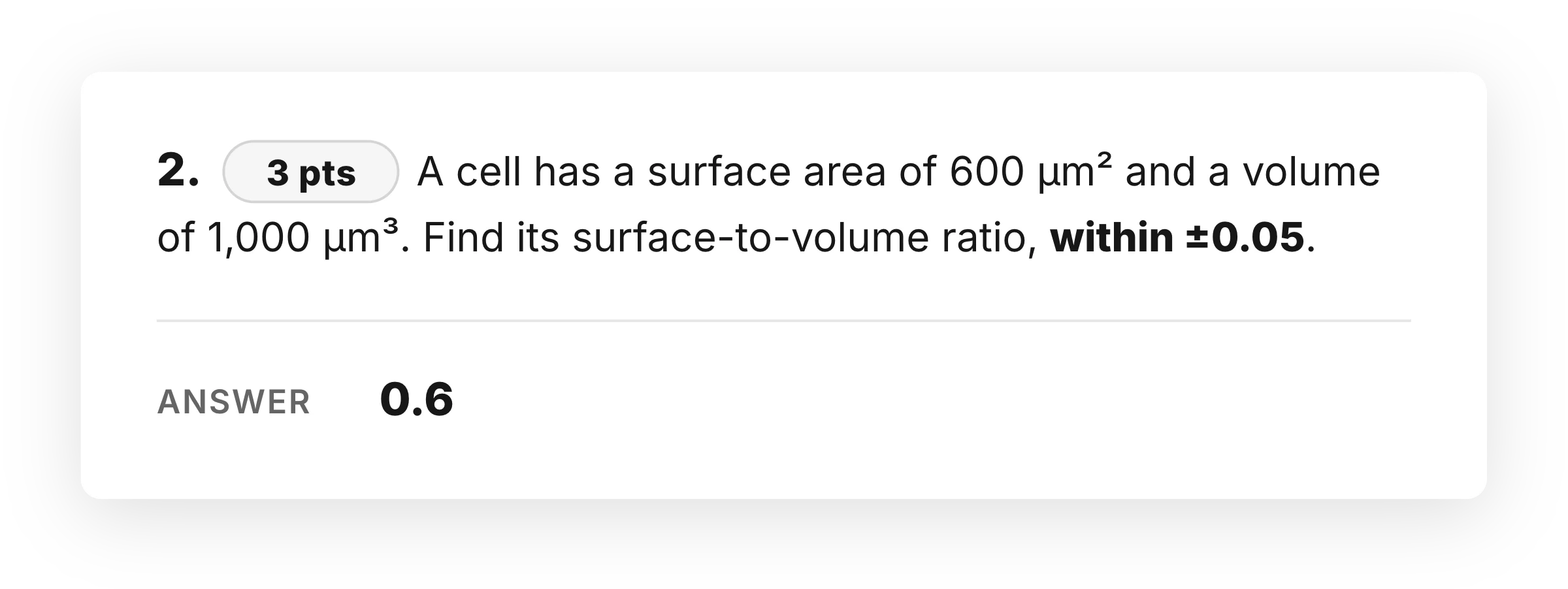
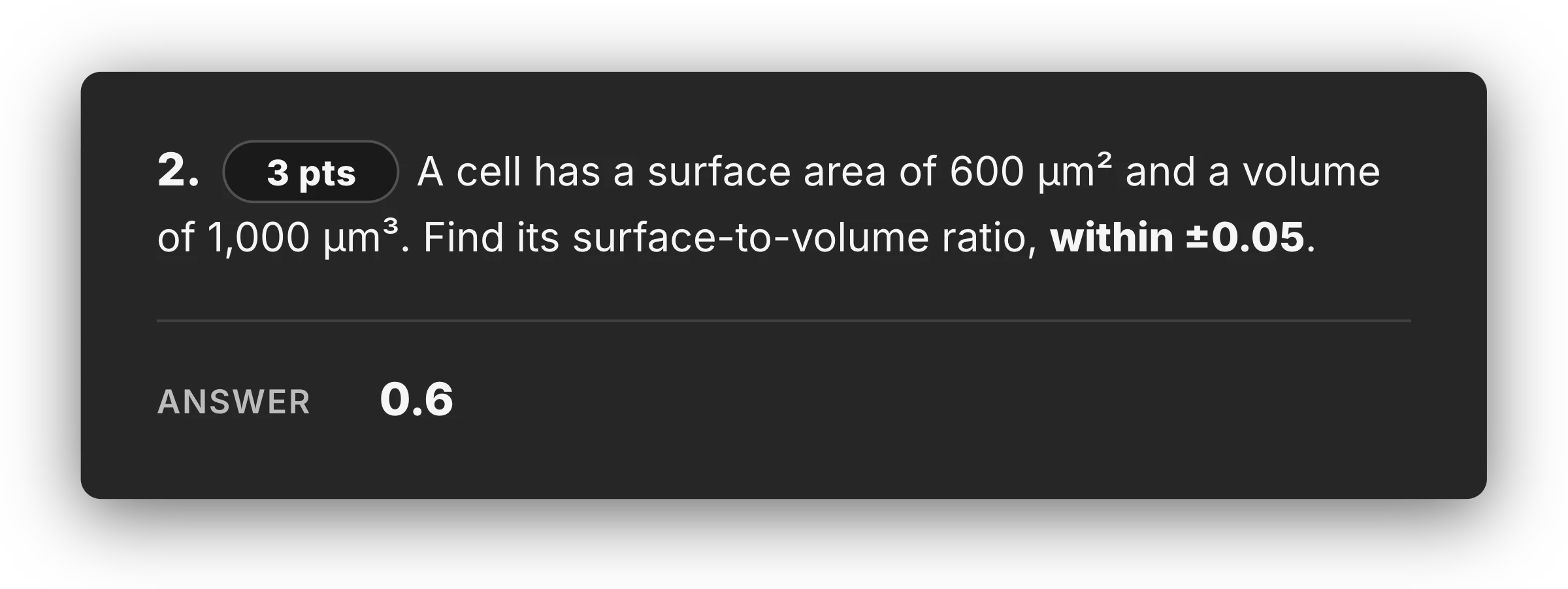
Upload your questions as a Word, PDF, TXT, or MD file. Make sure each question states your intended point value, otherwise the default is 10. Lay out each question so Uflo can tell its type and answer:- Multiple Choice
- Number
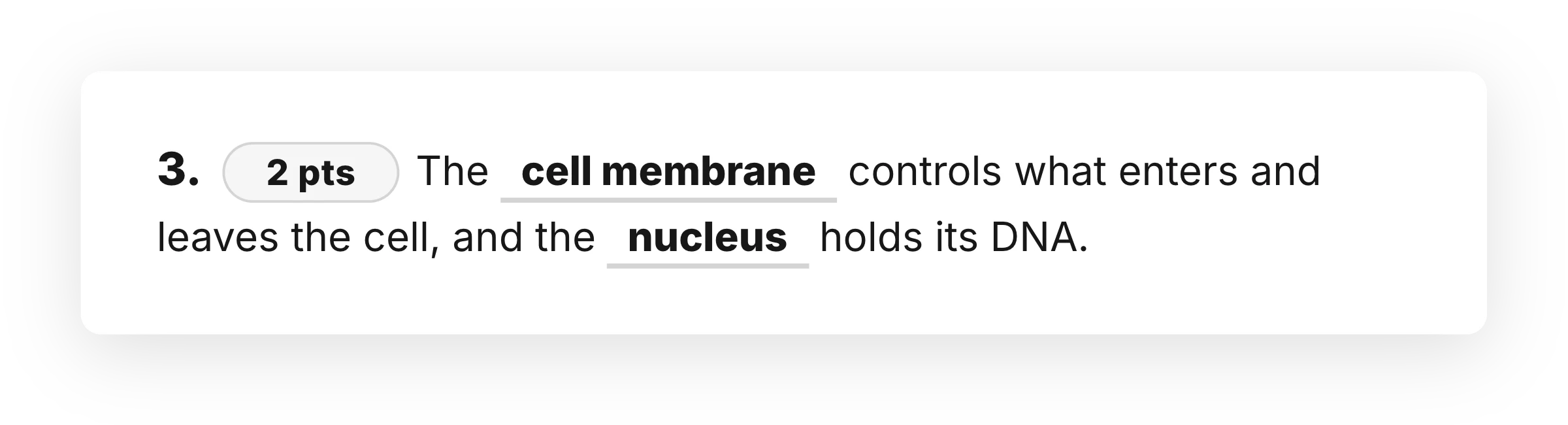
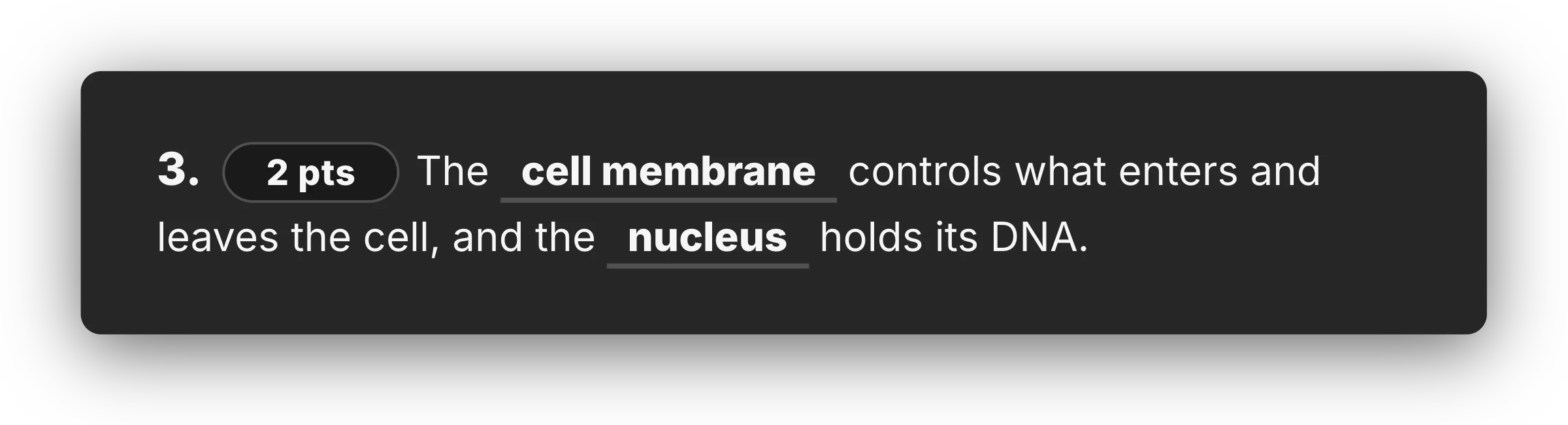
- Fill in the Blank
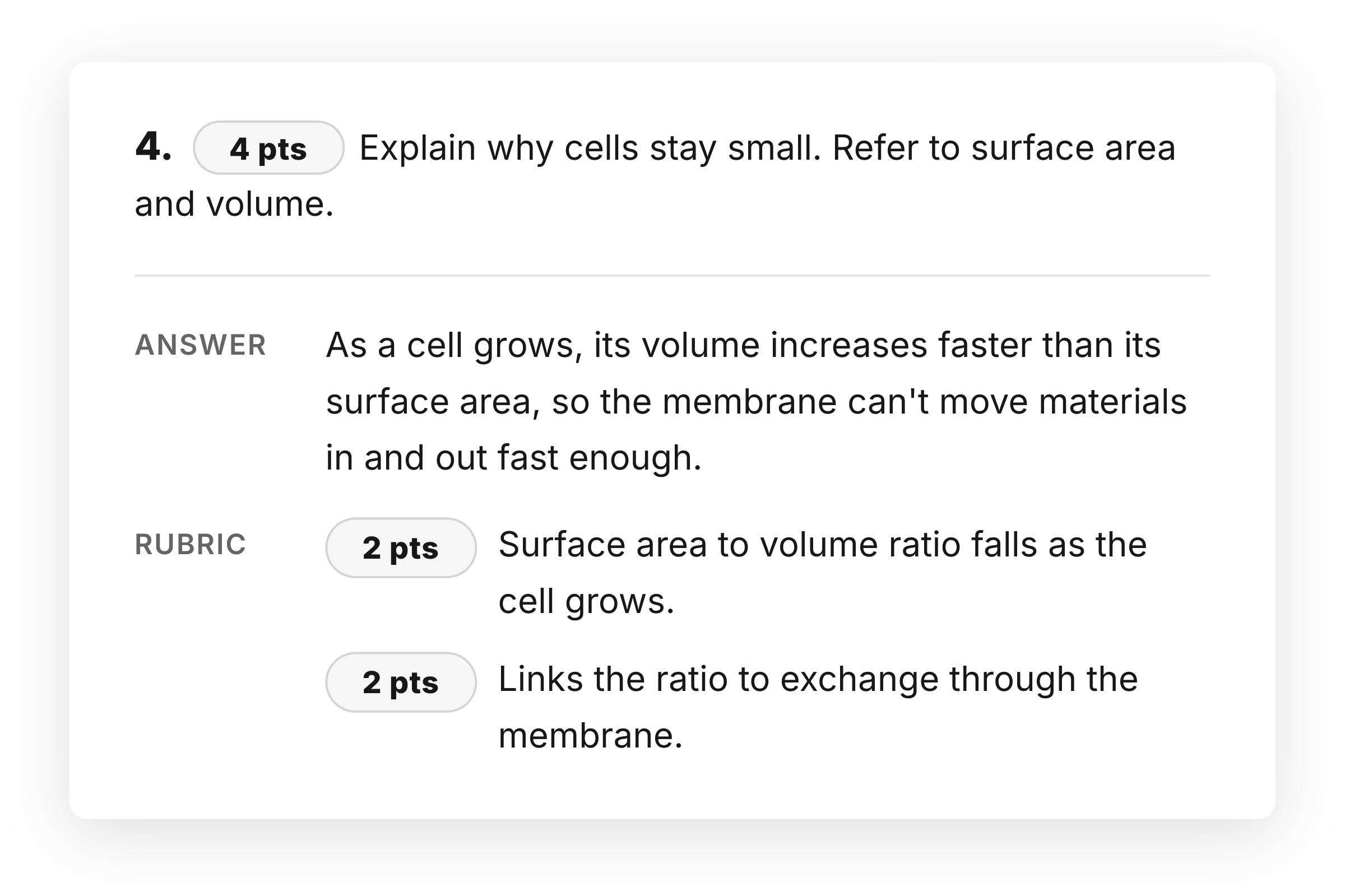
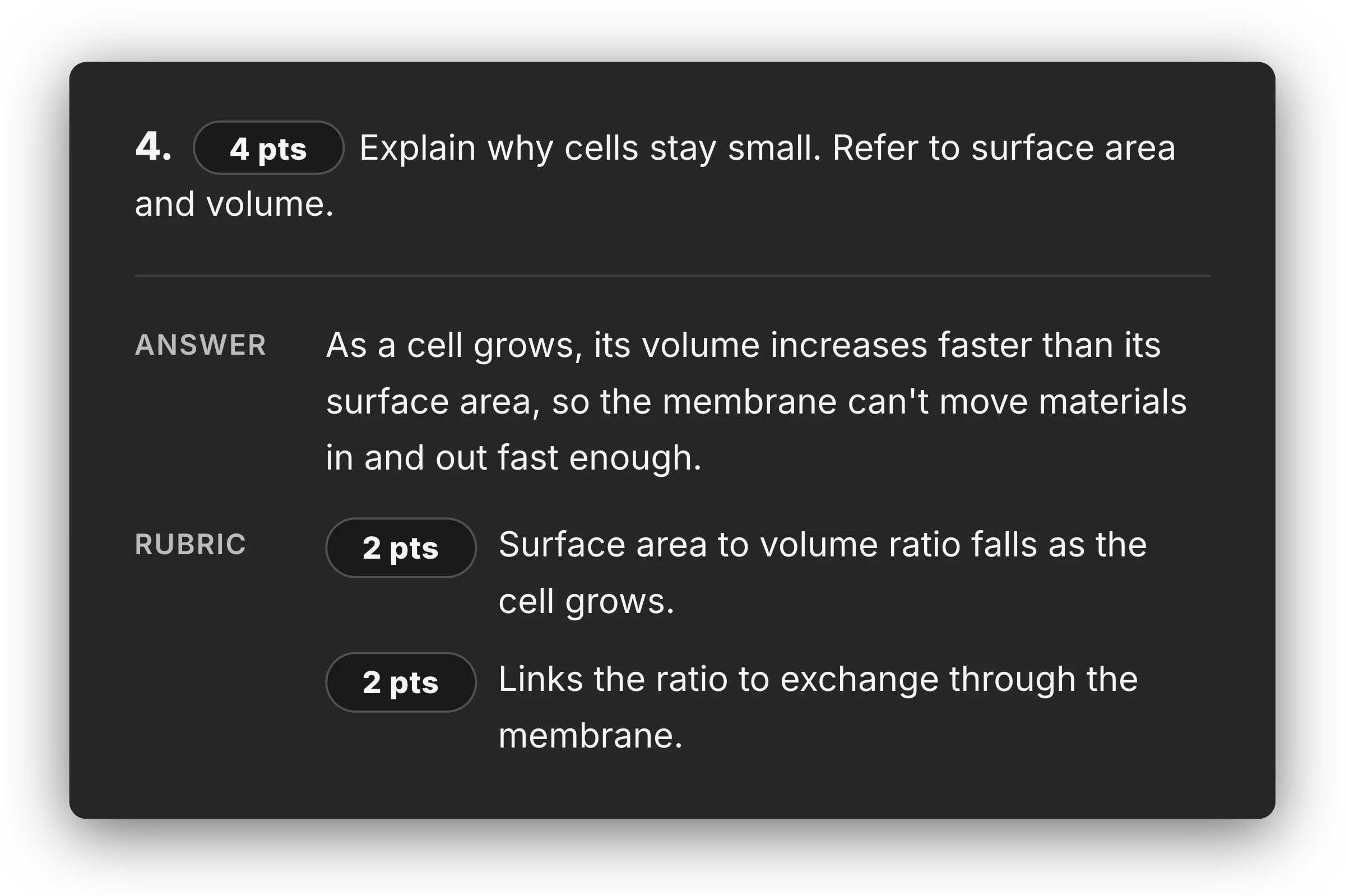
- Free Response
- Drawing
Label each choice with a letter, number, or circle, and mark the correct choice(s).
For a question with several correct choices, say “Select all that apply” and mark each one.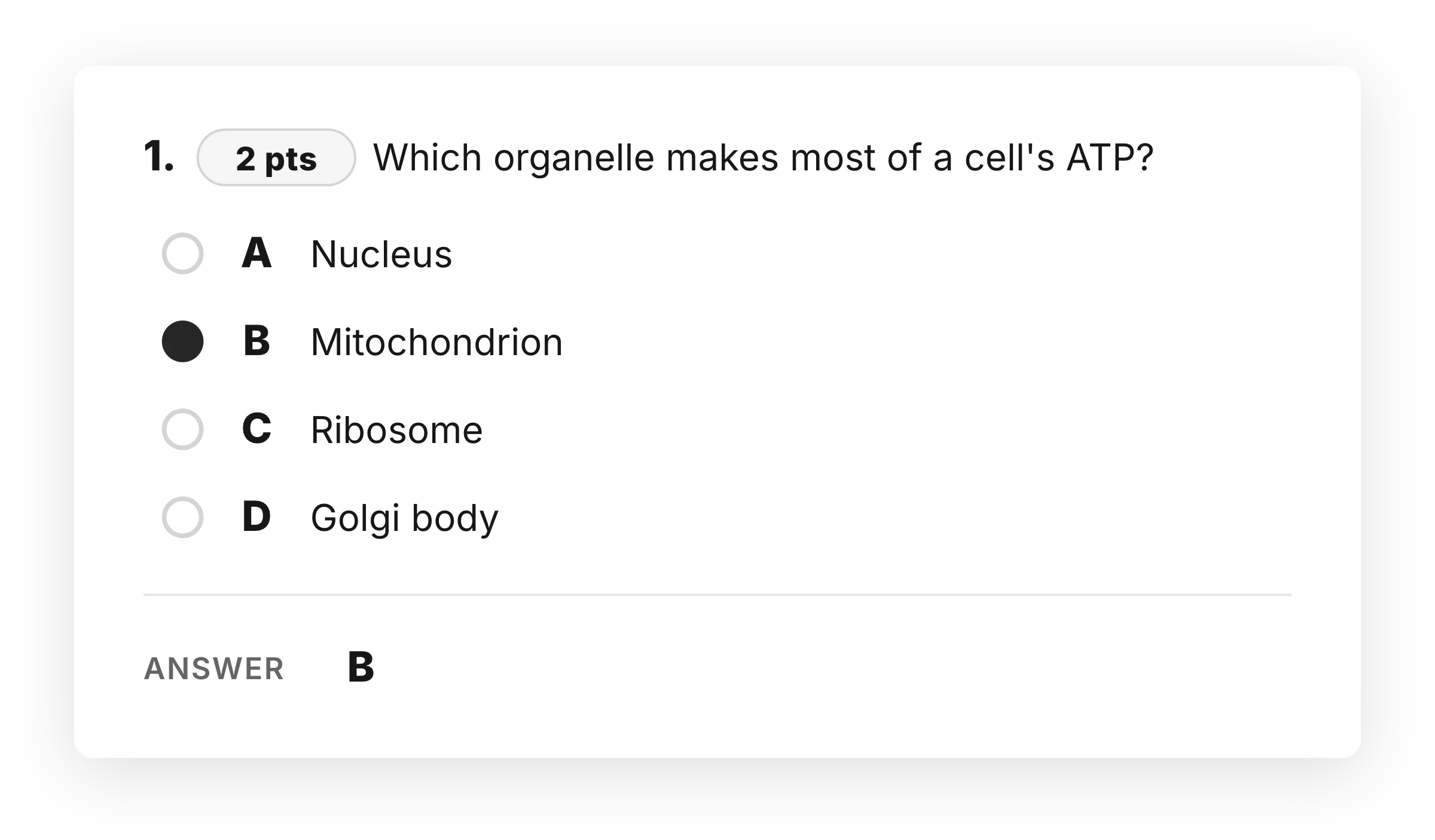
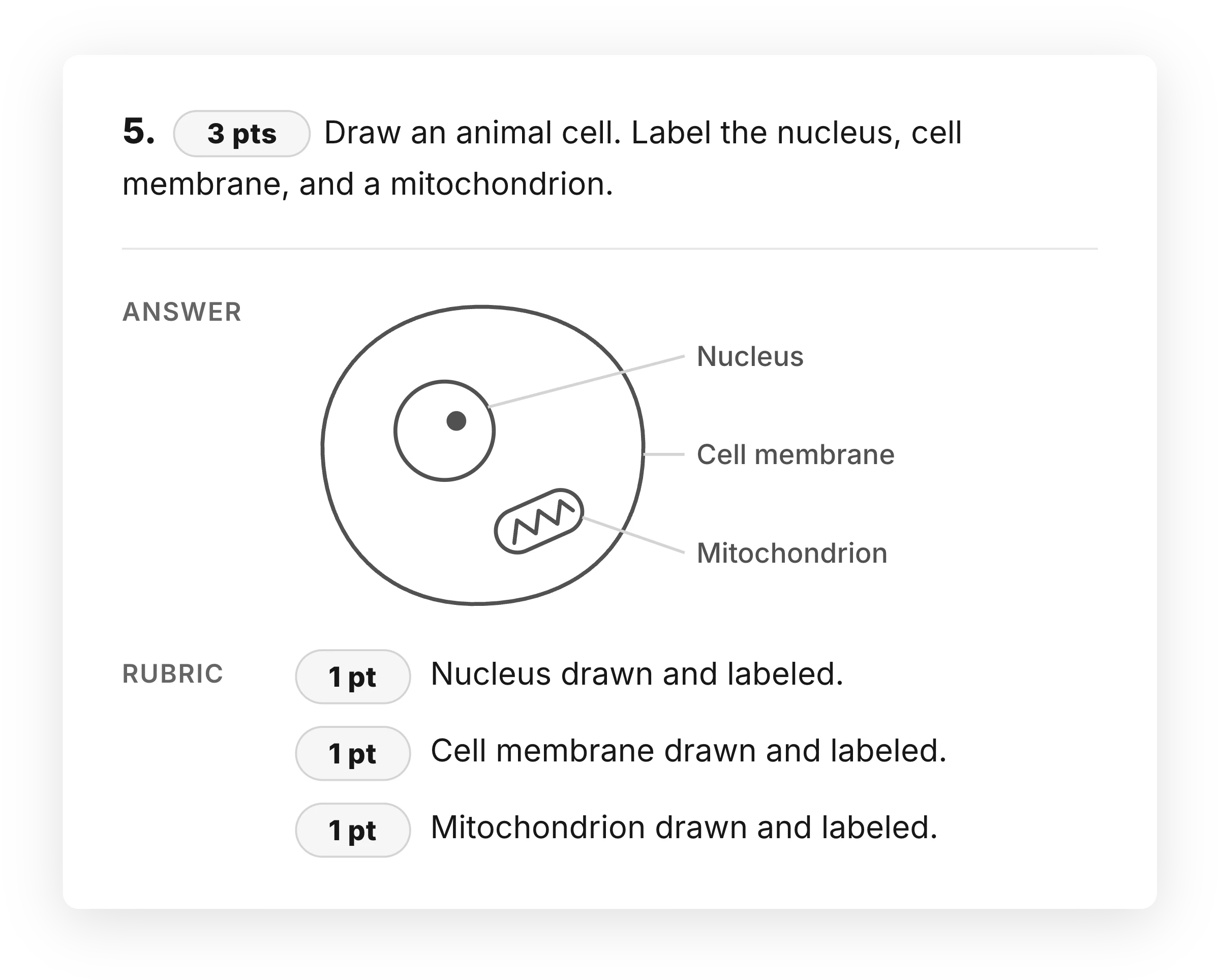
Missing Answers and Rubrics
You don’t need a complete answer key. Uflo writes what your file leaves out:- Answer: Uflo solves the question itself.
- Rubric: for free response and drawing questions, based on what the question asks.
Import the Questions
1
Open the Assessment
Select the new assessment under Lessons to open its page. Then, under Files, select Import Questions to start the upload.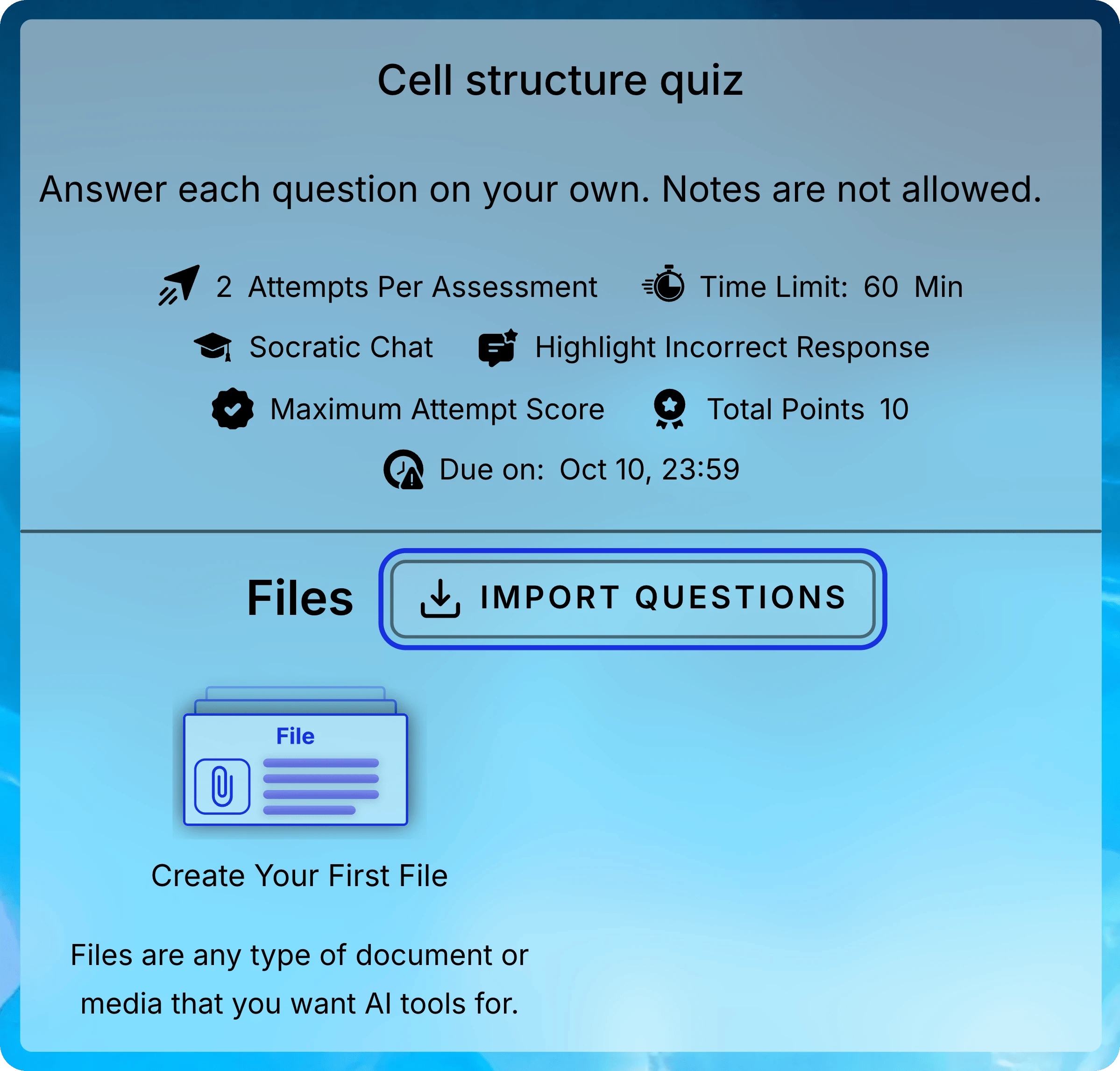
Import Questions appears on a new assessment.
2
Add Your File and Upload
Add the file, select Upload, and wait until the file finishes uploading.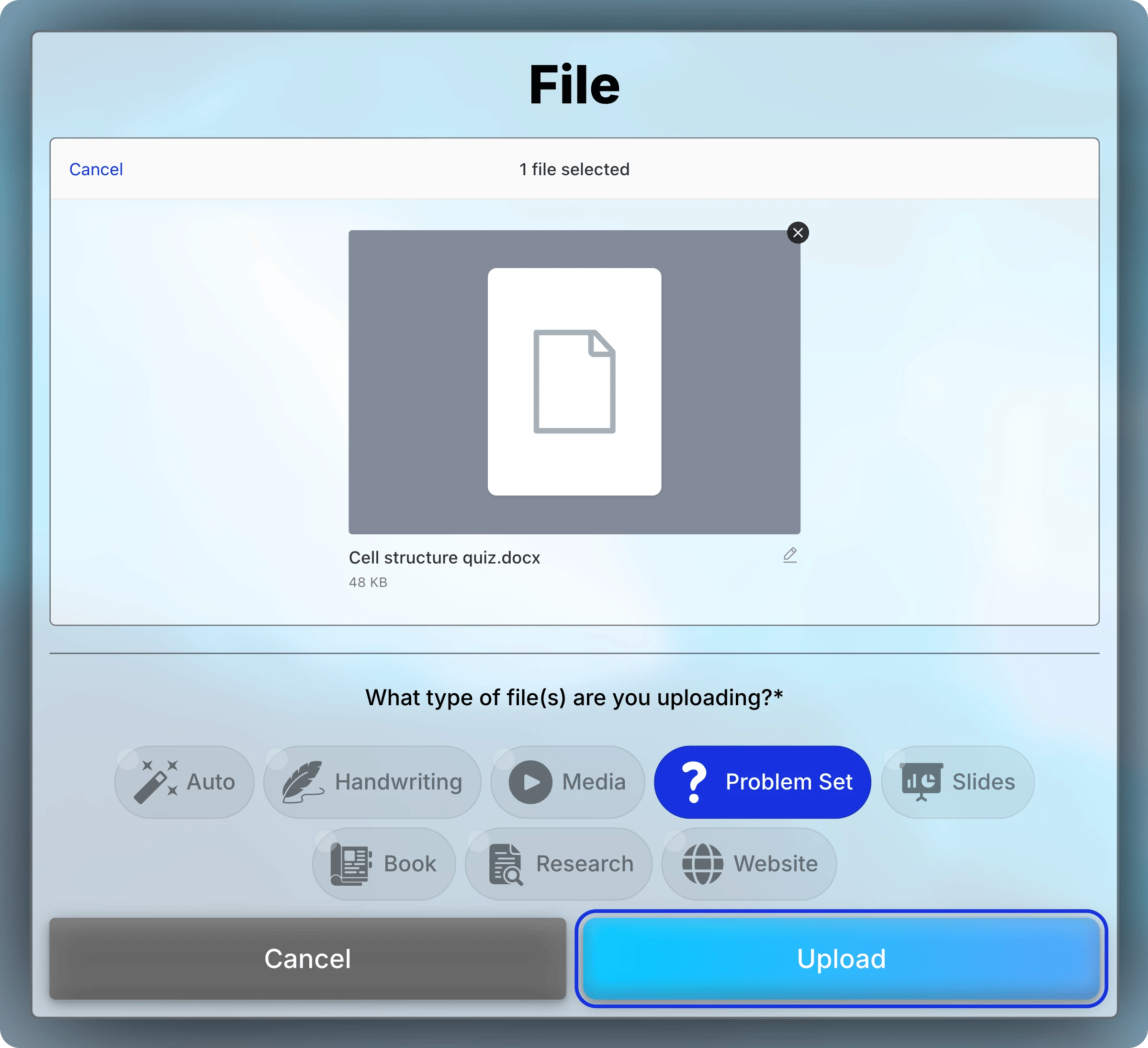
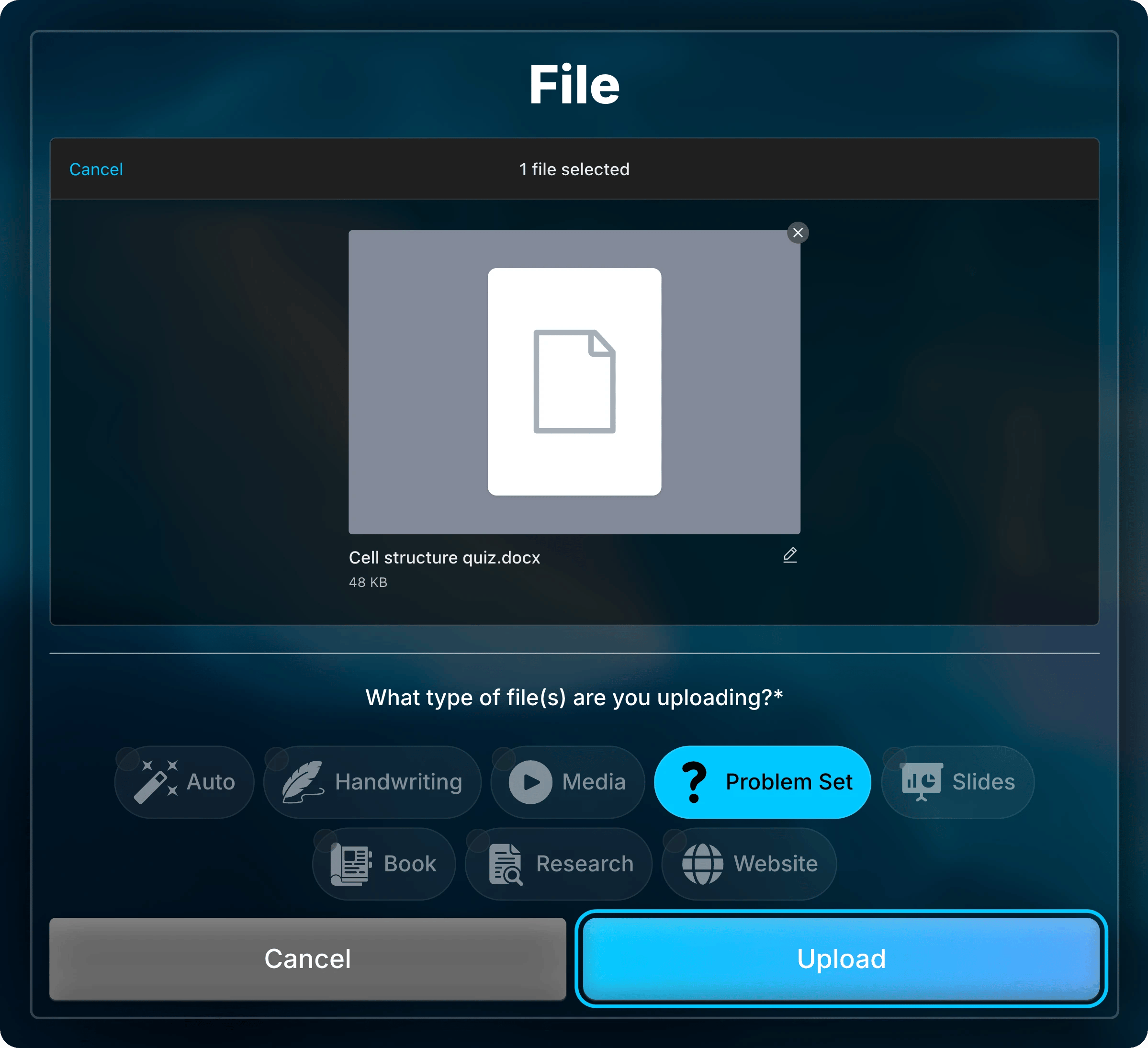
Add the file, then select Upload.
3
Follow the Progress
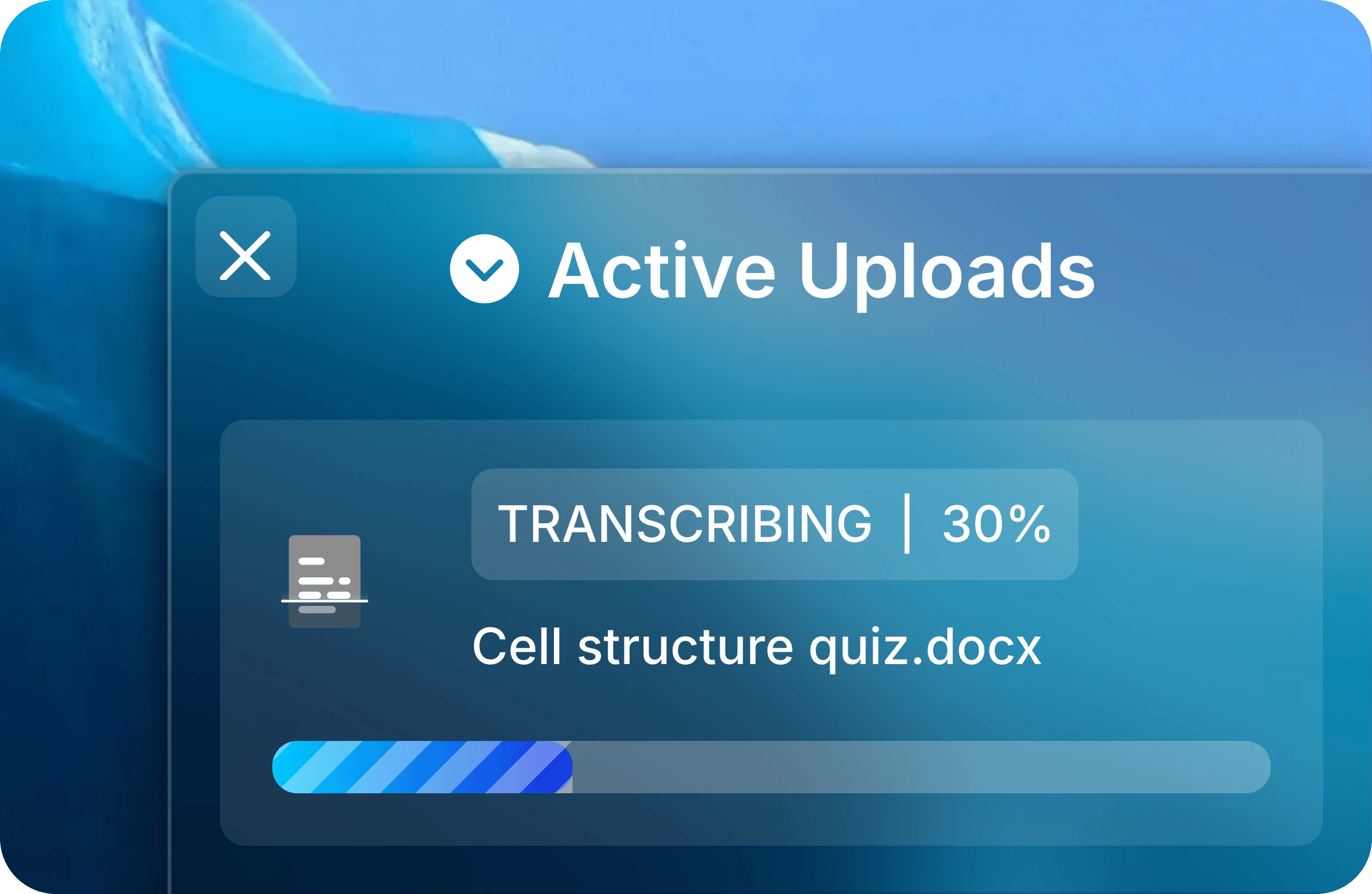
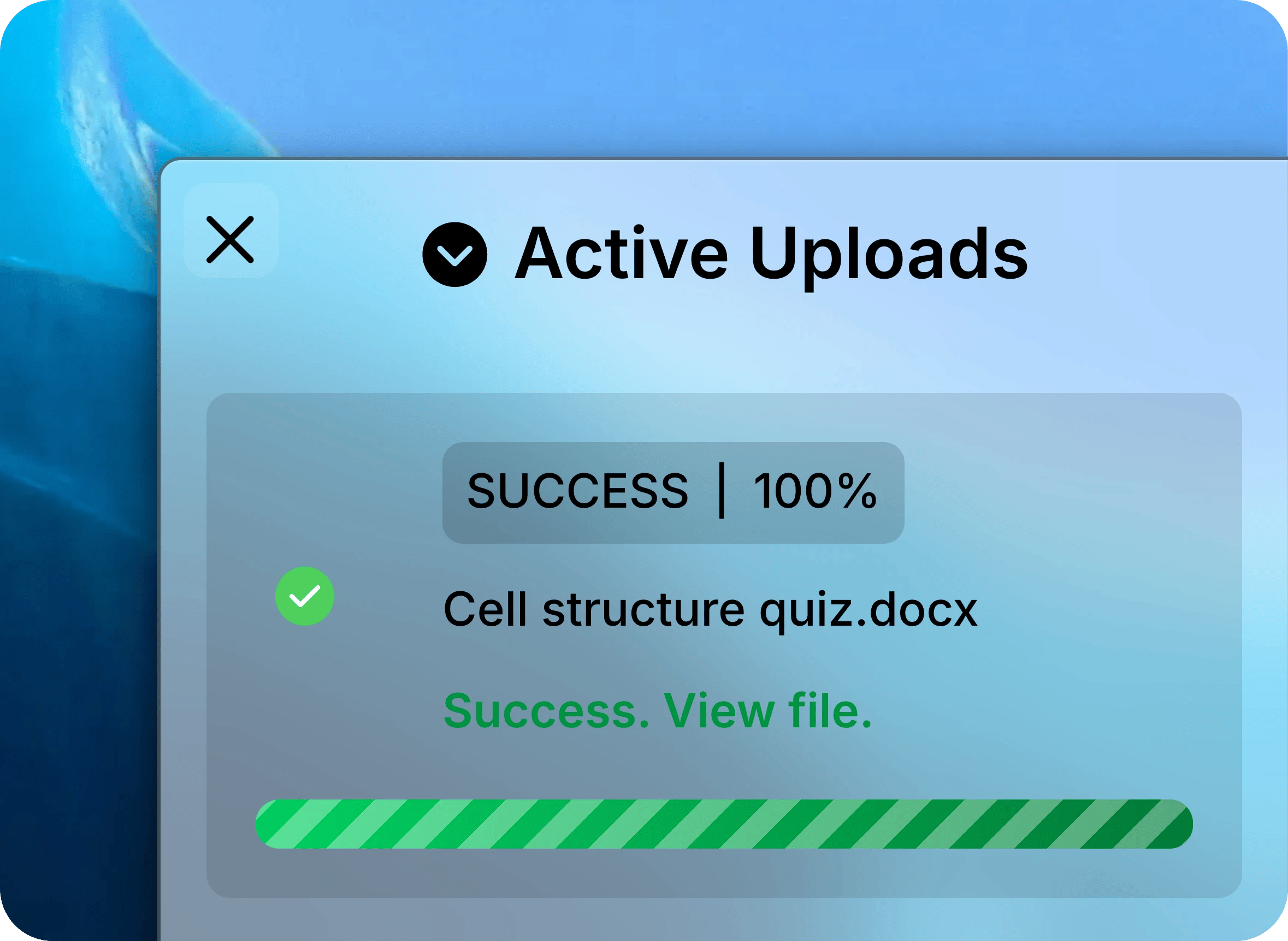
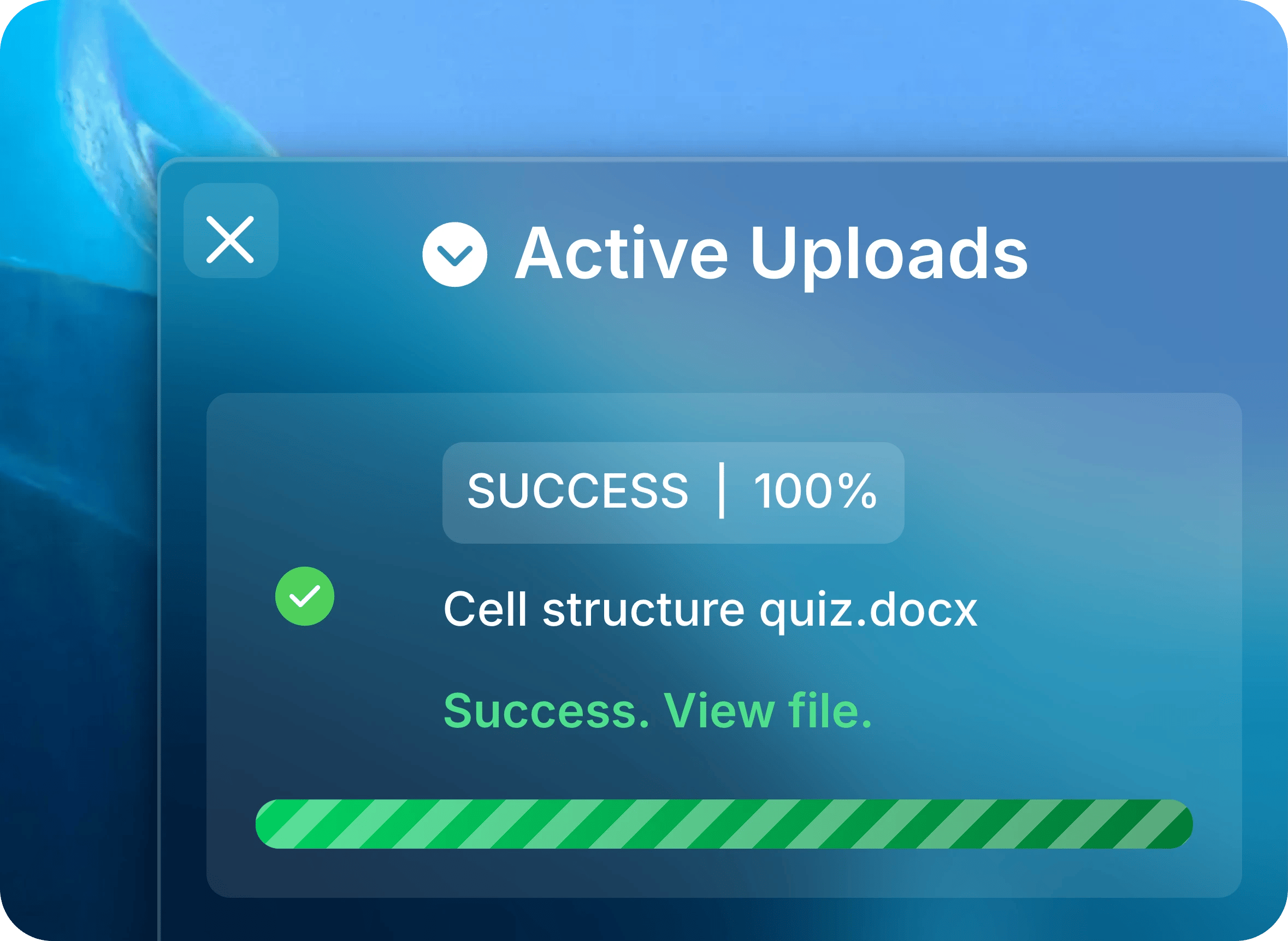
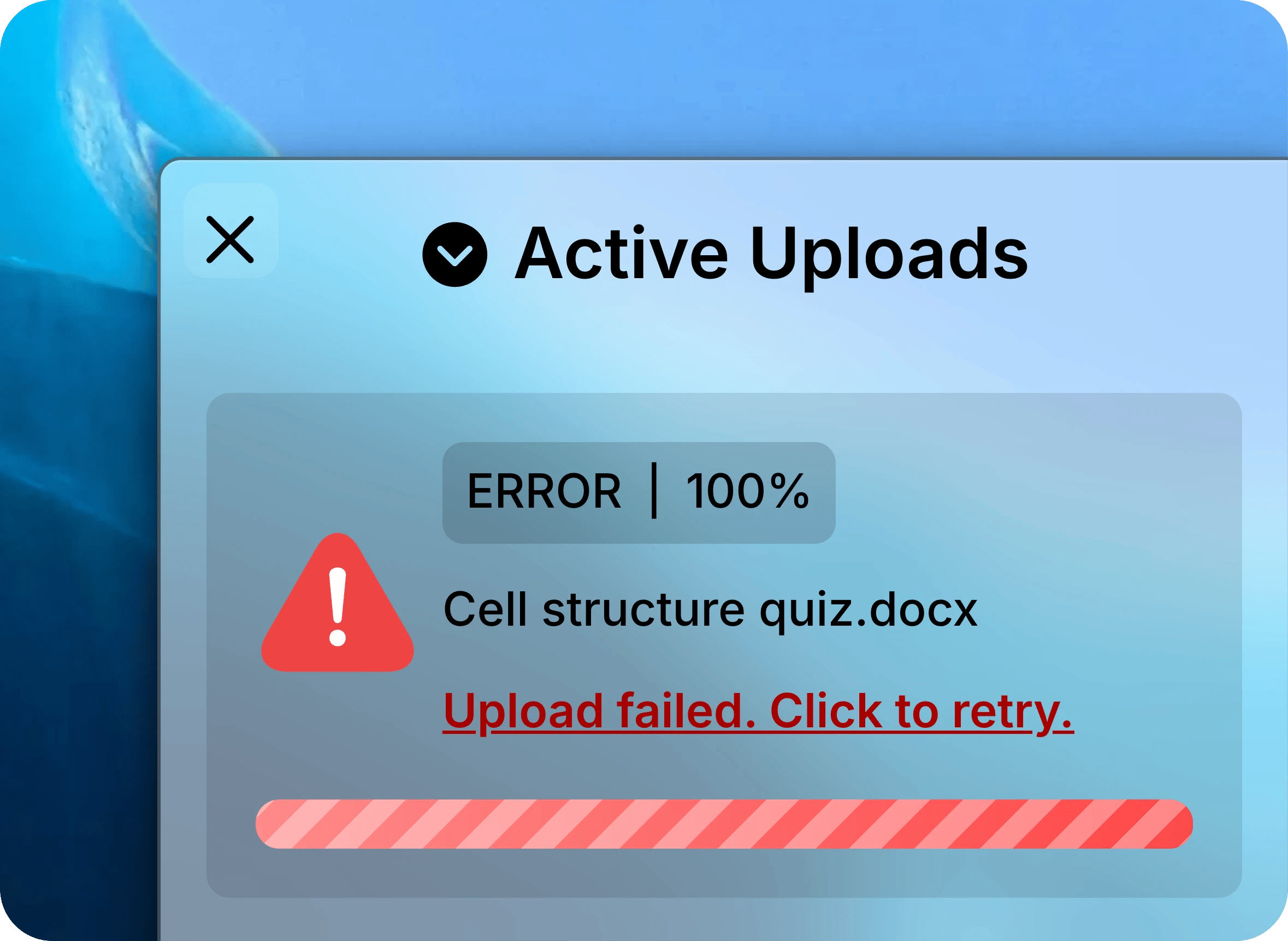
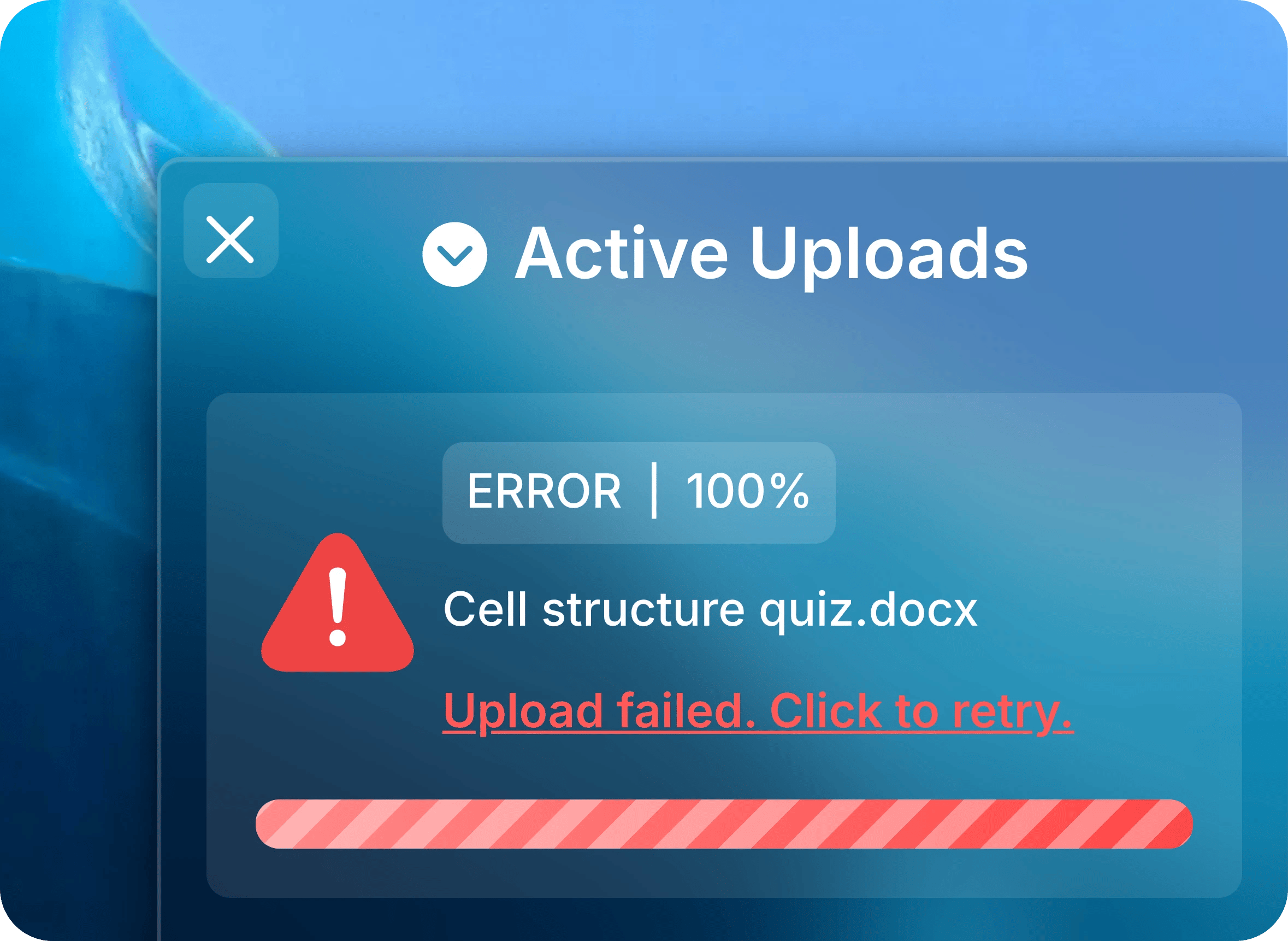
Active Uploads tracks the progress of importing your questions.
- In Progress
- Success
- Upload Failed
The bar fills as Uflo reads your file and creates the questions.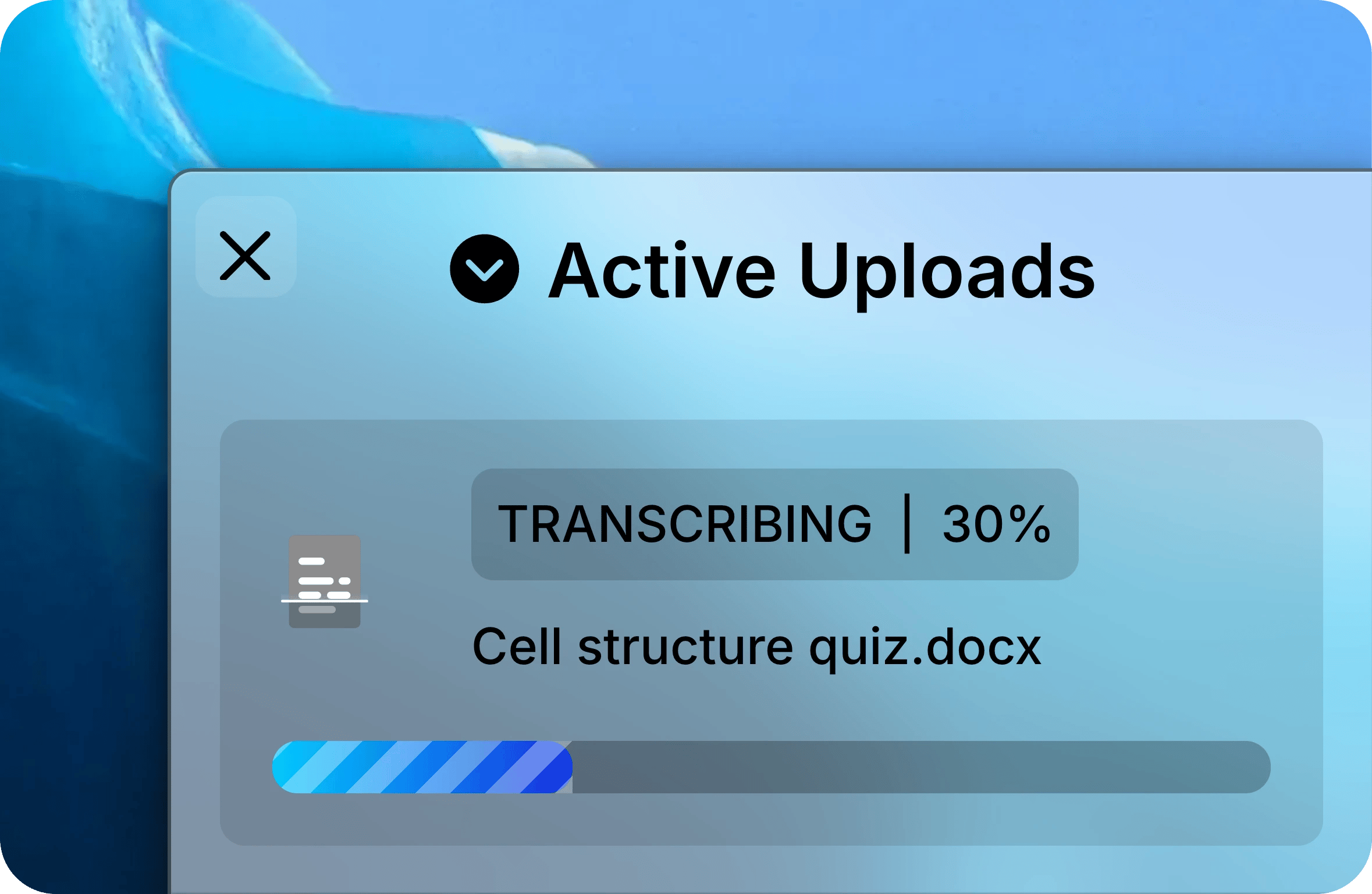
4
Open the Question Page
To view the imported questions, select the file you just uploaded.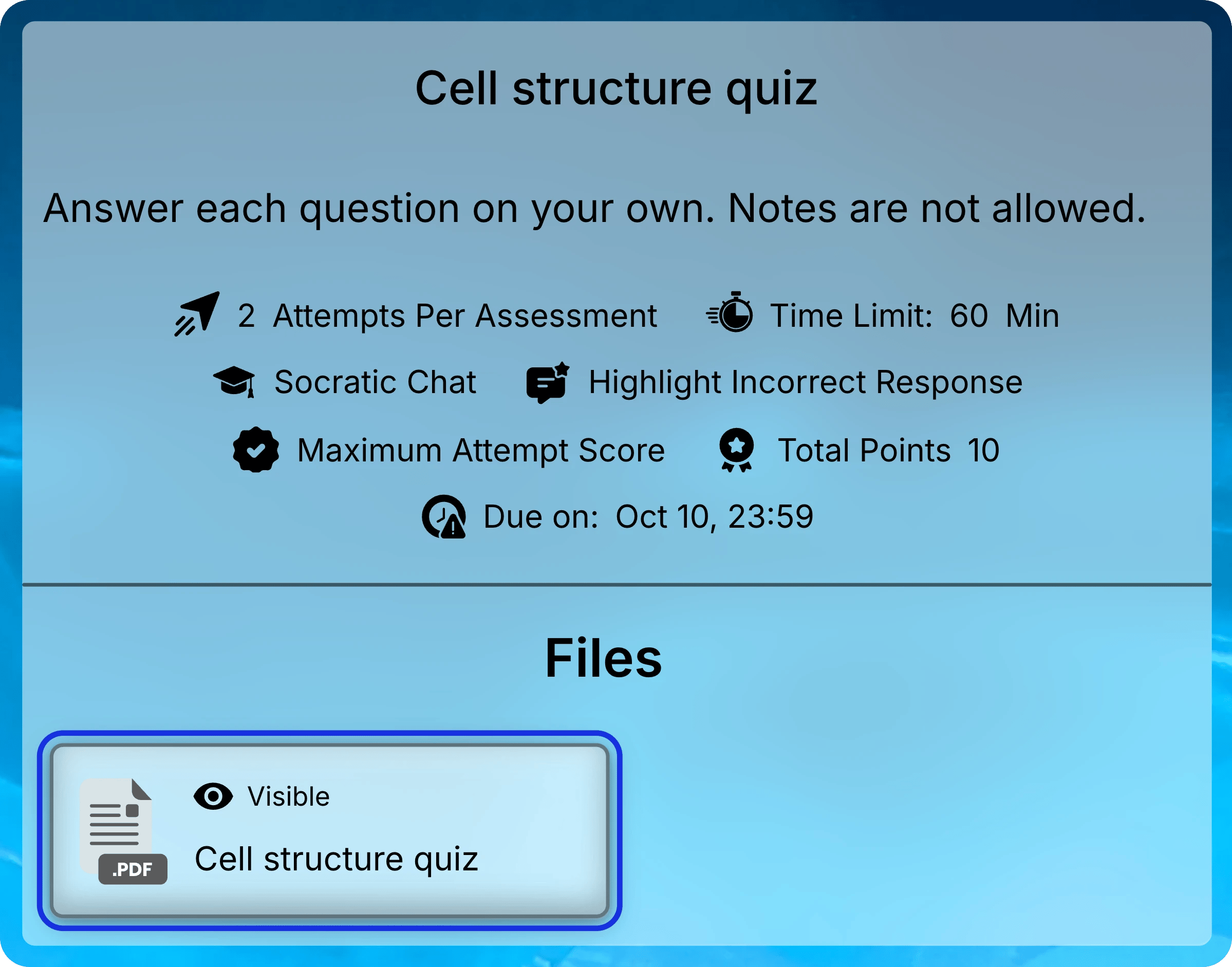
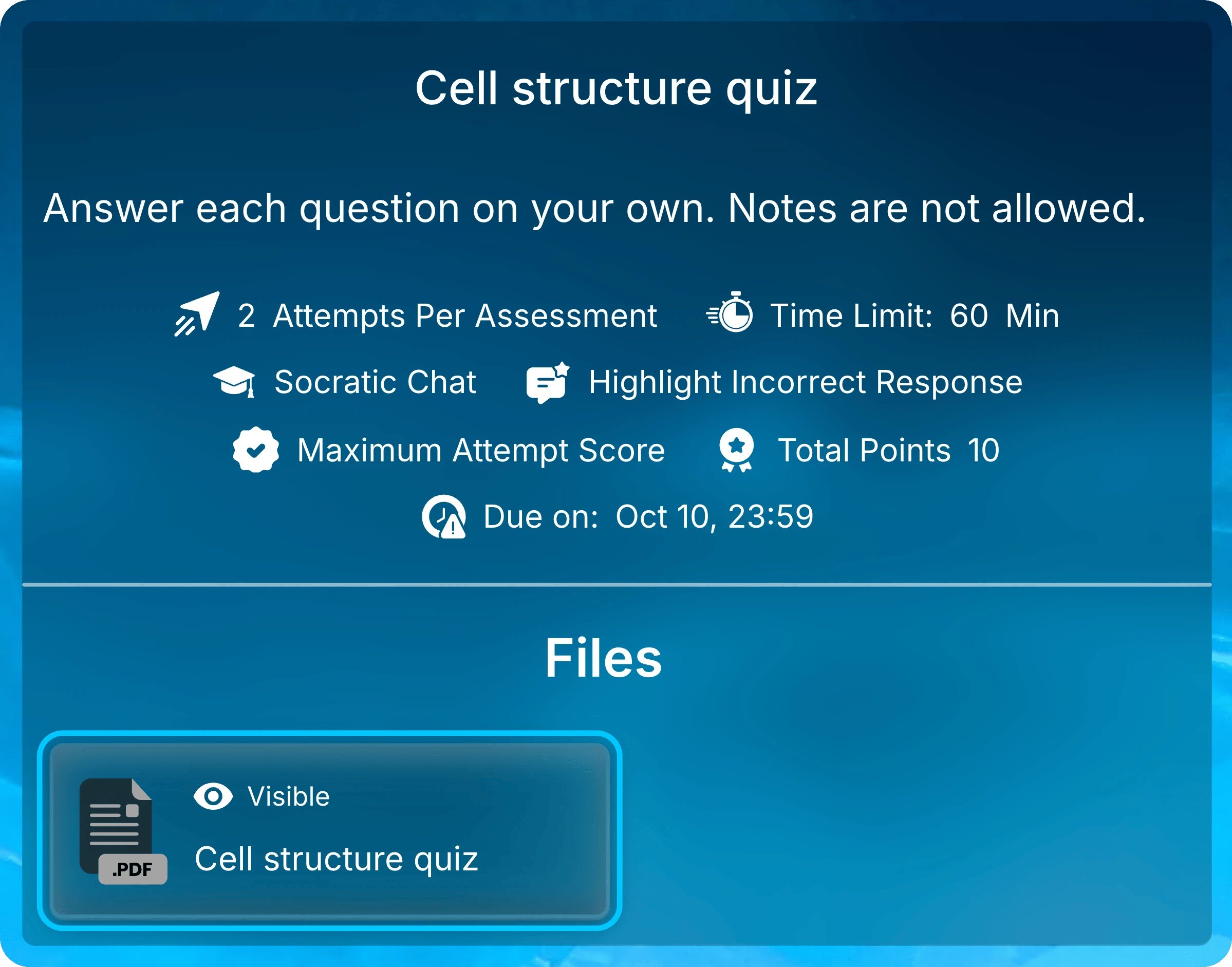
Select the question file to open the question page.
5
View the Questions
The page opens in Teacher View. To see it as students do, switch views from the menu at the left of the bar above the questions.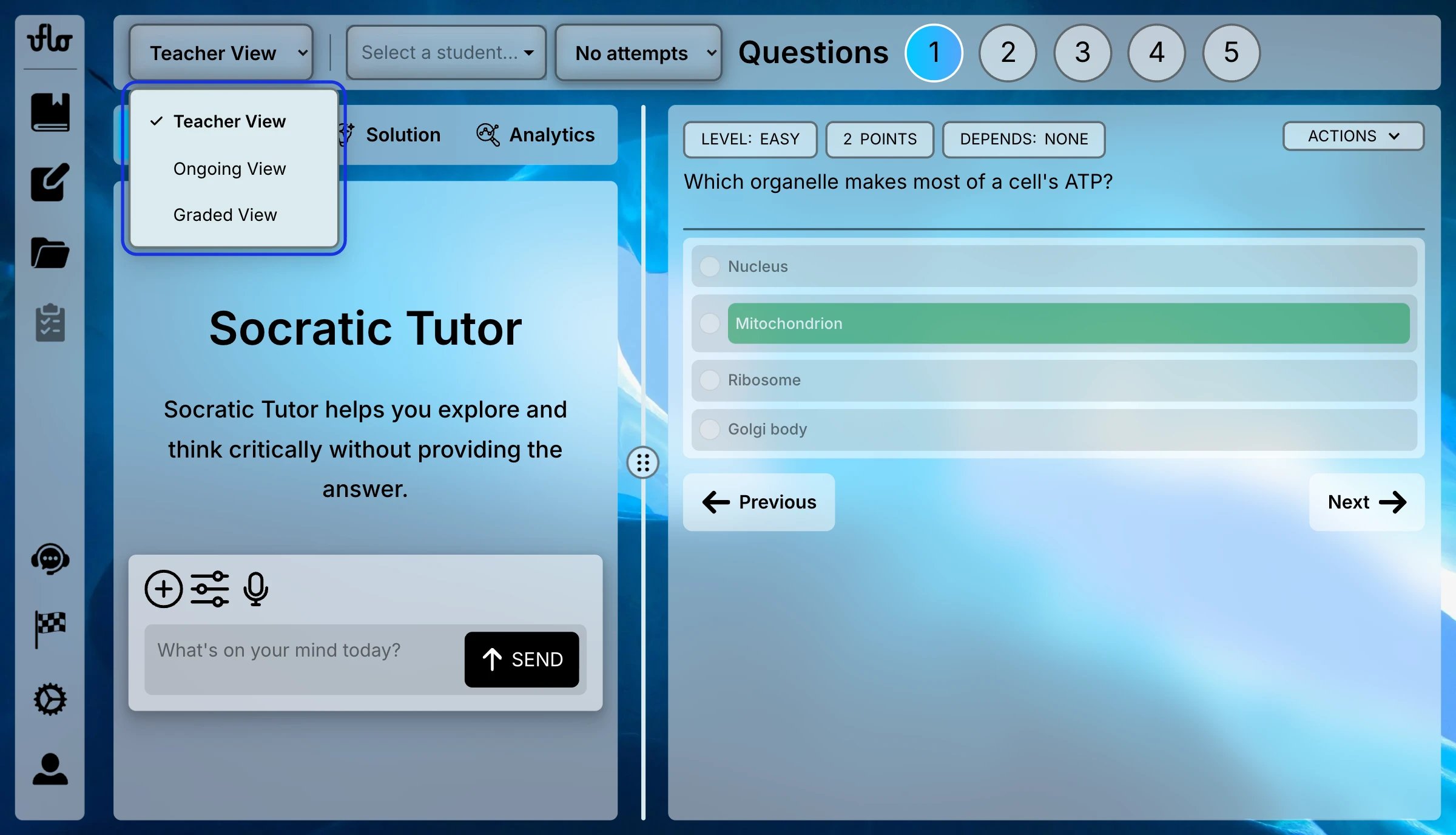
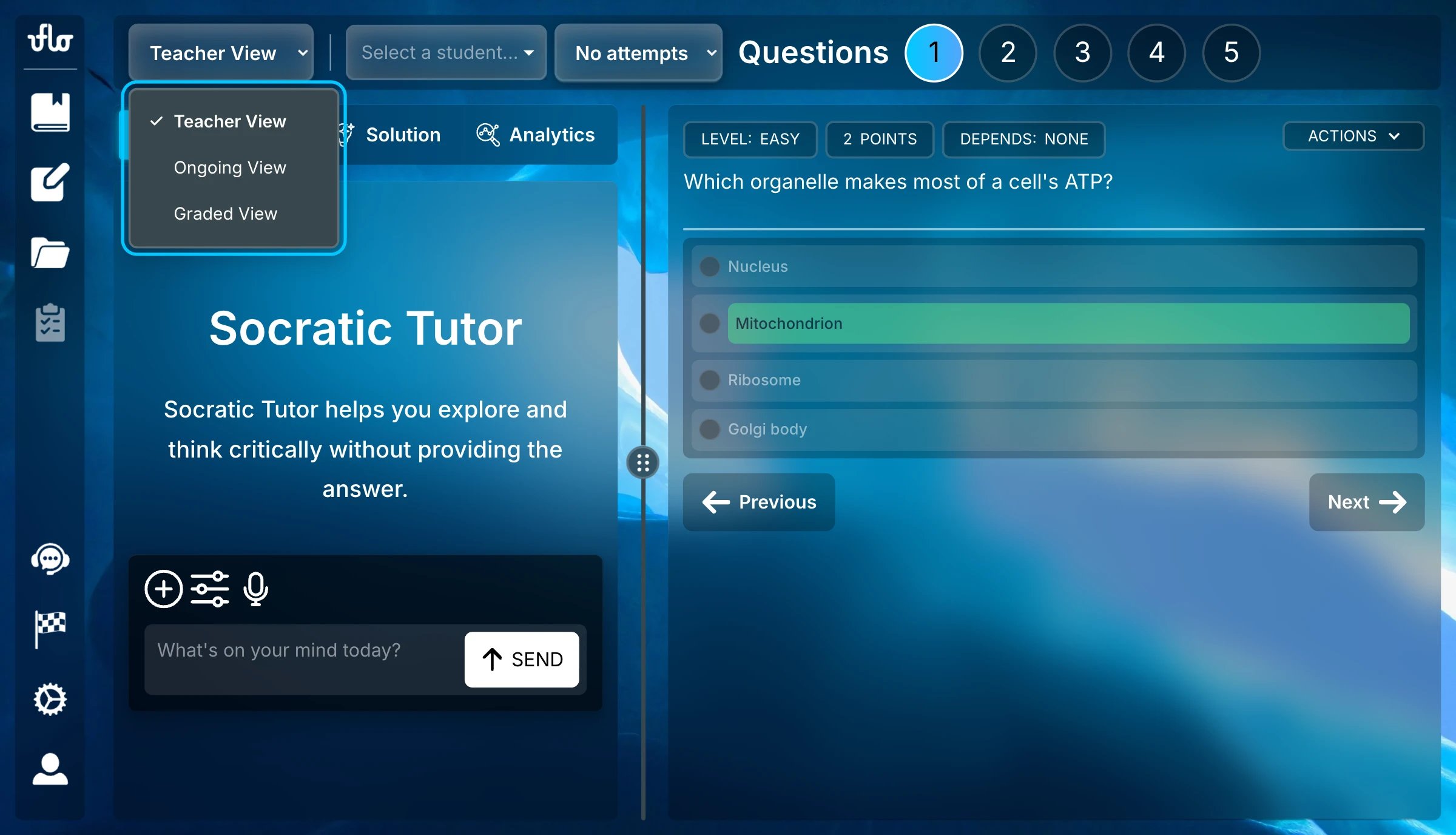
Switch views from the menu at the left of the top bar.
6
Check Every Question
Look closest at questions with:
- Images: each figure sits in the right question and shows in full.
- Math: equations and symbols match your file.
- Answers and rubrics Uflo wrote: they match what you want to grade.
Supported Question Types
Where students answer decides which question types Uflo can grade. An LMS export holds only typed answers, so drawings and uploads can’t be graded from it.Common Questions
Can I import into an assessment that already has questions?
Can I import into an assessment that already has questions?
No. Import Questions appears only while the assessment has no question file. To add more questions, create them on the question page.
How do I start over with a different file?
How do I start over with a different file?
Deleting the question file deletes all its questions. It can’t be undone.
Next: Manage Questions
Add, edit, order, group, and delete the questions in an assessment.