An assessment is any work students submit for a score, from a practice quiz to a final exam. Uflo grades the responses and shows you where the class struggled.

From Creating to Releasing Grades

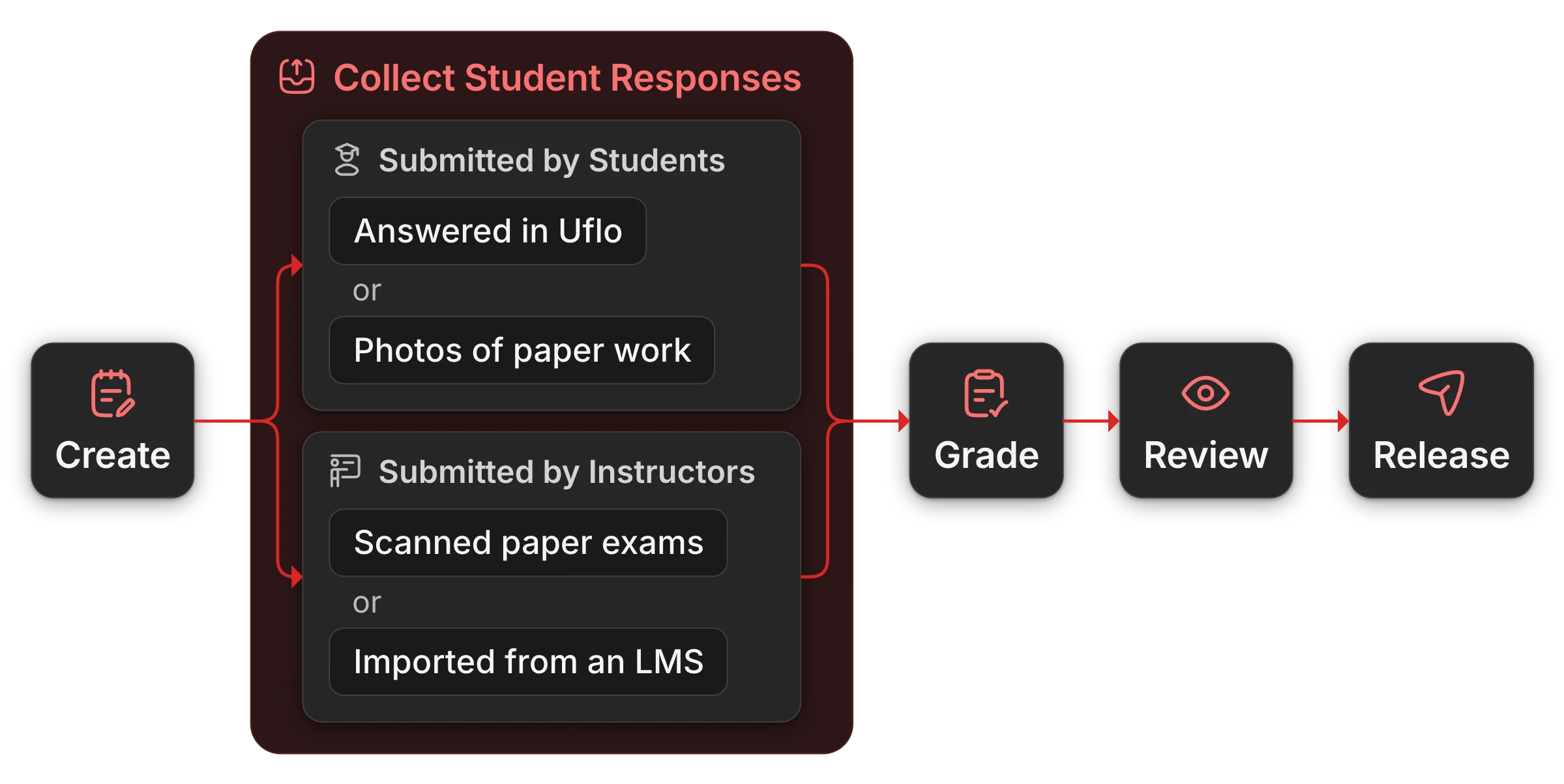
Every assessment in Uflo goes through five stages: Flowchart of five stages: Create, Collect Student Responses, Grade, Review, and Release. Collect Student Responses splits into Submitted by Students, answered in Uflo or photos of paper work, and Submitted by Instructors, scanned paper exams or imported from an LMS, before both paths join at Grade. Flowchart of five stages: Create, Collect Student Responses, Grade, Review, and Release. Collect Student Responses splits into Submitted by Students, answered in Uflo or photos of paper work, and Submitted by Instructors, scanned paper exams or imported from an LMS, before both paths join at Grade.
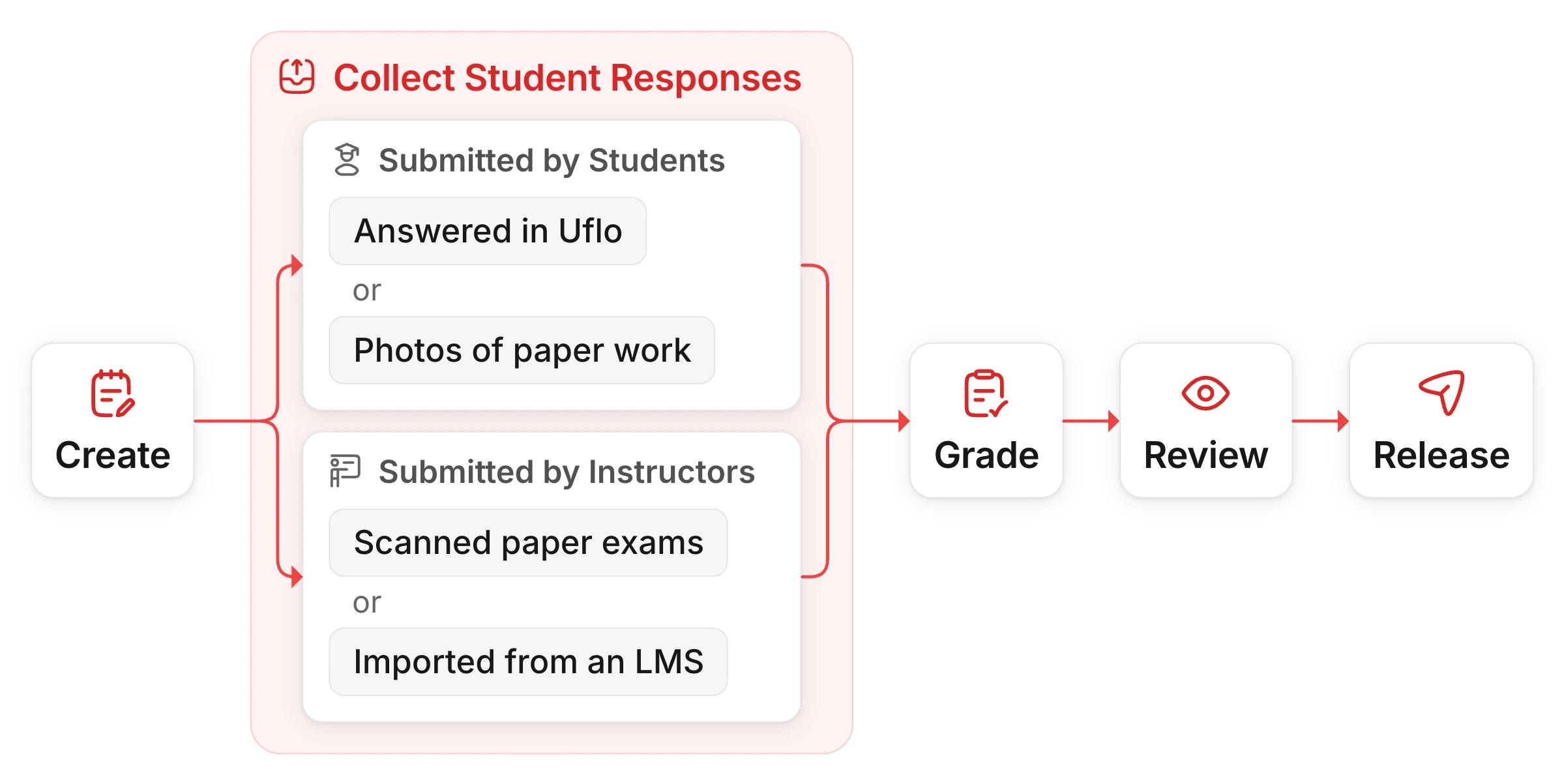
Students submit their work in Uflo, or you submit it for them.

1

Create
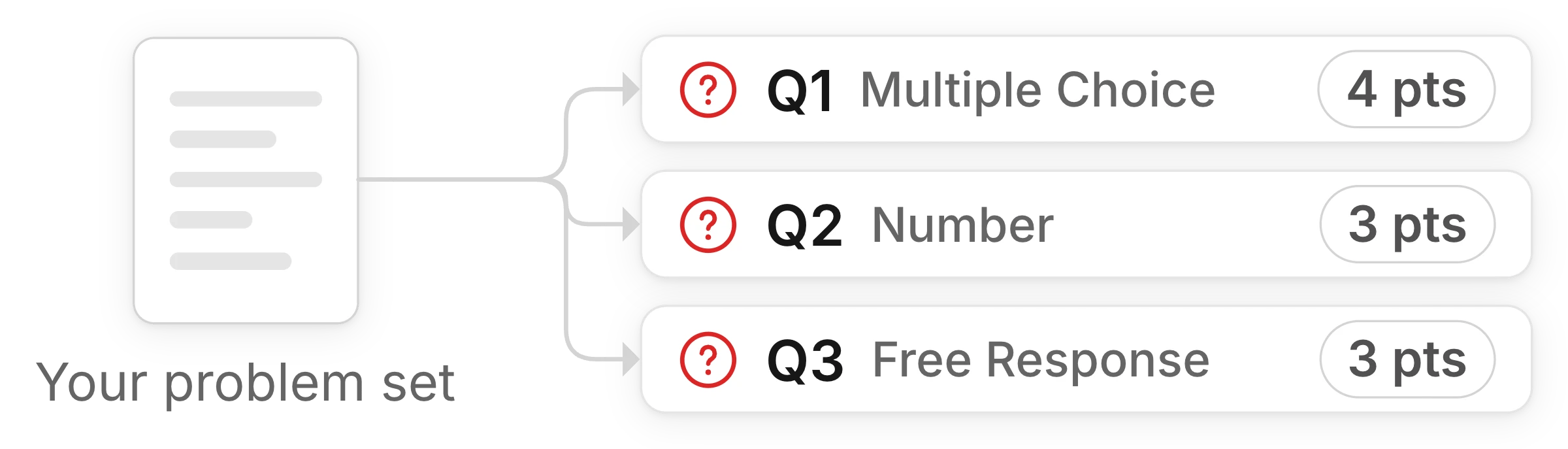
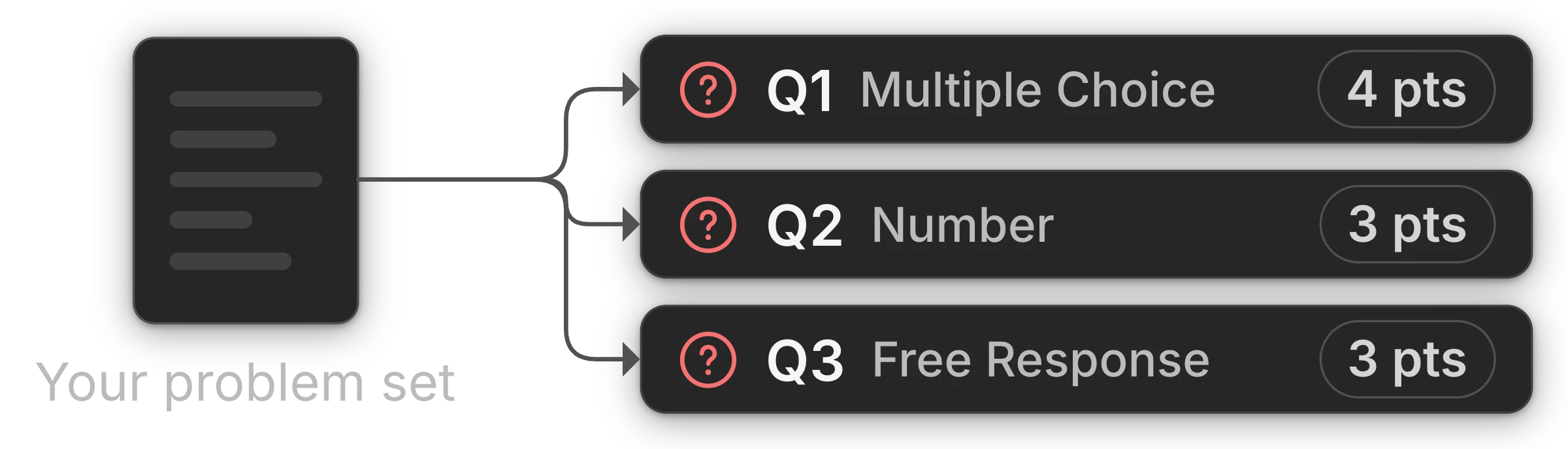
An imported problem set becomes three question cards: Q1 Multiple Choice worth 4 points, Q2 Number worth 3, and Q3 Free Response worth 3.An imported problem set becomes three question cards: Q1 Multiple Choice worth 4 points, Q2 Number worth 3, and Q3 Free Response worth 3.Create the assessment and choose its settings. Then import questions from a document you already have, and check the output before students take it. You can also manage the questions yourself if you need to.
2

Collect Student Responses

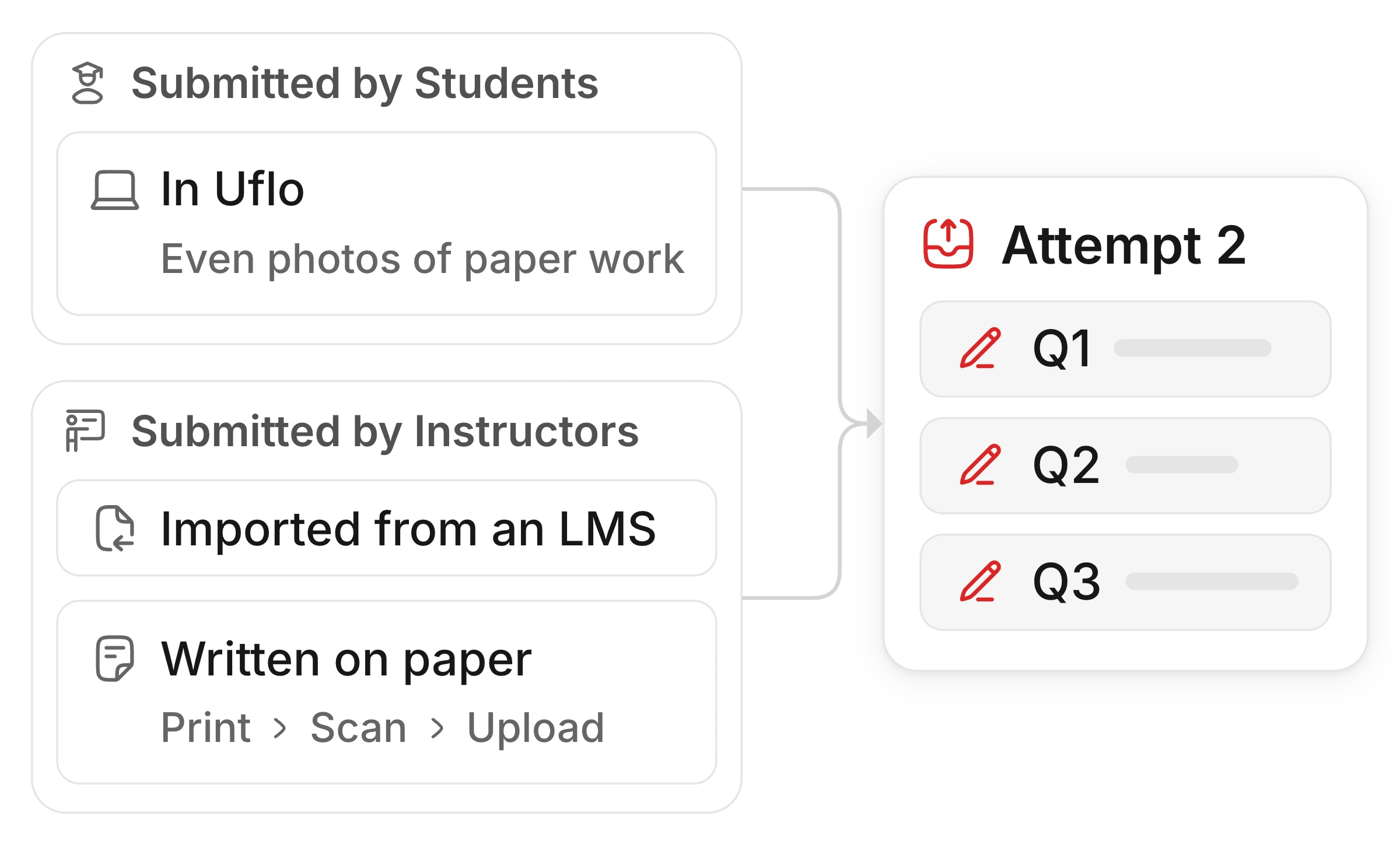
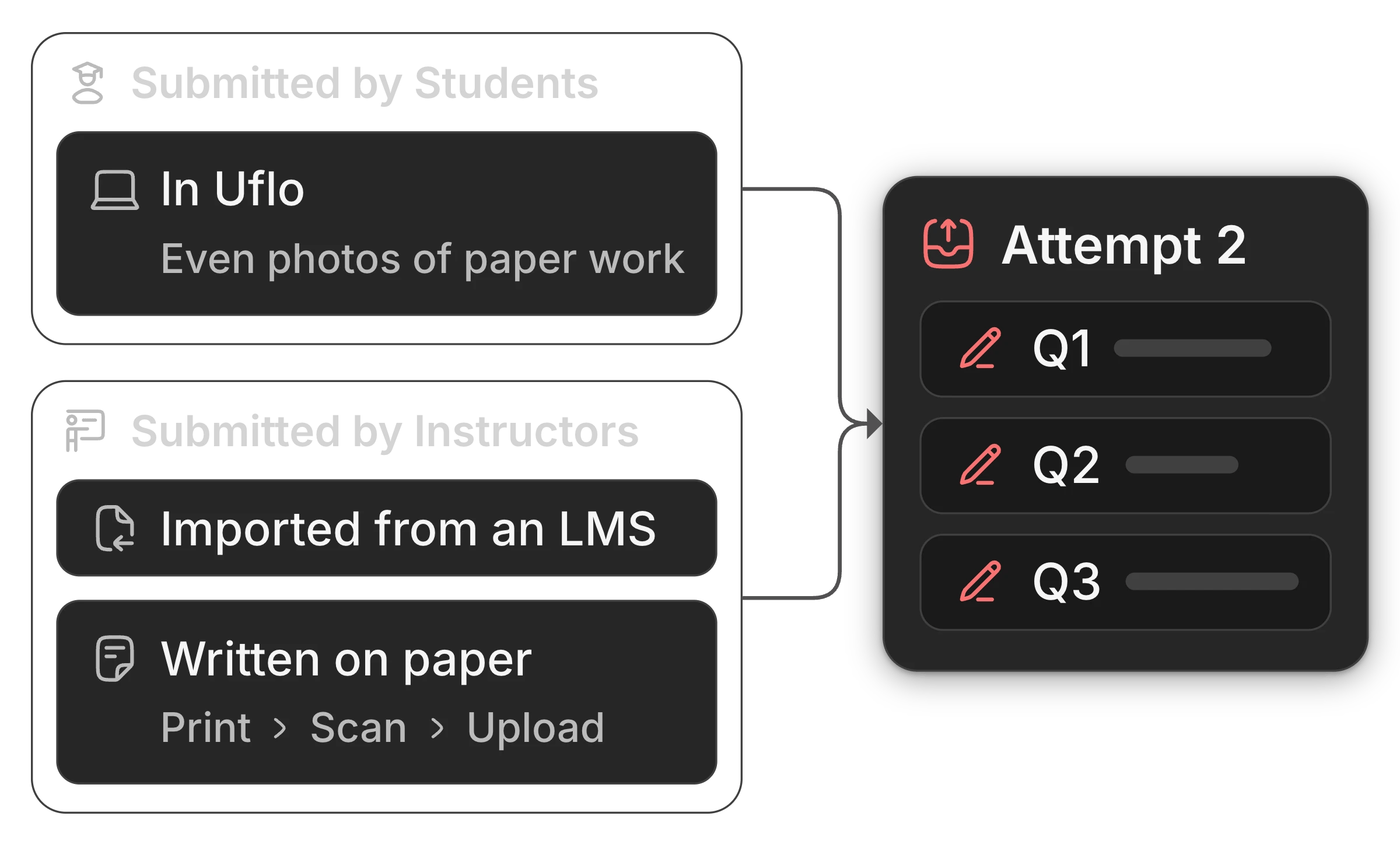
Responses submitted by students in Uflo, even photos of paper work, and responses submitted by instructors, imported from an LMS or written on paper, then printed, scanned, and uploaded, all land in one student's Attempt 2, with a response to Q1, Q2, and Q3.Responses submitted by students in Uflo, even photos of paper work, and responses submitted by instructors, imported from an LMS or written on paper, then printed, scanned, and uploaded, all land in one student's Attempt 2, with a response to Q1, Q2, and Q3.Each attempt creates a submission that holds the student’s response to each question. Either students submit it, or you do:
3

Grade

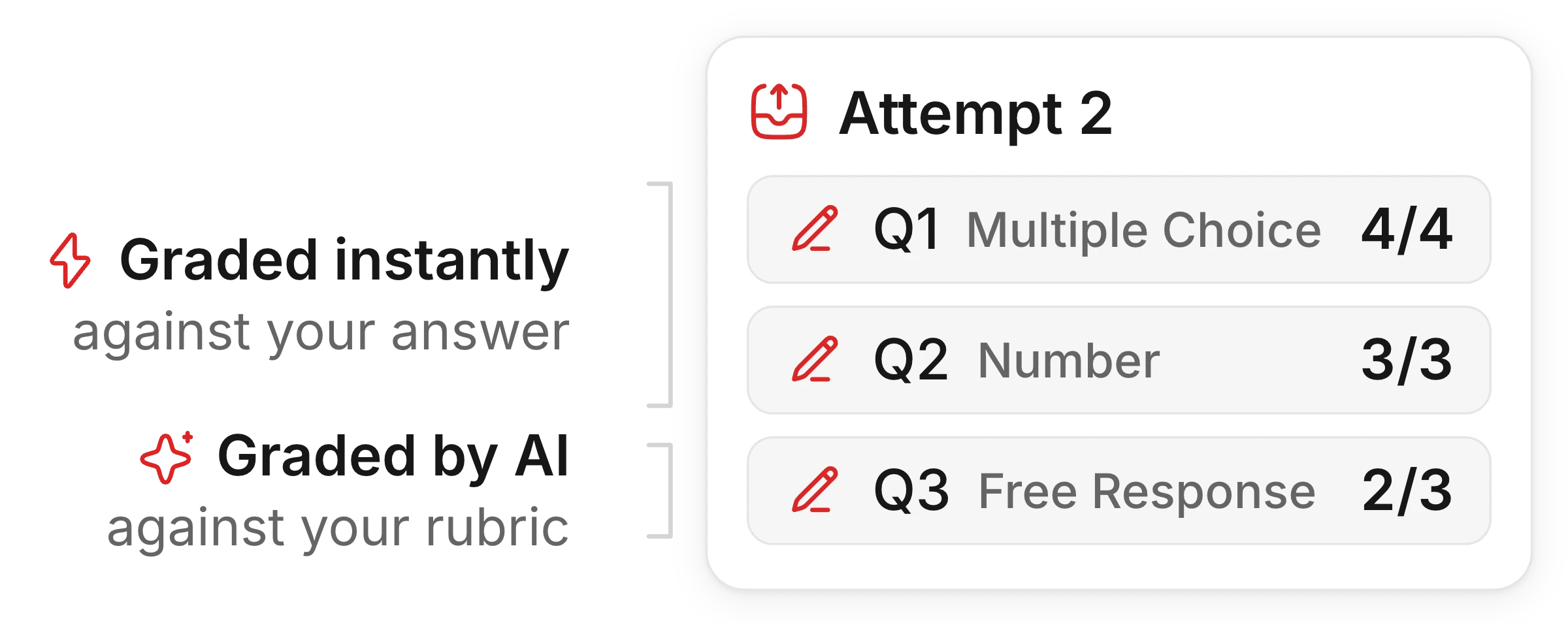
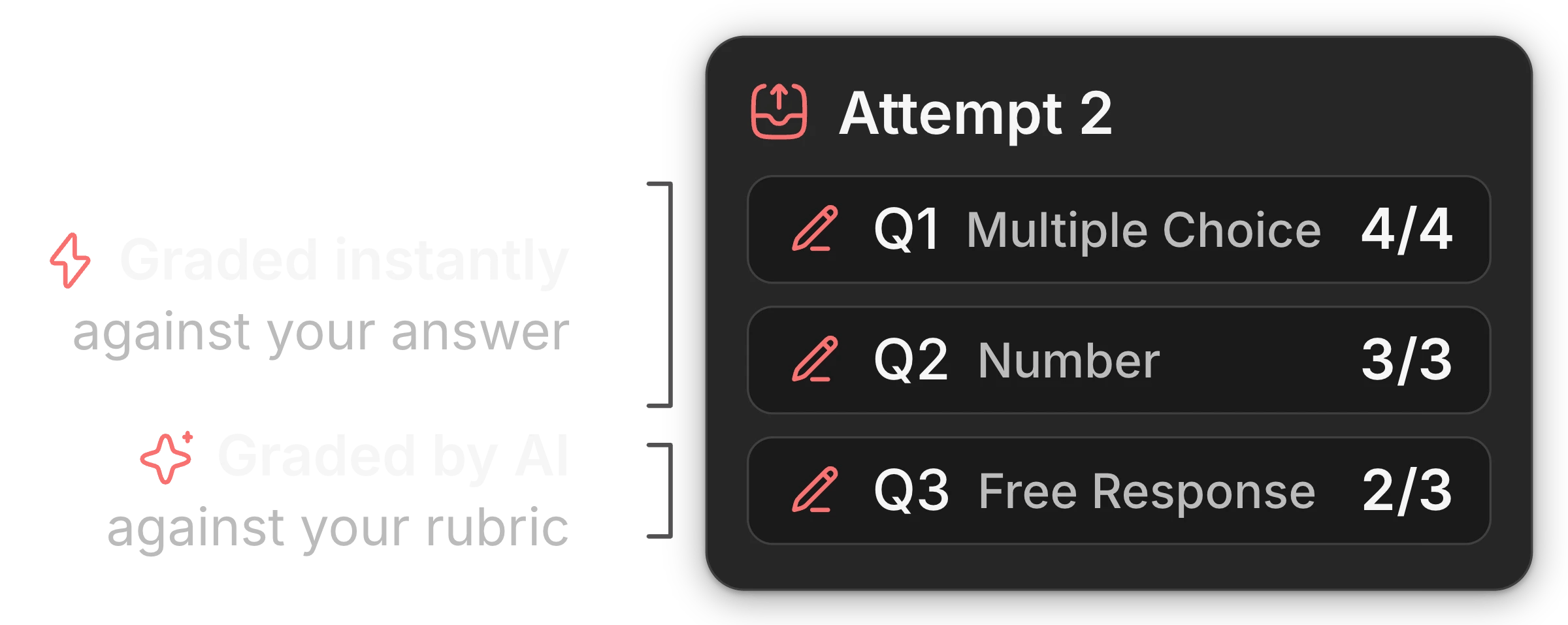
Attempt 2's responses with scores: Multiple Choice Q1 4/4 and Number Q2 3/3 are graded instantly against your answer; Free Response Q3 2/3 is graded by AI against your rubric.Attempt 2's responses with scores: Multiple Choice Q1 4/4 and Number Q2 3/3 are graded instantly against your answer; Free Response Q3 2/3 is graded by AI against your rubric.Work students complete in Uflo grades on submit. Questions with a set answer, such as multiple choice, grade instantly. Uflo’s AI grades open-ended questions against your rubric in a few minutes.Uflo scores each response out of that question’s point value and adds up all the scores to get the submission’s total. With multiple attempts, the assessment’s settings decide how final scores are calculated.For paper and LMS responses, you run the grading yourself, then import the scores into Uflo. How AI Grading Works explains how the AI scores responses.
4

Review

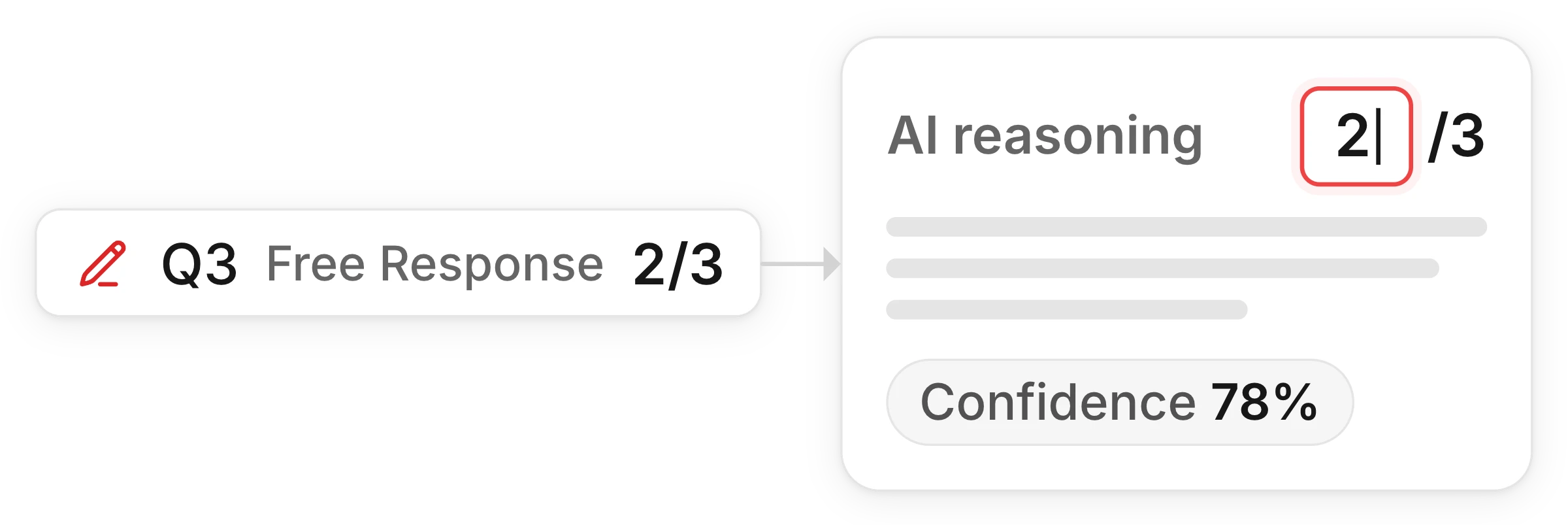
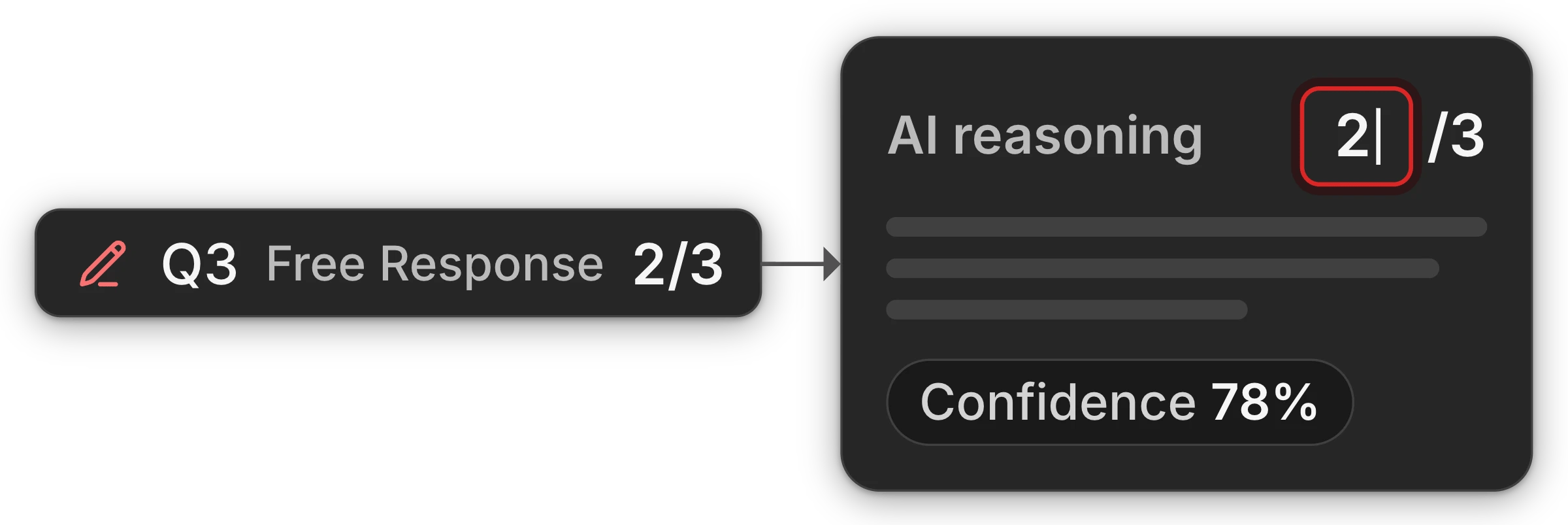
The Free Response Q3 scored 2/3 opens to show the AI's reasoning, a 78% confidence, and the score in an editable field you can change.The Free Response Q3 scored 2/3 opens to show the AI's reasoning, a 78% confidence, and the score in an editable field you can change.Check the AI scores on open-ended questions and change any you disagree with. If a rubric caused the problem, refine it and regrade.
5

Release

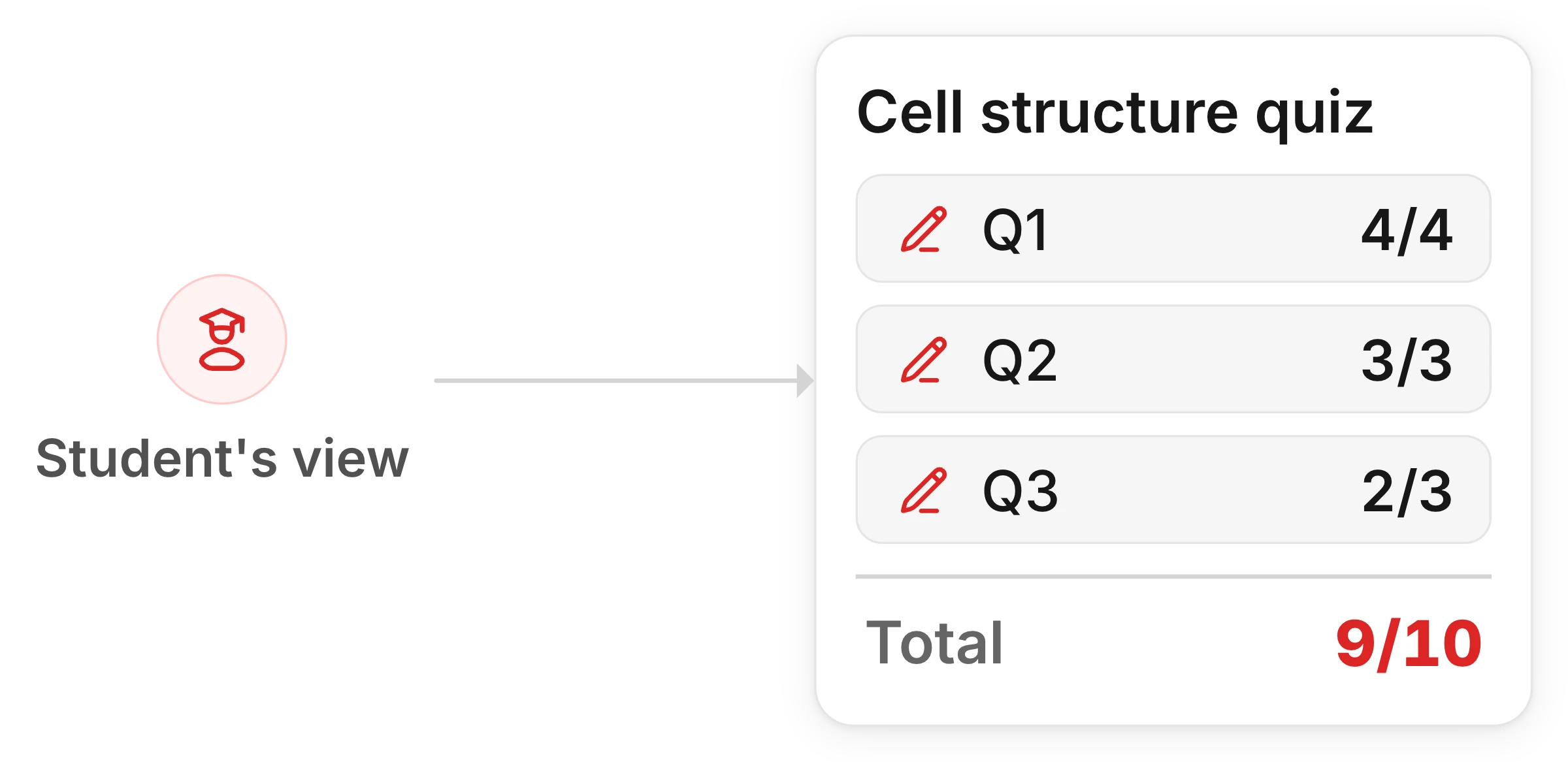
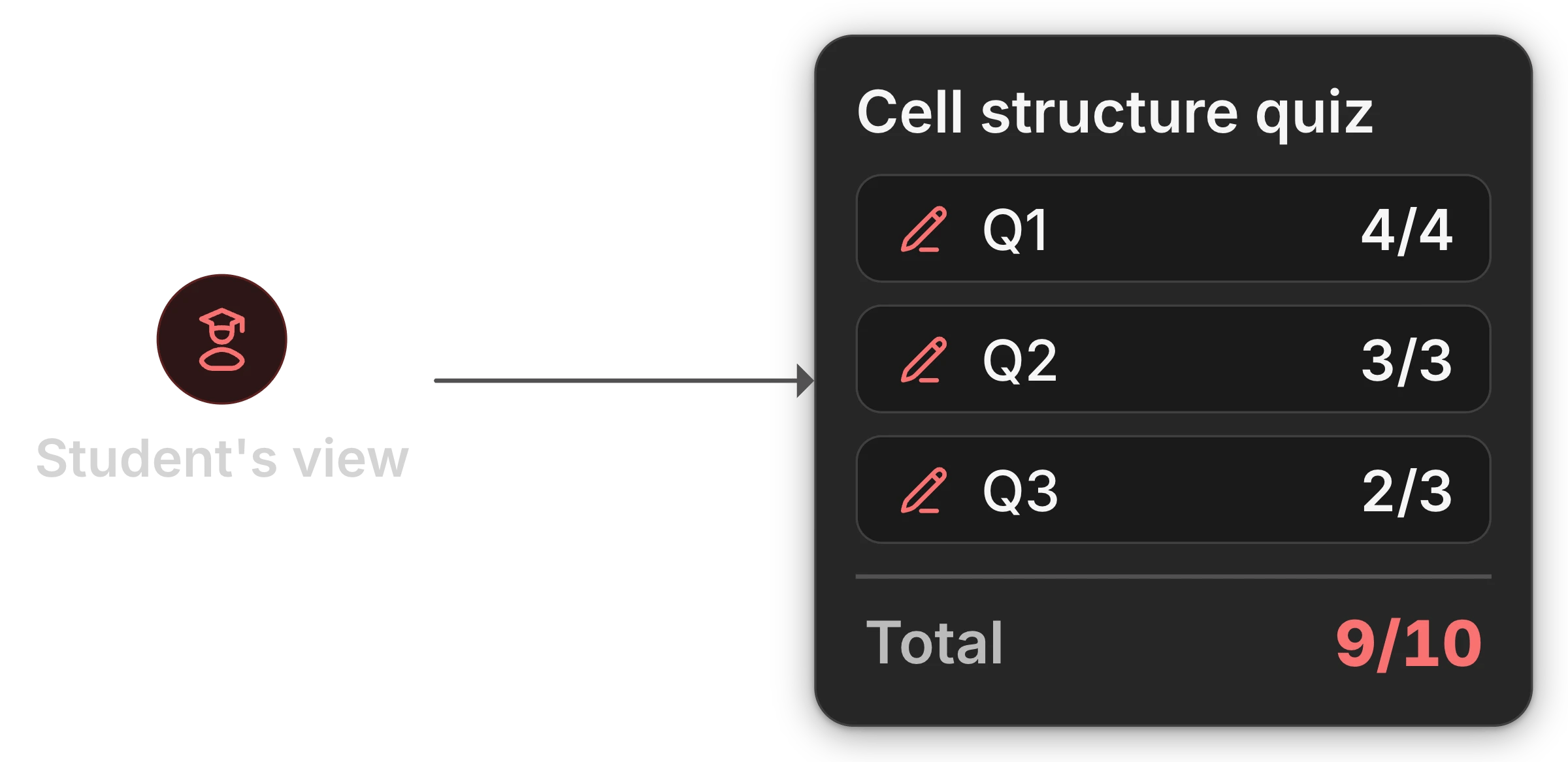
The student's view of the Cell structure quiz: Q1 4/4, Q2 3/3, and Q3 2/3 add up to a total of 9/10.The student's view of the Cell structure quiz: Q1 4/4, Q2 3/3, and Q3 2/3 add up to a total of 9/10.Release grades when you’re ready. Depending on the settings, students can see scores as soon as an attempt is graded.

Next: Create an Assessment

Create an assessment and decide when students can see it.
Last modified on October 23, 2026