
Your course may use another name for chapters.
Add New Chapter
1
Open the Chapter Form
Select Topic at the top of Chapters.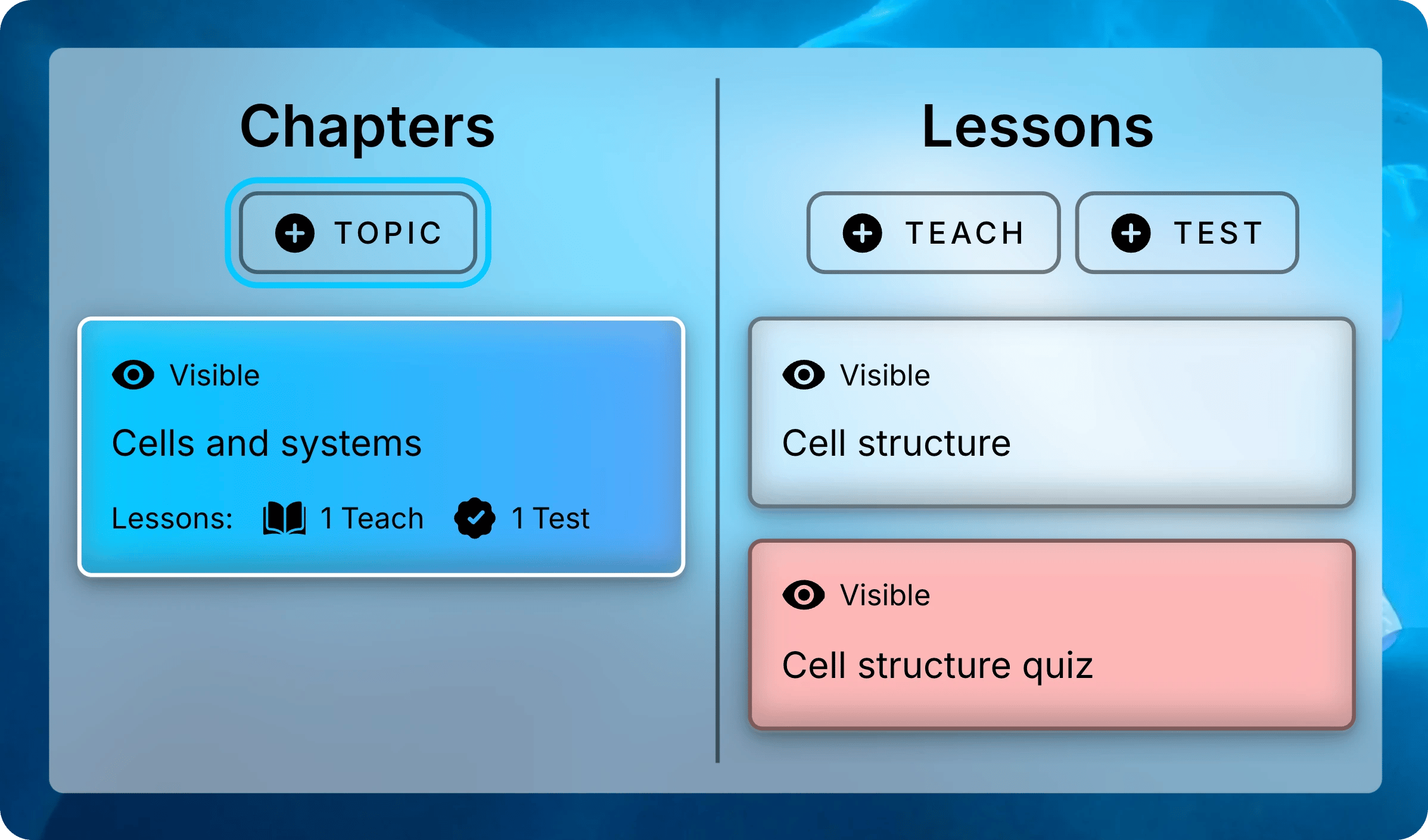
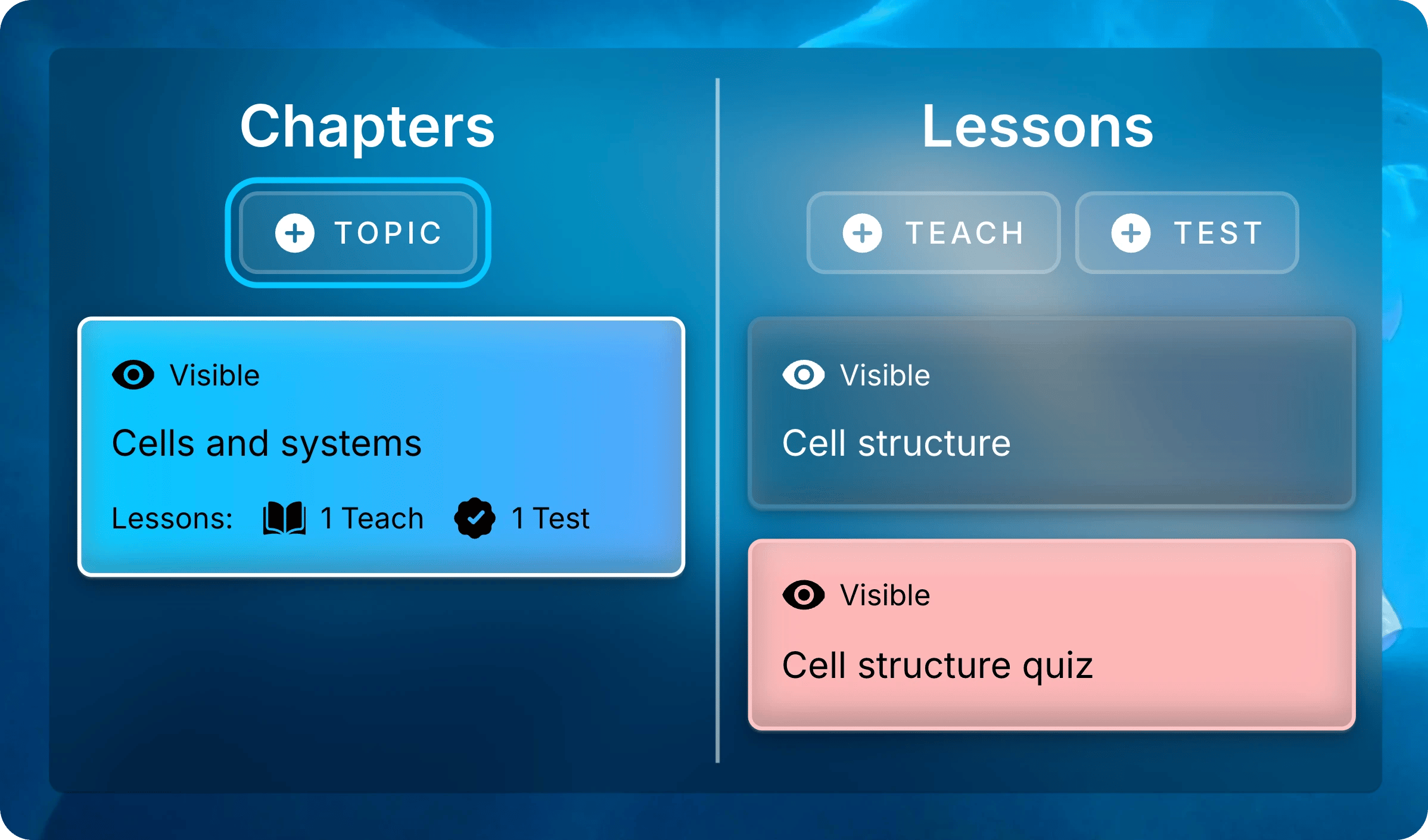
Select Topic to add a chapter.
2
Name the Chapter
Enter the chapter’s name under What is this chapter called?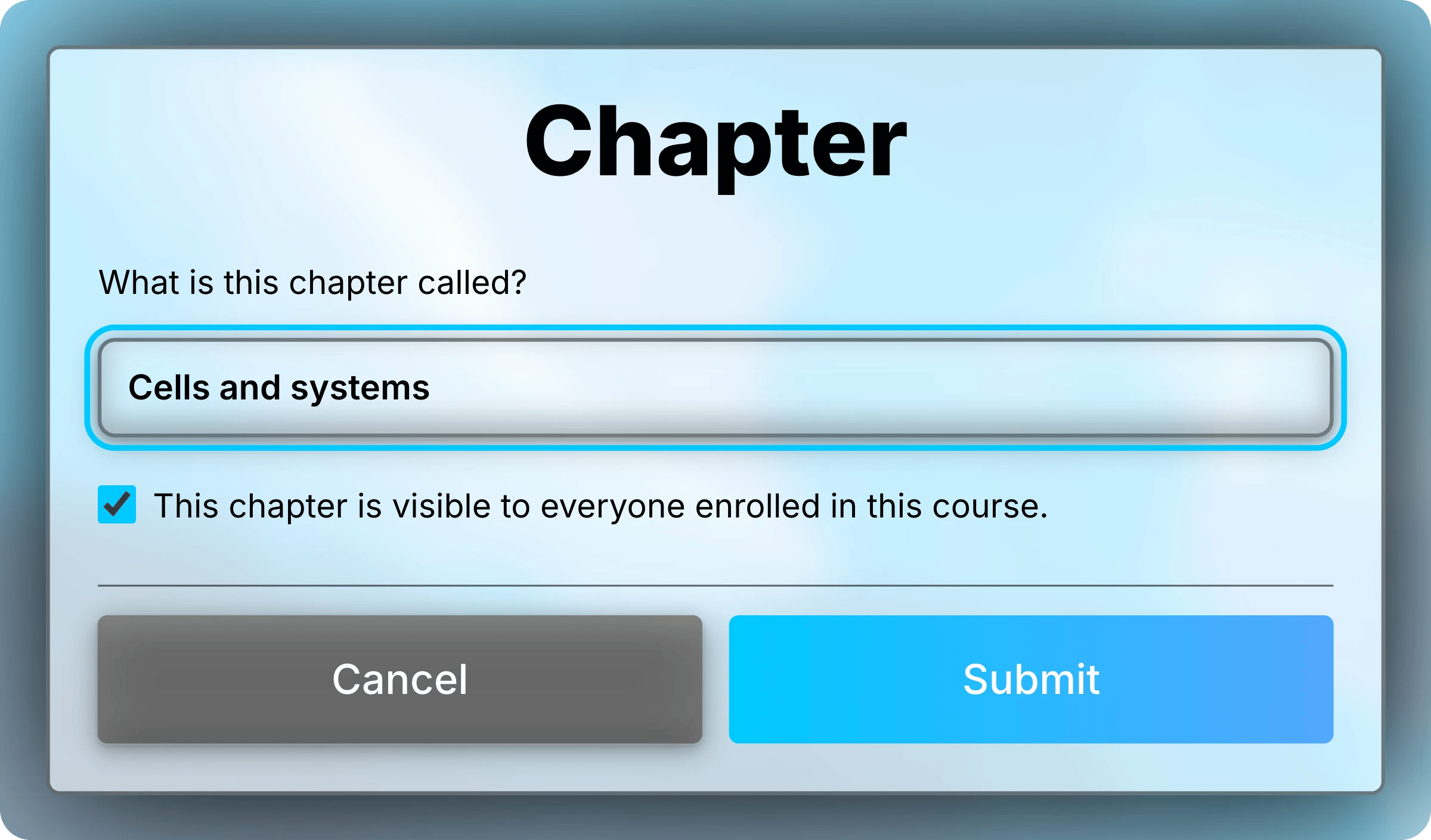
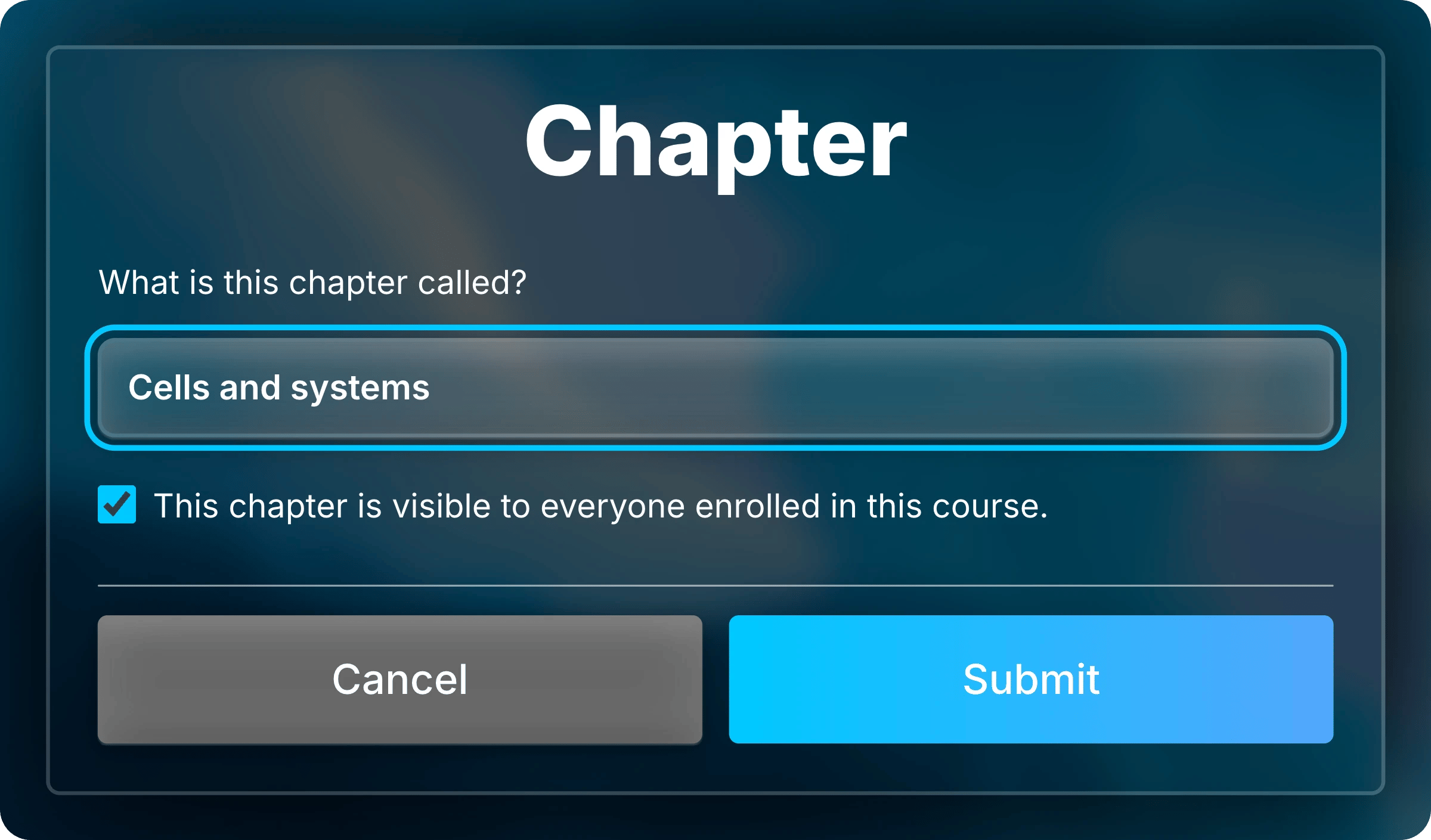
Enter the chapter’s name.
3
Set Visibility
Students see the chapter unless you uncheck This chapter is visible to everyone enrolled in this course. Hiding a chapter also hides its lessons from students.Once done, select Submit.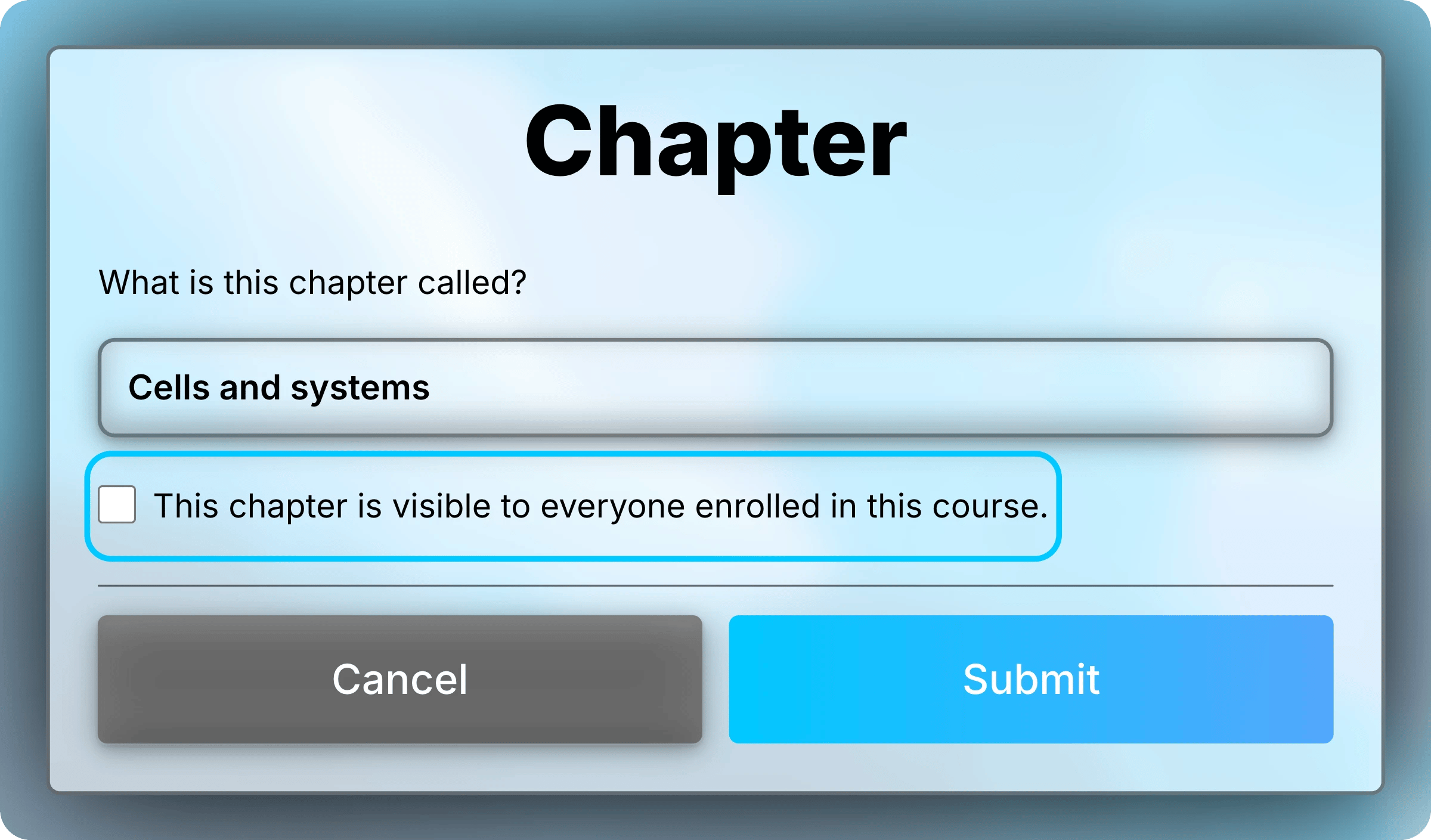
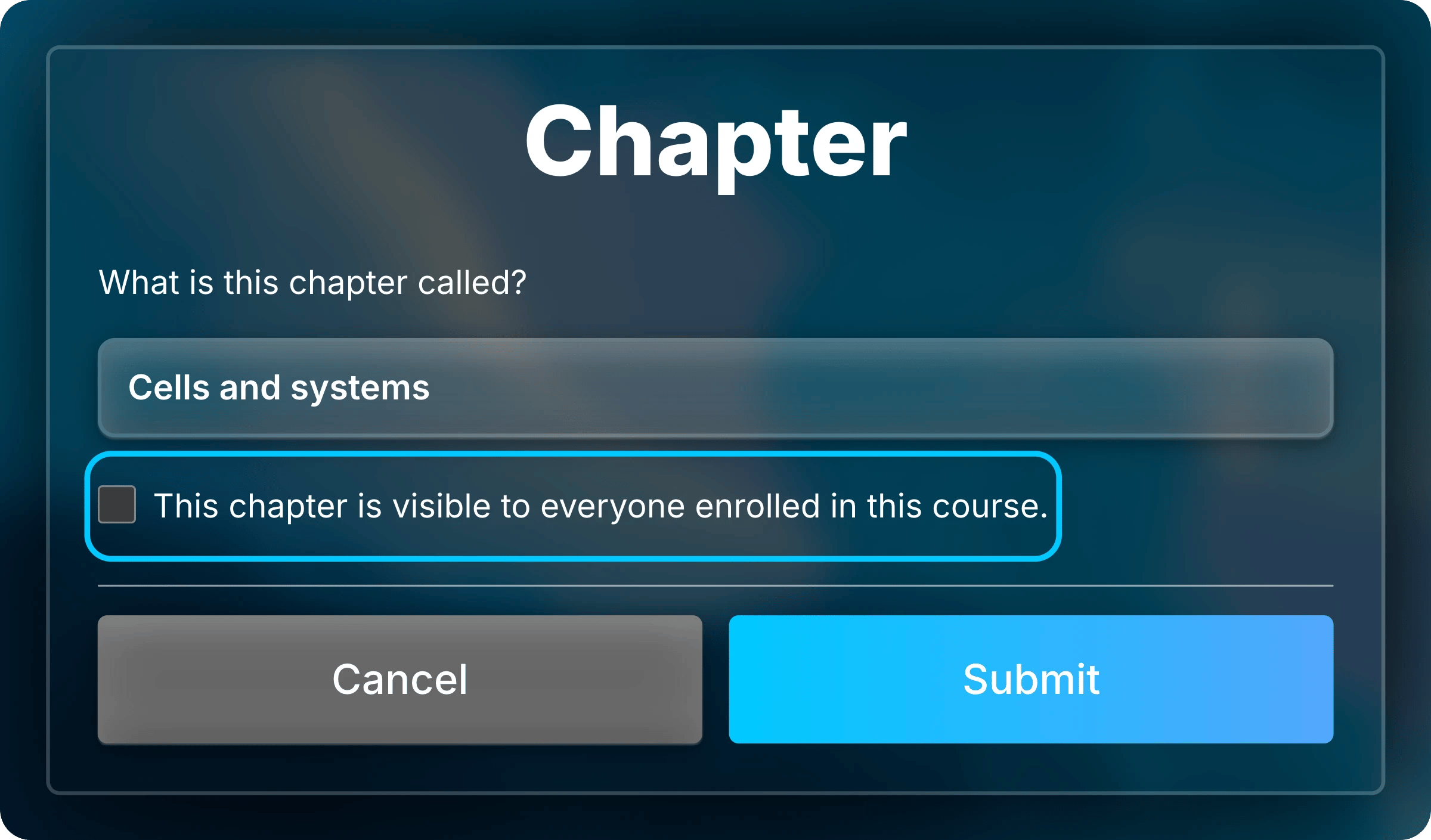
Uncheck the box to hide the chapter and its lessons.
Update, Reorder, Duplicate, and Delete
A chapter’s menu has Create, Update, Delete, Duplicate, and Order. To open it, right-click a chapter or press and hold it. Use Update to rename or hide a chapter later.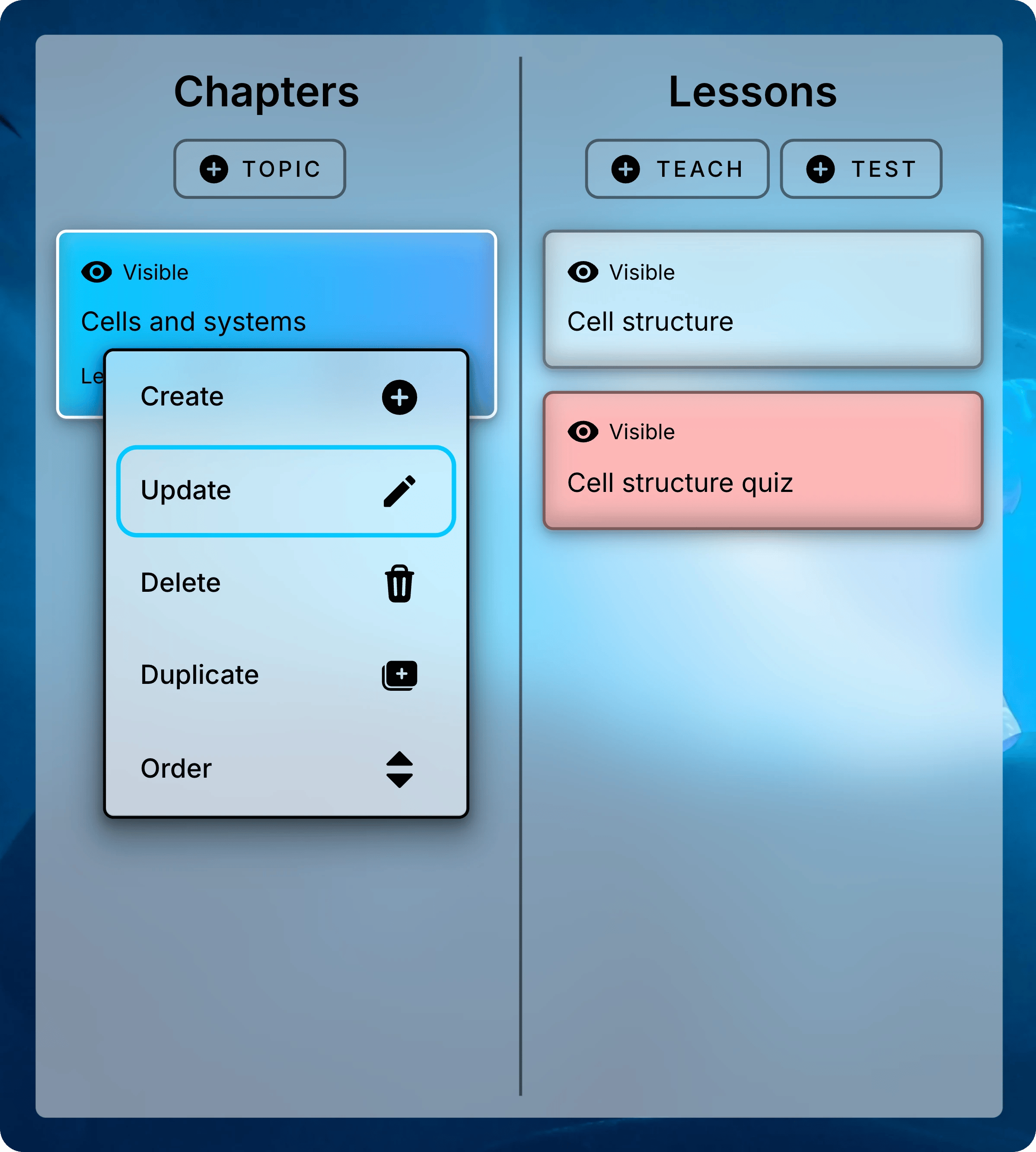
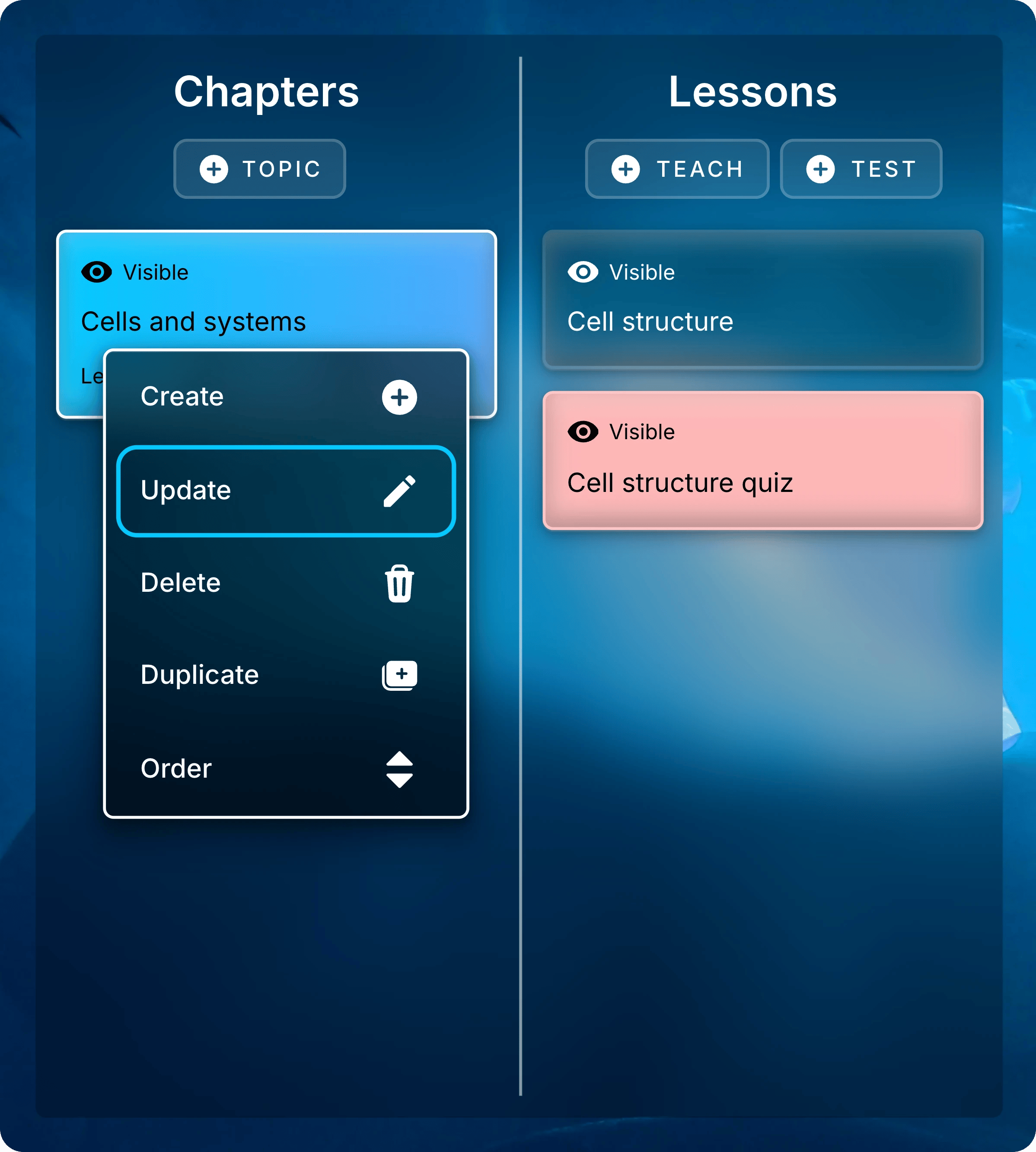
Right-click a chapter and select Update.
- Order
- Duplicate
- Delete
1
Select Order
Select Order in any chapter’s menu.
2
Drag Chapters Into Place
Drag each chapter to its new position.
3
Save the Order
Select Confirm Order at the top of the list. Students see the new order.
Next: Manage Lessons
Add lessons to a chapter, and control when students can open them.