
Set Up the Question
1
Choose the Type
In the question form, set the question type to Draw on Whiteboard.
2
Add a Starting Drawing (Optional)
Draw in the response template whiteboard, which students start from. Template and Model Answer has more ideas for types of starting templates.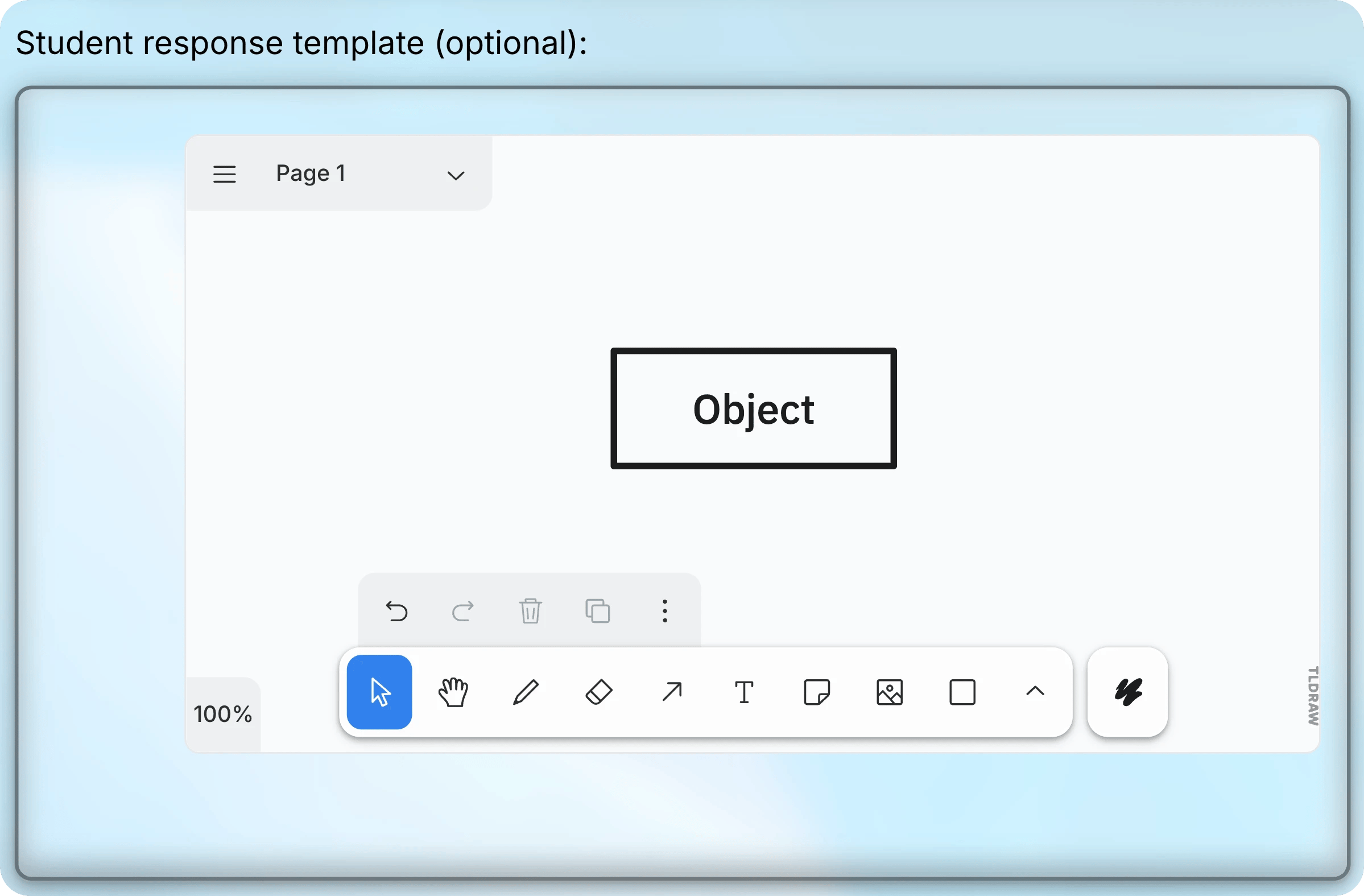
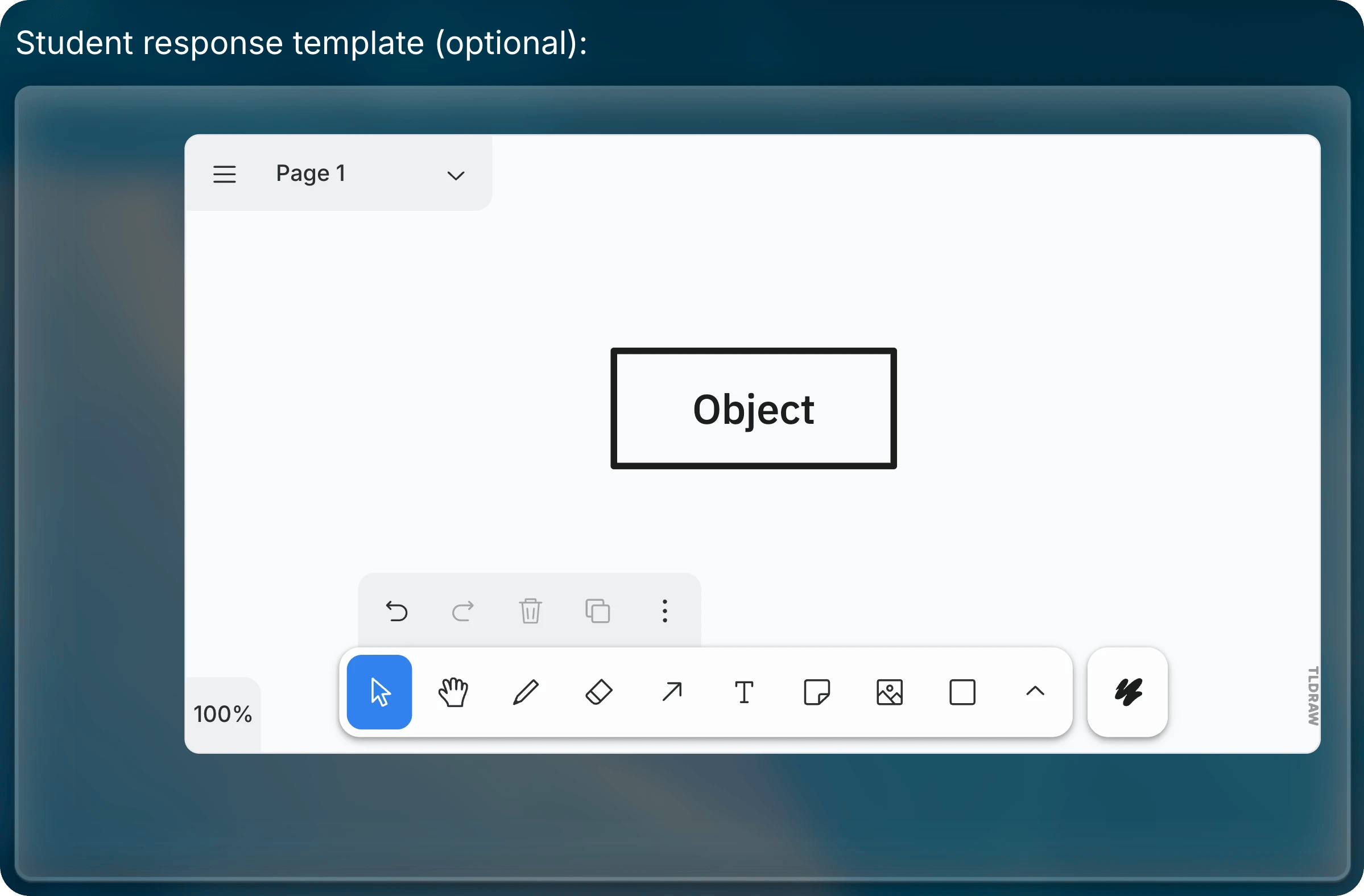
Students start their answer from this drawing.
3
Write the Model Answer
Under Model answer, show the correct answer. It can hold text, a whiteboard drawing, or an image of a finished diagram.
Draw the model answer with the whiteboard’s tools.
4
Write the Rubric
Under Rubric Criteria, add what earns credit, with weights that add up to 100%.
Write a Rubric shows how to write good criteria.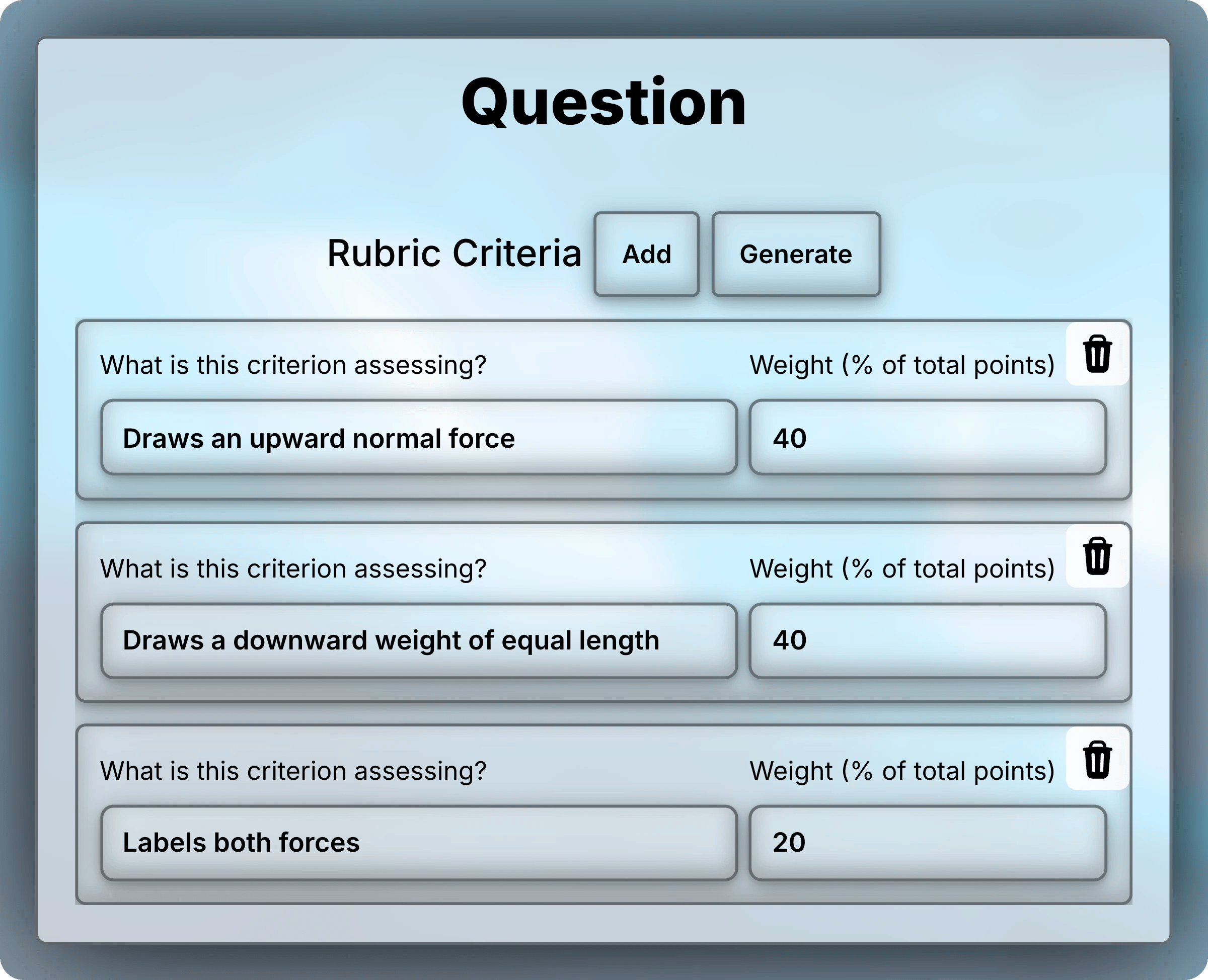
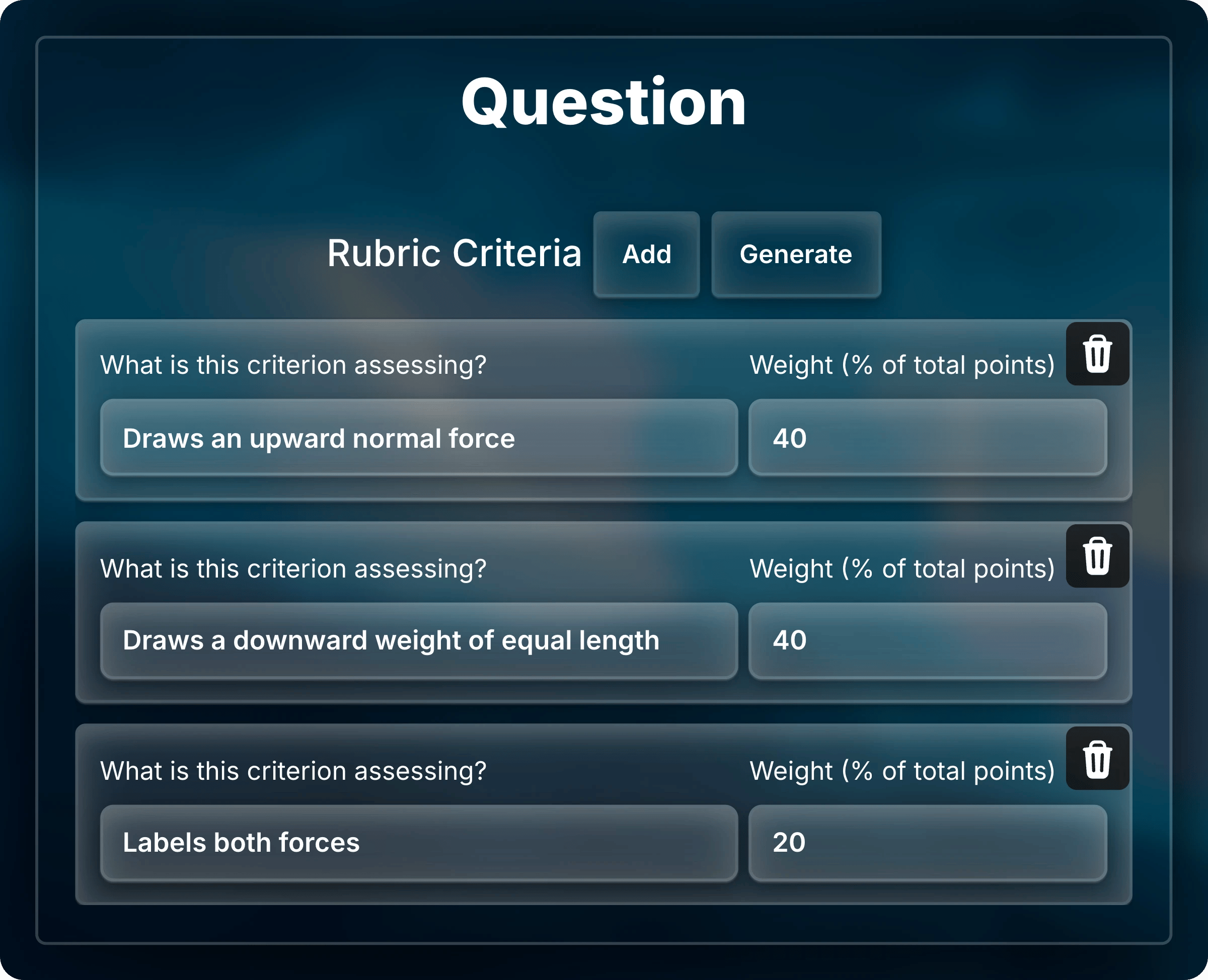
Three criteria whose weights add up to 100.
What Students See
Students draw on a whiteboard below the prompt, starting from your template. When you show answers, they also see your model answer and rubric.Students draw their answer on top of your template.
How Drawings Are Graded
When a student submits, AI grades an image of their whiteboard against your model answer and rubric. Students get an email when it’s done. The image holds only the student’s current whiteboard page, including parts outside their view. Ask students to keep their answer on one page and label every graded part. Drawing questions also work on paper exams. There, the grader reads the student’s drawing from the scanned page. See the student guide for how students draw their answer.Next: Image Questions
Ask students to upload a photo of their work.