
Give the Assessment
1
Create the Assessment
Select your course on Courses, then the chapter, then Test at the top of Lessons. Name the assessment, choose its settings, and select Submit.Then select the new assessment under Lessons to open it.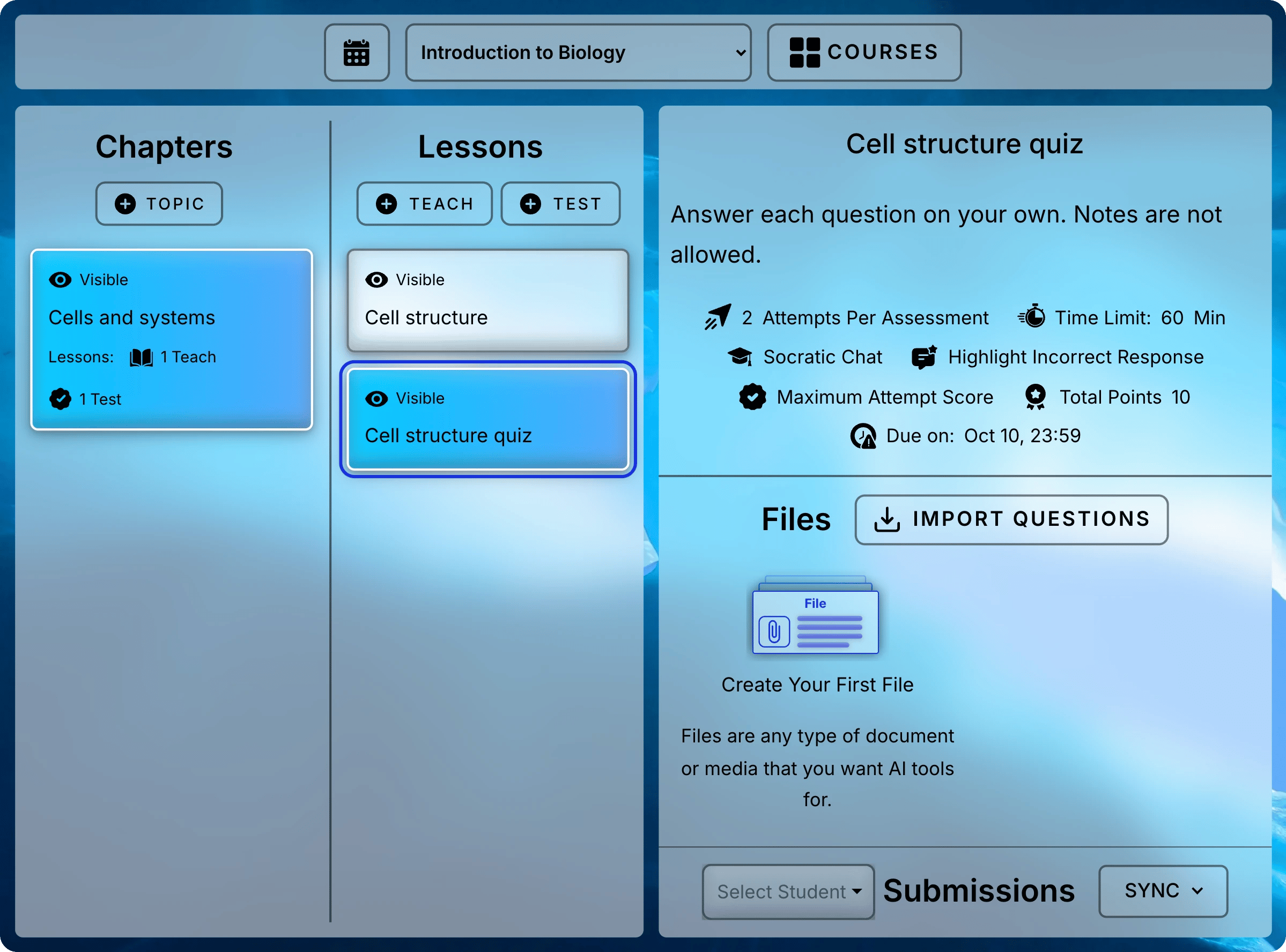
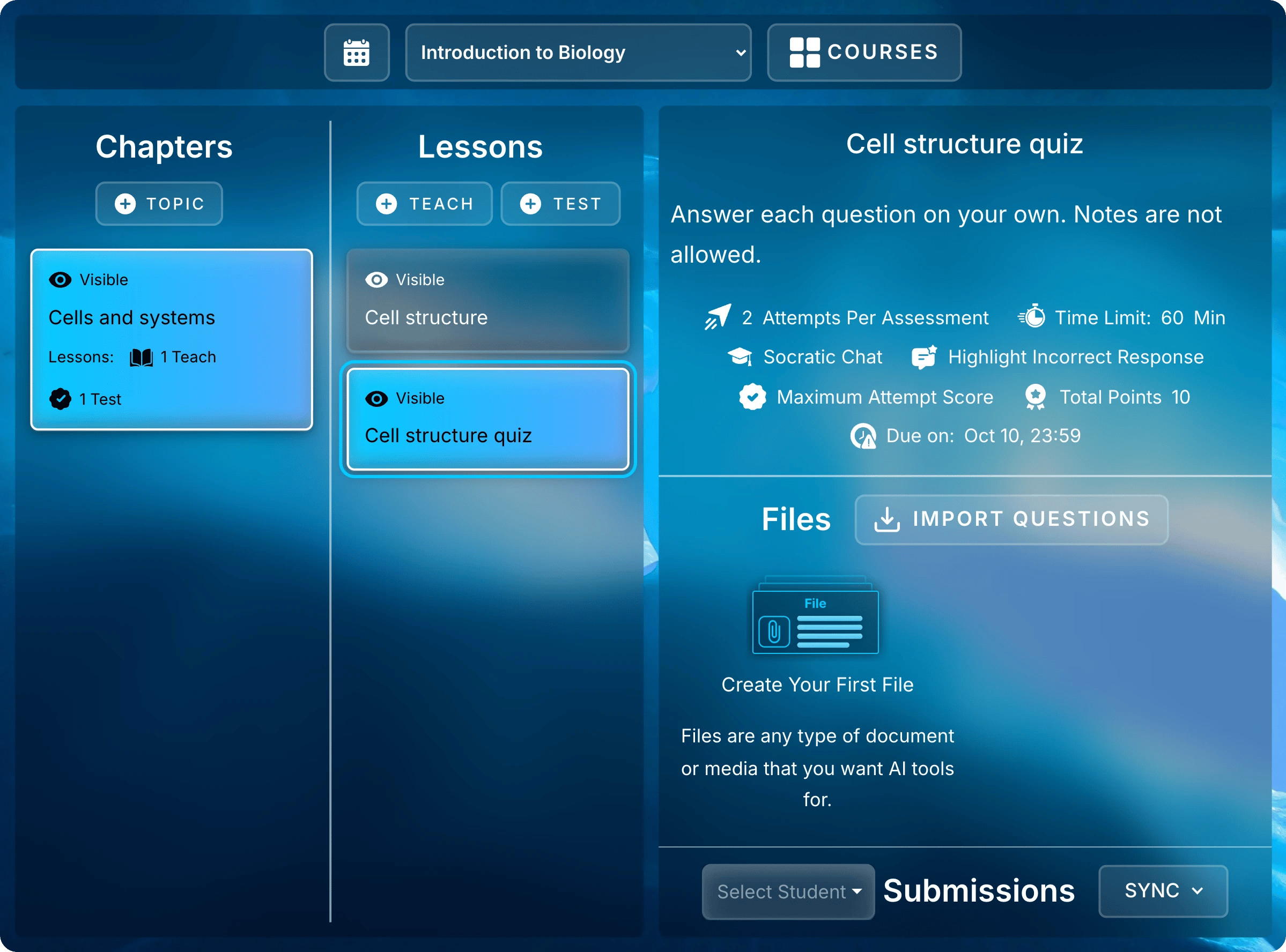
The new assessment opens beside the Lessons list, with Import Questions next to Files.
2
Import the Questions
Select Import Questions under Files, and upload your questions. If a question has no answer or rubric, Uflo writes one. Import Questions shows how to lay out the file for each question type.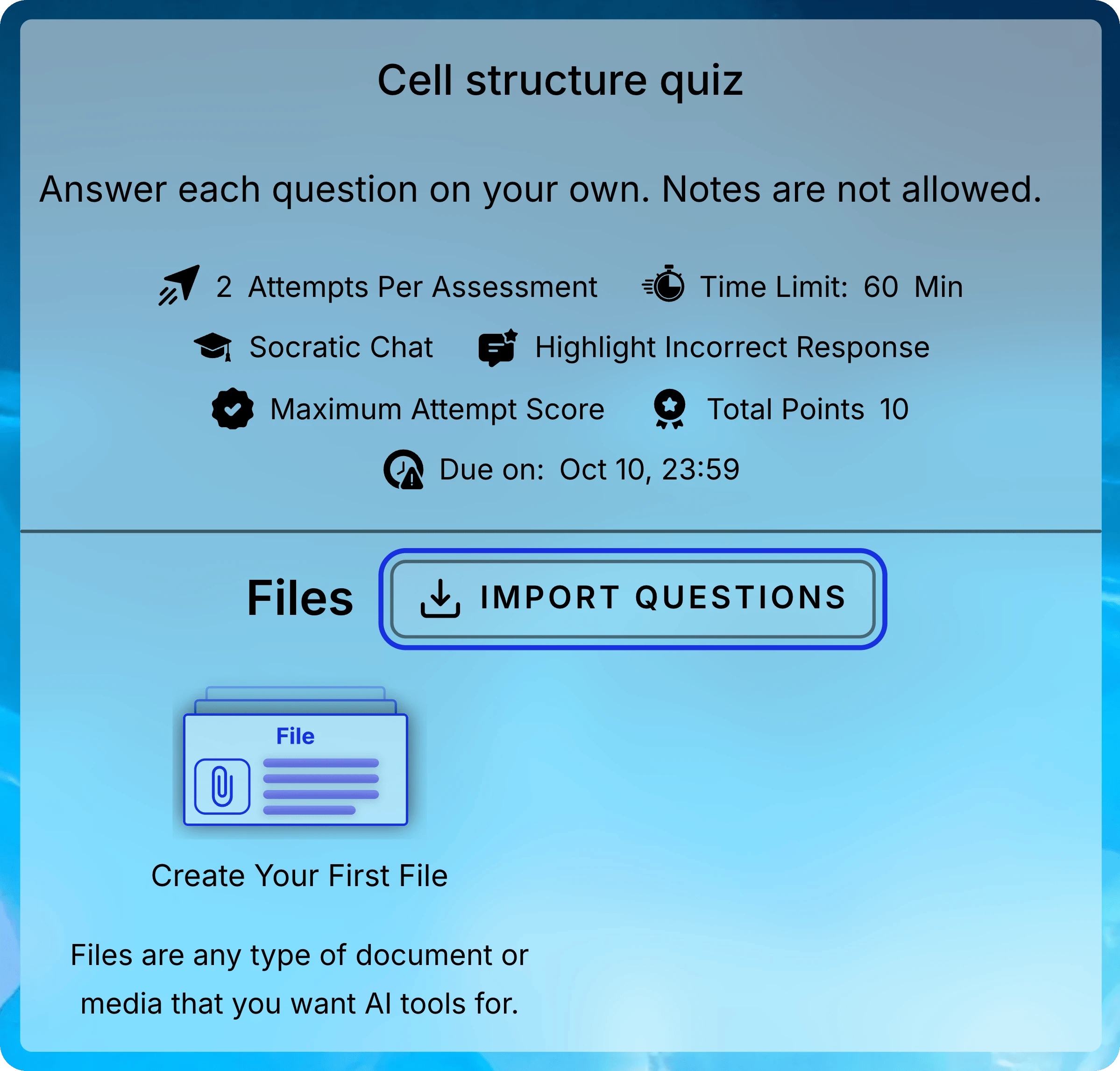
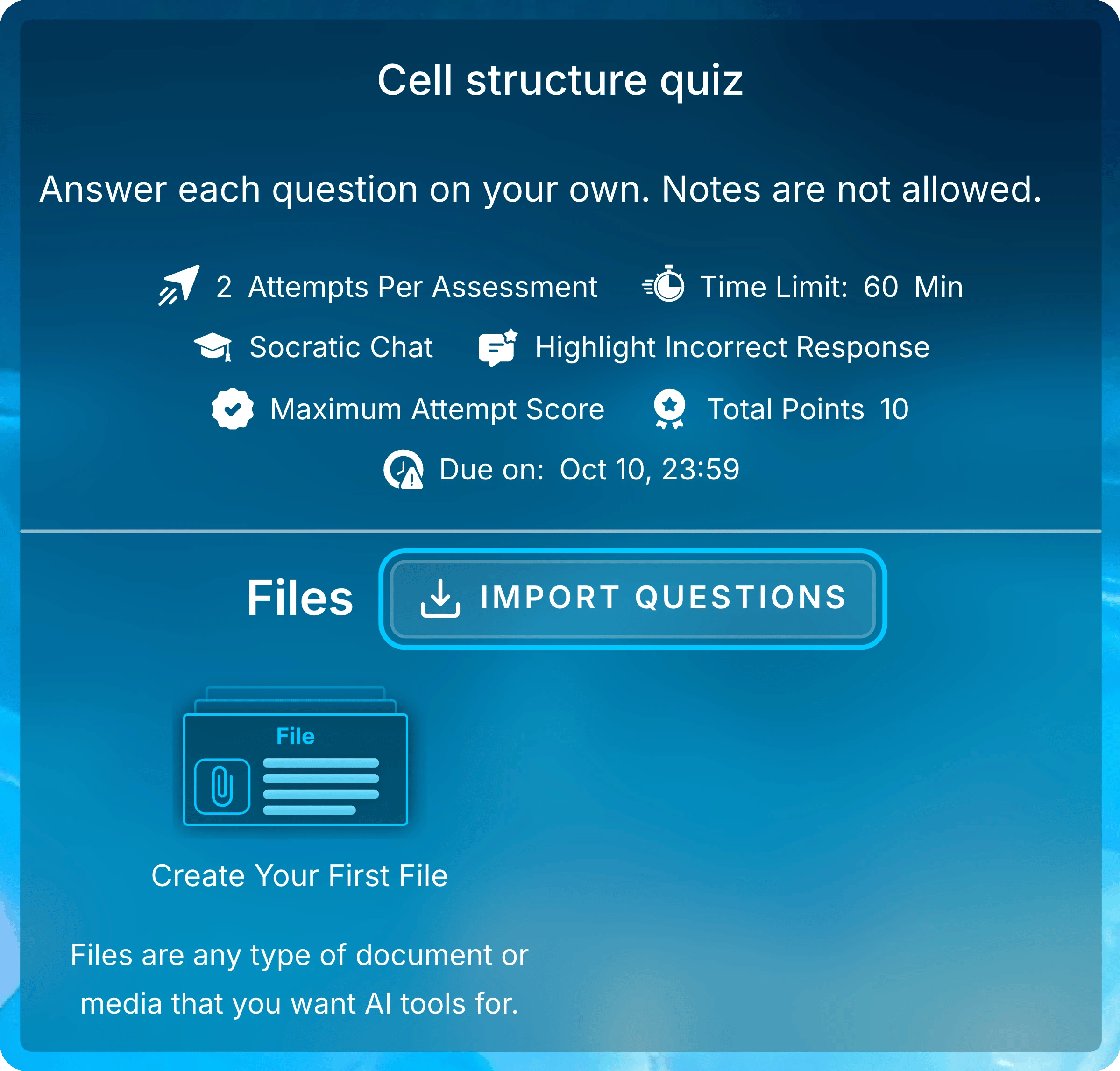
Import Questions appears on a new assessment.
Check the imported question to ensure the import was accurate.
3
Students Take It
If the assessment’s eye icon under Lessons is crossed out , students can’t see it. Open its settings and check Students can see this assessment in the course.Before the due date, students open the assessment in the course and select START under Submissions. Starting an Attempt shows what they see. Uflo doesn’t announce new assessments, but it emails a reminder the day before the due date to students who haven’t started.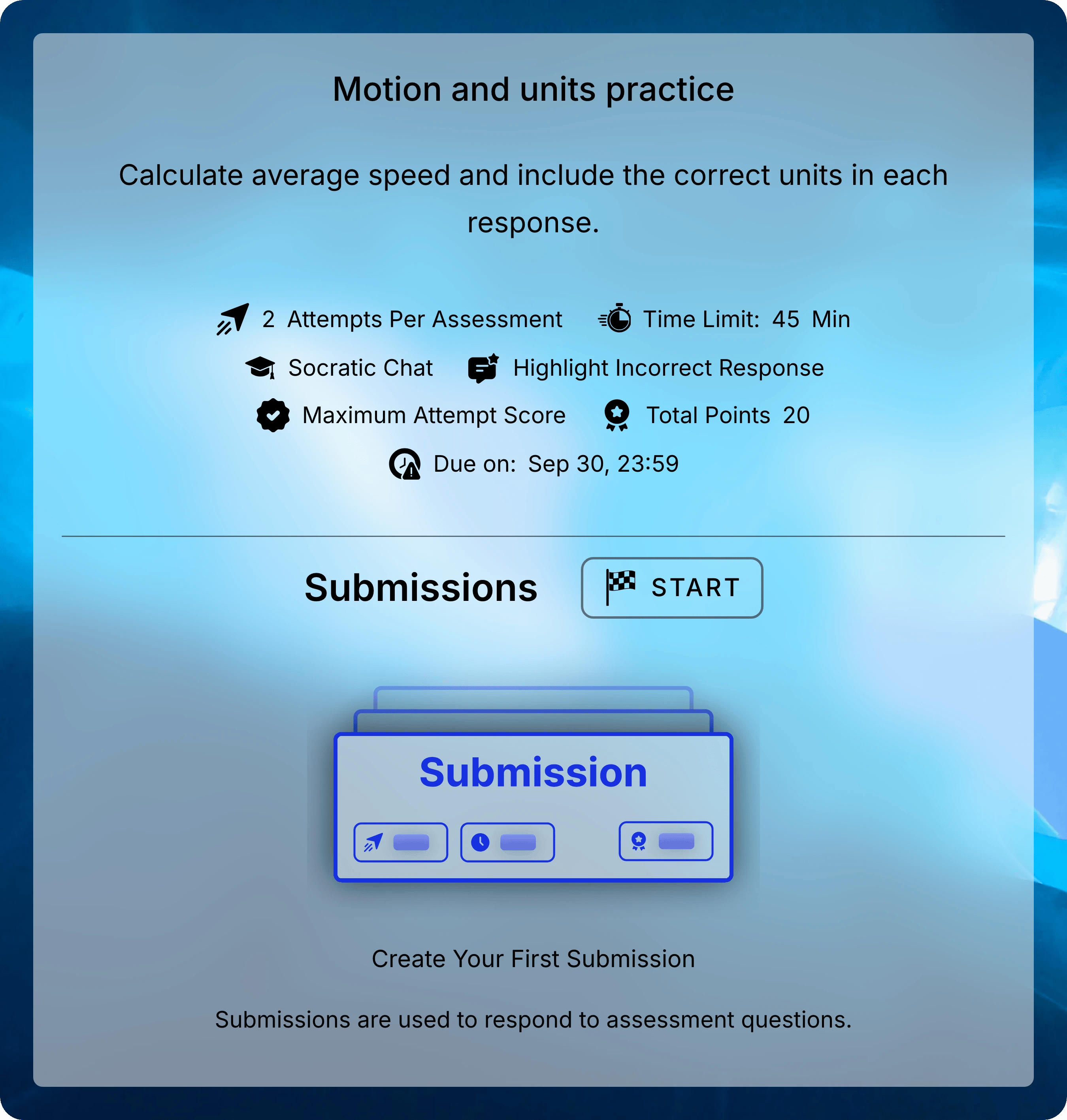
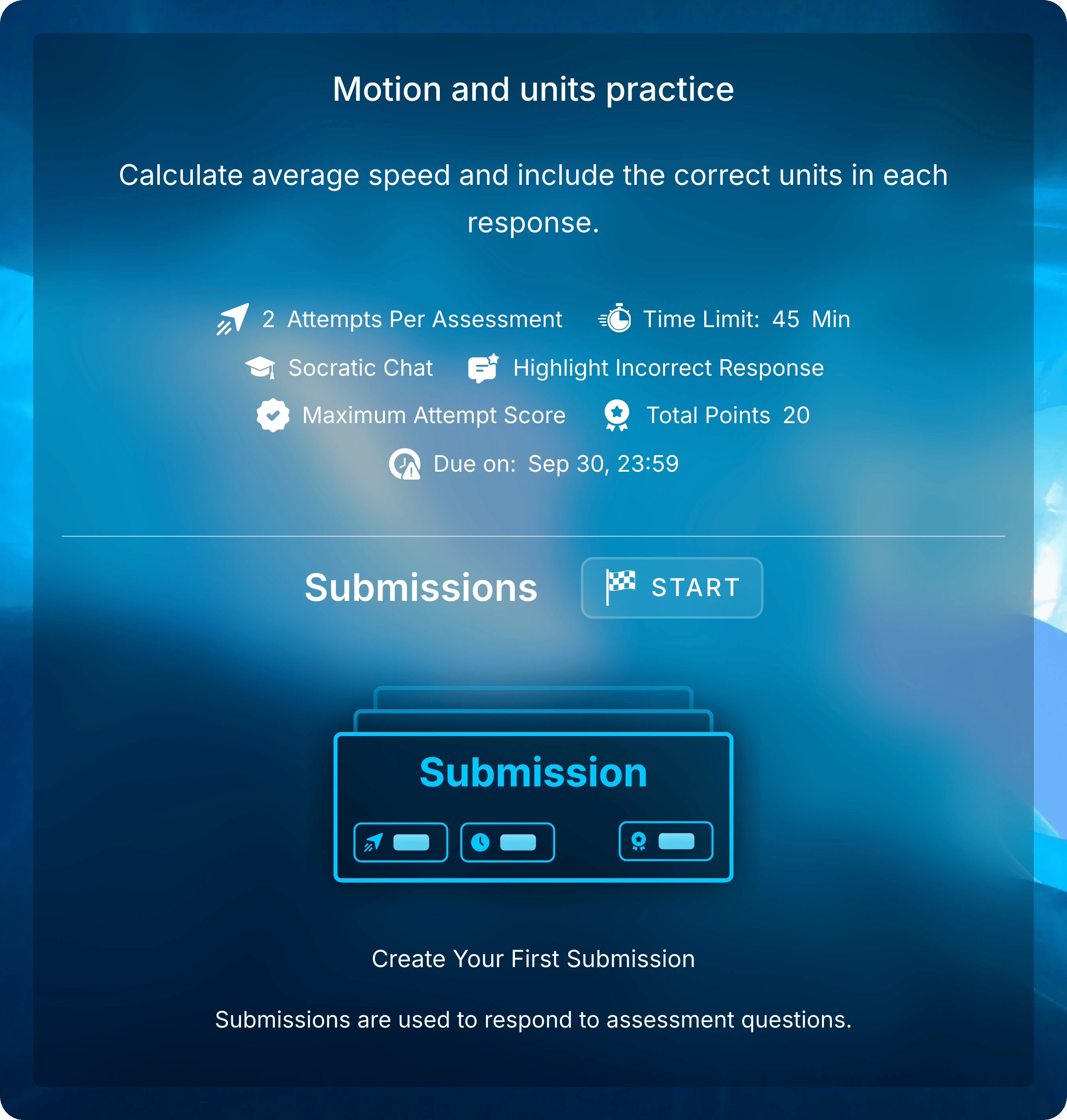
Students see START where you see Select Student.
4
Uflo Grades Each Submission
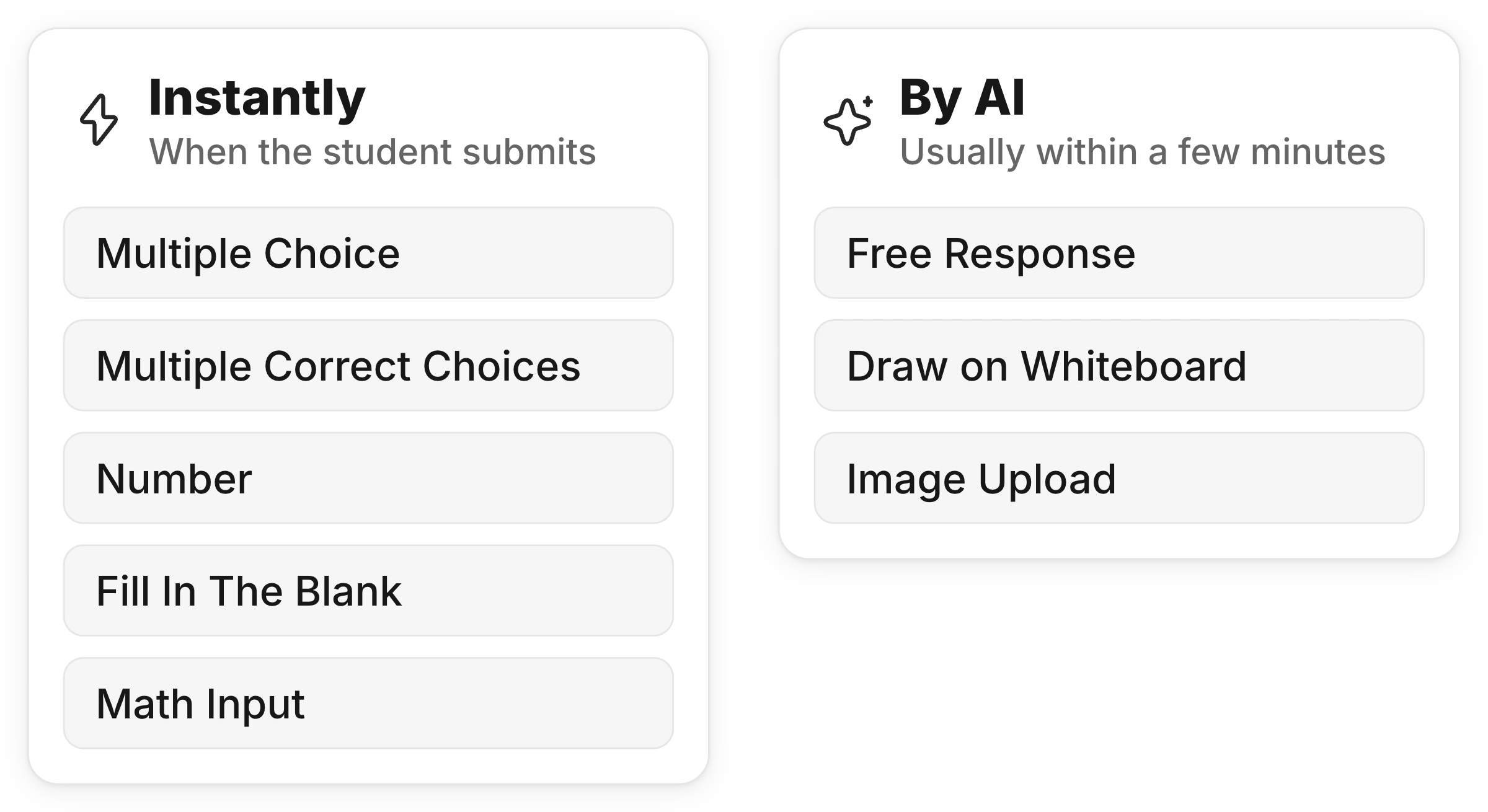
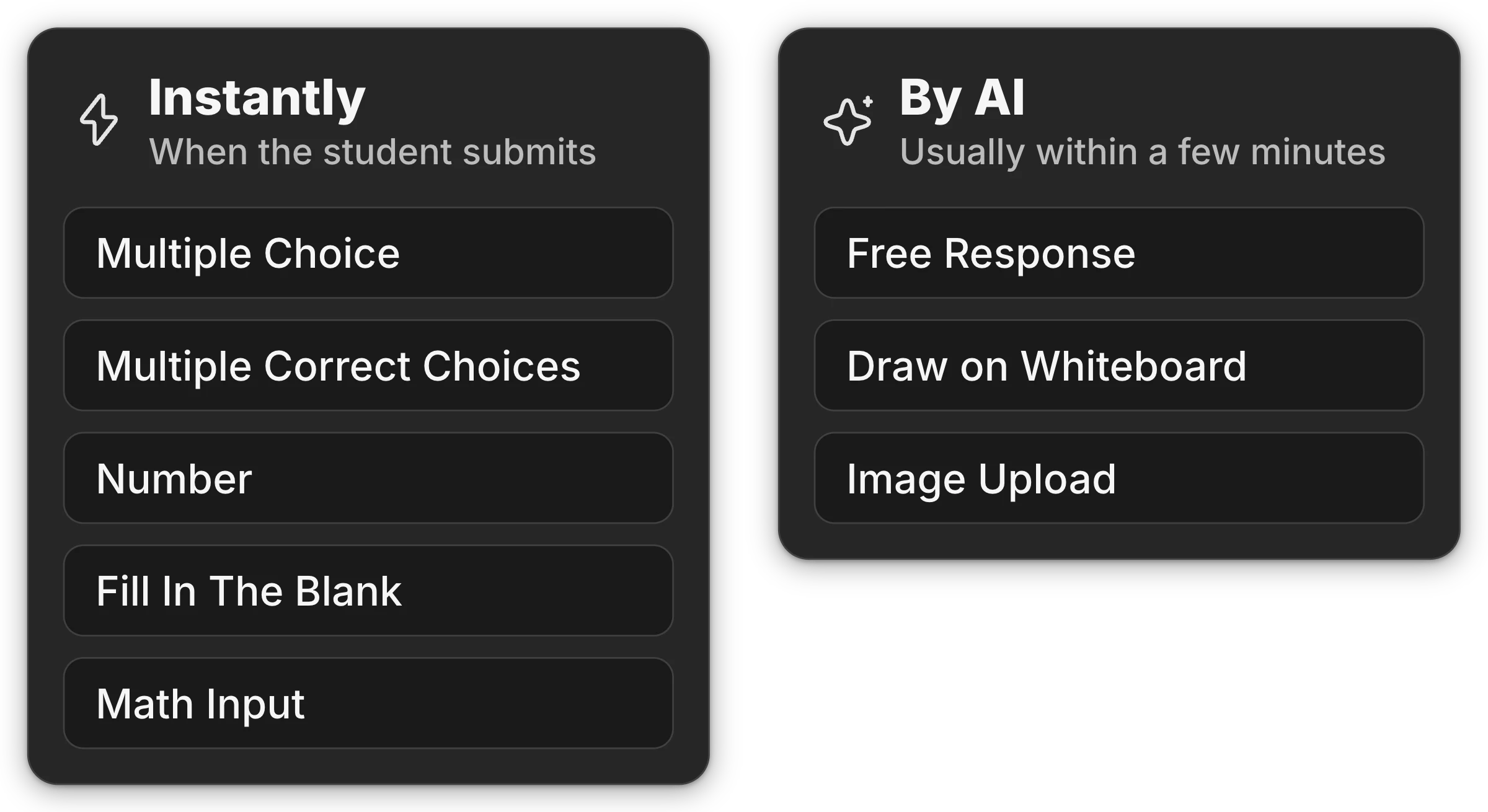
Questions with a set answer are graded on submit. The AI grades the rest.
Questions with a set answer, such as multiple choice, are graded against your answer as soon as the student submits. Unanswered questions score 0.Free Response, Draw on Whiteboard, and Image Upload responses go to the AI grader at the same time. It usually finishes within a few minutes. Until then, the submission shows Submitted, and its score can be incomplete.When the AI finishes, the submission shows Graded with its full score. Depending on the settings, the student may see their score and get it by email.An assessment with no open-ended questions is fully graded on submit.
5
Choose a Student
Under Submissions, pick a student in Select Student to list their attempts. Each attempt shows its status, when it started, and its score.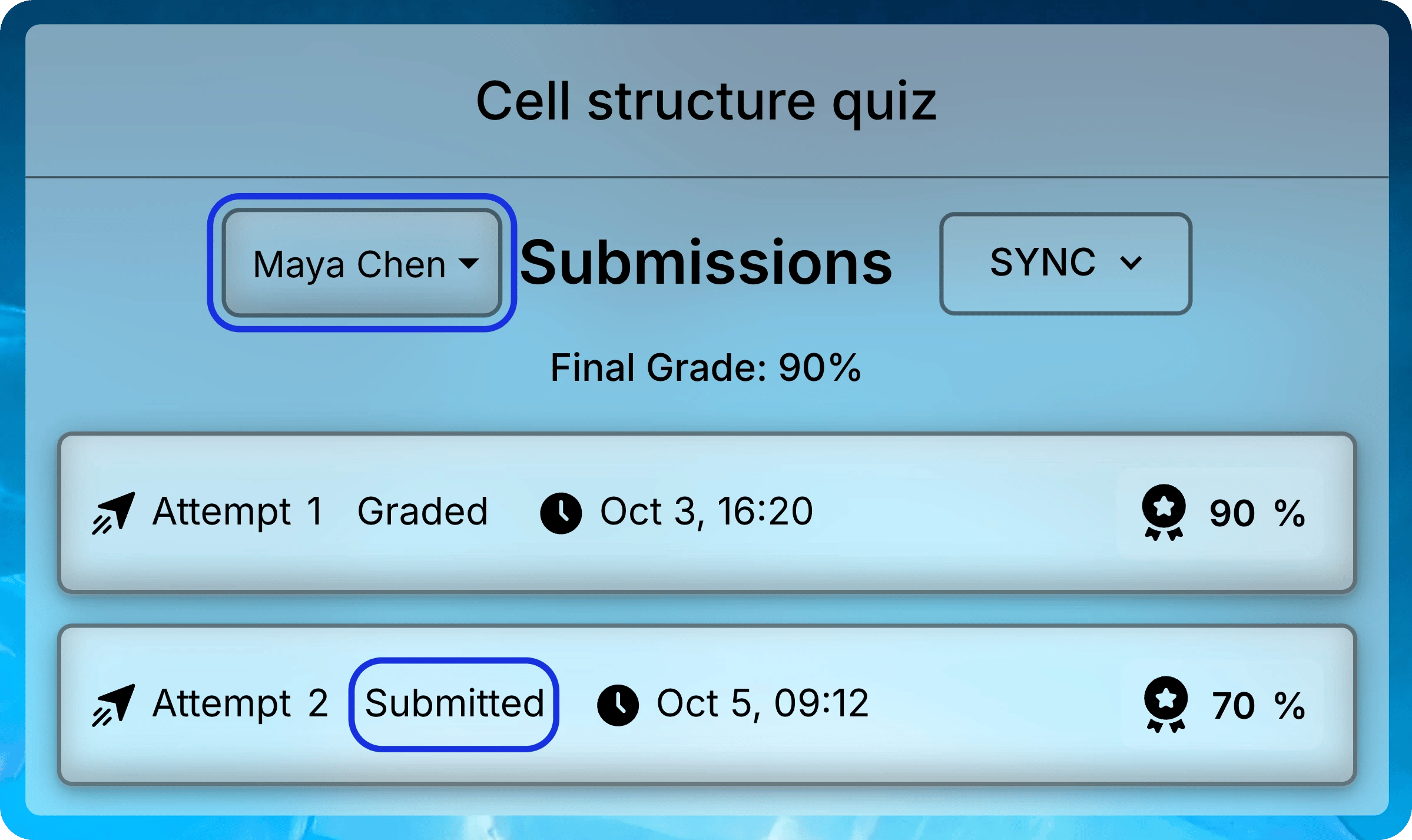
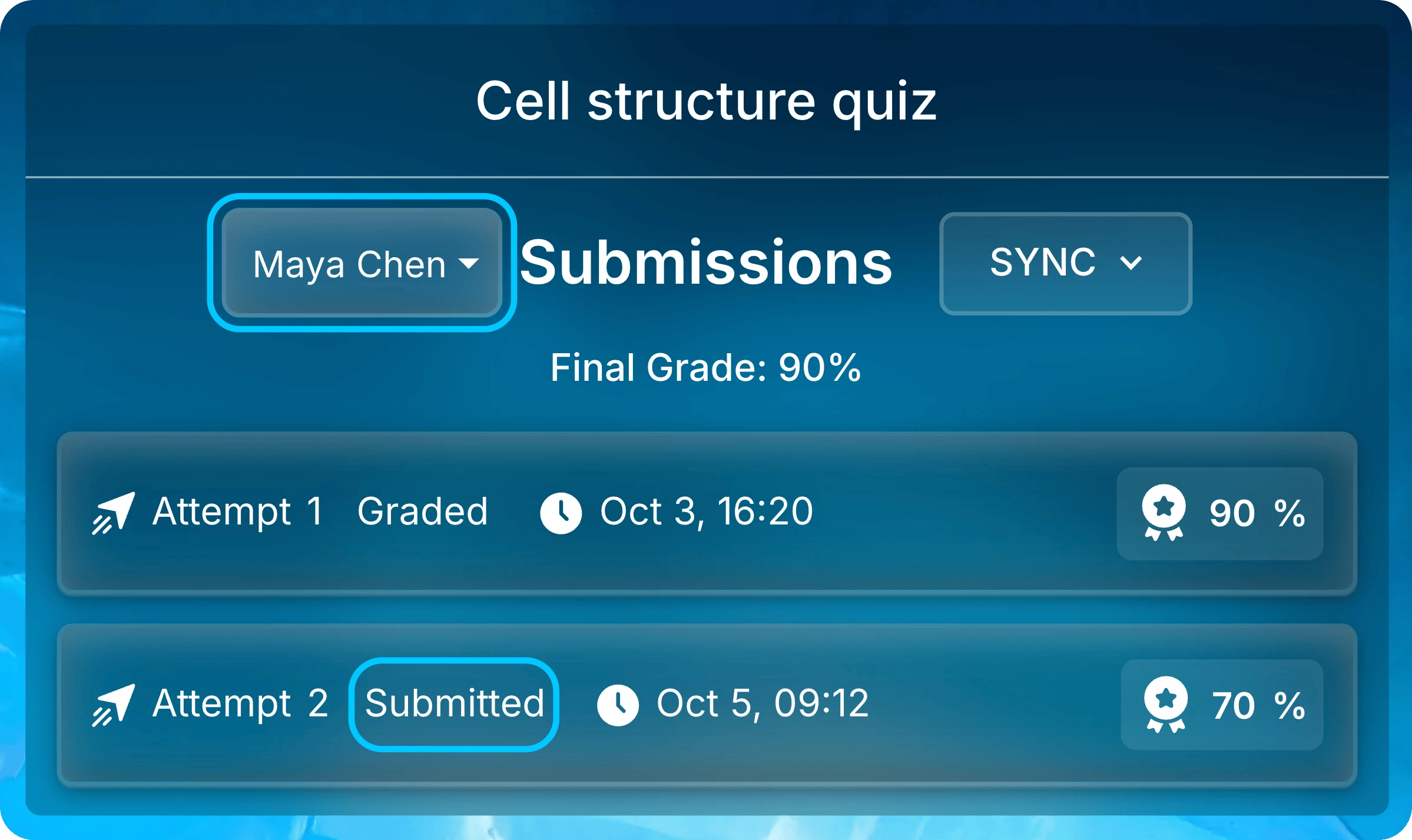
Attempt 2 is waiting for AI grading, so its score counts only instant grades.
6
Open an Attempt
Select an attempt to see the student’s responses and scores. Review Results explains how to check the scores and regrade them.
Due Dates
The due date is a hard cutoff. After it, students can’t start or change an attempt.- With a time limit, Uflo submits an open attempt when time runs out.
- Without one, the attempt stays open, and it isn’t graded until the student submits it.
Common Questions
What if a submission stays Submitted?
What if a submission stays Submitted?
Uflo retries AI grading for submissions still waiting after an hour. If one still isn’t graded after 24 hours, contact support@uflo.io.
Will I get an email when grading finishes?
Will I get an email when grading finishes?
No. For work students submit, only students get emails. Check the Submissions panel to see what’s graded.
Can I regrade one question for every student?
Can I regrade one question for every student?
Yes. Open the question and use Regrade in the Actions menu.
Next: Review Results
Check the scores, then fix any that are wrong.