
This page is for exams you scan yourself. If students photograph their own pages and upload them, follow Submitted by Students.
Design the Exam
Page Numbers
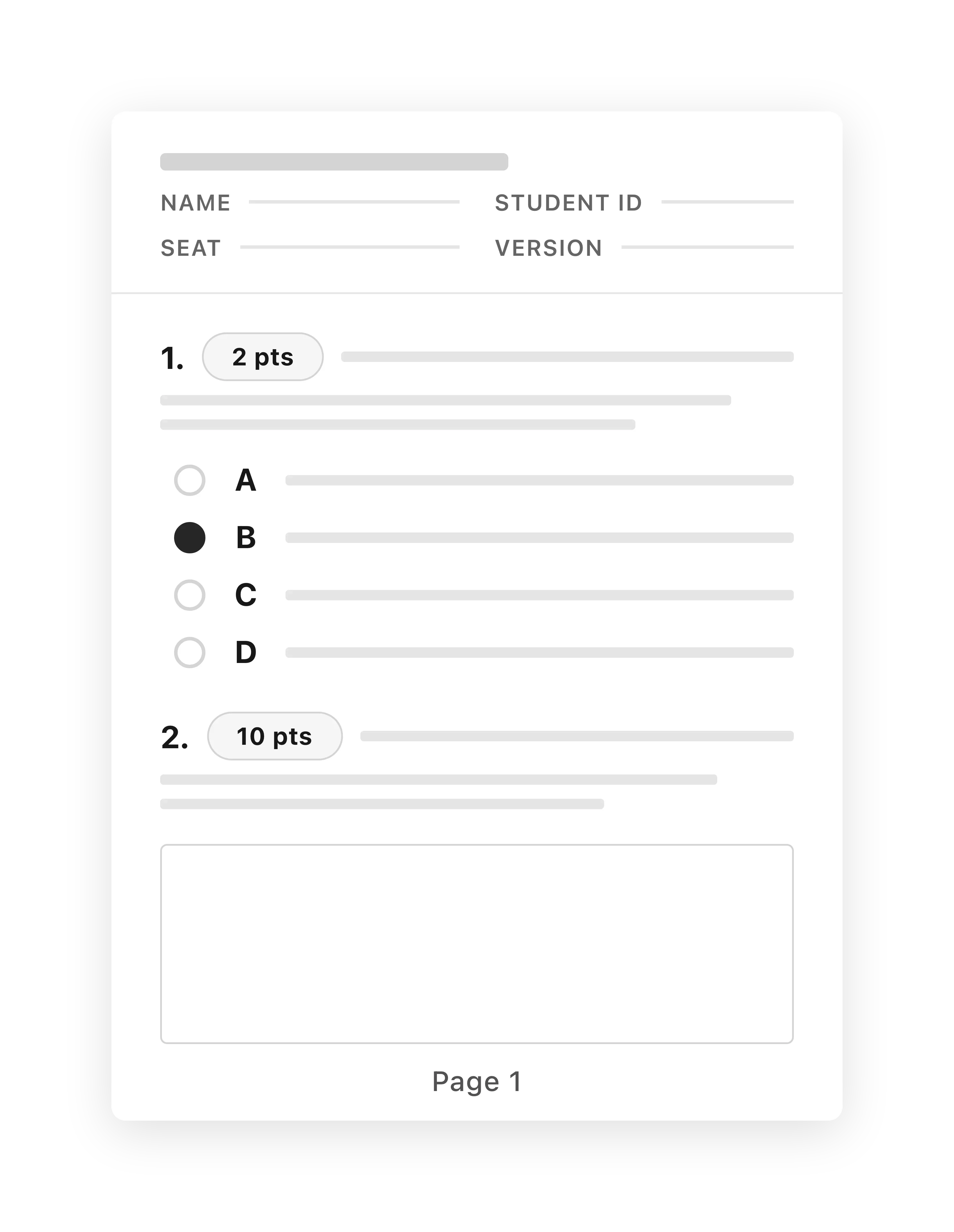
- Print a page number, 10pt or larger, at the bottom center of every page.
- If the exam has an odd number of pages, add a blank page with a page number.
Student Name and ID
Uflo matches each exam to a student on your roster, so upload it before the exam. The first page needs these fields:- The student’s full name.
- Their student ID, the same one as on your roster.
- Any other fields you want, such as a seat number.
Format the Questions
Print each question’s points beside it, so importing the questions picks them up. Paper exams support only the following question types:- Free Response
- Multiple Choice
- Number
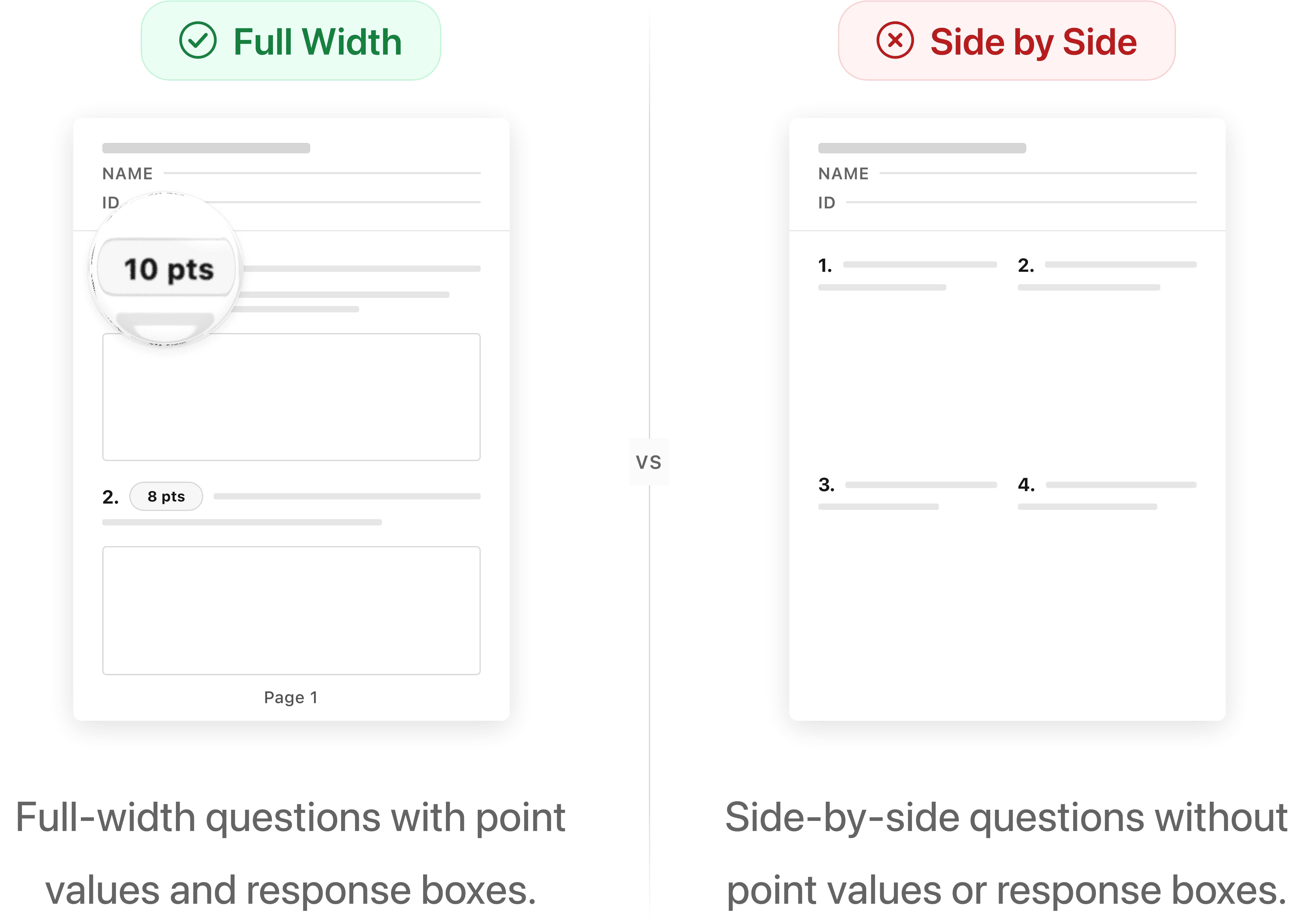
- Run each question across the full page width, not side by side.
- Add a bordered answer box after each question, as large as the page allows. Keep it inside the margins and off the page number.
- Drawing and image questions work the same way: give each one a box.
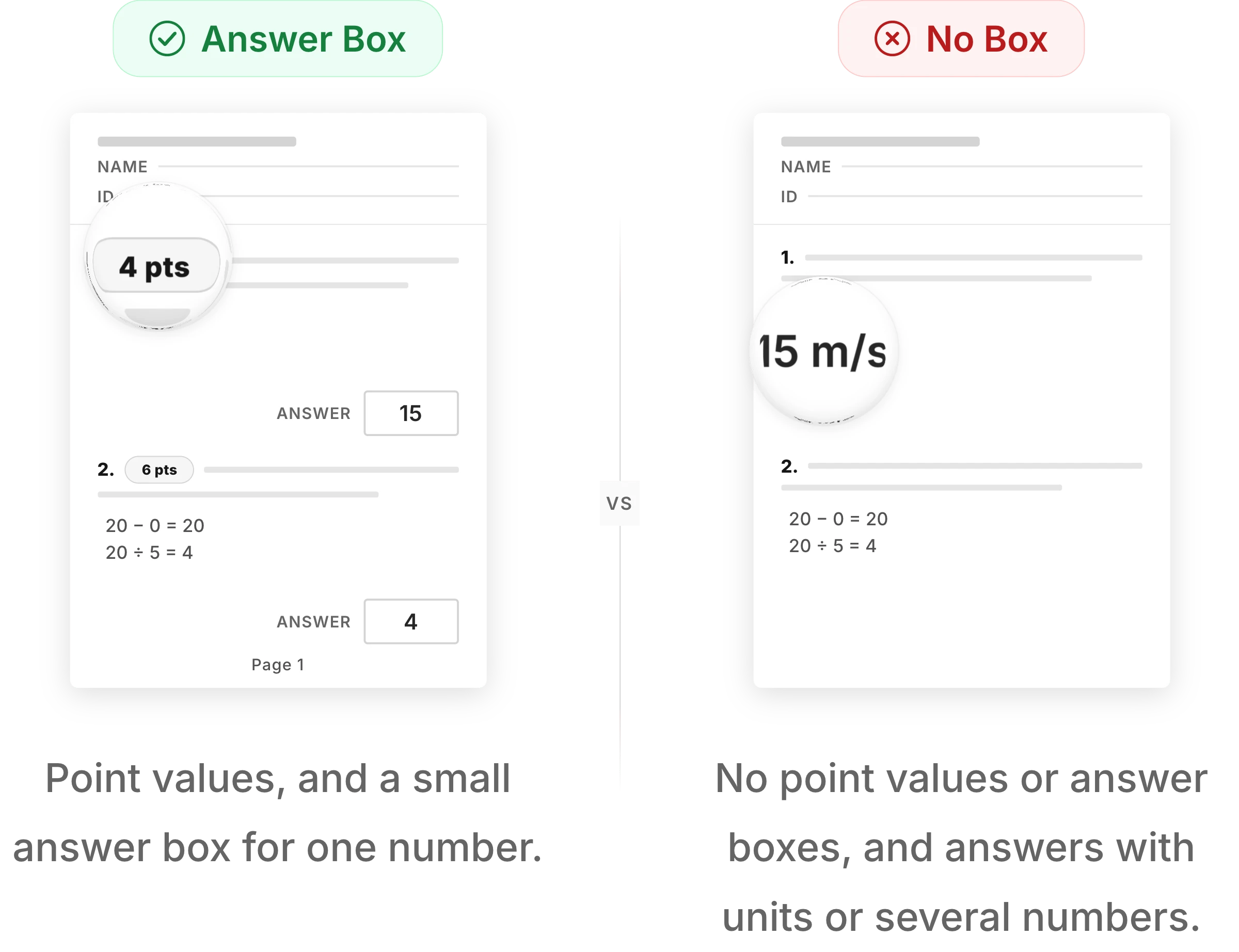
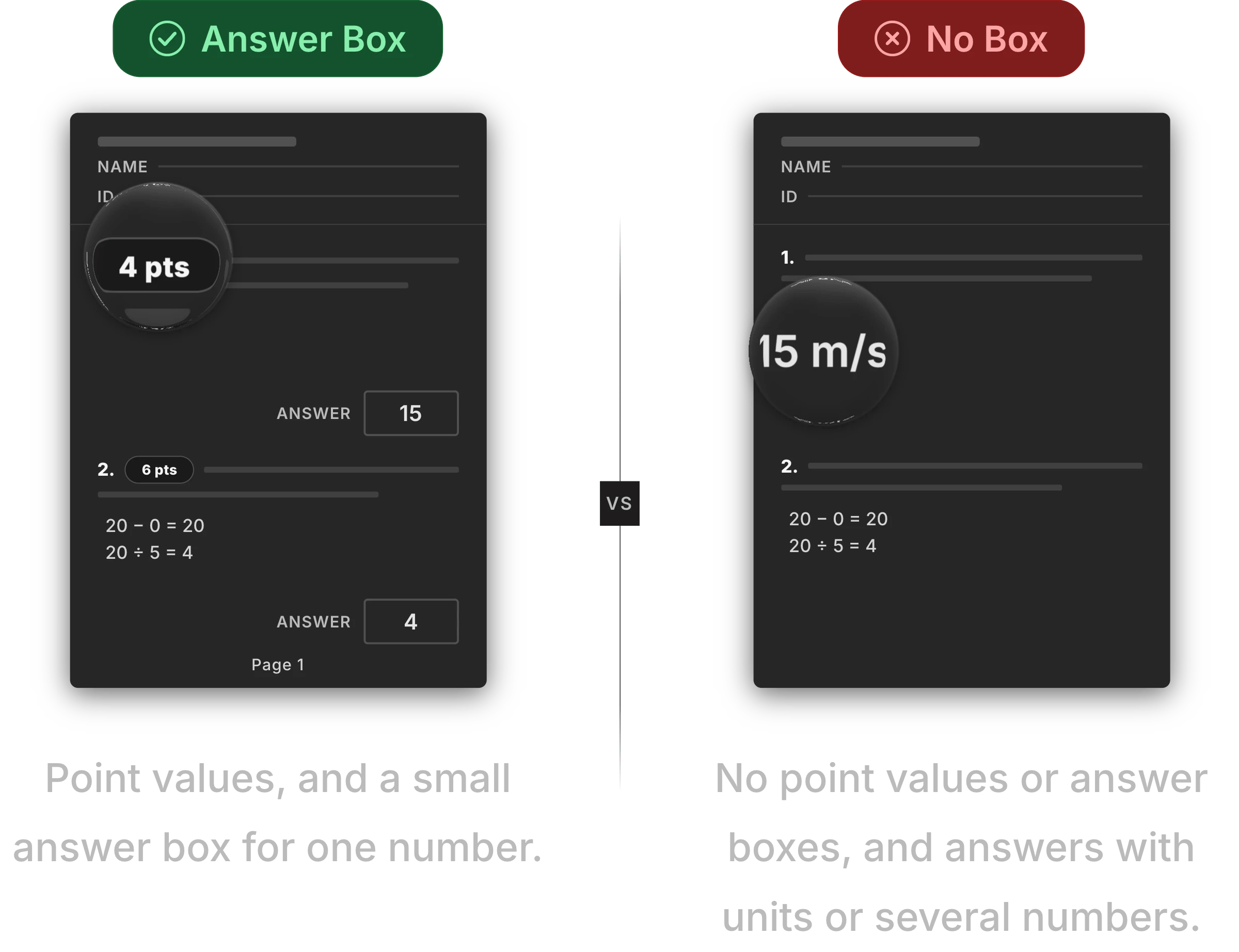
More formatting tips
More formatting tips
- Use black text on a light background, with no watermarks in answer boxes.
- Use a plain 11 or 12pt font, such as Arial or Times New Roman.
- Keep content half an inch from the edges, since scanners can clip margins.
- Remind students to write their name and ID.
- If the exam has several versions, print the version label on every page.
- Put text on every page, since scanners may skip blank ones.
Save Your Files
Keep two versions of the exam:- Blank template (PDF): the questions, answer boxes, and name and ID fields, with no answers. You’ll print this one.
- Complete version (Word or PDF): the same exam with answers, and rubrics if you have them. Review Import Questions to see how to format it.
BIO101_Midterm1
BIO101_Midterm1_Complete.docx
BIO101_Midterm1_Blank.pdf
Set Up the Assessment
1
Create the Assessment
Select your course on Courses, then the chapter, then Test at the top of Lessons.Since students took the assignment outside of Uflo, set the settings to prevent students from re-taking it.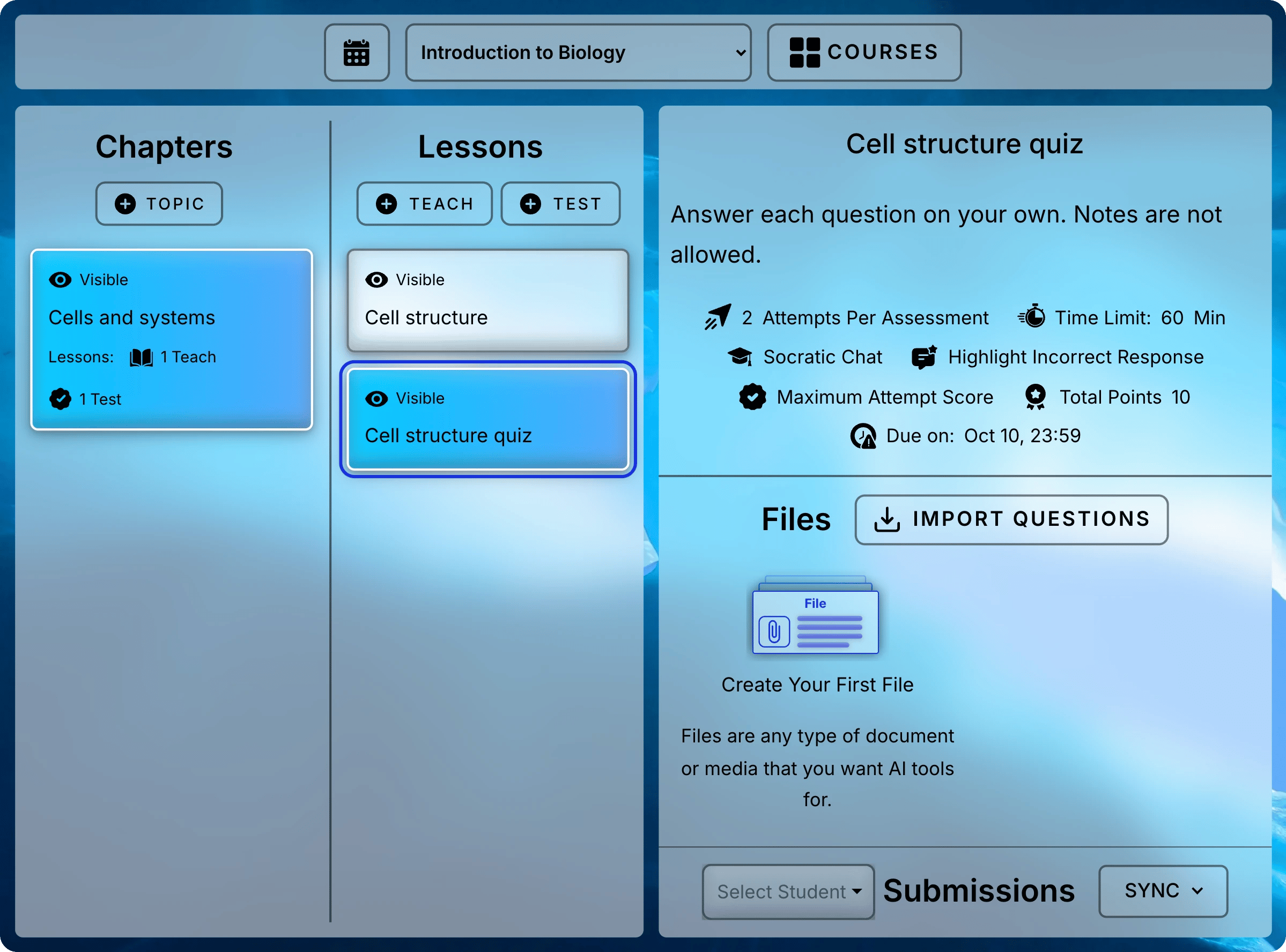
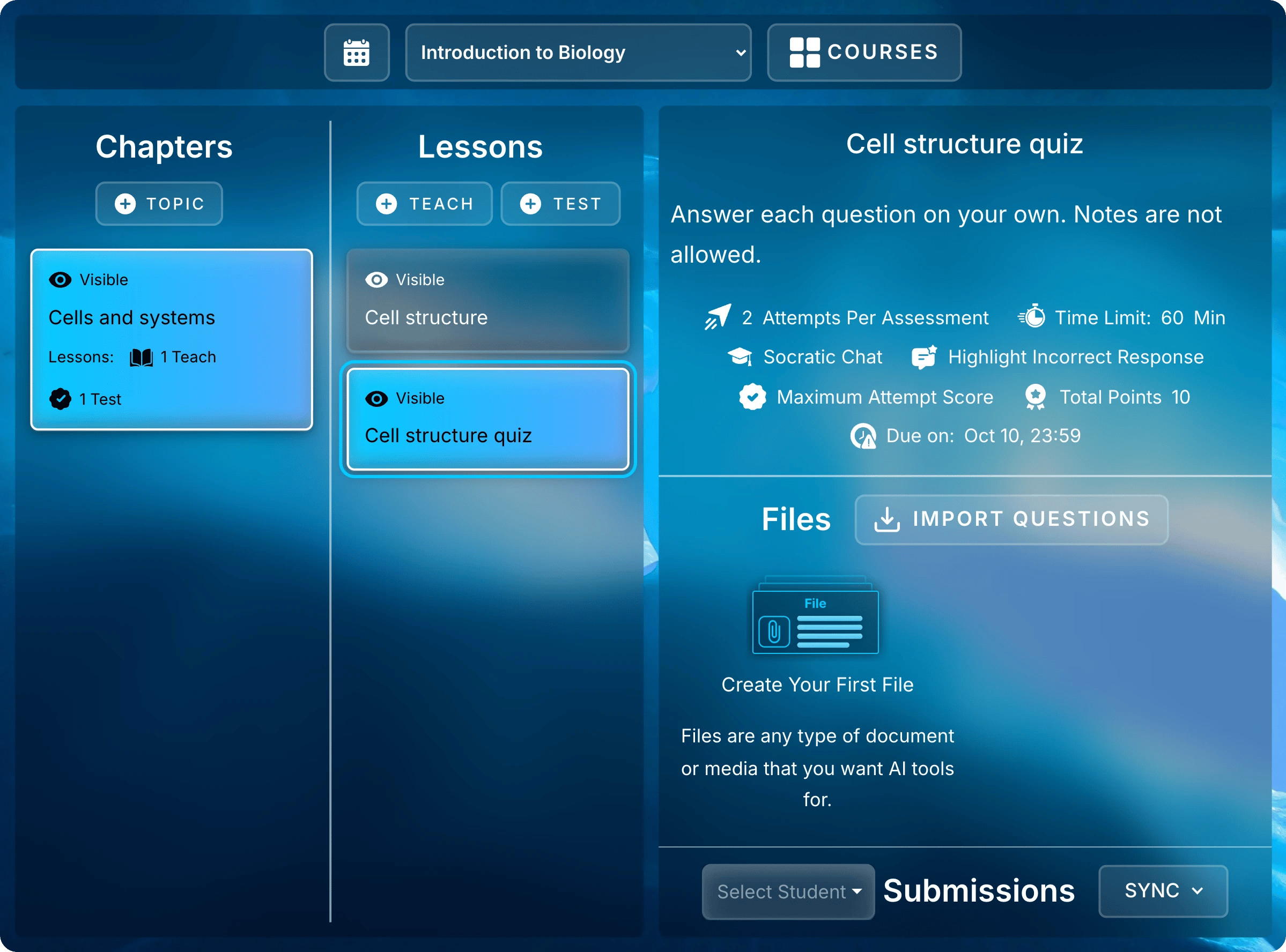
When you release grades, make it visible again and show scores and feedback.Then select the new assessment under Lessons to open it.
The new assessment opens beside the Lessons list, with Import Questions next to Files.
2
Import the Questions
Import the complete version of the exam, not the blank one.Select Import Questions under Files, and upload your questions. If a question has no answer or rubric, Uflo writes one. Import Questions shows how to lay out the file for each question type.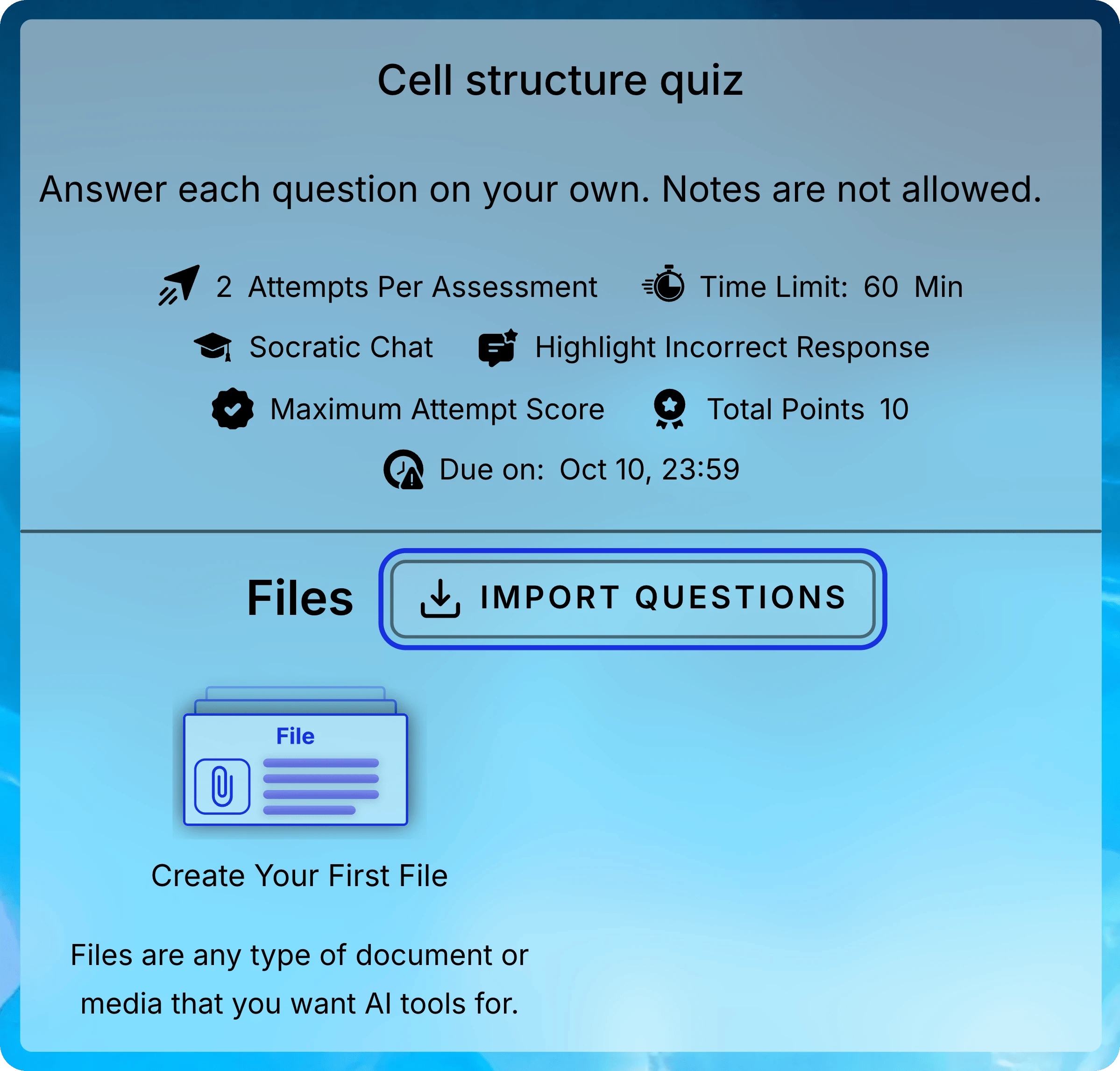
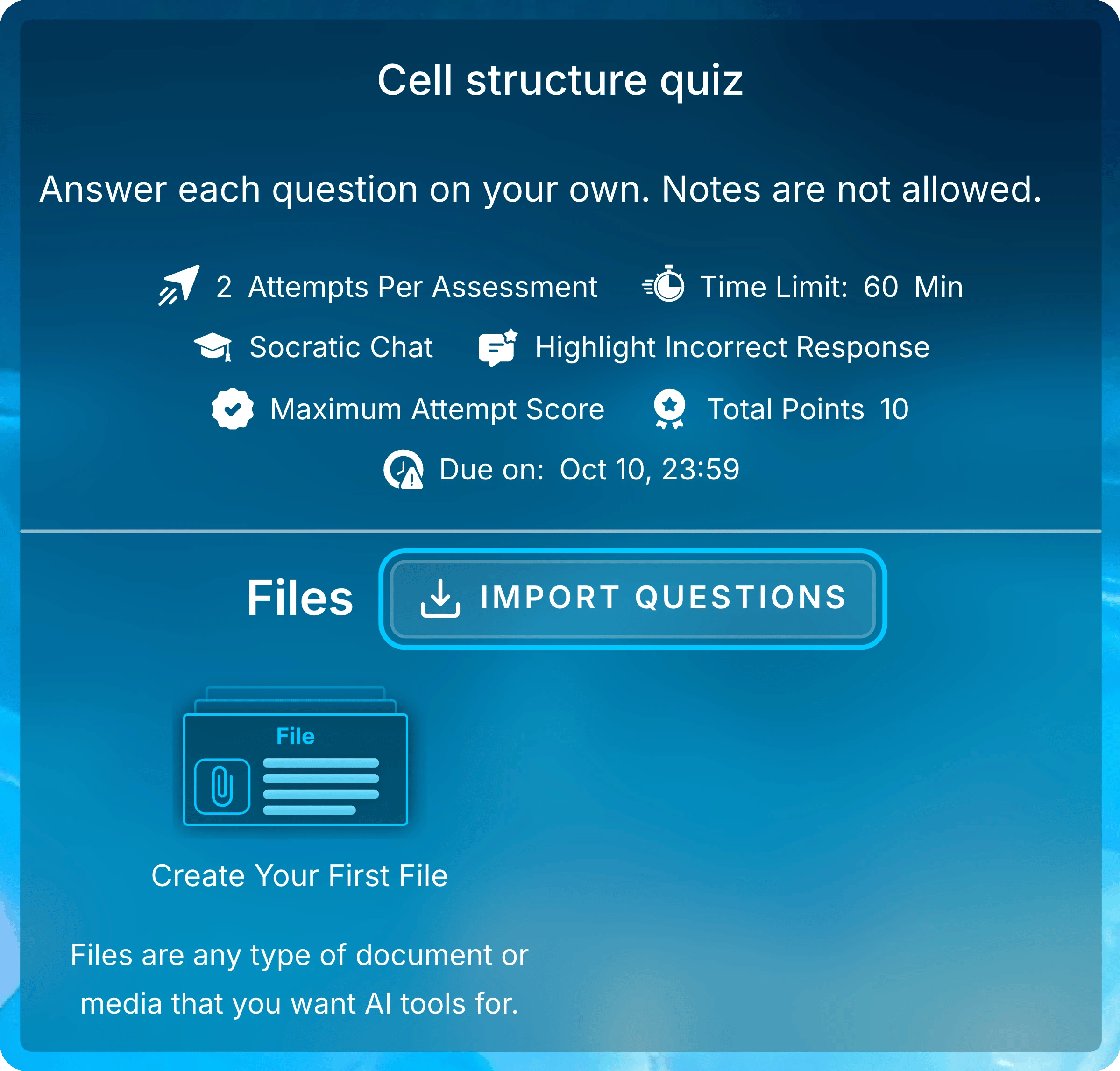
Import Questions appears on a new assessment.
Check the imported question to ensure the import was accurate.
Print the Exam
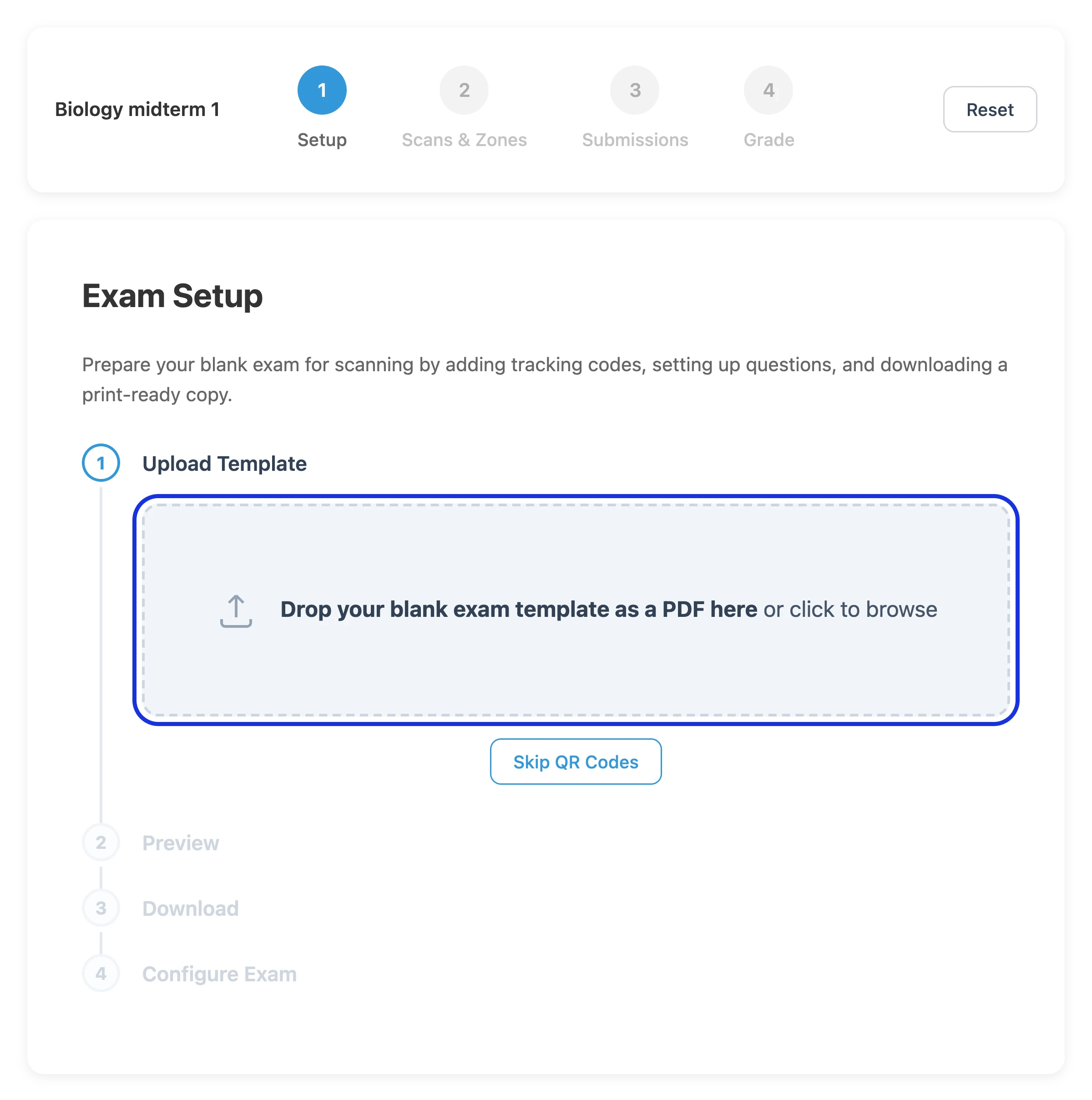
Uflo needs to know which exam page each scan shows. It can read the printed page numbers, or a QR code the grader stamps on each page. QR codes are more reliable, so use them for classes of over 200 students.- Under 200 Students
- Over 200 Students
1
Open the Grader
On the assessment’s page, under Submissions, open SYNC and select Import Submissions (PDF). The grader opens in a new tab.
Start a paper exam from Import Submissions (PDF).
2
Skip QR Codes
Select Skip QR Codes below the upload box, then confirm. Uflo finds each page by its printed page number instead, so every page needs a clear one.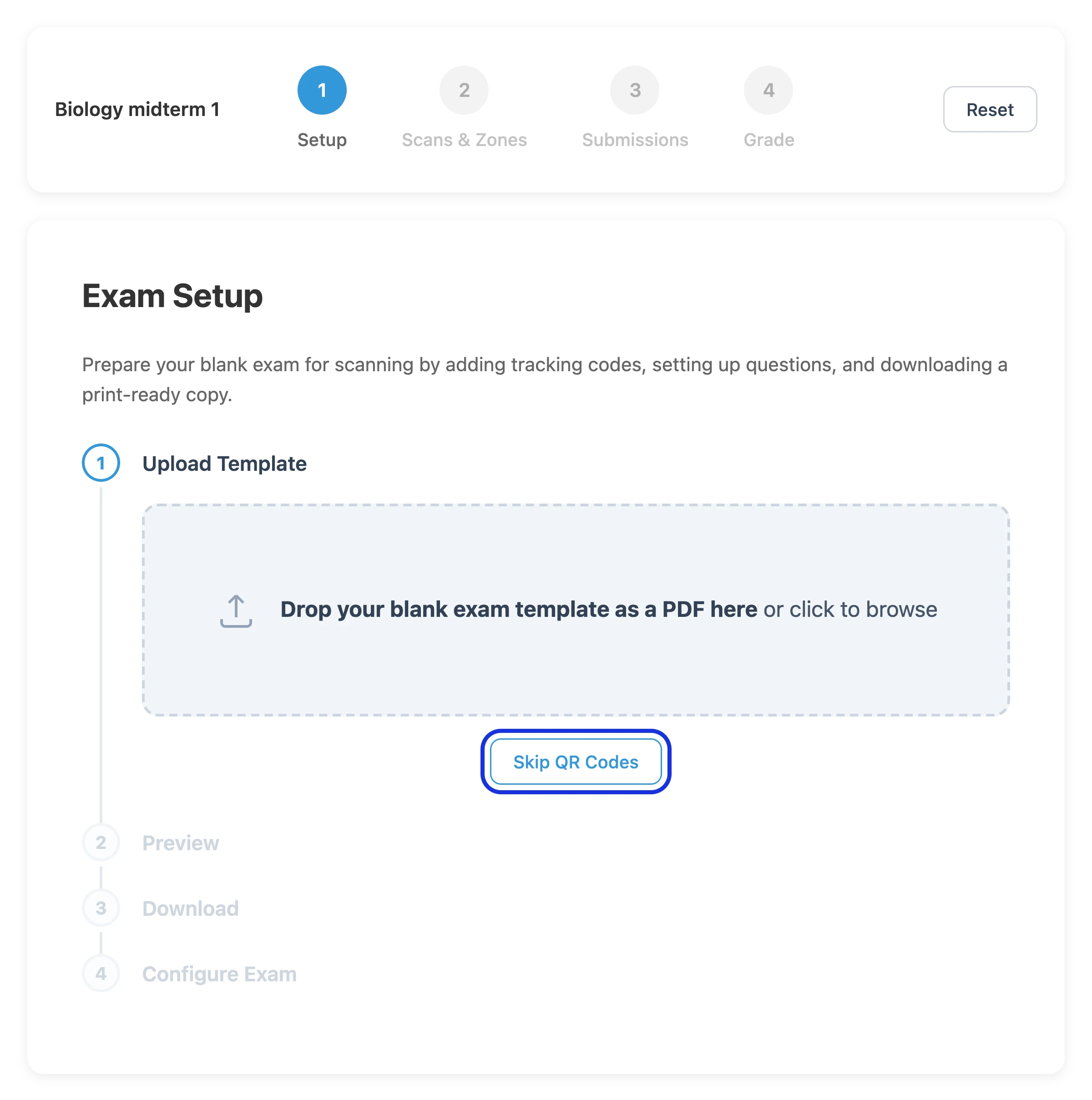
Skip QR Codes sits below the upload box.
3
Configure the Exam
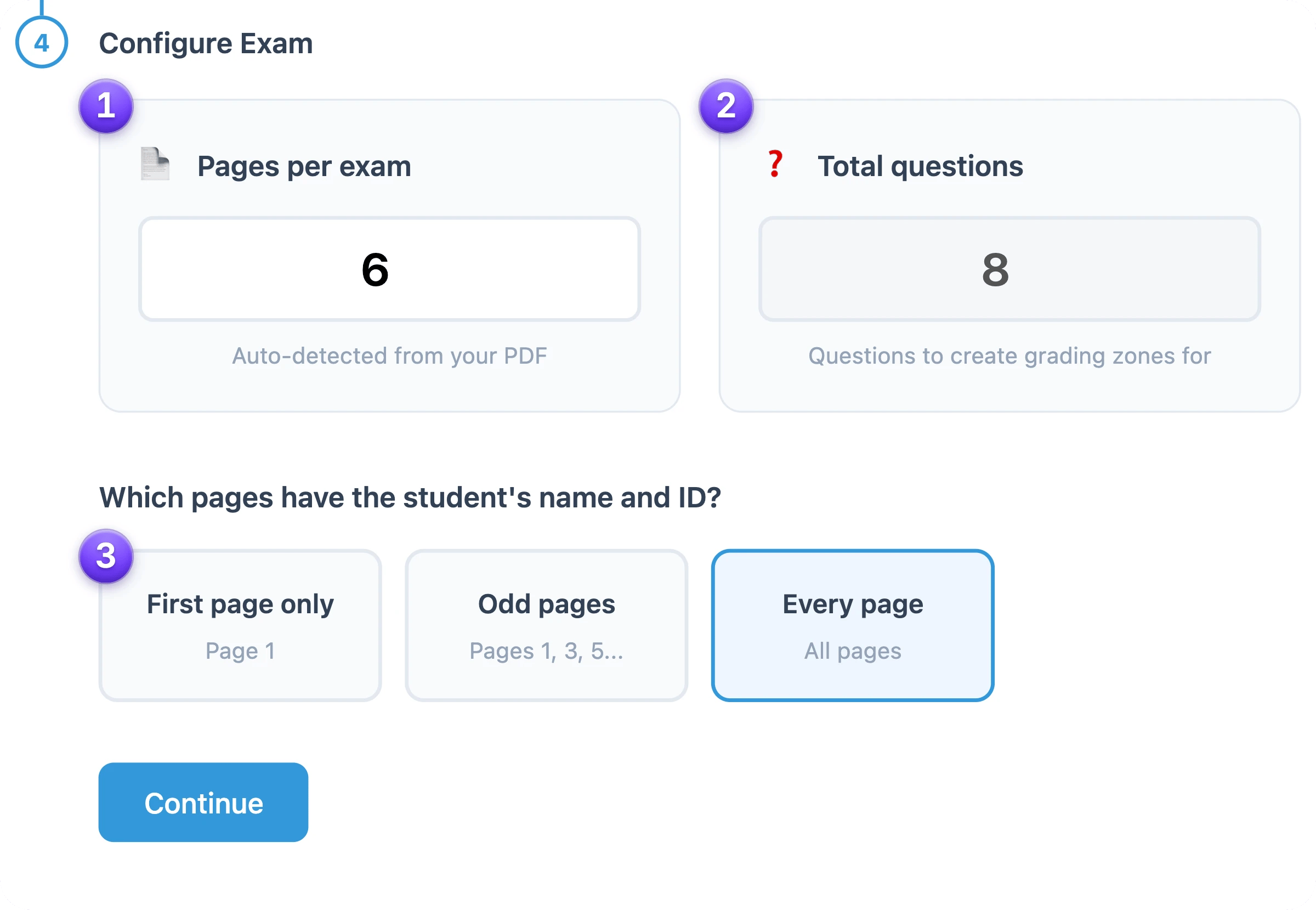
Check three settings, then select Continue.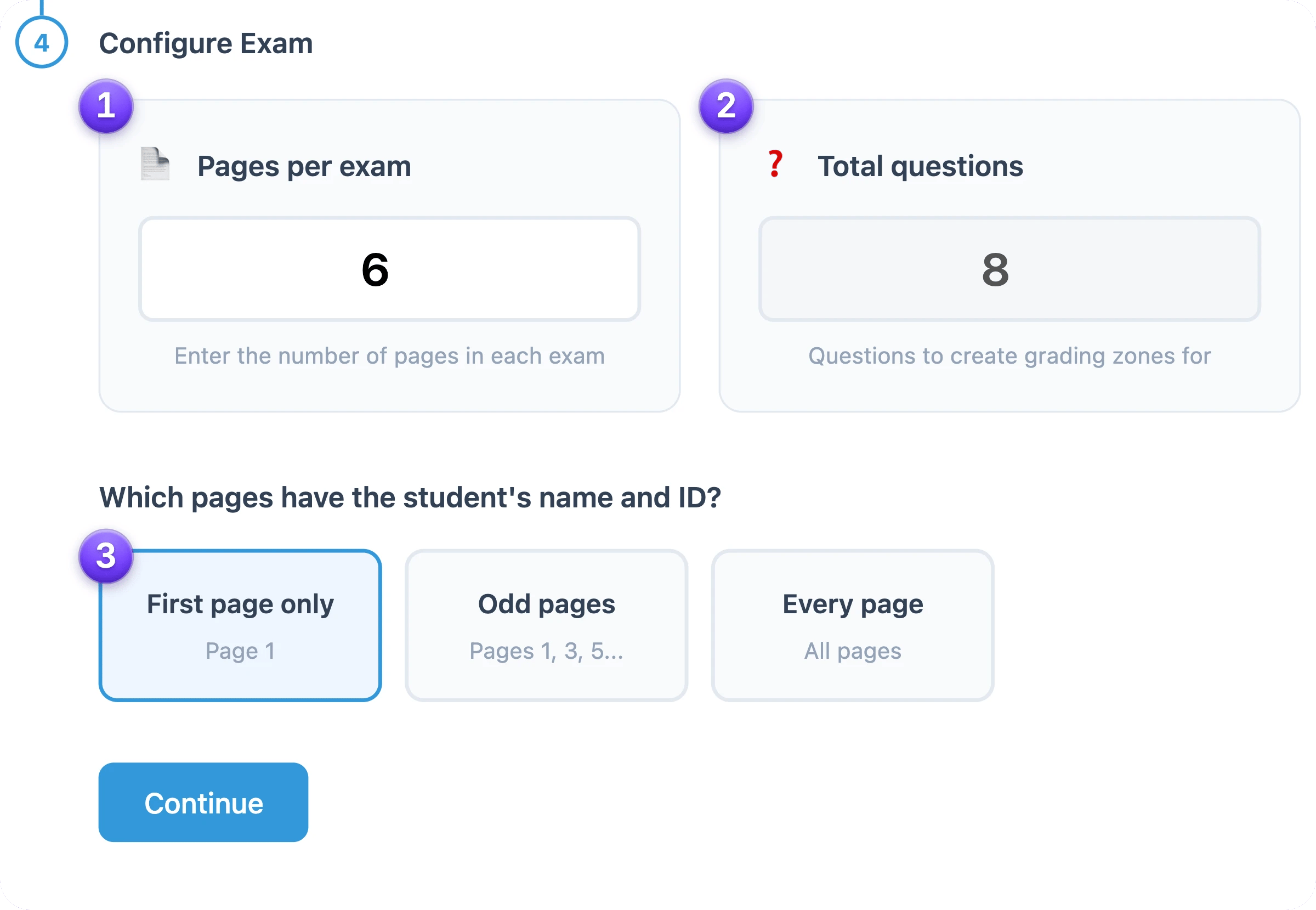
Enter the pages per exam, and choose where students write their name and ID.
- Pages per exam: how many pages one exam has.
- Total questions: taken from the assessment’s questions in Uflo.
- Name and ID pages: the pages where students write them.
4
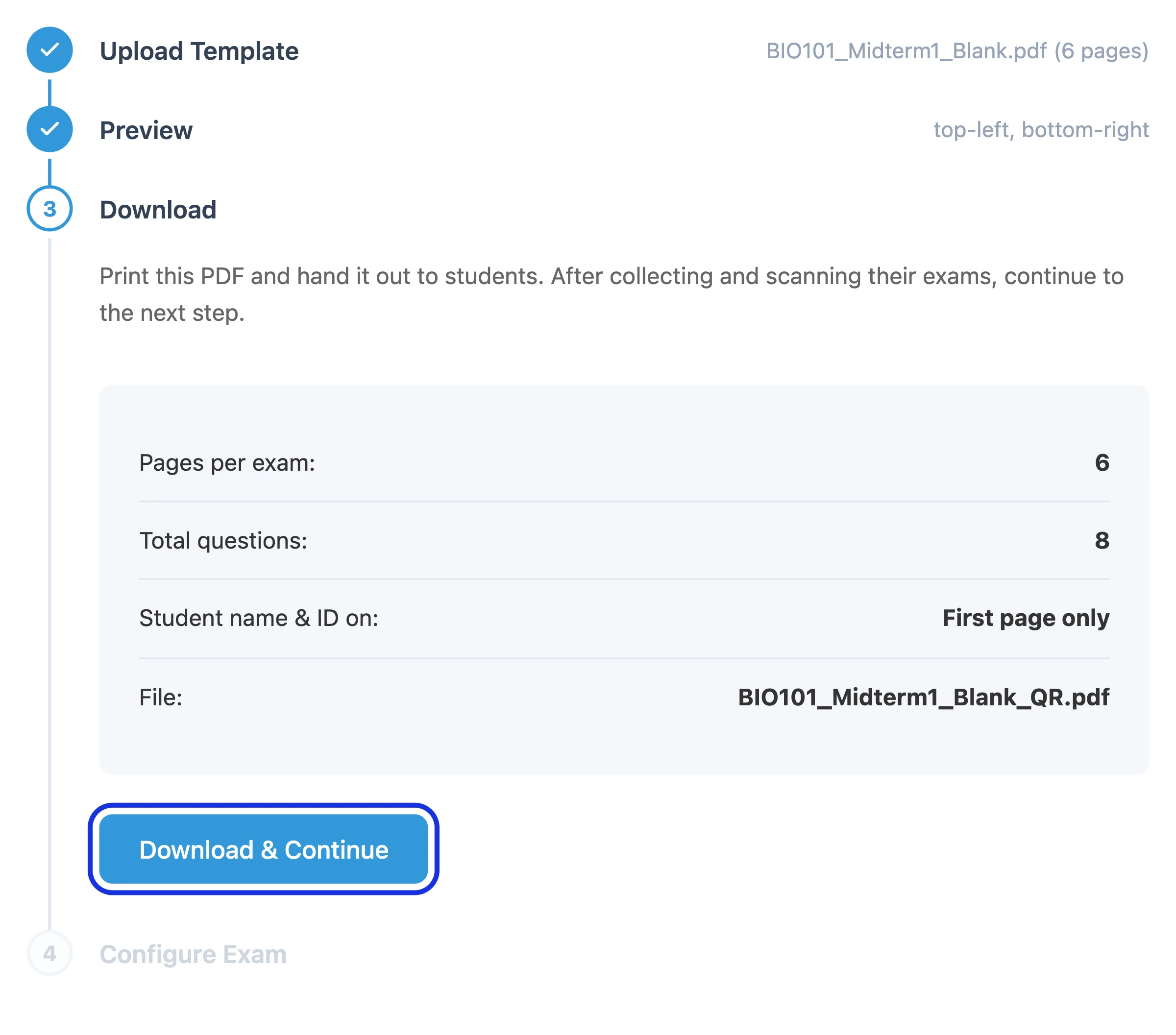
Print the Exam
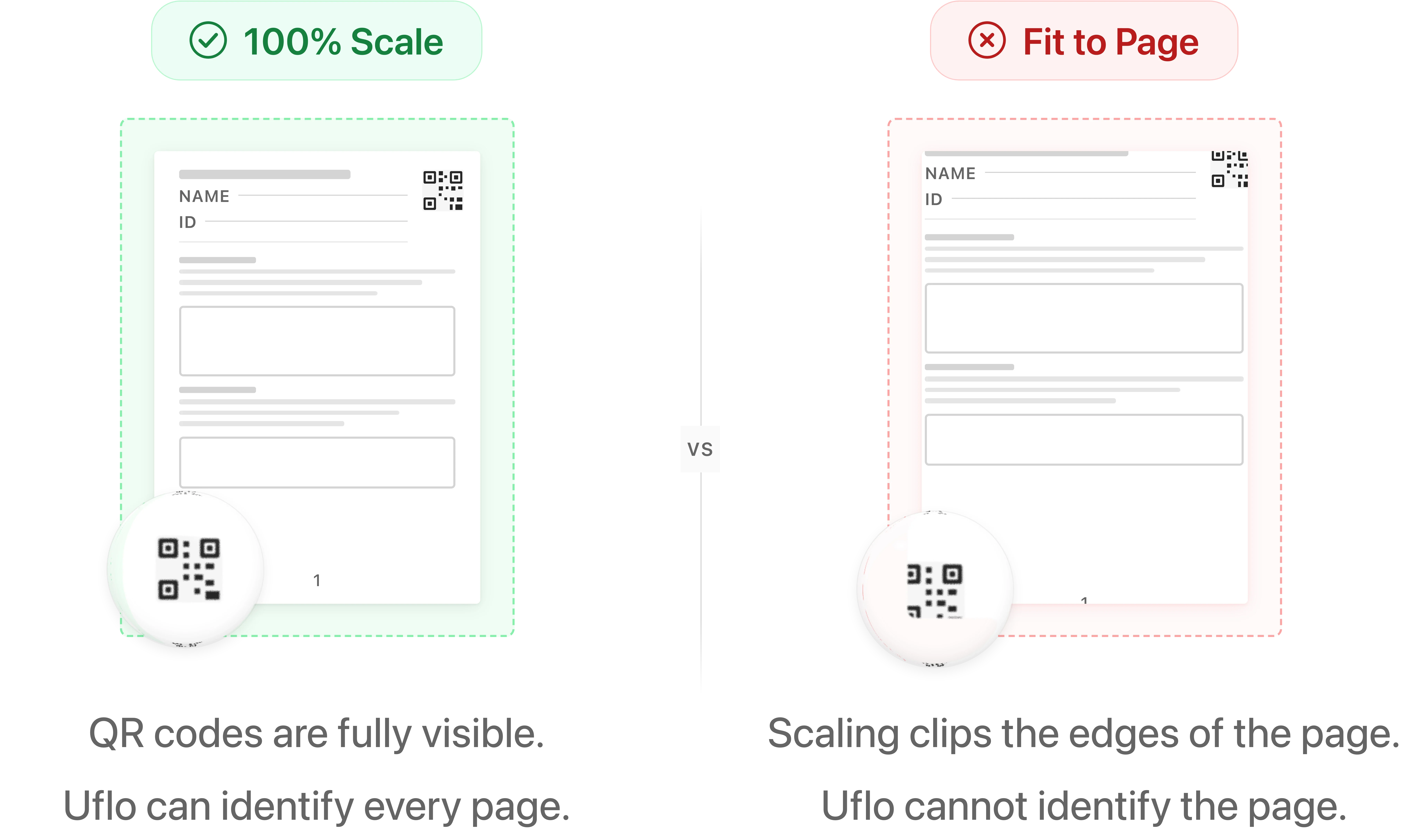
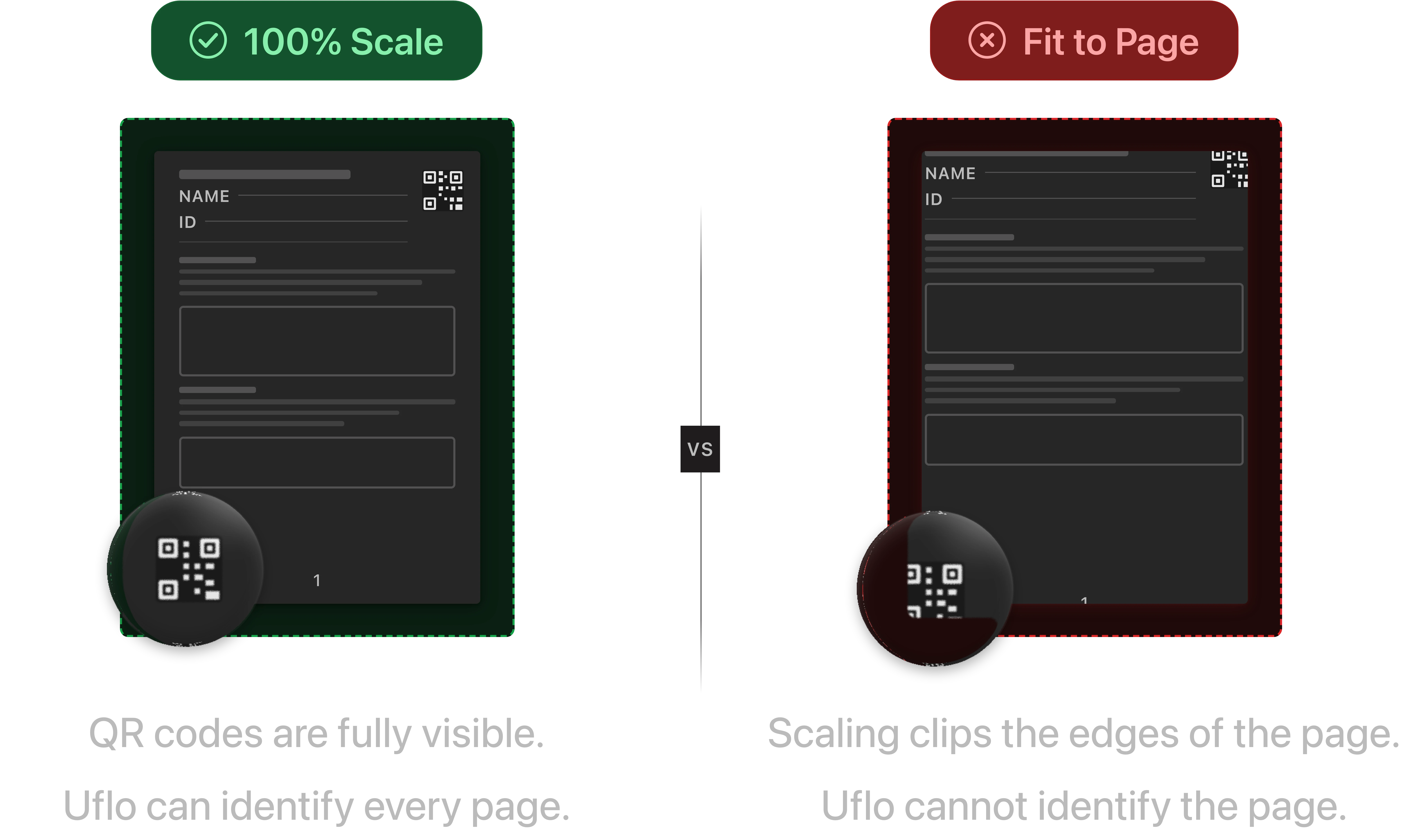
Print the blank template on plain white letter paper, at . Print one extra copy for your records.
Common Questions
Can I print before the questions or roster are in Uflo?
Can I print before the questions or roster are in Uflo?
Yes. Upload the template and download the stamped PDF. Before you scan, import the questions and upload the roster. Then reopen the grader, upload the same template, and finish Configure Exam.
Do I need to reprint if I change a question in Uflo?
Do I need to reprint if I change a question in Uflo?
No. The QR codes hold only page numbers, so reprinting isn’t needed while the questions still match the printed exam.
Next: Before Grading
Scan the exams, mark the answer zones, and match each exam to a student.