
Grade the Submissions
Select Grade Submissions after you fix the scanned submissions or match the CSV students. It opens with a summary of the submissions, students, and questions. For a paper exam, a table also lists each scan PDF and its grading status. Select Grade All Submissions. Grading runs on Uflo’s servers, so you can close the tab and reopen the grader later from SYNC. A typical exam of 100 students with 10 questions takes about 2–3 minutes.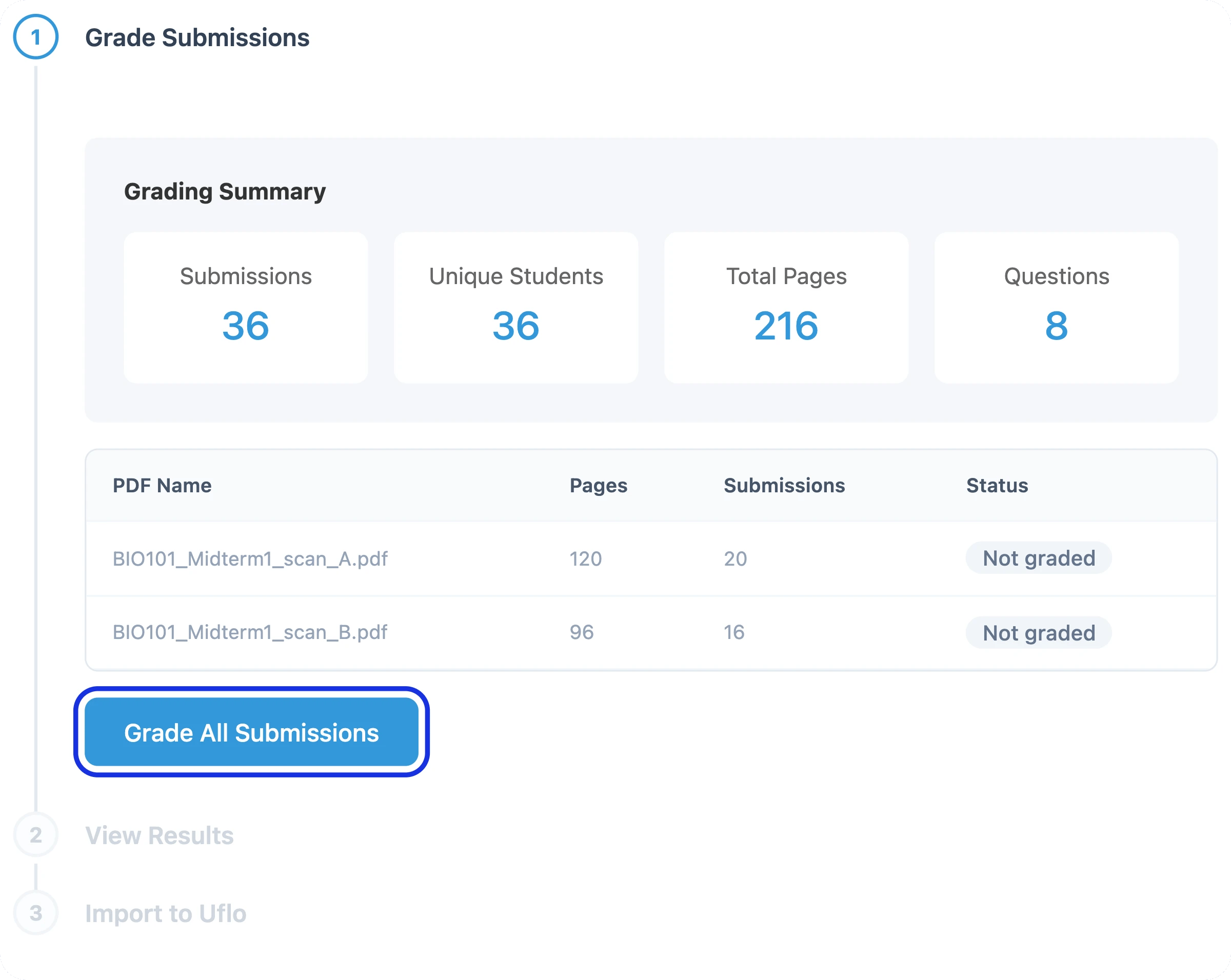
Check the counts, then grade every submission.
Once some submissions are graded, the button changes:Add new submissions after grading
Add new submissions after grading
To grade a late exam, such as a make-up, go back to the Submissions step and open Scans. Select + Add Scans, add the PDFs, and select Upload & Process. Fix any flagged cards, then select Grade Submissions.
Add the new PDF from Scans. Only its pages are processed.
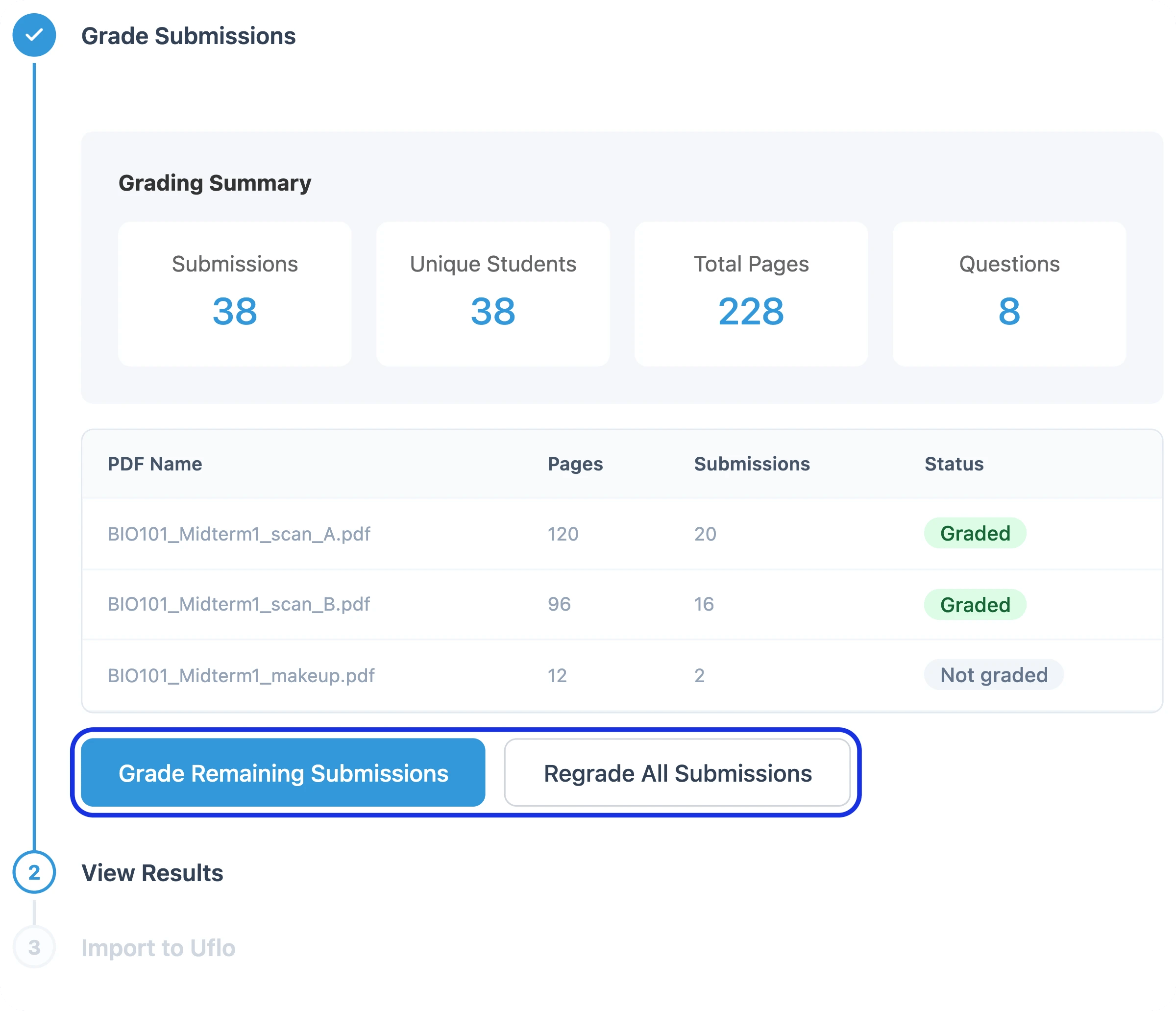
Grade only the new submissions, or regrade the whole class.
Grading can’t run while scans are processing or scores are importing.
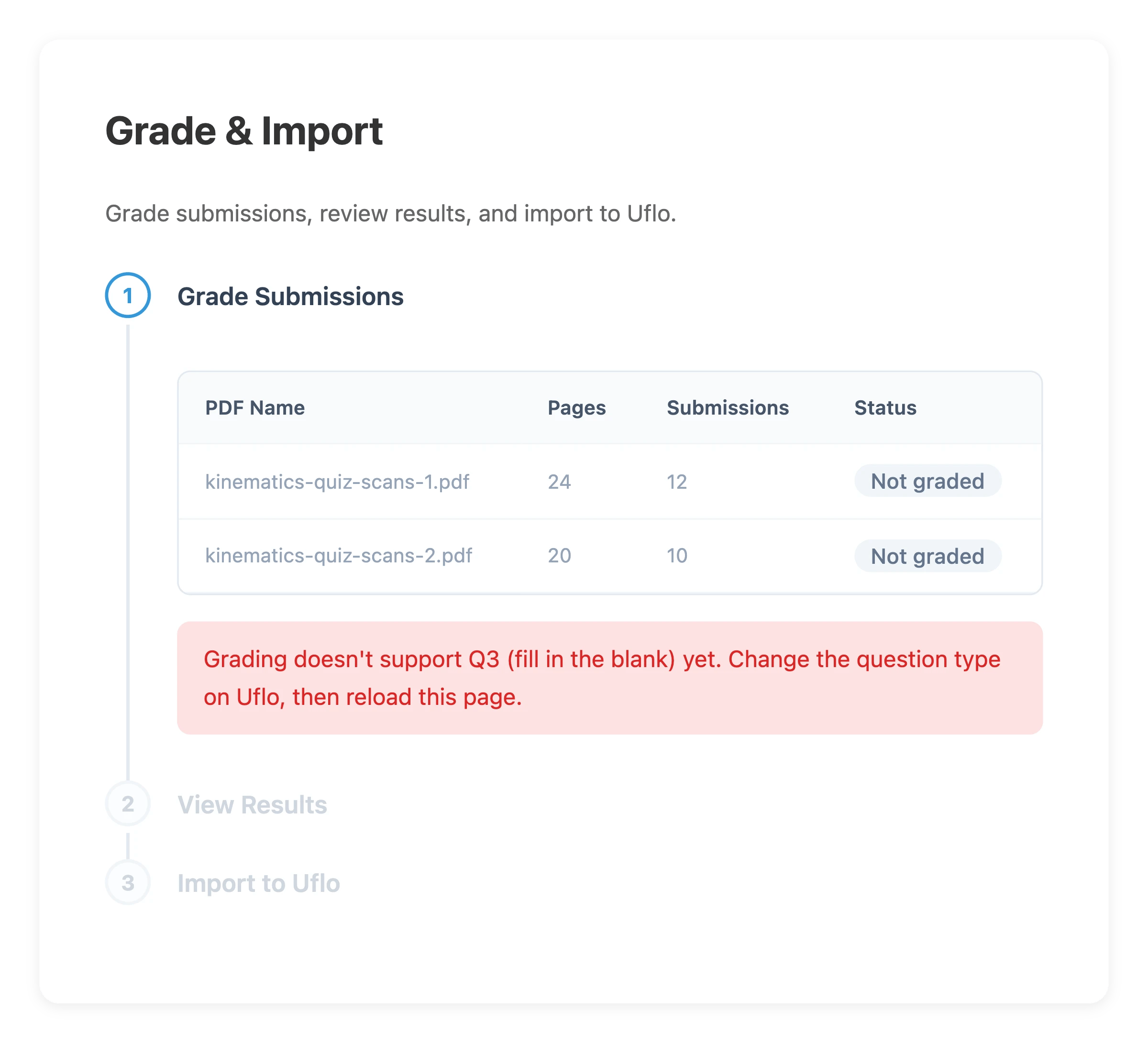
Check the Results
When grading finishes, select View Results to see how the class did: a score summary, a Score Distribution chart, Per-Question Statistics, and a box plot per question.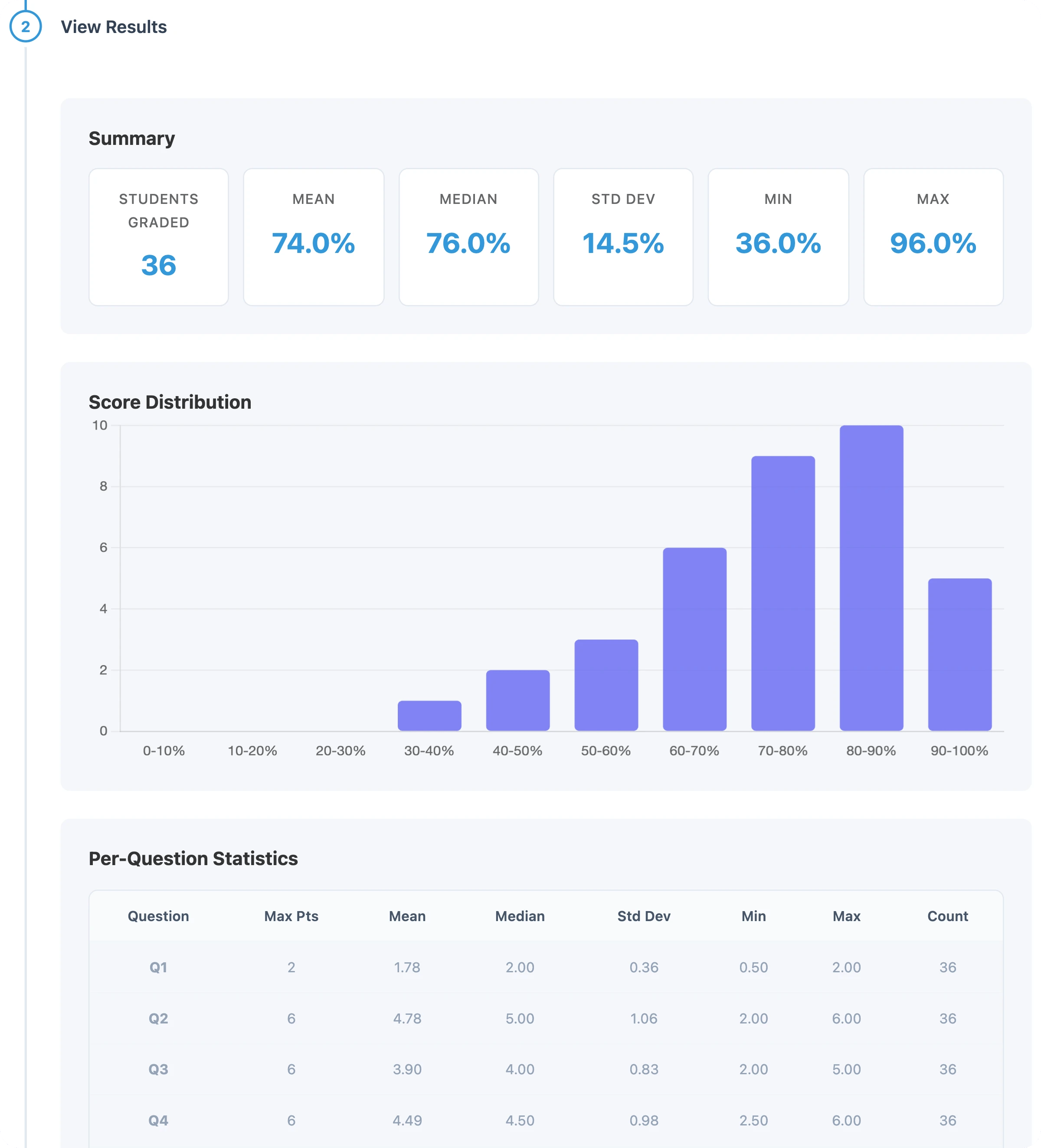
A low mean or a wide spread on one question is worth a closer look.
Download a Report
Generate Report (PDF) builds a copy of the graded responses that you can read or print. There are two main reasons to use it:- Your students aren’t in Uflo. Their scores can’t be imported. Review the results via the report, then download grades with Download Grades (CSV).
- You want to review the exams. Sort and filter the responses to find the ones worth a closer look, such as written answers with low confidence.
How to download a report
How to download a report
Choose what goes in the report, then select Download Report: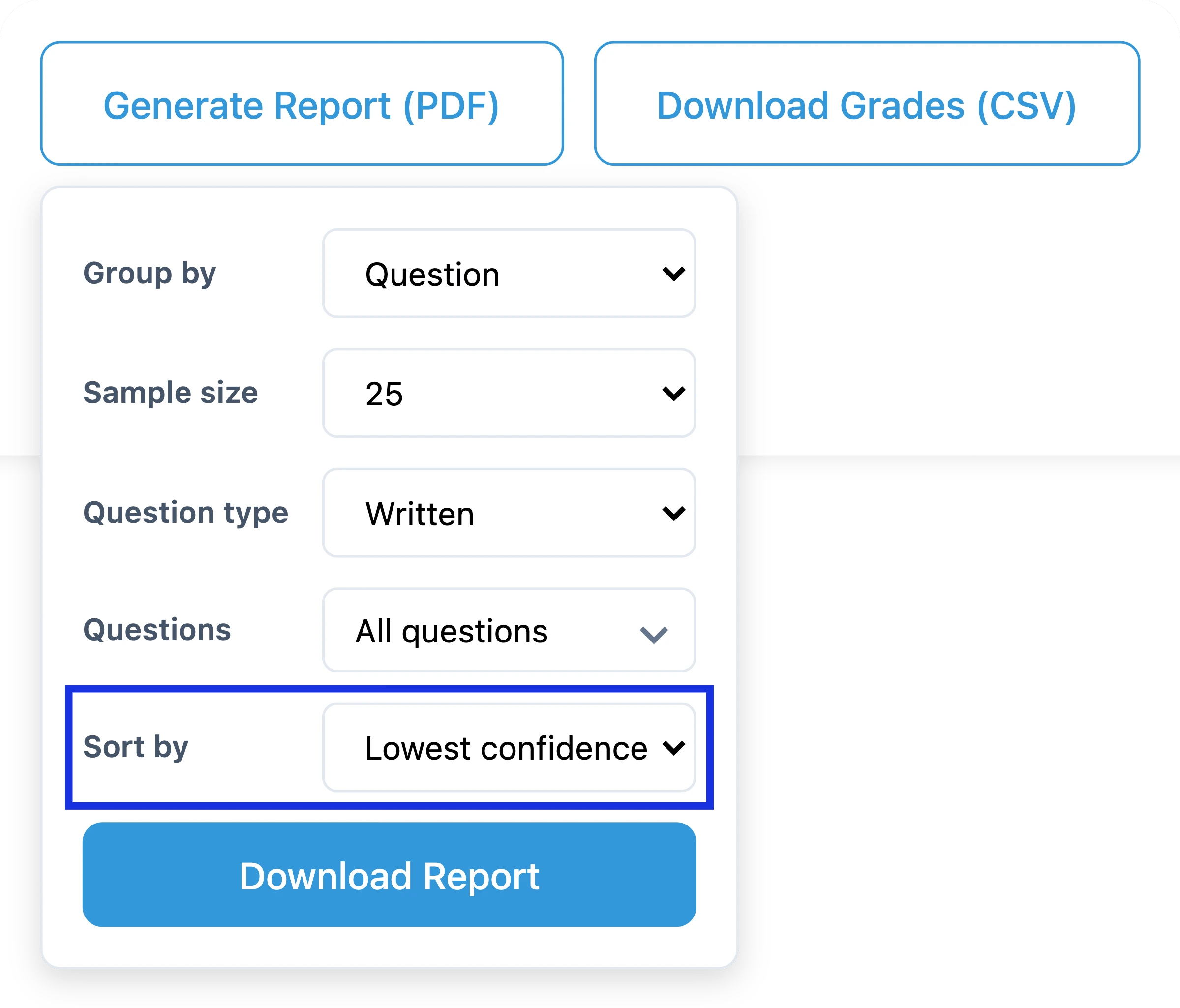
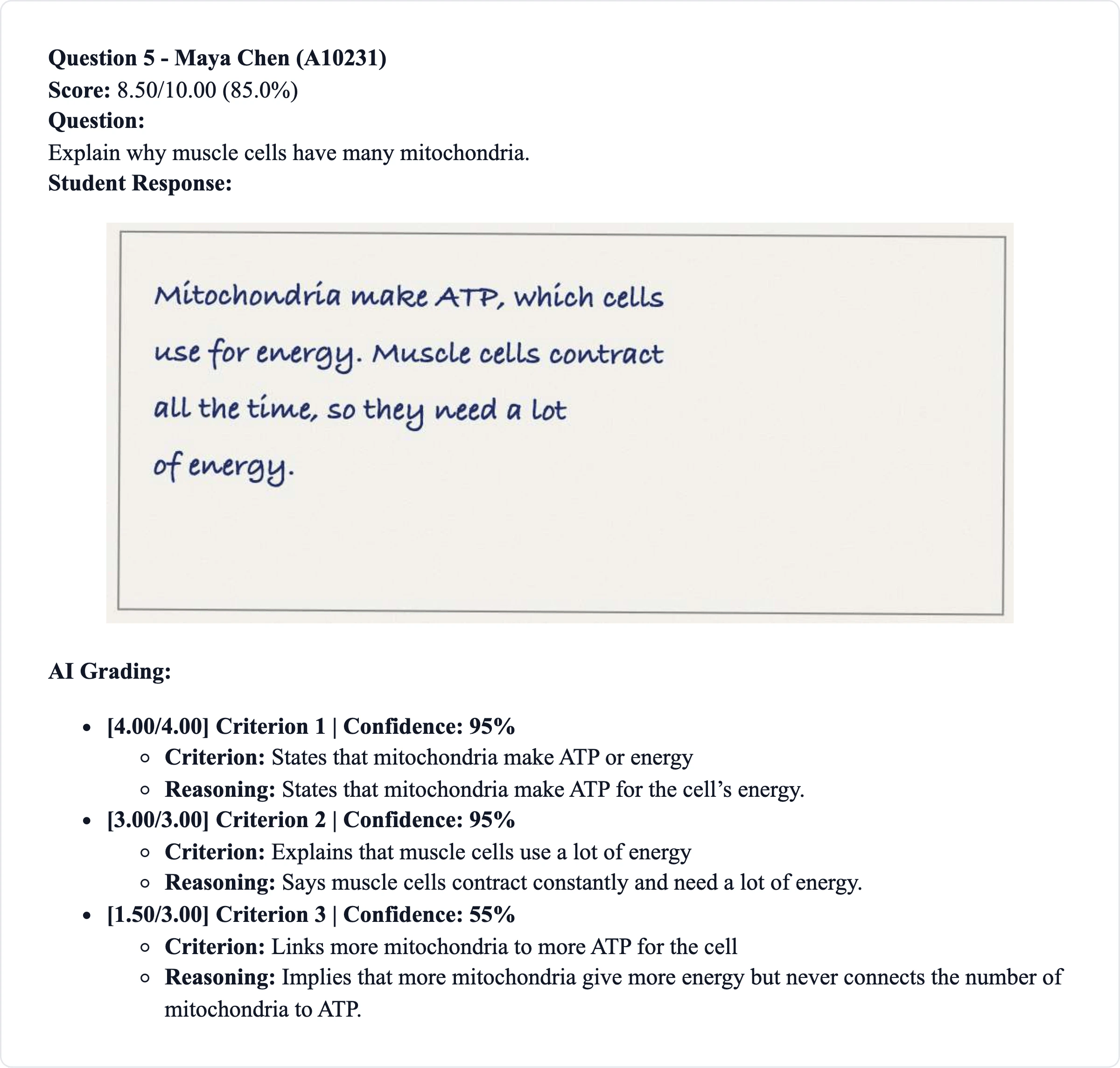
Sort by lowest confidence to check the shakiest grades first.
The report opens in your browser’s print window, ready to save as a PDF. It needs a computer, not an iPhone or iPad.Written responses show the AI’s points, confidence, and reasoning.Each response prints on its own page, with the scanned answer above the AI’s grading.
Import the Scores
Import to Uflo sends the scores to the assessment. Each student gets a submission with their score for each question and the rubric breakdown for free response ones. Paper exams also get a PDF of the submission. Importing doesn’t email students. Select Import All Submissions and confirm. The Import Summary then counts the students imported and those remaining. Open student(s) were not imported to see who was skipped, and why:
After a fix, reload the grader. Once the row shows fixed — re-import to apply, select Import Remaining Submissions. It leaves the students already imported as they are.
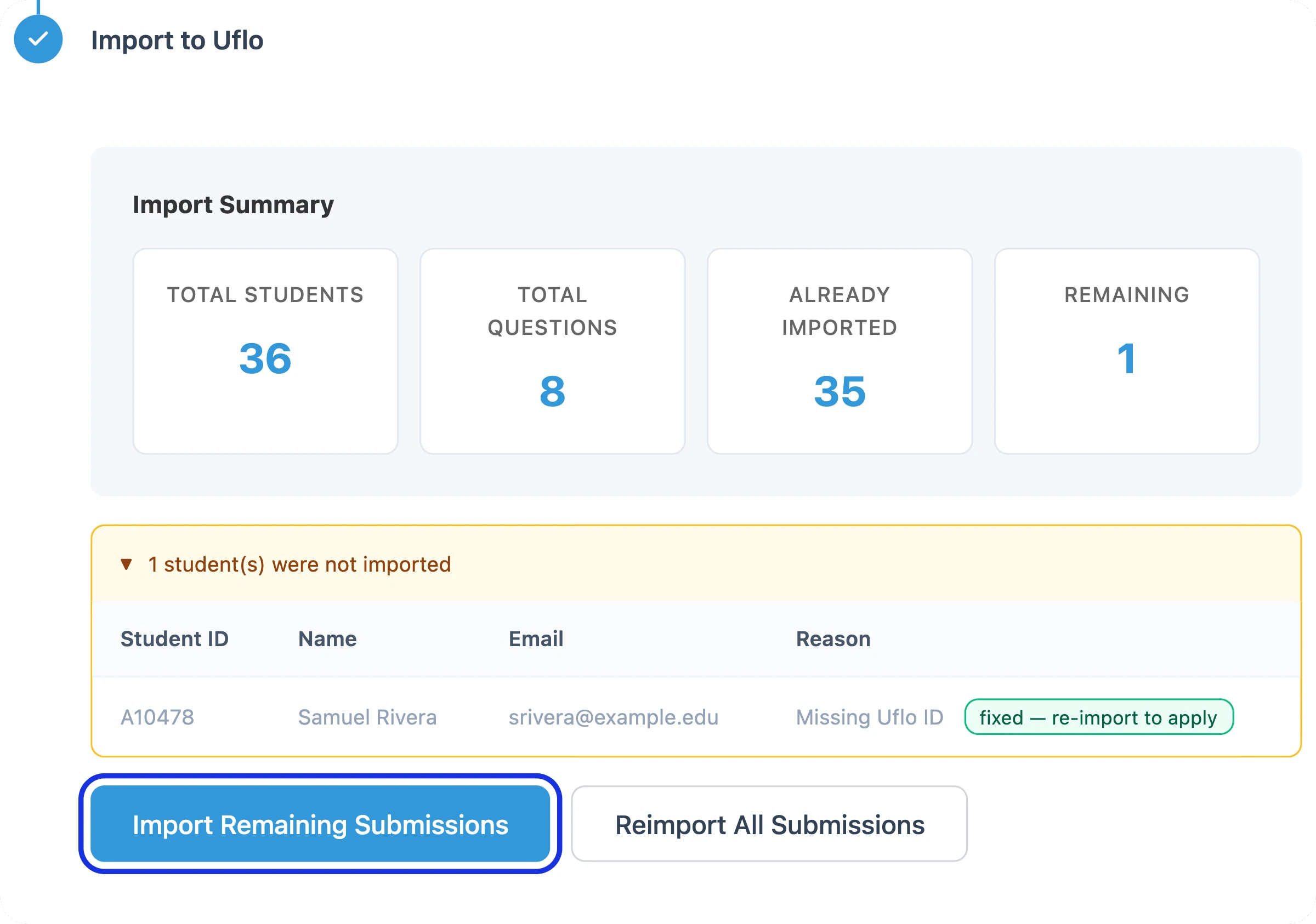
Once the reason is fixed, import the student who’s left.
Reimport All Submissions first deletes every submission on the assessment in Uflo. Grades you manually changed after importing will be lost.
Review Results
Check the AI’s scores in Uflo.
Release Grades
Show students their scores.
Common Questions
How do I grade a late exam?
How do I grade a late exam?
Add its scans, and select Grade Submissions. Then select Grade Remaining Submissions and Import Remaining Submissions.An LMS import can’t take new rows. Its CSV is locked once you map the columns, so replacing it means resetting the assessment in the grader.
Can I regrade after importing?
Can I regrade after importing?
Yes. In Uflo, right-click a submission and select Regrade this submission. Or choose This student or All students in a question’s Regrade menu. Uflo sends the work back to the grader and emails you when it’s done.