Find your way to the materials, study activities, and assessments for your course.
Your course is organized into sections and subsections.
In the example below, these are called Chapters and Lessons.
Each lesson contains learning materials or an assessment.
Select Courses in the sidebar, then choose the course you want to open.
Once inside a course, use the Select Course dropdown at the top of the page to switch to another one.
Open the course selector and choose the course you want to switch to.
Under Chapters, select the topic you want to work on.
Its lessons appear under Lessons.
2
Choose a Lesson
Select a lesson to open its details.
The selected chapter and lesson are highlighted so you can see where you are in the course.
Lessons shown in red are assessments or assignments.
Choose a chapter to see its lessons, then select the lesson you want.
Your instructor may use different names for chapters and lessons.
The navigation stays the same.
What you see next depends on the type of lesson you selected.
Learning Materials
Assessment
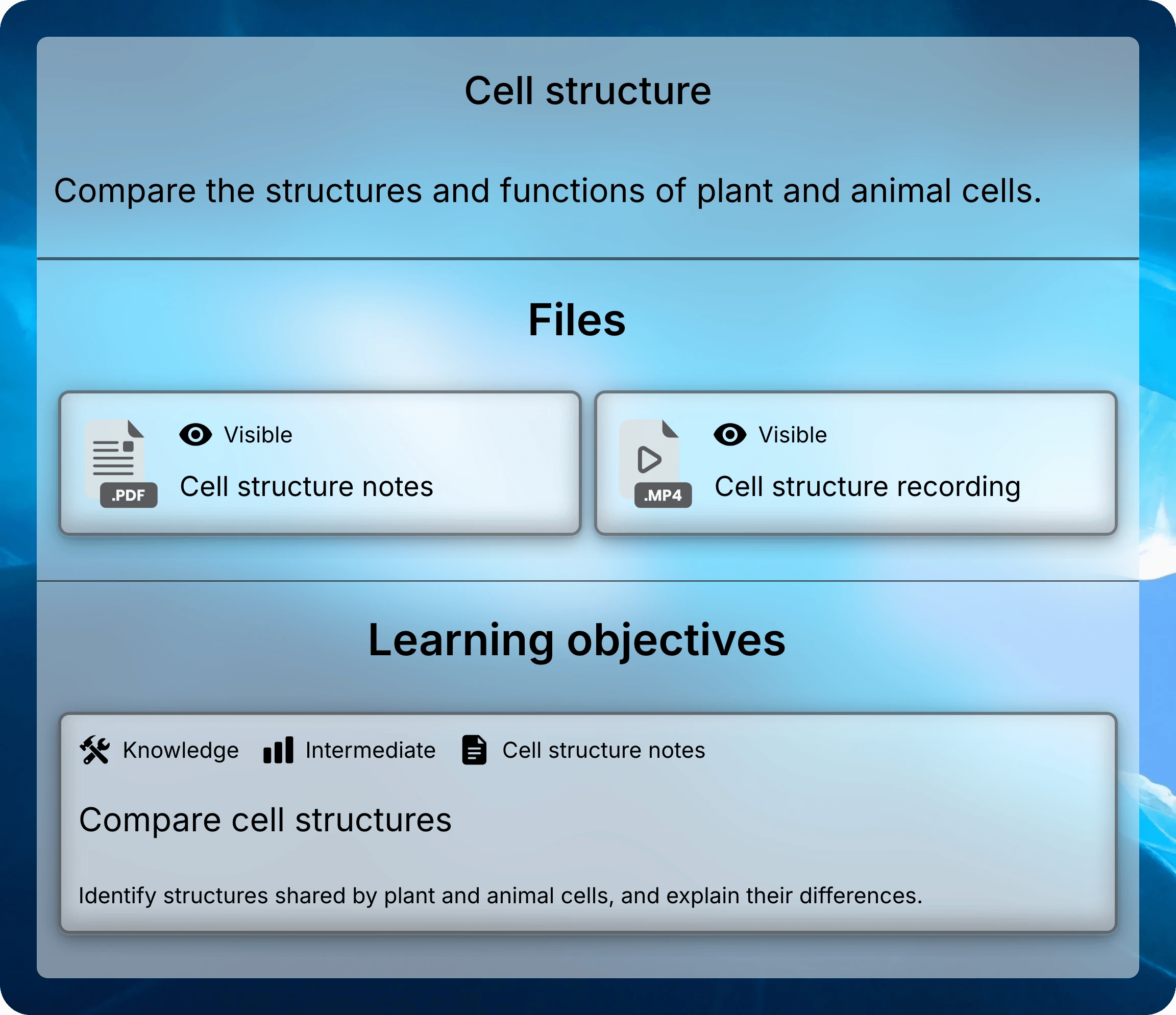
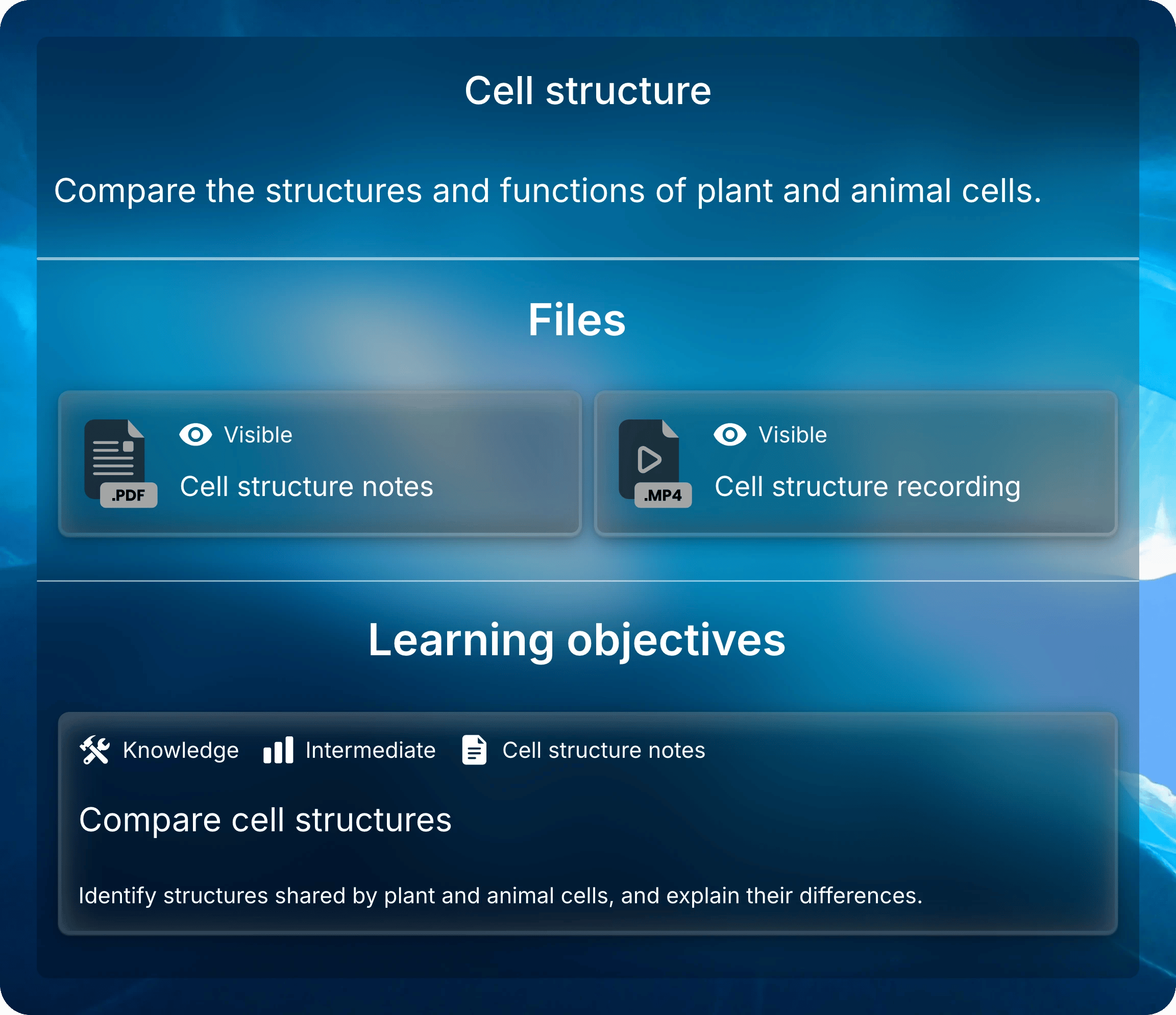
Read the lesson’s description, then select a document or recording under Files.
It opens in a new browser tab, where you can view the material and use its study tools.Learning objectives below the files describe what you should be able to understand or do.
Use them to guide what you focus on while studying.
A lesson brings its files together with the learning objectives they support.
Keep the course tab open while you study to easily choose another lesson or file.
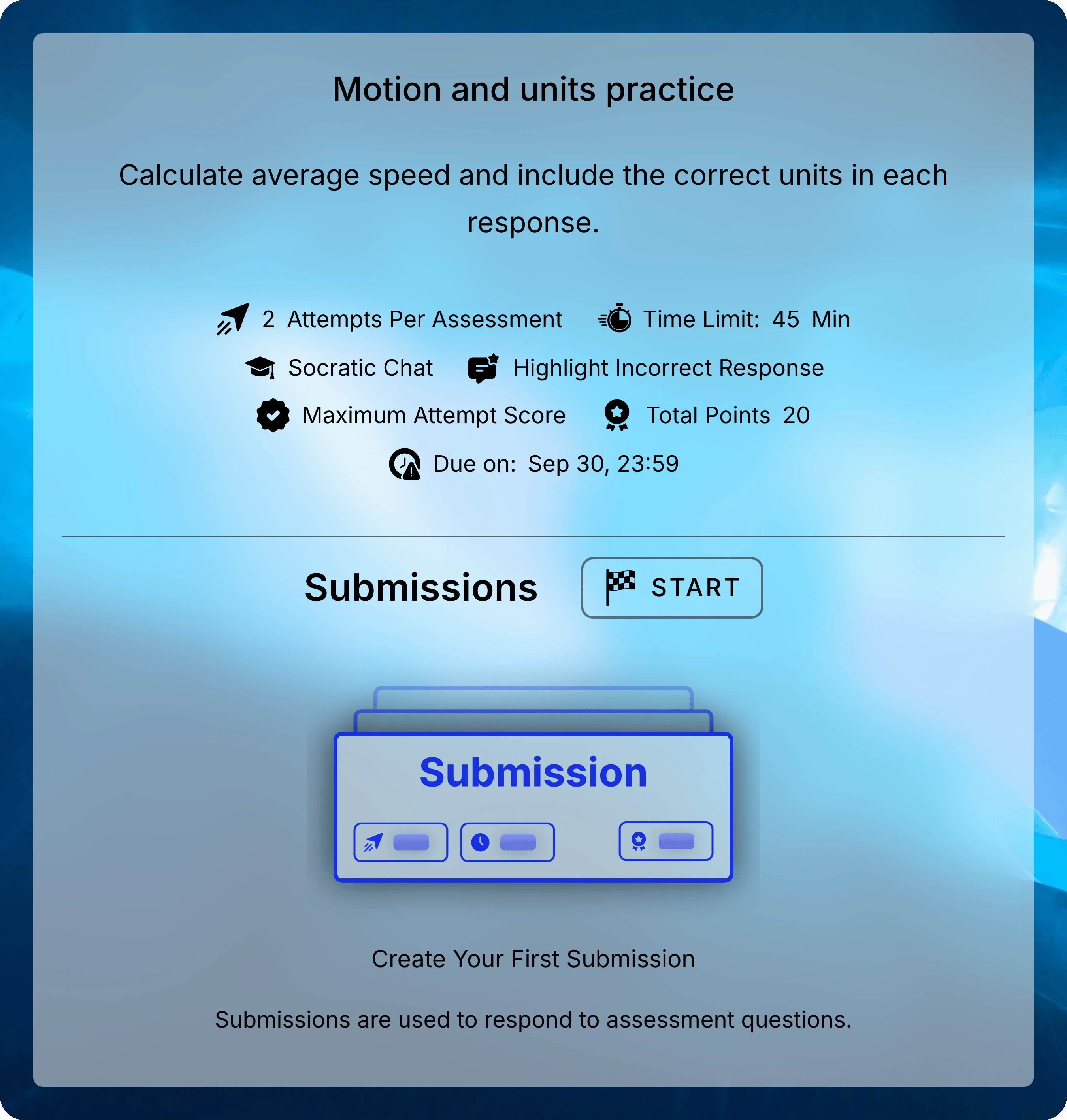
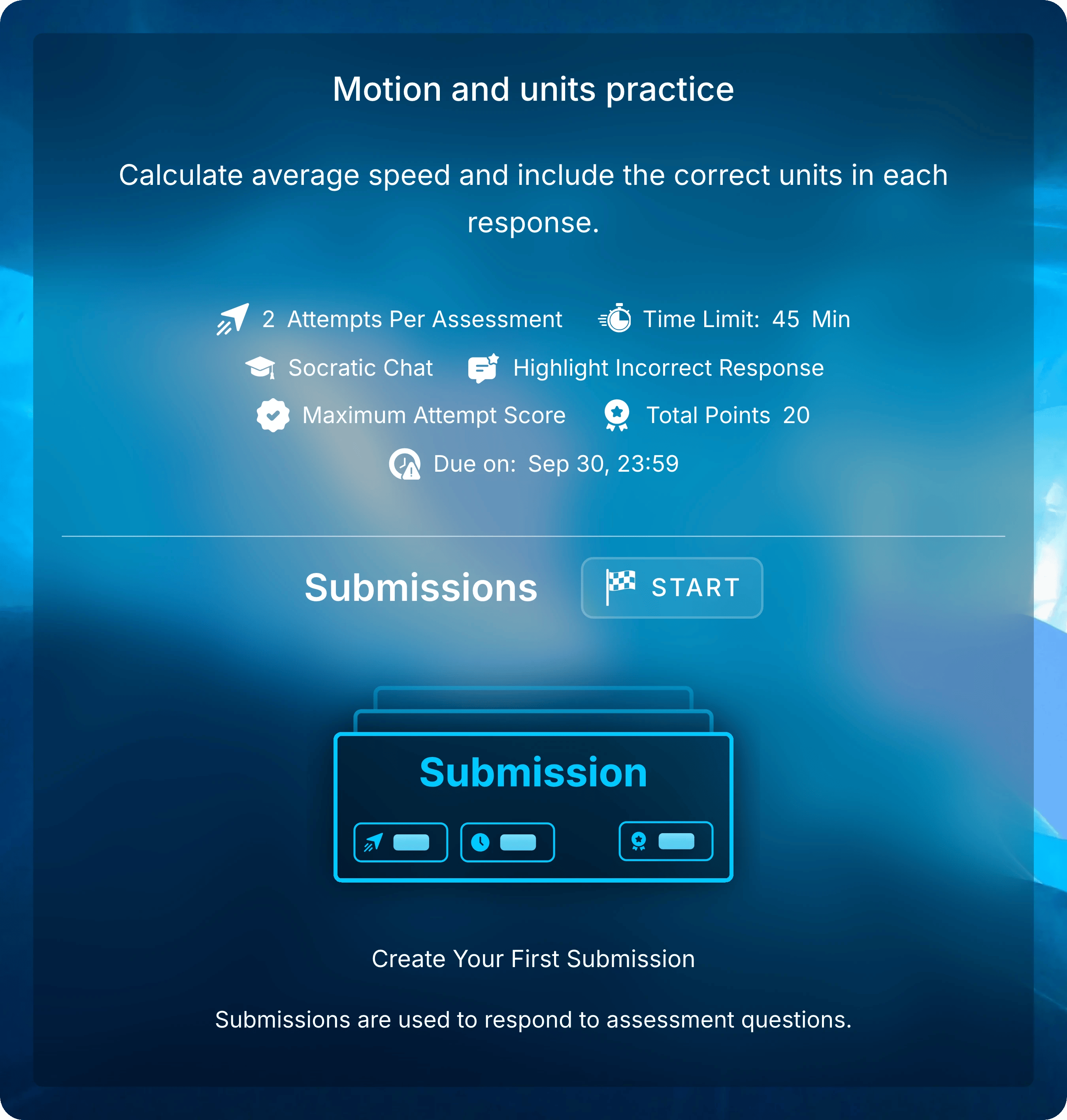
An assessment shows its instructions, settings, and Submissions.
Check the due date and attempt settings before starting an attempt.To revisit completed work, click on an attempt under Submissions to see your responses and review the feedback available to you.
An assessment's details show the settings to check and where to start or reopen an attempt.