Open the enrollment link your instructor shared or scan the QR code provided to you with your phone’s camera and tap the link that appears.
Use a regular browser window to enroll. Avoid private or incognito mode.
Example only. Use the QR code from your instructor.
2
Sign In to Uflo
Sign in with your official school email, either Google or Microsoft. Uflo then shows the course’s enrollment screen.
1
Sign In to Uflo
Sign in to Uflo with your school Google or Microsoft account.
2
Open Course Enrollment
Select Courses in the sidebar, then select Enroll beside the Courses heading.
Find Enroll at the top of your course list.
3
Enter Your Six-Digit Code
Enter or paste the code from your instructor in Course Enrollment.
After the sixth digit, Uflo automatically looks up the course and opens its enrollment screen.
If you are already enrolled, Uflo opens the course instead.
Uflo continues automatically when you enter the last digit.
Use the same Google or Microsoft account each time you return.
Your course enrollment is tied to the account you used to join.
Check that the course name matches your instructor’s invitation.
The next step depends on whether the course is free and, for a paid course, how you pay.
Free Course
Pay Directly
Access Code
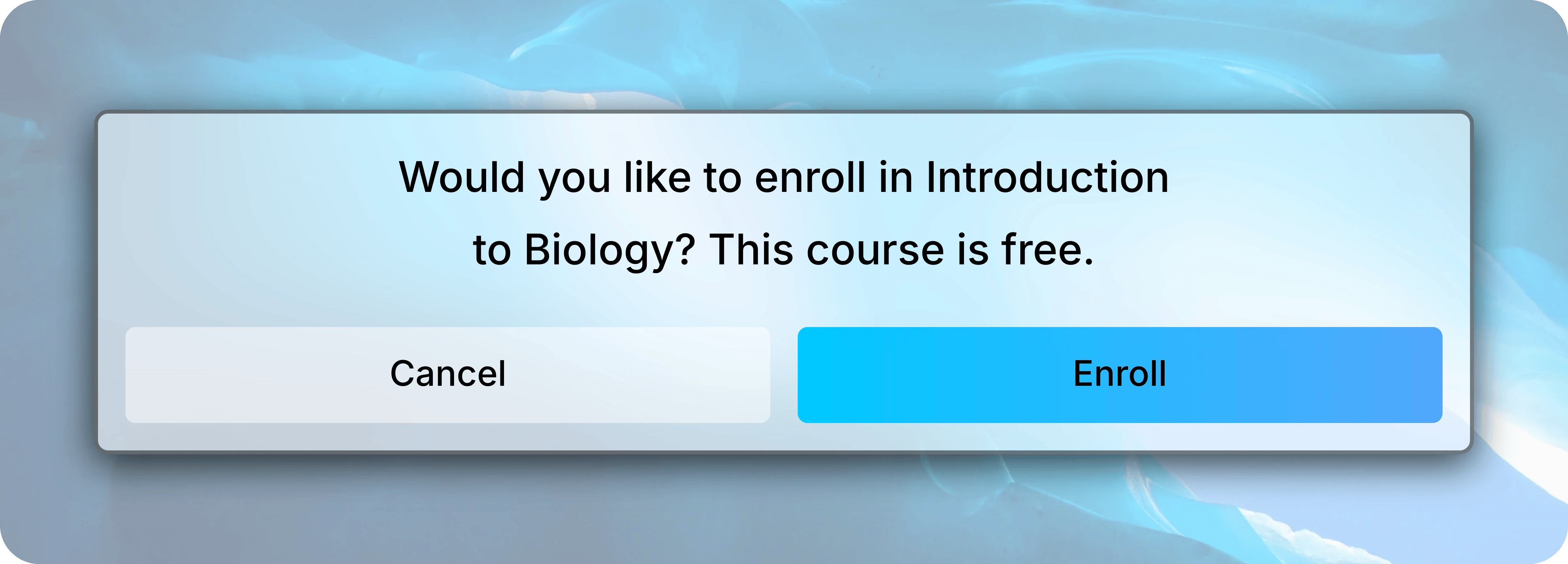
The confirmation tells you the course is free.
Select Enroll to join it.
For a free course, confirm the course name and select Enroll.
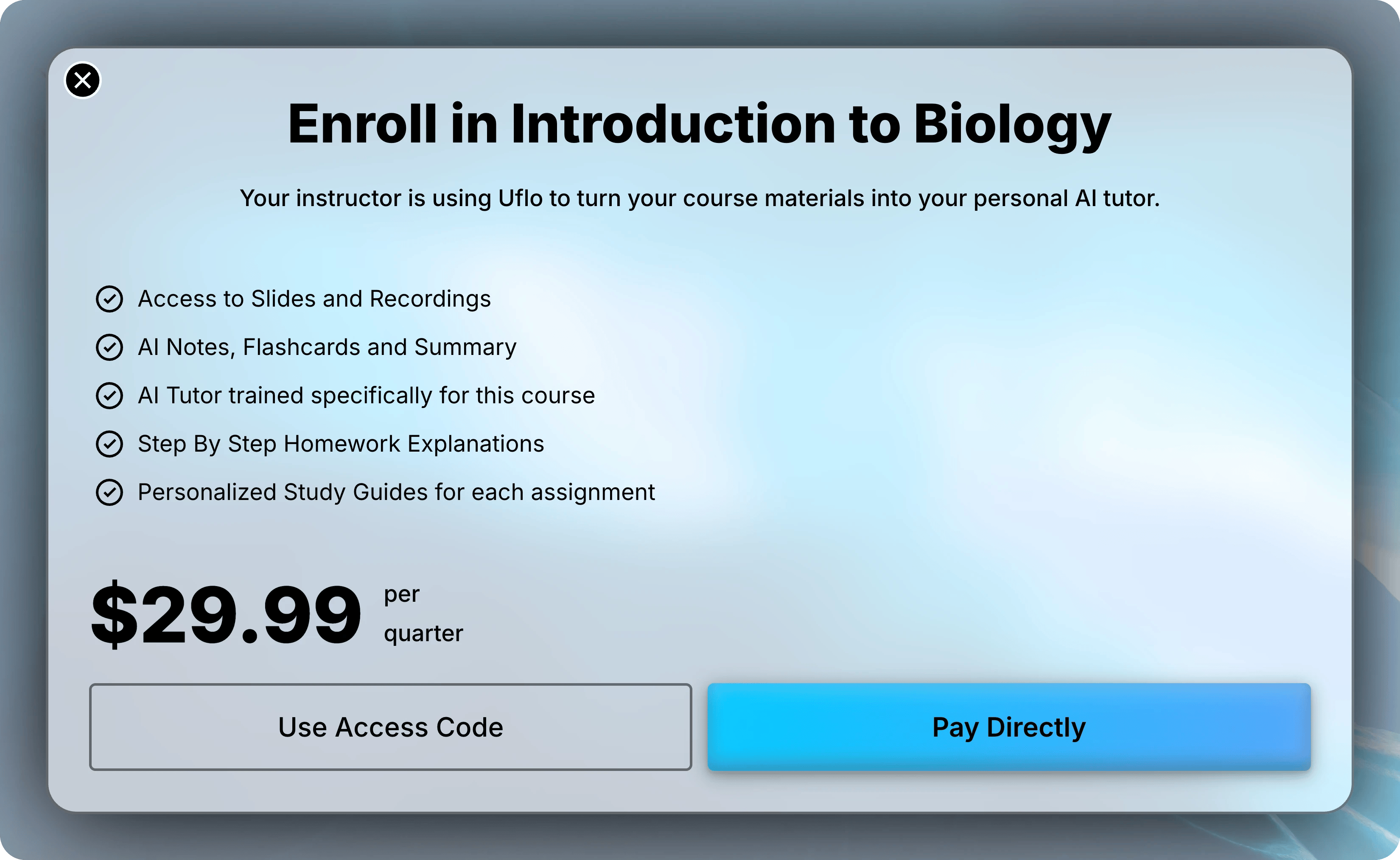
The enrollment screen shows the course price for its quarter or semester.
Select Pay Directly to open checkout.
Enter a promotion code there if you have one, then complete payment.
You return to Uflo afterward.
Pay directly or redeem a bookstore access code. Your price depends on your course.
If you bought an access code from your campus bookstore, use it instead of paying in Uflo.
1
Select Use Access Code
Each access code works only once. Check that the course name matches your instructor’s invitation before you redeem it.
Select Use Access Code on the enrollment screen.
2
Enter Your Access Code
Enter or paste the six-character code from your bookstore in Access Code.
Codes contain letters and numbers, and capitalization doesn’t matter.
After the sixth character, Uflo redeems the code and opens your course.
Uflo redeems the code when you enter the last character.
Some courses ask for a student ID before you can open them.
Enter the ID assigned by your school and select Continue.
Ask your instructor if you are unsure which ID to use.
Once enrolled, you can return to your course from Courses in the sidebar.
Select its name to open it and find your learning materials.
What's the difference between a course code and an access code?
A course code finds your course. An access code pays for your enrollment in a paid course.
Course code
Access code
Comes from
Your instructor
Your campus bookstore
Looks like
Six digits
Six letters and numbers
Who uses it
Everyone in the class
Only you, once
Why can't I enroll using the QR code?
If the code scans but enrollment doesn’t complete, open the link in a regular browser tab instead of private or incognito mode.
You can also use your instructor’s enrollment link or six-digit code.
Why isn't my course code working?
Check that you entered all six digits from your instructor’s code.
If it still fails, ask your instructor to confirm the code and that enrollment is open.
If Uflo says enrollment requires approval, select Support in the sidebar for help.
Why isn't my access code working?
Uflo shows This access code cannot be redeemed. when a code is mistyped, already used, or expired.
Access codes work once and expire one year after they are issued.
Check each character and try again.
If it still fails, select Support in the sidebar and include the code and the course name.
I redeemed my access code for the wrong course. What should I do?
Select Support in the sidebar before buying another code.
Include the code, the course you used it for, and the course you meant to join.
Why can't I find or open my course?
Check that you are signed in with the account you used to enroll, then reload Courses.
If you left before confirming enrollment or finishing checkout, open your instructor’s invitation again to finish joining.If the course opens but a lesson or file is missing, check content availability.
I paid, but I still can't access my course. What should I do?
Contact Support in Uflo’s sidebar before paying again. Include the course name and your payment confirmation so the team can check your access.
How do I correct my student ID?
Open Settings → Profile, update your student ID, and select Save Changes.
Return to your course after saving.
Next: Navigate a Course
Find your lessons, learning materials, and assessments.