
Phase 2.1 Creating the Digital Assessment
In this section, you’ll be creating a digital version of your exam in Uflo by uploading your complete exam file (questions, solutions, and rubric).Preparing the Exam File
When preparing your exam file, list each question’s solution and rubric directly beneath it. For questions with a visual component, include the correct drawing in the solution. Uflo uses this structure to match grading criteria to each question during import.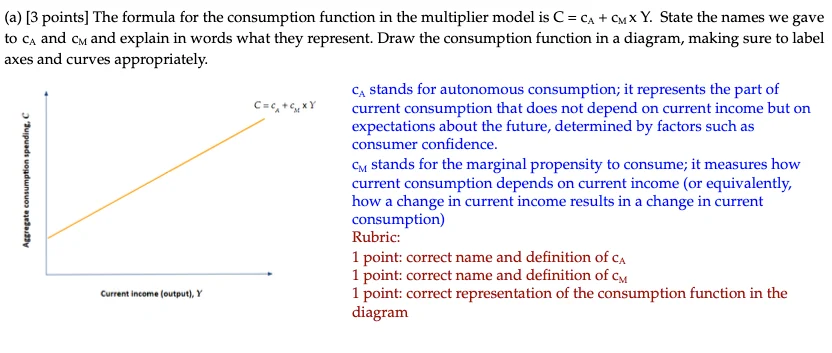
Ideal format for free response questions
Importing the Complete Exam File
Follow these steps to create your digital assessment in Uflo:1
Navigate to the Assessment
Navigate to the assessment you created in the Before Printing section.
2
Hide Assessment From Students
Set the assessment to “Invisible” and keep it hidden until you’re ready to release grades.
3
Import Questions
On the right side of the screen, click IMPORT and upload your complete exam file.
Writing Rubric Criteria
Writing rubrics for AI grading differs from writing them for human graders. Uflo evaluates each criterion independently and literally, so rubrics need to be precise and self-contained. Keep these principles in mind when writing your initial rubric:- Start Broad. Begin with few, broad criteria. Refine after reviewing results.
- Independence: Criteria should not reference other questions.
- Specificity: State exactly what earns or loses credit.
- Weight: Each criterion has a % weight, and all weights per question must sum to 100%.
Rubric Quality MattersThe rubric is the single most important factor in grading accuracy. After grading, review a sample of scores and refine any criteria that aren’t working as expected. See Refining Rubrics for common problems and how to fix them.
Reviewing the Imported Exam
Uflo uses the provided exam file to create a digital version of the test, including all the questions, their answers and rubrics. After import, verify the following:- Questions: Confirm every question was captured correctly. Check for truncated text, formatting issues with math expressions or tables, or missing images.
- Solutions: Verify each question’s solution is complete and correct. Include images Uflo should reference for grading. If solutions aren’t provided, review the ones Uflo wrote.
- Rubric: Check the rubric descriptors and their weight match your expectations.
NEVER ASSUME THE IMPORT WAS PERFECTAlthough Uflo imports questions with extremely high accuracy, it is not perfect. Spend a few minutes reviewing every single question’s stem, answer, rubric and number of points. Errors caught now are far easier to fix than during or after grading. Your future self will thank you.
Phase 2.2 Setting a Regrade Policy
Establish and communicate your regrade policy before the exam. A clear policy reduces regrade volume and sets student expectations. Your policy should address:- Submission deadline (e.g., one week after grades are released).
- Required format, length and content of regrade requests.
- Who reviews and responds to regrade requests (instructor, TA, or both).
- Whether regrades can lower a score if the reviewer detects mistakes.
Next: Before Grading
Scan, upload, and mark answer zones on student exams.