> ## Documentation Index
> Fetch the complete documentation index at: https://docs.uflo.io/llms.txt
> Use this file to discover all available pages before exploring further.
# Navigate a Course
> Find your way to the materials, study activities, and assessments for your course.
Your course is organized into sections and subsections.
In the example below, these are called **Chapters** and **Lessons**.
Each lesson contains learning materials or an assessment.
## Find and Switch Courses
Select **Courses** in the sidebar, then choose the course you want to open.
Once inside a course, use the **Select Course** dropdown at the top of the page to switch to another one.

 ## Open a Lesson
Under **Chapters**, select the topic you want to work on.
Its lessons appear under **Lessons**.
Select a lesson to open its details.
The selected chapter and lesson are highlighted so you can see where you are in the course.
Lessons shown in red are assessments or assignments.
## Open a Lesson
Under **Chapters**, select the topic you want to work on.
Its lessons appear under **Lessons**.
Select a lesson to open its details.
The selected chapter and lesson are highlighted so you can see where you are in the course.
Lessons shown in red are assessments or assignments.

 Your instructor may use different names for chapters and lessons.
The navigation stays the same.
What you see next depends on the type of lesson you selected.
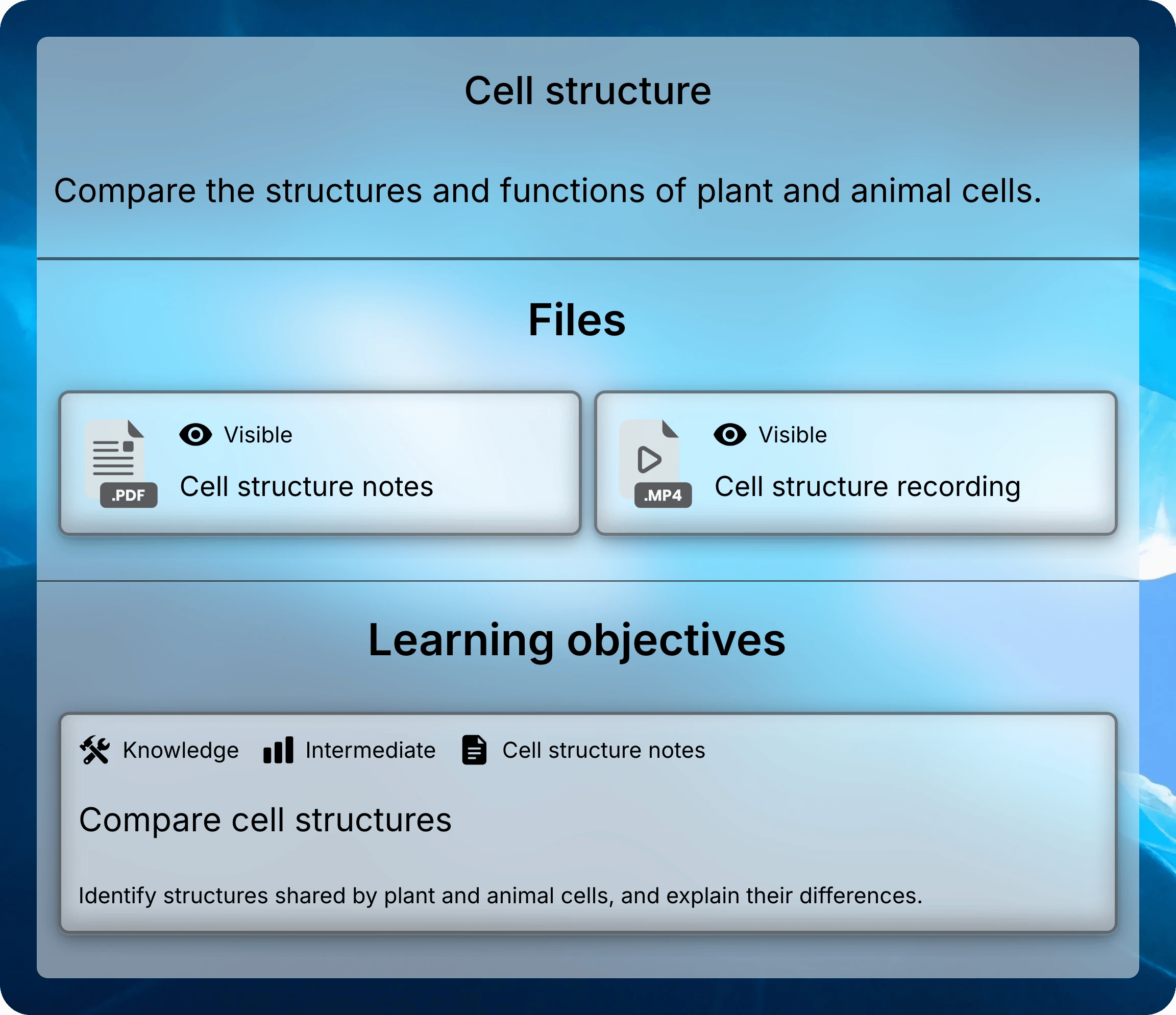
Read the lesson's description, then select a document or recording under **Files**.
It opens in a new browser tab, where you can [view the material and use its study tools](/students/learning/viewing-materials).
**Learning objectives** below the files describe what you should be able to understand or do.
Use them to guide what you focus on while studying.
Your instructor may use different names for chapters and lessons.
The navigation stays the same.
What you see next depends on the type of lesson you selected.
Read the lesson's description, then select a document or recording under **Files**.
It opens in a new browser tab, where you can [view the material and use its study tools](/students/learning/viewing-materials).
**Learning objectives** below the files describe what you should be able to understand or do.
Use them to guide what you focus on while studying.
 Keep the course tab open while you study to easily choose another lesson or file.
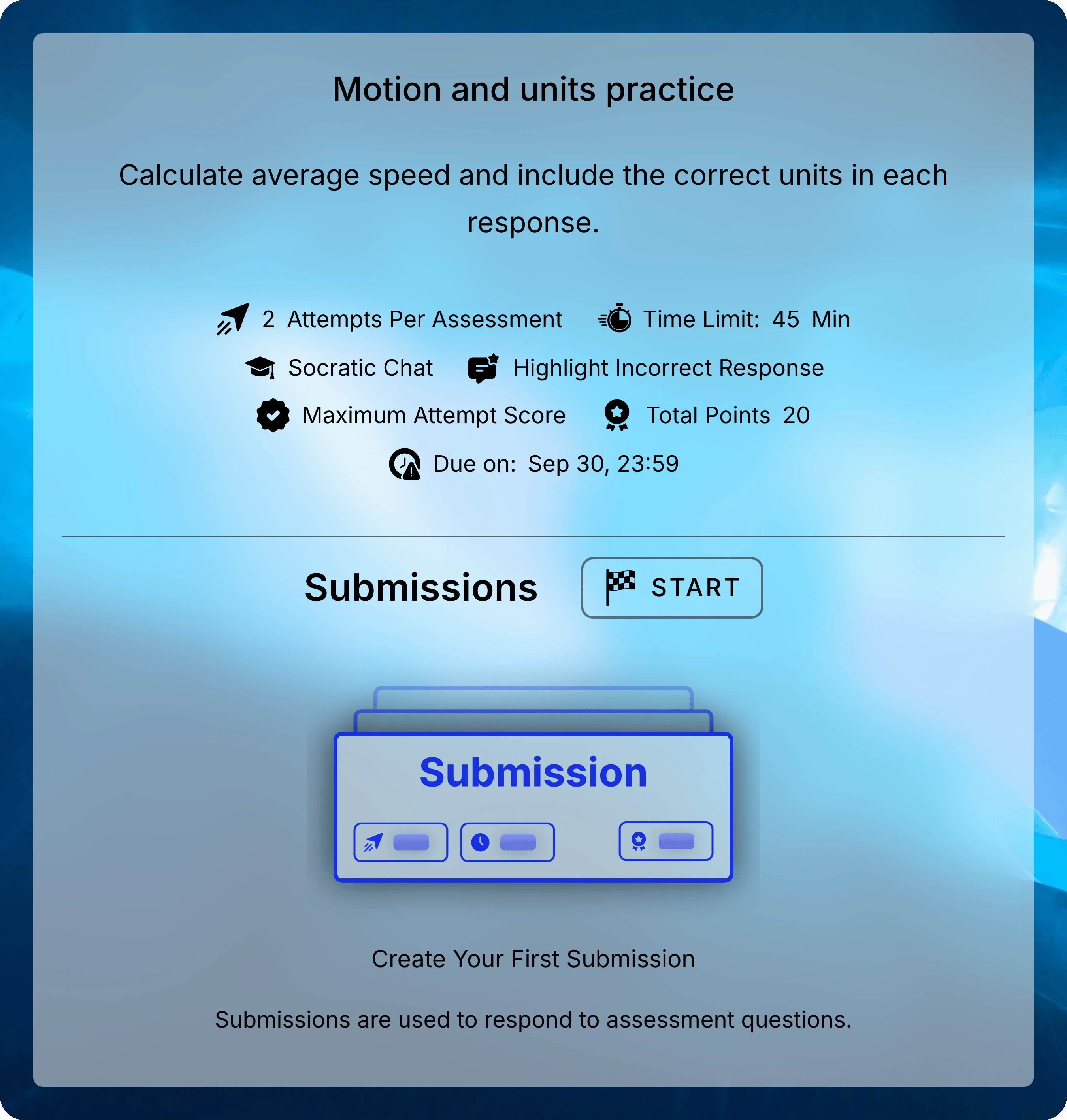
An assessment shows its instructions, settings, and **Submissions**.
Check the due date and attempt settings before [starting an attempt](/students/assessments/starting-an-attempt).
To revisit completed work, click on an attempt under **Submissions** to see your responses and [review the feedback available to you](/students/assessments/viewing-results).
Keep the course tab open while you study to easily choose another lesson or file.
An assessment shows its instructions, settings, and **Submissions**.
Check the due date and attempt settings before [starting an attempt](/students/assessments/starting-an-attempt).
To revisit completed work, click on an attempt under **Submissions** to see your responses and [review the feedback available to you](/students/assessments/viewing-results).
 ## Understand Content Availability
A lesson can be listed before it is available to open.
Check its availability dates if you cannot access it yet, or if access has ended.
Select the chapter and lesson first.
If the material is still missing, ask your instructor whether it has been made available to your class.
Uflo opens files in a new browser tab.
If your browser blocks it, allow pop-ups for Uflo and select the file again.
Check that you are signed in with the account you used to join.
See [enrollment problems](/students/getting-started/enrollment#resolve-enrollment-problems) if the course still does not appear.
Check an assessment's instructions and begin or resume your work.
## Understand Content Availability
A lesson can be listed before it is available to open.
Check its availability dates if you cannot access it yet, or if access has ended.
Select the chapter and lesson first.
If the material is still missing, ask your instructor whether it has been made available to your class.
Uflo opens files in a new browser tab.
If your browser blocks it, allow pop-ups for Uflo and select the file again.
Check that you are signed in with the account you used to join.
See [enrollment problems](/students/getting-started/enrollment#resolve-enrollment-problems) if the course still does not appear.
Check an assessment's instructions and begin or resume your work.