> ## Documentation Index
> Fetch the complete documentation index at: https://docs.uflo.io/llms.txt
> Use this file to discover all available pages before exploring further.

# Starting an Attempt

> Begin your submission or continue an ongoing one.

In Uflo, each assessment contains a series of questions for you to answer.
Your responses are saved together as a submission.
When multiple attempts are allowed, each attempt creates a separate submission.

## Start Your Attempt

<Steps>
  <Step title="Open the Assessment Lesson">
    [Open your course](/students/getting-started/navigating-a-course), choose the chapter, and select the assessment (marked in red). Read any instructions provided for the assignment. 
  </Step>

  <Step title="Check the Time and Number of Attempts">
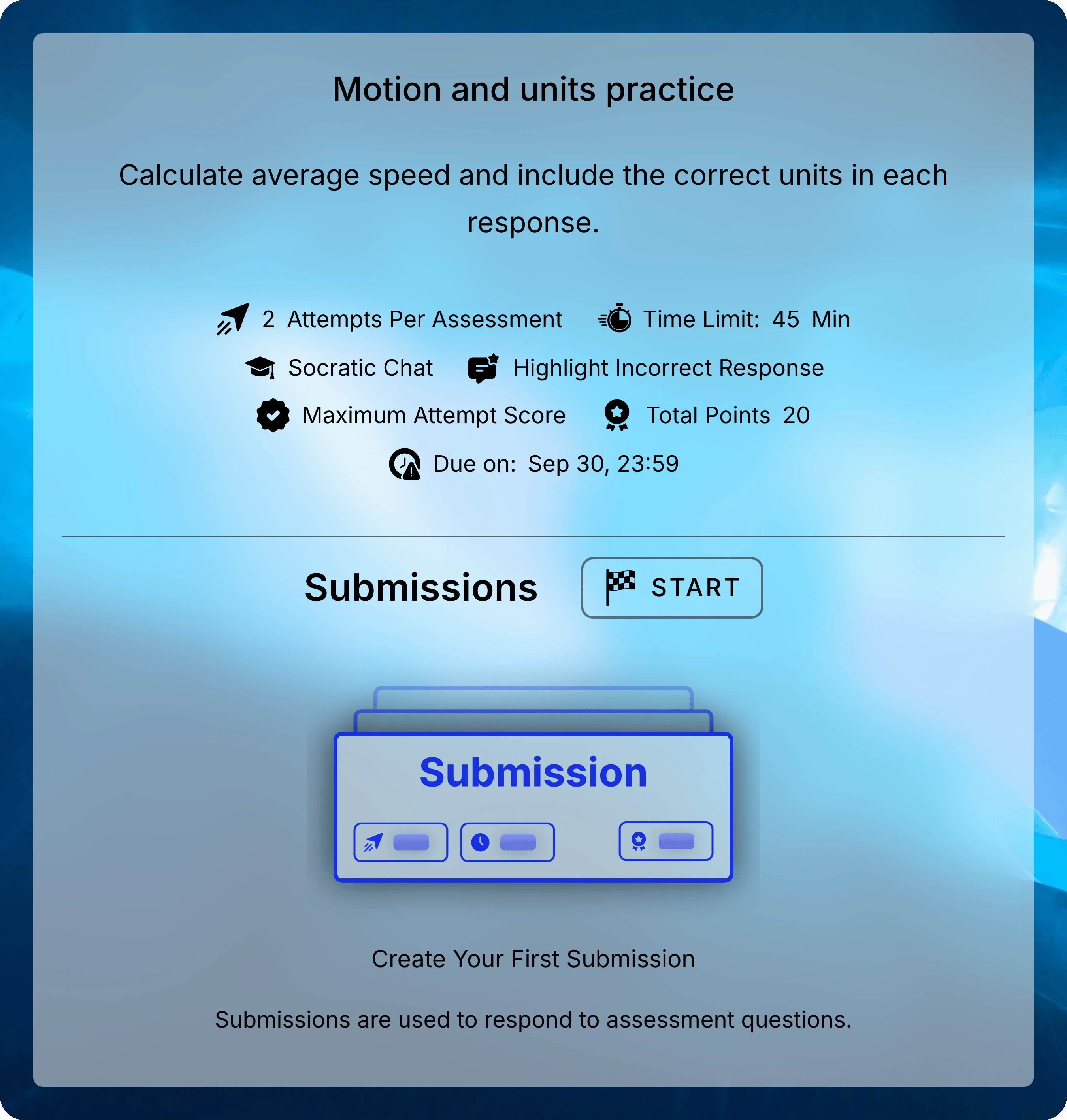
    Check the **Due Date**, **Time Limit**, and number of attempts allowed. The config also shows whether the [Socratic Tutor](/students/assessments/using-the-socratic-tutor) is available to help you work through difficult questions.

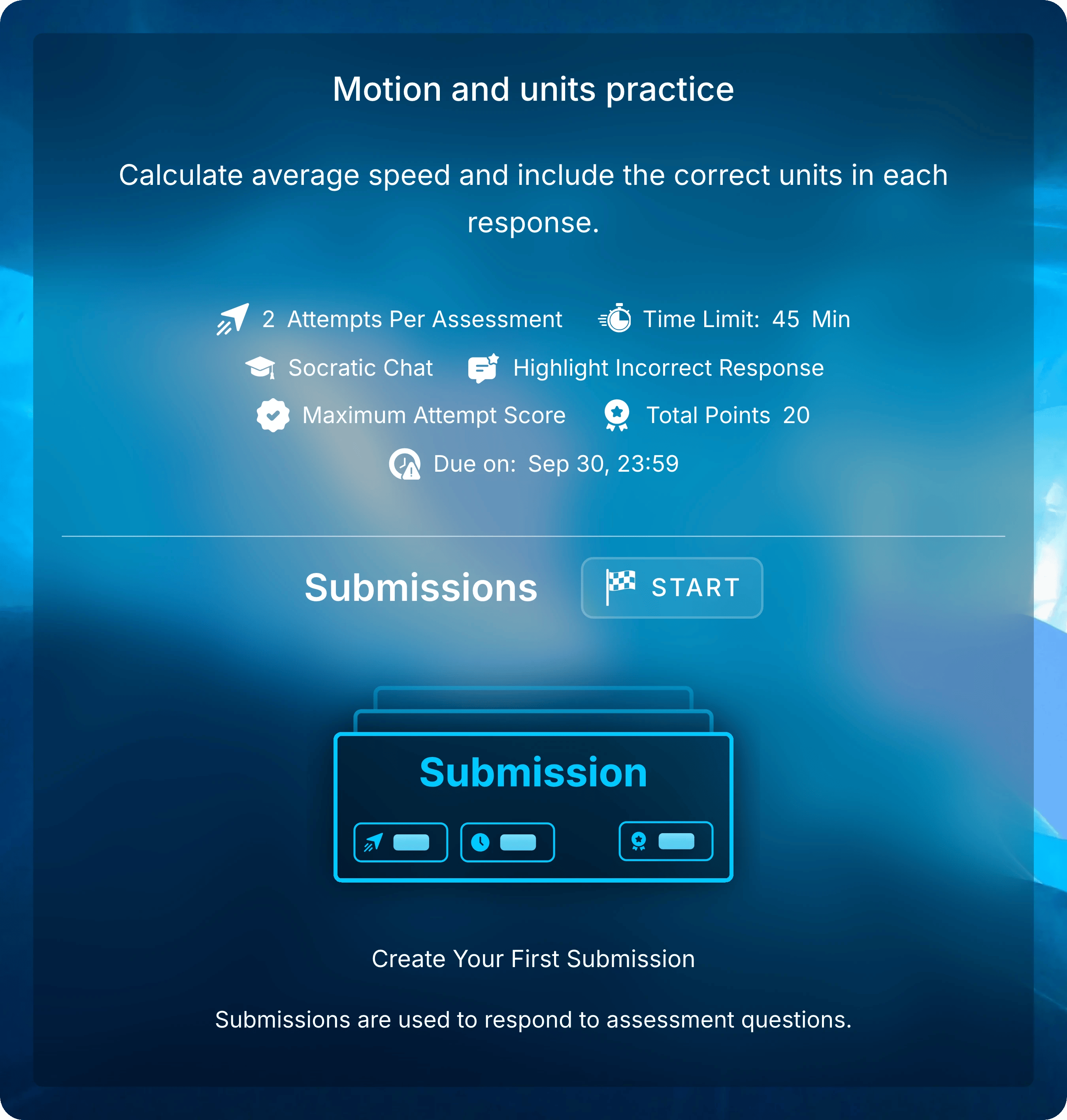
    <Frame caption="Read the assessment instructions and settings before selecting START under Submissions.">
      <img className="block dark:hidden" src="https://mintcdn.com/uflo/AqRw2O8mTFF-DM6K/images/illustrations/students-assessments-lesson-start/light.webp?fit=max&auto=format&n=AqRw2O8mTFF-DM6K&q=85&s=7c91ca0ff003805489ced2580f299a1b" alt="Motion and units practice lesson with assessment settings, START under Submissions, and the empty-state illustration prompting you to create your first submission." width="2700" height="2835" data-path="images/illustrations/students-assessments-lesson-start/light.webp" />

      <img className="hidden dark:block" src="https://mintcdn.com/uflo/AqRw2O8mTFF-DM6K/images/illustrations/students-assessments-lesson-start/dark.webp?fit=max&auto=format&n=AqRw2O8mTFF-DM6K&q=85&s=f88dc8e0a4d8bcd98a0db8f4765f8620" alt="Motion and units practice lesson with assessment settings, START under Submissions, and the empty-state illustration prompting you to create your first submission." width="2700" height="2835" data-path="images/illustrations/students-assessments-lesson-start/dark.webp" />
    </Frame>

    <Warning>
      Some assessments require you to answer questions in order.
      You will be asked to confirm before moving forward, because you cannot return to an earlier question.
    </Warning>
  </Step>

  <Step title="Start When You Are Ready">
    Under **Submissions**, select **START**. Then select **Start**  to create your attempt.

    <Warning>
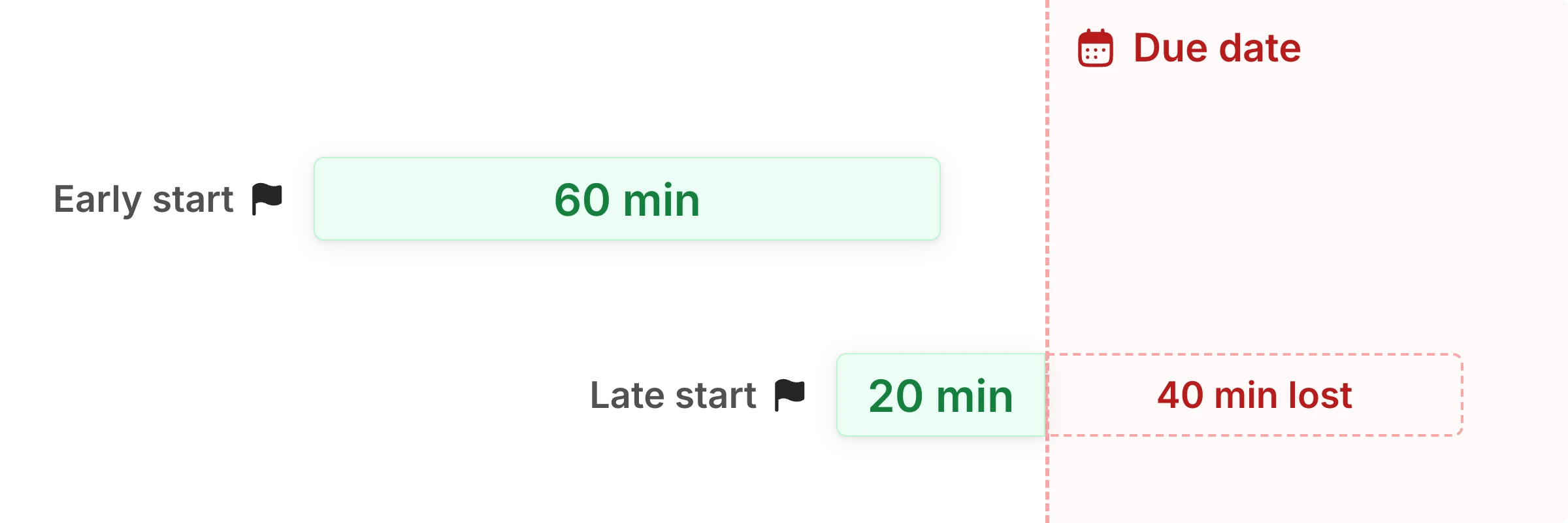
      Starting a timed attempt starts the clock. Leaving the page does not pause it.
      Your time ends at the time limit or the due date, whichever comes first.
    </Warning>

    <img className="block dark:hidden" src="https://mintcdn.com/uflo/wB53unETNgAtcaok/images/illustrations/conceptual/attempt-time-window/light.webp?fit=max&auto=format&n=wB53unETNgAtcaok&q=85&s=3b70c0c1cebf22e05b7e2a6d8734a634" alt="An early start allows the full 60 minutes before the due date. A late start allows 20 minutes, with the remaining 40 minutes lost after the due date." width="2400" height="800" data-path="images/illustrations/conceptual/attempt-time-window/light.webp" />

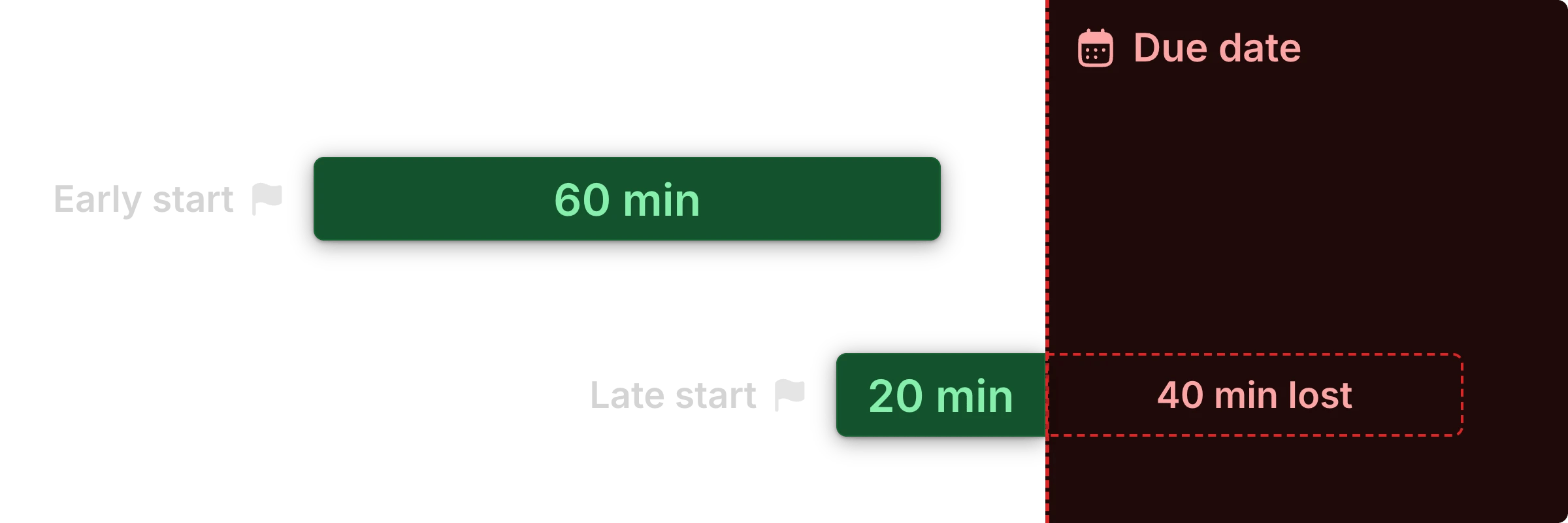
    <img className="hidden dark:block" src="https://mintcdn.com/uflo/wB53unETNgAtcaok/images/illustrations/conceptual/attempt-time-window/dark.webp?fit=max&auto=format&n=wB53unETNgAtcaok&q=85&s=15c565dcdc33ae2338c44e04994479f6" alt="An early start allows the full 60 minutes before the due date. A late start allows 20 minutes, with the remaining 40 minutes lost after the due date." width="2400" height="800" data-path="images/illustrations/conceptual/attempt-time-window/dark.webp" />

    <p className="text-center text-sm text-gray-600 dark:text-gray-400">With a 60-minute limit, starting 20 minutes before the due date leaves 20 minutes to answer.</p>

    <img className="block dark:hidden" src="https://mintcdn.com/uflo/AqRw2O8mTFF-DM6K/images/illustrations/students-assessments-attempt-confirm/light.webp?fit=max&auto=format&n=AqRw2O8mTFF-DM6K&q=85&s=e679dbcade31f990b92a2a99d4860903" alt="Start confirmation for Motion and units practice, with Cancel and Start buttons and a message that responses save automatically." width="4560" height="1746" data-path="images/illustrations/students-assessments-attempt-confirm/light.webp" />

    <img className="hidden dark:block" src="https://mintcdn.com/uflo/AqRw2O8mTFF-DM6K/images/illustrations/students-assessments-attempt-confirm/dark.webp?fit=max&auto=format&n=AqRw2O8mTFF-DM6K&q=85&s=e0d0ef21608a415fa6aee7fd70e7d9a6" alt="Start confirmation for Motion and units practice, with Cancel and Start buttons and a message that responses save automatically." width="4560" height="1746" data-path="images/illustrations/students-assessments-attempt-confirm/dark.webp" />

    <p className="text-center text-sm text-gray-600 dark:text-gray-400">Confirm Start when you are ready to begin the attempt.</p>
  </Step>
</Steps>

## Revisiting Existing Attempts

Return to the assessment and find **Submissions**. If you have started more than one attempt, each appears separately with its attempt number and status. Select the attempt marked **Ongoing** to resume your work or **Graded** to view your graded responses.

<Frame caption="Attempt 1 is graded. Select Attempt 2, marked Ongoing, to continue your unfinished work.">
  <img className="block dark:hidden" src="https://mintcdn.com/uflo/AqRw2O8mTFF-DM6K/images/illustrations/students-assessments-attempt-resume/light.webp?fit=max&auto=format&n=AqRw2O8mTFF-DM6K&q=85&s=f64d8899e792b8db0683e60376b9f44e" alt="Submissions section showing Attempt 1 graded at 80% and Attempt 2 marked Ongoing." width="2460" height="1122" data-path="images/illustrations/students-assessments-attempt-resume/light.webp" />

  <img className="hidden dark:block" src="https://mintcdn.com/uflo/AqRw2O8mTFF-DM6K/images/illustrations/students-assessments-attempt-resume/dark.webp?fit=max&auto=format&n=AqRw2O8mTFF-DM6K&q=85&s=931e40f86da79c36b83722dc4a19ee6c" alt="Submissions section showing Attempt 1 graded at 80% and Attempt 2 marked Ongoing." width="2460" height="1122" data-path="images/illustrations/students-assessments-attempt-resume/dark.webp" />
</Frame>

## Common Questions

<AccordionGroup>
  <Accordion title="Why can't I start another attempt?">
    You must submit an ongoing attempt before starting another.
    If you have already submitted, check whether you have used all your available attempts or the due date has passed.
    Ask your instructor if you need an extension or another attempt.
  </Accordion>

  <Accordion title="What does an Unlimited time limit mean?">
    **Unlimited** means there is no fixed duration for the attempt.
    You still need to finish editing before the assessment's due date, if one is set.
  </Accordion>

  <Accordion title="What happens if my time runs out while I am away?">
    Your timer will run out, your  responses will get locked, but your attempt won't auto-submit. Reopen your **Ongoing** attempt under **Submissions** to submit your lock responses.
  </Accordion>

  <Accordion title="What happens if I don't submit my attempt before the due date?">
    Your saved responses are locked after the due date but won't auto-submit. Reopen your attempt and select **Submit Entire Assignment**.
  </Accordion>
</AccordionGroup>

<Card title="Next: Answering Questions" icon="pen-to-square" href="/students/assessments/answering-questions">
  Enter responses, add handwritten work, and move between questions.
</Card>
