> ## Documentation Index
> Fetch the complete documentation index at: https://docs.uflo.io/llms.txt
> Use this file to discover all available pages before exploring further.
# Plan Your Course
> Decide how to divide your course into chapters and lessons.
A Uflo course is a set of chapters, and each chapter holds lessons.
Before you build it, decide what a chapter means in your course and what each lesson holds.
If the course model is new to you, read [How Uflo Works](/instructors/getting-started/how-uflo-works) first.
## Choose What a Chapter Represents
Pick one meaning for chapters and use it across the whole course.
Students choose a chapter first, so a consistent pattern tells them where to look.
| A chapter per | Each lesson is | Works well when |
| ------------- | ----------------------------- | --------------------------------- |
| Week | A class session or assignment | Your course runs weekly. |
| Topic | A subtopic or reading | You teach by textbook or subject. |
| Unit | A topic within the unit | Weeks build to a unit exam. |
Once you choose, [rename chapters and lessons](/instructors/getting-started/how-uflo-works#rename-chapters-and-lessons) to match, such as Week and Topic.
## Decide What Goes in Each Lesson
Each lesson either teaches or tests.
You choose **Teach** or **Test** when you create it.
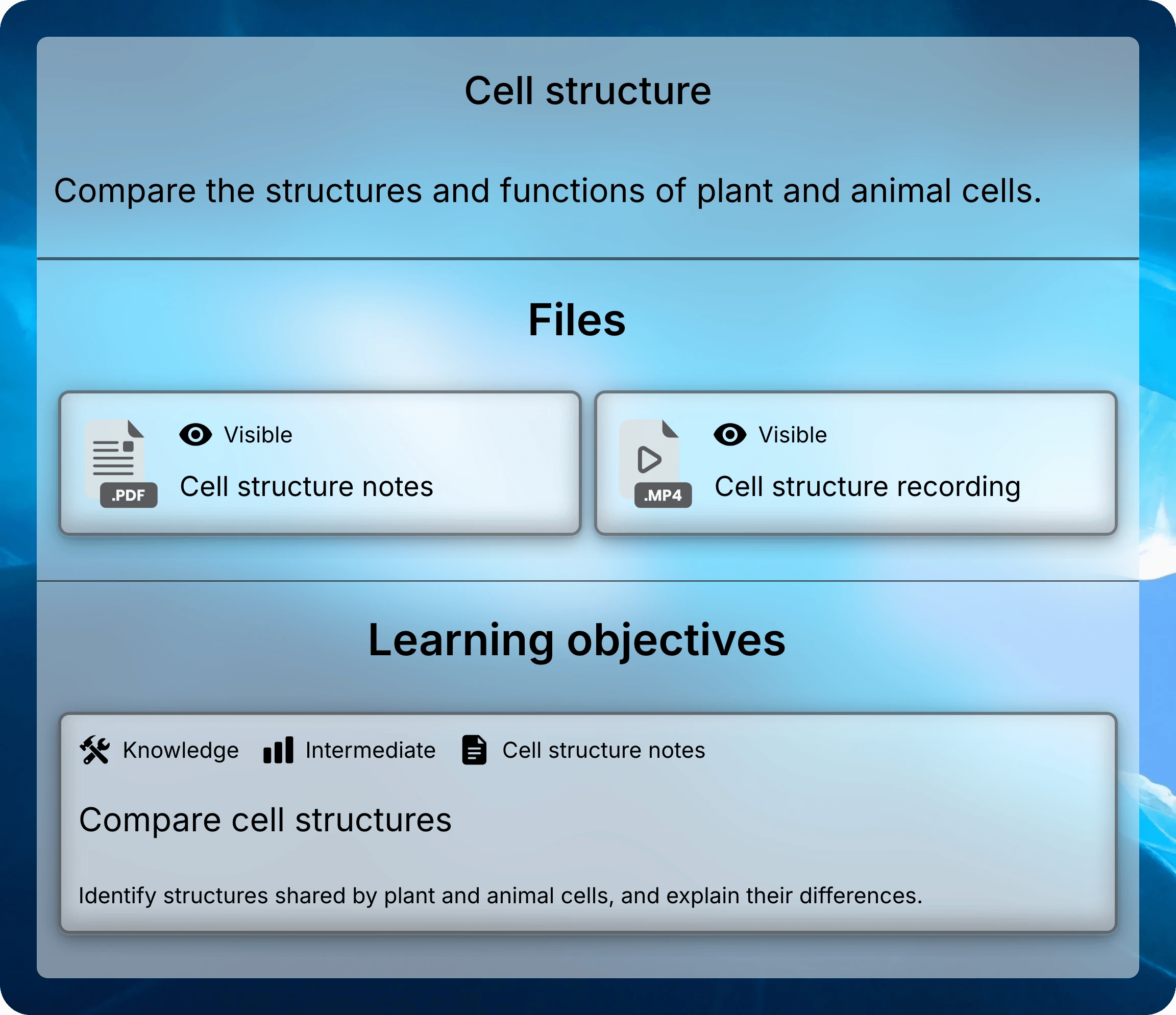
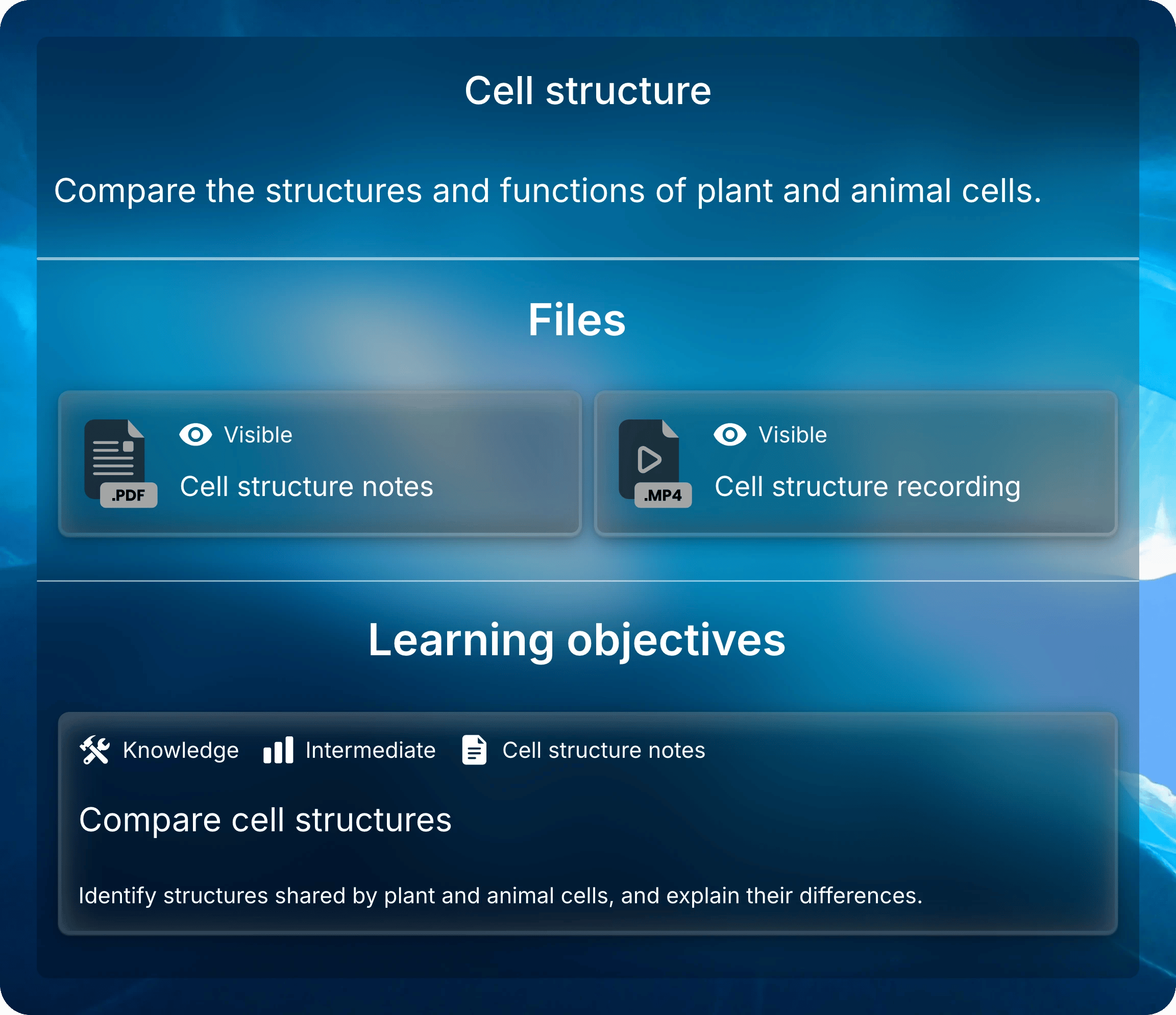
 A Teach lesson holds materials for one class or topic: slides, readings, recordings, and links.
Uflo creates [study tools](/instructors/courses/manage-files) from each file, such as summaries and flashcards.
Add [learning objectives](/instructors/courses/manage-objectives) that describe what students should be able to do after the lesson.
Students see them below the lesson's files.
A Teach lesson holds materials for one class or topic: slides, readings, recordings, and links.
Uflo creates [study tools](/instructors/courses/manage-files) from each file, such as summaries and flashcards.
Add [learning objectives](/instructors/courses/manage-objectives) that describe what students should be able to do after the lesson.
Students see them below the lesson's files.
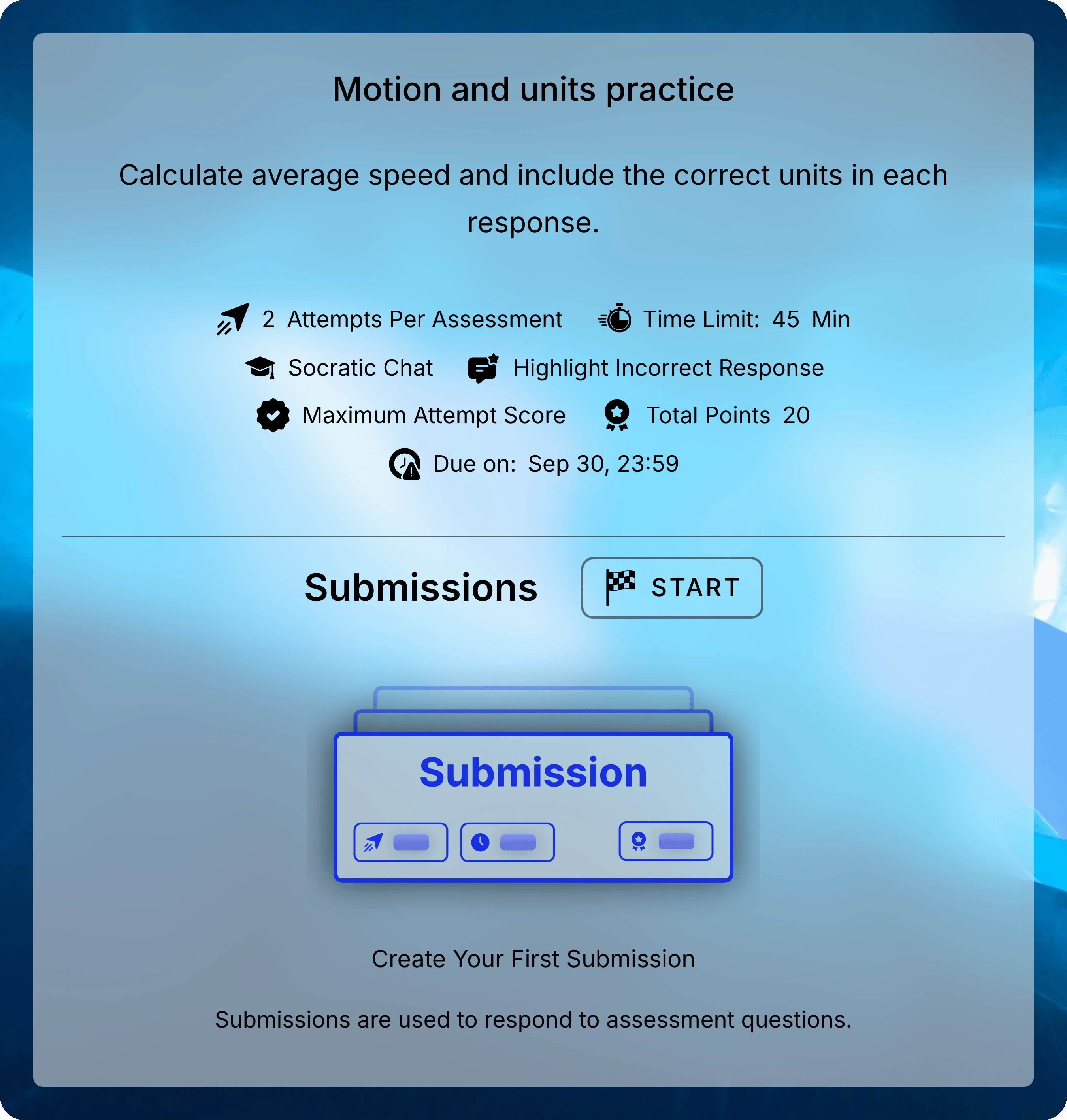
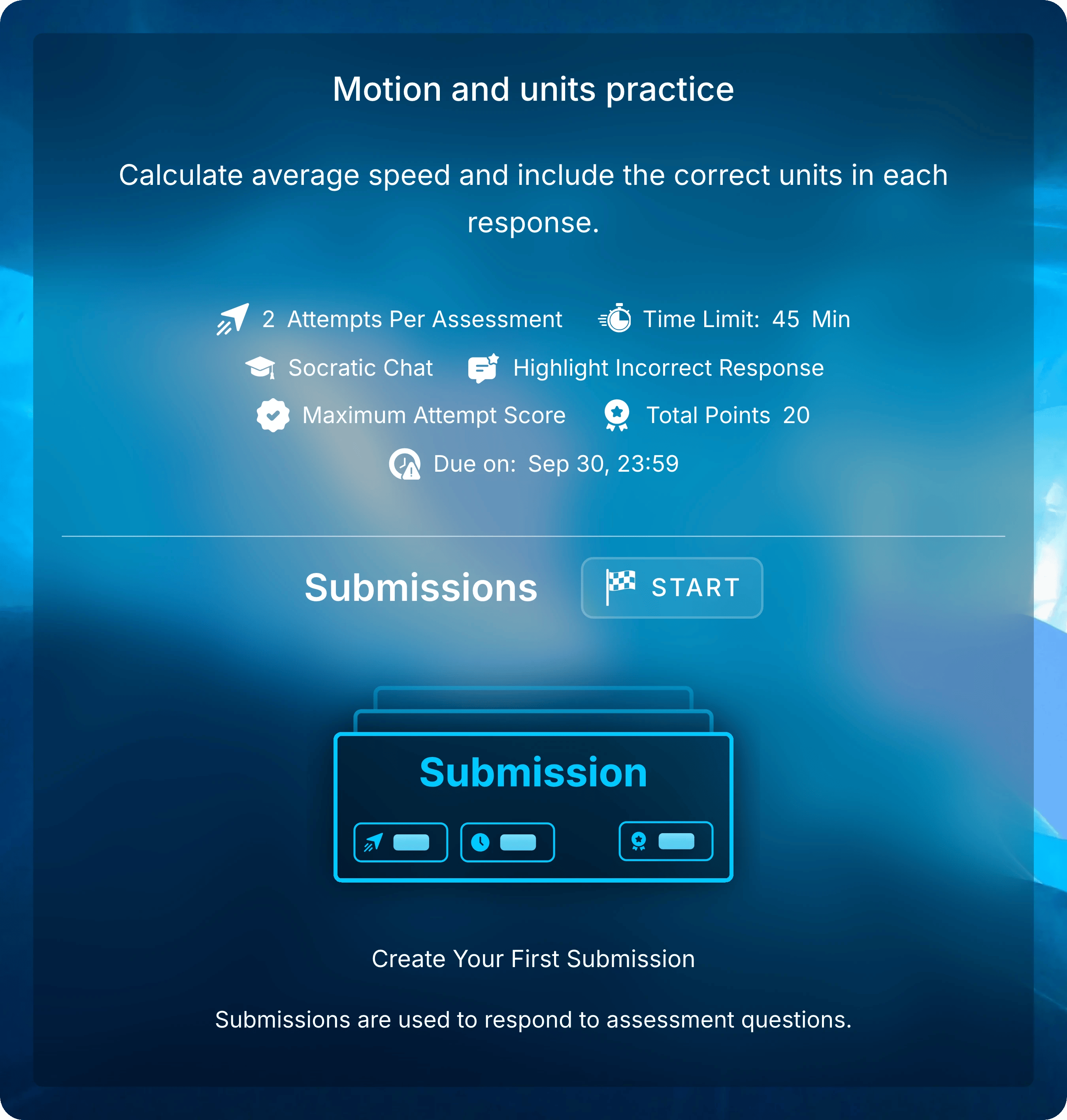
 A Test lesson holds one assessment: its instructions, questions, and [settings](/instructors/assessments/assessment-settings).
Students see the instructions, settings, and their own submissions, but no files.
Put the reading for an assignment in a Teach lesson beside it.
[Paper exams](/instructors/grading/overview) and quizzes taken in another LMS need an assessment too.
Uflo grades their responses against the questions in that lesson.
A Test lesson holds one assessment: its instructions, questions, and [settings](/instructors/assessments/assessment-settings).
Students see the instructions, settings, and their own submissions, but no files.
Put the reading for an assignment in a Teach lesson beside it.
[Paper exams](/instructors/grading/overview) and quizzes taken in another LMS need an assessment too.
Uflo grades their responses against the questions in that lesson.
 ## Mix Practice and Graded Assessments
Practice and graded assessments work the same way.
Their [settings](/instructors/assessments/assessment-settings) make the difference.
Low-stakes practice helps students find gaps before graded work.
| Setting | Practice | Graded |
| -------------------- | ---------------------------------------------- | --------------------------- |
| Attempts | 0, for unlimited | Usually 1 |
| Time limit | 0, for no limit | A limit for timed exams |
| Answers and feedback | **After Each Attempt** | **After Date** or **Never** |
| Tutoring | **Socratic Chat** or **Step By Step Solution** | **No Tutoring** for exams |
Students can also practice on their own, without an assessment.
Each file's study tools include practice questions and flashcards, and nothing is scored.
## Release Content Over the Term
You can build the whole course at the start of the term and release it as you go.
Hide a [chapter](/instructors/courses/manage-chapters#add-new-chapter), [lesson](/instructors/courses/manage-lessons#control-what-students-see), or [file](/instructors/courses/manage-files#update-a-file) until it's ready, or [give a lesson dates](/instructors/courses/manage-lessons#control-what-students-see) that open and close it.
Build one chapter, then **Duplicate** it for the next and update the copy's titles and dates.
The copy doesn't keep per-student exceptions.
## Two Example Courses
These courses use the same building blocks with different chapter meanings.
**Introduction to Biology** meets weekly, so each chapter is a week.
Each week has a Teach lesson, a practice set, and a graded assignment.
The midterm has its own week.
**General Chemistry** follows its textbook, so its chapters are renamed to Units and lessons to Topics.
Each unit ends with a paper exam, hidden until grades are released.
## Common Questions
Yes. You can reorder chapters, move lessons between chapters, and change titles at any time.
[Manage Chapters](/instructors/courses/manage-chapters) and [Manage Lessons](/instructors/courses/manage-lessons) show how.
No. A lesson is either a Teach lesson or an assessment.
Put the reading in a Teach lesson next to the assessment, in the same chapter.
**Duplicate** a chapter to copy its lessons and files, then update the titles and dates.
To copy a whole course, contact Support.
Set up your course manually or from your syllabus.
## Mix Practice and Graded Assessments
Practice and graded assessments work the same way.
Their [settings](/instructors/assessments/assessment-settings) make the difference.
Low-stakes practice helps students find gaps before graded work.
| Setting | Practice | Graded |
| -------------------- | ---------------------------------------------- | --------------------------- |
| Attempts | 0, for unlimited | Usually 1 |
| Time limit | 0, for no limit | A limit for timed exams |
| Answers and feedback | **After Each Attempt** | **After Date** or **Never** |
| Tutoring | **Socratic Chat** or **Step By Step Solution** | **No Tutoring** for exams |
Students can also practice on their own, without an assessment.
Each file's study tools include practice questions and flashcards, and nothing is scored.
## Release Content Over the Term
You can build the whole course at the start of the term and release it as you go.
Hide a [chapter](/instructors/courses/manage-chapters#add-new-chapter), [lesson](/instructors/courses/manage-lessons#control-what-students-see), or [file](/instructors/courses/manage-files#update-a-file) until it's ready, or [give a lesson dates](/instructors/courses/manage-lessons#control-what-students-see) that open and close it.
Build one chapter, then **Duplicate** it for the next and update the copy's titles and dates.
The copy doesn't keep per-student exceptions.
## Two Example Courses
These courses use the same building blocks with different chapter meanings.
**Introduction to Biology** meets weekly, so each chapter is a week.
Each week has a Teach lesson, a practice set, and a graded assignment.
The midterm has its own week.
**General Chemistry** follows its textbook, so its chapters are renamed to Units and lessons to Topics.
Each unit ends with a paper exam, hidden until grades are released.
## Common Questions
Yes. You can reorder chapters, move lessons between chapters, and change titles at any time.
[Manage Chapters](/instructors/courses/manage-chapters) and [Manage Lessons](/instructors/courses/manage-lessons) show how.
No. A lesson is either a Teach lesson or an assessment.
Put the reading in a Teach lesson next to the assessment, in the same chapter.
**Duplicate** a chapter to copy its lessons and files, then update the titles and dates.
To copy a whole course, contact Support.
Set up your course manually or from your syllabus.