> ## Documentation Index
> Fetch the complete documentation index at: https://docs.uflo.io/llms.txt
> Use this file to discover all available pages before exploring further.
# How Uflo Works
> Understand courses, chapters, lessons, and how to open and manage them.
export const ItemBadge = ({item}) => {
const style = ({
Course: ["graduation-cap", "purple"],
Chapter: ["folder", "orange"],
Lesson: ["note-sticky", "green"],
File: ["file-lines", "blue"],
Objective: ["bullseye", "yellow"]
})[item];
return {item};
};
## The Course Hierarchy
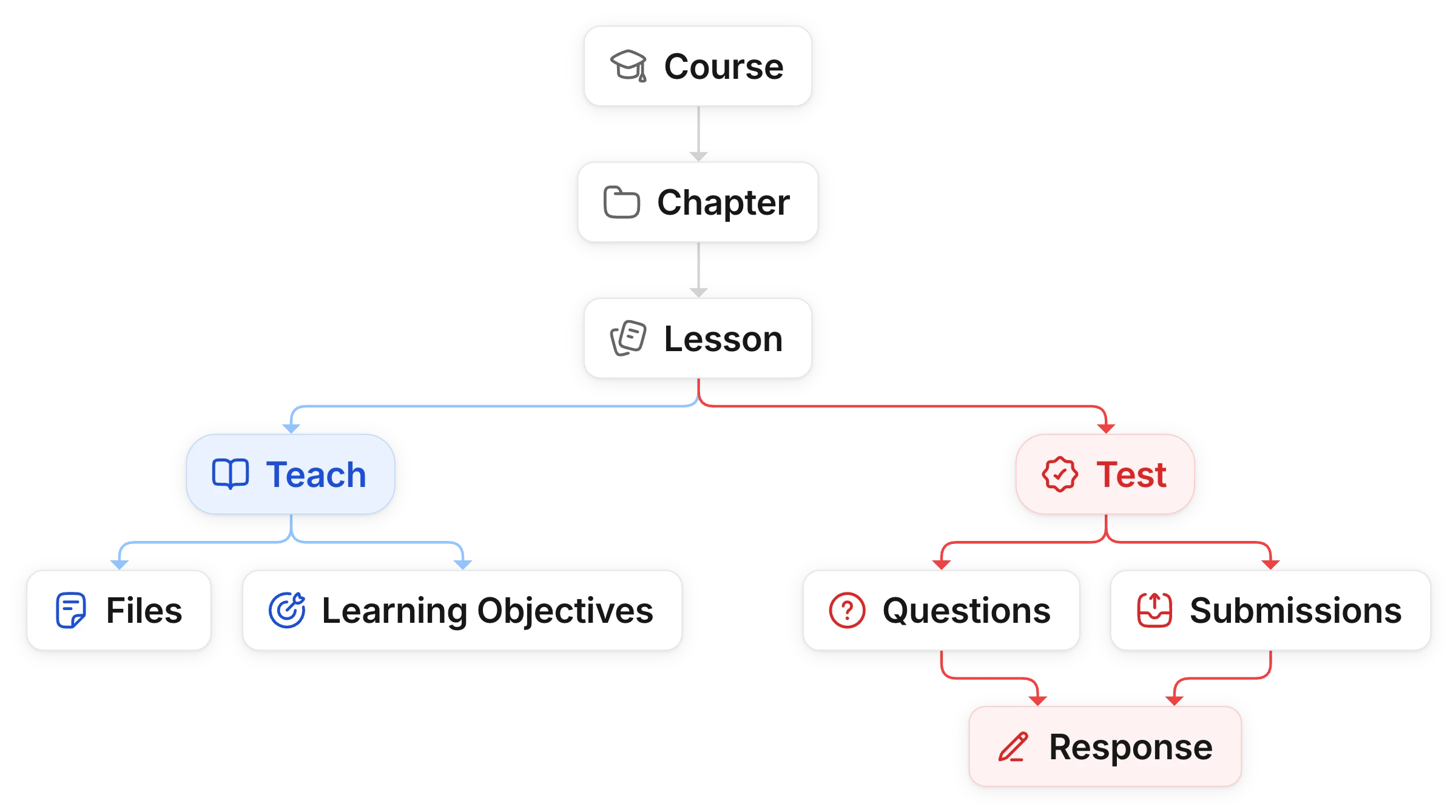
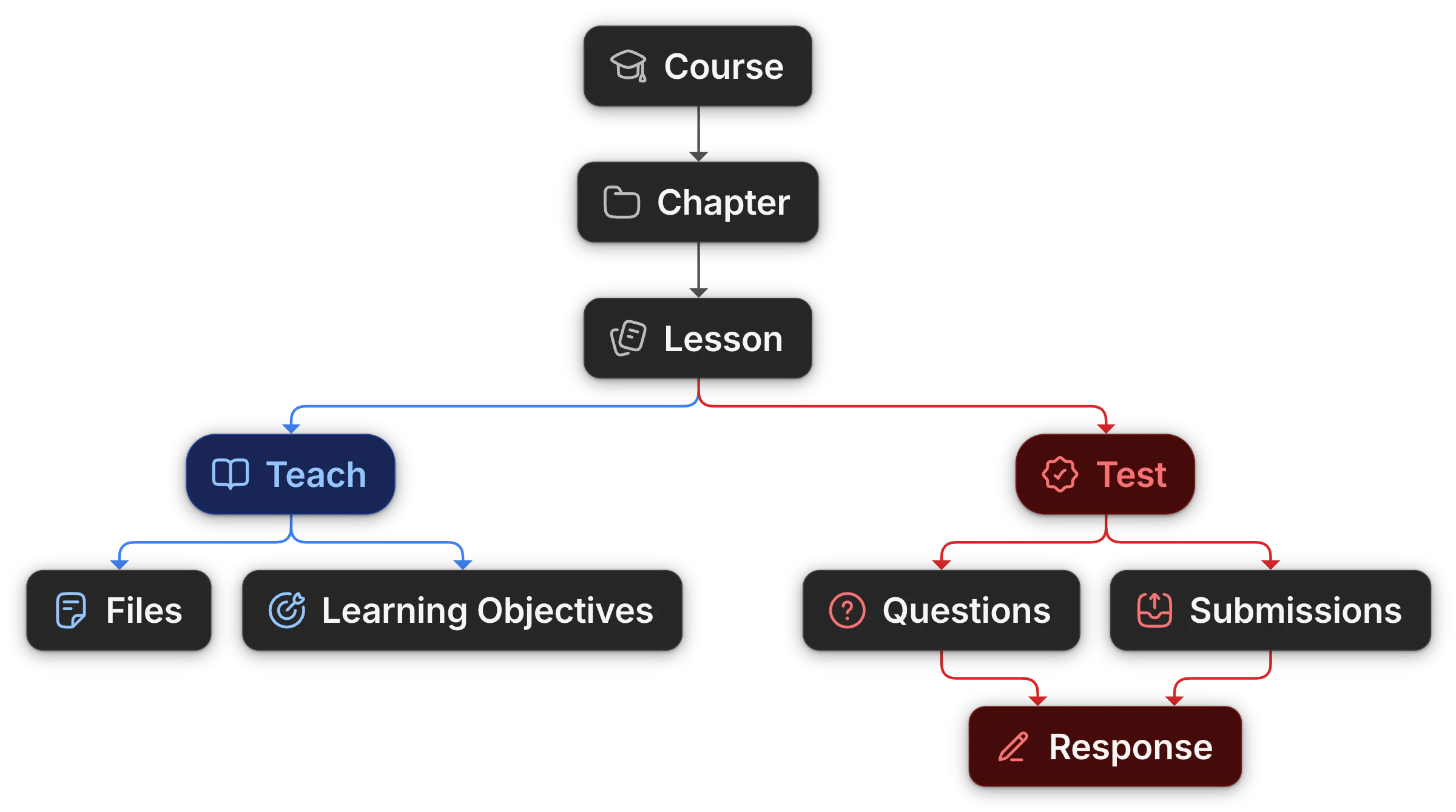
Every Uflo course is built the same way, from the top down:
* A **course** is one class you teach, such as Introduction to Biology.
* A course holds **chapters**, which divide it into parts such as weeks or units.
* A chapter holds **lessons**, which are what your students open.
* A lesson is either a **Teach** lesson or a **Test** lesson.
 For help choosing how to divide your course, see [Plan Your Course](/instructors/getting-started/plan-your-course).
### Rename Chapters and Lessons
Chapter and Lesson are default names.
Rename them to match your syllabus, such as Module and Topic, when you [create the course](/instructors/courses/create-a-course) or later with **Update**.
### Teach and Test Lessons
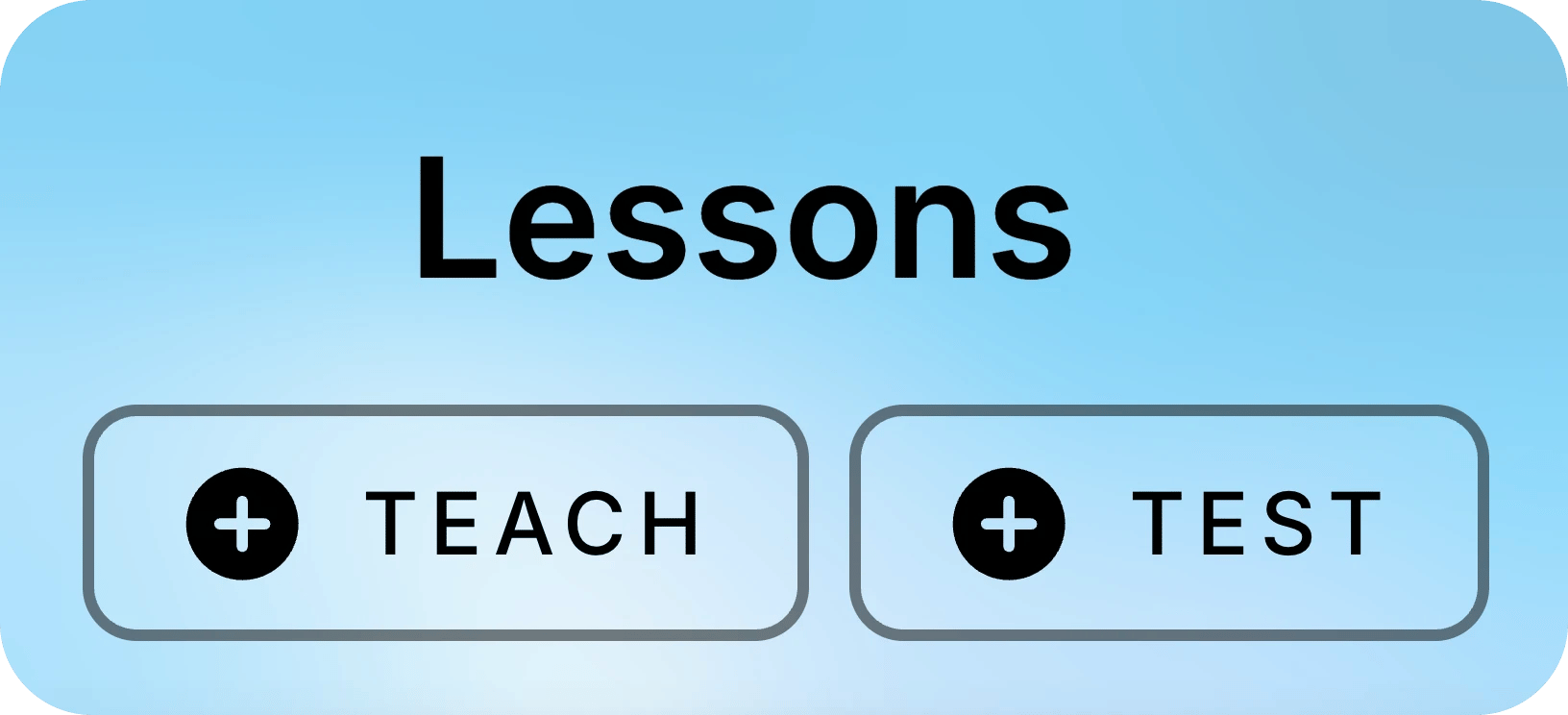
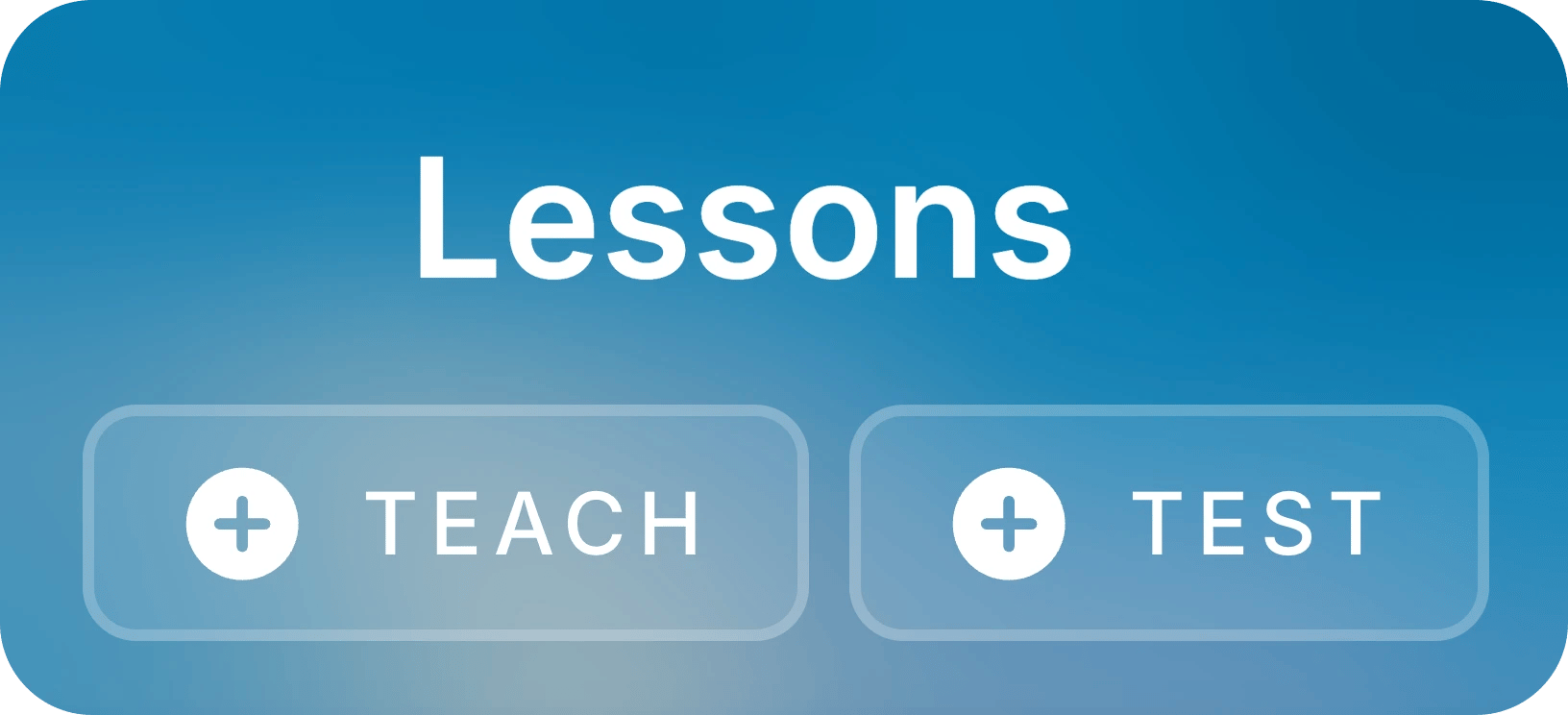
You can specify the type of lesson to create with the **TEACH** or **TEST** button at the top of the **Lessons** panel.
From here on, these docs call a Test lesson an **assessment**.
For help choosing how to divide your course, see [Plan Your Course](/instructors/getting-started/plan-your-course).
### Rename Chapters and Lessons
Chapter and Lesson are default names.
Rename them to match your syllabus, such as Module and Topic, when you [create the course](/instructors/courses/create-a-course) or later with **Update**.
### Teach and Test Lessons
You can specify the type of lesson to create with the **TEACH** or **TEST** button at the top of the **Lessons** panel.
From here on, these docs call a Test lesson an **assessment**.
 | Lesson | What it holds | What students do |
| ------ | ----------------------------- | -------------------------------- |
| Teach | Files and learning objectives | Study with Uflo's study tools. |
| Test | Questions and settings | Answer the questions and submit. |
### Submissions and Responses
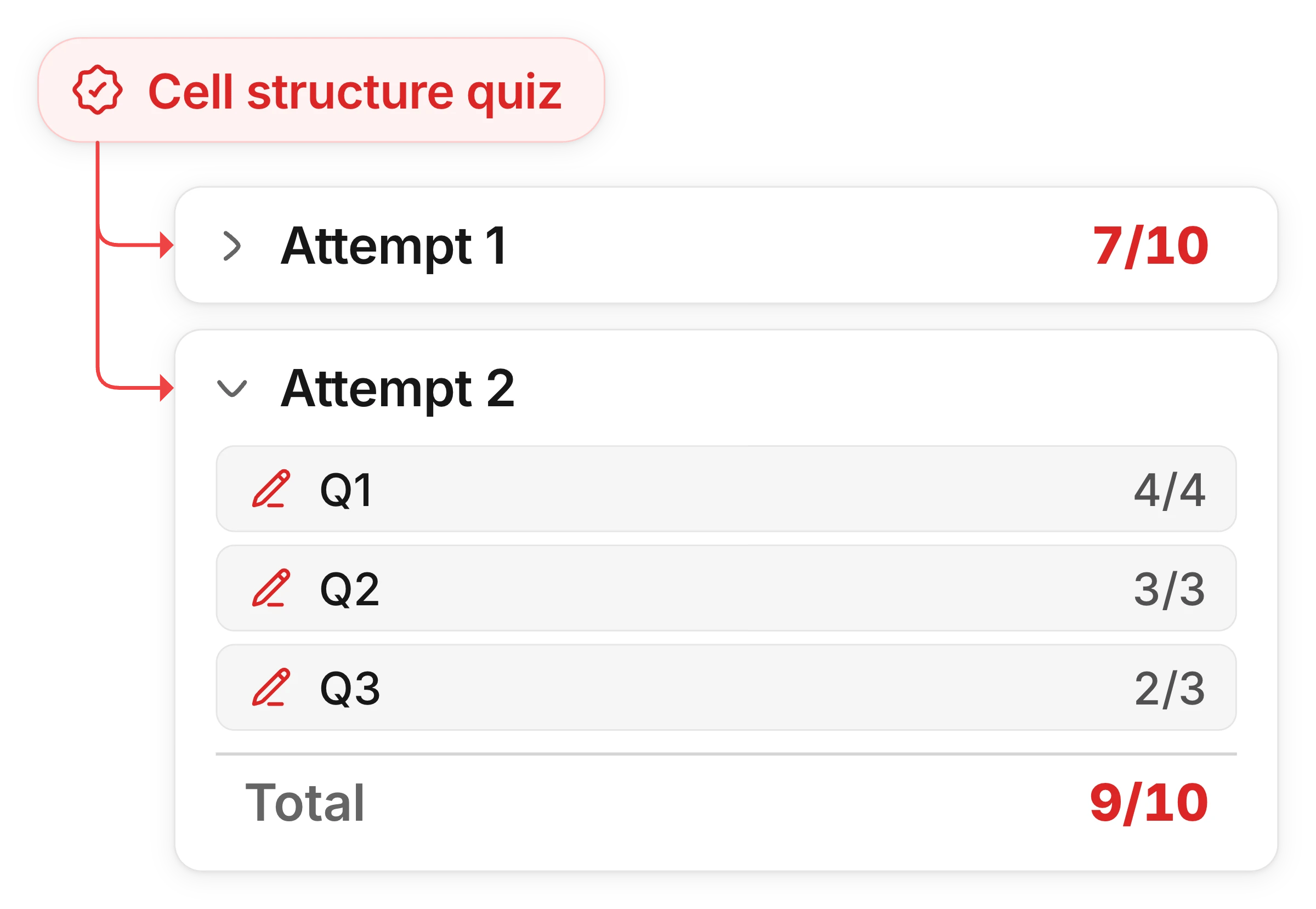
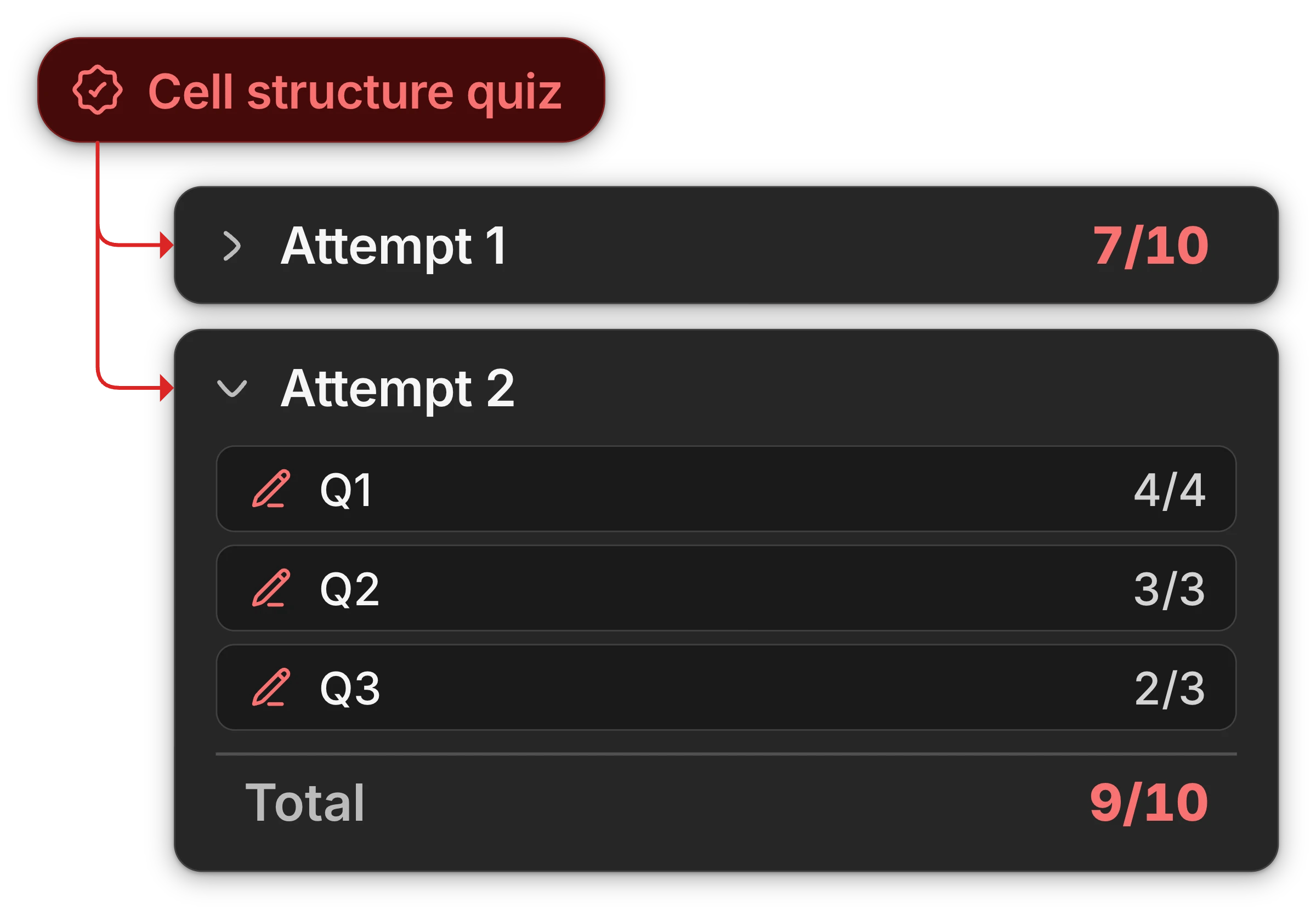
Each time a student starts an assessment, Uflo creates a **submission** where students can provide their **responses** to each question.
Upon submission, Uflo scores each response out of that question's points and sums the scores to get the submission's total.
| Lesson | What it holds | What students do |
| ------ | ----------------------------- | -------------------------------- |
| Teach | Files and learning objectives | Study with Uflo's study tools. |
| Test | Questions and settings | Answer the questions and submit. |
### Submissions and Responses
Each time a student starts an assessment, Uflo creates a **submission** where students can provide their **responses** to each question.
Upon submission, Uflo scores each response out of that question's points and sums the scores to get the submission's total.
 ## Open and Manage Items
Courses, chapters, lessons, and files all work the same way.
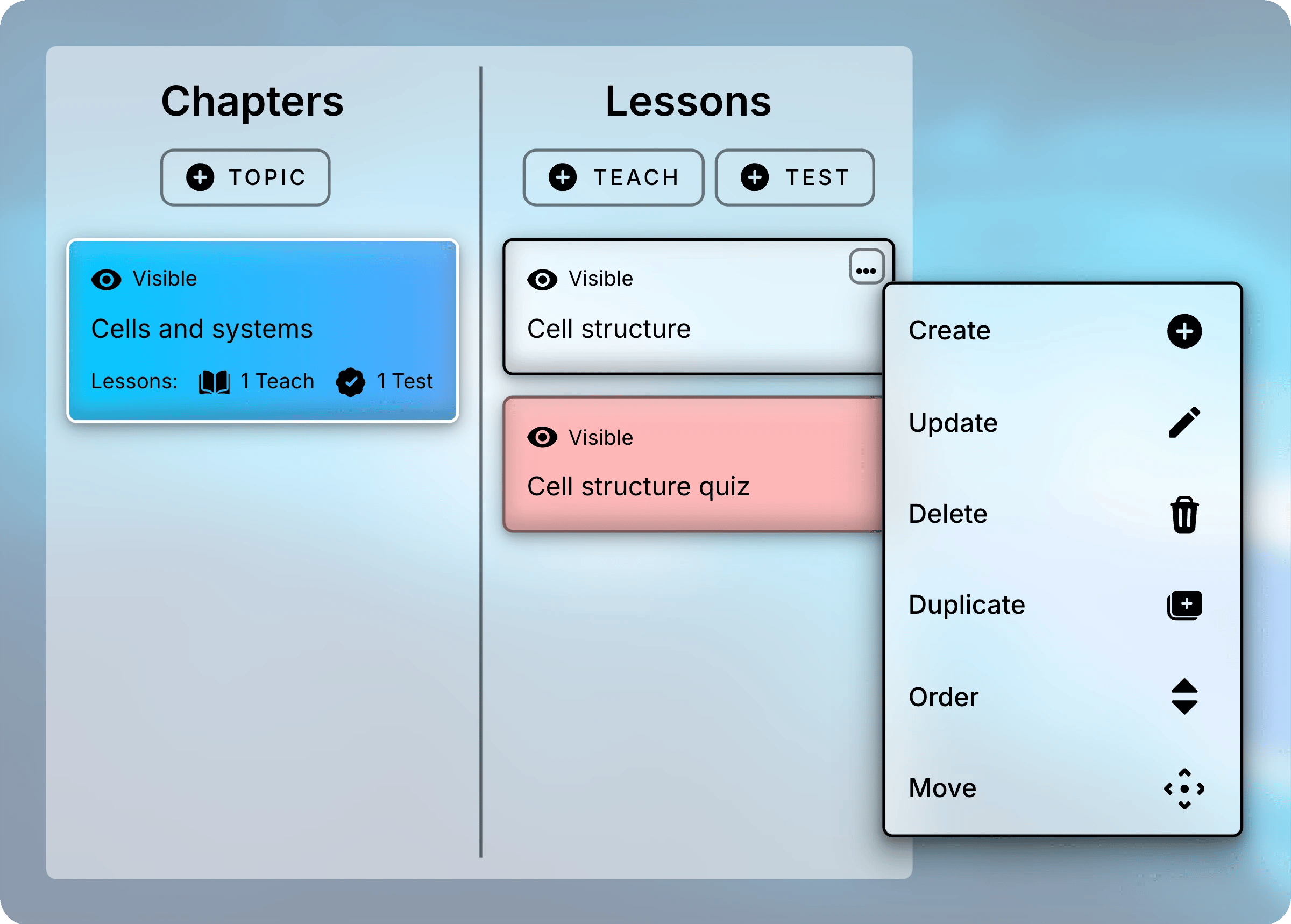
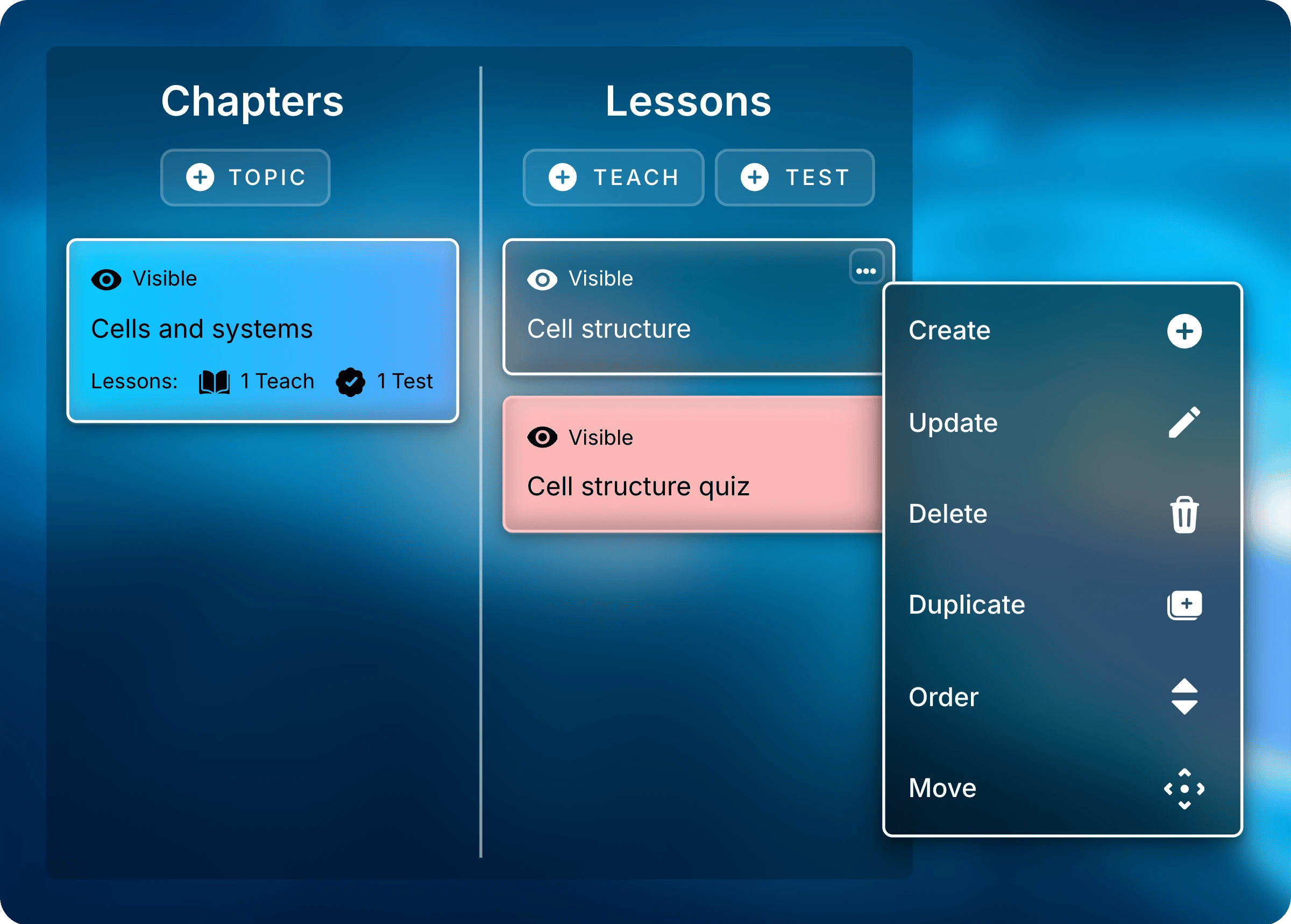
Select an item to open it, and right-click it to manage it.
Selecting an item opens the next level down:
* A course opens its chapters.
* A chapter shows its lessons in the **Lessons** panel.
* A lesson shows its details:
* A Teach lesson shows its files and learning objectives.
* An assessment shows its settings and submissions.
* A file opens its page, with its study tools, in a new browser tab.
The manage menu opens in three ways:
* Right-click the item.
* Hover over the item and select its menu button (**⋯**) in the top-right corner.
* On a touch screen, press and hold the item. The menu button stays visible there.
## Open and Manage Items
Courses, chapters, lessons, and files all work the same way.
Select an item to open it, and right-click it to manage it.
Selecting an item opens the next level down:
* A course opens its chapters.
* A chapter shows its lessons in the **Lessons** panel.
* A lesson shows its details:
* A Teach lesson shows its files and learning objectives.
* An assessment shows its settings and submissions.
* A file opens its page, with its study tools, in a new browser tab.
The manage menu opens in three ways:
* Right-click the item.
* Hover over the item and select its menu button (**⋯**) in the top-right corner.
* On a touch screen, press and hold the item. The menu button stays visible there.
 ### Menu Actions
Each item's menu lists only the actions that apply to it.
Delete can't be undone. Deleting a chapter also deletes its lessons and their files.
You can't delete an assessment that has submissions, or the chapter that holds it.
| Action | What it does | Available on |
| ------------------- | --------------------------------------------------------------------------------------------------------------------------------------------- | ---------------------------------------------------------------------------------- |
| **Create** | Adds an item at the end of the list. | All items |
| **Update** | Edits the item's details and settings. | All items |
| **Delete** | Removes the item and everything in it. | All but |
| **Duplicate** | Makes a copy without its submissions or exceptions. | |
| **Order** | Drag to reorder. Select **Confirm Order**. | All but |
| **Move** | Drag to a new spot. Select **Confirm Move**. | |
| **Copy Link** | Copies a direct link to the file. | |
| **Enrollments** | Shows the roster. See [Enroll Students](/instructors/courses/enroll-students). | |
| **Download Grades** | Exports its grades. | |
## What Students See
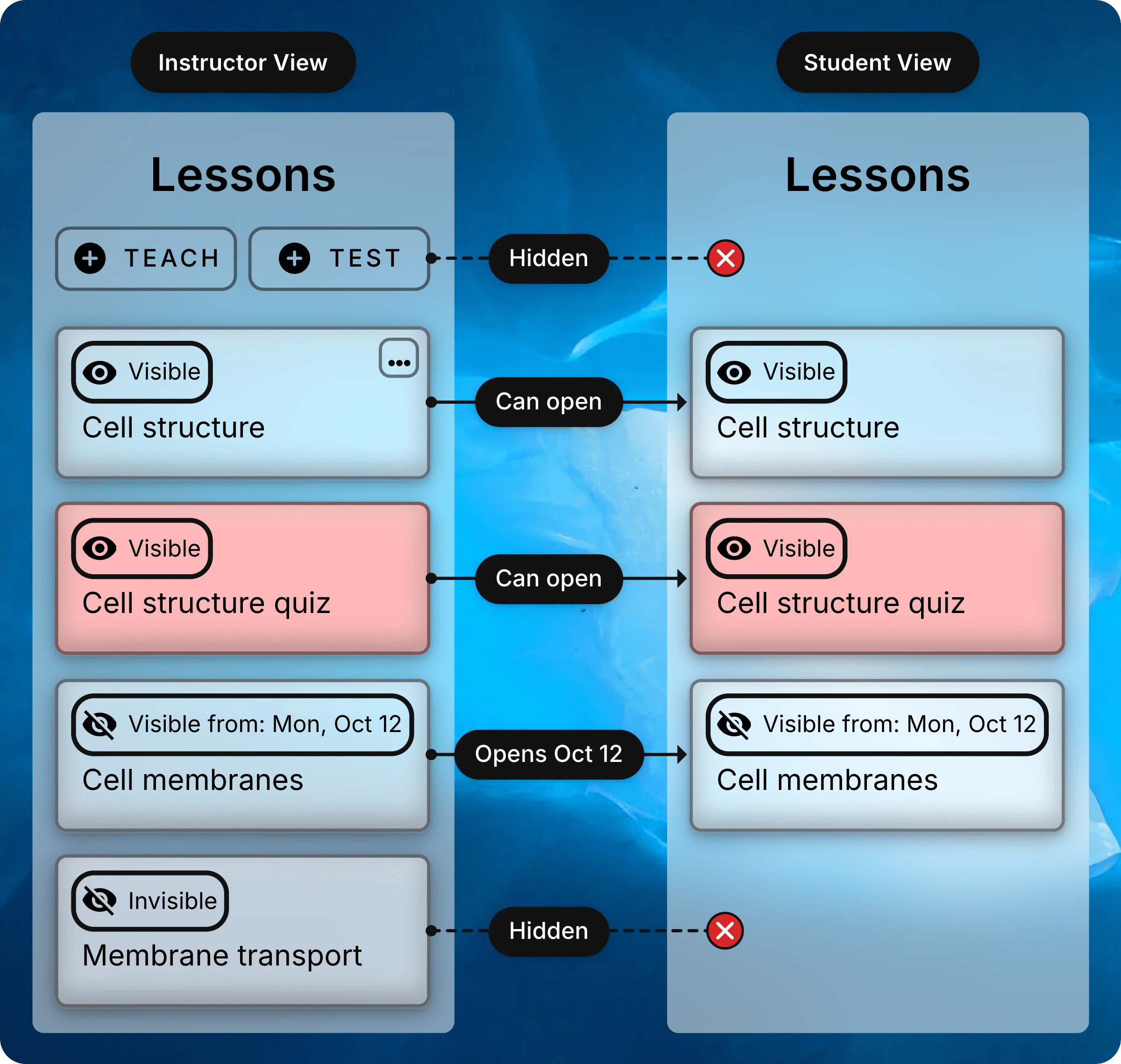
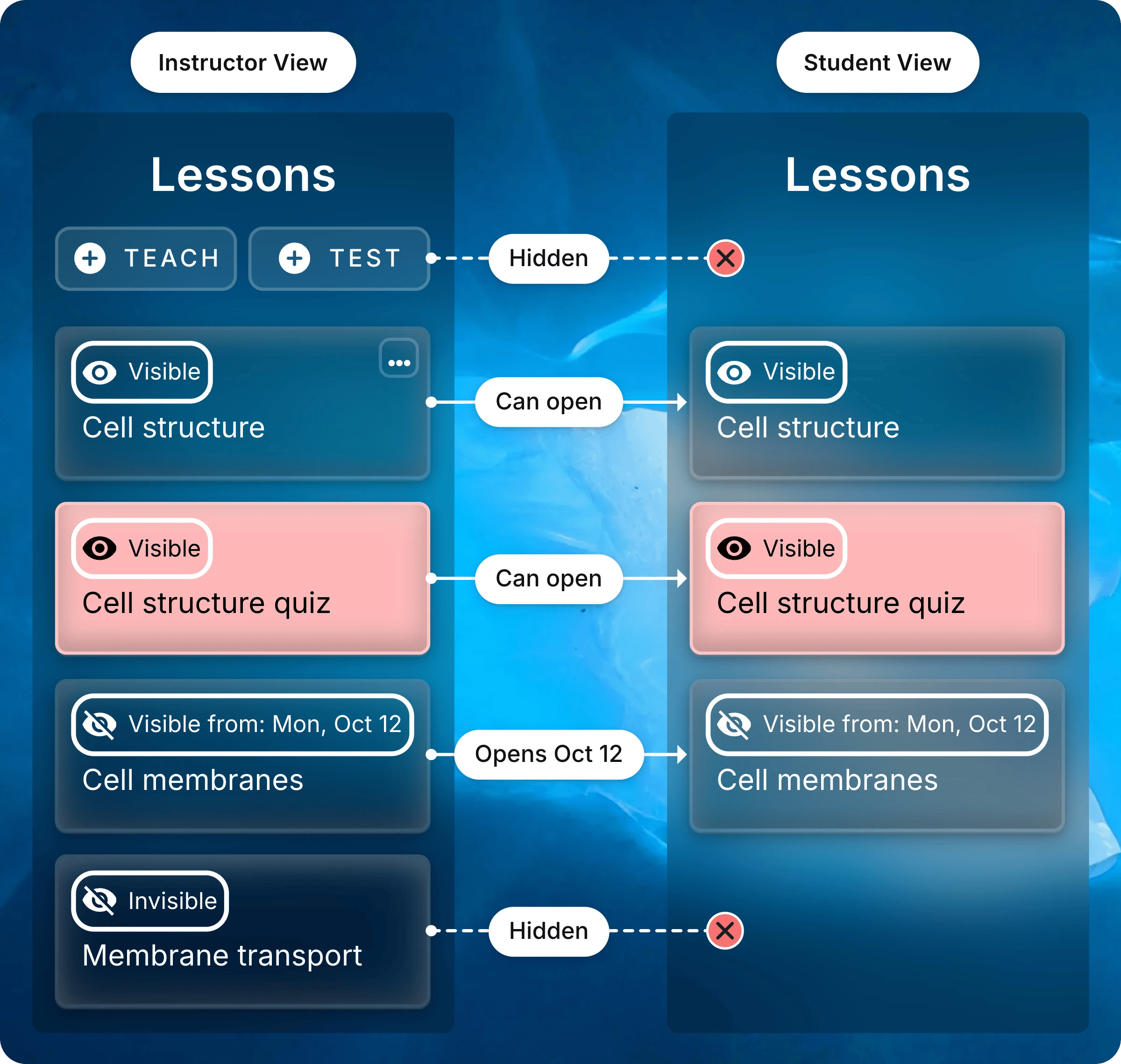
Students see the same **Chapters** and **Lessons** panels, without menus or create buttons.
Each item's label tells you what students get:
* **Visible:** students can open it.
* **Visible from** or **Visible until**: students see it but can't open it outside the dates.
* **Invisible:** students don't see it at all.
The eye icon is crossed out whenever students can't open the item right now.
### Menu Actions
Each item's menu lists only the actions that apply to it.
Delete can't be undone. Deleting a chapter also deletes its lessons and their files.
You can't delete an assessment that has submissions, or the chapter that holds it.
| Action | What it does | Available on |
| ------------------- | --------------------------------------------------------------------------------------------------------------------------------------------- | ---------------------------------------------------------------------------------- |
| **Create** | Adds an item at the end of the list. | All items |
| **Update** | Edits the item's details and settings. | All items |
| **Delete** | Removes the item and everything in it. | All but |
| **Duplicate** | Makes a copy without its submissions or exceptions. | |
| **Order** | Drag to reorder. Select **Confirm Order**. | All but |
| **Move** | Drag to a new spot. Select **Confirm Move**. | |
| **Copy Link** | Copies a direct link to the file. | |
| **Enrollments** | Shows the roster. See [Enroll Students](/instructors/courses/enroll-students). | |
| **Download Grades** | Exports its grades. | |
## What Students See
Students see the same **Chapters** and **Lessons** panels, without menus or create buttons.
Each item's label tells you what students get:
* **Visible:** students can open it.
* **Visible from** or **Visible until**: students see it but can't open it outside the dates.
* **Invisible:** students don't see it at all.
The eye icon is crossed out whenever students can't open the item right now.
 [Manage Lessons](/instructors/courses/manage-lessons) shows how to hide lessons and set their dates.
To see the course from a student's side, read [Navigate a Course](/students/getting-started/navigating-a-course).
Decide how to divide your course into chapters and lessons.
[Manage Lessons](/instructors/courses/manage-lessons) shows how to hide lessons and set their dates.
To see the course from a student's side, read [Navigate a Course](/students/getting-started/navigating-a-course).
Decide how to divide your course into chapters and lessons.