> ## Documentation Index
> Fetch the complete documentation index at: https://docs.uflo.io/llms.txt
> Use this file to discover all available pages before exploring further.
# Manage Roster
> Review who is enrolled and match students to your class roster.
**Enrollments** lists everyone in your course. Upload your class roster so paper exams and LMS imports give each score to the right student.
## Open Enrollments
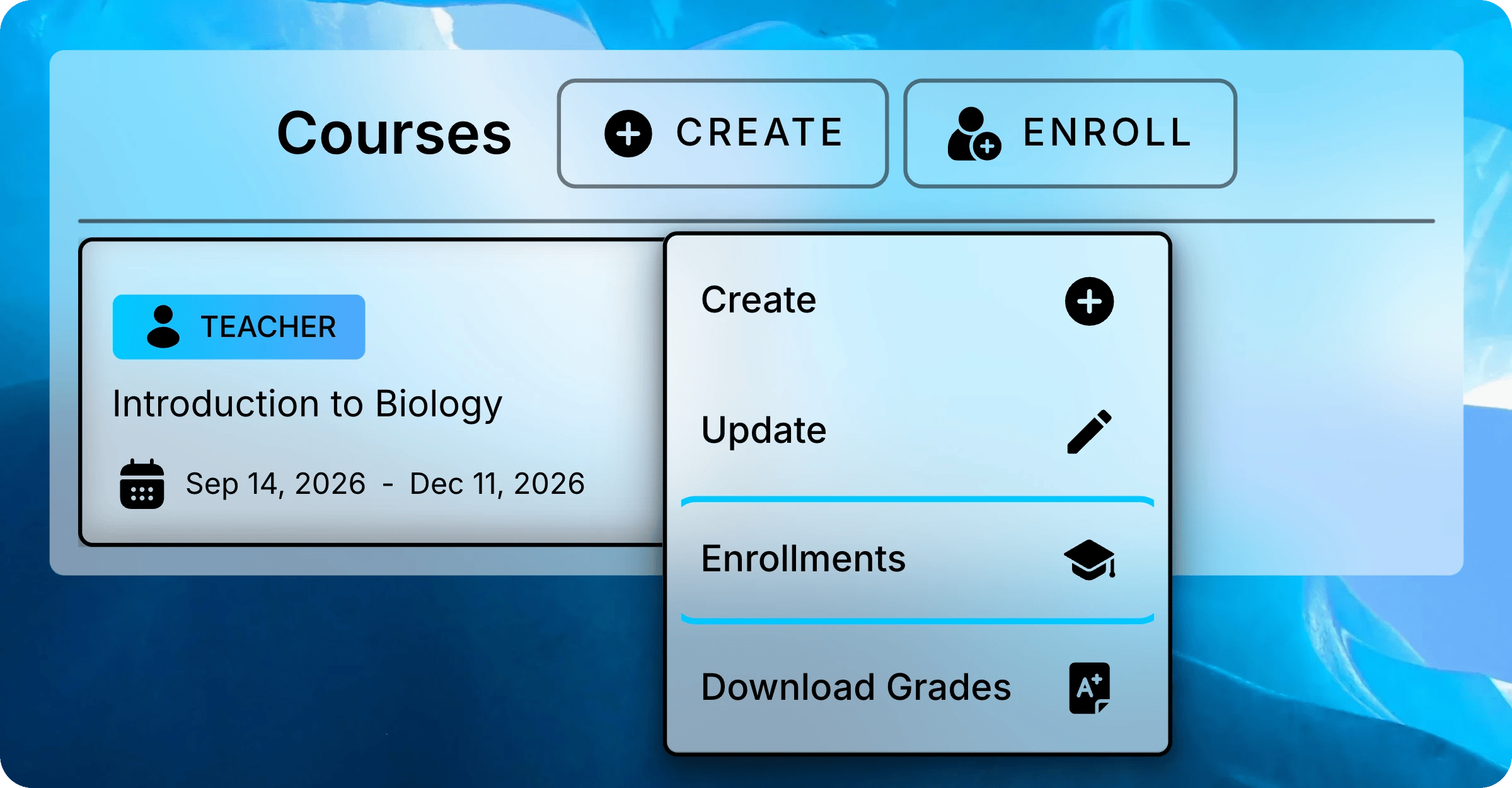
In **Courses**, right-click your course and select **Enrollments**.
 ## Read the Enrollment List
Teachers appear first, followed by students in alphabetical order.
| Column | What it shows |
| ---------- | ------------------------------------------------------------------------------- |
| Name | The person's name. |
| Role | Teacher or student. |
| Student ID | The ID from the student's profile, or from your roster if the profile has none. |
| Email | Their email address. Select it to write to them. |
| Sync | Whether the student is matched to a row in your roster. |
| Active | Whether the person can open the course. |
| Source | **Uflo** for an enrolled account, or **Roster** for an unmatched roster row. |
Teachers always show as synced.
Until you upload a roster, every student does too.
Use the filters above the list to narrow it down.
## Read the Enrollment List
Teachers appear first, followed by students in alphabetical order.
| Column | What it shows |
| ---------- | ------------------------------------------------------------------------------- |
| Name | The person's name. |
| Role | Teacher or student. |
| Student ID | The ID from the student's profile, or from your roster if the profile has none. |
| Email | Their email address. Select it to write to them. |
| Sync | Whether the student is matched to a row in your roster. |
| Active | Whether the person can open the course. |
| Source | **Uflo** for an enrolled account, or **Roster** for an unmatched roster row. |
Teachers always show as synced.
Until you upload a roster, every student does too.
Use the filters above the list to narrow it down.
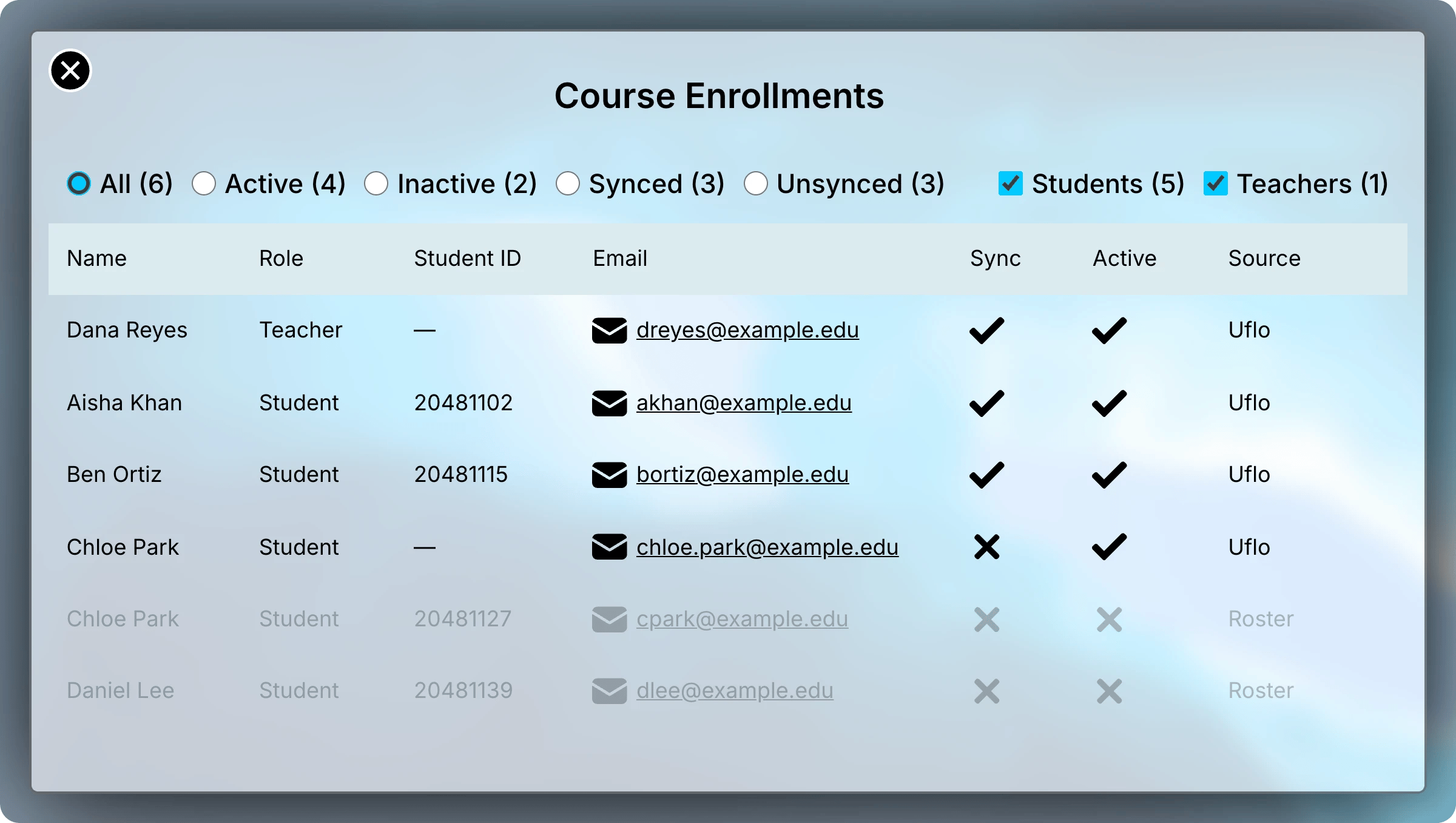
Unsynced rows are students Uflo couldn't match to your roster.
Every teacher has full course access. Uflo has no teaching assistant or co-teacher roles.
## Upload a Roster
Paper exams and LMS imports identify students by student ID, so upload a roster before you process them.
Assessments taken in Uflo don't need one.
Export your class list as a CSV from your school's student system or LMS.
The first row must hold column names.
Include student ID, name, and email columns.
Use the student IDs that appear on paper exams and in LMS exports.
In **Enrollments**, find **Upload Roster** under **Enrollment Info**.
Select **Upload** and choose the CSV file you exported.
Uflo reads your file and preselects the columns whose names look like a student ID, name, or email.
Check each choice before you continue.
| Field | What to choose |
| ----------------------------------- | --------------------------------------------------------- |
| Student ID Column | The column with student IDs. |
| Name Format | **Last First**, **First Last**, or **First & Last Name**. |
| Full Name Column | The name column, for **Last First** or **First Last**. |
| First Name Column, Last Name Column | The two name columns, for **First & Last Name**. |
| Email Column | School email addresses or usernames. |
**Roster Preview** shows the first five rows and the number of students Uflo read.
Check that the number matches your class.
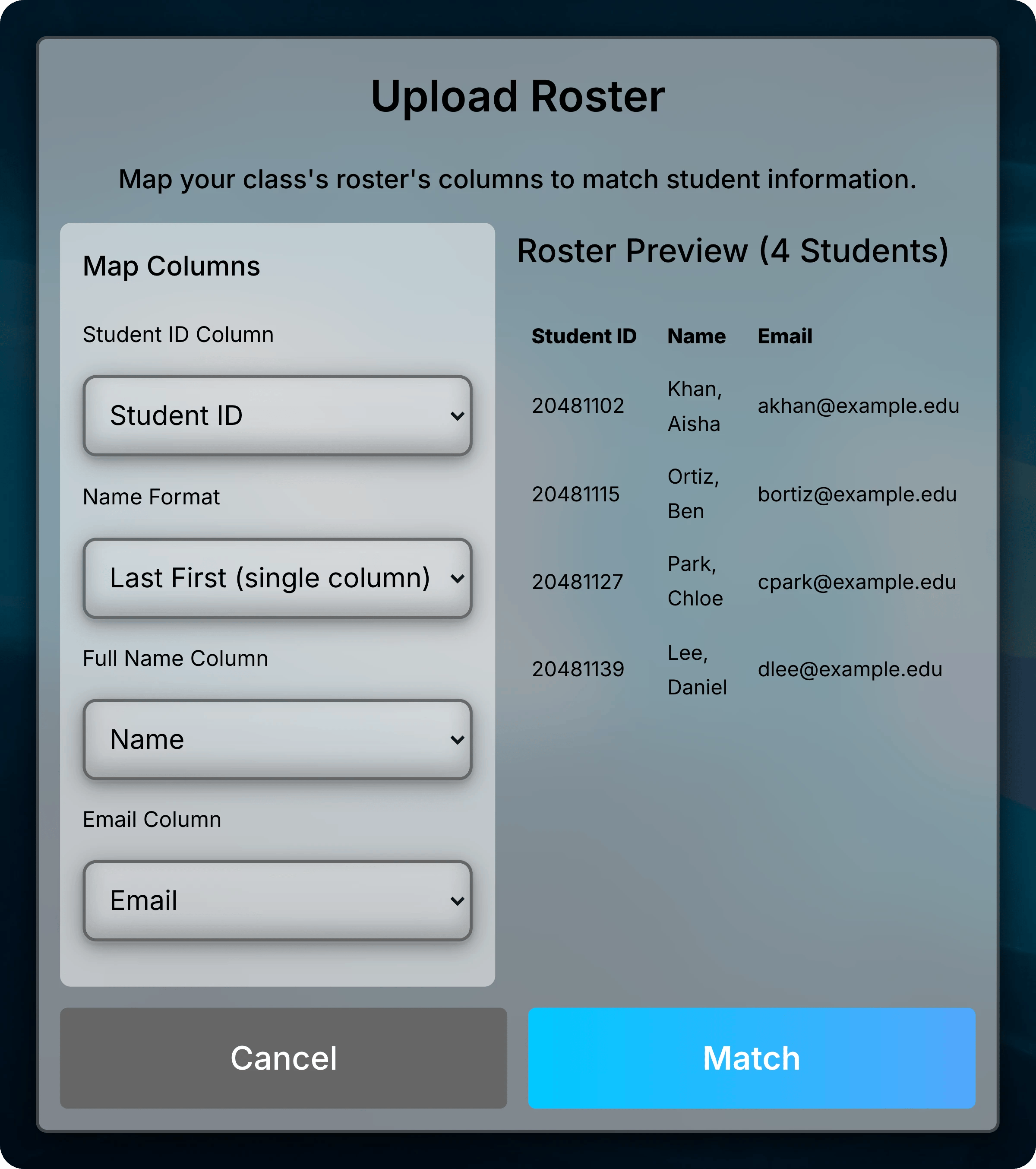
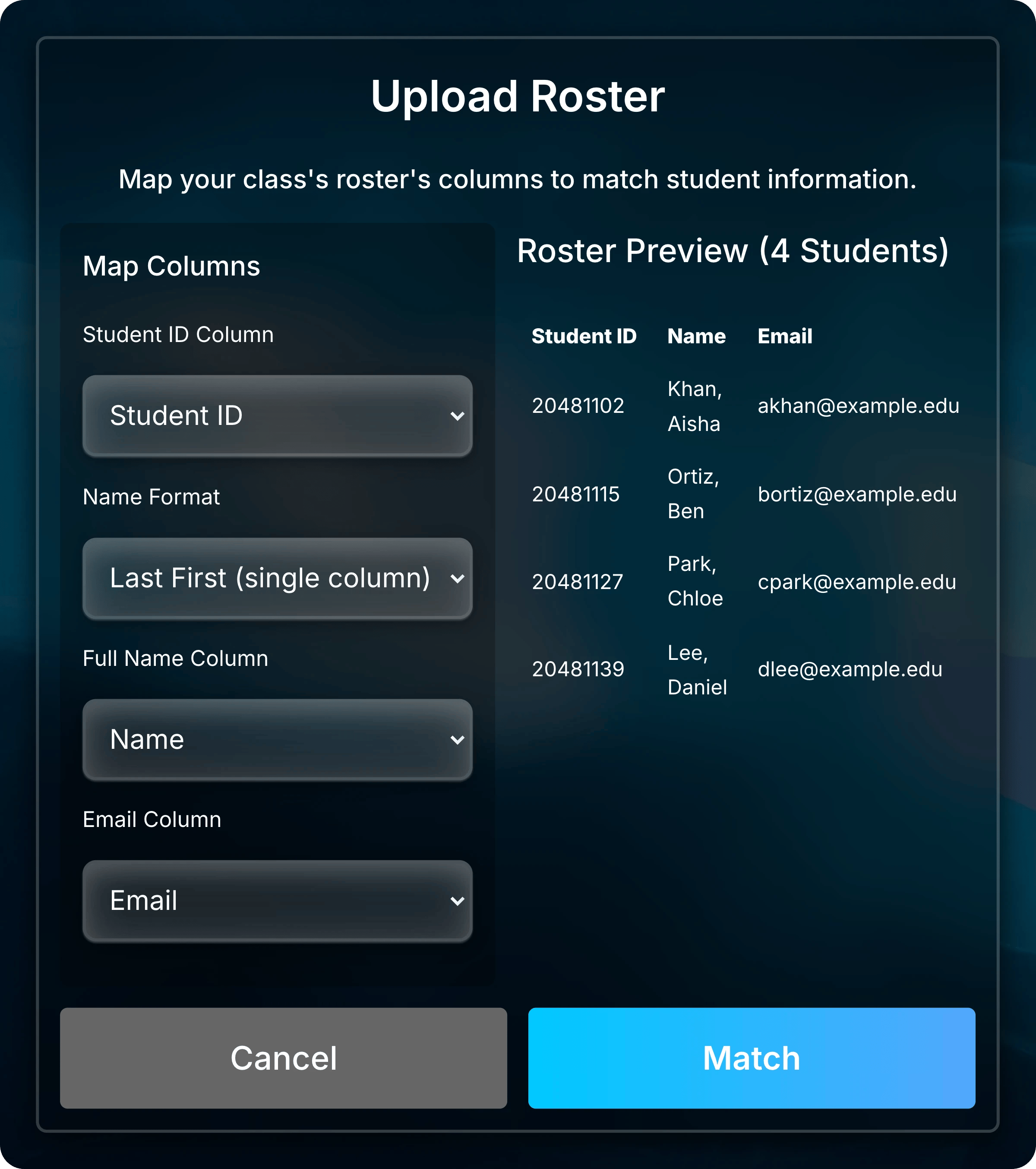 Select **Match**. Uflo saves the roster and matches students automatically; anyone it can't match shows as unsynced.
## How Automatic Matching Works
Uflo compares each roster row with your enrolled students in this order:
1. **Email:** the roster email matches the student's Uflo email. If your roster lists usernames, Uflo compares them with the part of each email before the @.
2. **Student ID:** otherwise, the roster ID matches the ID in the student's Uflo profile.
Capitalization and extra spaces don't matter.
Each time you open **Enrollments**, Uflo retries unsynced rows, so students who join later or add their ID match without another upload.
## Match Students by Hand
Match a student yourself when neither their email nor their student ID matches the roster.
For example, Chloe Park joined with **[chloe.park@example.edu](mailto:chloe.park@example.edu)**, but your roster lists **[cpark@example.edu](mailto:cpark@example.edu)** and Chloe's profile has no student ID.
Select **Unsynced** in **Enrollments**.
The student appears twice: once as a **Uflo** row for their account, and once as a **Roster** row.
Select **Match**. Uflo saves the roster and matches students automatically; anyone it can't match shows as unsynced.
## How Automatic Matching Works
Uflo compares each roster row with your enrolled students in this order:
1. **Email:** the roster email matches the student's Uflo email. If your roster lists usernames, Uflo compares them with the part of each email before the @.
2. **Student ID:** otherwise, the roster ID matches the ID in the student's Uflo profile.
Capitalization and extra spaces don't matter.
Each time you open **Enrollments**, Uflo retries unsynced rows, so students who join later or add their ID match without another upload.
## Match Students by Hand
Match a student yourself when neither their email nor their student ID matches the roster.
For example, Chloe Park joined with **[chloe.park@example.edu](mailto:chloe.park@example.edu)**, but your roster lists **[cpark@example.edu](mailto:cpark@example.edu)** and Chloe's profile has no student ID.
Select **Unsynced** in **Enrollments**.
The student appears twice: once as a **Uflo** row for their account, and once as a **Roster** row.
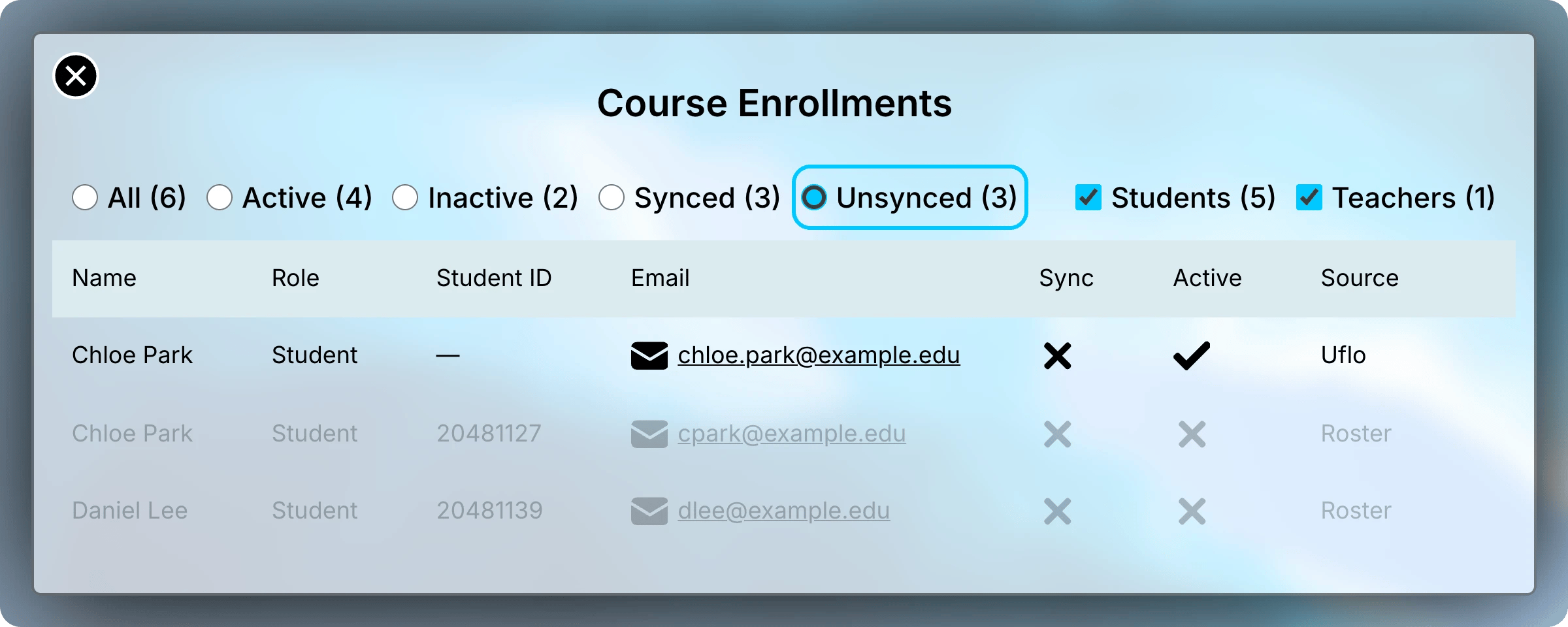
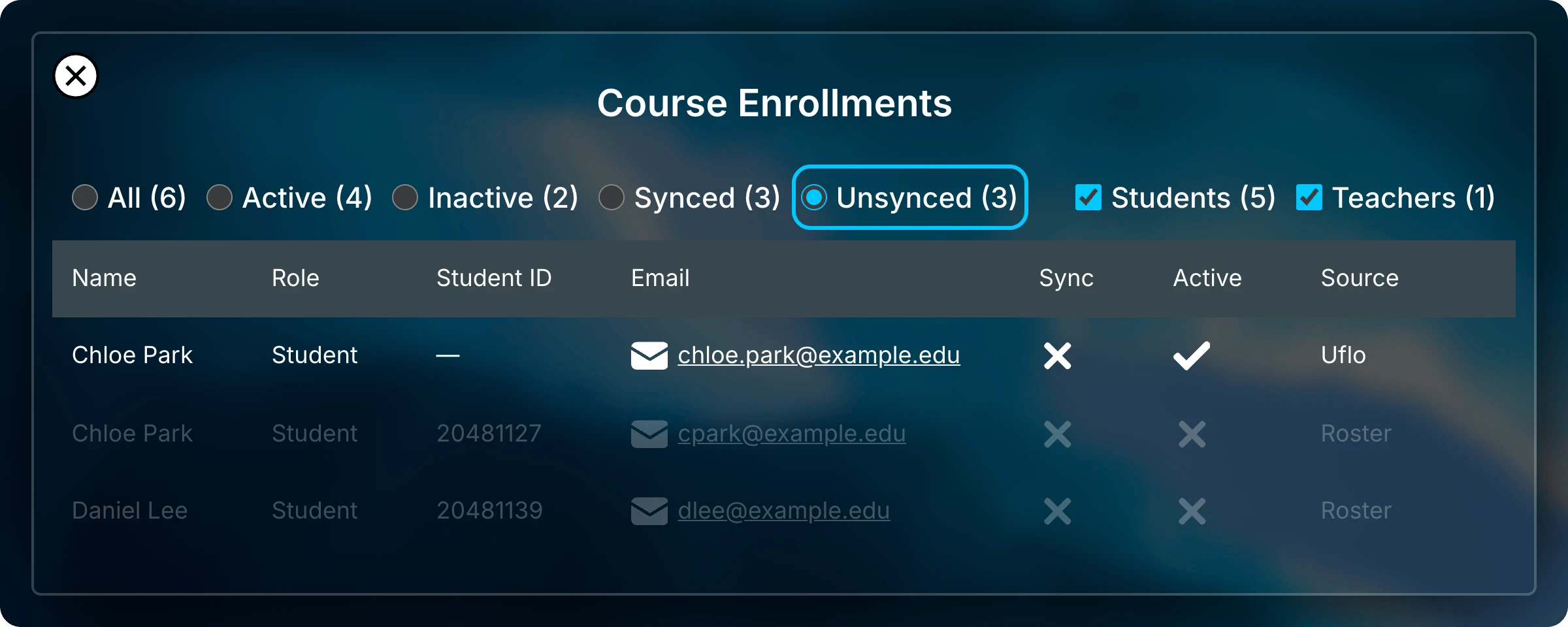
Unsynced shows students Uflo couldn't match to your roster.
Right-click either row, then select **Match Students**.
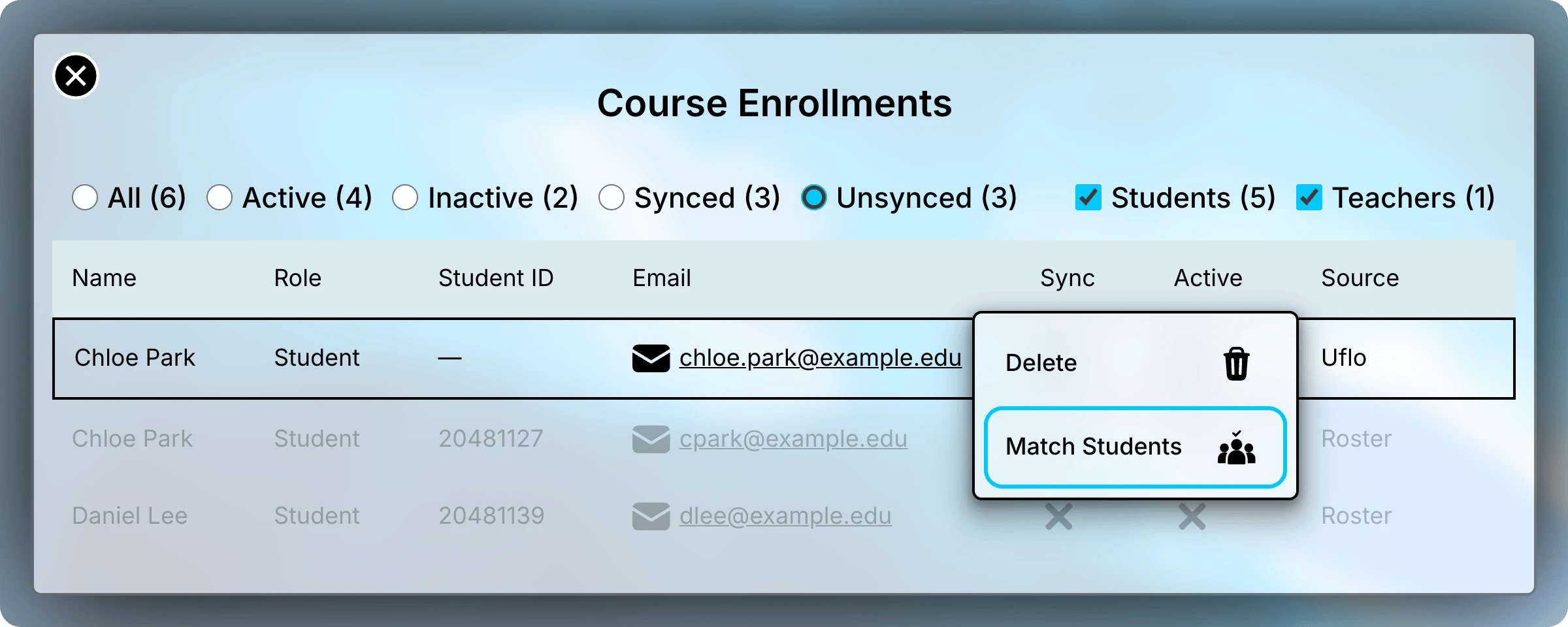
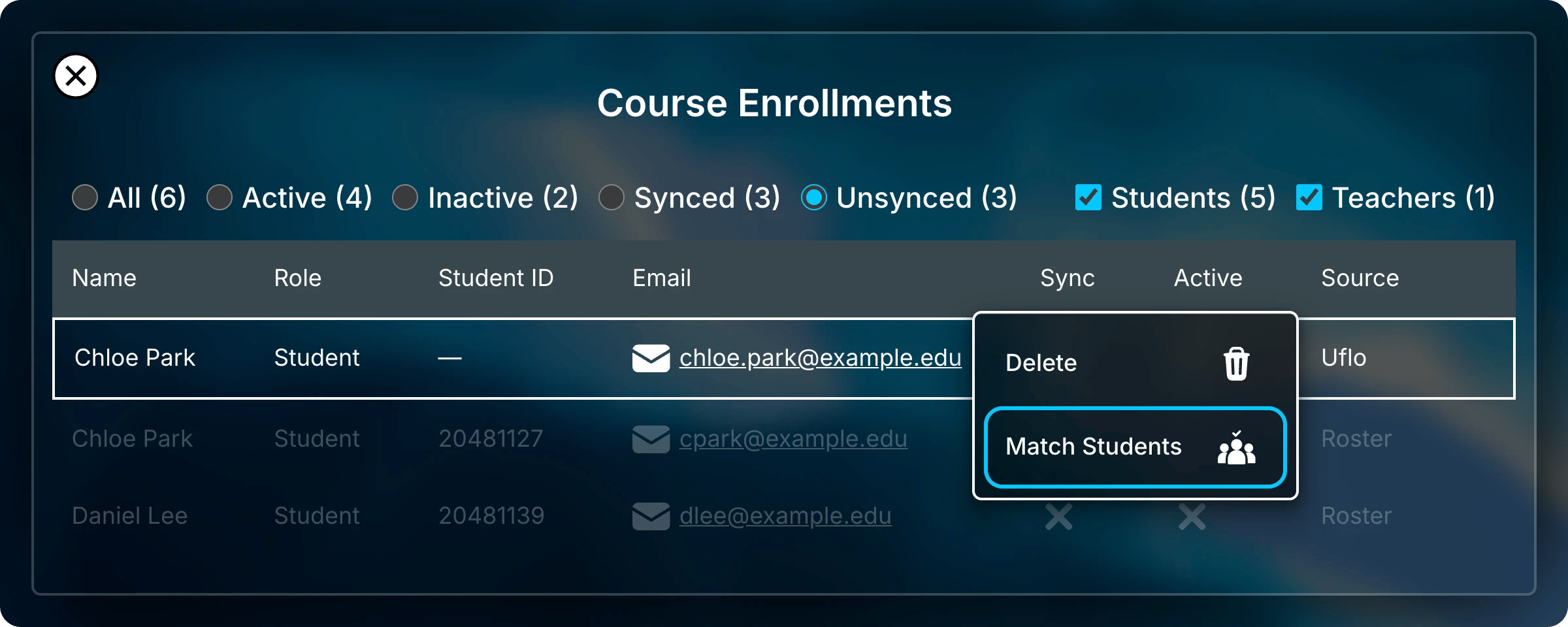
Right-click a row and select Match Students.
In **Match Student**, pick the student's other row and select **Match**.
The list shows unsynced roster rows for a Uflo row and unsynced accounts for a Roster row.
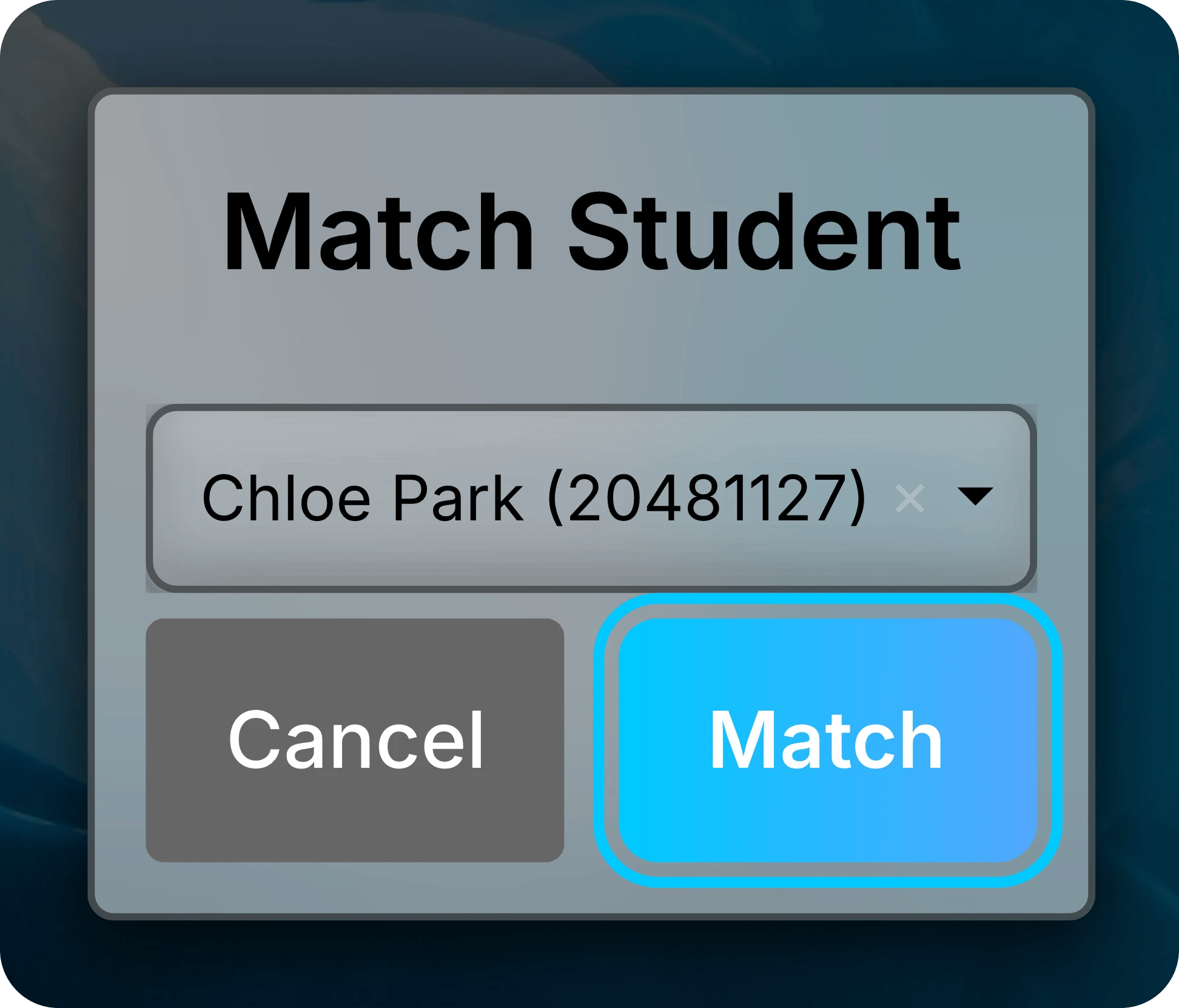
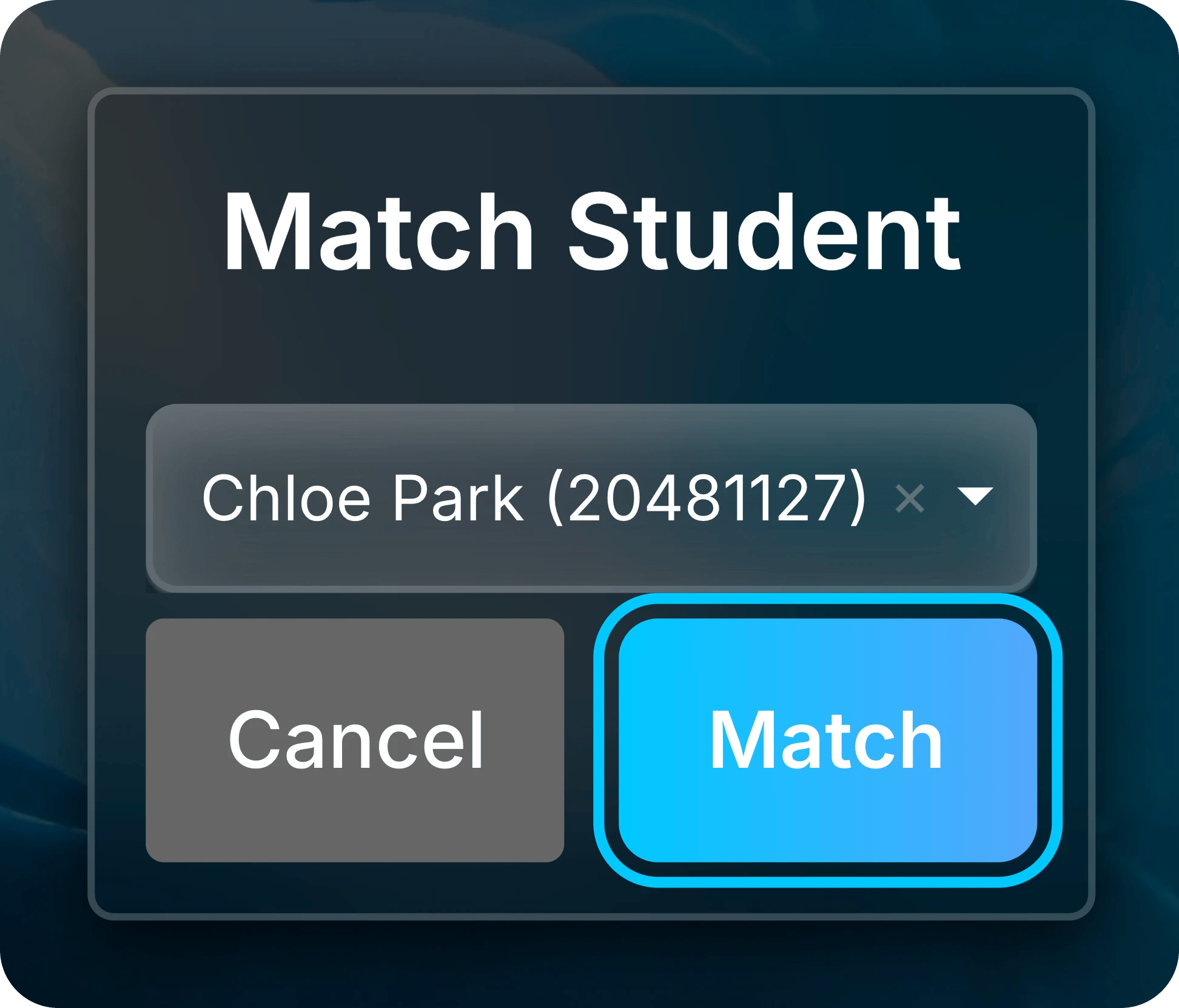
Pick the student's other row and select Match.
After the match, the two rows become one synced row and leave the **Unsynced** view.
You can match only roster rows that have a student ID.
## Student IDs
You can require every student to enter a student ID before your course opens. Contact Uflo Support to turn it on.
## Common Questions
Uflo must approve your course before students can join it.
Select **Request Approval** to ask Uflo. [Enroll Students](/instructors/courses/enroll-students) explains course approval.
Their Uflo email and student ID don't match any row in your roster.
Ask them to add or correct their student ID in **Settings** → **Profile**, or [match them by hand](#match-students-by-hand).
If they just fixed their ID and still show as unsynced, close and reopen **Enrollments**.
A **Roster** row is always inactive. It's a student on your class list without a matching Uflo account, usually because they haven't joined yet.
Share your [enrollment link or code](/instructors/courses/enroll-students) with them.
A **Uflo** row is inactive when that person can no longer open the course.
Uflo skips rows with more or fewer cells than the header row.
Fix those rows in your spreadsheet, export the CSV again, and upload it.
## Related Pages
Upload scanned paper exams and match each one to a student.