> ## Documentation Index
> Fetch the complete documentation index at: https://docs.uflo.io/llms.txt
> Use this file to discover all available pages before exploring further.

# Manage Lessons

> Add lessons, control when students can open them, and rearrange them.

Each chapter holds lessons. A **Teach** lesson holds files and learning objectives, and a **Test** lesson holds an assessment.

<Note>
  Your course may [use other names](/instructors/courses/create-a-course) for chapters and lessons.
</Note>

## Add a Lesson

<Steps>
  <Step title="Choose the Lesson Type">
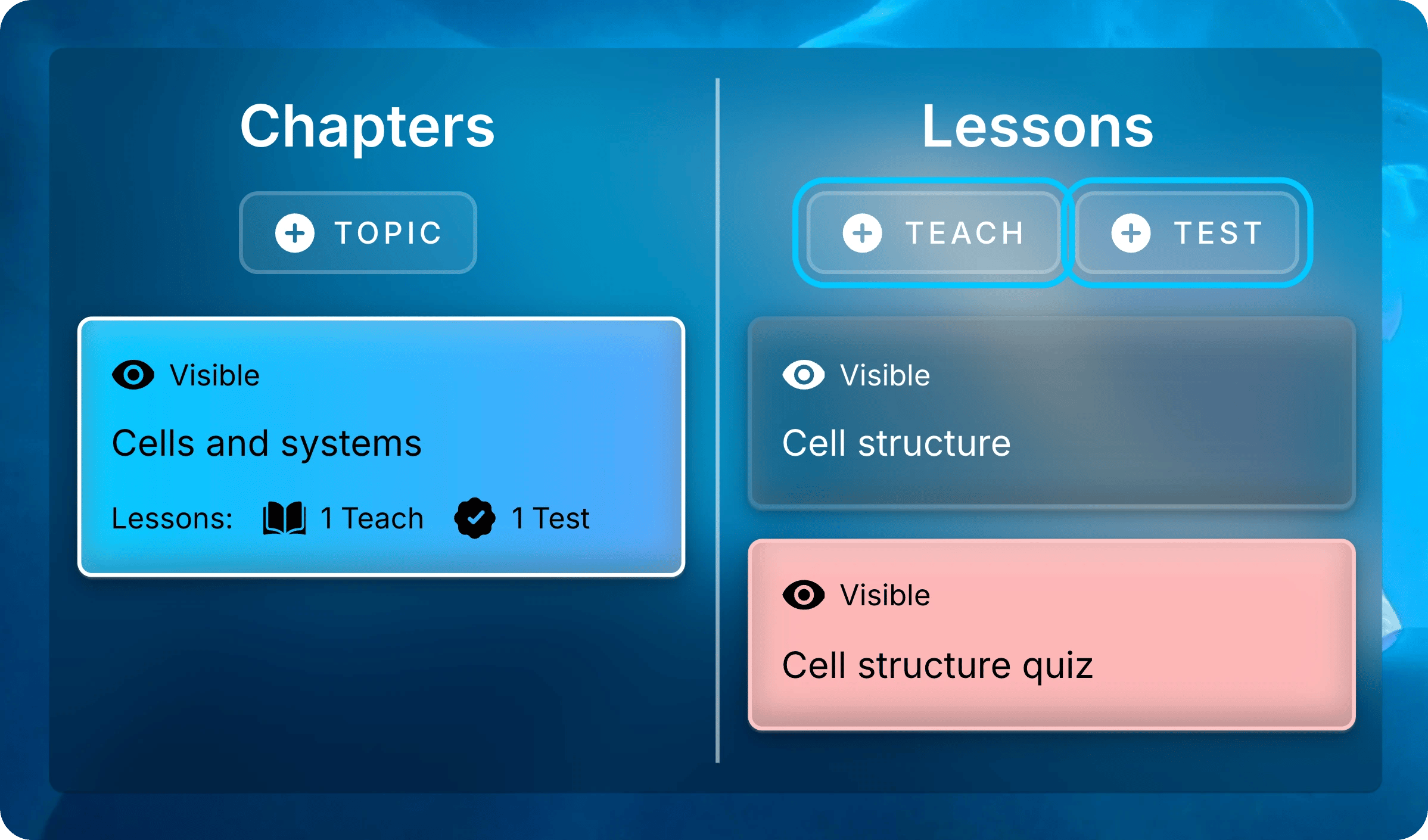
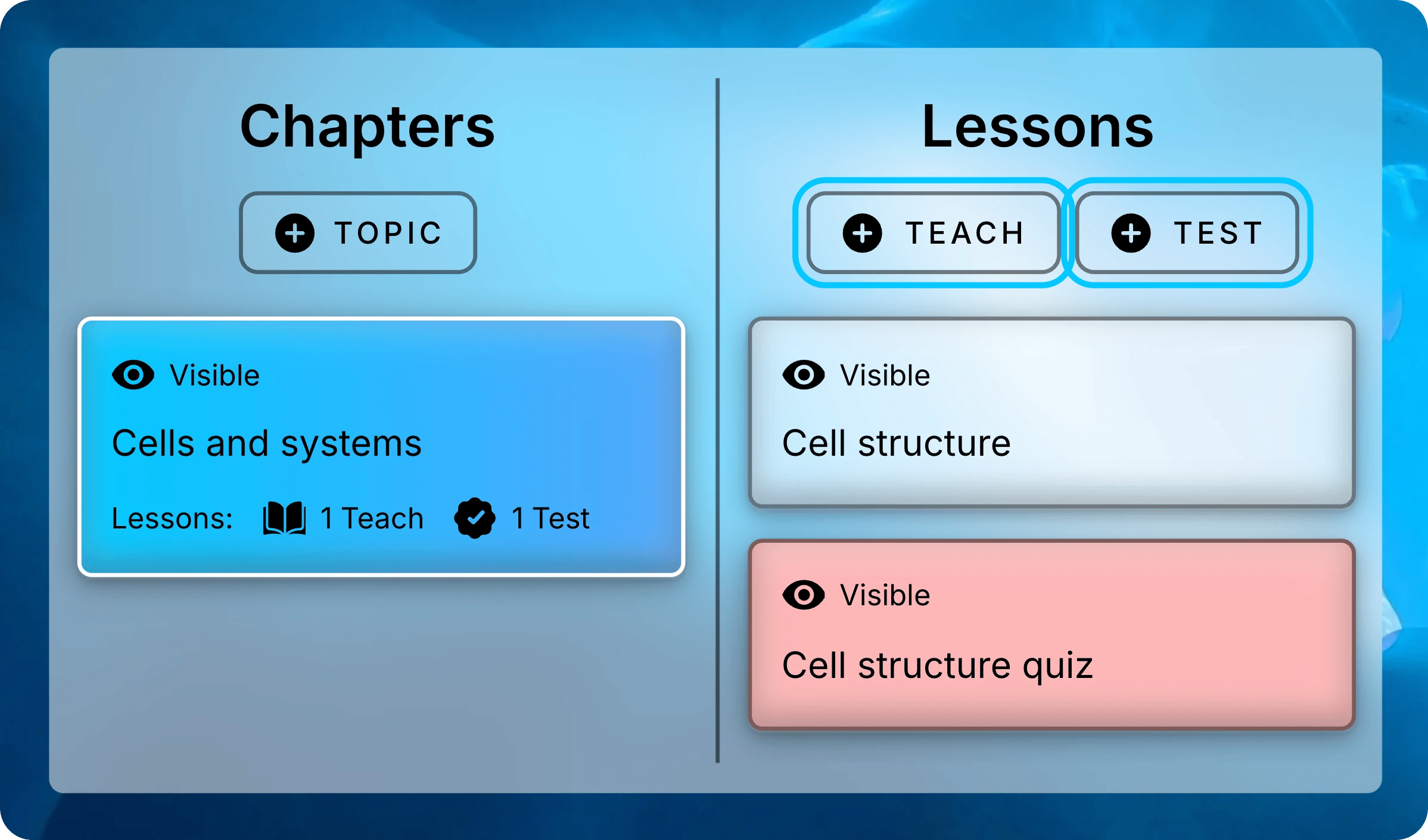
    Open your course, select a chapter, then select a button at the top of **Lessons**:

    * **Teach** for course materials, such as lecture slides and recordings.
    * **Test** for a practice assignment or a graded assessment.
    <img className="block dark:hidden" src="https://mintcdn.com/uflo/mc8jedJa_T3_qK9F/images/illustrations/screenshot/organize-create-buttons/light.webp?fit=max&auto=format&n=mc8jedJa_T3_qK9F&q=85&s=86bf55d51b40dc06870880fc3c903c77" alt="Chapters and Lessons panels with Cells and systems selected, and the Teach and Test buttons above the lessons highlighted." width="2397" height="1410" data-path="images/illustrations/screenshot/organize-create-buttons/light.webp" />

    <img className="hidden dark:block" src="https://mintcdn.com/uflo/mc8jedJa_T3_qK9F/images/illustrations/screenshot/organize-create-buttons/dark.webp?fit=max&auto=format&n=mc8jedJa_T3_qK9F&q=85&s=2c23ca3e5d27ea878389611edb324e22" alt="Chapters and Lessons panels with Cells and systems selected, and the Teach and Test buttons above the lessons highlighted." width="2397" height="1410" data-path="images/illustrations/screenshot/organize-create-buttons/dark.webp" />

    <p className="text-center text-sm text-gray-600 dark:text-gray-400">Select a chapter, then choose Teach or Test to add a lesson to it.</p>
  </Step>

  <Step title="Fill In the Form">
    <Tabs>
      <Tab title="Teach" icon="chalkboard-user">
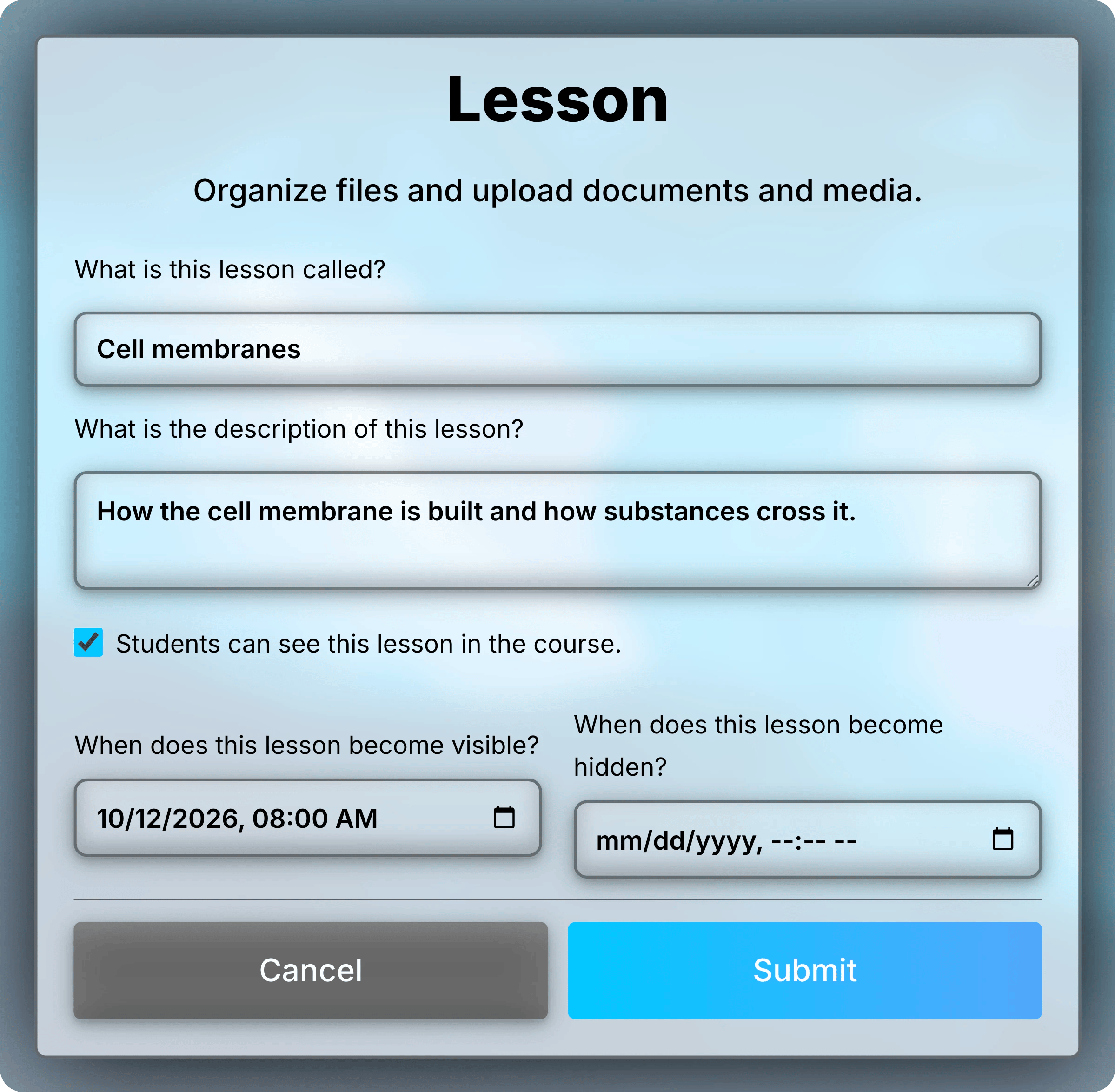
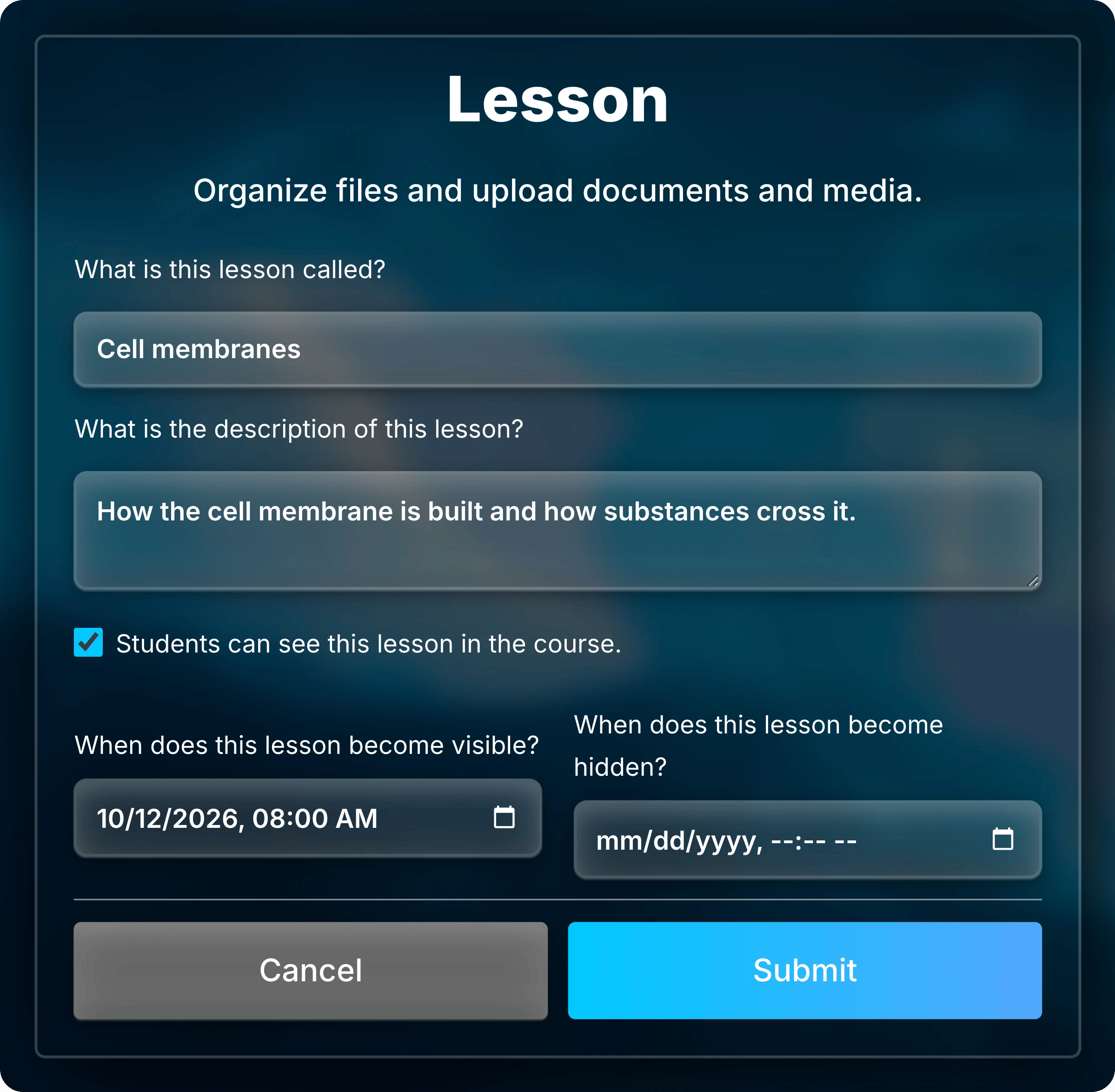
        Enter the lesson's title. A description is optional.
        To hide it from students for now, uncheck **Students can see this lesson in the course.** Then select **Submit**.
        <img className="block dark:hidden mx-auto" style={{ maxWidth: "520px" }} src="https://mintcdn.com/uflo/mc8jedJa_T3_qK9F/images/illustrations/screenshot/organize-lesson-form/light.webp?fit=max&auto=format&n=mc8jedJa_T3_qK9F&q=85&s=38f9281754e61570032906eb3528d047" alt="Lesson form for Cell membranes with a description, the visibility checkbox selected, and October 12, 2026 at 8:00 AM as the date the lesson becomes visible." width="2398" height="2348" data-path="images/illustrations/screenshot/organize-lesson-form/light.webp" />

        <img className="hidden dark:block mx-auto" style={{ maxWidth: "520px" }} src="https://mintcdn.com/uflo/mc8jedJa_T3_qK9F/images/illustrations/screenshot/organize-lesson-form/dark.webp?fit=max&auto=format&n=mc8jedJa_T3_qK9F&q=85&s=b3d1245893b34f3fdcf4b81f4bd45d4d" alt="Lesson form for Cell membranes with a description, the visibility checkbox selected, and October 12, 2026 at 8:00 AM as the date the lesson becomes visible." width="2398" height="2348" data-path="images/illustrations/screenshot/organize-lesson-form/dark.webp" />

        <p className="text-center text-sm text-gray-600 dark:text-gray-400">A lesson's dates limit when students can open it.</p>
      </Tab>

      <Tab title="Test" icon="clipboard-check">
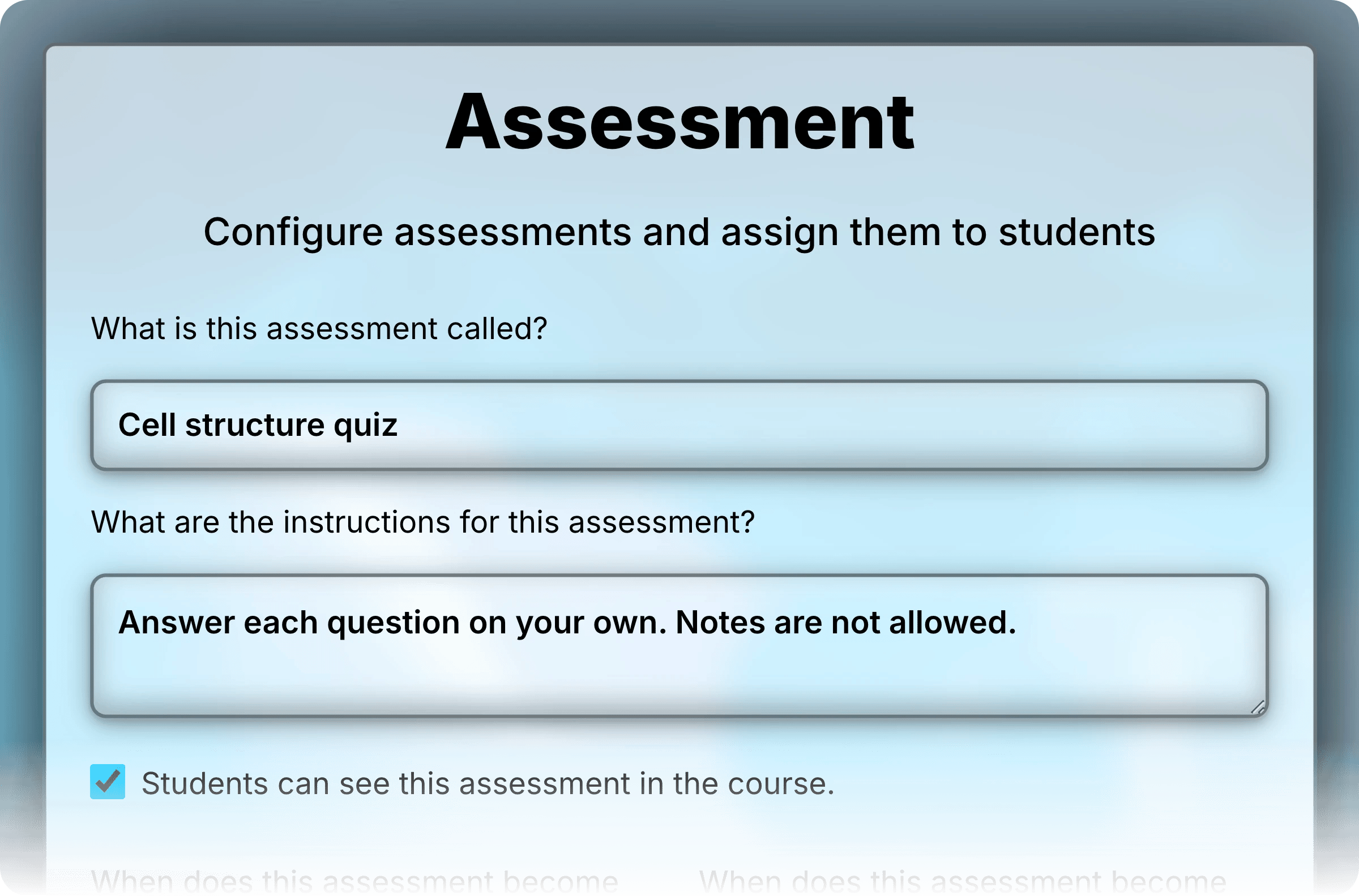
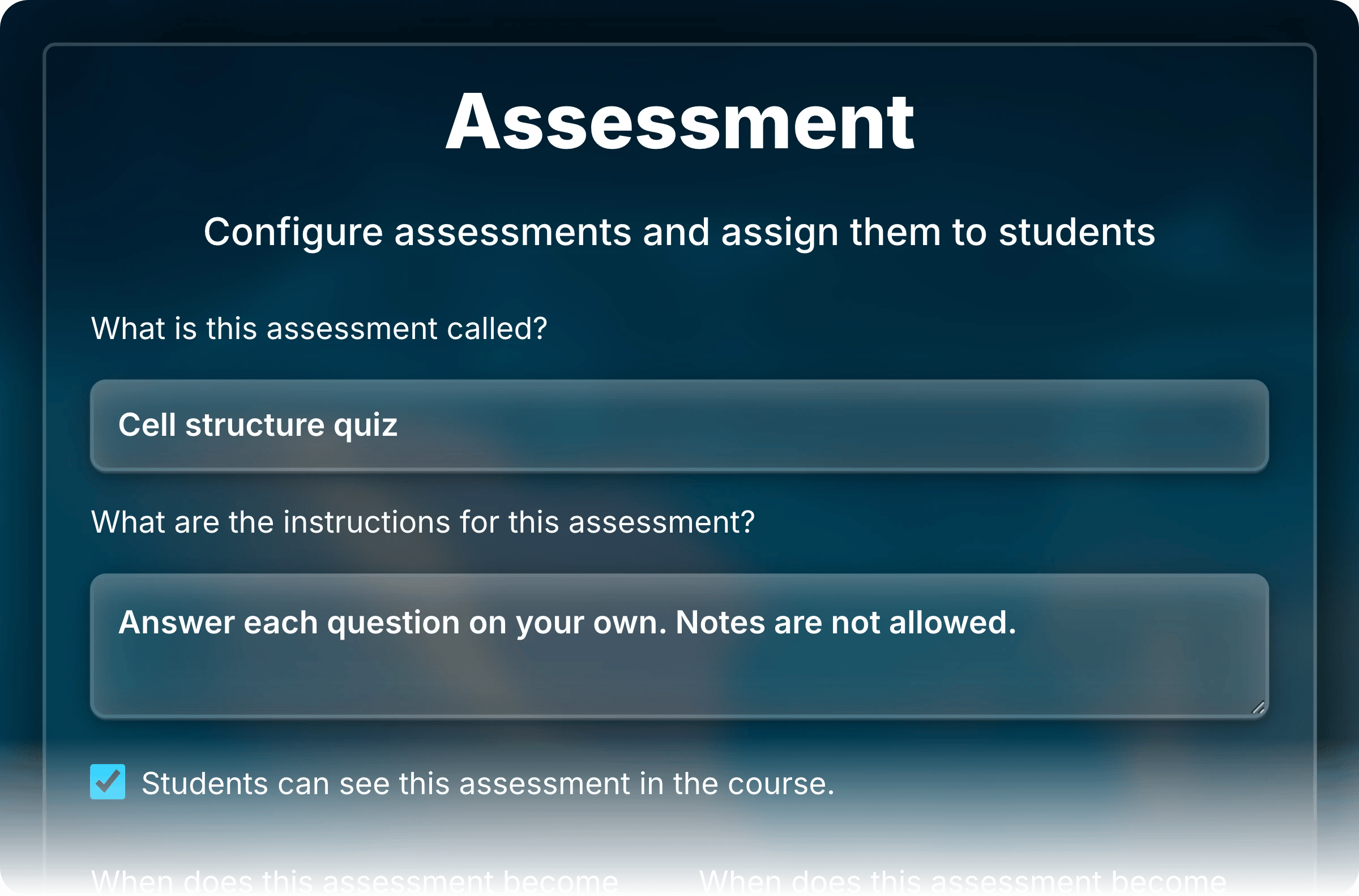
        **Test** opens the **Assessment** form, with instructions, points, and [settings](/instructors/assessments/assessment-settings).
        <img className="block dark:hidden mx-auto" style={{ maxWidth: "520px" }} src="https://mintcdn.com/uflo/mc8jedJa_T3_qK9F/images/illustrations/screenshot/organize-assessment-form/light.webp?fit=max&auto=format&n=mc8jedJa_T3_qK9F&q=85&s=c586703bcbb11fb16a92483dae5b33cc" alt="Top of the Assessment form for Cell structure quiz, with its name and instructions fields and the visibility checkbox selected." width="2400" height="1583" data-path="images/illustrations/screenshot/organize-assessment-form/light.webp" />

        <img className="hidden dark:block mx-auto" style={{ maxWidth: "520px" }} src="https://mintcdn.com/uflo/mc8jedJa_T3_qK9F/images/illustrations/screenshot/organize-assessment-form/dark.webp?fit=max&auto=format&n=mc8jedJa_T3_qK9F&q=85&s=6be16df1152b545b245d4d18918c4156" alt="Top of the Assessment form for Cell structure quiz, with its name and instructions fields and the visibility checkbox selected." width="2400" height="1583" data-path="images/illustrations/screenshot/organize-assessment-form/dark.webp" />

        <p className="text-center text-sm text-gray-600 dark:text-gray-400">Test opens the Assessment form.</p>
      </Tab>
    </Tabs>
  </Step>
</Steps>

## Control What Students See

Teachers always see every lesson. Two settings decide what students see:

* **Visibility** hides a lesson from students completely.
* **Availability** controls when students can open it.

<Tabs>
  <Tab title="Hide" icon="eye-slash">
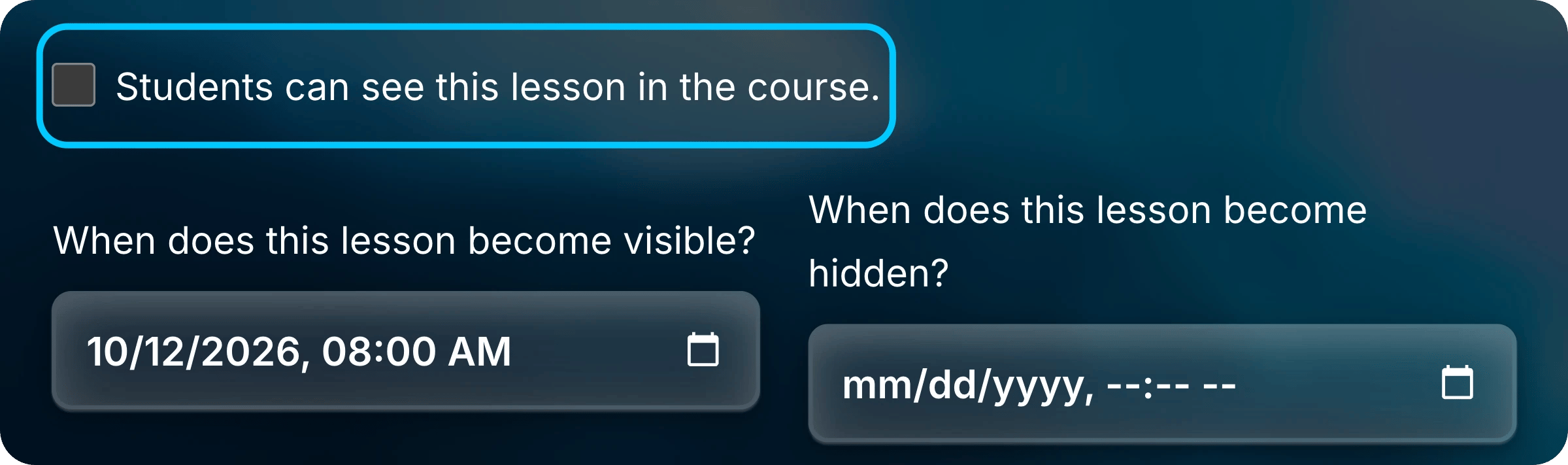
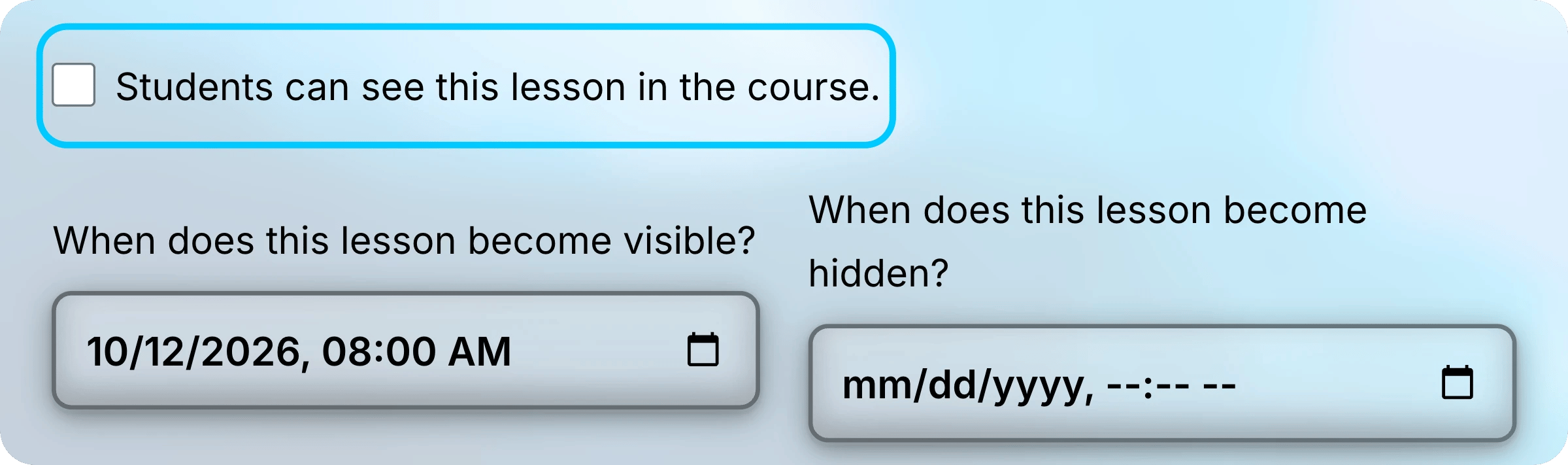
    Right-click the lesson and select **Update**. Uncheck the visibility box, then **Submit**.
    <img className="block dark:hidden mx-auto" src="https://mintcdn.com/uflo/mc8jedJa_T3_qK9F/images/illustrations/screenshot/organize-lesson-visibility/light.webp?fit=max&auto=format&n=mc8jedJa_T3_qK9F&q=85&s=eb8f795b2298017dea1146e73606da24" alt="Visibility checkbox of the Cell membranes lesson form, unchecked and highlighted, above the two date fields, with October 12, 2026 at 8:00 AM as the date it becomes visible." width="2399" height="711" data-path="images/illustrations/screenshot/organize-lesson-visibility/light.webp" />

    <img className="hidden dark:block mx-auto" src="https://mintcdn.com/uflo/mc8jedJa_T3_qK9F/images/illustrations/screenshot/organize-lesson-visibility/dark.webp?fit=max&auto=format&n=mc8jedJa_T3_qK9F&q=85&s=65bf4c5b1a3c996861ac867241398bd8" alt="Visibility checkbox of the Cell membranes lesson form, unchecked and highlighted, above the two date fields, with October 12, 2026 at 8:00 AM as the date it becomes visible." width="2399" height="711" data-path="images/illustrations/screenshot/organize-lesson-visibility/dark.webp" />

    <p className="text-center text-sm text-gray-600 dark:text-gray-400">Uncheck the box to hide the lesson.</p>

    Check the box again to show it. A lesson in a [hidden chapter](/instructors/courses/manage-chapters#add-new-chapter) stays hidden.
  </Tab>

  <Tab title="Schedule" icon="calendar">
    Fill in either date in the lesson's form, both, or neither:

    * **When does this lesson become visible?** is when students can start opening it.
    * **When does this lesson become hidden?** is when they can no longer open it.

    Select the <Badge icon="calendar" size="md" /> icon in a field to pick a date and time.

    An assessment's due date is a separate setting in [Assessment Settings](/instructors/assessments/assessment-settings#due-date-and-lesson-dates).
  </Tab>
</Tabs>

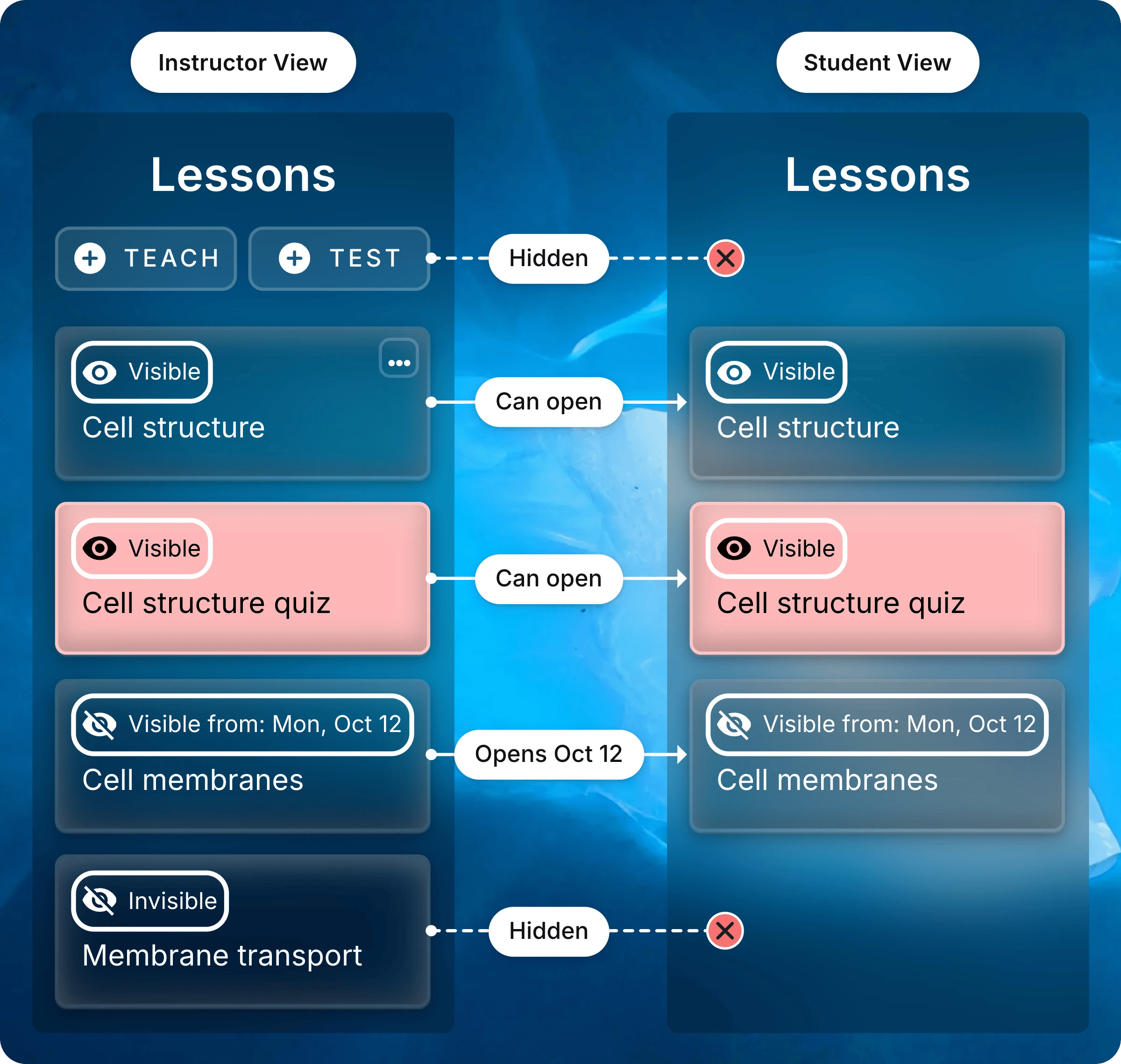
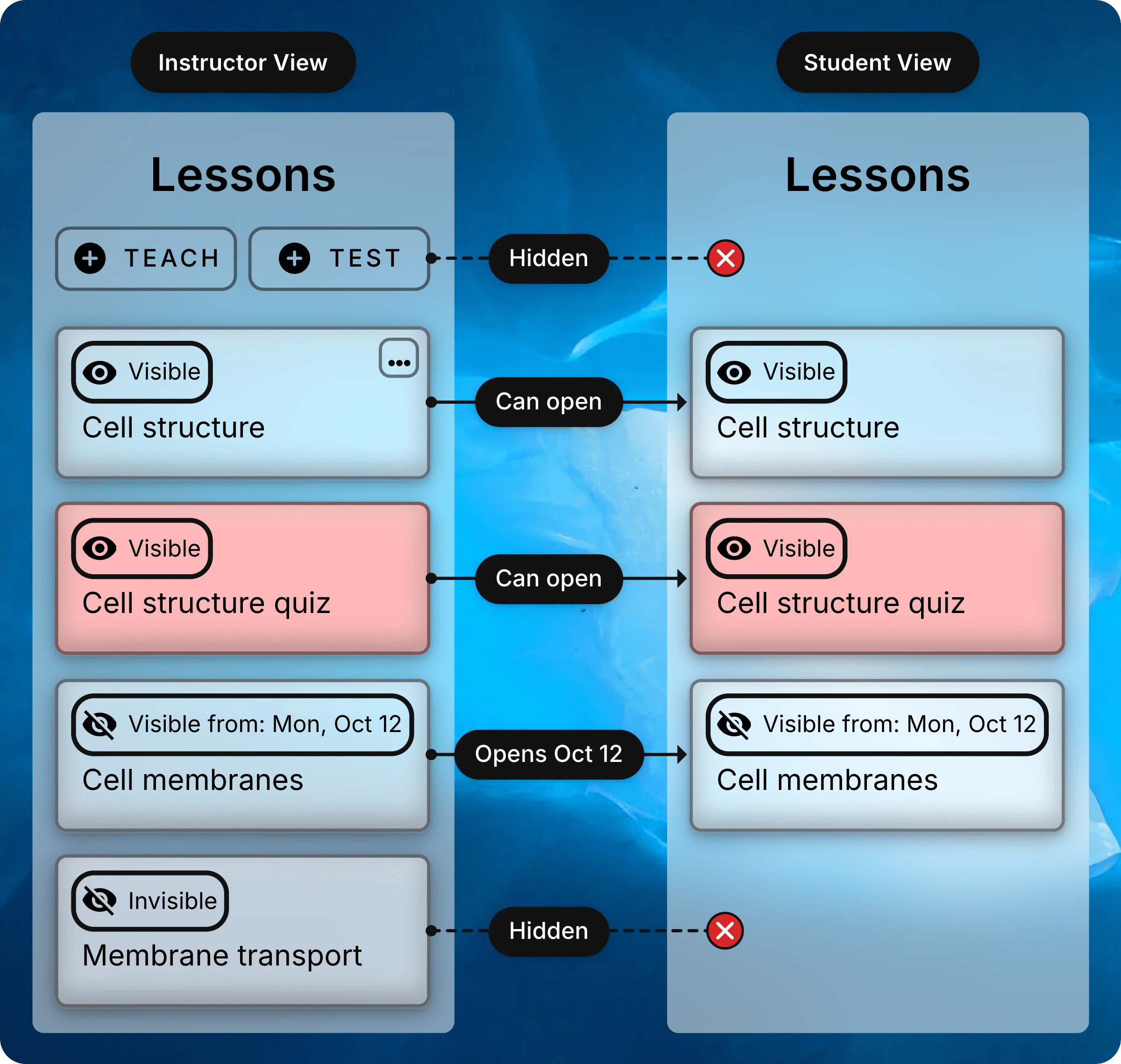
Each lesson shows a label with its current state.

| Label                                        | What students get                  |
| -------------------------------------------- | ---------------------------------- |
| **Visible**                                  | Can open it at any time.           |
| **Invisible**                                | Don't see it.                      |
| **Visible from: Mon, Oct 12**                | Can open it from that date.        |
| **Visible until: Sat, Oct 10**               | Can't open it after that date.     |
| **Visible from Mon, Oct 5 - To Sat, Oct 10** | Can open it between the two dates. |

<Note>
  A crossed-out eye means students can't open the lesson right now.
</Note>

<img className="block dark:hidden" src="https://mintcdn.com/uflo/mc8jedJa_T3_qK9F/images/illustrations/screenshot/instructors-visibility-mapping/light.webp?fit=max&auto=format&n=mc8jedJa_T3_qK9F&q=85&s=161bd9ed7f7443e50ae0309749d50125" alt="An instructor's Lessons list beside a student's, which has no Teach or Test buttons. Lines link each lesson's visibility label to what students get: Cell structure and Cell structure quiz can be opened, Cell membranes opens Oct 12, and Membrane transport is hidden from students." width="2400" height="2279" data-path="images/illustrations/screenshot/instructors-visibility-mapping/light.webp" />

<img className="hidden dark:block" src="https://mintcdn.com/uflo/mc8jedJa_T3_qK9F/images/illustrations/screenshot/instructors-visibility-mapping/dark.webp?fit=max&auto=format&n=mc8jedJa_T3_qK9F&q=85&s=ee581679aca97997642b2876efd78966" alt="An instructor's Lessons list beside a student's, which has no Teach or Test buttons. Lines link each lesson's visibility label to what students get: Cell structure and Cell structure quiz can be opened, Cell membranes opens Oct 12, and Membrane transport is hidden from students." width="2400" height="2279" data-path="images/illustrations/screenshot/instructors-visibility-mapping/dark.webp" />

<p className="text-center text-sm text-gray-600 dark:text-gray-400">Each label, and what students get.</p>

## Reorder, Move, Duplicate, and Delete

Right-click a lesson to open its menu, or press and hold it on a touch screen.

<Tabs>
  <Tab title="Order" icon="sort">
    <Steps>
      <Step title="Select Order">
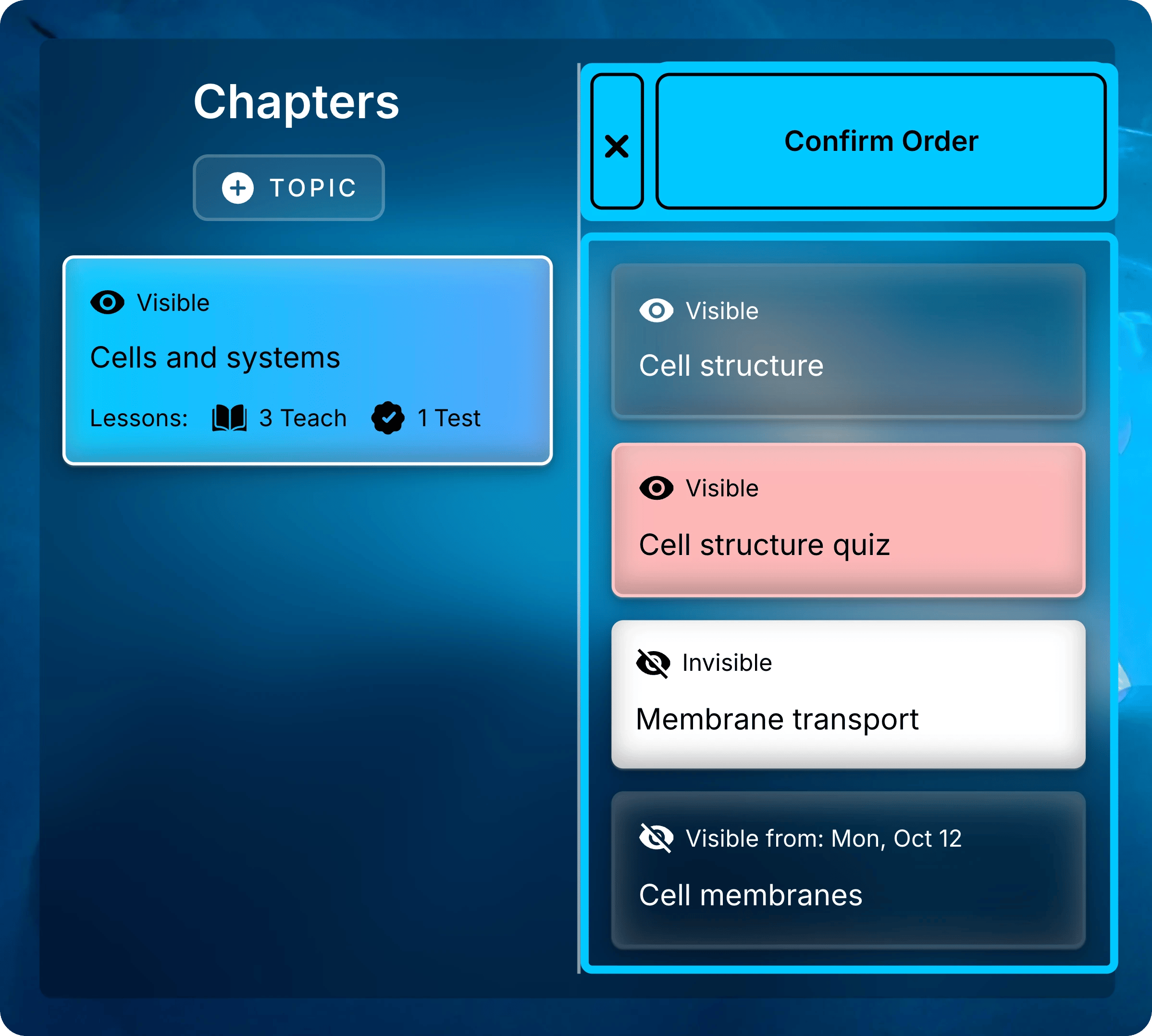
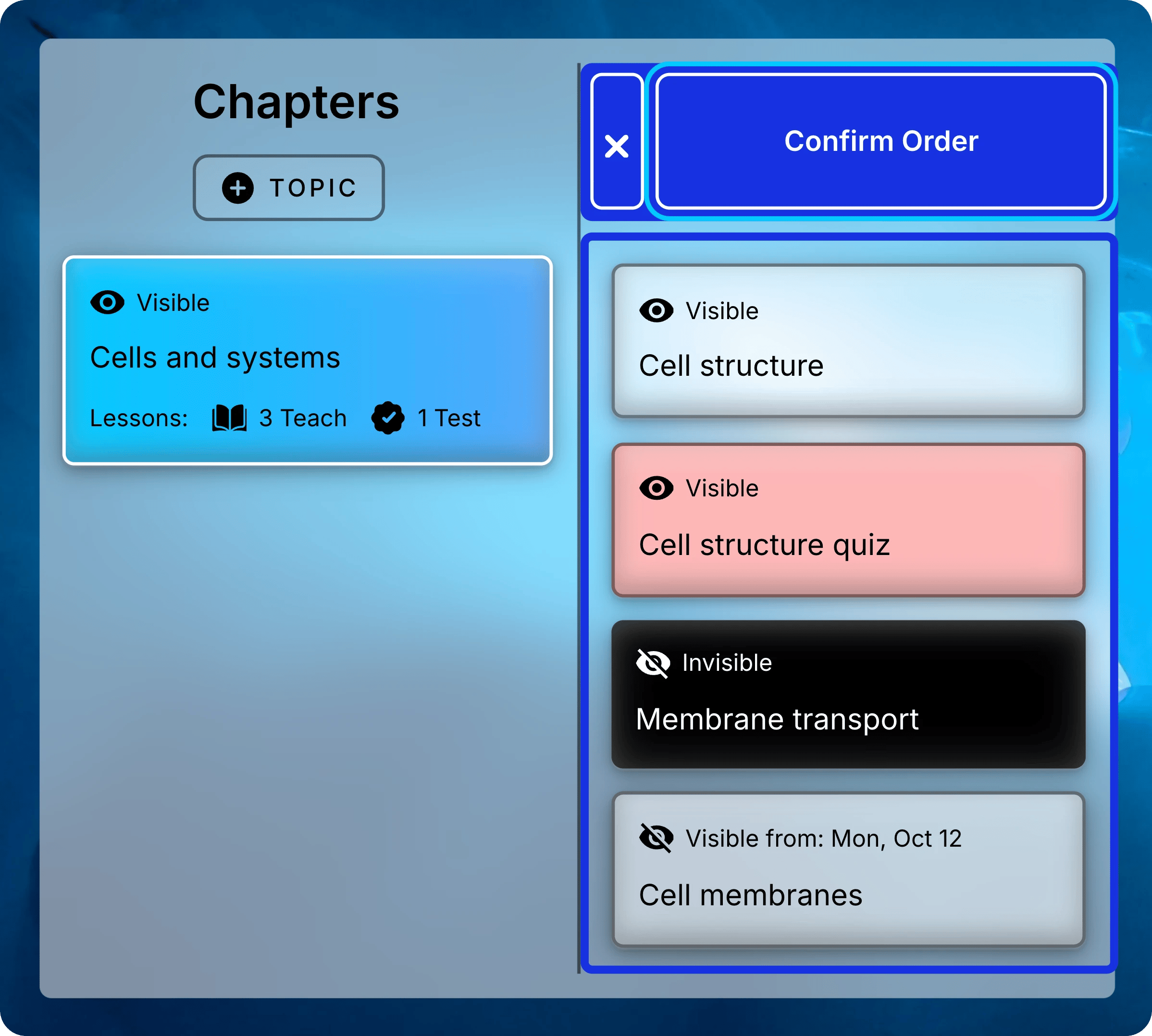
        Right-click any lesson in the chapter and select **Order**.
      </Step>

      <Step title="Drag Lessons Into Place">
        Drag each lesson to its new position.
      </Step>

      <Step title="Save the Order">
        Select **Confirm Order** at the top of the list. Students see the new order.
        To stop without saving, select the **X** beside **Confirm Order**.
        <img className="block dark:hidden mx-auto" style={{ maxWidth: "560px" }} src="https://mintcdn.com/uflo/mc8jedJa_T3_qK9F/images/illustrations/screenshot/organize-order-mode/light.webp?fit=max&auto=format&n=mc8jedJa_T3_qK9F&q=85&s=abee11f16efbefe13c91755033a6357e" alt="Lessons list in order mode with Confirm Order at the top and Membrane transport dragged above Cell membranes." width="2397" height="2156" data-path="images/illustrations/screenshot/organize-order-mode/light.webp" />

        <img className="hidden dark:block mx-auto" style={{ maxWidth: "560px" }} src="https://mintcdn.com/uflo/mc8jedJa_T3_qK9F/images/illustrations/screenshot/organize-order-mode/dark.webp?fit=max&auto=format&n=mc8jedJa_T3_qK9F&q=85&s=030591f95435c1482c0fbb4b850b0b3a" alt="Lessons list in order mode with Confirm Order at the top and Membrane transport dragged above Cell membranes." width="2397" height="2156" data-path="images/illustrations/screenshot/organize-order-mode/dark.webp" />

        <p className="text-center text-sm text-gray-600 dark:text-gray-400">Drag lessons into place, then select Confirm Order.</p>
      </Step>
    </Steps>
  </Tab>

  <Tab title="Move" icon="arrows-up-down-left-right">
    <Steps>
      <Step title="Select Move">
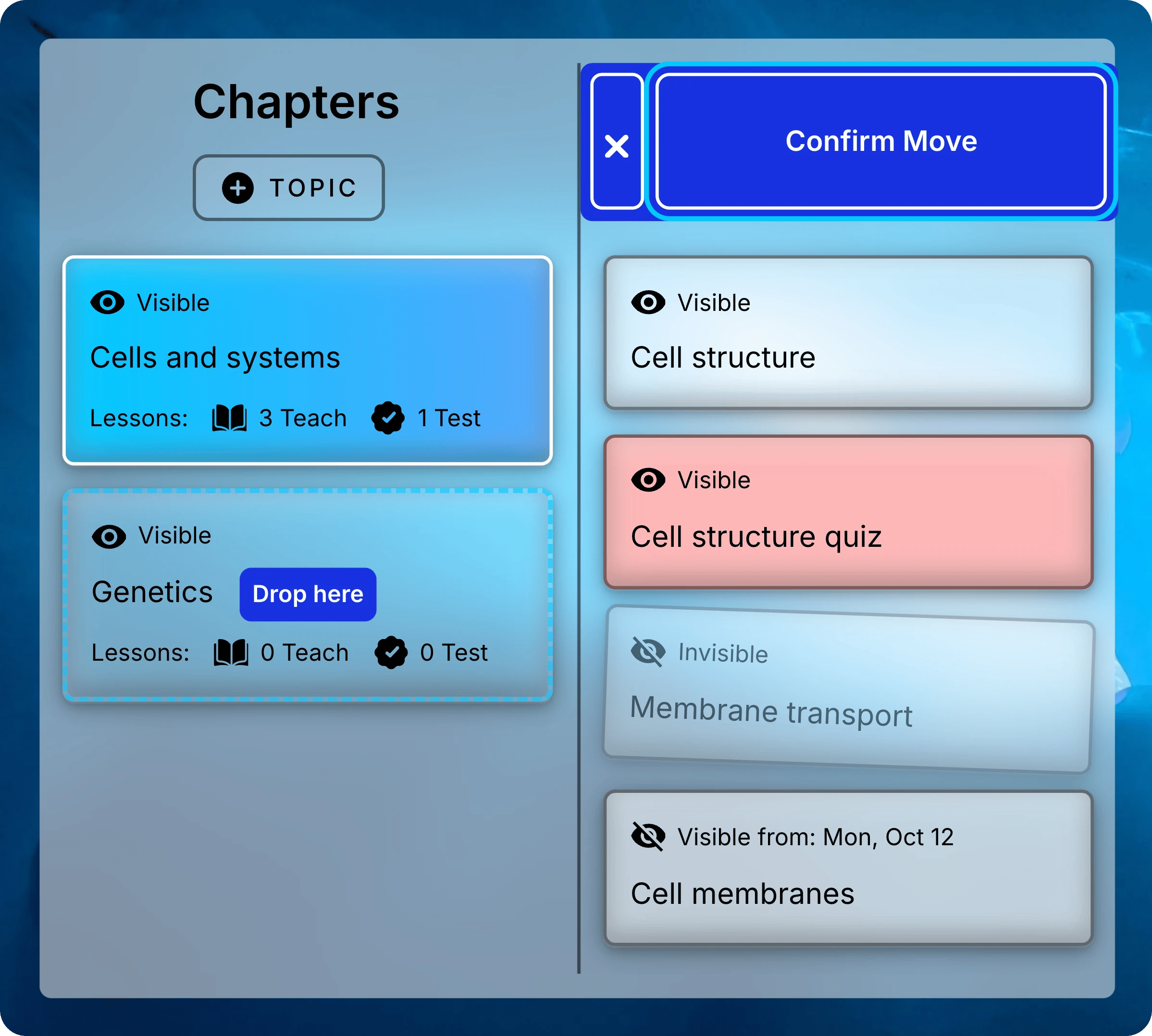
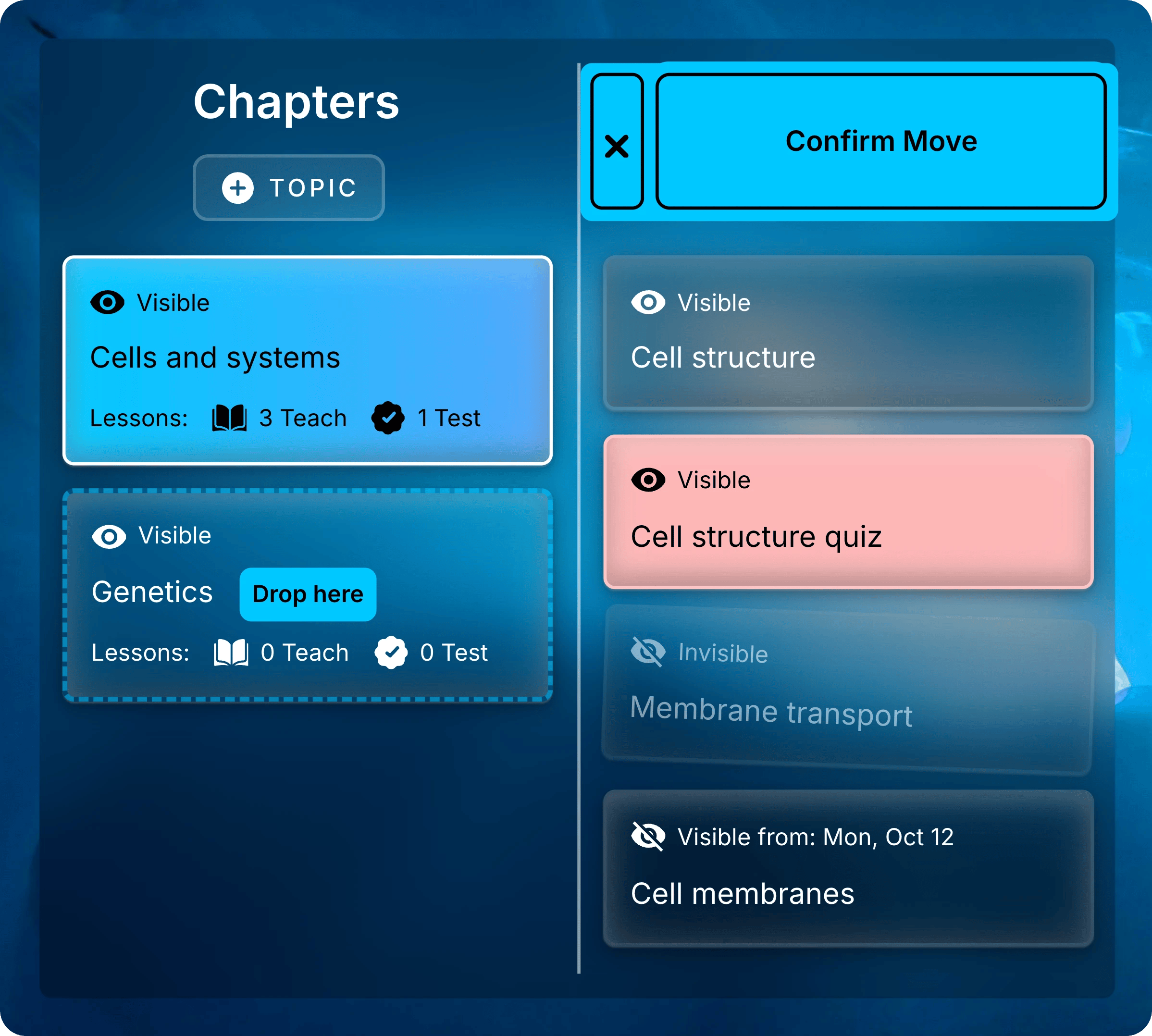
        Right-click a lesson and select **Move**.
      </Step>

      <Step title="Drag Lessons to a Chapter">
        Drag a lesson onto a chapter under **Chapters**. Uflo moves it as soon as you drop it. Repeat for other lessons in the chapter.
        <img className="block dark:hidden mx-auto" style={{ maxWidth: "560px" }} src="https://mintcdn.com/uflo/mc8jedJa_T3_qK9F/images/illustrations/screenshot/organize-move-mode/light.webp?fit=max&auto=format&n=mc8jedJa_T3_qK9F&q=85&s=7a844a0756db366c066363a8a495fa58" alt="Membrane transport being dragged from the Lessons list onto the Genetics chapter, which shows Drop here, with Confirm Move at the top of the Lessons list." width="2397" height="2156" data-path="images/illustrations/screenshot/organize-move-mode/light.webp" />

        <img className="hidden dark:block mx-auto" style={{ maxWidth: "560px" }} src="https://mintcdn.com/uflo/mc8jedJa_T3_qK9F/images/illustrations/screenshot/organize-move-mode/dark.webp?fit=max&auto=format&n=mc8jedJa_T3_qK9F&q=85&s=aafbba88ec1dcae49b242d755090530f" alt="Membrane transport being dragged from the Lessons list onto the Genetics chapter, which shows Drop here, with Confirm Move at the top of the Lessons list." width="2397" height="2156" data-path="images/illustrations/screenshot/organize-move-mode/dark.webp" />

        <p className="text-center text-sm text-gray-600 dark:text-gray-400">Drop a lesson on a chapter to move it there.</p>
      </Step>

      <Step title="Finish Moving">
        Select **Confirm Move** to leave move mode.
      </Step>
    </Steps>
  </Tab>

  <Tab title="Duplicate" icon="copy">
    Select **Duplicate**, then **Submit** to confirm.

    The copy includes its files, learning objectives, and settings. It keeps the original name, so make sure to update the copy's title.

    <Note>
      Students' submissions and per-student exceptions aren't copied.
    </Note>
  </Tab>

  <Tab title="Delete" icon="trash">
    <Danger>
      Deleting can't be undone. It also deletes everything in the lesson.
    </Danger>

    Select **Delete**, then **Submit** to confirm.

    To take a lesson away from students without losing it, [hide it](#control-what-students-see) instead.
  </Tab>
</Tabs>

## Common Questions

<AccordionGroup>
  <Accordion title="Can I copy lessons into another course?">
    Not yourself. Duplicate and Move work only within one course.
    Select **Support** in the sidebar and tell the team which content to copy and into which course.
  </Accordion>

  <Accordion title="Why can't a student open a lesson?">
    Check three things in the lesson's form and its chapter's form:

    * The chapter is visible.
    * The lesson is visible.
    * The current time falls between the lesson's dates. Either may be blank.

    Students see the dates too. [Navigate a Course](/students/getting-started/navigating-a-course#understand-content-availability) shows what they see.
  </Accordion>
</AccordionGroup>

## Fill Your Lessons

<Card title="Manage Files" icon="cloud-arrow-up" href="/instructors/courses/manage-files">
  Upload slides, readings, and recordings to a Teach lesson.
</Card>

<Card title="Manage Objectives" icon="bullseye" href="/instructors/courses/manage-objectives">
  Describe what students should learn in each lesson.
</Card>

<Card title="Assessment Settings" icon="sliders" href="/instructors/assessments/assessment-settings">
  Choose how students take an assessment and how attempts become a grade.
</Card>