> ## Documentation Index
> Fetch the complete documentation index at: https://docs.uflo.io/llms.txt
> Use this file to discover all available pages before exploring further.

# Manage Files

> Upload course materials, choose their study tools, and keep them organized.

Files are what students [study in a Teach lesson](/students/learning/viewing-materials), such as slides and recordings.
Uflo turns each file into study tools, such as flashcards and practice questions.

## Upload Files

<Steps>
  <Step title="Open the Uploader">
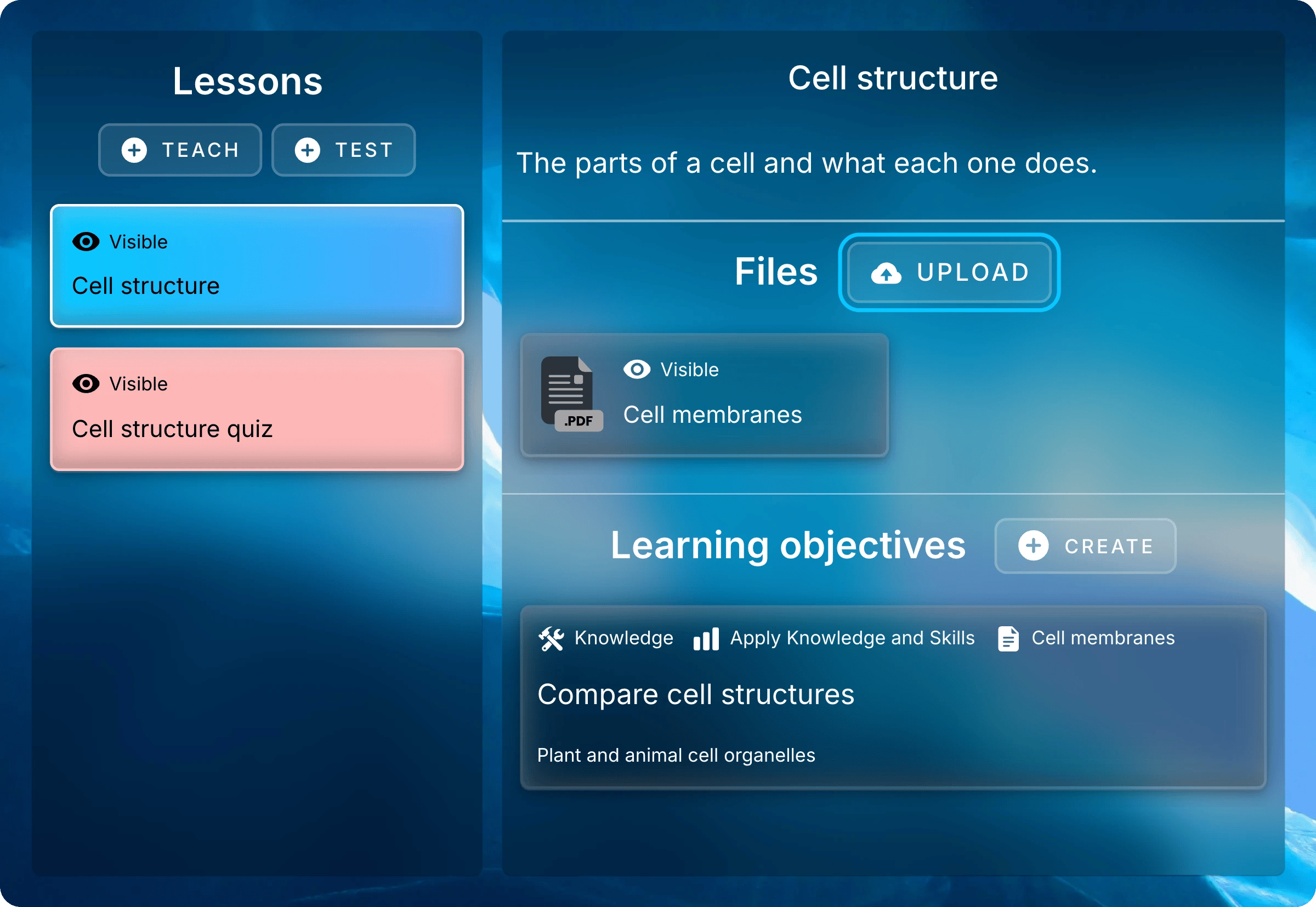
    Select a Teach lesson, then select **Upload** beside **Files**.
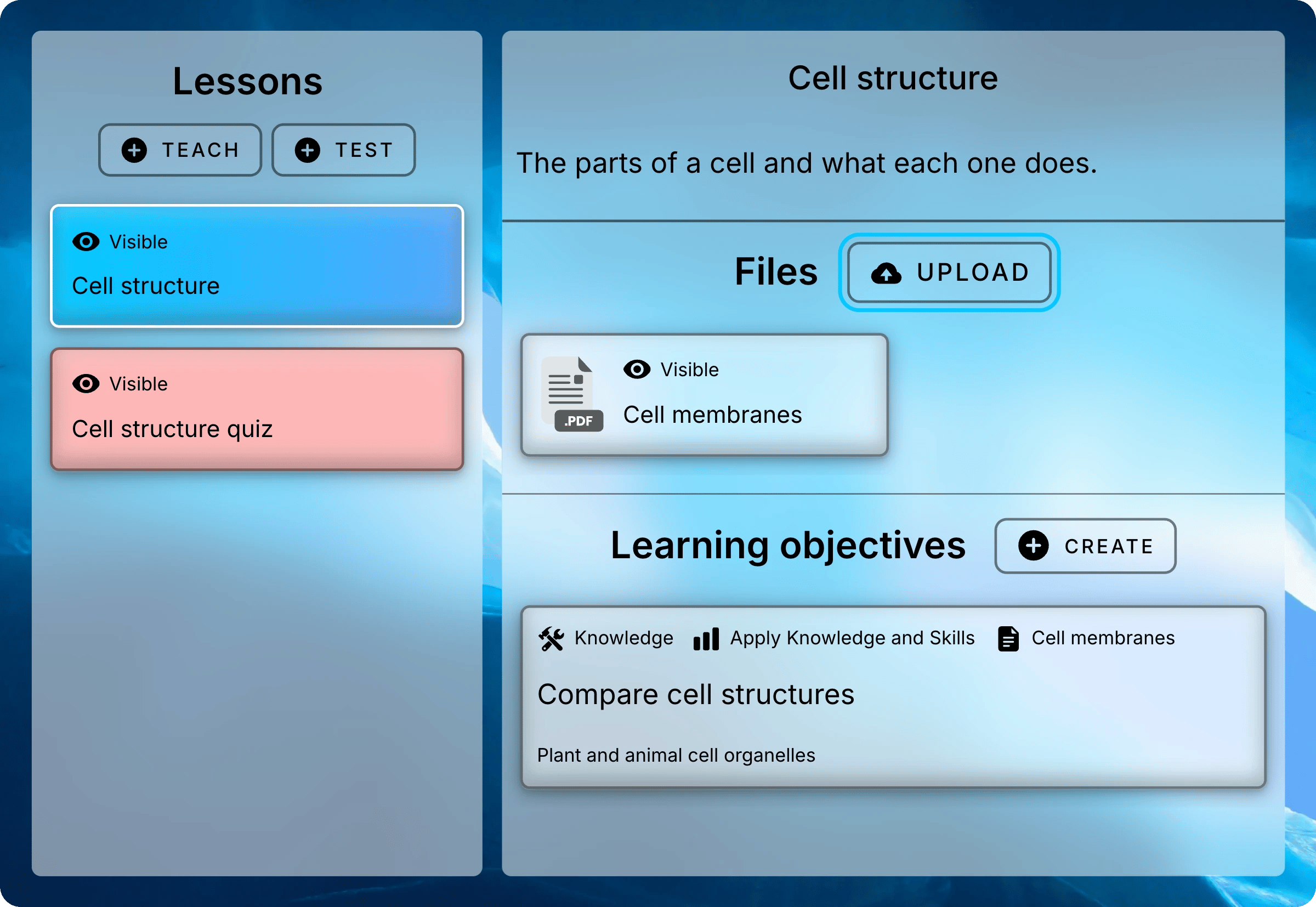
    <img className="block dark:hidden" src="https://mintcdn.com/uflo/VQy9pgOmYta557zz/images/illustrations/screenshot/add-files-lesson-upload/light.webp?fit=max&auto=format&n=VQy9pgOmYta557zz&q=85&s=1ab19cff6c0c869edbfb0fc5c5b23e83" alt="Cell structure lesson panel with the Cell membranes file listed and the Upload button beside the Files heading highlighted." width="2400" height="1654" data-path="images/illustrations/screenshot/add-files-lesson-upload/light.webp" />

    <img className="hidden dark:block" src="https://mintcdn.com/uflo/VQy9pgOmYta557zz/images/illustrations/screenshot/add-files-lesson-upload/dark.webp?fit=max&auto=format&n=VQy9pgOmYta557zz&q=85&s=0b1008fc7ccc28bbdaea246917064dc9" alt="Cell structure lesson panel with the Cell membranes file listed and the Upload button beside the Files heading highlighted." width="2400" height="1654" data-path="images/illustrations/screenshot/add-files-lesson-upload/dark.webp" />

    <p className="text-center text-sm text-gray-600 dark:text-gray-400">Upload sits beside the Files heading in a Teach lesson.</p>

    <Note>
      An empty assessment shows **Import Questions** here instead.
    </Note>
  </Step>

  <Step title="Add Your Files">
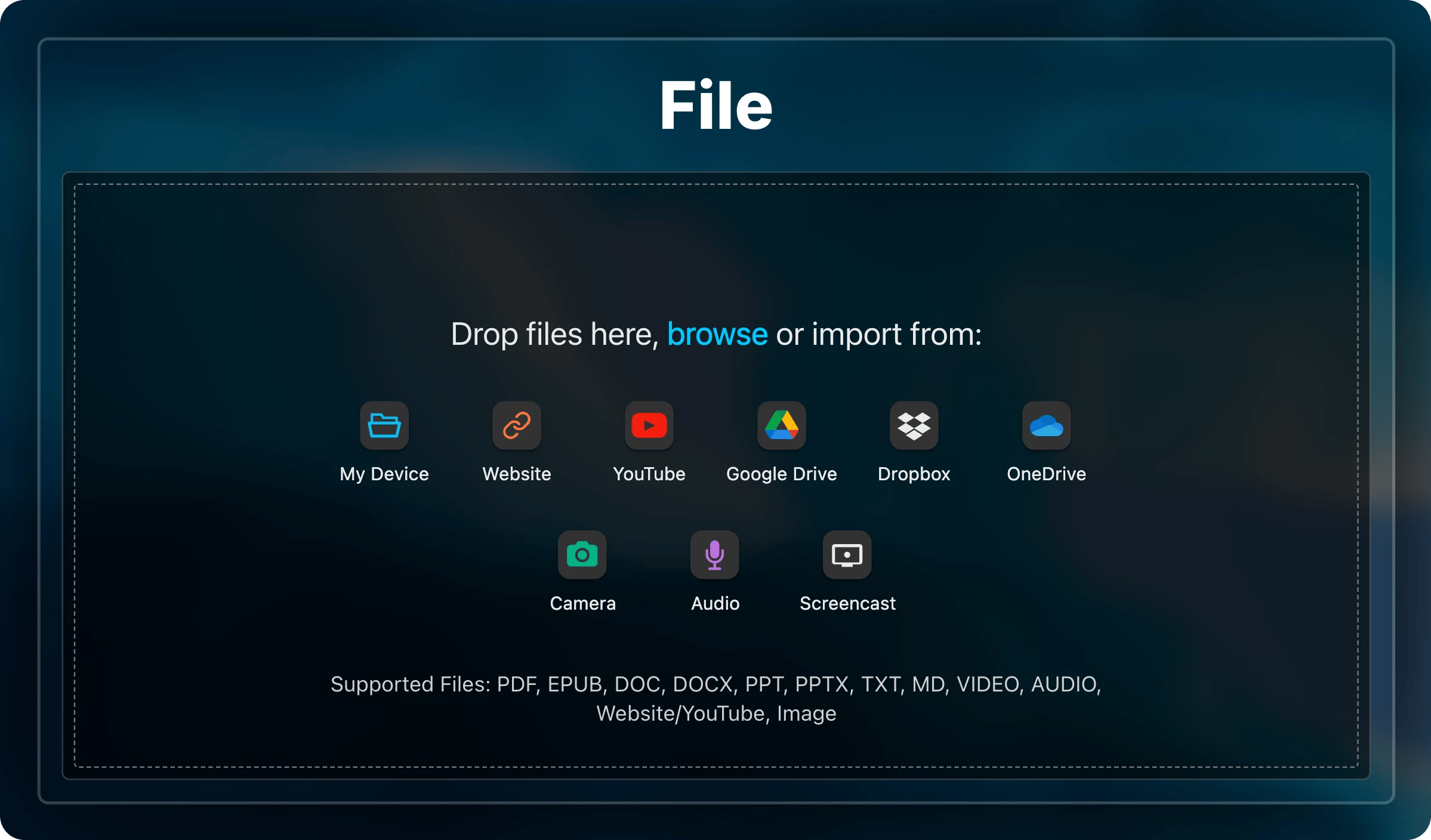
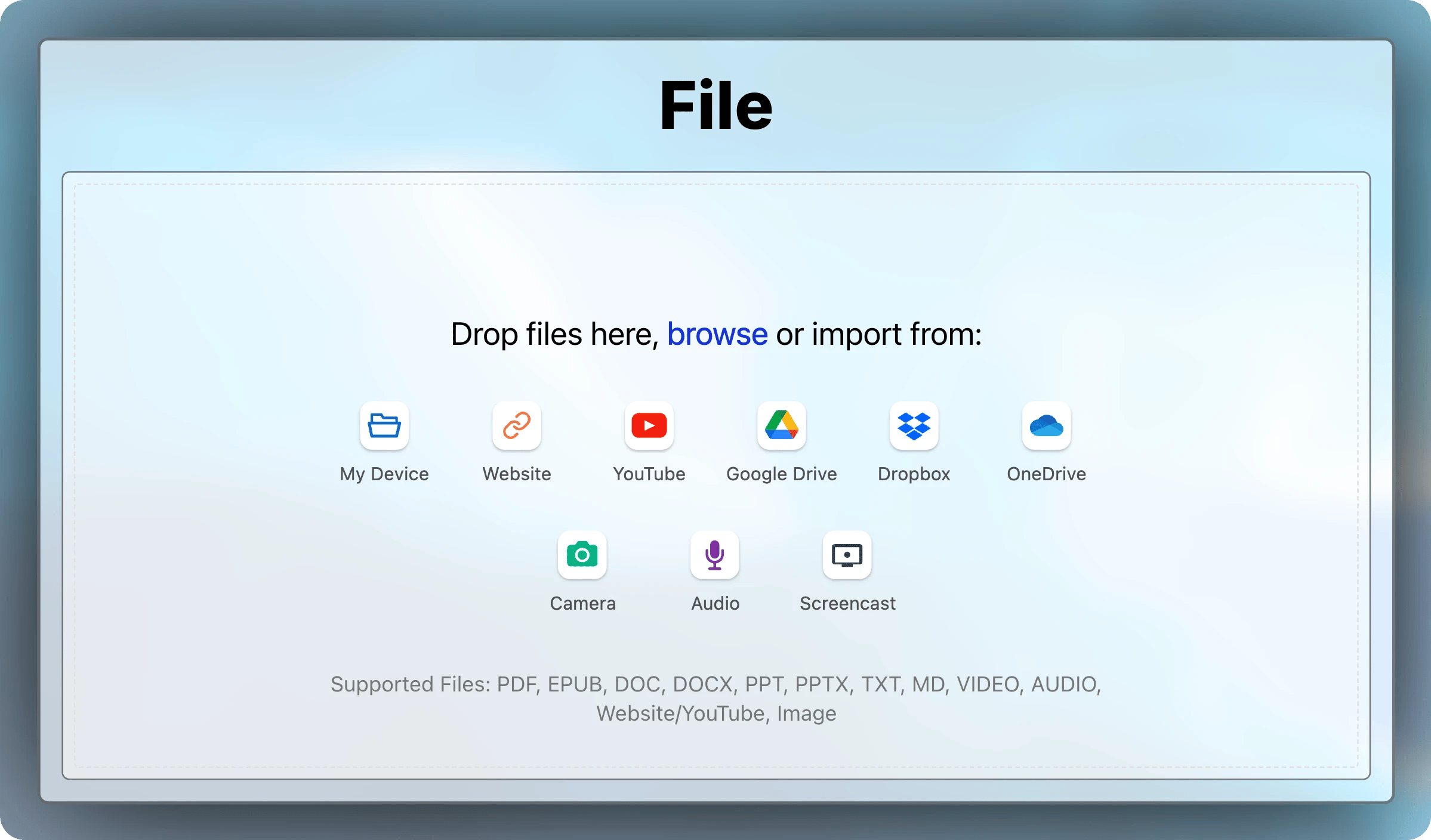
    Drag files into the box, or select a source such as your device, Google Drive, Dropbox, or OneDrive.
    For a web page or video, choose **Website** or **YouTube**, paste its link, and select **Import**.
    You can add up to 25 files at once.
    <img className="block dark:hidden mx-auto" style={{ maxWidth: "600px" }} src="https://mintcdn.com/uflo/VQy9pgOmYta557zz/images/illustrations/screenshot/add-files-uploader/light.webp?fit=max&auto=format&n=VQy9pgOmYta557zz&q=85&s=53f5ffd22fcbf3242f080516cdddf25b" alt="Empty file picker with source buttons for My Device, Website, YouTube, Google Drive, Dropbox, and OneDrive, and the list of supported files." width="2398" height="1408" data-path="images/illustrations/screenshot/add-files-uploader/light.webp" />

    <img className="hidden dark:block mx-auto" style={{ maxWidth: "600px" }} src="https://mintcdn.com/uflo/VQy9pgOmYta557zz/images/illustrations/screenshot/add-files-uploader/dark.webp?fit=max&auto=format&n=VQy9pgOmYta557zz&q=85&s=64624ee92c6e5518d01d659338bb4735" alt="Empty file picker with source buttons for My Device, Website, YouTube, Google Drive, Dropbox, and OneDrive, and the list of supported files." width="2398" height="1408" data-path="images/illustrations/screenshot/add-files-uploader/dark.webp" />

    <p className="text-center text-sm text-gray-600 dark:text-gray-400">Drop files in, or pick a source.</p>

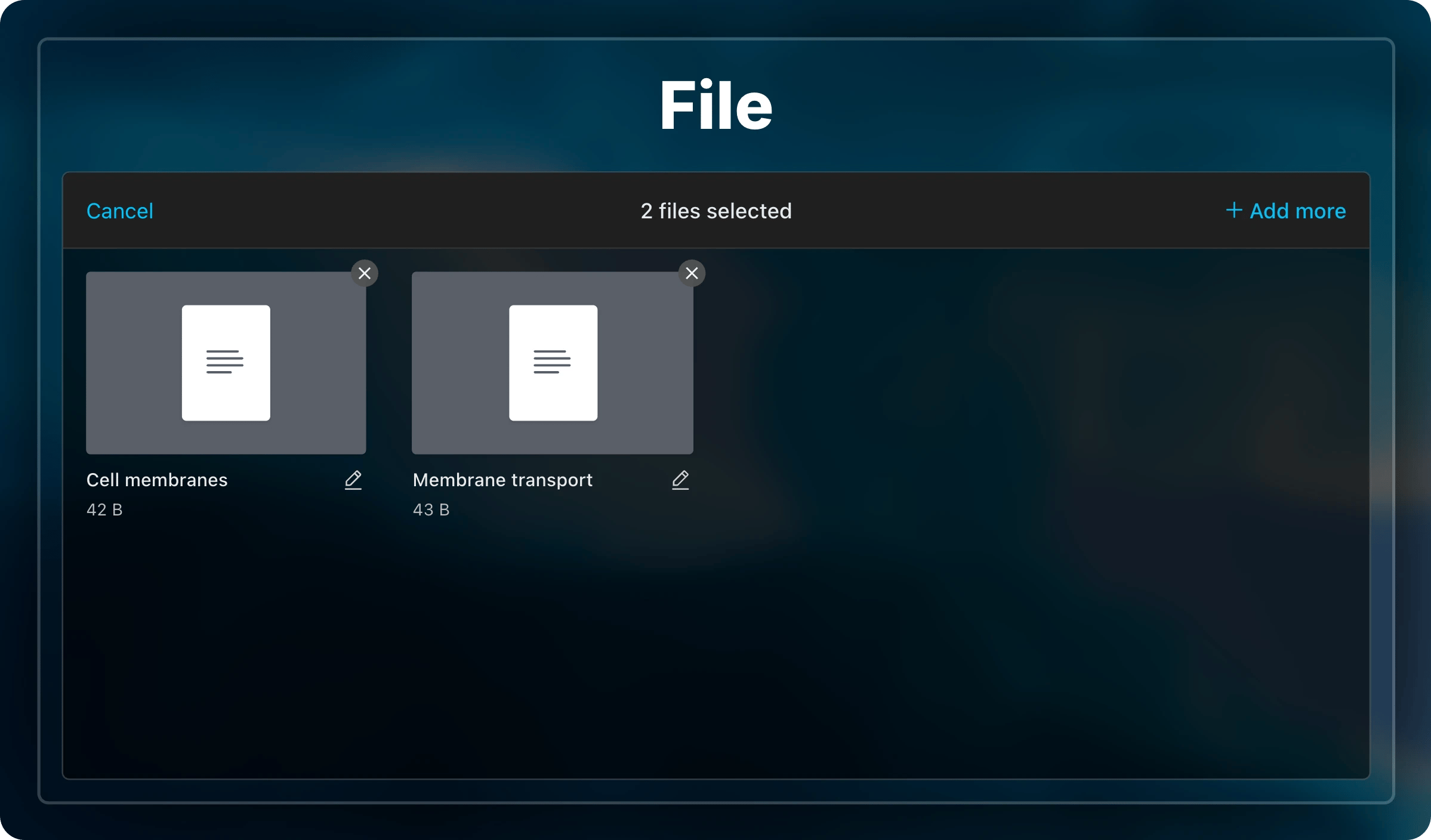
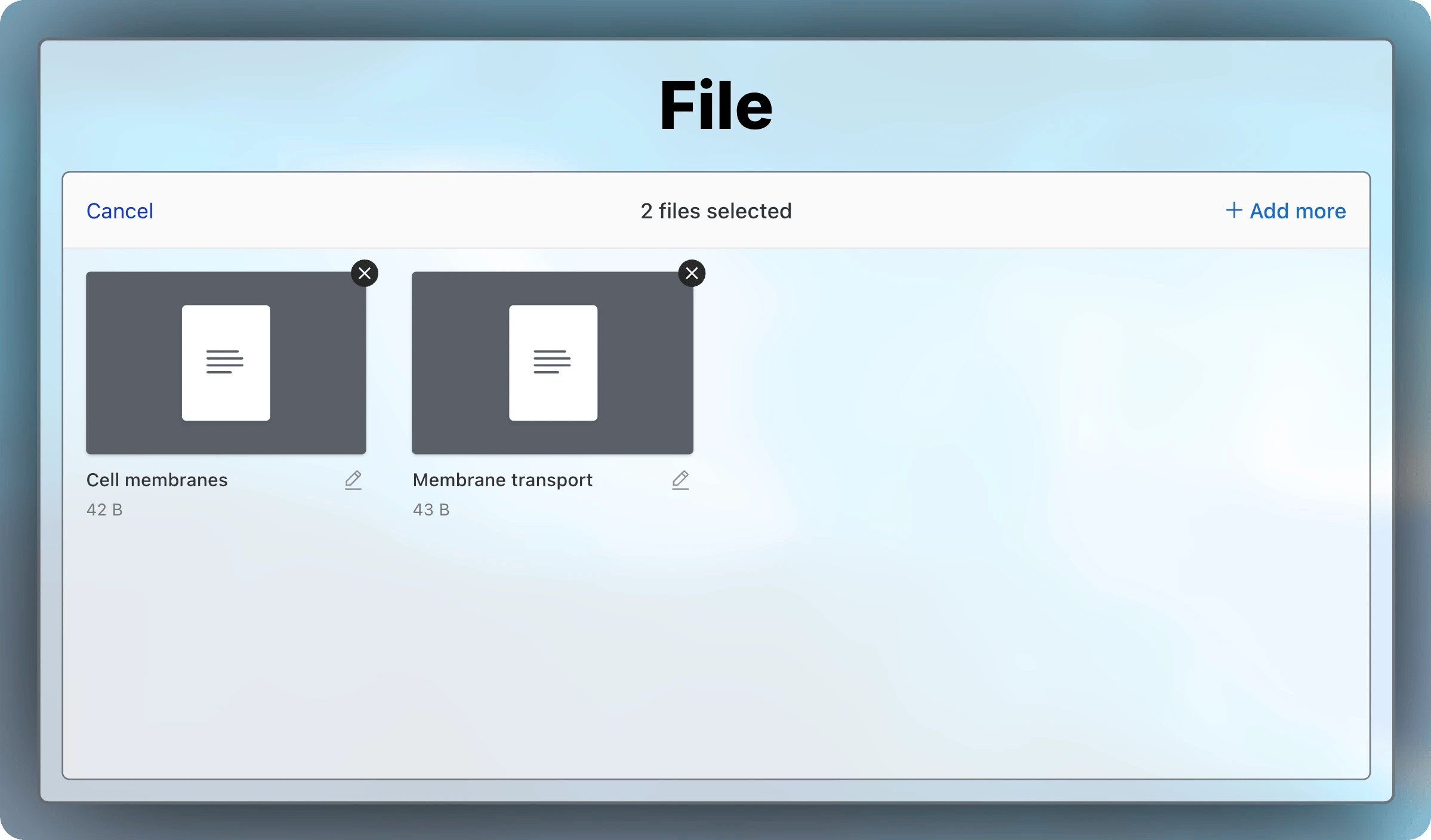
    Select the pencil beside a file to change its title. Students see this title.
    <img className="block dark:hidden mx-auto" style={{ maxWidth: "600px" }} src="https://mintcdn.com/uflo/VQy9pgOmYta557zz/images/illustrations/screenshot/add-files-titles/light.webp?fit=max&auto=format&n=VQy9pgOmYta557zz&q=85&s=b79be4de16bb9353f3122f9d707d02c4" alt="Two files added to the picker, Cell membranes and Membrane transport, each with a pencil to edit its title and a button to remove it." width="2398" height="1408" data-path="images/illustrations/screenshot/add-files-titles/light.webp" />

    <img className="hidden dark:block mx-auto" style={{ maxWidth: "600px" }} src="https://mintcdn.com/uflo/VQy9pgOmYta557zz/images/illustrations/screenshot/add-files-titles/dark.webp?fit=max&auto=format&n=VQy9pgOmYta557zz&q=85&s=d3d6ab2aee238aa09a27c466b26c918d" alt="Two files added to the picker, Cell membranes and Membrane transport, each with a pencil to edit its title and a button to remove it." width="2398" height="1408" data-path="images/illustrations/screenshot/add-files-titles/dark.webp" />

    <p className="text-center text-sm text-gray-600 dark:text-gray-400">Check each title before you upload.</p>

    <Accordion title="Supported files">
      | Kind            | Formats                                         |
      | --------------- | ----------------------------------------------- |
      | Documents       | PDF, Word, PowerPoint, EPUB, text, and Markdown |
      | Images          | PNG, JPEG, and WebP                             |
      | Audio and video | Common formats, such as MP3 and MP4             |
      | Links           | Web pages and YouTube videos                    |
    </Accordion>
  </Step>

  <Step title="Choose the File Type">
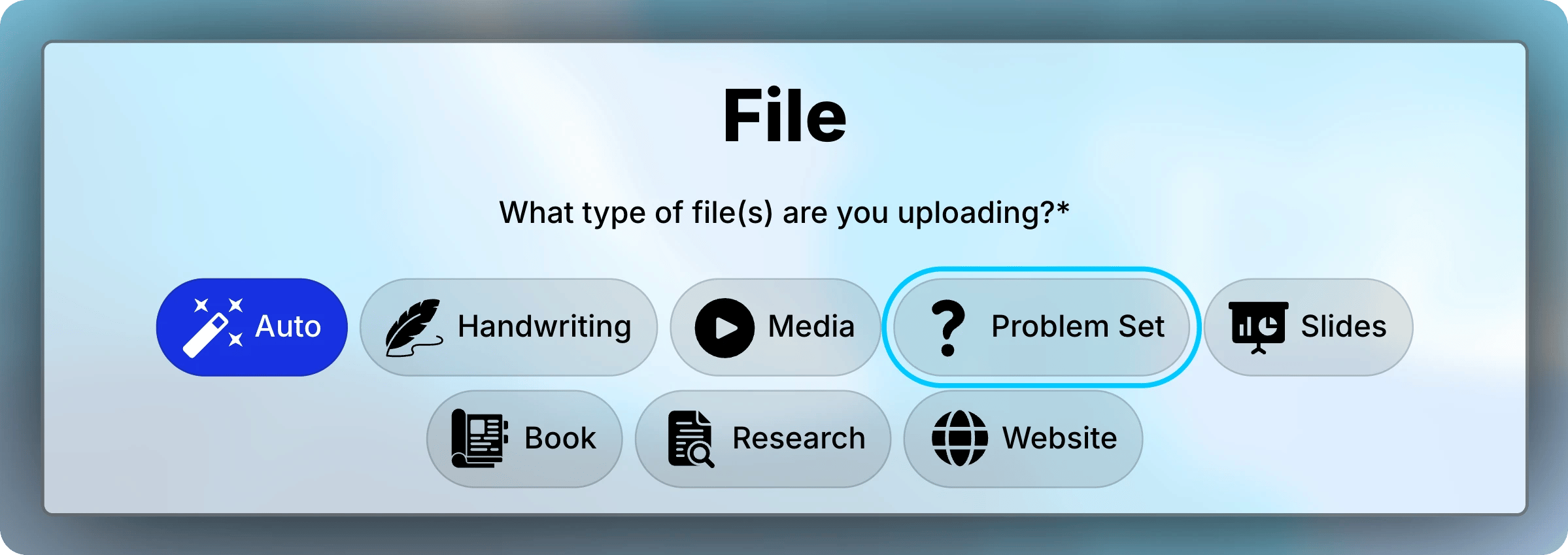
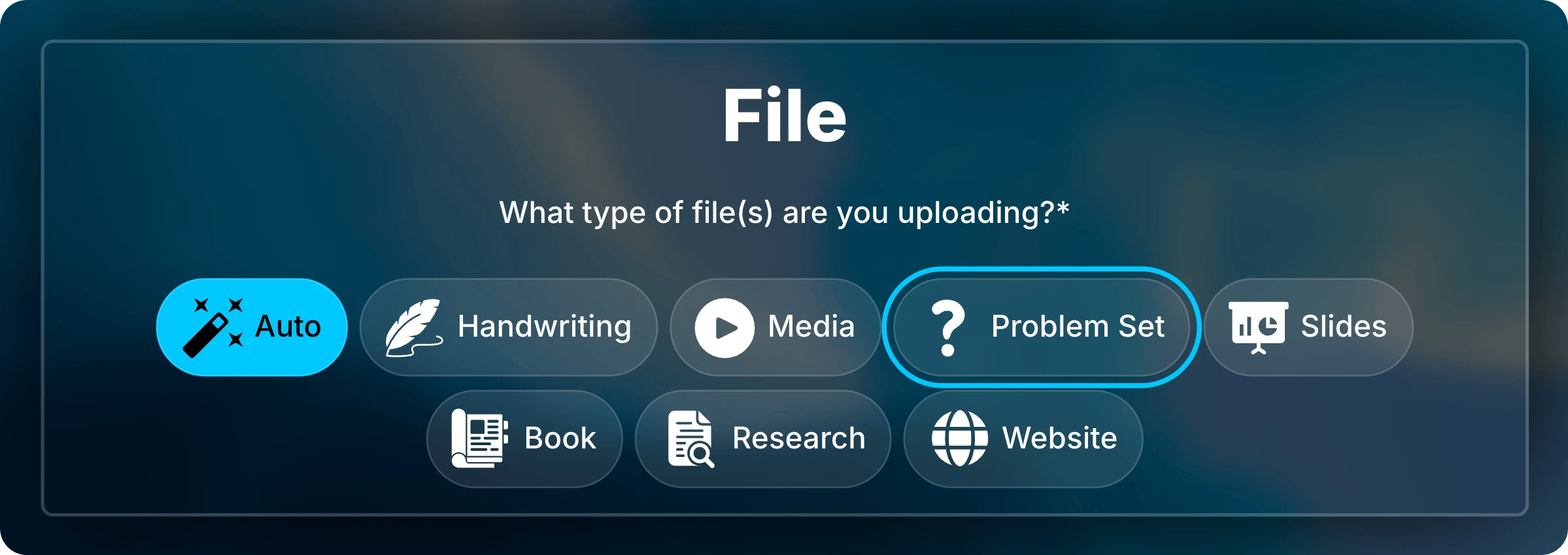
    Keep **Auto** for most course materials.
    Choose **Problem Set** for a document of questions, such as a worksheet. Uflo turns it into practice questions.
    <img className="block dark:hidden" src="https://mintcdn.com/uflo/VQy9pgOmYta557zz/images/illustrations/screenshot/add-files-type/light.webp?fit=max&auto=format&n=VQy9pgOmYta557zz&q=85&s=778a78157d5668fb5fec53756915e52f" alt="File type options with Auto selected and Problem Set highlighted among Handwriting, Media, Slides, Book, Research, and Website." width="2398" height="849" data-path="images/illustrations/screenshot/add-files-type/light.webp" />

    <img className="hidden dark:block" src="https://mintcdn.com/uflo/VQy9pgOmYta557zz/images/illustrations/screenshot/add-files-type/dark.webp?fit=max&auto=format&n=VQy9pgOmYta557zz&q=85&s=2804c81c8f3a789f03d6fea49b66b573" alt="File type options with Auto selected and Problem Set highlighted among Handwriting, Media, Slides, Book, Research, and Website." width="2398" height="849" data-path="images/illustrations/screenshot/add-files-type/dark.webp" />

    <p className="text-center text-sm text-gray-600 dark:text-gray-400">Keep Auto unless the file is a set of questions.</p>

    <Tip>
      To build an assessment from a document, use **Import Questions** instead.
    </Tip>
  </Step>

  <Step title="Choose Study Tools and Upload">
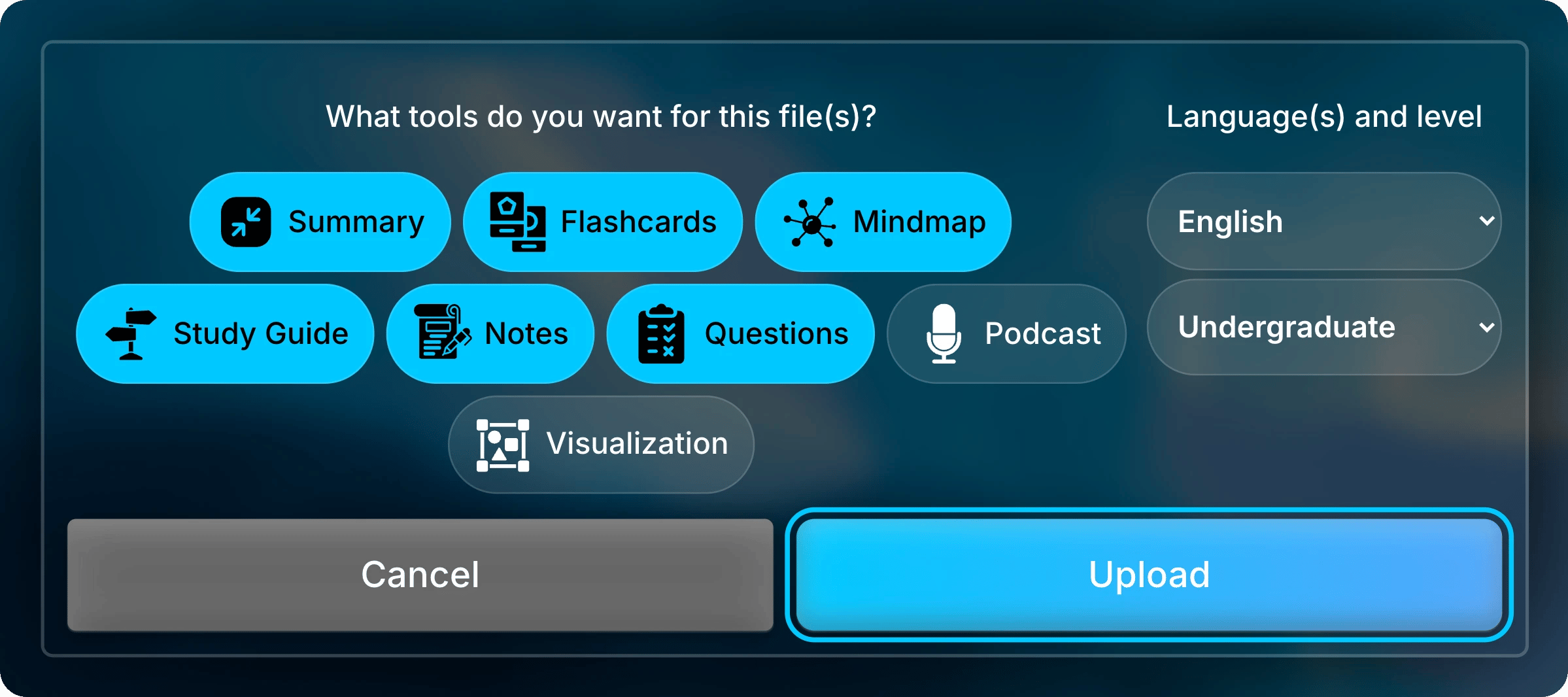
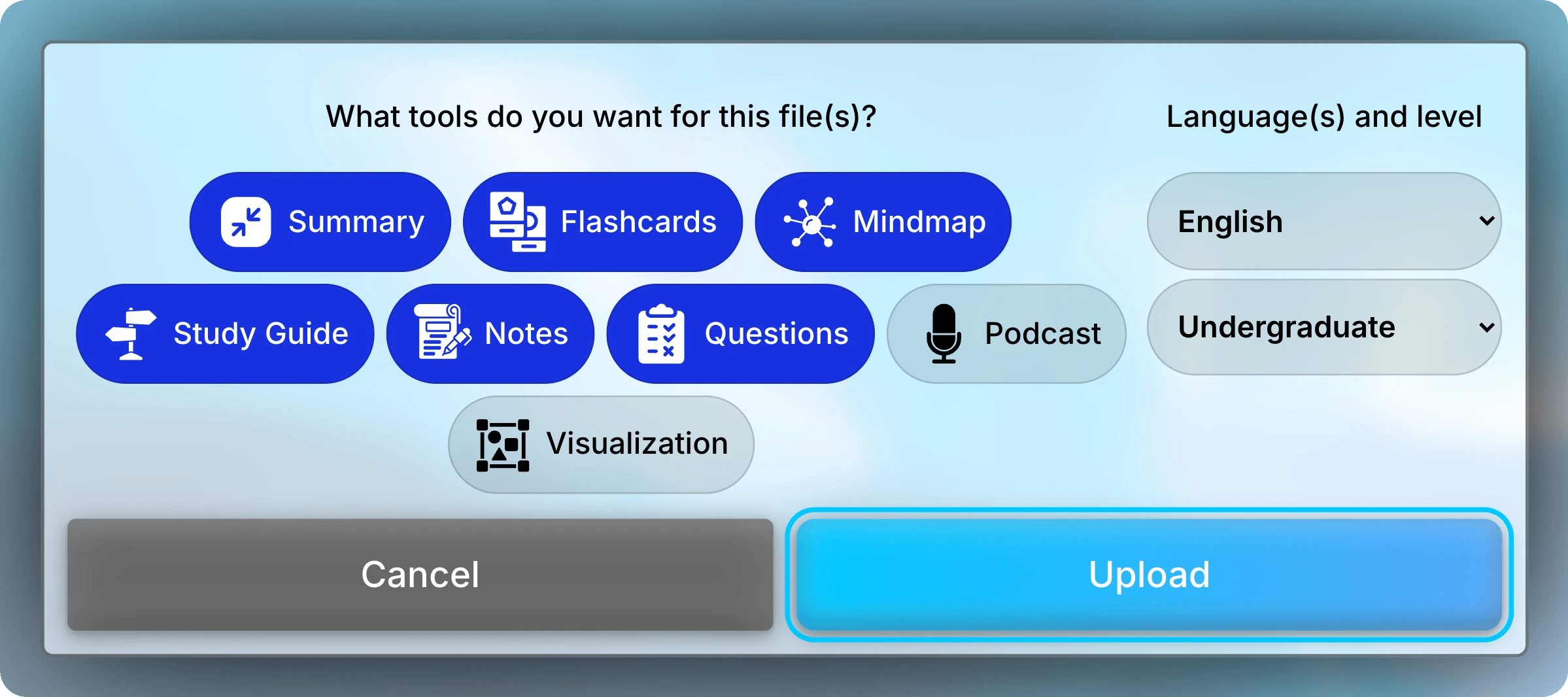
    Pick the study tools Uflo creates. A problem set skips this choice.

    **Podcast** and **Visualization** are off by default, so turn them on if you want them.

    <Accordion title="What each study tool gives students">
      | Tool              | What students get                                                                                                         |
      | ----------------- | ------------------------------------------------------------------------------------------------------------------------- |
      | **Summary**       | A [short overview](/students/learning/using-study-guides#read-at-the-level-of-detail-you-need) of the whole file          |
      | **Flashcards**    | [Key terms](/students/learning/flashcards-and-practice#review-flashcards) to recall and flip                              |
      | **Notes**         | [Detailed notes](/students/learning/using-study-guides#read-at-the-level-of-detail-you-need) for each section of the file |
      | **Study Guide**   | A short overview of each section                                                                                          |
      | **Mindmap**       | A [map](/students/learning/using-study-guides#explore-a-section-in-another-way) of how a section's ideas connect          |
      | **Questions**     | [Practice questions](/students/learning/flashcards-and-practice#answer-a-practice-question) with hints and answers        |
      | **Podcast**       | An [audio episode](/students/learning/using-study-guides#explore-a-section-in-another-way) for each section               |
      | **Visualization** | An [interactive visual](/students/learning/using-study-guides#explore-a-section-in-another-way) for each section          |
    </Accordion>

    Select **Upload**.

    <Warning>
      Keep the page open until the form closes. Uflo is still sending your files.
    </Warning>

    <img className="block dark:hidden" src="https://mintcdn.com/uflo/VQy9pgOmYta557zz/images/illustrations/screenshot/add-files-tools-upload/light.webp?fit=max&auto=format&n=VQy9pgOmYta557zz&q=85&s=f20c63e4b6c7ed8121eab110aac6c36a" alt="Study tool choices with Summary, Flashcards, Mindmap, Study Guide, Notes, and Questions selected, English and Undergraduate chosen, and the Upload button highlighted." width="2398" height="1066" data-path="images/illustrations/screenshot/add-files-tools-upload/light.webp" />

    <img className="hidden dark:block" src="https://mintcdn.com/uflo/VQy9pgOmYta557zz/images/illustrations/screenshot/add-files-tools-upload/dark.webp?fit=max&auto=format&n=VQy9pgOmYta557zz&q=85&s=e38f6fd43124f01ea233e5e6a5973e50" alt="Study tool choices with Summary, Flashcards, Mindmap, Study Guide, Notes, and Questions selected, English and Undergraduate chosen, and the Upload button highlighted." width="2398" height="1066" data-path="images/illustrations/screenshot/add-files-tools-upload/dark.webp" />

    <p className="text-center text-sm text-gray-600 dark:text-gray-400">Turn on Podcast and Visualization if you want them.</p>
  </Step>
</Steps>

## Follow the Progress

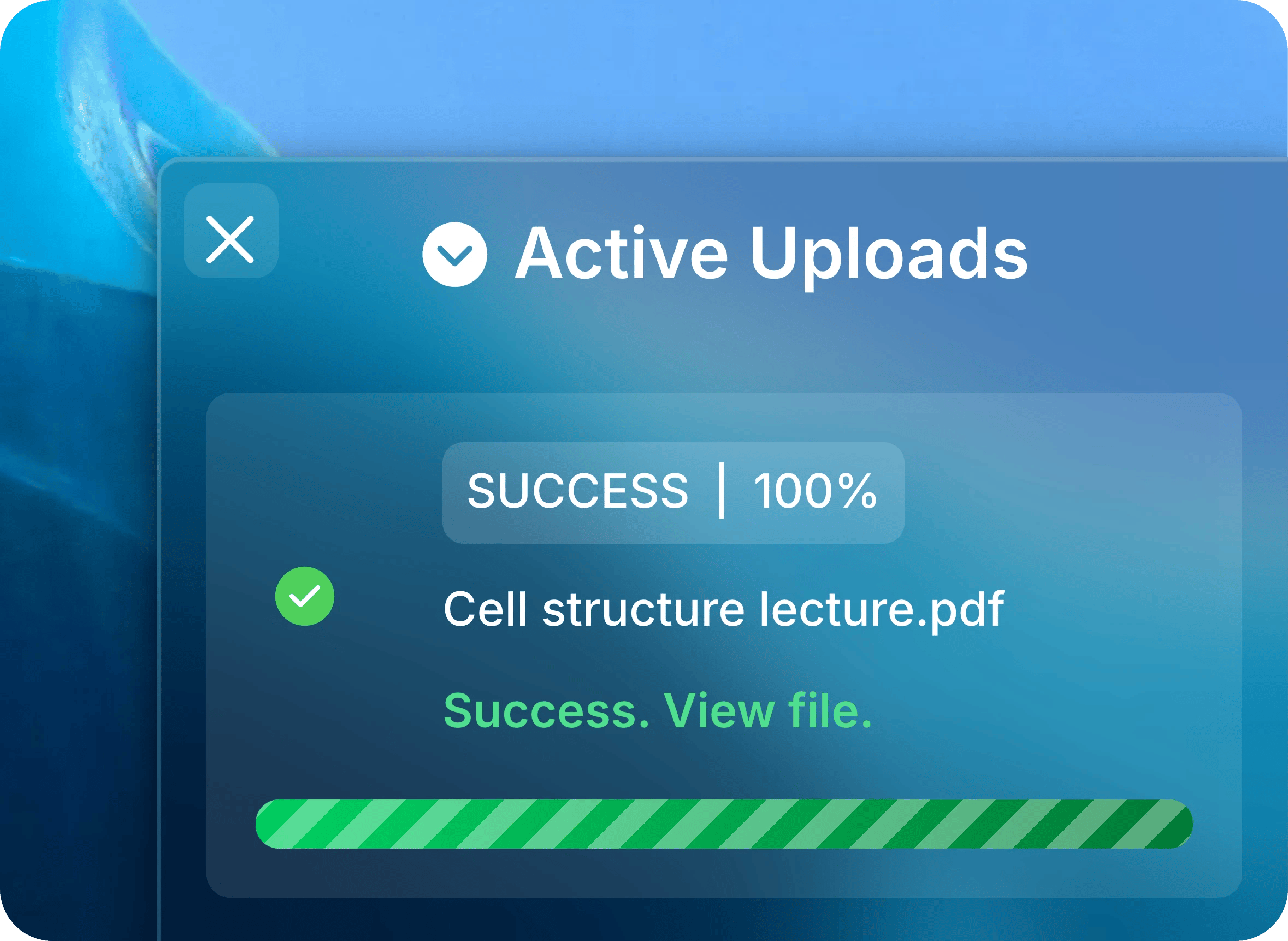
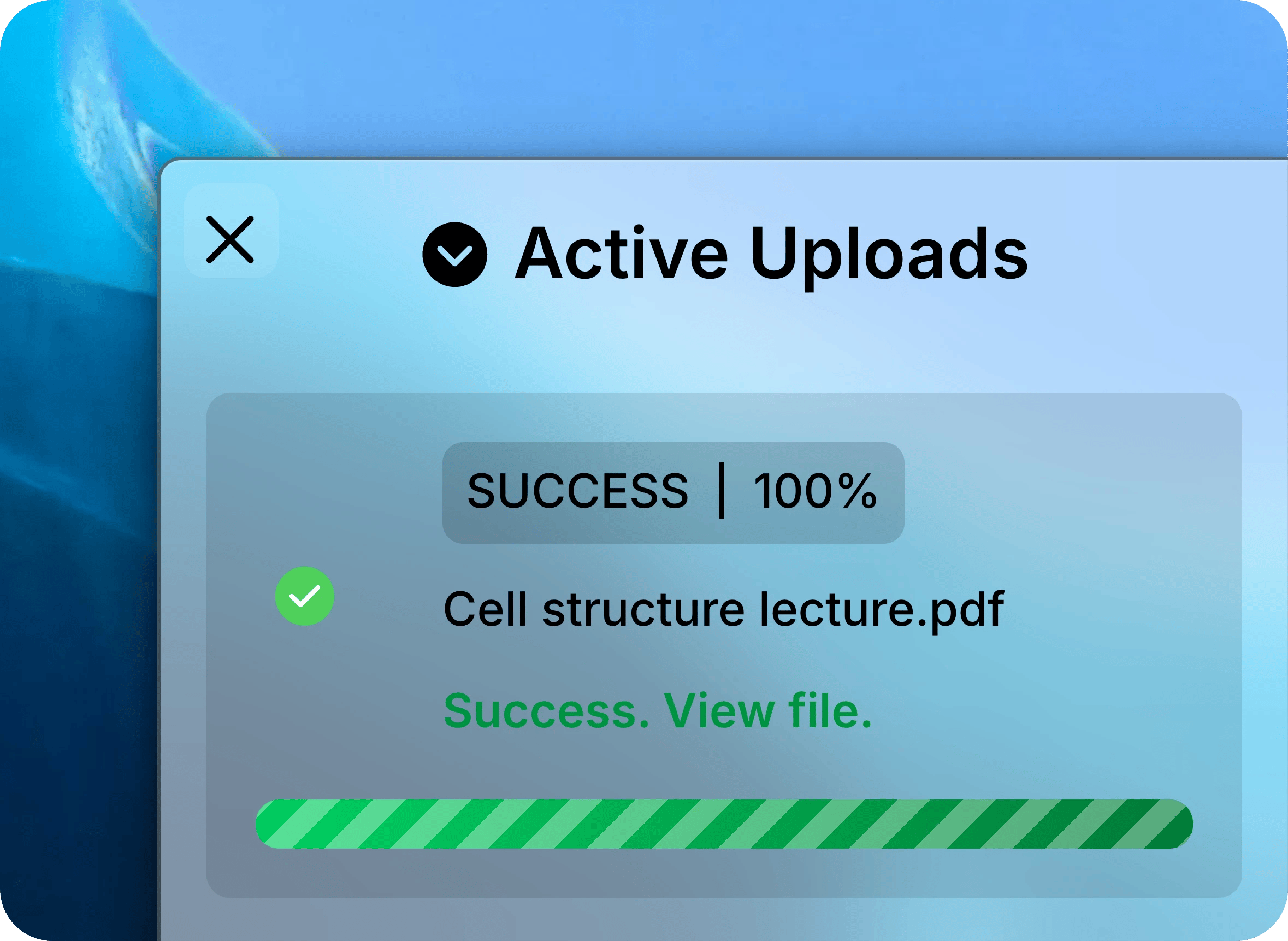
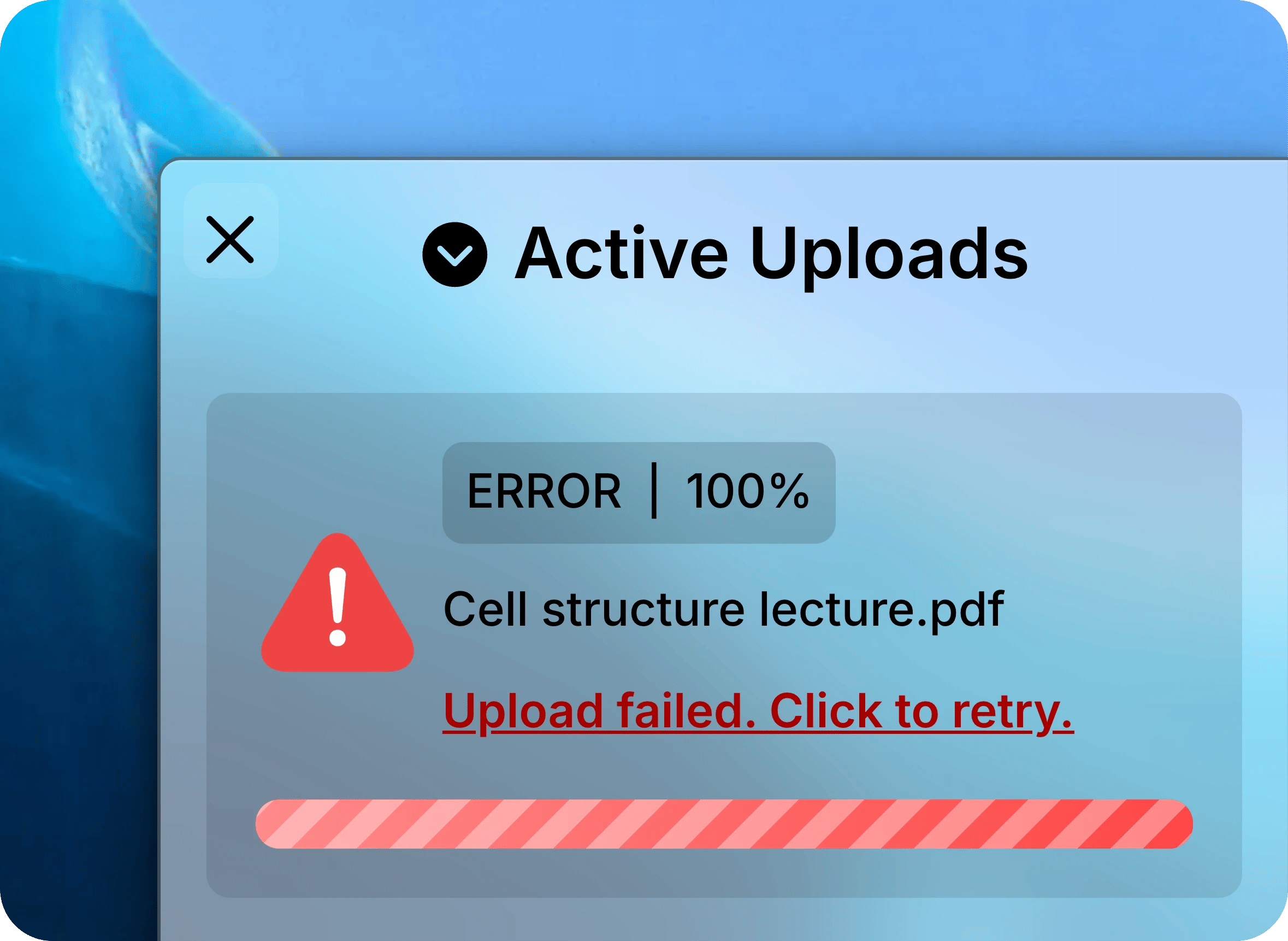
**Active Uploads** shows each file as Uflo processes it, even if you leave and come back. Only you see your own uploads there.

<Tabs>
  <Tab title="Success" icon="circle-check">
    When a file shows **Success**, it's ready, with its study tools.
    <img className="block dark:hidden mx-auto" style={{ maxWidth: "420px" }} src="https://mintcdn.com/uflo/VQy9pgOmYta557zz/images/illustrations/screenshot/add-files-progress/light.webp?fit=max&auto=format&n=VQy9pgOmYta557zz&q=85&s=2690b1d067f54eadbb080f7102261490" alt="Active Uploads panel with Cell structure lecture.pdf at 100 percent and Success. View file." width="2358" height="1722" data-path="images/illustrations/screenshot/add-files-progress/light.webp" />

    <img className="hidden dark:block mx-auto" style={{ maxWidth: "420px" }} src="https://mintcdn.com/uflo/VQy9pgOmYta557zz/images/illustrations/screenshot/add-files-progress/dark.webp?fit=max&auto=format&n=VQy9pgOmYta557zz&q=85&s=d60eb5646590b535ac1318812753f621" alt="Active Uploads panel with Cell structure lecture.pdf at 100 percent and Success. View file." width="2358" height="1722" data-path="images/illustrations/screenshot/add-files-progress/dark.webp" />

    <p className="text-center text-sm text-gray-600 dark:text-gray-400">Success means the file is ready.</p>
  </Tab>

  <Tab title="Upload Failed" icon="triangle-exclamation">
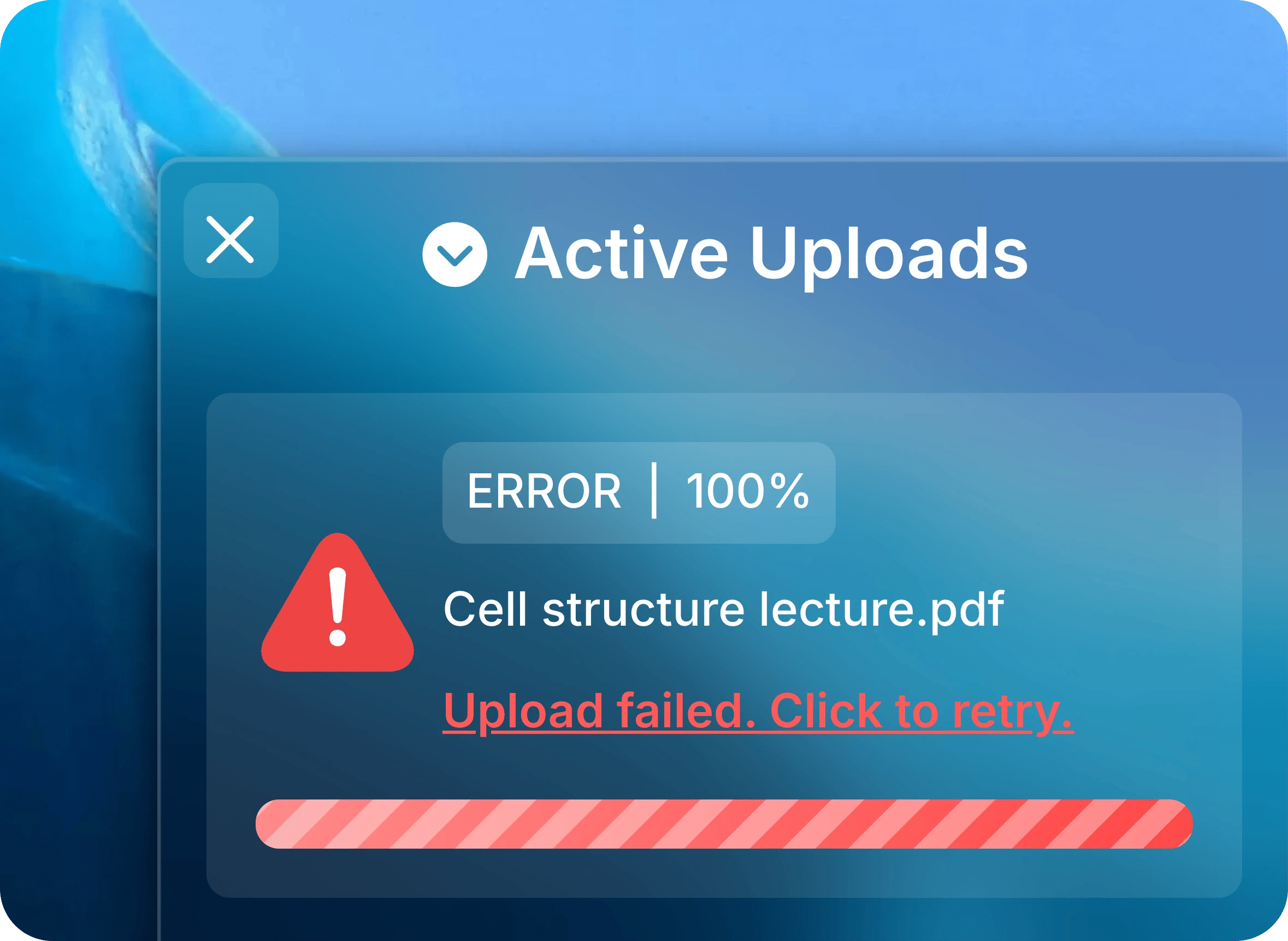
    Select **Upload failed. Click to retry.** to process the file again.
    If it fails again, delete the file and upload it again.
    <img className="block dark:hidden mx-auto" style={{ maxWidth: "420px" }} src="https://mintcdn.com/uflo/mc8jedJa_T3_qK9F/images/illustrations/screenshot/manage-files-failed/light.webp?fit=max&auto=format&n=mc8jedJa_T3_qK9F&q=85&s=5d634aea31e7937c1556b89a90aba2f0" alt="Active Uploads panel with Cell structure lecture.pdf failed and the Upload failed. Click to retry. message." width="2358" height="1722" data-path="images/illustrations/screenshot/manage-files-failed/light.webp" />

    <img className="hidden dark:block mx-auto" style={{ maxWidth: "420px" }} src="https://mintcdn.com/uflo/mc8jedJa_T3_qK9F/images/illustrations/screenshot/manage-files-failed/dark.webp?fit=max&auto=format&n=mc8jedJa_T3_qK9F&q=85&s=5c6194b1e37d44158099ca12e1c6c3f9" alt="Active Uploads panel with Cell structure lecture.pdf failed and the Upload failed. Click to retry. message." width="2358" height="1722" data-path="images/illustrations/screenshot/manage-files-failed/dark.webp" />

    <p className="text-center text-sm text-gray-600 dark:text-gray-400">Select the message to process the file again.</p>
  </Tab>
</Tabs>

## Update a File

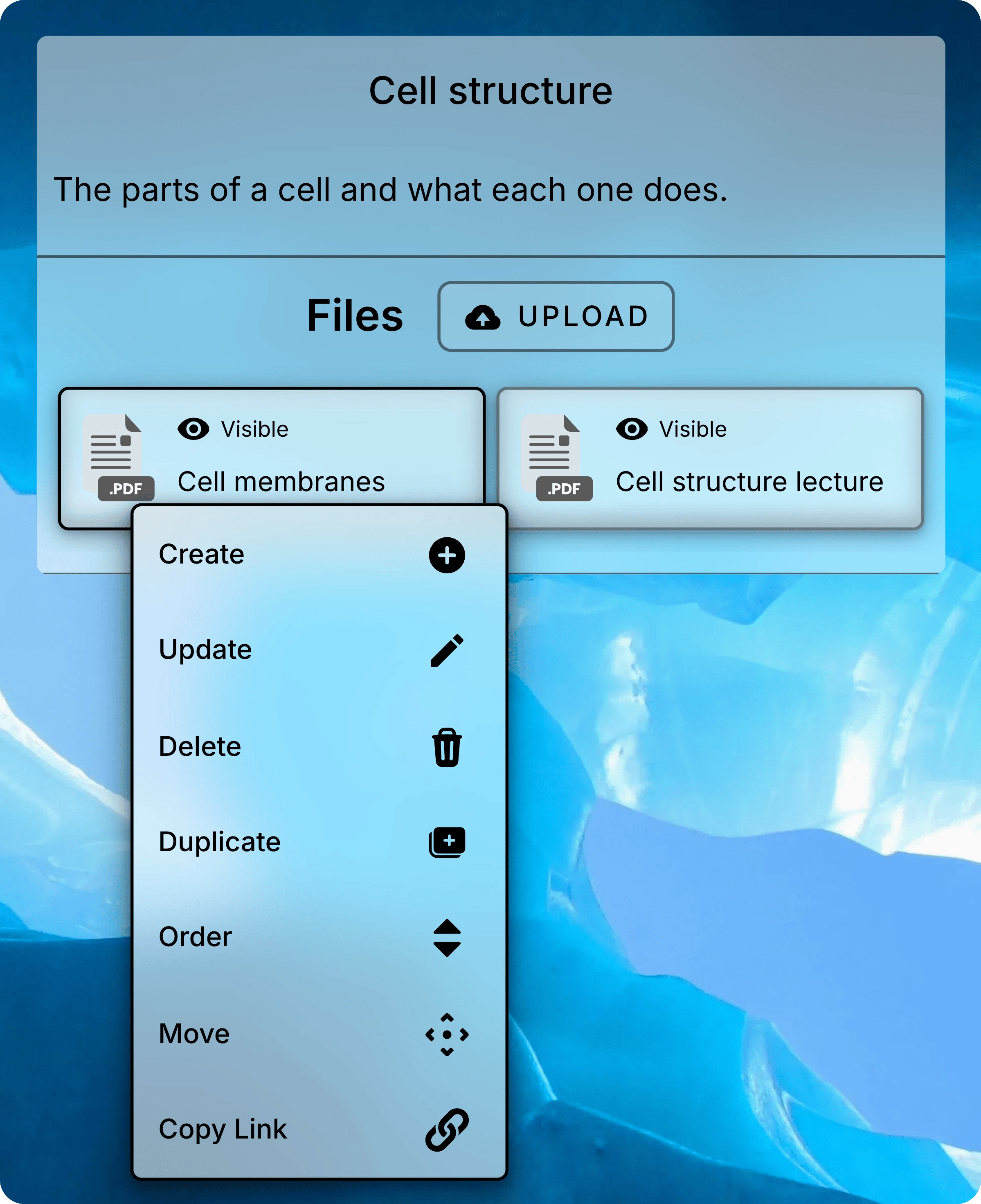
Right-click a file to open its menu, or press and hold it on a touch screen.
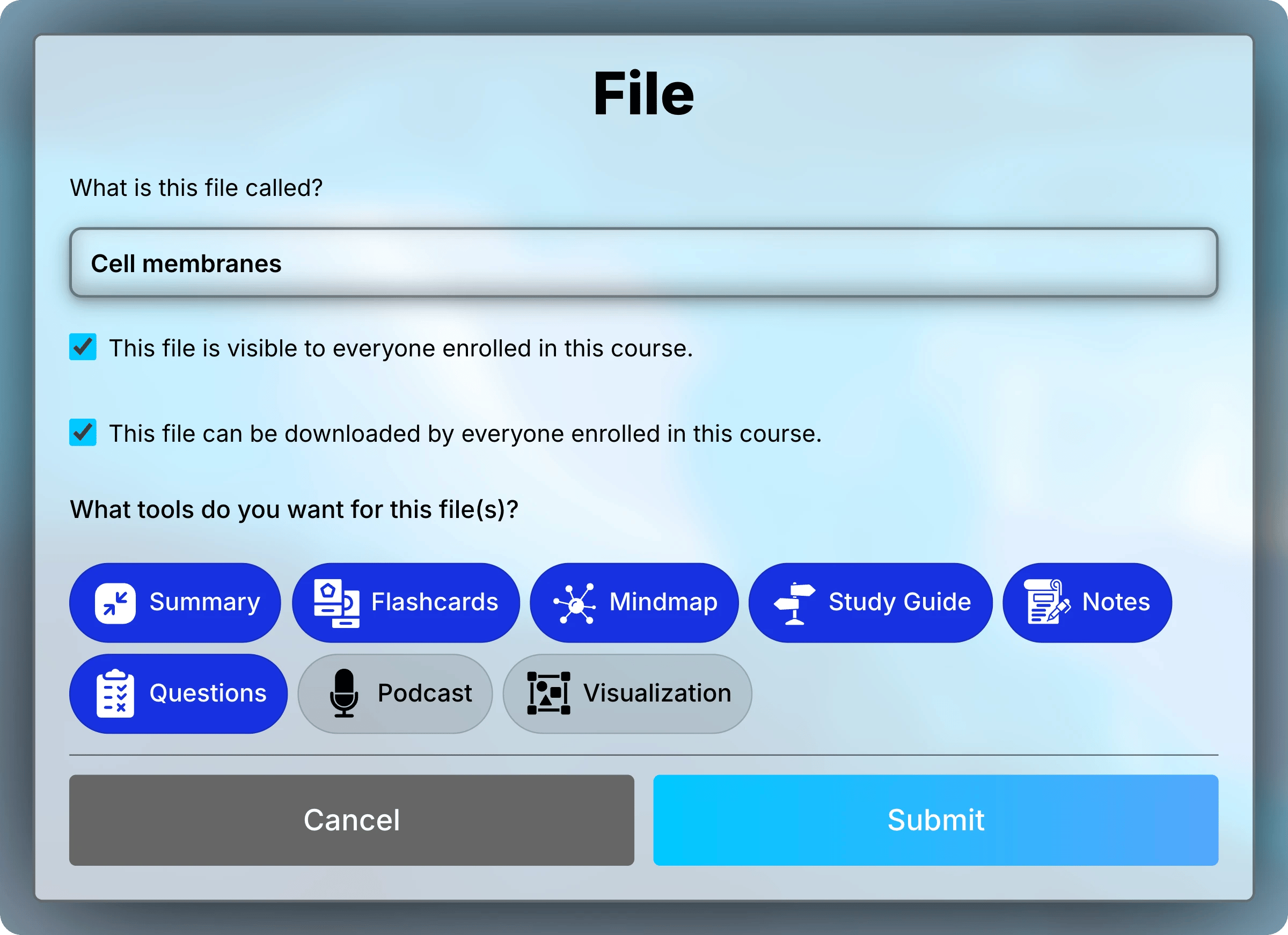
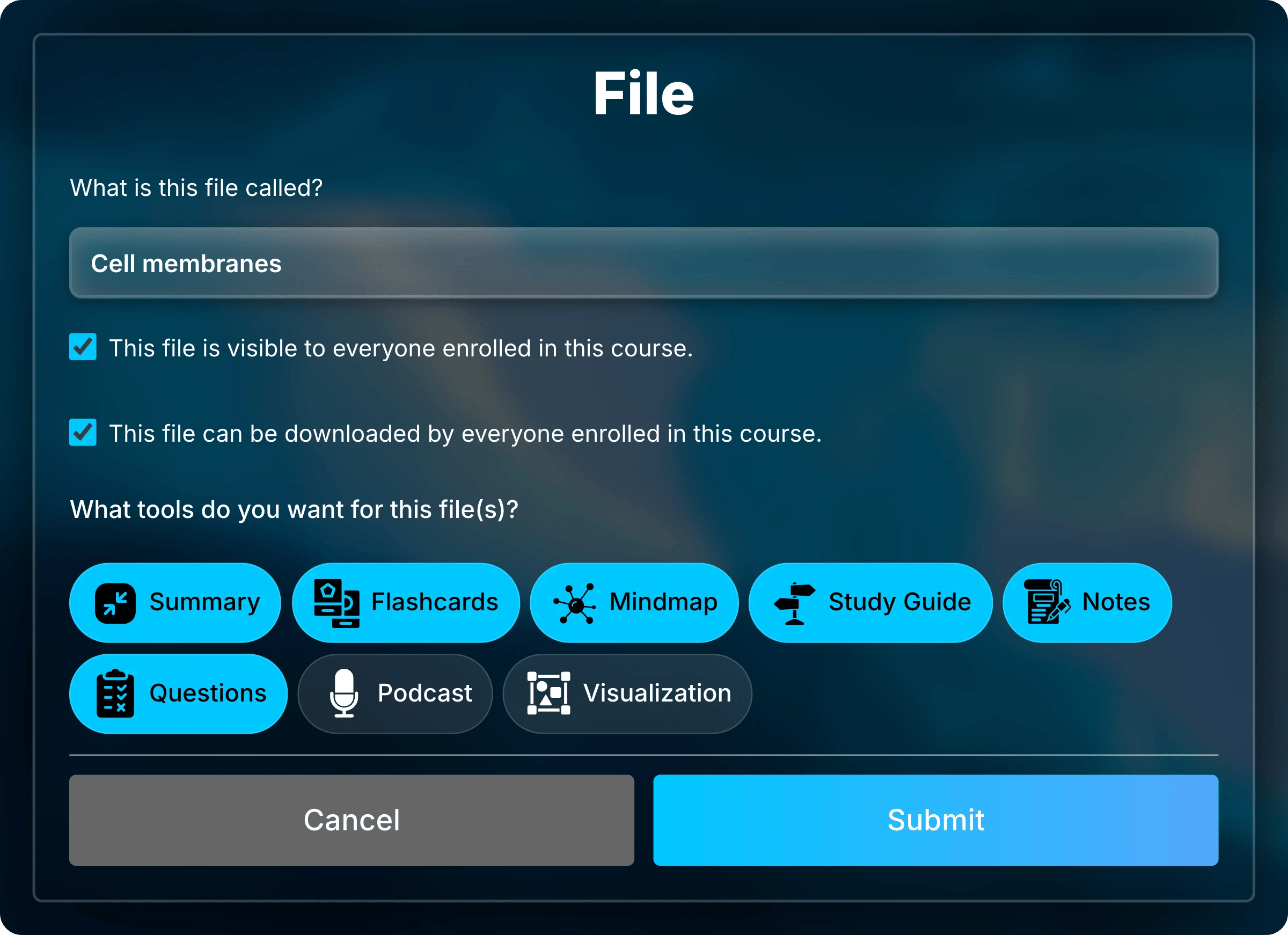
Select **Update**, make your changes, then select **Submit**.
<img className="block dark:hidden mx-auto" style={{ maxWidth: "420px" }} src="https://mintcdn.com/uflo/mc8jedJa_T3_qK9F/images/illustrations/screenshot/manage-files-menu/light.webp?fit=max&auto=format&n=mc8jedJa_T3_qK9F&q=85&s=7f351b222fbb6cf0a1a529bcb8e9ebc0" alt="Menu open on the Cell membranes file, listing Create, Update, Delete, Duplicate, Order, Move, and Copy Link." width="2398" height="2942" data-path="images/illustrations/screenshot/manage-files-menu/light.webp" />

<img className="hidden dark:block mx-auto" style={{ maxWidth: "420px" }} src="https://mintcdn.com/uflo/mc8jedJa_T3_qK9F/images/illustrations/screenshot/manage-files-menu/dark.webp?fit=max&auto=format&n=mc8jedJa_T3_qK9F&q=85&s=8ab3333892681dc0e907dfef2f86a1ba" alt="Menu open on the Cell membranes file, listing Create, Update, Delete, Duplicate, Order, Move, and Copy Link." width="2398" height="2942" data-path="images/illustrations/screenshot/manage-files-menu/dark.webp" />

<p className="text-center text-sm text-gray-600 dark:text-gray-400">Right-click a file to open its menu.</p>

<img className="block dark:hidden" src="https://mintcdn.com/uflo/mc8jedJa_T3_qK9F/images/illustrations/screenshot/study-tools-update-form/light.webp?fit=max&auto=format&n=mc8jedJa_T3_qK9F&q=85&s=ce95e34281aa51cec2761ec4bcb5519b" alt="File form for Cell membranes with its title, the visibility and download checkboxes, and the study tools, with Podcast and Visualization off." width="2400" height="1742" data-path="images/illustrations/screenshot/study-tools-update-form/light.webp" />

<img className="hidden dark:block" src="https://mintcdn.com/uflo/mc8jedJa_T3_qK9F/images/illustrations/screenshot/study-tools-update-form/dark.webp?fit=max&auto=format&n=mc8jedJa_T3_qK9F&q=85&s=570c99961c0ad5b8c17f6bb9c2edbb09" alt="File form for Cell membranes with its title, the visibility and download checkboxes, and the study tools, with Podcast and Visualization off." width="2400" height="1742" data-path="images/illustrations/screenshot/study-tools-update-form/dark.webp" />

<p className="text-center text-sm text-gray-600 dark:text-gray-400">A file's Update form.</p>

* **Title:** the name students see.
* **Visibility:** uncheck the box to hide the file.
* **Download:** uncheck the box so only teachers can download the file.
* **Study tools:** the tools students get for that file.

<Note>
  If you uploaded the file without **Podcast** or **Visualization**, checking them here won't create them.
  To add them, upload the file again and turn them on in the upload form.
</Note>

## Reorder, Move, Duplicate, and Delete

Each of these starts from the file's menu.

<Tabs>
  <Tab title="Order" icon="sort">
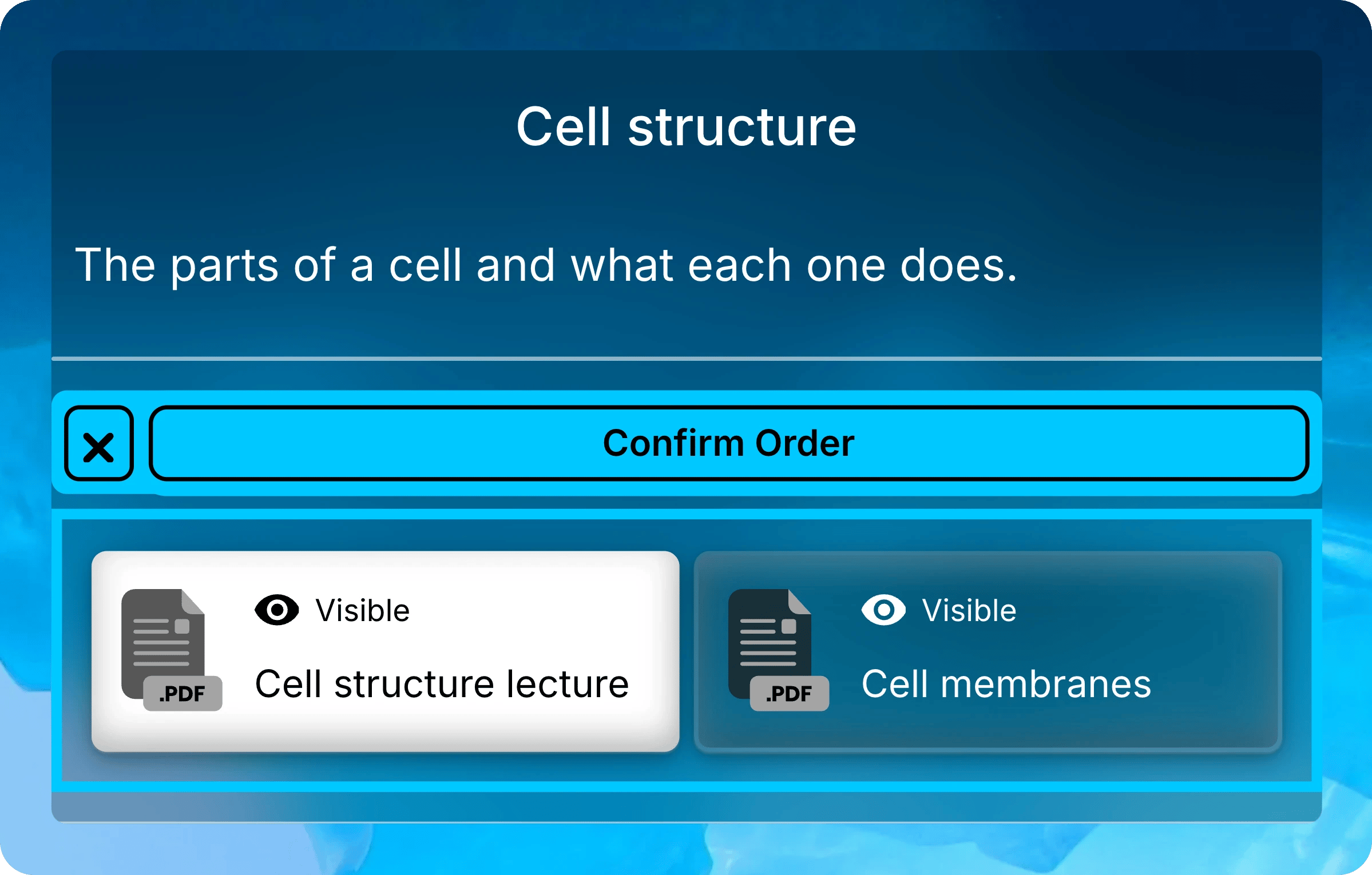
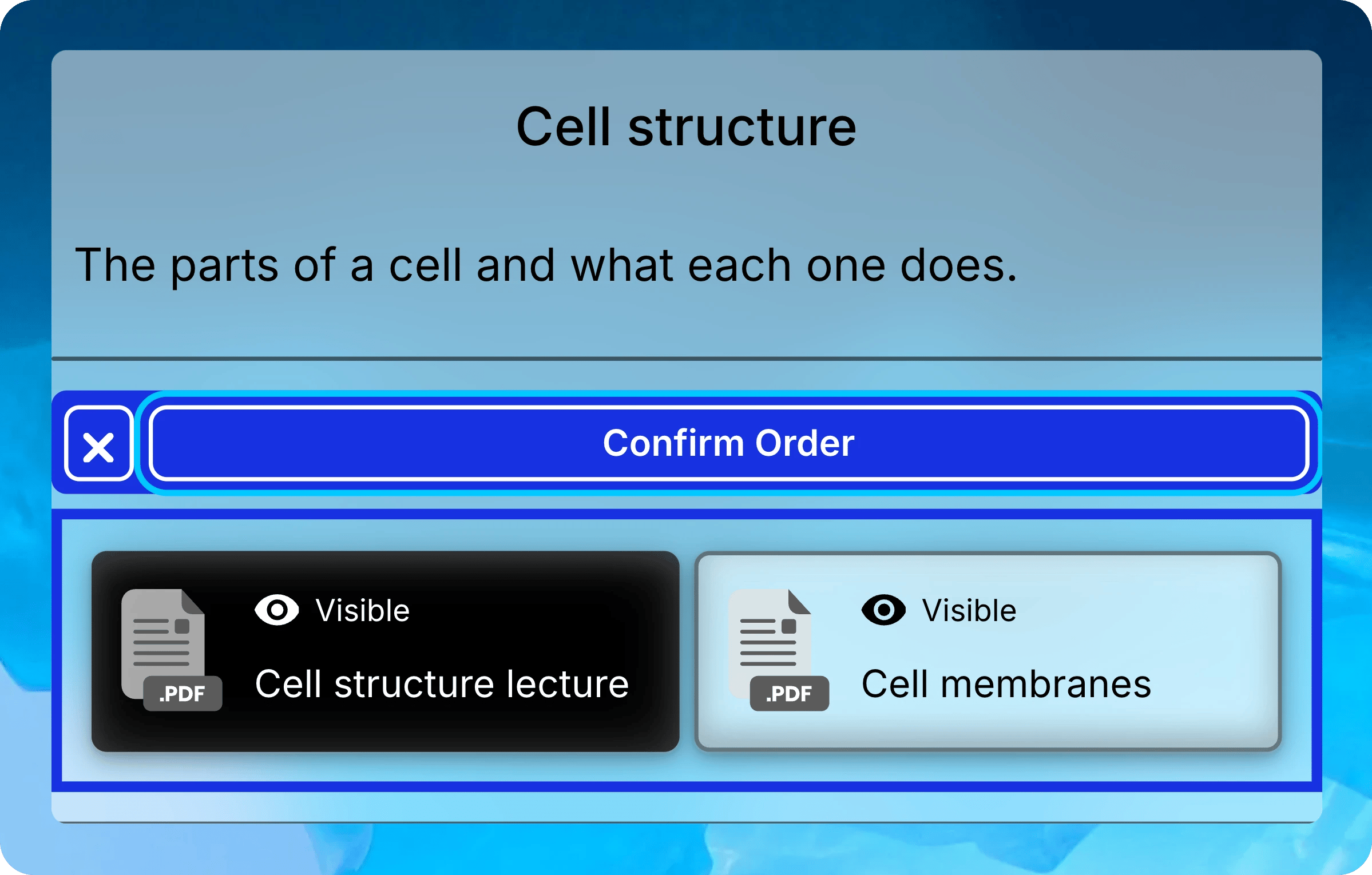
    Select **Order**, drag files into place, then select **Confirm Order**.
    <img className="block dark:hidden mx-auto" style={{ maxWidth: "520px" }} src="https://mintcdn.com/uflo/mc8jedJa_T3_qK9F/images/illustrations/screenshot/manage-files-order/light.webp?fit=max&auto=format&n=mc8jedJa_T3_qK9F&q=85&s=45a8abafb80cd2092d2922956a4f5a48" alt="Files in order mode with Confirm Order at the top and Cell structure lecture dragged above Cell membranes." width="2398" height="1530" data-path="images/illustrations/screenshot/manage-files-order/light.webp" />

    <img className="hidden dark:block mx-auto" style={{ maxWidth: "520px" }} src="https://mintcdn.com/uflo/mc8jedJa_T3_qK9F/images/illustrations/screenshot/manage-files-order/dark.webp?fit=max&auto=format&n=mc8jedJa_T3_qK9F&q=85&s=52f212cfeaf21db68dc3347a8445de4a" alt="Files in order mode with Confirm Order at the top and Cell structure lecture dragged above Cell membranes." width="2398" height="1530" data-path="images/illustrations/screenshot/manage-files-order/dark.webp" />

    <p className="text-center text-sm text-gray-600 dark:text-gray-400">Drag files into place, then select Confirm Order.</p>
  </Tab>

  <Tab title="Move" icon="arrows-up-down-left-right">
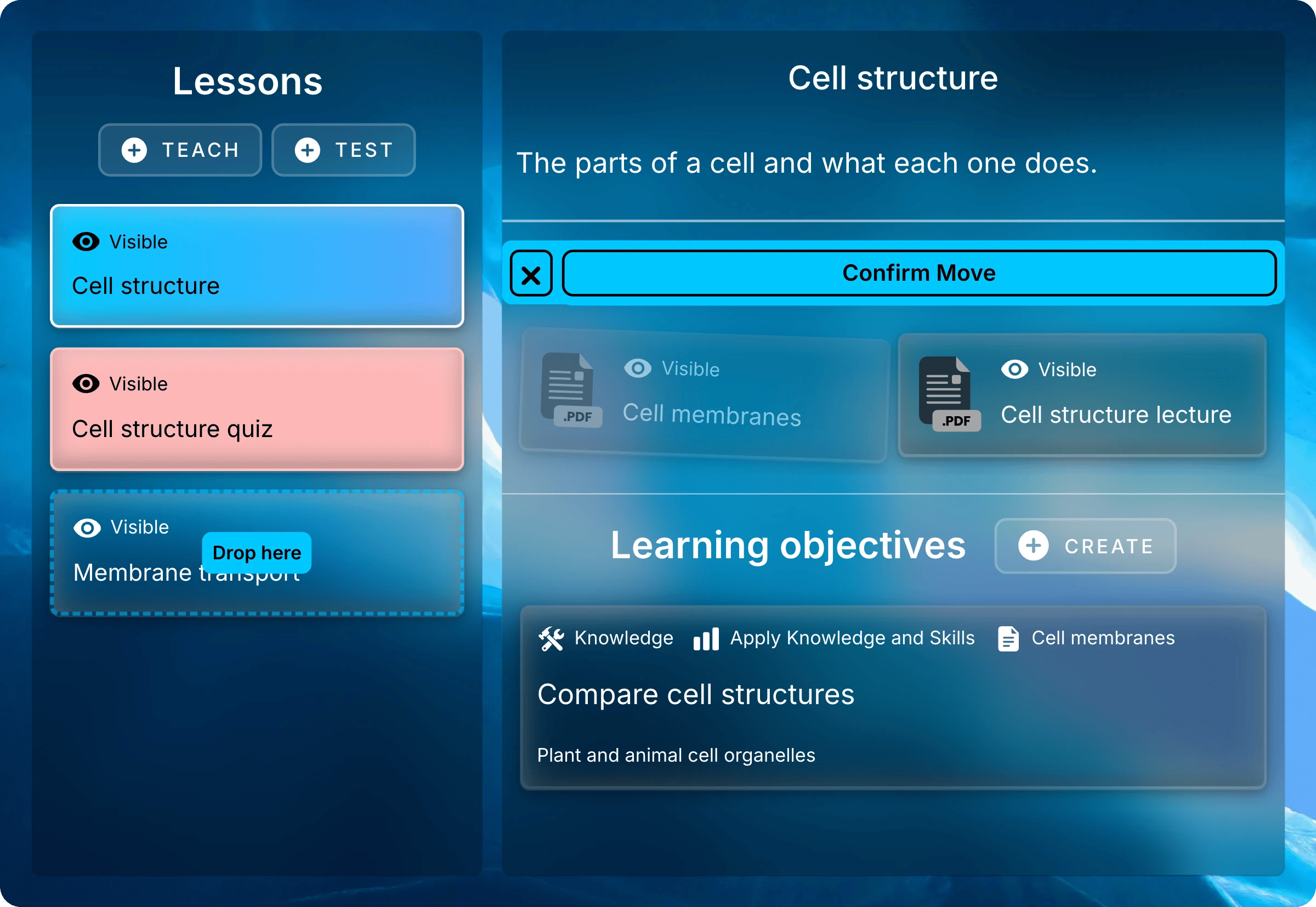
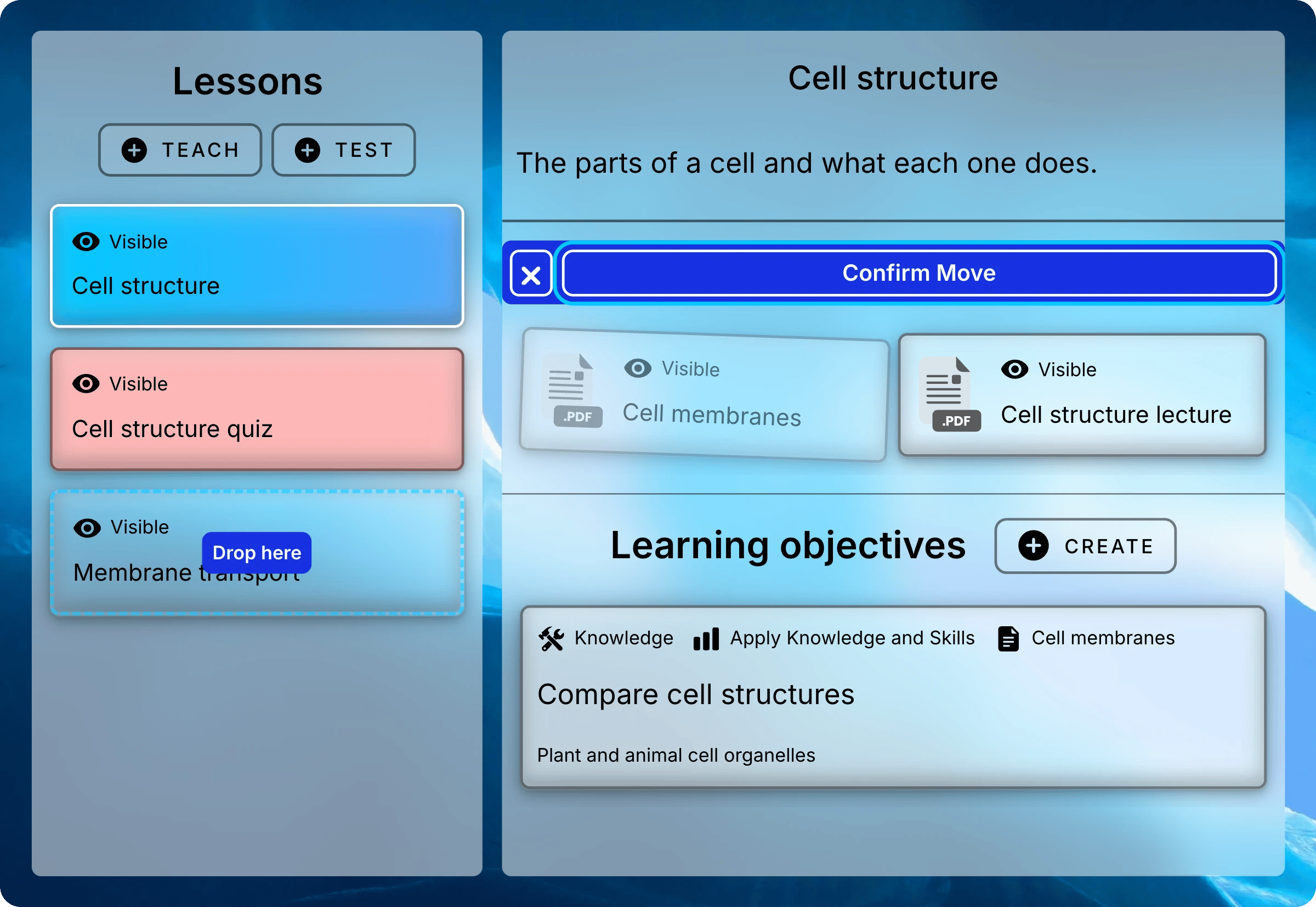
    Select **Move**, then drag the file onto a lesson under **Lessons**.
    For a lesson in another chapter, hold the file over that chapter until its lessons open.
    When you're done, select **Confirm Move**. A move to another chapter ends move mode by itself.
    <img className="block dark:hidden" src="https://mintcdn.com/uflo/mc8jedJa_T3_qK9F/images/illustrations/screenshot/manage-files-move/light.webp?fit=max&auto=format&n=mc8jedJa_T3_qK9F&q=85&s=a26d51fc15e817eb81f56375dd03e779" alt="Cell membranes being dragged onto the Membrane transport lesson, which shows Drop here, with Confirm Move above the files." width="2400" height="1654" data-path="images/illustrations/screenshot/manage-files-move/light.webp" />

    <img className="hidden dark:block" src="https://mintcdn.com/uflo/mc8jedJa_T3_qK9F/images/illustrations/screenshot/manage-files-move/dark.webp?fit=max&auto=format&n=mc8jedJa_T3_qK9F&q=85&s=43b1987216b1bddf847d56f7a8d07140" alt="Cell membranes being dragged onto the Membrane transport lesson, which shows Drop here, with Confirm Move above the files." width="2400" height="1654" data-path="images/illustrations/screenshot/manage-files-move/dark.webp" />

    <p className="text-center text-sm text-gray-600 dark:text-gray-400">Drop a file on a lesson to move it there.</p>
  </Tab>

  <Tab title="Duplicate" icon="copy">
    Select **Duplicate**, then **Submit** to confirm.
    The copy appears in the same lesson with the same title, settings, and study tools.
  </Tab>

  <Tab title="Delete" icon="trash">
    <Danger>
      Deleting can't be undone. It also deletes the file's study tools and students' chats about it.
    </Danger>

    Select **Delete**, then **Submit** to confirm.

    To take a file away from students but keep it, [hide it](#update-a-file) instead.
  </Tab>

  <Tab title="Copy Link" icon="link">
    Select **Copy Link** to copy the file's address, then paste it into an email or your LMS.
    Only people enrolled in the course can open it.
  </Tab>
</Tabs>

## Common Questions

<AccordionGroup>
  <Accordion title="Why can't students see a study tool?">
    Check three things:

    * The file shows **Success** in **Active Uploads**.
    * The tool is checked in the file's **Update** form. **Podcast** and **Visualization** also had to be on at upload.
    * **Notes** is checked, for any tool other than **Summary** and **Flashcards**.
  </Accordion>
</AccordionGroup>

<Card title="Next: Manage Objectives" icon="bullseye" href="/instructors/courses/manage-objectives">
  Describe what students should learn, and link objectives to files.
</Card>