> ## Documentation Index
> Fetch the complete documentation index at: https://docs.uflo.io/llms.txt
> Use this file to discover all available pages before exploring further.

# Enroll Students

> Invite students with a link, QR code, or course code.

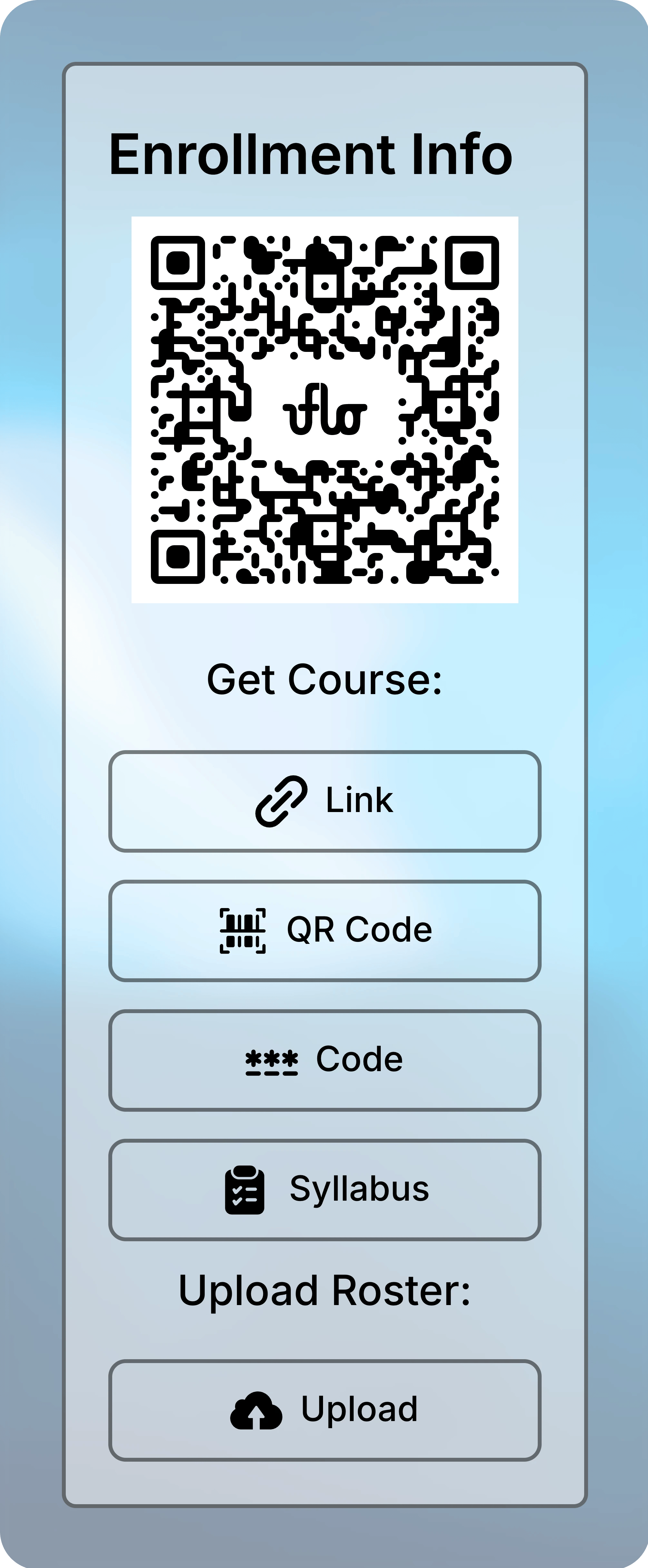
Students join your course with its enrollment link, QR code, or six-digit course code. Each course has its own link and code, and all three lead to the same enrollment screen. You find them in **Enrollment Info**, with a ready-made syllabus section.

## Open Enrollment Info

<Steps>
  <Step title="Open the Course Menu">
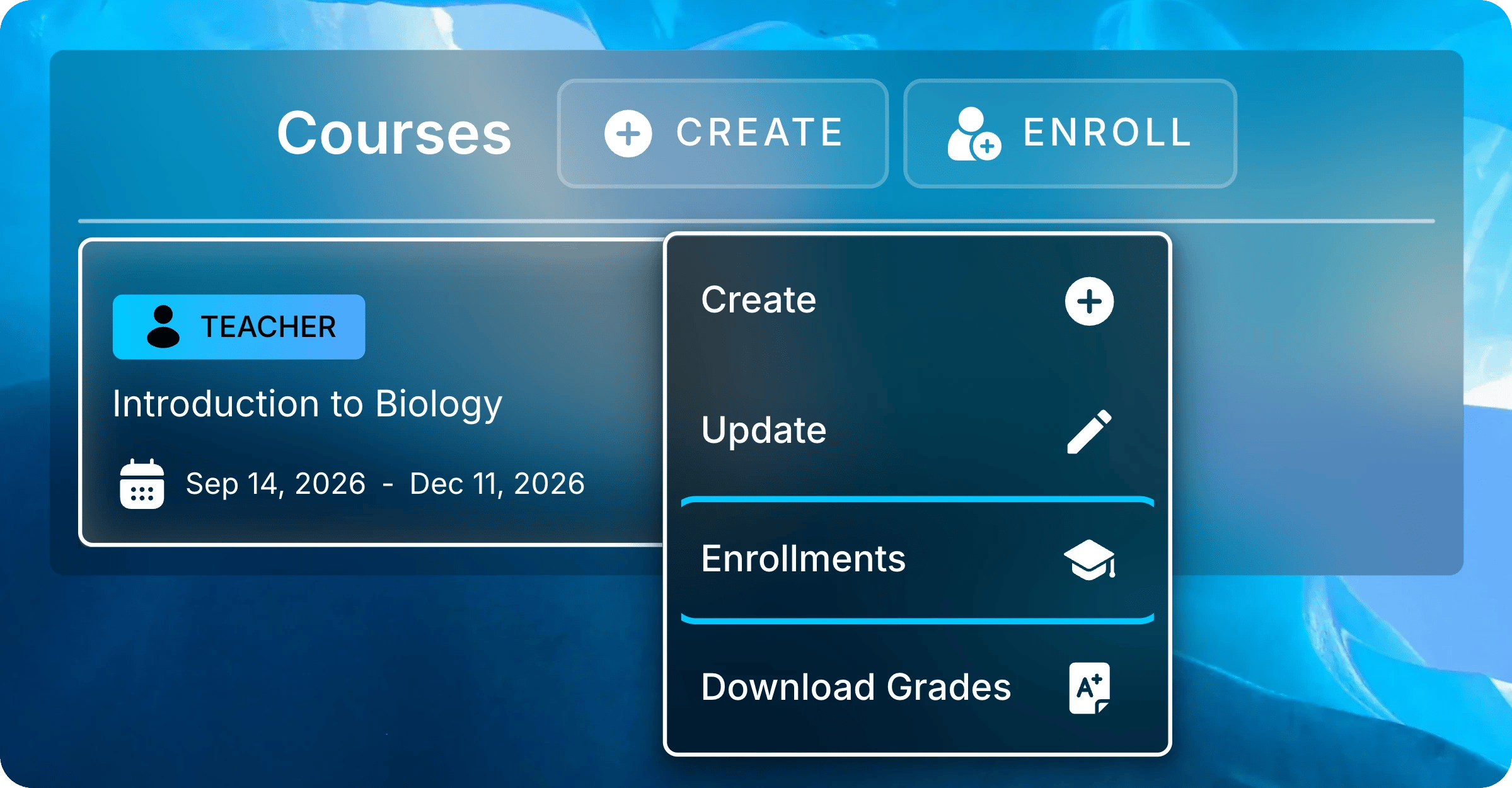
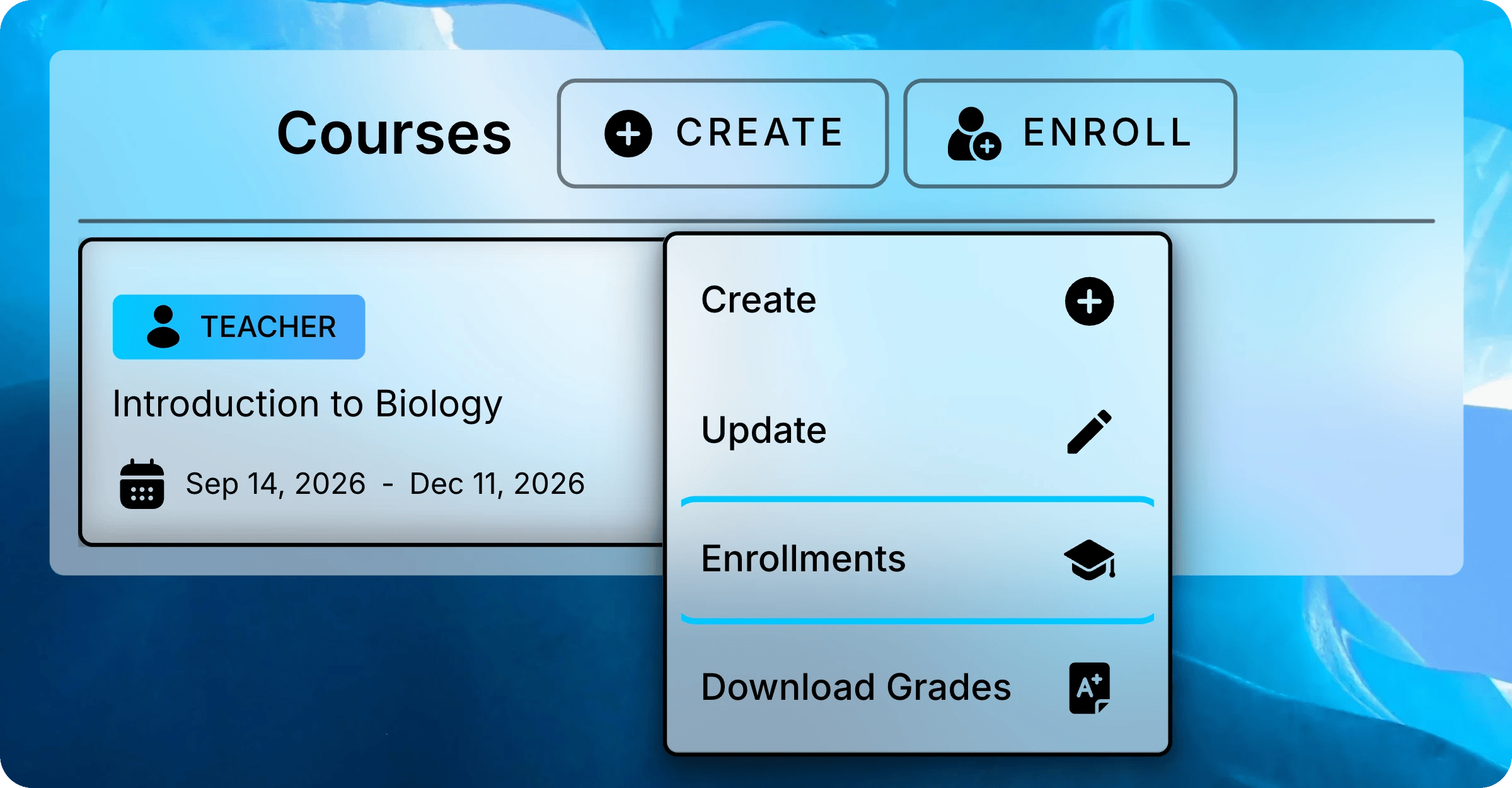
    Select **Courses** in the sidebar. Right-click your course and select **Enrollments**.
    <img className="mx-auto block dark:hidden" style={{ maxWidth: "min(480px, 100%)" }} src="https://mintcdn.com/uflo/VQy9pgOmYta557zz/images/illustrations/screenshot/course-menu-enrollments/light.webp?fit=max&auto=format&n=VQy9pgOmYta557zz&q=85&s=d8ecde43bda4883badae80965a6903a2" alt="Courses panel with the menu open on Introduction to Biology and Enrollments highlighted." width="2399" height="1251" data-path="images/illustrations/screenshot/course-menu-enrollments/light.webp" />

    <img className="mx-auto hidden dark:block" style={{ maxWidth: "min(480px, 100%)" }} src="https://mintcdn.com/uflo/VQy9pgOmYta557zz/images/illustrations/screenshot/course-menu-enrollments/dark.webp?fit=max&auto=format&n=VQy9pgOmYta557zz&q=85&s=a5ca1f4321a51d639f83c8f2fed10ee1" alt="Courses panel with the menu open on Introduction to Biology and Enrollments highlighted." width="2399" height="1251" data-path="images/illustrations/screenshot/course-menu-enrollments/dark.webp" />

    <p className="text-center text-sm text-gray-600 dark:text-gray-400">Right-click your course and select Enrollments.</p>
  </Step>

  <Step title="Request Approval the First Time">
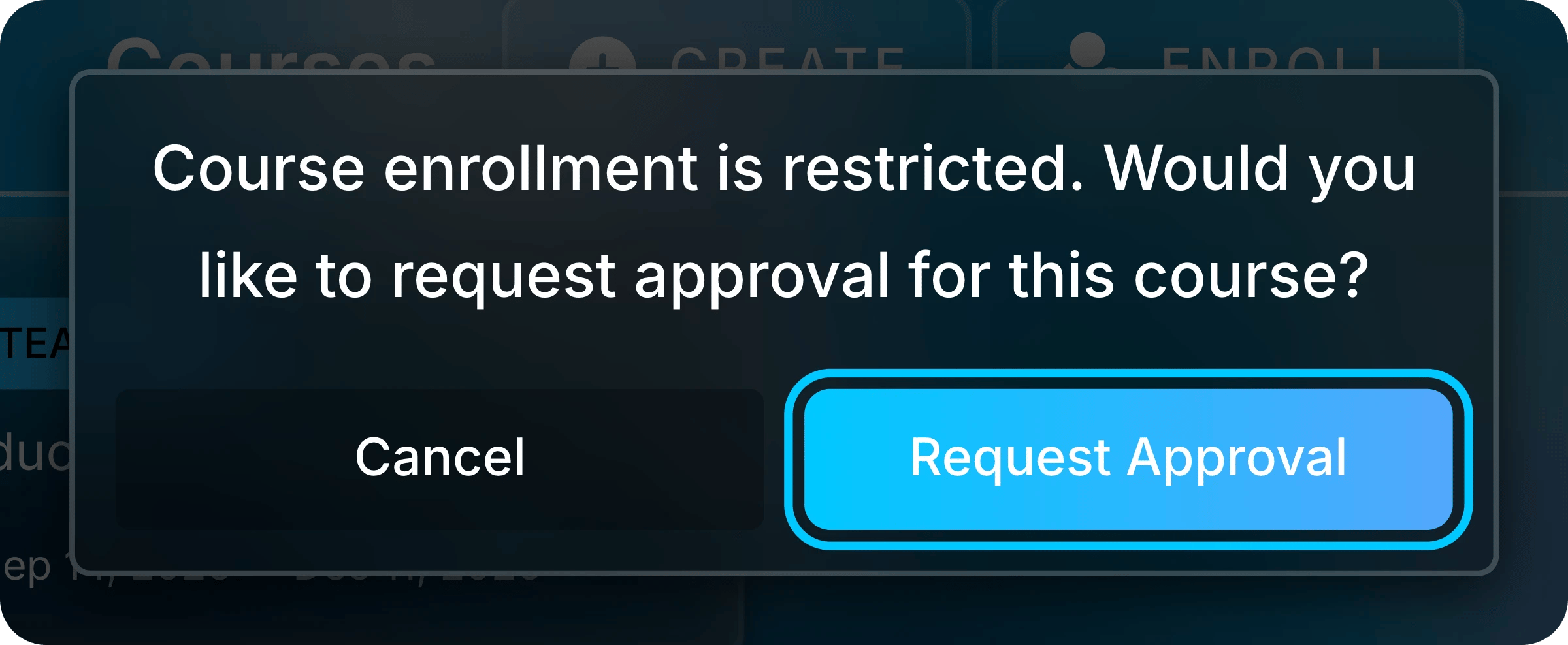
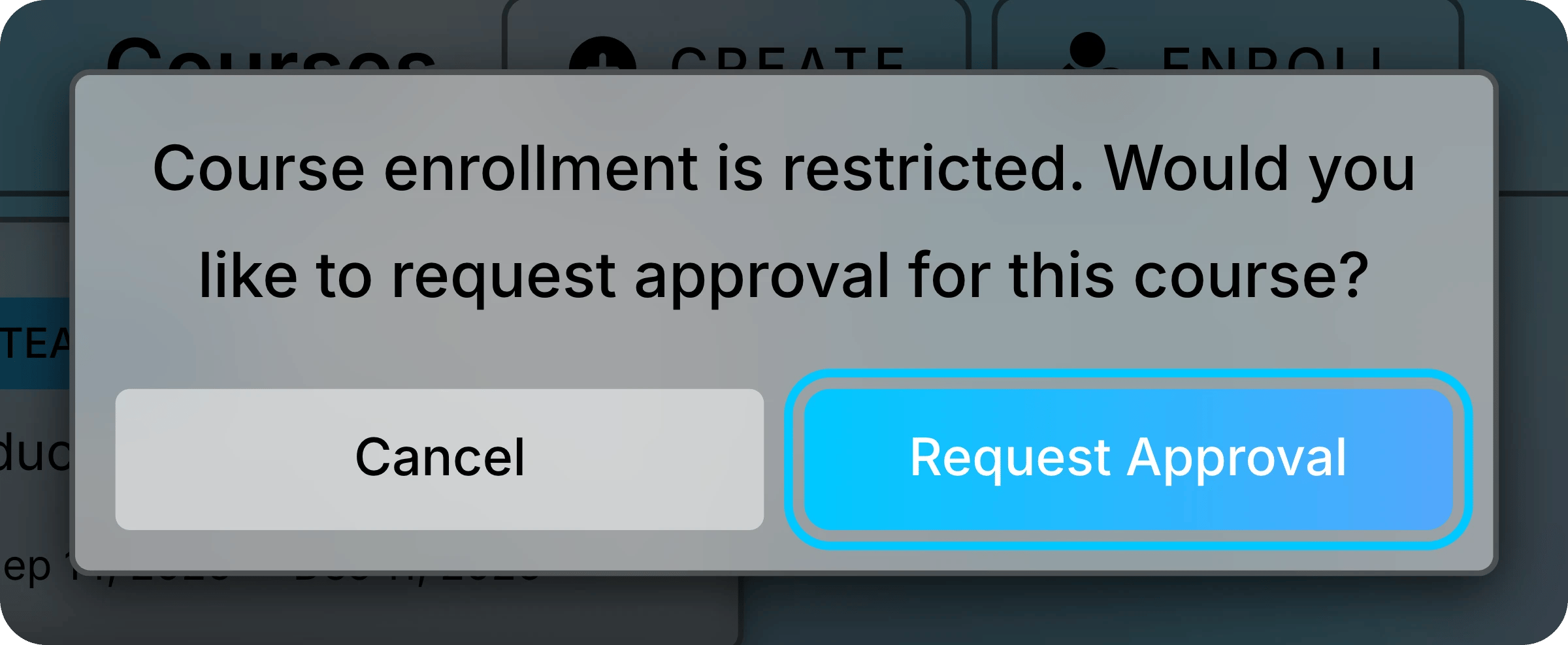
    A new course needs Uflo's approval before students can join. Select **Request Approval** and send the message it opens to Uflo Support.

    After approval, reload Uflo and select **Enrollments** again.
    <img className="mx-auto block dark:hidden" style={{ maxWidth: "min(420px, 100%)" }} src="https://mintcdn.com/uflo/VQy9pgOmYta557zz/images/illustrations/screenshot/course-enrollment-request-approval/light.webp?fit=max&auto=format&n=VQy9pgOmYta557zz&q=85&s=da3785efbf91ef9e99671563acfb7d00" alt="Confirmation saying course enrollment is restricted, with Cancel and Request Approval buttons." width="2400" height="988" data-path="images/illustrations/screenshot/course-enrollment-request-approval/light.webp" />

    <img className="mx-auto hidden dark:block" style={{ maxWidth: "min(420px, 100%)" }} src="https://mintcdn.com/uflo/VQy9pgOmYta557zz/images/illustrations/screenshot/course-enrollment-request-approval/dark.webp?fit=max&auto=format&n=VQy9pgOmYta557zz&q=85&s=35f23307745cce8f39fad806bdcc9bda" alt="Confirmation saying course enrollment is restricted, with Cancel and Request Approval buttons." width="2400" height="988" data-path="images/illustrations/screenshot/course-enrollment-request-approval/dark.webp" />

    <p className="text-center text-sm text-gray-600 dark:text-gray-400">Request approval once. Uflo opens enrollment after it approves the course.</p>
  </Step>

  <Step title="Find Enrollment Info">
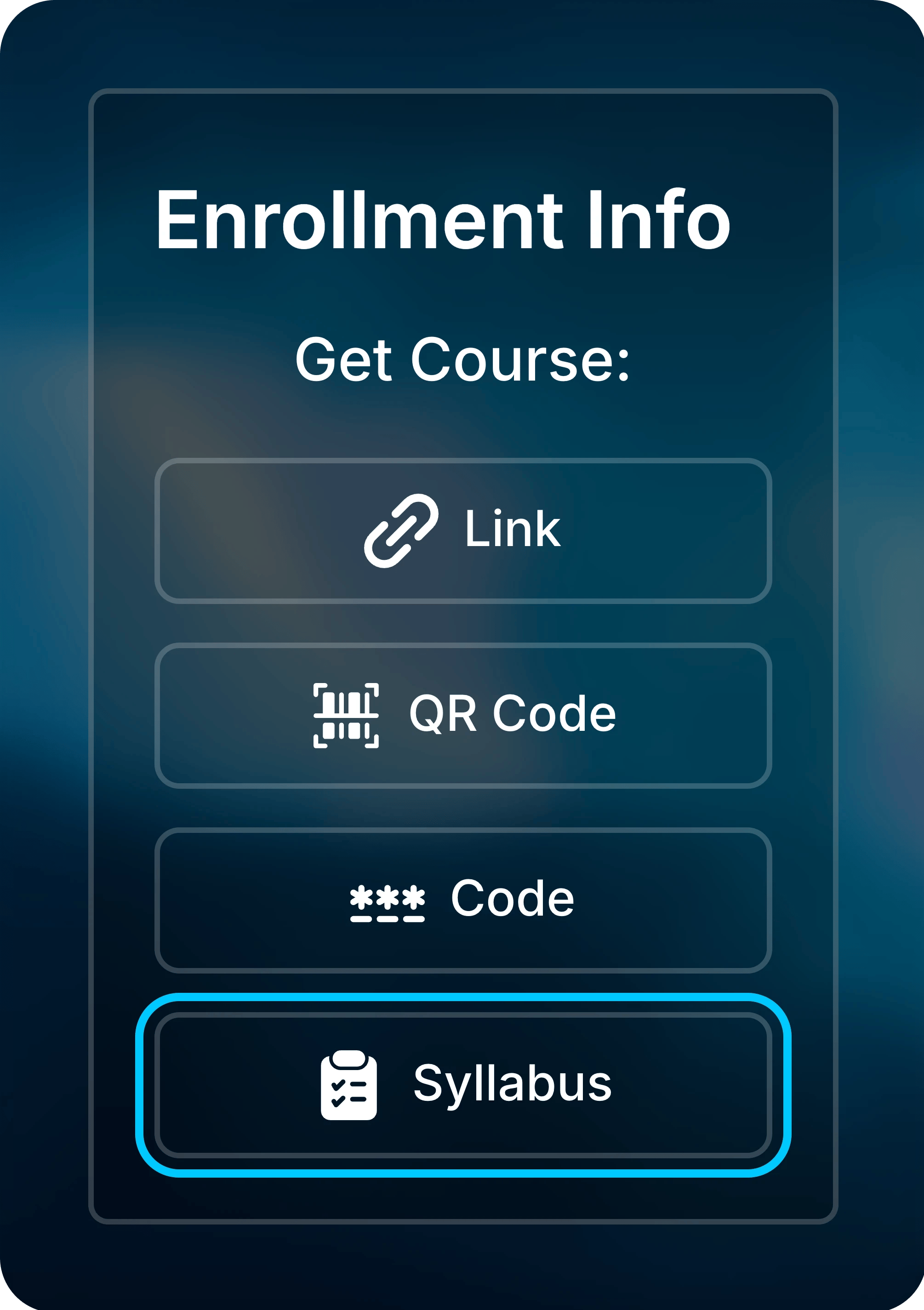
    The **Course Enrollments** window shows your roster beside **Enrollment Info**. **Enrollment Info** shows the QR code and, under **Get Course**, the sharing buttons.
    <img className="mx-auto block dark:hidden" style={{ maxWidth: "min(260px, 100%)" }} src="https://mintcdn.com/uflo/VQy9pgOmYta557zz/images/illustrations/screenshot/course-enrollment-info-panel/light.webp?fit=max&auto=format&n=VQy9pgOmYta557zz&q=85&s=e76f753c0f73657eb7dfb0e0af0a57b5" alt="Enrollment Info panel with the course QR code, the Link, QR Code, Code, and Syllabus buttons, and Upload Roster." width="2010" height="4866" data-path="images/illustrations/screenshot/course-enrollment-info-panel/light.webp" />

    <img className="mx-auto hidden dark:block" style={{ maxWidth: "min(260px, 100%)" }} src="https://mintcdn.com/uflo/VQy9pgOmYta557zz/images/illustrations/screenshot/course-enrollment-info-panel/dark.webp?fit=max&auto=format&n=VQy9pgOmYta557zz&q=85&s=e87c7ecc45cb3b4f0d784fcd6fb96cb0" alt="Enrollment Info panel with the course QR code, the Link, QR Code, Code, and Syllabus buttons, and Upload Roster." width="2010" height="4866" data-path="images/illustrations/screenshot/course-enrollment-info-panel/dark.webp" />

    <p className="text-center text-sm text-gray-600 dark:text-gray-400">Enrollment Info holds everything students need to join.</p>
  </Step>
</Steps>

## Share the Link, QR Code, or Code

Choose the method that suits where you reach students, or share all three.

| Button      | What it does                      | Good for                             |
| ----------- | --------------------------------- | ------------------------------------ |
| **Link**    | Copies the enrollment link.       | Email, LMS pages, announcements      |
| **QR Code** | Downloads the QR code as a PNG.   | Slides and printed handouts          |
| **Code**    | Copies the six-digit course code. | Writing on the board or saying aloud |

[Enroll in a Course](/students/getting-started/enrollment#enrollment-methods) shows students how to use each one.

## Add Enrollment Details to Your Syllabus

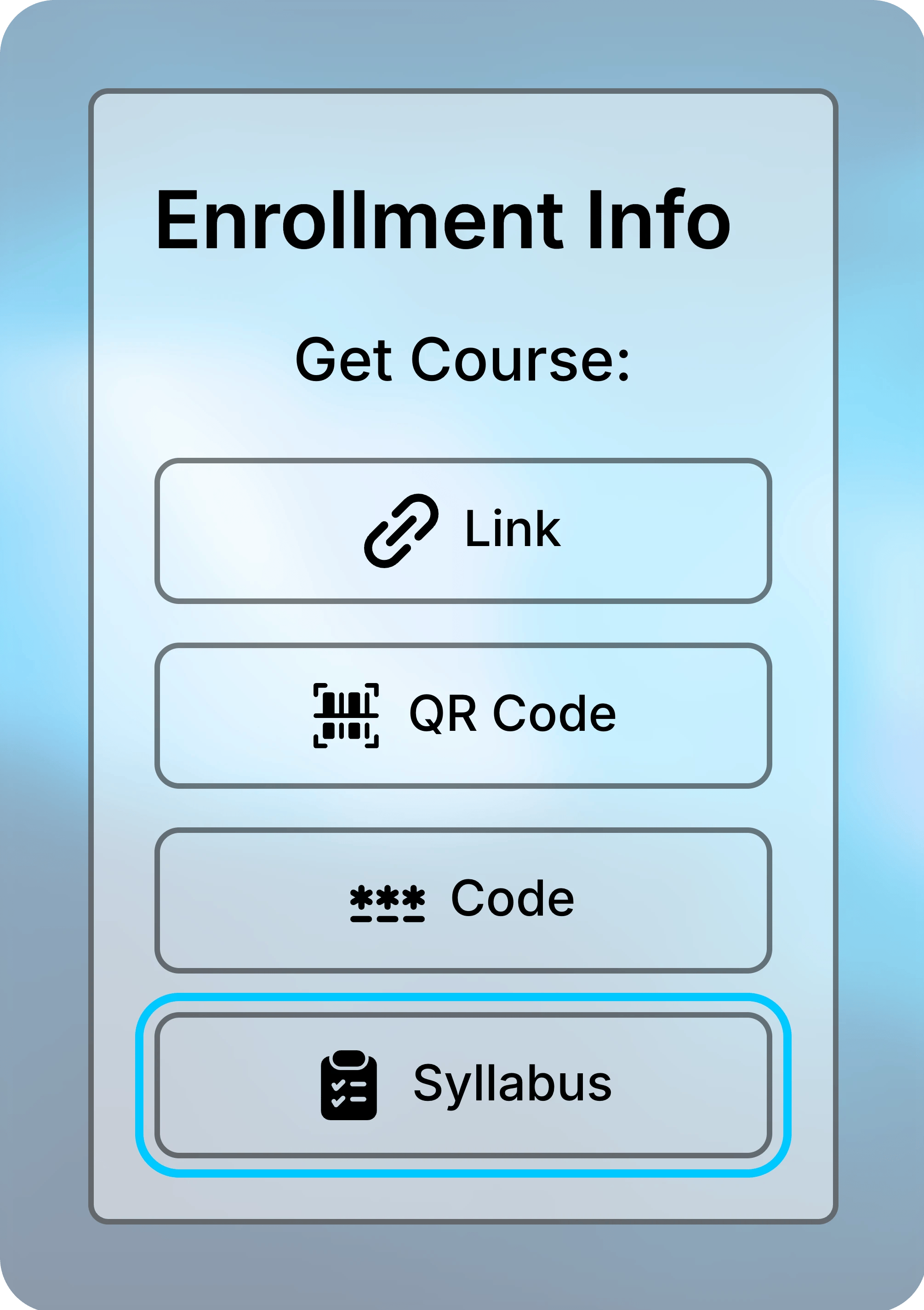
Select **Syllabus** in **Enrollment Info** to copy a ready-made syllabus section.
<img className="mx-auto block dark:hidden" style={{ maxWidth: "min(240px, 100%)" }} src="https://mintcdn.com/uflo/8vGTMwPor_0l_iT1/images/illustrations/screenshot/syllabus-copy-access-guidance/light.webp?fit=max&auto=format&n=8vGTMwPor_0l_iT1&q=85&s=616bfe3151cc47f564e73fa9f1943951" alt="Enrollment Info panel with the Syllabus button highlighted below Link, QR Code, and Code." width="2010" height="2850" data-path="images/illustrations/screenshot/syllabus-copy-access-guidance/light.webp" />

<img className="mx-auto hidden dark:block" style={{ maxWidth: "min(240px, 100%)" }} src="https://mintcdn.com/uflo/8vGTMwPor_0l_iT1/images/illustrations/screenshot/syllabus-copy-access-guidance/dark.webp?fit=max&auto=format&n=8vGTMwPor_0l_iT1&q=85&s=9004309398e52f5446d8191bdf357e2b" alt="Enrollment Info panel with the Syllabus button highlighted below Link, QR Code, and Code." width="2010" height="2850" data-path="images/illustrations/screenshot/syllabus-copy-access-guidance/dark.webp" />

<p className="text-center text-sm text-gray-600 dark:text-gray-400">Select Syllabus to copy the section.</p>

<Accordion title="What the section includes">
  * A short introduction to Uflo and its study tools in your course
  * Steps to enroll, with the link, QR code, and course code
  * Whether the course is free, or its price and access code option
  * Steps for completing an assessment in Uflo
  * Payment, refund, and discount details, for a paid course
  * How students contact Uflo Support
</Accordion>

<Tip>
  Read the section before you post it, and edit any step that doesn't match your course, such as the assessment steps.
</Tip>

## What Students See Next

Students confirm the course name and its payment setup in the enrollment popup:

<Tabs>
  <Tab title="Free Course" icon="gift">
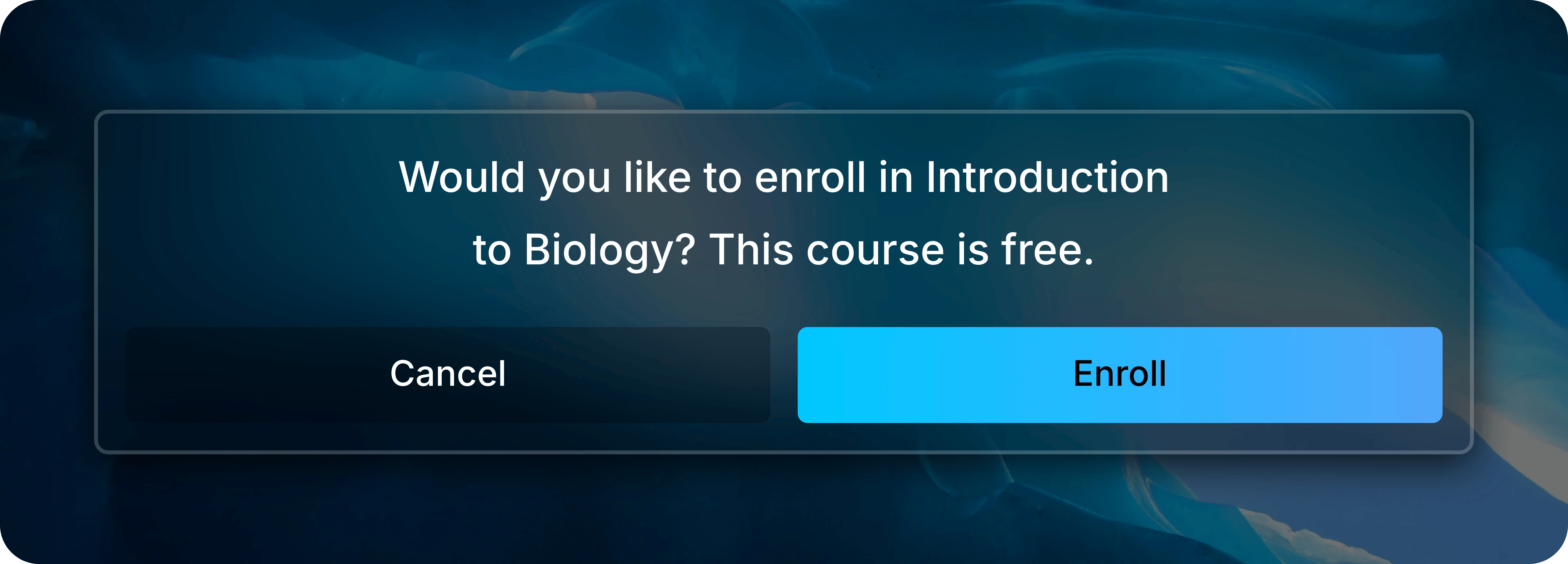
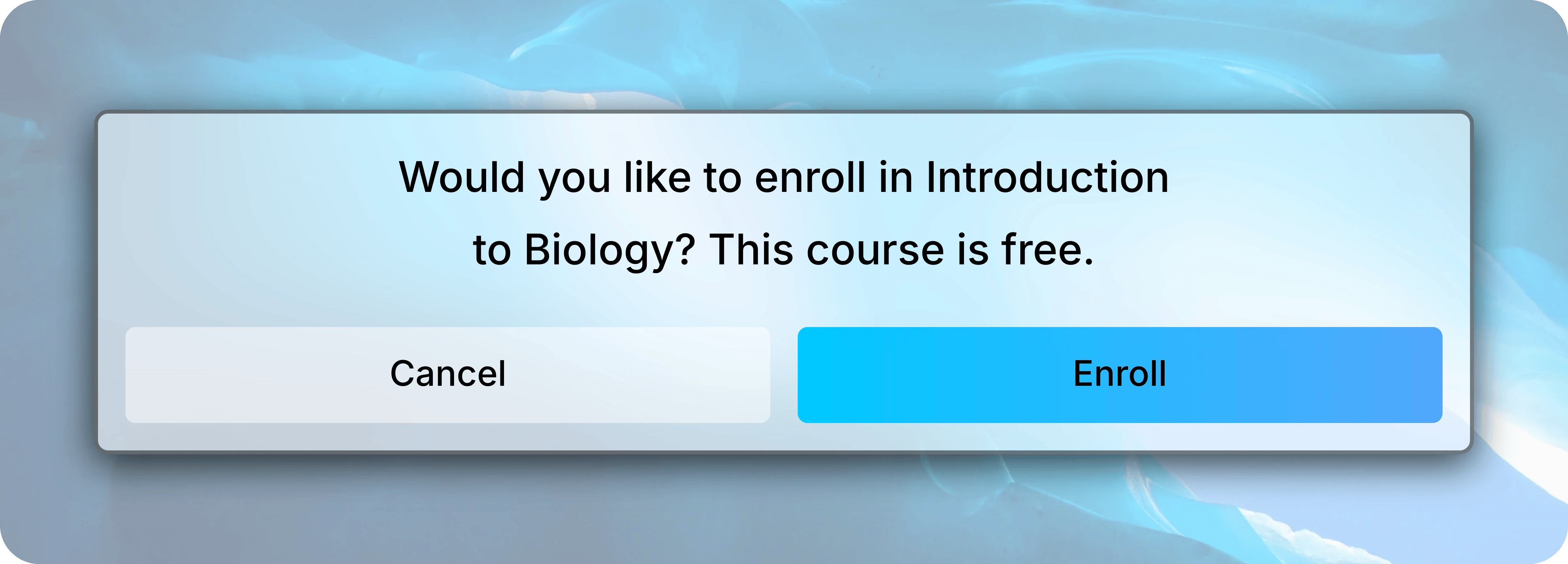
    Students select **Enroll** to join right away.
    <img className="mx-auto block dark:hidden" style={{ maxWidth: "min(480px, 100%)" }} src="https://mintcdn.com/uflo/bjFY7d8Jb3xynmGG/images/illustrations/students-getting-started-enrollment-free/light.webp?fit=max&auto=format&n=bjFY7d8Jb3xynmGG&q=85&s=b38e85996c2a49e4aea2851ad269dc20" alt="Confirmation asking whether to enroll in Introduction to Biology, stating the course is free, with Cancel and Enroll buttons." width="4800" height="1728" data-path="images/illustrations/students-getting-started-enrollment-free/light.webp" />

    <img className="mx-auto hidden dark:block" style={{ maxWidth: "min(480px, 100%)" }} src="https://mintcdn.com/uflo/bjFY7d8Jb3xynmGG/images/illustrations/students-getting-started-enrollment-free/dark.webp?fit=max&auto=format&n=bjFY7d8Jb3xynmGG&q=85&s=7a29f3cd069c9ec07171af023116ec78" alt="Confirmation asking whether to enroll in Introduction to Biology, stating the course is free, with Cancel and Enroll buttons." width="4800" height="1728" data-path="images/illustrations/students-getting-started-enrollment-free/dark.webp" />

    <p className="text-center text-sm text-gray-600 dark:text-gray-400">A free course asks students to confirm and enroll.</p>
  </Tab>

  <Tab title="Paid Course" icon="credit-card">
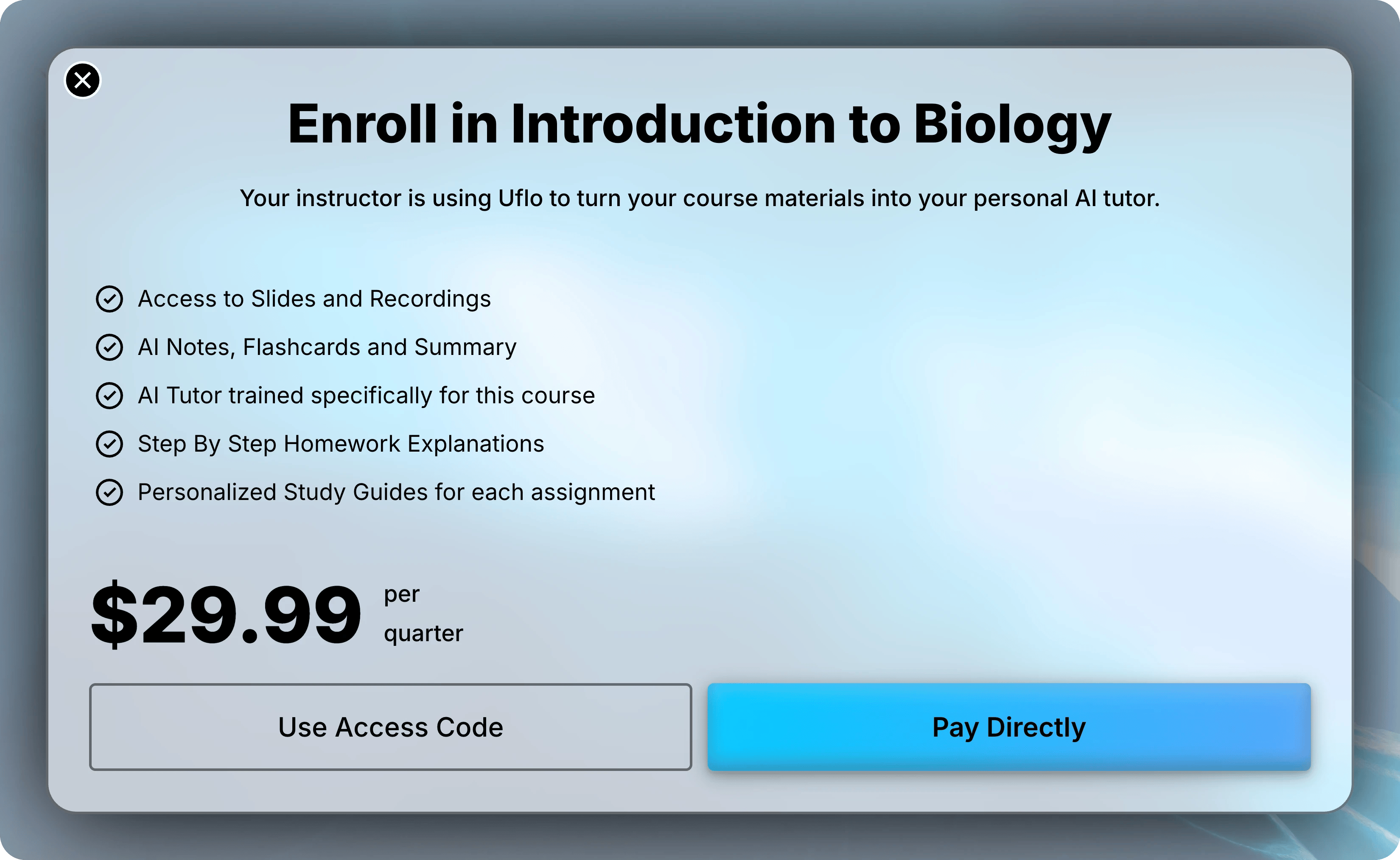
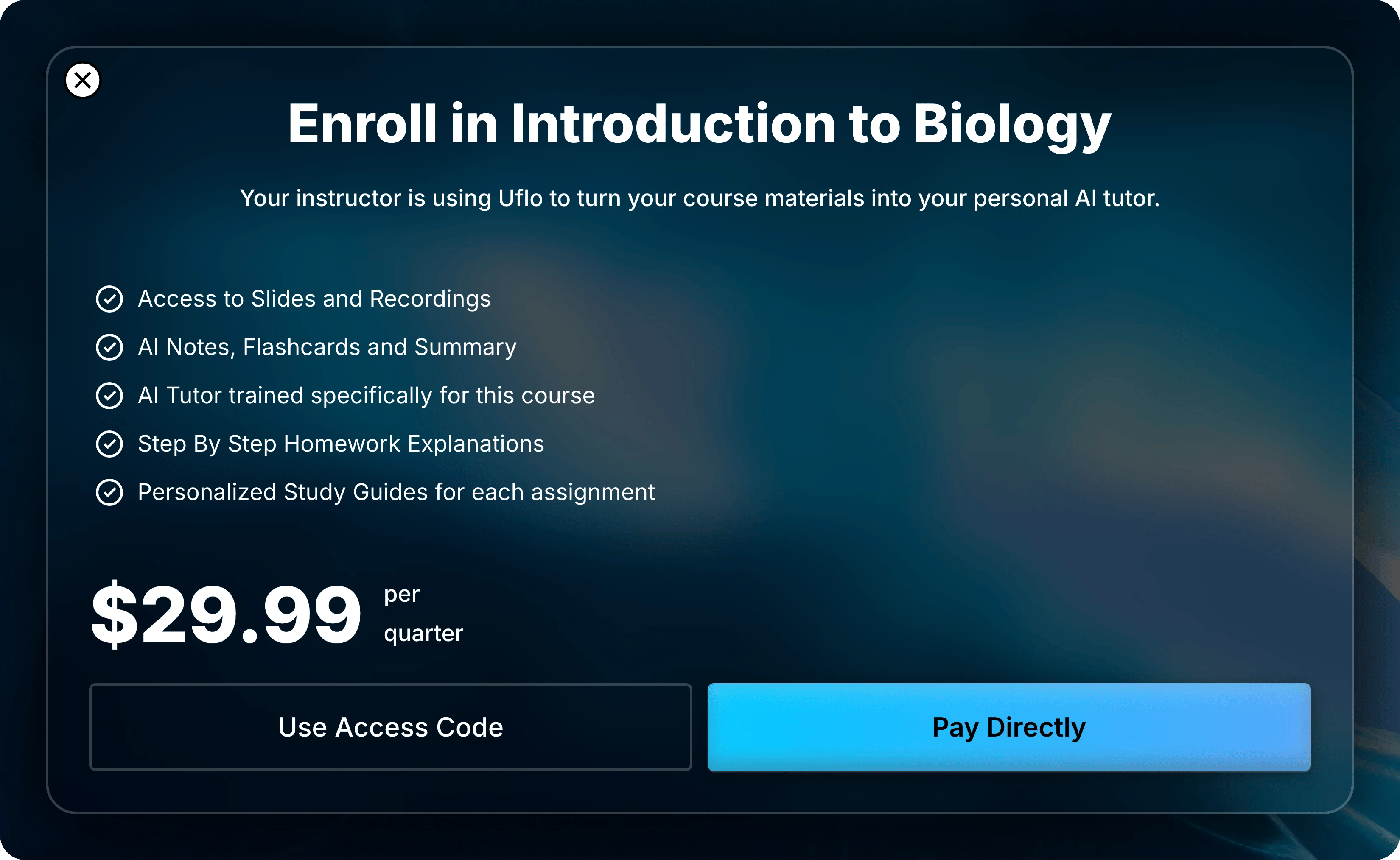
    Students see the price for the quarter or semester. They select **Pay Directly** to pay by card, or **Use Access Code** to enter a code from the campus bookstore.
    <img className="mx-auto block dark:hidden" style={{ maxWidth: "min(480px, 100%)" }} src="https://mintcdn.com/uflo/geACS76OMPy301Gl/images/illustrations/students-getting-started-enrollment-paid/light.webp?fit=max&auto=format&n=geACS76OMPy301Gl&q=85&s=3a26e719ffb19eca8a2601ed57bcbc54" alt="Introduction to Biology enrollment screen with an example quarterly price and Use Access Code and Pay Directly buttons." width="3300" height="2028" data-path="images/illustrations/students-getting-started-enrollment-paid/light.webp" />

    <img className="mx-auto hidden dark:block" style={{ maxWidth: "min(480px, 100%)" }} src="https://mintcdn.com/uflo/geACS76OMPy301Gl/images/illustrations/students-getting-started-enrollment-paid/dark.webp?fit=max&auto=format&n=geACS76OMPy301Gl&q=85&s=4c2a55ec6f171db998f72f47141a514f" alt="Introduction to Biology enrollment screen with an example quarterly price and Use Access Code and Pay Directly buttons." width="3300" height="2028" data-path="images/illustrations/students-getting-started-enrollment-paid/dark.webp" />

    <p className="text-center text-sm text-gray-600 dark:text-gray-400">A paid course offers card payment or a bookstore access code.</p>
  </Tab>
</Tabs>

## Common Questions

<AccordionGroup>
  <Accordion title="A student can't find the course. What should I check?">
    Confirm they used this course's link or code. Each course has its own.

    Have them sign in with the account they enrolled with and reload **Courses**. A student who left before confirming or checking out isn't enrolled and can reopen the link to finish. The [student troubleshooting section](/students/getting-started/enrollment#resolve-enrollment-problems) covers other cases.
  </Accordion>

  <Accordion title="Why do students see that enrollment is restricted or disabled?">
    Your course isn't approved for enrollment yet. Open **Enrollments** from the course menu and select **Request Approval**.
  </Accordion>

  <Accordion title="A student joined the wrong course. What should they do?">
    Send them the link or code for the right course, and they can join it the same way. If they paid or used an access code for the wrong course, they should contact Uflo Support before paying again.
  </Accordion>

  <Accordion title="Who helps students with payment or sign-in problems?">
    Uflo Support. Students select **Support** in the Uflo sidebar or email [support@uflo.io](mailto:support@uflo.io). The syllabus section tells them the same.
  </Accordion>
</AccordionGroup>

<Card title="Next: Manage Roster" icon="users" href="/instructors/courses/manage-roster">
  Review who has joined and match students to your class list.
</Card>