> ## Documentation Index
> Fetch the complete documentation index at: https://docs.uflo.io/llms.txt
> Use this file to discover all available pages before exploring further.

# Create a Course

> Set up a course manually or from your syllabus.

A course holds your chapters, lessons, files, and students.
You can enter its details yourself, or upload your syllabus and let Uflo fill them in for you to check.

## Create Your Course

<Steps>
  <Step title="Open Create Course">
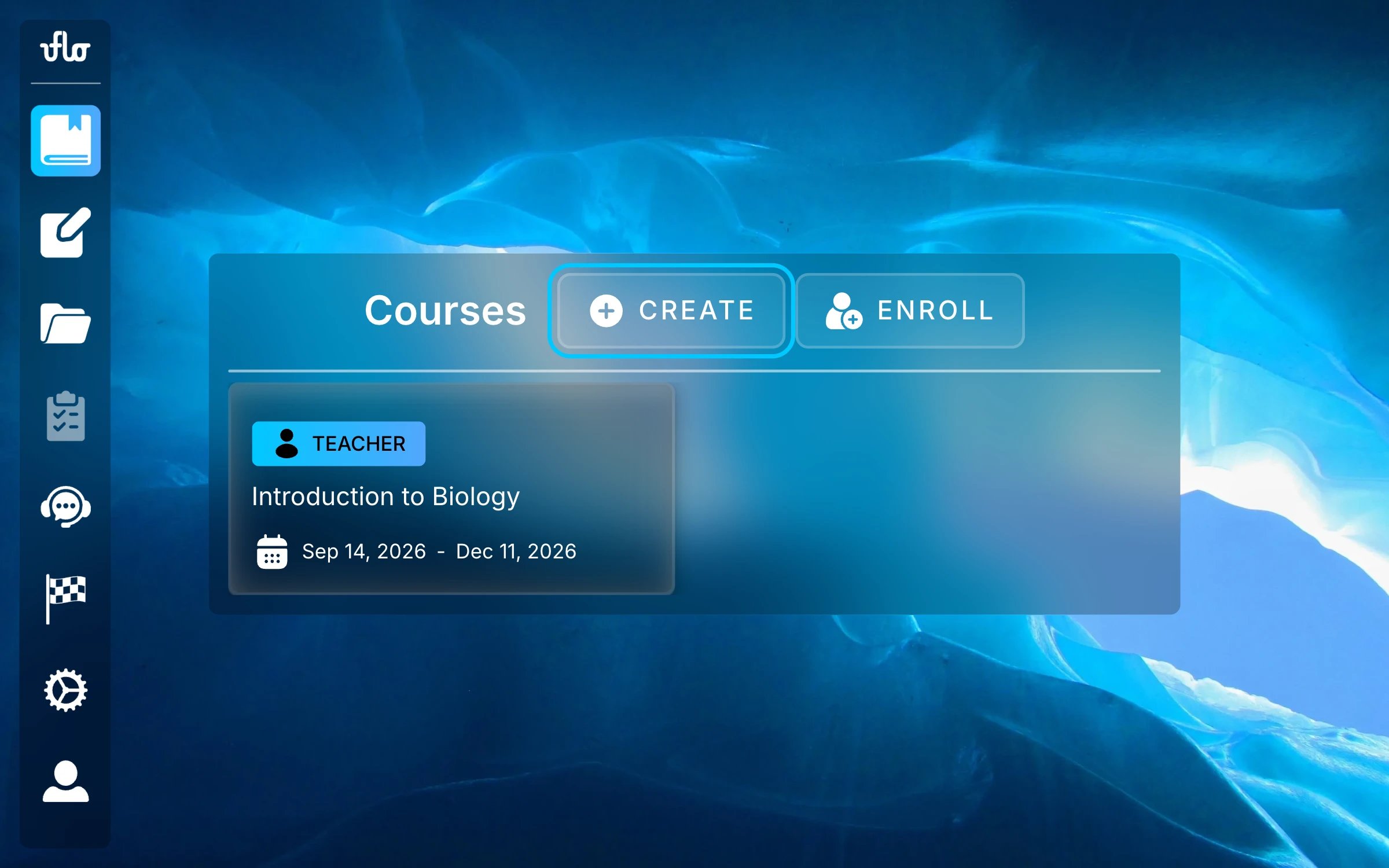
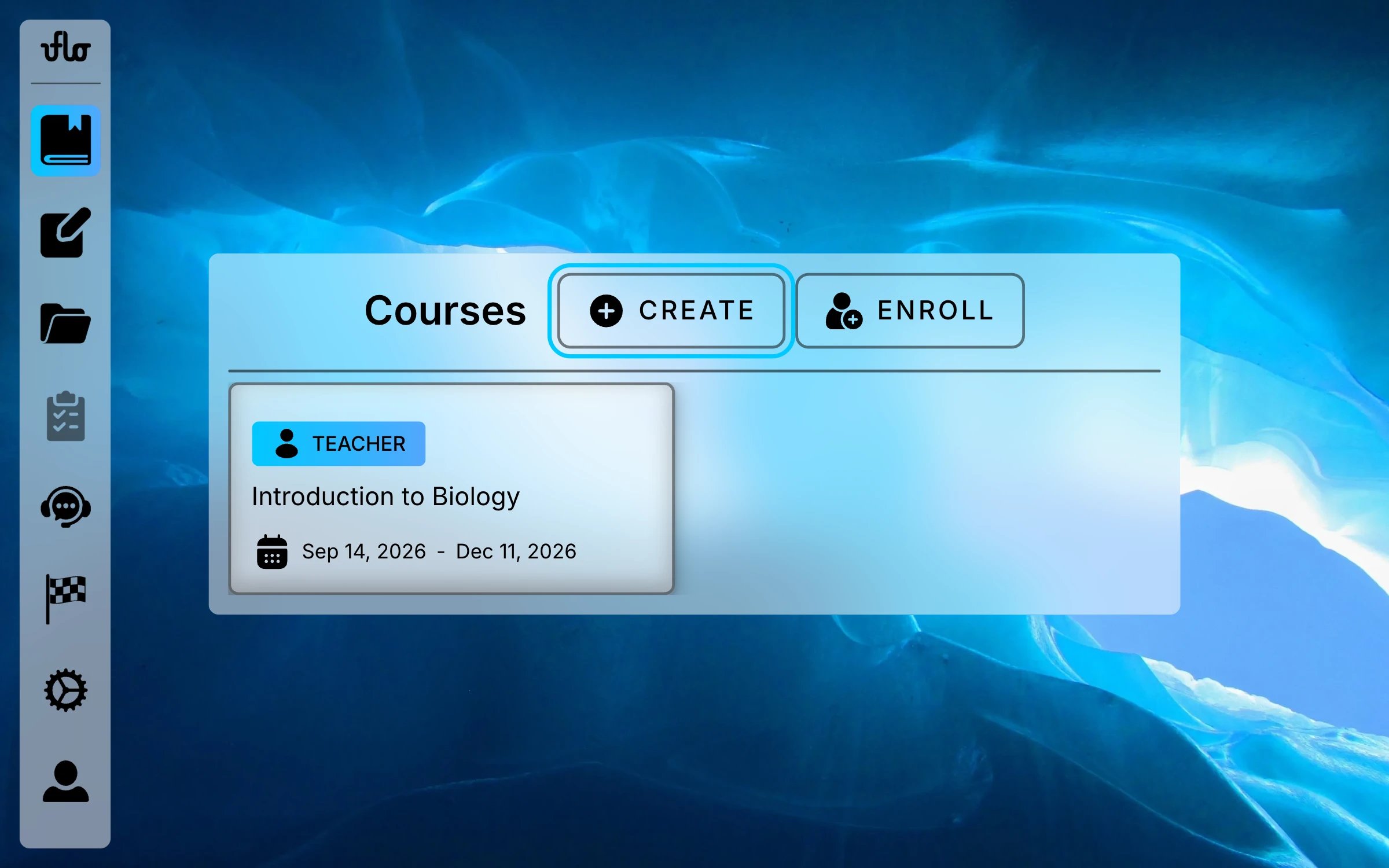
    Select **Courses** in the sidebar, then select **Create** beside the **Courses** heading.
    <img className="block dark:hidden mx-auto" src="https://mintcdn.com/uflo/mc8jedJa_T3_qK9F/images/illustrations/screenshot/instructors-create-course-entry/light.webp?fit=max&auto=format&n=mc8jedJa_T3_qK9F&q=85&s=ab5a225a8e7b6b4155aab4e384ab9cf7" alt="Uflo Courses page with the Create button highlighted beside the Courses heading, next to Enroll, above an Introduction to Biology course card." width="2400" height="1500" data-path="images/illustrations/screenshot/instructors-create-course-entry/light.webp" />

    <img className="hidden dark:block mx-auto" src="https://mintcdn.com/uflo/VQy9pgOmYta557zz/images/illustrations/screenshot/instructors-create-course-entry/dark.webp?fit=max&auto=format&n=VQy9pgOmYta557zz&q=85&s=ac1f9e9bfb204a5ba53935cf9282dd88" alt="Uflo Courses page with the Create button highlighted beside the Courses heading, next to Enroll, above an Introduction to Biology course card." width="2400" height="1500" data-path="images/illustrations/screenshot/instructors-create-course-entry/dark.webp" />

    <p className="text-center text-sm text-gray-600 dark:text-gray-400">Find Create beside the Courses heading.</p>
  </Step>

  <Step title="Choose How to Start">
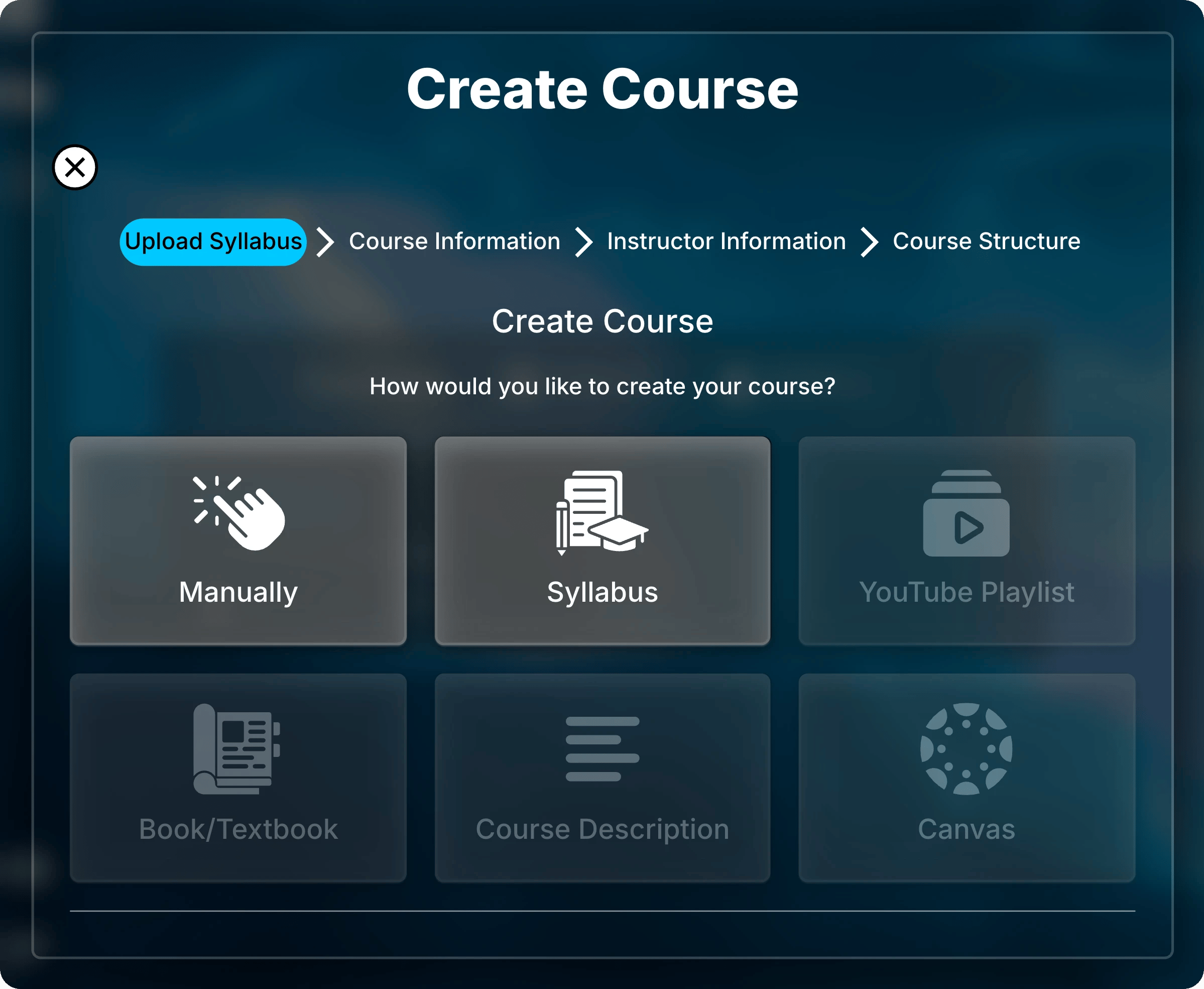
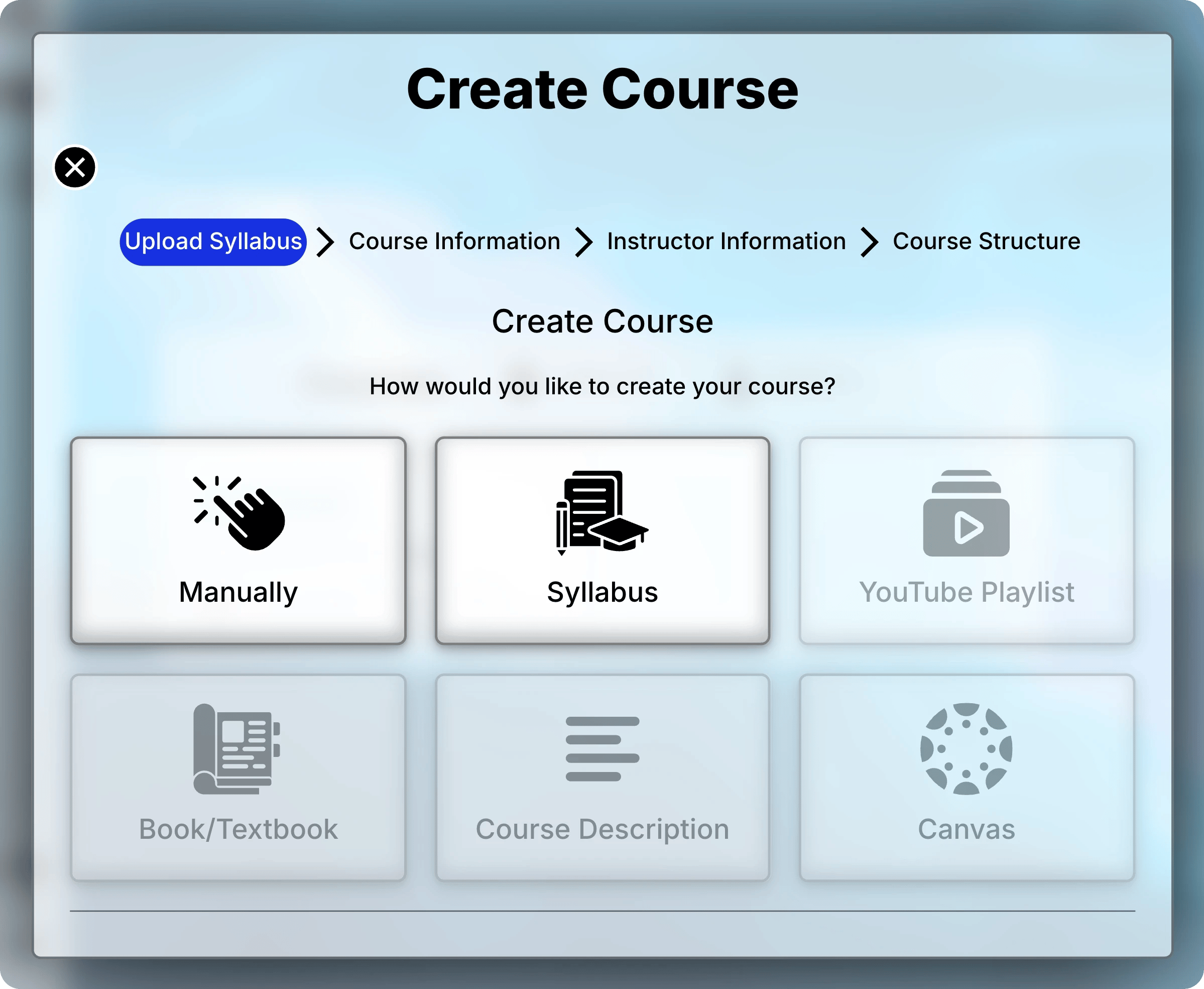
    Uflo asks how you would like to create your course.

    * **Manually** opens **Course Information** with empty fields.
    * **Syllabus** asks for your syllabus first, then fills in the fields for you.
    * More sources, such as a textbook or Canvas, are coming soon.
    <img className="block dark:hidden mx-auto" src="https://mintcdn.com/uflo/mc8jedJa_T3_qK9F/images/illustrations/screenshot/instructors-create-course-start/light.webp?fit=max&auto=format&n=mc8jedJa_T3_qK9F&q=85&s=c2d47048b2de5fb6bf4e55827cb96340" alt="Create Course dialog asking how you would like to create your course, with Manually and Syllabus available and four more sources disabled." style={{ maxWidth: "560px" }} width="2398" height="1969" data-path="images/illustrations/screenshot/instructors-create-course-start/light.webp" />

    <img className="hidden dark:block mx-auto" src="https://mintcdn.com/uflo/mc8jedJa_T3_qK9F/images/illustrations/screenshot/instructors-create-course-start/dark.webp?fit=max&auto=format&n=mc8jedJa_T3_qK9F&q=85&s=f311a0036e95d8cfbcb2fd8319a247a4" alt="Create Course dialog asking how you would like to create your course, with Manually and Syllabus available and four more sources disabled." style={{ maxWidth: "560px" }} width="2398" height="1969" data-path="images/illustrations/screenshot/instructors-create-course-start/dark.webp" />

    <p className="text-center text-sm text-gray-600 dark:text-gray-400">Start with empty fields, or let Uflo read your syllabus.</p>
  </Step>

  <Step title="Enter Course Information">
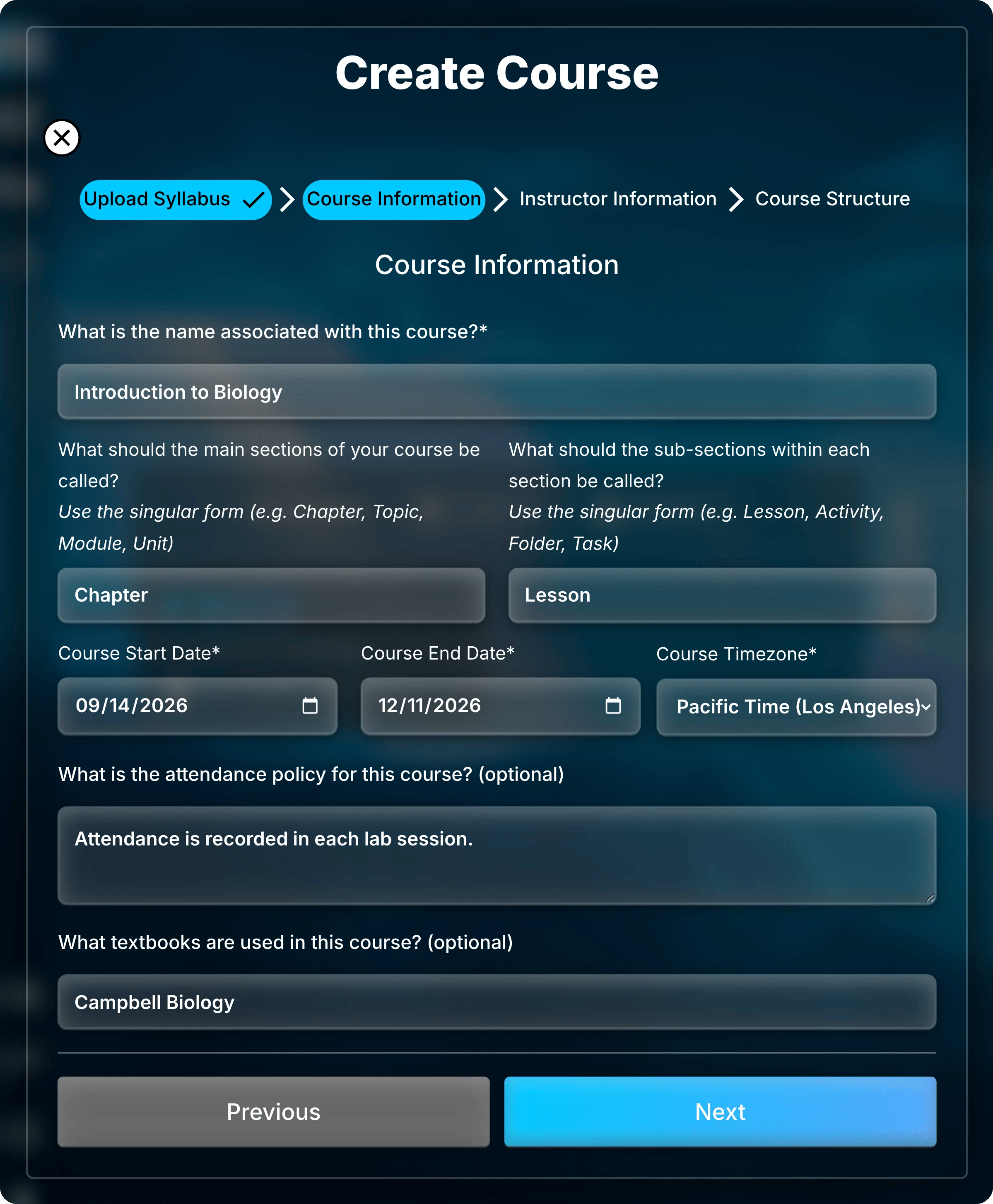
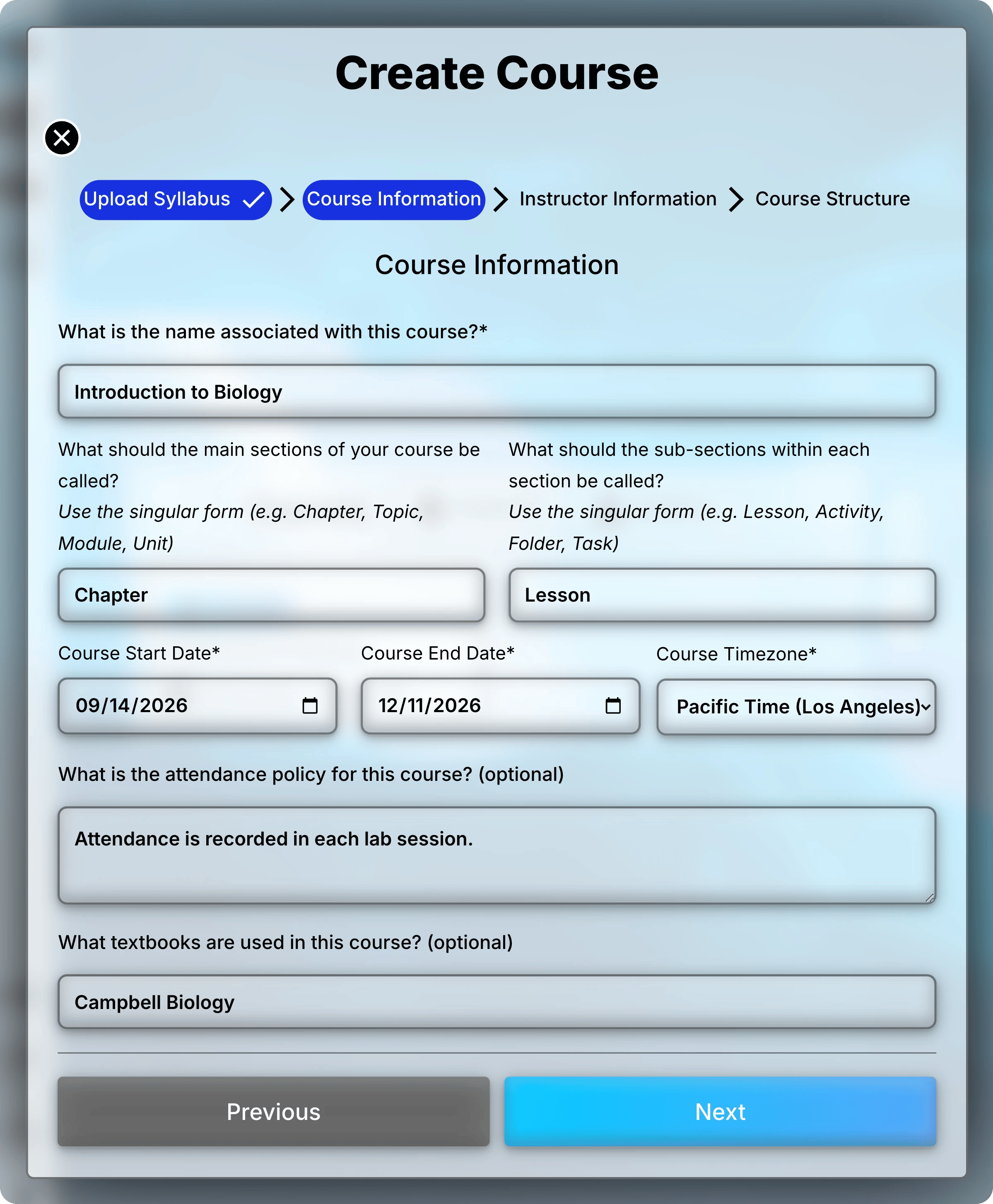
    Fill in or check the details below.
    Fields marked with an asterisk are required.

    | Field               | What to enter                                                |
    | ------------------- | ------------------------------------------------------------ |
    | Course name         | The name students see, such as Introduction to Biology.      |
    | Section names       | What to call a chapter and a lesson, such as Unit and Topic. |
    | Start and end dates | The first and last days of the course.                       |
    | Course timezone     | The timezone for lesson dates, due dates, and course times.  |
    | Attendance policy   | Optional.                                                    |
    | Textbooks           | Optional. Separate titles with commas.                       |
    <img className="block dark:hidden mx-auto" src="https://mintcdn.com/uflo/mc8jedJa_T3_qK9F/images/illustrations/screenshot/instructors-create-course-information/light.webp?fit=max&auto=format&n=mc8jedJa_T3_qK9F&q=85&s=141a0b632194fb41fb63a7f920e70088" alt="Course Information page filled in for Introduction to Biology, with Chapter and Lesson as section names, dates from September 14 to December 11, 2026, and Pacific Time selected." style={{ maxWidth: "560px" }} width="2398" height="2908" data-path="images/illustrations/screenshot/instructors-create-course-information/light.webp" />

    <img className="hidden dark:block mx-auto" src="https://mintcdn.com/uflo/mc8jedJa_T3_qK9F/images/illustrations/screenshot/instructors-create-course-information/dark.webp?fit=max&auto=format&n=mc8jedJa_T3_qK9F&q=85&s=1ec4cdb7c2cc36a69735c875d4691669" alt="Course Information page filled in for Introduction to Biology, with Chapter and Lesson as section names, dates from September 14 to December 11, 2026, and Pacific Time selected." style={{ maxWidth: "560px" }} width="2398" height="2908" data-path="images/illustrations/screenshot/instructors-create-course-information/dark.webp" />

    <p className="text-center text-sm text-gray-600 dark:text-gray-400">Check each field, especially the dates and timezone.</p>
  </Step>

  <Step title="Skip the Optional Details and Submit">
    Skip **Class Hours**, **Assignments**, and **Exams**, then select **Submit**.

    <Accordion title="Optional details (you can skip these)">
      These pages add schedule details to the course calendar.
      Nothing else in Uflo uses them, so you can leave them empty.

      | Page                       | What it records                                          |
      | -------------------------- | -------------------------------------------------------- |
      | **Class Hours**            | Meeting days, start and end times, and location.         |
      | **Assignments**            | Each assignment's name and due date.                     |
      | **Exams**                  | Each exam's name, start, and optional end.               |
      | **Instructor Information** | Each instructor's name, email, office, and office hours. |

      Select **Add** on a page to add another entry.
      Open the calendar with the calendar button at the top of the course.
    </Accordion>
  </Step>

  <Step title="Add Chapters and Lessons">
    See [Manage Chapters](/instructors/courses/manage-chapters) and [Manage Lessons](/instructors/courses/manage-lessons).
  </Step>

  <Step title="Invite Your Students">
    Share its enrollment link, QR code, or course code. See [Enroll Students](/instructors/courses/enroll-students).
  </Step>
</Steps>

## Change Course Settings Later

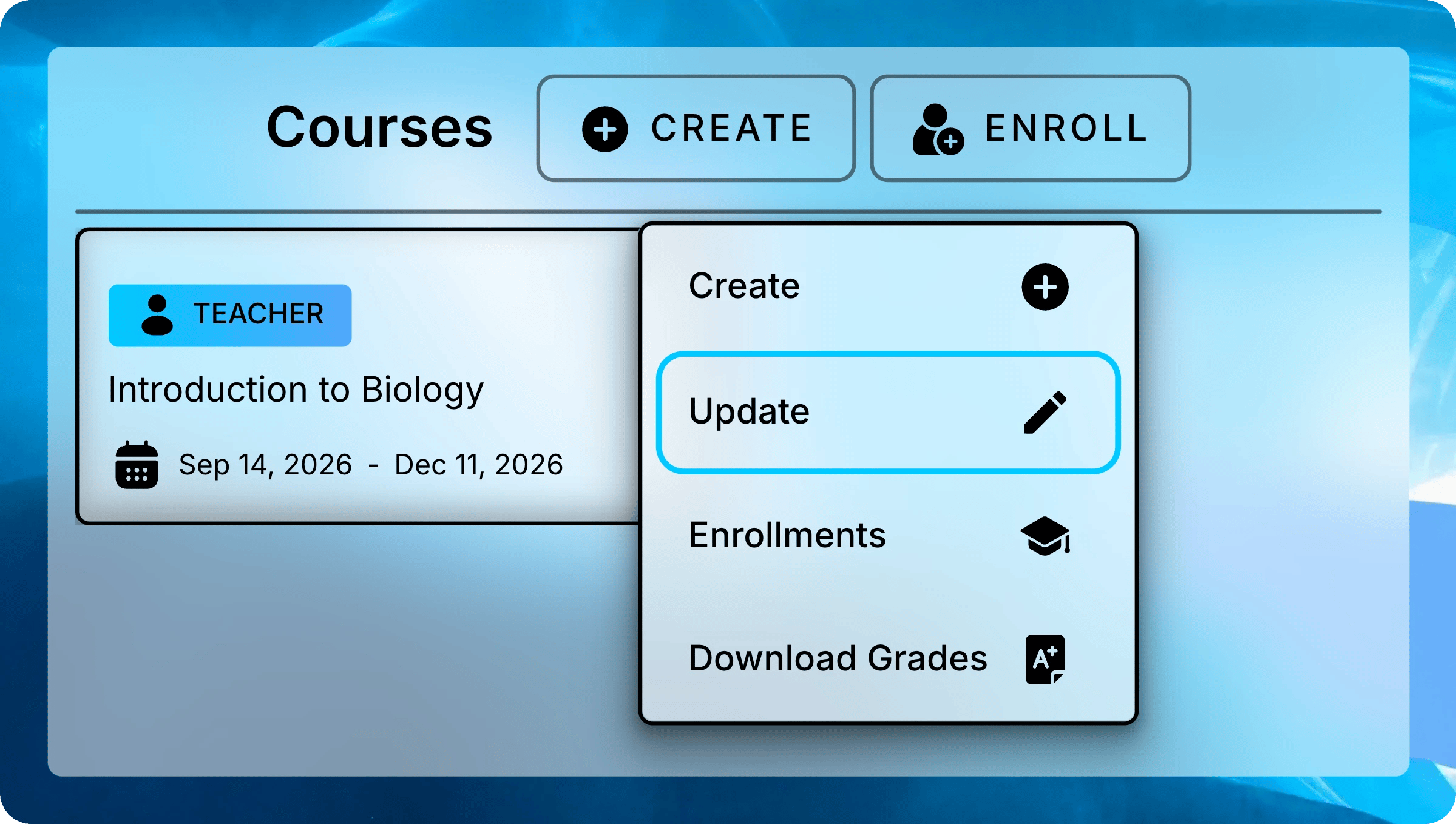
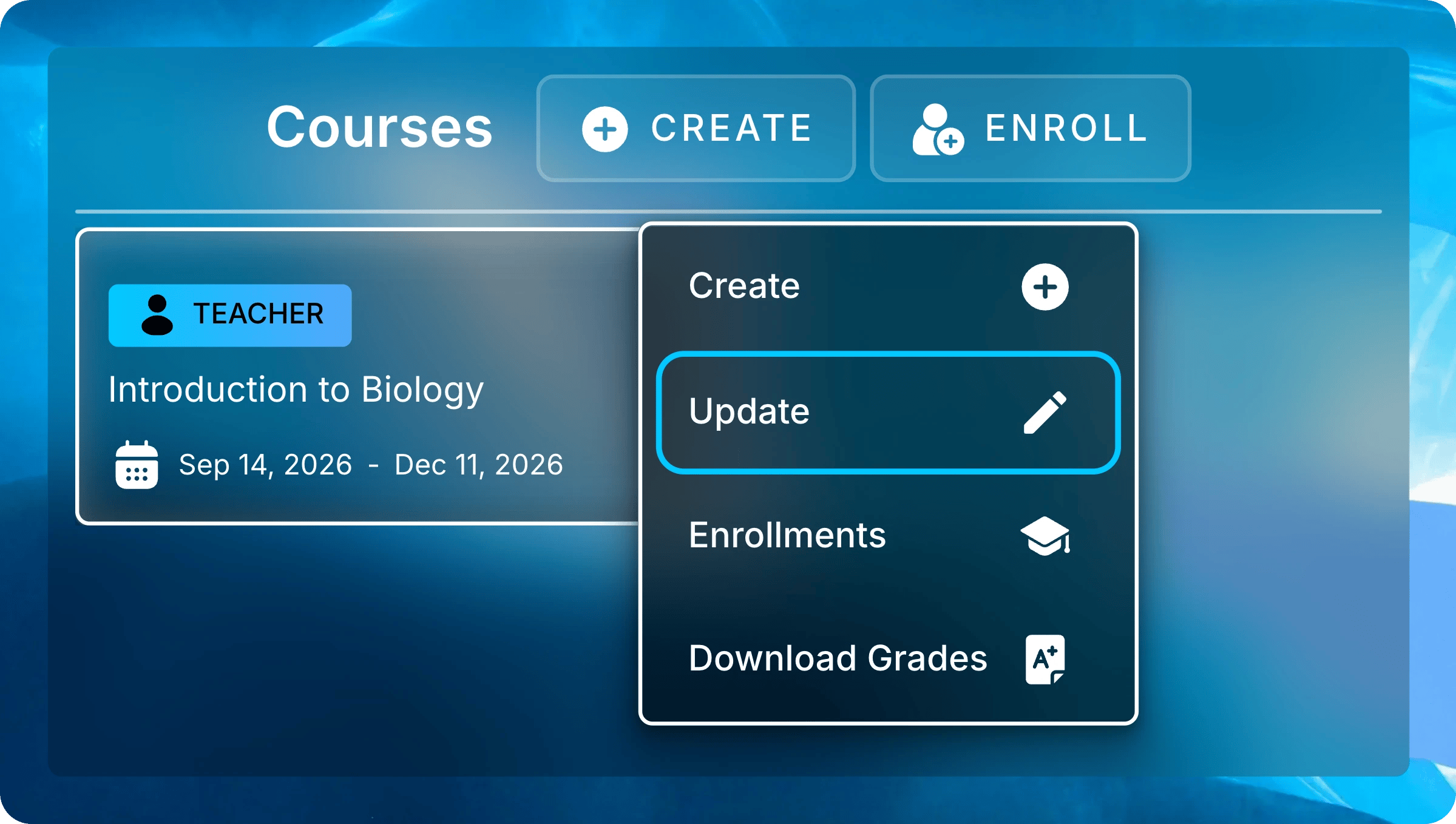
Right-click the course card on **Courses**, or long-press it on a touch screen, then select **Update**.
Uflo opens **Course Information** with your saved settings.
Make your changes, move through the remaining pages, and select **Submit**.
<img className="block dark:hidden mx-auto" src="https://mintcdn.com/uflo/mc8jedJa_T3_qK9F/images/illustrations/screenshot/instructors-create-course-update-menu/light.webp?fit=max&auto=format&n=mc8jedJa_T3_qK9F&q=85&s=21ce01b601d457a39e4862e183ee9409" alt="Menu open on the Introduction to Biology course card with Update highlighted among Create, Enrollments, and Download Grades." width="2399" height="1358" data-path="images/illustrations/screenshot/instructors-create-course-update-menu/light.webp" />

<img className="hidden dark:block mx-auto" src="https://mintcdn.com/uflo/mc8jedJa_T3_qK9F/images/illustrations/screenshot/instructors-create-course-update-menu/dark.webp?fit=max&auto=format&n=mc8jedJa_T3_qK9F&q=85&s=81aece74e3b8256dd4f5a0a447a5f91e" alt="Menu open on the Introduction to Biology course card with Update highlighted among Create, Enrollments, and Download Grades." width="2399" height="1358" data-path="images/illustrations/screenshot/instructors-create-course-update-menu/dark.webp" />

<p className="text-center text-sm text-gray-600 dark:text-gray-400">Right-click a course card and select Update to change its settings.</p>

## Common Questions

<AccordionGroup>
  <Accordion title="What if my syllabus upload fails?">
    Uflo shows **Syllabus upload failed. Please try again.**
    Add the file again and select **Upload**.
    If it still fails, select **Previous** and choose **Manually** instead.
  </Accordion>

  <Accordion title="Can I copy a course from an earlier term?">
    Contact Uflo through **Support** in the sidebar with both course names.
  </Accordion>
</AccordionGroup>

<Card title="Next: Manage Chapters" icon="folder" href="/instructors/courses/manage-chapters">
  Add chapters to your course and control what students see.
</Card>