> ## Documentation Index
> Fetch the complete documentation index at: https://docs.uflo.io/llms.txt
> Use this file to discover all available pages before exploring further.

# Assessment Settings

> Choose how students take an assessment and how their attempts become a final grade.

Assessment settings decide when students can work, how many attempts they get, and what help they have along the way. They also decide which attempts count toward the final grade. Students see the due date, attempts, time limit, and tutoring on the assessment page before they start.

<Note>
  These settings apply when students take the assessment in Uflo. Paper assessments and assessments imported from an LMS collect responses outside Uflo.
</Note>

## Open the Settings

The settings live in the **Assessment** form, below the title and instructions.

<Steps>
  <Step title="Open the Update Menu">
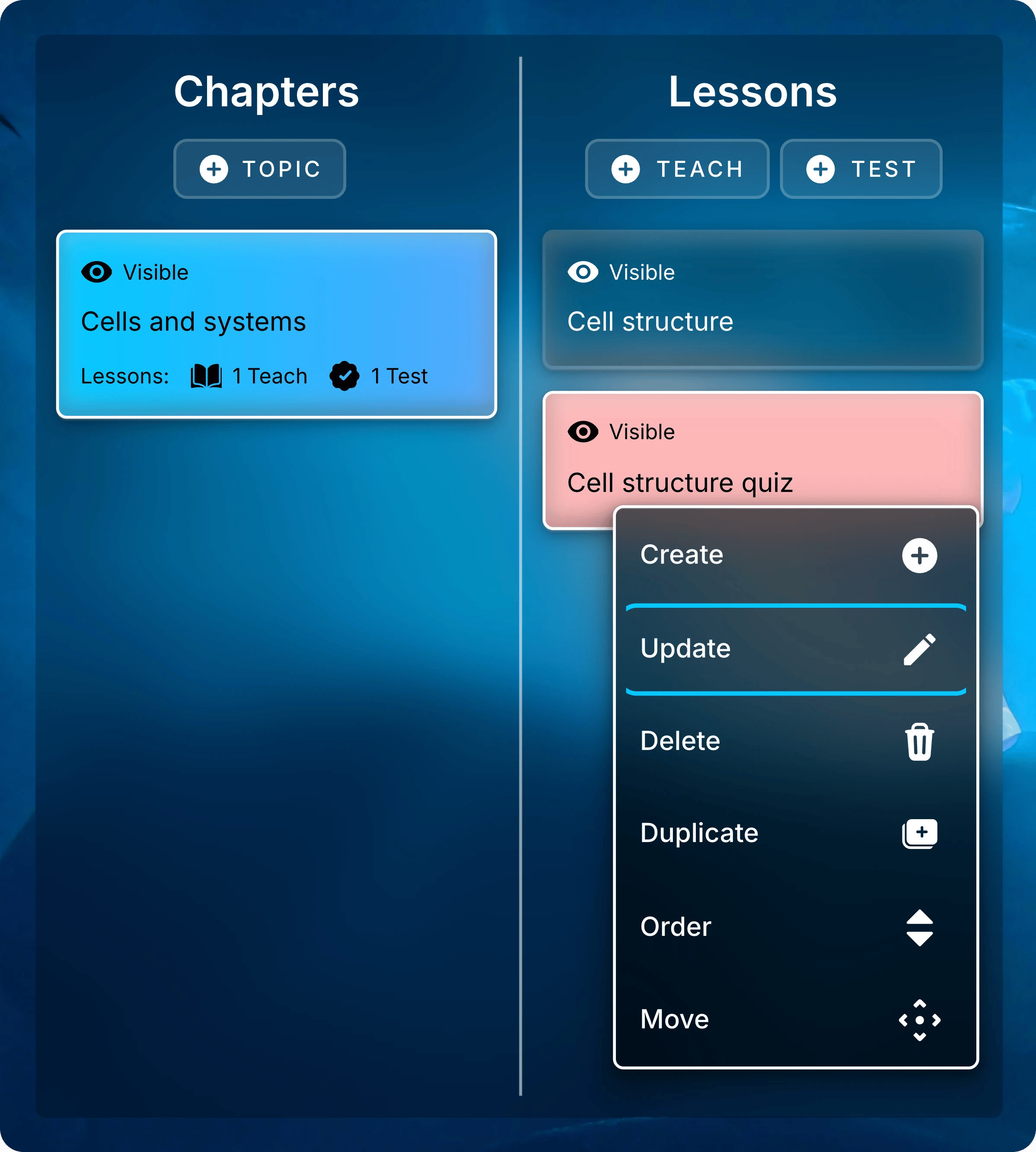
    In your course, right-click the assessment in its chapter and select **Update**. On a touch screen, press and hold it instead.
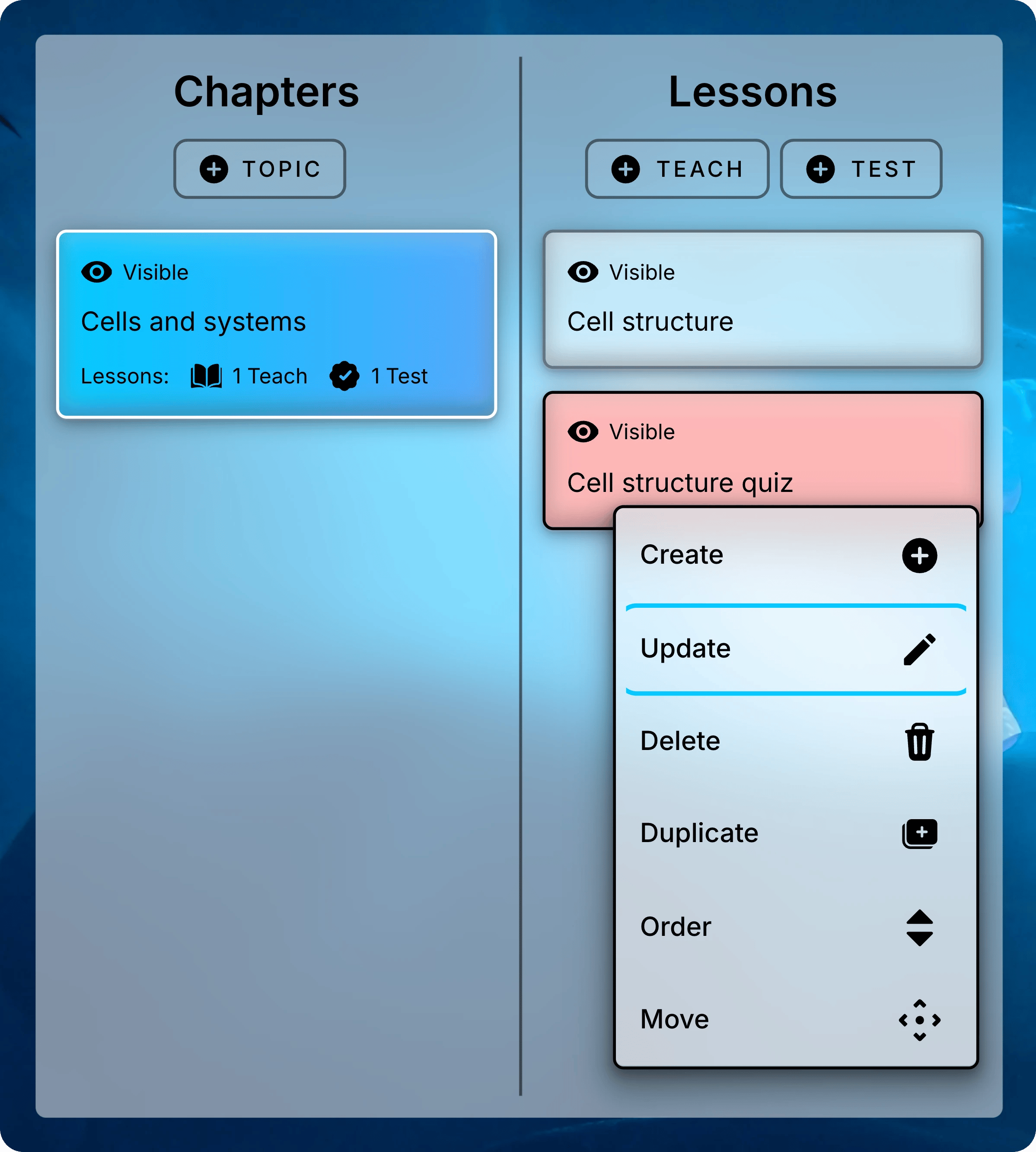
    <img className="mx-auto block dark:hidden" style={{ maxWidth: "420px" }} src="https://mintcdn.com/uflo/hwxr2KAmPLoQSIpW/images/illustrations/screenshot/assessment-update-menu/light.webp?fit=max&auto=format&n=hwxr2KAmPLoQSIpW&q=85&s=3d11c843438b09e1232657d8755b035e" alt="Lessons list for Cells and systems with the menu open on Cell structure quiz and Update highlighted." width="2397" height="2665" data-path="images/illustrations/screenshot/assessment-update-menu/light.webp" />

    <img className="mx-auto hidden dark:block" style={{ maxWidth: "420px" }} src="https://mintcdn.com/uflo/hwxr2KAmPLoQSIpW/images/illustrations/screenshot/assessment-update-menu/dark.webp?fit=max&auto=format&n=hwxr2KAmPLoQSIpW&q=85&s=db29d321a93493984b37da979ad2a630" alt="Lessons list for Cells and systems with the menu open on Cell structure quiz and Update highlighted." width="2397" height="2665" data-path="images/illustrations/screenshot/assessment-update-menu/dark.webp" />

    <p className="text-center text-sm text-gray-600 dark:text-gray-400">Right-click the assessment and select Update.</p>
  </Step>

  <Step title="Change the Settings and Submit">
    Scroll to the settings you want to change. Select **Submit** at the bottom of the form to save them.
  </Step>
</Steps>

Changes take effect right away, including for attempts in progress. A new due date or time limit applies to open attempts, and a new grading policy recalculates every final grade.

## Due Date, Attempts, and Time Limit

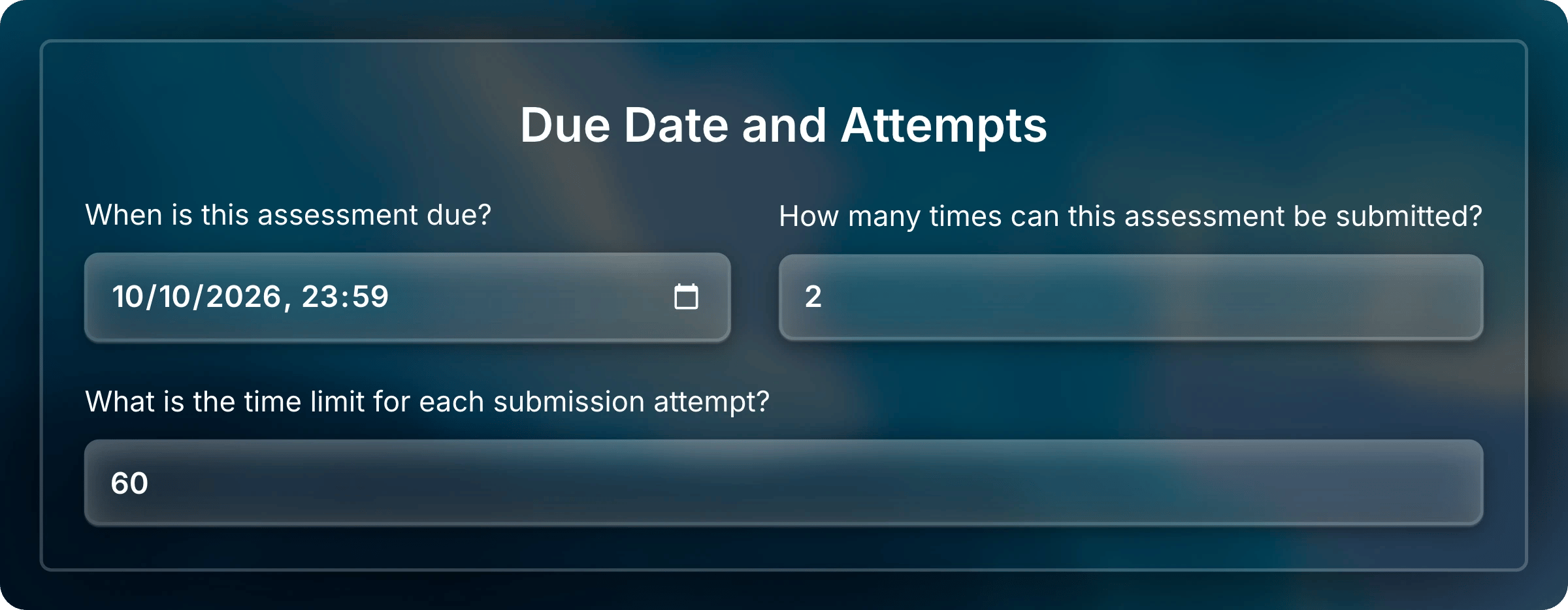
These three settings under **Due Date and Attempts** control when students can work and for how long.

| Setting    | What it does                                                                       |
| ---------- | ---------------------------------------------------------------------------------- |
| Due date   | Last moment to start an attempt or change a response. Leave blank for no due date. |
| Attempts   | How many attempts a student can start. 0 means unlimited.                          |
| Time limit | Minutes per attempt. 0 means no limit.                                             |
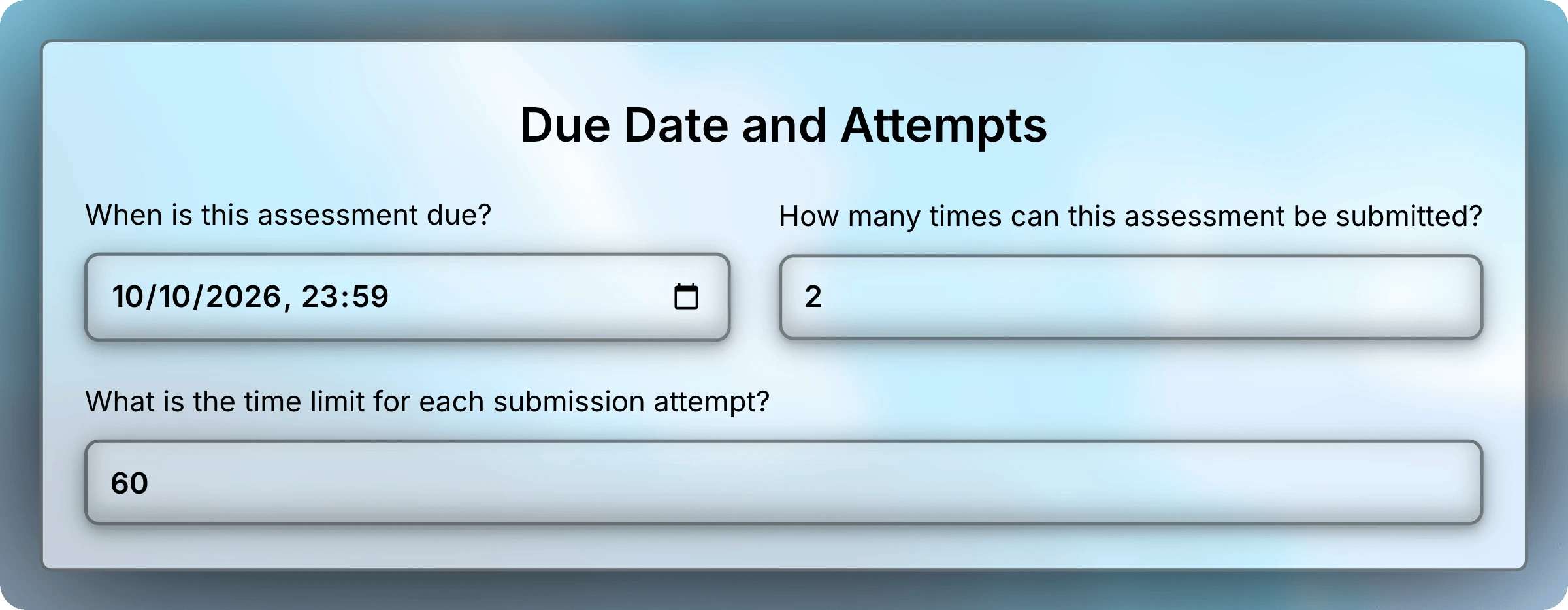
<img className="block dark:hidden" src="https://mintcdn.com/uflo/hwxr2KAmPLoQSIpW/images/illustrations/screenshot/assessment-attempts/light.webp?fit=max&auto=format&n=hwxr2KAmPLoQSIpW&q=85&s=c3095c3c357ad0da848b2abc1ca80327" alt="Due Date and Attempts section with the due date October 10, 2026 at 23:59, 2 attempts, and a 60-minute time limit." width="2400" height="934" data-path="images/illustrations/screenshot/assessment-attempts/light.webp" />

<img className="hidden dark:block" src="https://mintcdn.com/uflo/hwxr2KAmPLoQSIpW/images/illustrations/screenshot/assessment-attempts/dark.webp?fit=max&auto=format&n=hwxr2KAmPLoQSIpW&q=85&s=9c88e1a711b9fae458e7eb0296df7504" alt="Due Date and Attempts section with the due date October 10, 2026 at 23:59, 2 attempts, and a 60-minute time limit." width="2400" height="934" data-path="images/illustrations/screenshot/assessment-attempts/dark.webp" />

<p className="text-center text-sm text-gray-600 dark:text-gray-400">Students get two 60-minute attempts before October 10.</p>

Students must submit an attempt before they can start another.

### When an Attempt Ends

An attempt ends at the time limit or the due date, whichever comes first. A student who starts close to the due date gets less time.
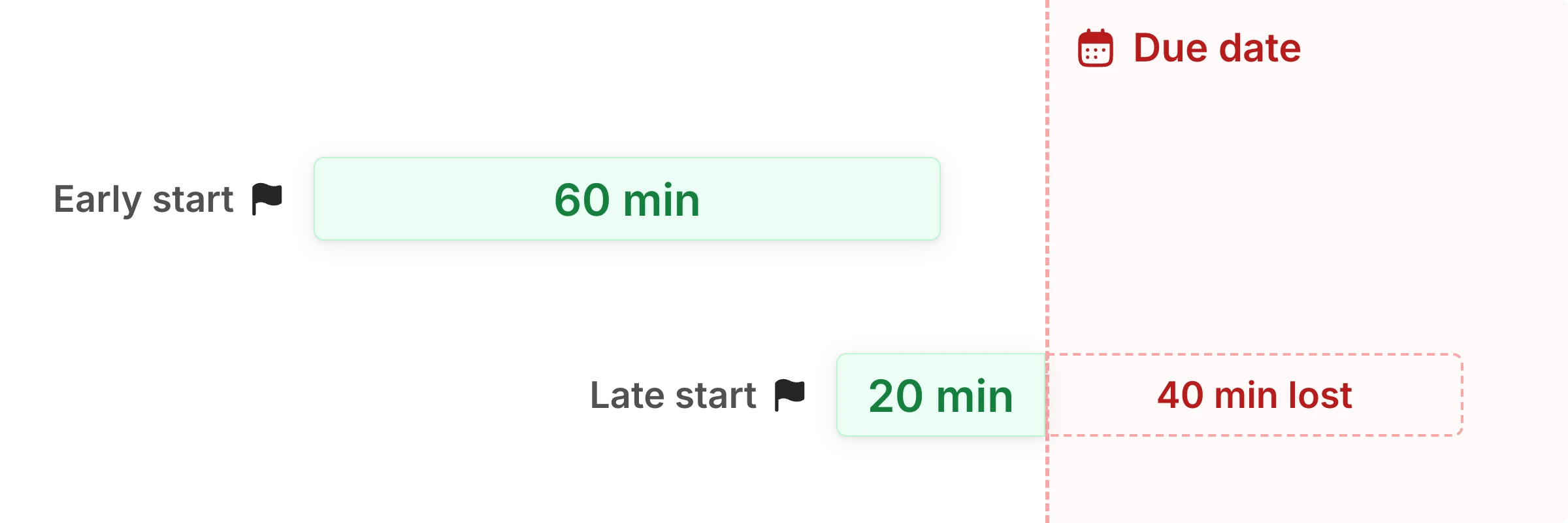
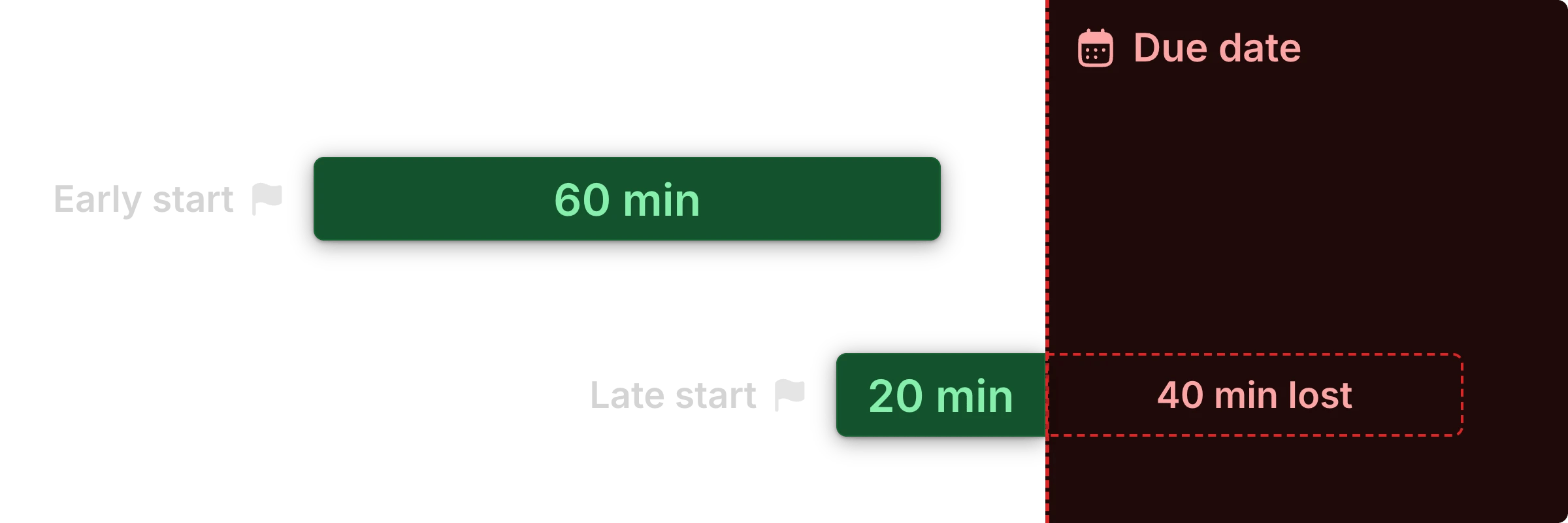
<img className="block dark:hidden" src="https://mintcdn.com/uflo/wB53unETNgAtcaok/images/illustrations/conceptual/attempt-time-window/light.webp?fit=max&auto=format&n=wB53unETNgAtcaok&q=85&s=3b70c0c1cebf22e05b7e2a6d8734a634" alt="An early start allows the full 60 minutes before the due date. A late start allows 20 minutes, with the remaining 40 minutes lost after the due date." width="2400" height="800" data-path="images/illustrations/conceptual/attempt-time-window/light.webp" />

<img className="hidden dark:block" src="https://mintcdn.com/uflo/wB53unETNgAtcaok/images/illustrations/conceptual/attempt-time-window/dark.webp?fit=max&auto=format&n=wB53unETNgAtcaok&q=85&s=15c565dcdc33ae2338c44e04994479f6" alt="An early start allows the full 60 minutes before the due date. A late start allows 20 minutes, with the remaining 40 minutes lost after the due date." width="2400" height="800" data-path="images/illustrations/conceptual/attempt-time-window/dark.webp" />

<p className="text-center text-sm text-gray-600 dark:text-gray-400">With a 60-minute limit, starting 20 minutes before the due date leaves 20 minutes to answer.</p>

What happens next depends on the time limit:

* **With a time limit**, Uflo submits the attempt with the responses saved so far. If the student has left the assessment, this happens when they next open it.
* **Without a time limit**, responses lock at the due date, but the attempt stays open. The student still needs to select **Submit Entire Assignment**.

### Due Date and Lesson Dates

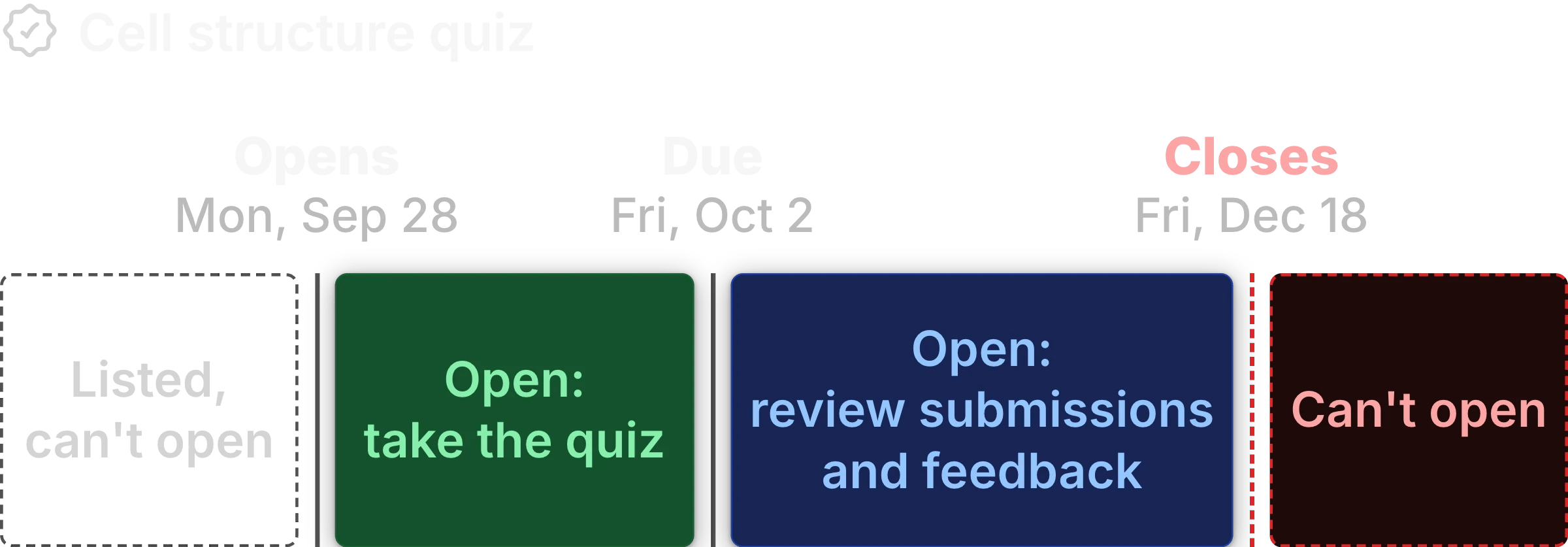
The due date is separate from the assessment's lesson dates, which decide when students can open it.
[Manage Lessons](/instructors/courses/manage-lessons#control-what-students-see) covers lesson dates.
After the due date, students can still open the assessment to review it, until its second lesson date.
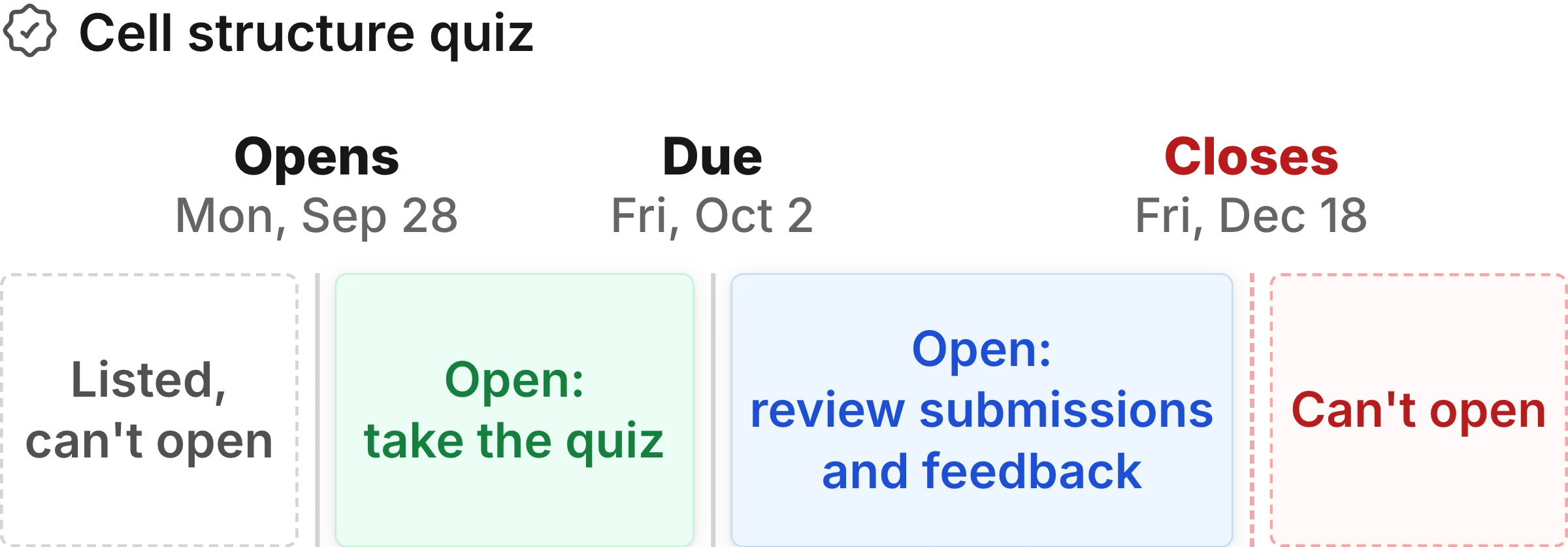
<img className="block dark:hidden" src="https://mintcdn.com/uflo/VQy9pgOmYta557zz/images/illustrations/instructors-plan-lesson-release-timeline/light.webp?fit=max&auto=format&n=VQy9pgOmYta557zz&q=85&s=49858273d7a96f7ebca96f26703b6310" alt="Timeline for Cell structure quiz. Before September 28 it is listed but closed. It opens for attempts until the October 2 due date, stays open for review until December 18, then can't be opened." width="2400" height="837" data-path="images/illustrations/instructors-plan-lesson-release-timeline/light.webp" />

<img className="hidden dark:block" src="https://mintcdn.com/uflo/VQy9pgOmYta557zz/images/illustrations/instructors-plan-lesson-release-timeline/dark.webp?fit=max&auto=format&n=VQy9pgOmYta557zz&q=85&s=4262fcbe33bc540f7ea83d3cc36dac5c" alt="Timeline for Cell structure quiz. Before September 28 it is listed but closed. It opens for attempts until the October 2 due date, stays open for review until December 18, then can't be opened." width="2400" height="837" data-path="images/illustrations/instructors-plan-lesson-release-timeline/dark.webp" />

<p className="text-center text-sm text-gray-600 dark:text-gray-400">Students can review a quiz after its due date until the lesson closes.</p>

<Warning>
  After the second lesson date, students can't reach their submissions or feedback.
  Leave that date blank if students should review results for the rest of the term.
</Warning>

For a paper exam or an LMS assessment, keep it hidden while you grade and set a due date that has passed.
Otherwise, students with attempts left can start it in Uflo.

## Exceptions for Specific Students

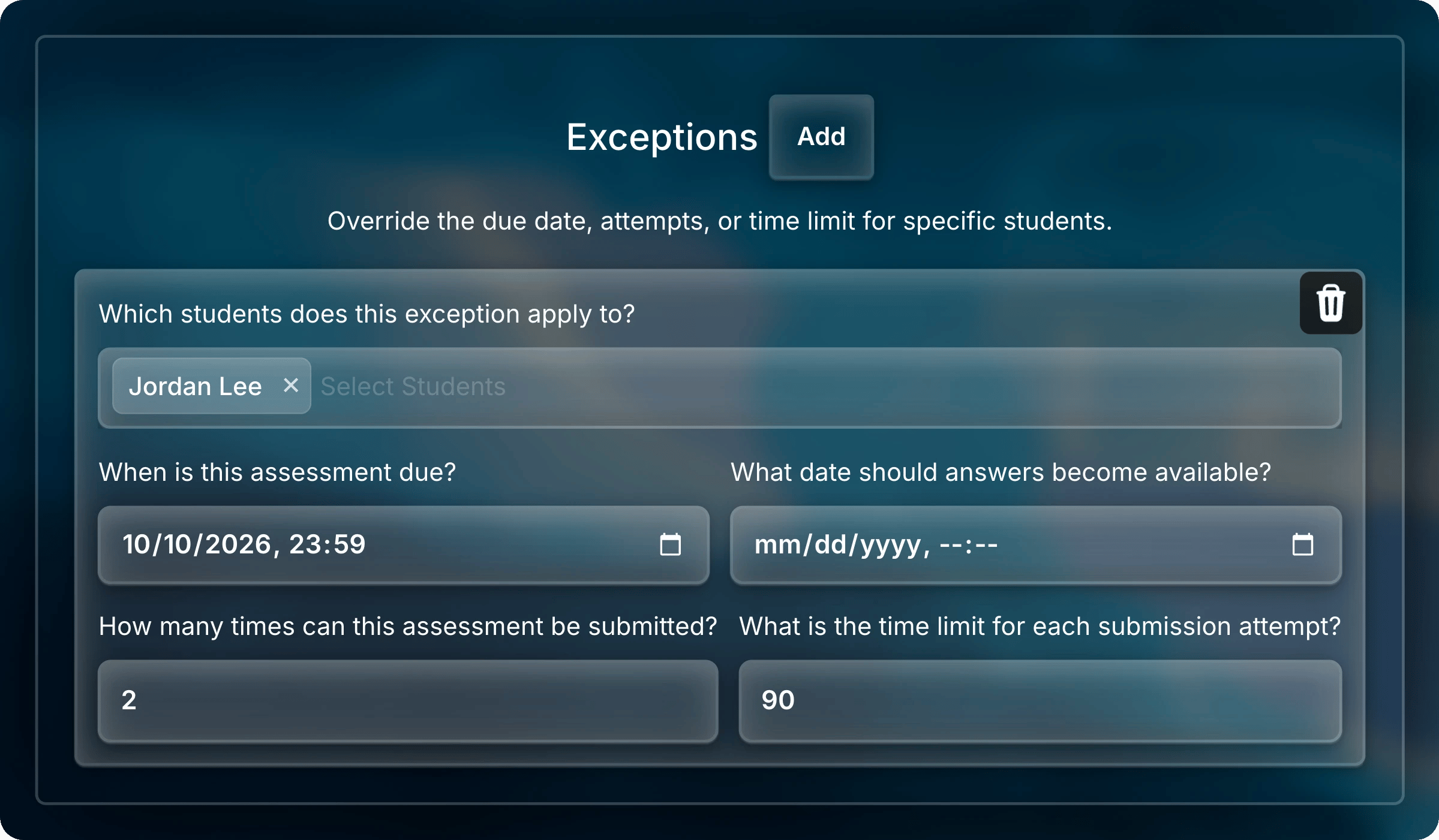
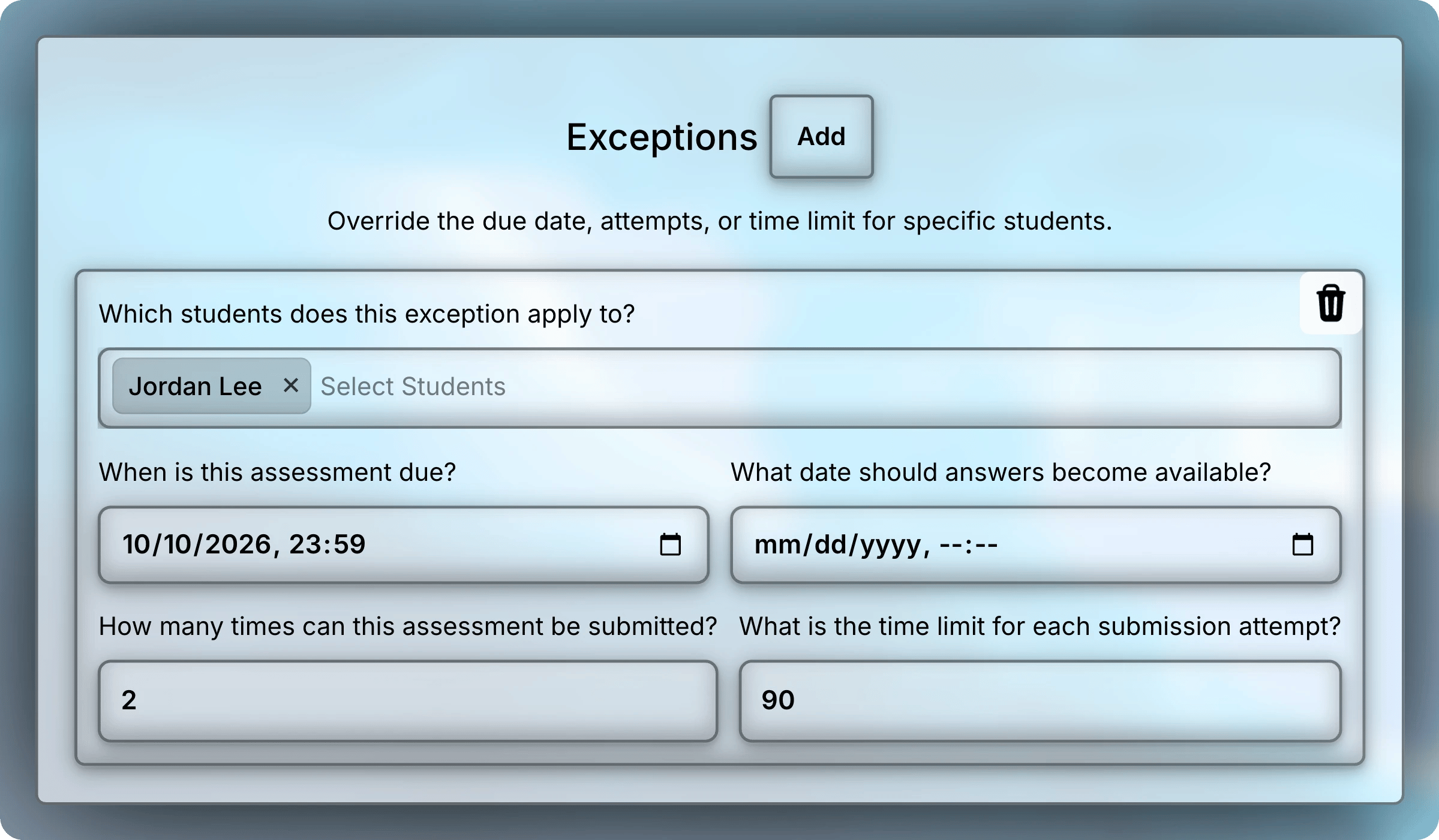
An exception gives chosen students their own due date, attempts, and time limit. Use it for an extension, extra time, or a make-up attempt.

<Steps>
  <Step title="Add an Exception">
    Under **Exceptions**, select **Add**.
  </Step>

  <Step title="Choose the Students">
    Select one or more students under **Which students does this exception apply to?**
  </Step>

  <Step title="Set Their Values">
    Enter the due date, attempts, and time limit these students should have.

    <Warning>
      Fill in every field, even ones you keep the same. A blank field doesn't fall back to the assessment's value. A blank time limit, for example, removes the limit.
    </Warning>

    <img className="block dark:hidden" src="https://mintcdn.com/uflo/hwxr2KAmPLoQSIpW/images/illustrations/screenshot/assessment-exceptions/light.webp?fit=max&auto=format&n=hwxr2KAmPLoQSIpW&q=85&s=b36565895c755c8e491250a2242664d0" alt="Exceptions section with one exception for Jordan Lee, due October 10, 2026 at 23:59, 2 attempts, and a 90-minute time limit." width="2399" height="1401" data-path="images/illustrations/screenshot/assessment-exceptions/light.webp" />

    <img className="hidden dark:block" src="https://mintcdn.com/uflo/hwxr2KAmPLoQSIpW/images/illustrations/screenshot/assessment-exceptions/dark.webp?fit=max&auto=format&n=hwxr2KAmPLoQSIpW&q=85&s=5b7a8b0a53b6010c8c8c44d49f4e2aa8" alt="Exceptions section with one exception for Jordan Lee, due October 10, 2026 at 23:59, 2 attempts, and a 90-minute time limit." width="2399" height="1401" data-path="images/illustrations/screenshot/assessment-exceptions/dark.webp" />

    <p className="text-center text-sm text-gray-600 dark:text-gray-400">Jordan Lee gets 90 minutes per attempt. The due date and attempts match the assessment.</p>
  </Step>
</Steps>

An exception can also set **What date should answers become available?** That date applies only when answers are shown after a date.

## Proctoring

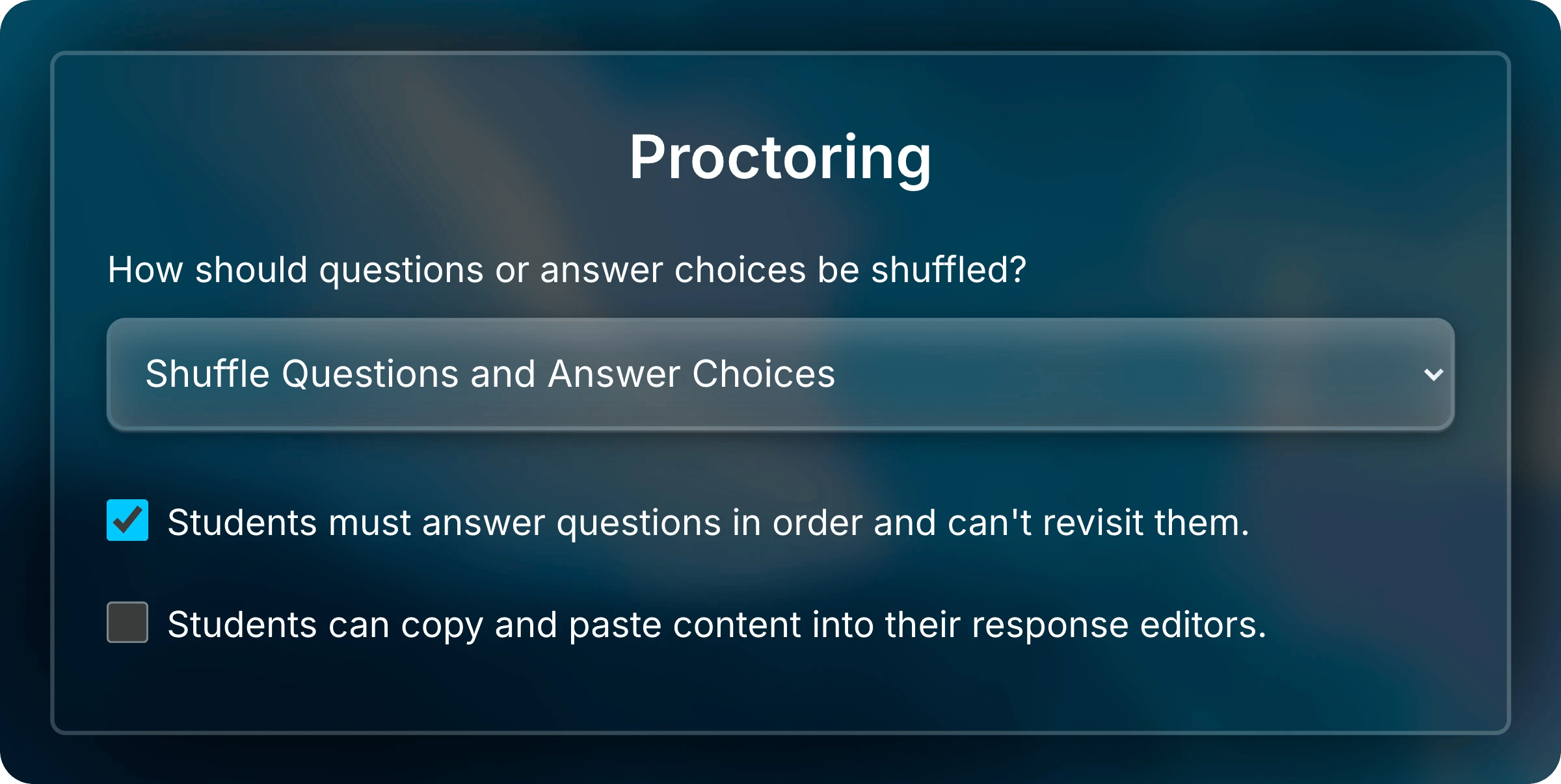
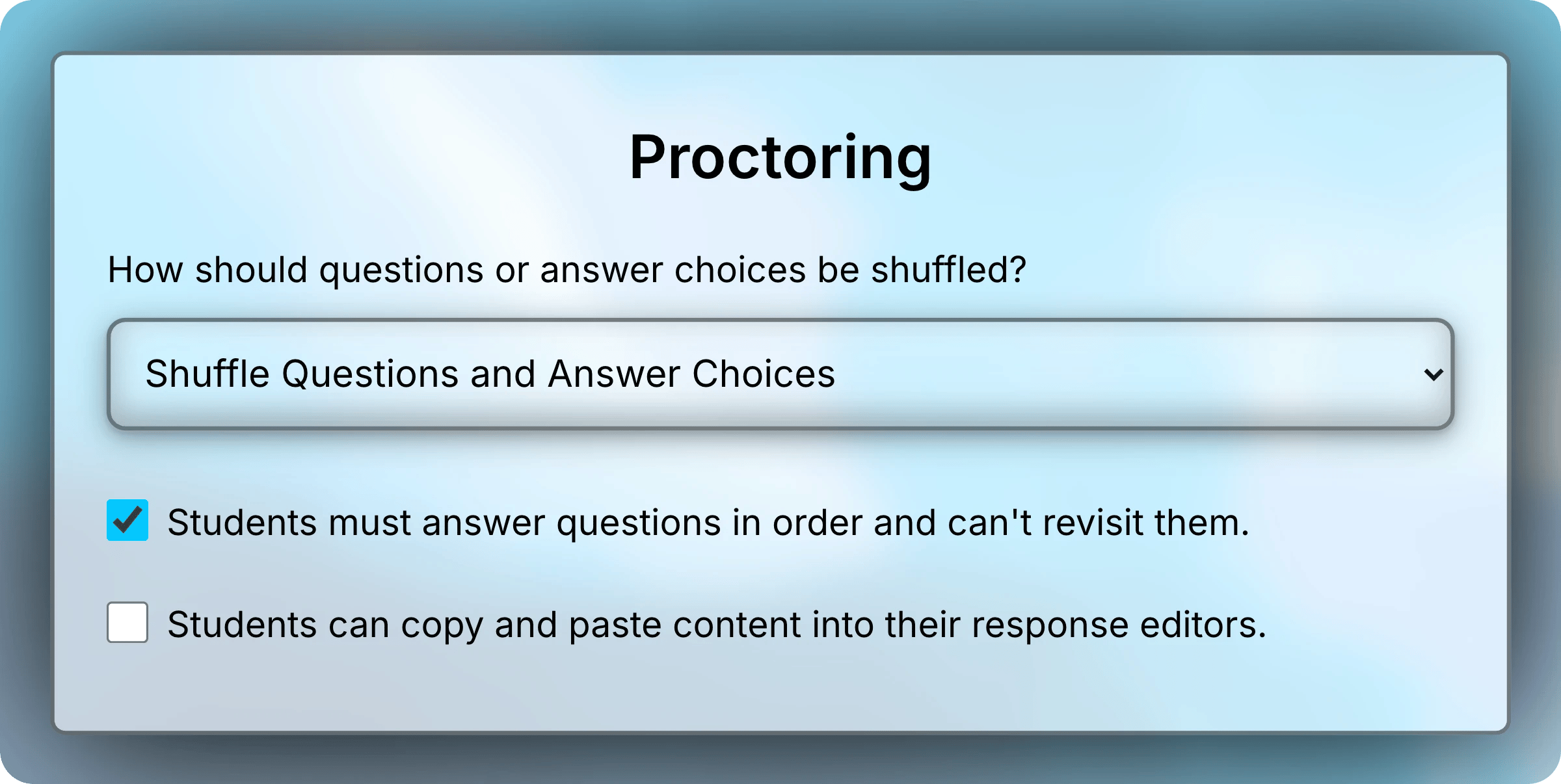
The **Proctoring** settings make it harder for students to share or look up answers.

| Setting         | What it does                                                                                |
| --------------- | ------------------------------------------------------------------------------------------- |
| Shuffle         | Gives each attempt its own order of questions, answer choices, or both.                     |
| Answer in order | Students must answer each question before moving on, and can't go back.                     |
| Copy and paste  | On by default. Turn it off to block copying from the assessment and pasting into responses. |
<img className="block dark:hidden" src="https://mintcdn.com/uflo/hwxr2KAmPLoQSIpW/images/illustrations/screenshot/assessment-proctoring/light.webp?fit=max&auto=format&n=hwxr2KAmPLoQSIpW&q=85&s=4db5b0f1728465a609731c65a8bbbb96" alt="Proctoring section with Shuffle Questions and Answer Choices selected, answering in order turned on, and copy and paste turned off." width="2400" height="1206" data-path="images/illustrations/screenshot/assessment-proctoring/light.webp" />

<img className="hidden dark:block" src="https://mintcdn.com/uflo/hwxr2KAmPLoQSIpW/images/illustrations/screenshot/assessment-proctoring/dark.webp?fit=max&auto=format&n=hwxr2KAmPLoQSIpW&q=85&s=05c68458b8b7ec7cffb7284ebb706543" alt="Proctoring section with Shuffle Questions and Answer Choices selected, answering in order turned on, and copy and paste turned off." width="2400" height="1206" data-path="images/illustrations/screenshot/assessment-proctoring/dark.webp" />

<p className="text-center text-sm text-gray-600 dark:text-gray-400">Each attempt gets its own order, and students can't go back or paste.</p>

Shuffling keeps grouped questions together, such as questions that share a passage. Their order within the group can still change. Choice shuffling applies to choice questions.

When students must answer in order, they can't skip a question. Uflo also asks them to confirm before each move forward. Tell students about this rule before they start.

## Tutoring

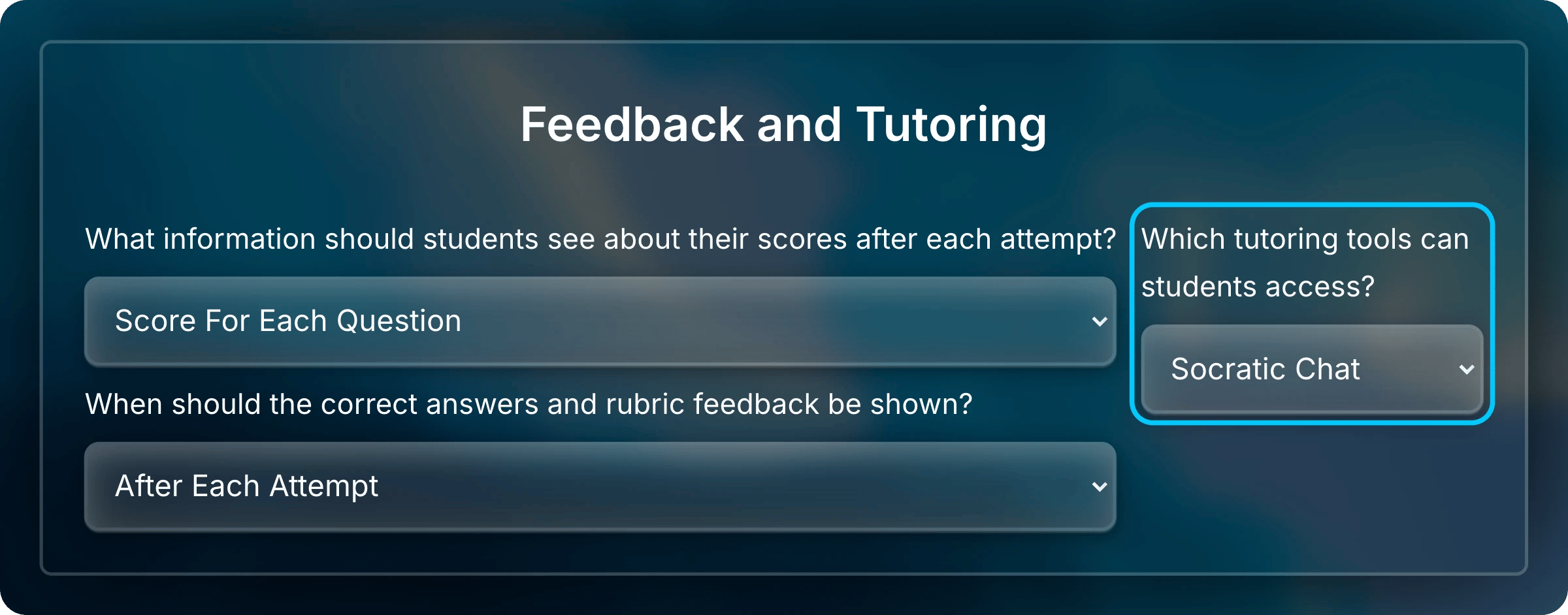
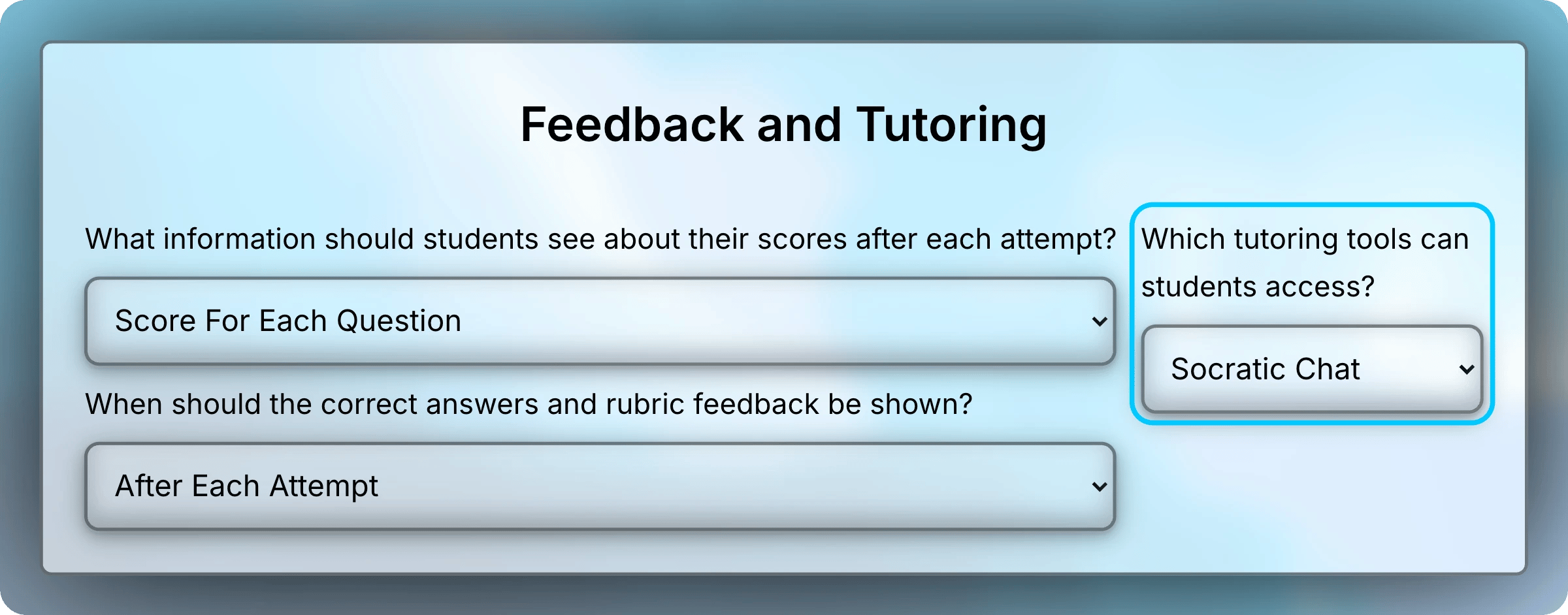
The [Socratic Tutor](/students/assessments/using-the-socratic-tutor) helps students with questions and hints and doesn't give away the answer. Under **Feedback and Tutoring**, **Which tutoring tools can students access?** decides whether students can use it and when they see a worked solution.

| Option                    | What students get                                                               |
| ------------------------- | ------------------------------------------------------------------------------- |
| **Socratic Chat**         | The Socratic Tutor. Worked solutions appear only when you show correct answers. |
| **Step By Step Solution** | The Socratic Tutor, plus each question's worked solution after they submit.     |
| **No Tutoring**           | No tutor and no worked solutions.                                               |
<img className="block dark:hidden" src="https://mintcdn.com/uflo/hwxr2KAmPLoQSIpW/images/illustrations/screenshot/assessment-tutoring/light.webp?fit=max&auto=format&n=hwxr2KAmPLoQSIpW&q=85&s=6a9479c75ab03d5a028032d601b6335b" alt="Feedback and Tutoring section with Which tutoring tools can students access set to Socratic Chat and highlighted." width="2400" height="942" data-path="images/illustrations/screenshot/assessment-tutoring/light.webp" />

<img className="hidden dark:block" src="https://mintcdn.com/uflo/hwxr2KAmPLoQSIpW/images/illustrations/screenshot/assessment-tutoring/dark.webp?fit=max&auto=format&n=hwxr2KAmPLoQSIpW&q=85&s=2e350403310c1996d4689a77dda2f3b3" alt="Feedback and Tutoring section with Which tutoring tools can students access set to Socratic Chat and highlighted." width="2400" height="942" data-path="images/illustrations/screenshot/assessment-tutoring/dark.webp" />

<p className="text-center text-sm text-gray-600 dark:text-gray-400">The tutoring setting sits beside the score and answer settings.</p>

No option shows a worked solution during an attempt. Students see one only for questions that have it.

## Final Grade Calculation

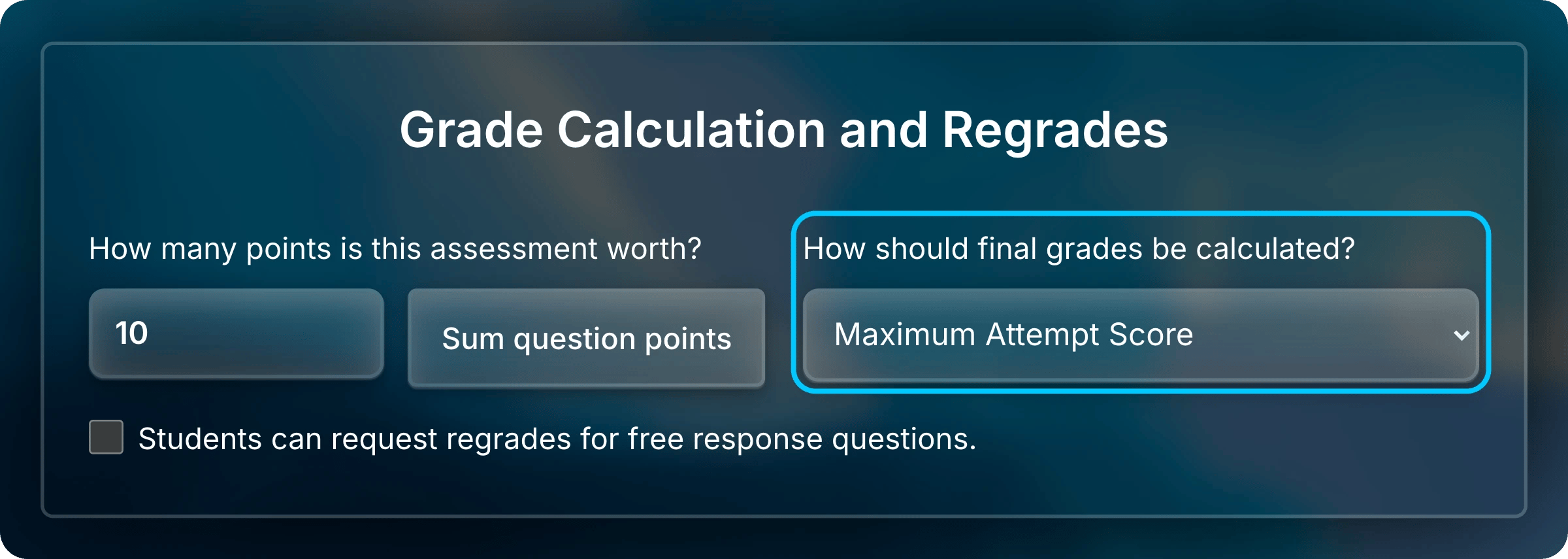
When students can submit more than once, **How should final grades be calculated?** decides which attempts count.

| Option                         | Final grade                           | Good for                                                 |
| ------------------------------ | ------------------------------------- | -------------------------------------------------------- |
| **Maximum Attempt Score**      | The highest attempt score             | Practice where retrying carries no risk                  |
| **Average Attempt Scores**     | The mean of all attempt scores        | Rewarding steady work on every attempt                   |
| **Most Recent Score**          | The latest attempt's score            | Mastery, where the last attempt shows what students know |
| **Full Credit For Completion** | Full points for completing an attempt | Participation and practice                               |
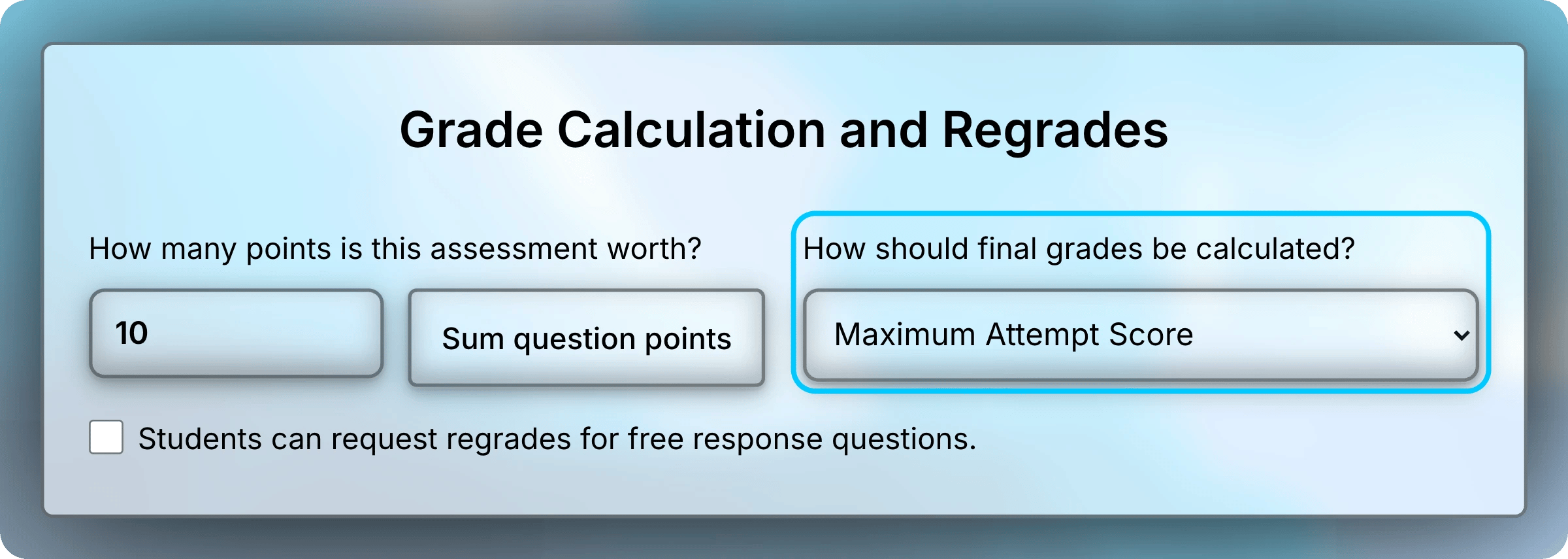
<img className="block dark:hidden" src="https://mintcdn.com/uflo/hwxr2KAmPLoQSIpW/images/illustrations/screenshot/assessment-grade-calculation/light.webp?fit=max&auto=format&n=hwxr2KAmPLoQSIpW&q=85&s=de7ffe4b5116c6665ffc5a3b082e8053" alt="Grade Calculation and Regrades section with 10 points and How should final grades be calculated set to Maximum Attempt Score and highlighted." width="2400" height="855" data-path="images/illustrations/screenshot/assessment-grade-calculation/light.webp" />

<img className="hidden dark:block" src="https://mintcdn.com/uflo/hwxr2KAmPLoQSIpW/images/illustrations/screenshot/assessment-grade-calculation/dark.webp?fit=max&auto=format&n=hwxr2KAmPLoQSIpW&q=85&s=62e0ca5c4f980e3e42c6a142636b6dd3" alt="Grade Calculation and Regrades section with 10 points and How should final grades be calculated set to Maximum Attempt Score and highlighted." width="2400" height="855" data-path="images/illustrations/screenshot/assessment-grade-calculation/dark.webp" />

<p className="text-center text-sm text-gray-600 dark:text-gray-400">Choose how attempts combine into the final grade.</p>

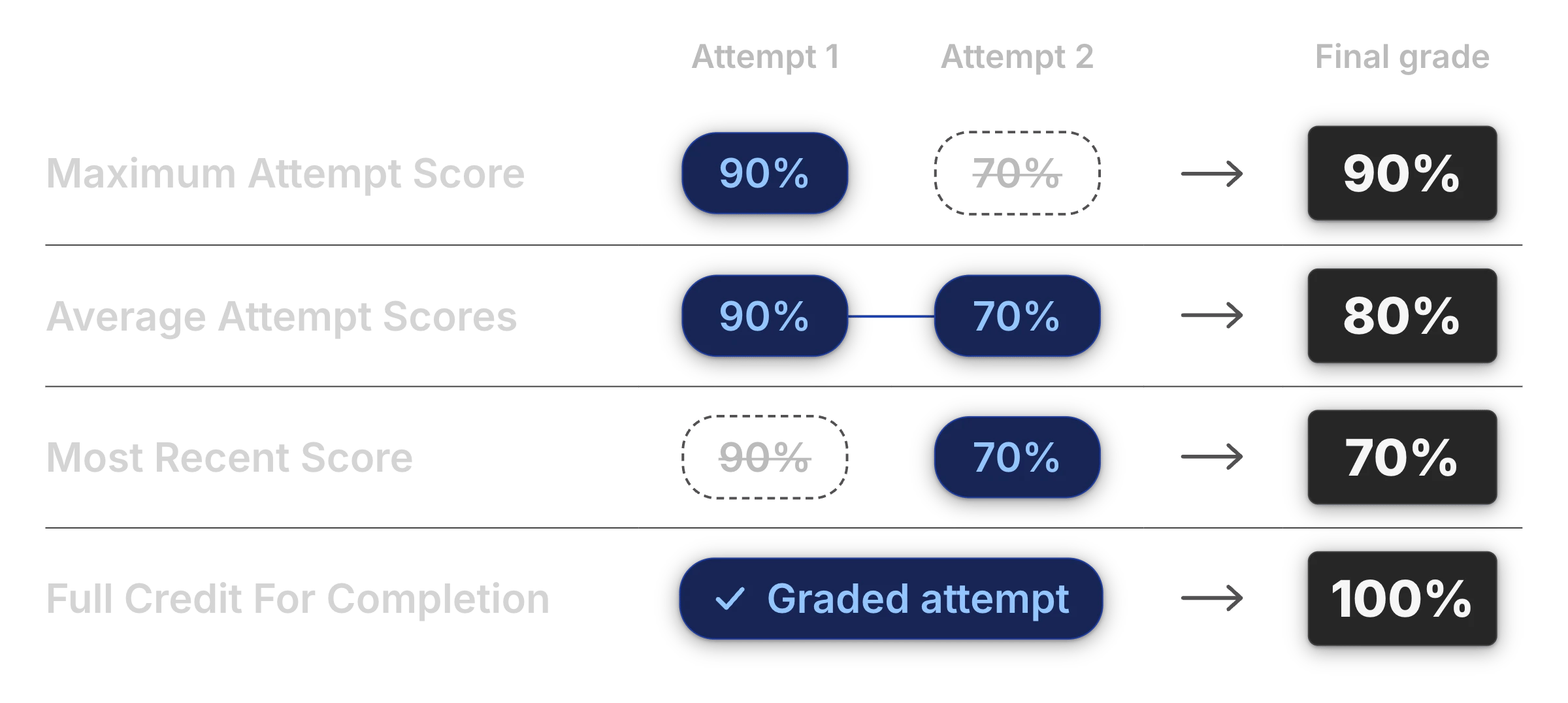
The same two attempts can lead to four different final grades.
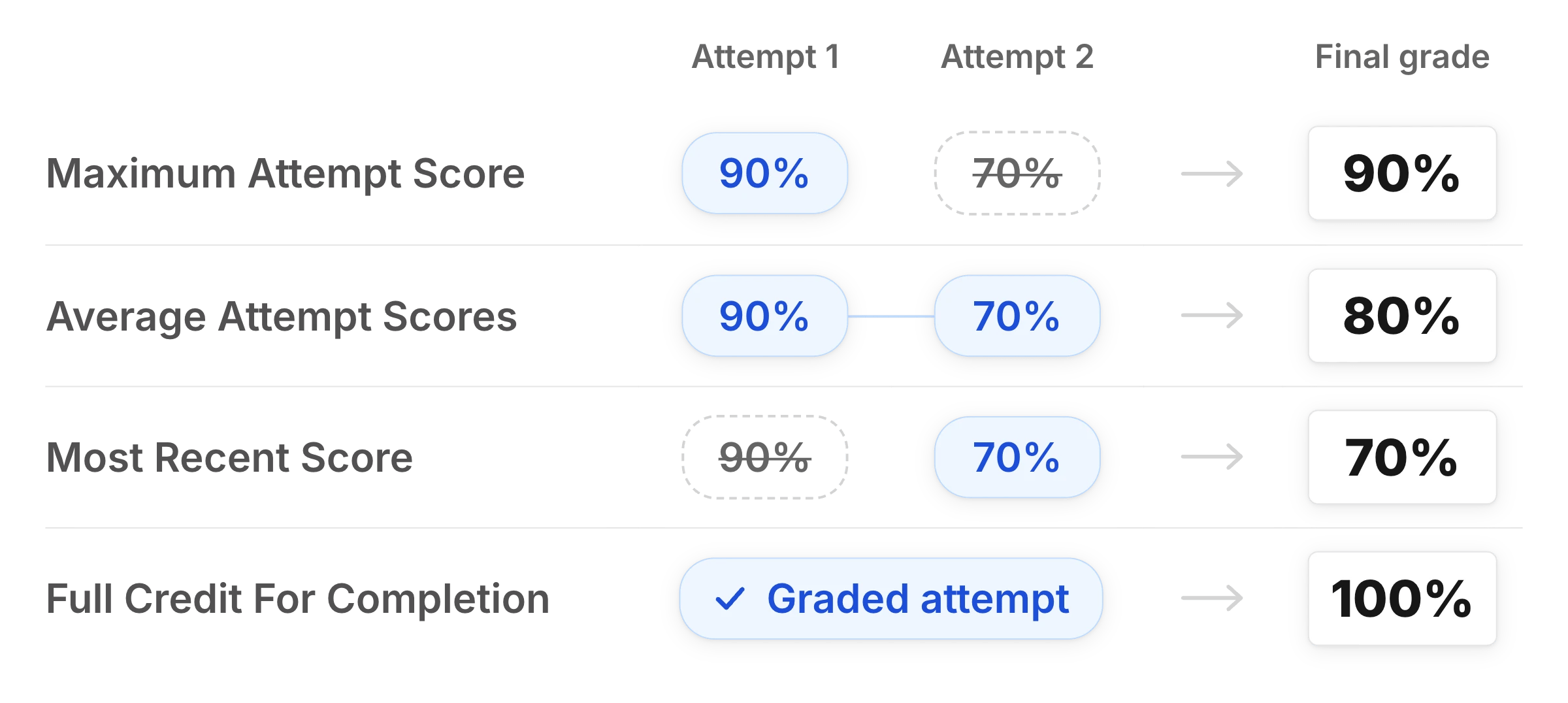
<img className="block dark:hidden" src="https://mintcdn.com/uflo/hwxr2KAmPLoQSIpW/images/illustrations/conceptual/final-grade-policies/light.webp?fit=max&auto=format&n=hwxr2KAmPLoQSIpW&q=85&s=661b25e6fdcc1b446465632d2518d34b" alt="Two attempts scored 90% and 70% lead to final grades of 90% for Maximum Attempt Score, 80% for Average Attempt Scores, 70% for Most Recent Score, and 100% for Full Credit For Completion." width="2400" height="1076" data-path="images/illustrations/conceptual/final-grade-policies/light.webp" />

<img className="hidden dark:block" src="https://mintcdn.com/uflo/hwxr2KAmPLoQSIpW/images/illustrations/conceptual/final-grade-policies/dark.webp?fit=max&auto=format&n=hwxr2KAmPLoQSIpW&q=85&s=e8c1ef6431129a6237cf5c24f14f701f" alt="Two attempts scored 90% and 70% lead to final grades of 90% for Maximum Attempt Score, 80% for Average Attempt Scores, 70% for Most Recent Score, and 100% for Full Credit For Completion." width="2400" height="1076" data-path="images/illustrations/conceptual/final-grade-policies/dark.webp" />

<p className="text-center text-sm text-gray-600 dark:text-gray-400">Attempts of 90% and 70% give a final grade of 90%, 80%, 70%, or 100%, depending on the policy.</p>

<Warning>
  Students can't request regrades under **Average Attempt Scores** or **Full Credit For Completion**. To accept [regrade requests](/instructors/results/regrade-requests), choose another policy and turn on regrades in the same section.
</Warning>

## Common Questions

<AccordionGroup>
  <Accordion title="Do shuffle settings change attempts already in progress?">
    No. Uflo sets the order when a student starts an attempt. A new shuffle setting applies to attempts started after you submit it.
  </Accordion>

  <Accordion title="How do I give one student another attempt?">
    Add an exception for that student with one more attempt than the assessment allows. If the due date has passed, give them a later due date too.
  </Accordion>

  <Accordion title="Where do I choose which scores and answers students see?">
    Those settings are also under **Feedback and Tutoring**.
  </Accordion>
</AccordionGroup>